How to Set Up a Class Schedule in Notion (Teacher Planner Template)

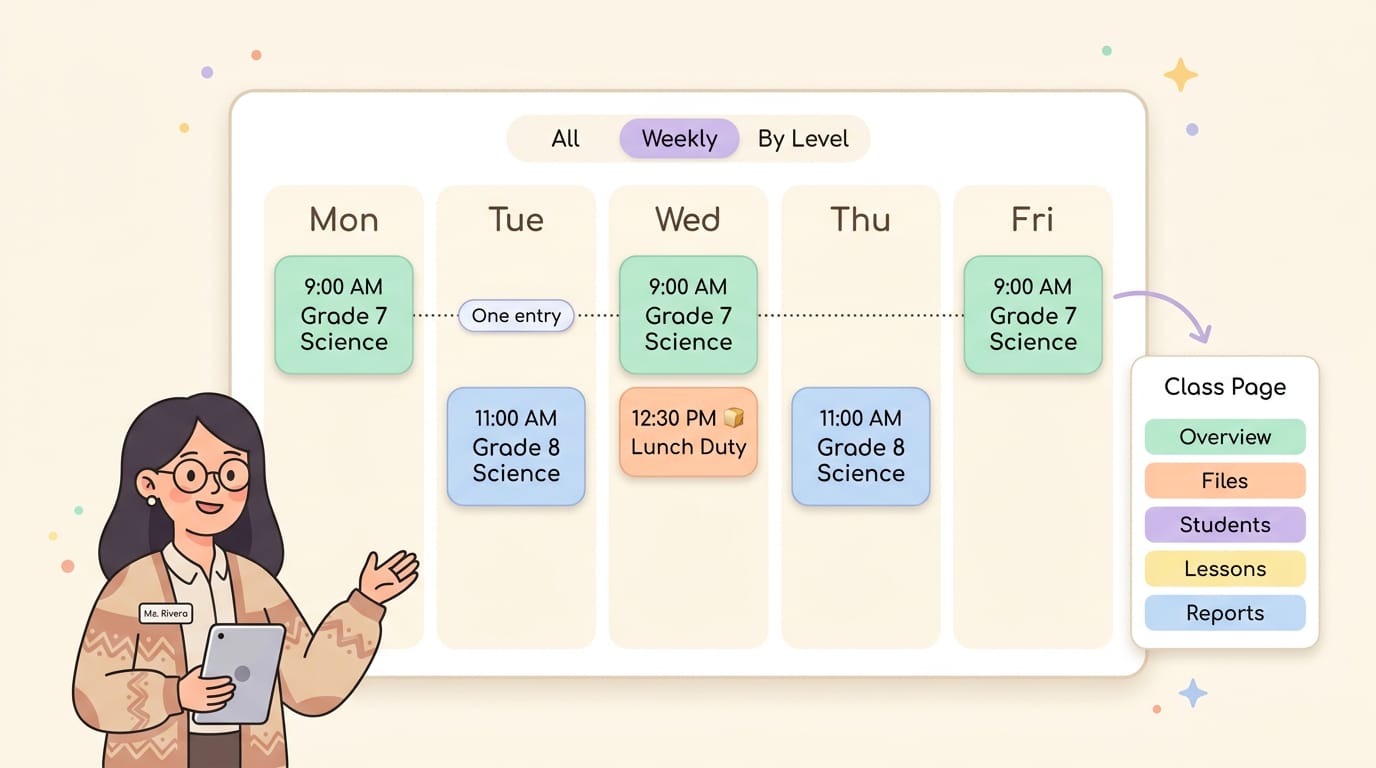
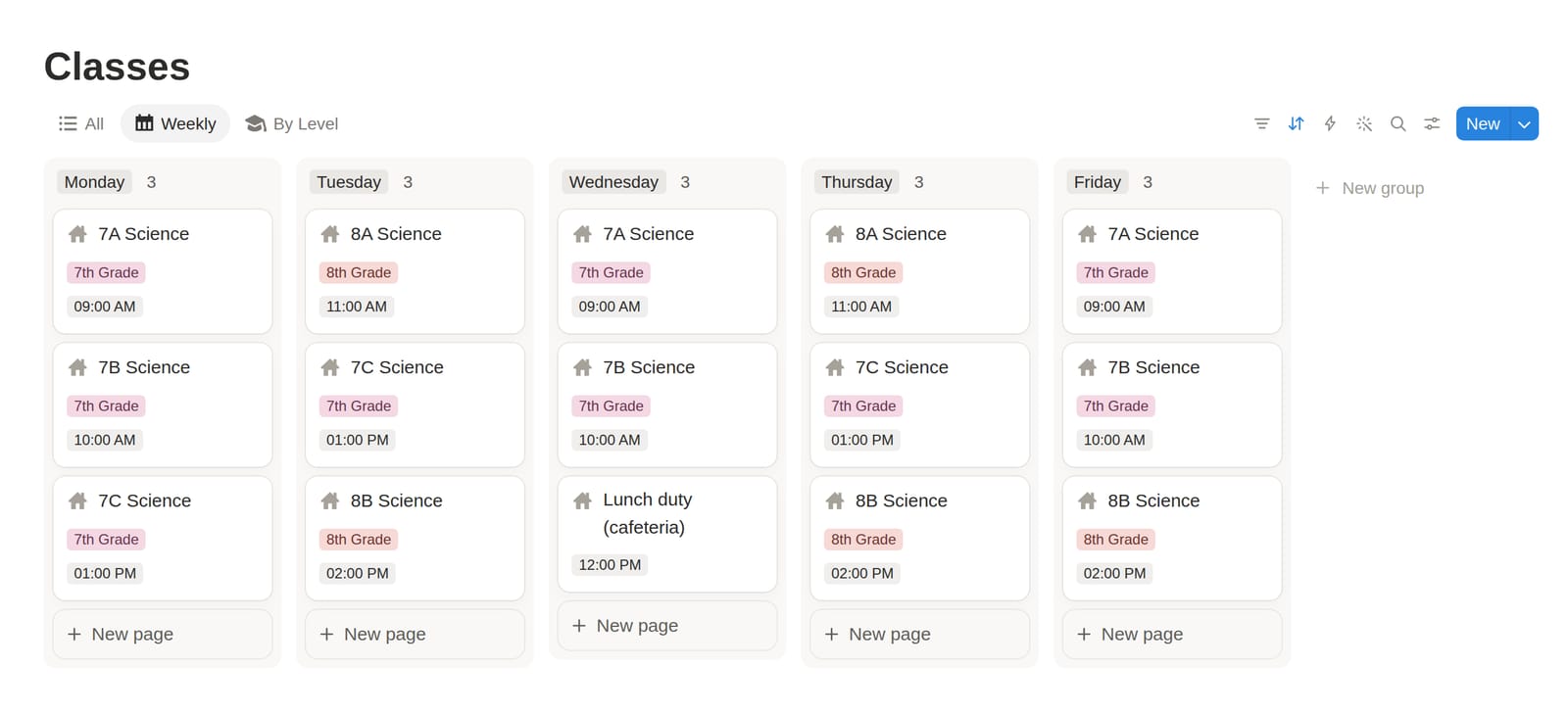
The class schedule in the Ultimate Teacher Planner is a weekly board: one column for each school day, Monday to Friday, and a card for every class with its grade and its time, earliest first. Setting it up takes one entry per class, not one per lesson: a name and three fields (Level, Time of Day and Day). Our example week of five classes and a lunch duty was six entries, and each class opens its own page where its lessons are linked.
Still grading everything by hand?
EMStudio is a free teaching management app — manage your classes, students, lessons, and more!
What the planner gives you
The schedule is the planner's Classes database, on the All Classes page. It has three tabs: All (a table), Weekly (the schedule) and By Level (the classes grouped by grade). The Weekly tab is grouped by day and sorted by Time of Day, so each column reads from the first class of the day to the last.
Every class has:
Level: a grade, from Pre-K to 12th Grade.
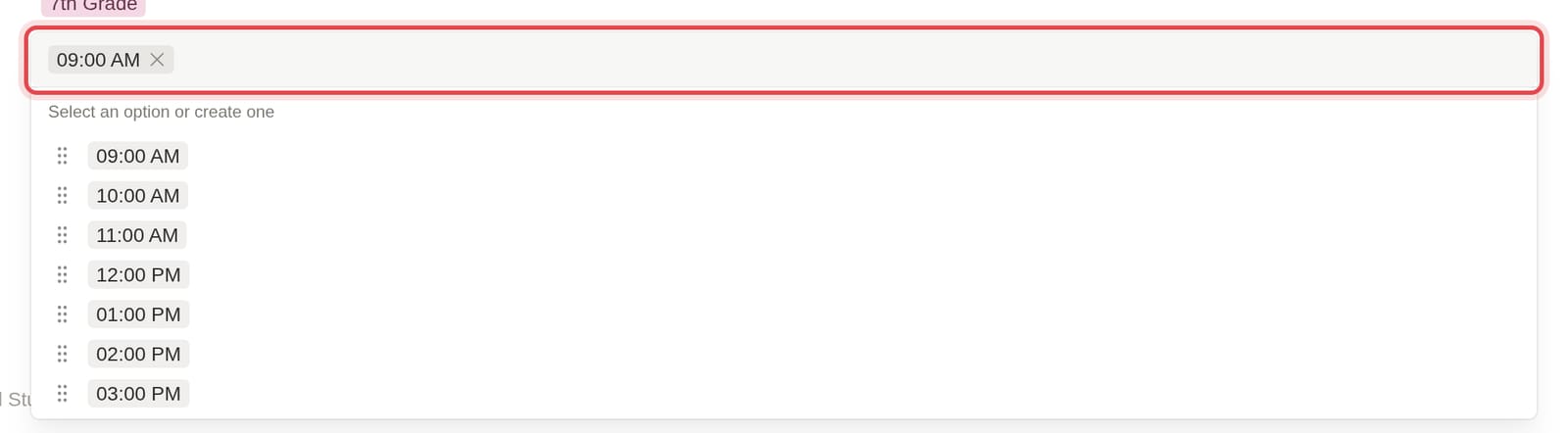
Time of Day: 09:00 AM to 03:00 PM, on the hour. You can add your own times (see Use your school's times, below).
Day: one or more days, Monday to Sunday. A class that meets three times a week is one entry with three days, and shows in three columns.
Links to Lessons, Students and Reports.
A class added from the schedule also gets its own page with an Overview, a Files & Resources box, a Students box with attendance tabs, a Lessons box and a Reports box. This is the week we built for a made-up teacher, Ms. Rivera, who teaches Grade 7 and Grade 8 Science:
Open the empty schedule
Open the planner's All Classes page. The Classes box on it has the tabs All, Weekly and By Level, and a Section Help button.
Press Weekly. On a new copy of the planner, it is five empty columns, Monday to Friday, each with a count of 0 and a New page button. (The pictures here show the Classes database opened as a full page, so the five days fit across.)
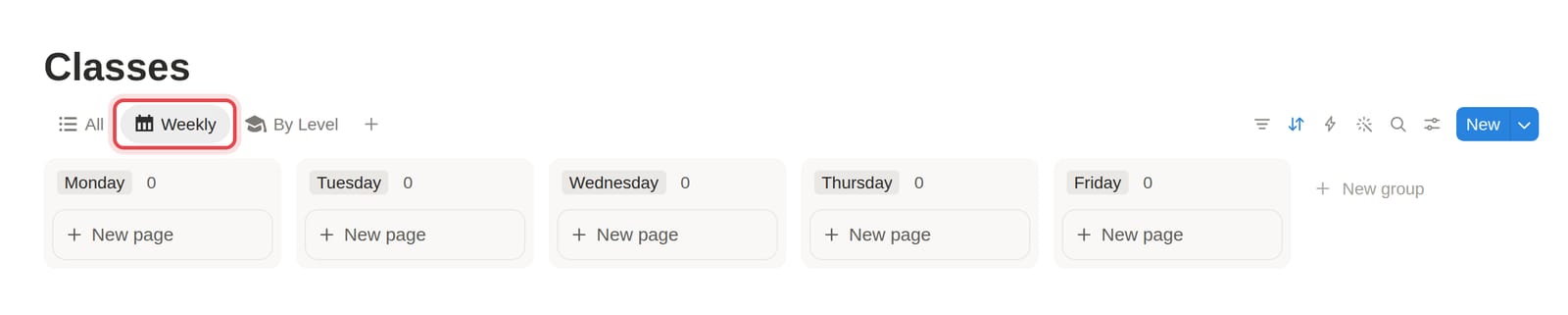
The planner comes with one sample class, "New Class". It is not on the Weekly tab because it has no day: you will find it under All, and under By Level in the "No Level" group.
Add a class
Add each class under the first day it meets. We started with 7A Science, which meets Monday, Wednesday and Friday at 9:00.
In the Monday column, press New page. A card appears called "New Class", with "Add Level" and "Add Time of Day" on it. Its Day is already set to Monday, because you added it in that column.
Press the diagonal arrow at the right of the card's name to open the class as a page. It opens with a grey cover, a house icon and the title "New Class", and below them the class's boxes: Home, Overview, Files & Resources and the rest. Wait until those boxes show before you type. On one of the classes we added, we started typing while grey loading bars still filled that part of the page, and the boxes never came: the page showed only Notion's line "Press 'enter' to continue with an empty page, or pick a template", and picking New Class there did not bring them back. We added that class again.
Click the title, select it and type the class's name: 7A Science.
Under Info, press Empty beside Level and choose the grade, 7th Grade.
Press Empty beside Time of Day and choose the time. The list runs from 09:00 AM to 03:00 PM and says "Select an option or create one" above the times.
Press Monday beside Day and choose the other days the class meets: Wednesday and Friday. Press Esc to close the list.

Back on the Weekly tab, 7A Science now shows in the Monday, Wednesday and Friday columns. It is still one page: you do not add it three times.
Link the class to its lessons
A class page in the planner can hold its lessons, so the schedule leads straight to what you are teaching.
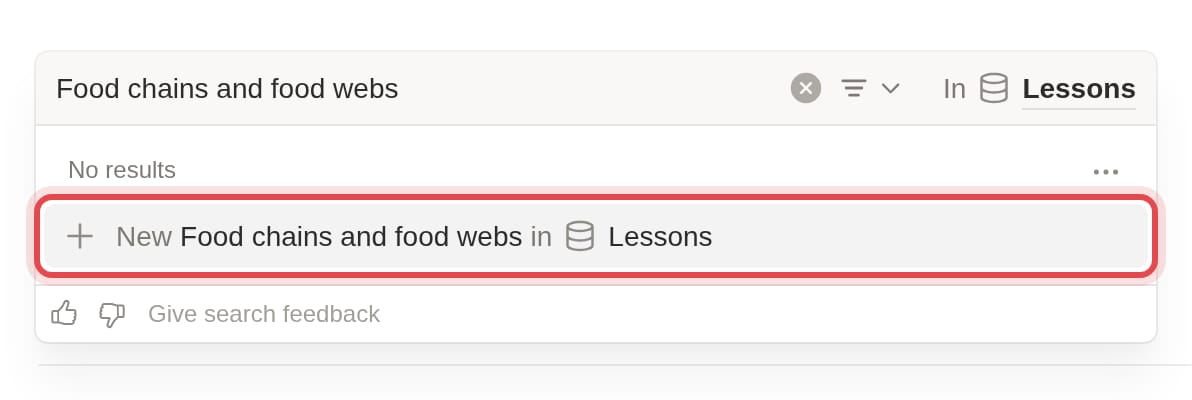
On the class page, under Relations, press Add Lessons. A box opens with "Link or create a page…" at the top, searching the planner's Lessons database. On our new copy, the only lesson in it was the sample "New Lesson".
Type the lesson's name. For a lesson that does not exist yet, press the line that starts with New: ours read "New Food chains and food webs in Lessons".
The lesson is created and linked. Press Esc. Under Relations the class now says 1 Lessons.
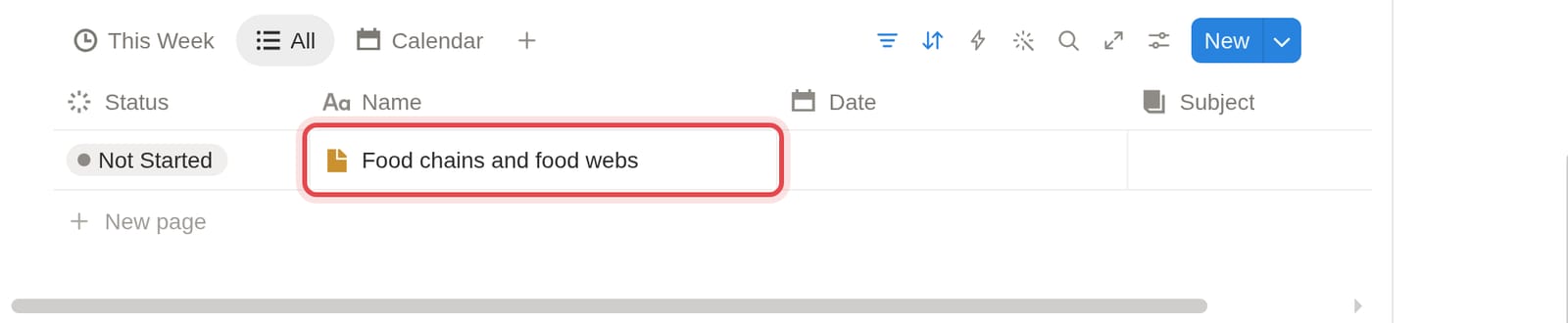
Scroll down the class page to its Lessons box. It has three tabs: This Week, All and Calendar. This Week was empty for us; under All the new lesson was there, with the status Not Started and an empty Date.
Resources that belong to the whole class, not one lesson, go higher up the same page. The Files & Resources box says "Attach any helpful links or resources you have for the class." and has two buttons, Add a web bookmark and Upload or embed a file. Next to it, the Overview box asks you to "Briefly describe your class and relevant information.": a good place for the room number, the class's seating plan or anything else the planner has no field for.
Fill in the rest of the week
Add every other class the same way: New page under its first day, open it, wait for its boxes, then the name, Level, Time of Day and the rest of its days. Each one opened with the same cover, house icon and boxes as 7A Science, and its card on the Weekly tab shows the house icon too. This is what we entered for Ms. Rivera:
Class | Level | Time of Day | Day |
|---|---|---|---|
7A Science | 7th Grade | 09:00 AM | Monday, Wednesday, Friday |
7B Science | 7th Grade | 10:00 AM | Monday, Wednesday, Friday |
8A Science | 8th Grade | 11:00 AM | Tuesday, Thursday |
Lunch duty (cafeteria) | (none) | 12:00 PM | Wednesday |
7C Science | 7th Grade | 01:00 PM | Monday, Tuesday, Thursday |
8B Science | 8th Grade | 02:00 PM | Tuesday, Thursday, Friday |
A duty goes in like a class. We left Level empty on the lunch duty, so its card shows only the time. The Weekly tab then showed three entries in every column, each in time order, as in the picture at the top of this article. You do not need to add them in order. The Weekly tab sorts by Time of Day, and it follows the order of the times in the Time of Day list, not the clock: with the planner's own times that is earliest first, but a time you add yourself goes to the end of the list, and its classes to the bottom of each day, until you move it (see Use your school's times, below).
Change the timetable mid-term
When a class moves to another day, you do not rebuild anything. Drag the card.
On the Weekly tab, press on the class's card in the old day's column and drag it into the new day's column.
Let go. We moved 8B Science's Friday lesson to Wednesday: Friday went from 3 to 2, Wednesday from 3 to 4, and the card went to its place by time, 02:00 PM, under the lunch duty. The Tuesday and Thursday 8B cards stayed where they were, and all three were highlighted blue together, because they are the same page.
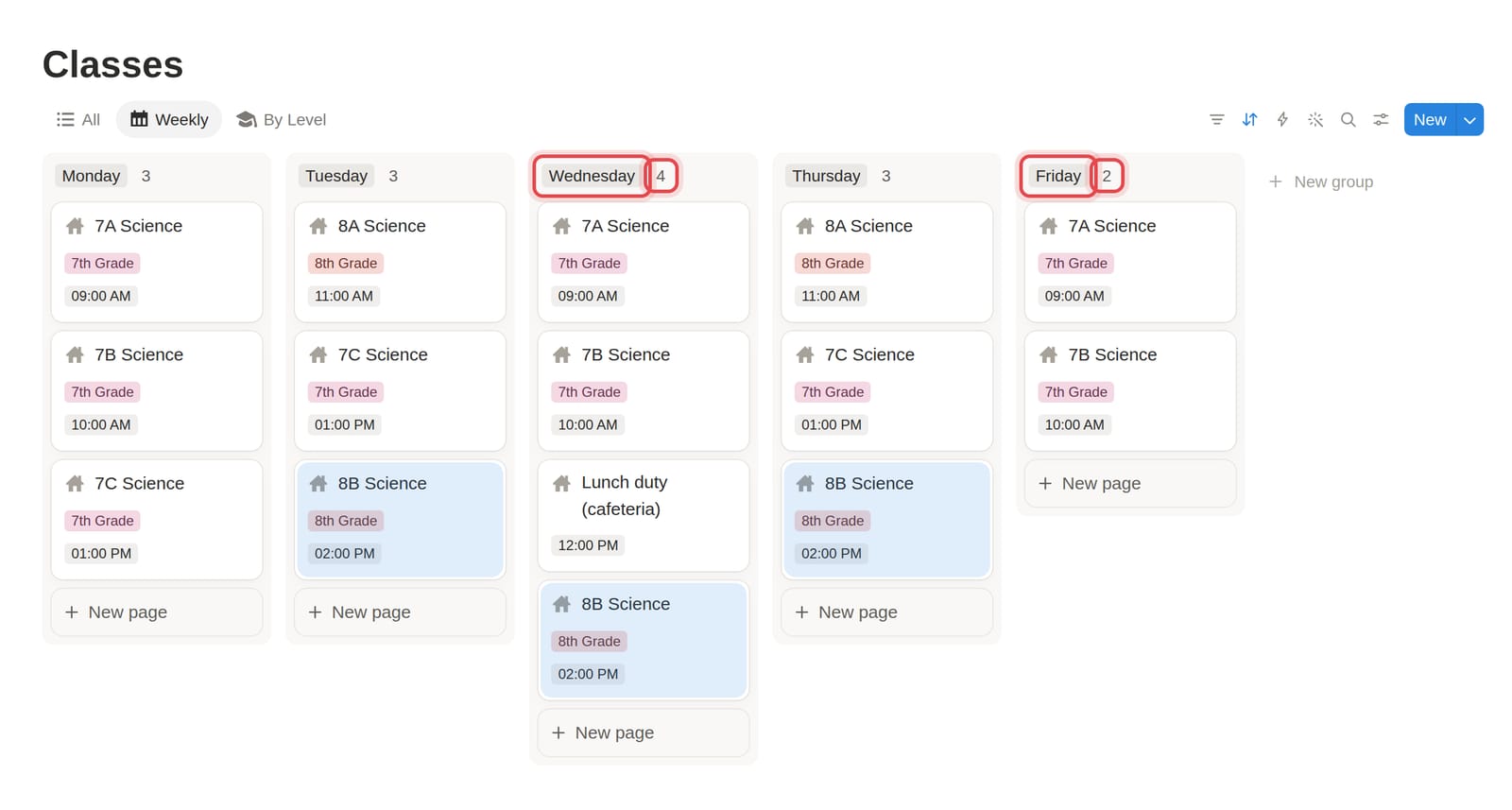
The class is not copied: it is the same page with its Day changed from Friday to Wednesday.
Make it your own
By Level shows the same classes as cards grouped by grade: 7th Grade, 8th Grade, and a "No Level" group, where our lunch duty and the sample "New Class" ended up. It is a quick way to see all your sections of one grade.
All is the plain table: Name, Level, Time of Day and Day in columns.
What is not there. The planner's classes have no Room field, and Day lists only Monday to Sunday, with no A day or B day. Under Day on the class page there is an Add a property link, if your school needs more.
Use your school's times
The Time of Day list only holds the hours from 09:00 AM to 03:00 PM, and most schools do not run on the hour. You can type your own times into it. We tried it with Ms. Rivera's homeroom at 8:15:
On the Weekly tab, press New page under Monday, open the page and name it, as in Add a class. Ours was Homeroom 7A, 7th Grade.
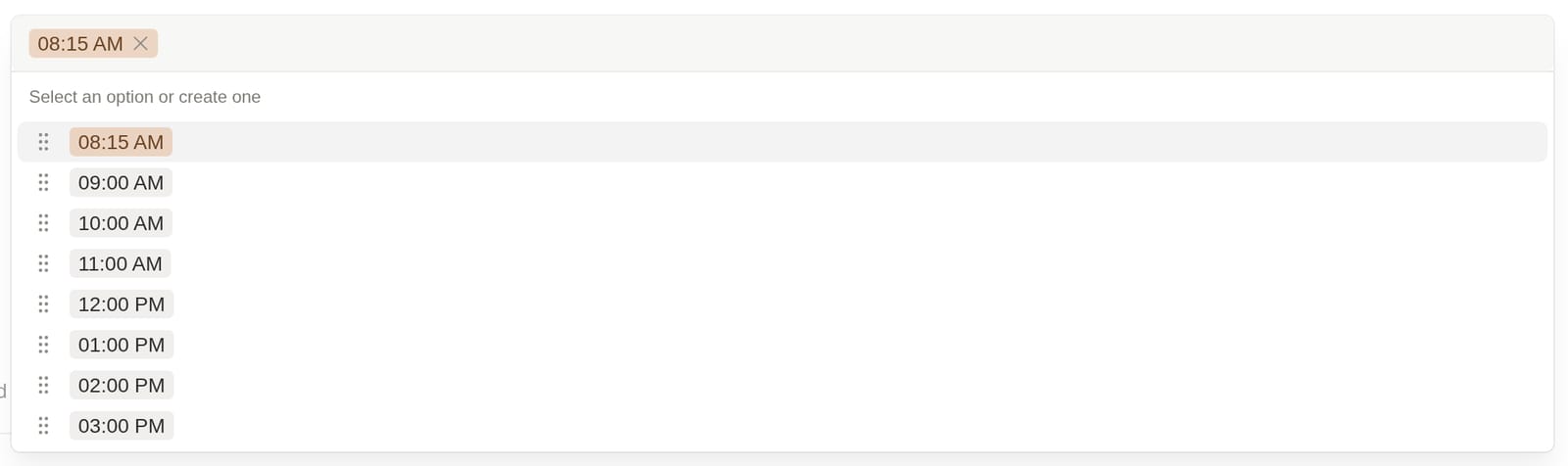
Press Empty beside Time of Day and type the time the way the others are written: 08:15 AM. The list shows one line, Create 08:15 AM. Press it. The time is set, and it now sits in the list with the others, in a colour of its own (ours was pale orange; the planner's times are grey).
Pick the days beside Day: we chose Monday to Friday.
Back on the Weekly tab, Homeroom 7A was at the bottom of every day, under the 02:00 PM classes. The tab sorts by the order of the times in the list, and a time you create goes to the end of it, after 03:00 PM. To put it in its place:
On the class page, press 08:15 AM beside Time of Day to open the list again.
Press on the six-dot handle at the left of 08:15 AM, at the bottom of the list, and drag it up above 09:00 AM. Press Esc.
On the Weekly tab, Homeroom 7A was now the first card of every day, above the 09:00 AM classes.
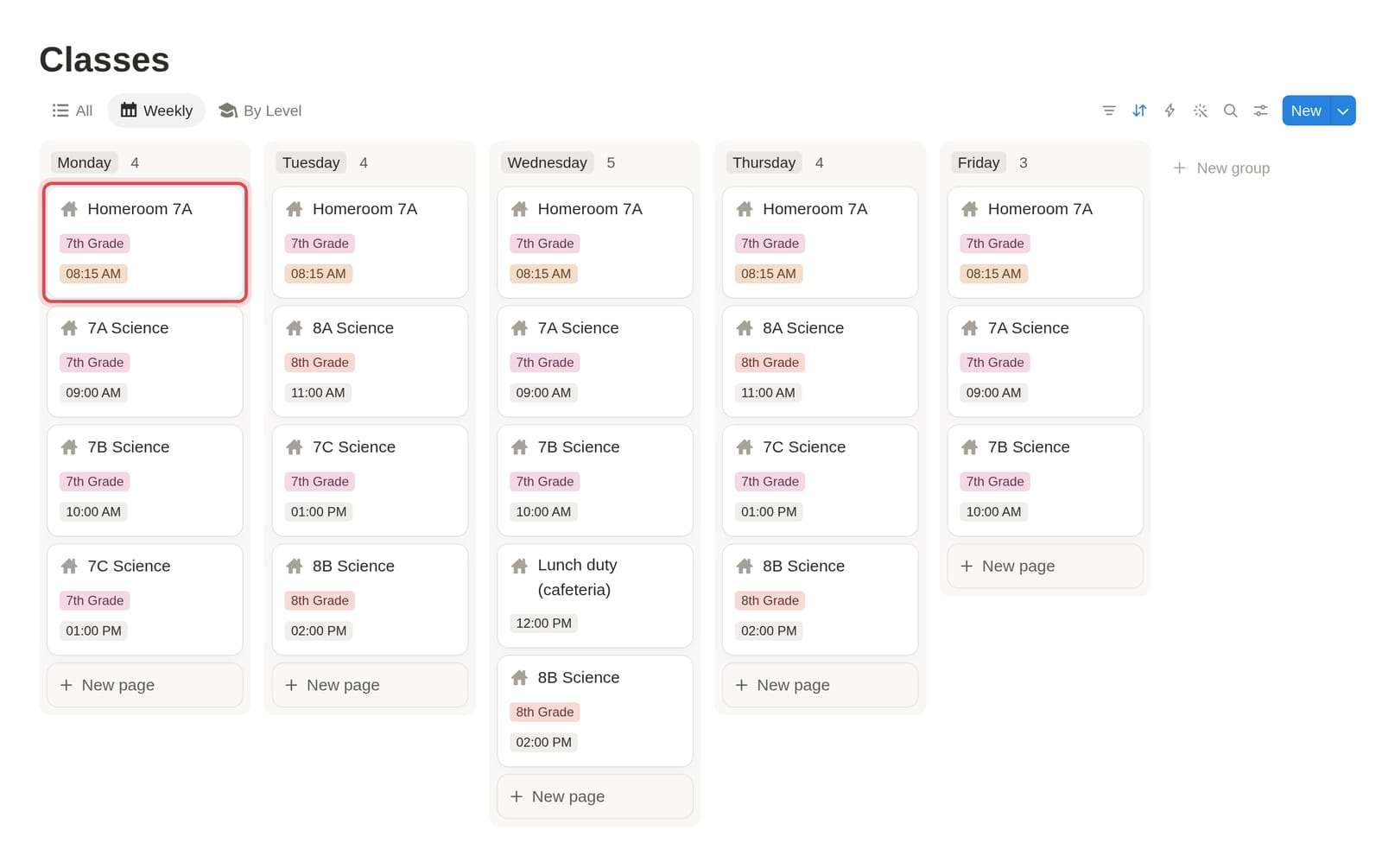
Do the same for each time your school uses: create it once, then drag it into place among the others.
Could you build this yourself?
Yes, the schedule part. The Weekly tab is a Notion board grouped by a Day field and sorted by a time field, and you can make that in an empty database. What the planner saves you is everything around it: each class page already has its Students box with attendance tabs (Status, Attendance, Score, Points), its Lessons box with This Week and Calendar tabs, its Reports, and the links between them. For a tour of the rest of the planner, read our Ultimate Digital Teacher Planner guide; to compare it with other options, see our Notion teacher templates and the best Notion templates for teachers.
Get the Ultimate Teacher Planner
FAQ
Do I add a class once for each day it meets?
No. Add it once and pick every day it meets in Day. A class with Monday, Wednesday and Friday shows in all three columns of the Weekly tab.
Why is the sample "New Class" not on my weekly schedule?
The Weekly tab sorts classes into columns by day, and the sample class has no day. It shows under the All and By Level tabs instead.
How do I move a class to another day?
On the Weekly tab, drag its card from the old day's column into the new one. Notion changes the class's Day for you and puts the card in place by time.
Why does a time I added show at the bottom of the day?
The Weekly tab sorts by the order of the times in the Time of Day list, and a new time goes to the end of that list. Open the list on any class page and drag the new time up to its place with the handle beside it.
Can I put duties on the class schedule?
Yes. Add the duty like a class, with its time and day. Our "Lunch duty (cafeteria)" at 12:00 PM on Wednesday sits between the morning and afternoon classes.
Does the planner have A/B days or rooms?
Not built in. The Day field lists Monday to Sunday only, and classes have no Room field. You can see the rest of what the Ultimate Teacher Planner includes on its page.
Still grading everything by hand?
EMStudio is a free teaching management app — manage your classes, students, lessons, and more!