
15 Games for Classroom Online That Boost Engagement
15 Games for Classroom Online That Boost Engagement

Article by
Milo
ESL Content Coordinator & Educator
ESL Content Coordinator & Educator
All Posts
Students tune out after about 10 minutes of straight lecture. Researchers have tracked this in university classrooms for years — attention plummets, phones come out, minds wander. In K-12, the drop-off happens faster. That's why games for classroom online aren't just fun Friday activities anymore. They're survival tools for keeping brains online during synchronous learning.
I've watched a room full of 7th graders go from glazed-over to locked-in the second I pulled up a team quiz game. Same content, different container. The magic isn't the points or the leaderboard — it's the shift from passive reception to active participation. When kids click answers, draw responses, or race the clock, they stop worrying about looking smart and start engaging with the material.
This post breaks down the tools actually worth your prep time. You'll find quiz platforms and easy-to-use tools to create a quiz for quick formative assessment, math games that adapt to individual levels, and creative drawing tools that work for even your most reluctant artists. I'll also cover team-based options that force genuine collaboration and brain break games that release energy without derailing your period. These 15 have survived my own vetting process — the ones I rotate in when I need student engagement to last longer than that 10-minute mark.
Still grading everything by hand?
EMStudio is a free teaching management app — manage your classes, students, lessons, and more!
Learn More

Still grading everything by hand?
EMStudio is a free teaching management app — manage your classes, students, lessons, and more!
Learn More
Table of Contents
Quiz and Trivia Games for Quick Assessment
Kahoot: 50 players free (100 with school license), multiple choice only, music and themes, best for grades 3-12.
Gimkit: 100 players, all question types, strategy power-ups, best for grades 5-12.
Quizizz: 500 players free, all question types, student-paced mode, best for grades 2-12.
Deploy Kahoot for high-energy review sessions. Cap quizzes at 20 questions or the room loses steam. Use Gimkit for depth and strategy, especially the homework mode for flipped learning where students play solo for 30 minutes. Choose Quizizz when you need differentiation—turn on read-aloud audio for ELL students or enable meme feedback for reluctant middle schoolers.
Check your bandwidth before going live. Kahoot requires 2 Mbps per device for the animated leaderboards. Gimkit works fine on 1:1 Chromebooks or even shared devices if you're short on tech. Quizizz lets young students scan QR codes instead of typing lengthy URLs.
Watch the nickname field. Last spring, my 7th graders tested boundaries with inappropriate handles during a vocabulary review. Fix this before it starts: enable Kahoot's "Friendly nickname generator" or require Google login in Quizizz to kill anonymity.
Kahoot-Style Platforms for Real-Time Competition
You build a 5-20 question quiz in Kahoot. Students open kahoot.it, punch in the 6-digit code, and wait for the beat to drop. The 20-second timer forces quick decisions without time to phone a friend. The free tier supports 50 players, though most school licenses bump that to 100. The music and leaderboard create artificial urgency that keeps 7th graders glued to cell organelle reviews.
Alternatives exist if Kahoot feels stale. Quizalize differentiates follow-up assignments based on specific wrong answers. Quizlet Live forces teams of four to share one device, building collaboration under pressure. Blooket offers ten game modes including Tower Defense and Gold Quest—same vocabulary words, different competitive skin.
I watched a 7th-grade science teacher run a 15-question Kahoot on cell organelles before a lab. She embedded microscope images, demanded 80% class accuracy as a group, then released students to the simulation. No one touched the microscopes until they earned it through the classroom gamification methods to boost interest embedded in the game.
Gimkit for Strategy-Based Review Sessions
Gimkit plays differently than standard classroom games online. Students earn virtual currency for correct answers, then spend that cash on power-ups like multipliers, insurance against wrong answers, or streak freezes. The game ends when someone hits $10,000 or the clock runs out. This economy layer keeps 8th graders calculating risk while reviewing Civil War battles.
The KitCollab feature changes the dynamic. Students submit questions during class through their devices. You approve them in real-time, building the quiz together. It creates instant buy-in for high school review sessions—nobody argues with a test they wrote themselves.
Free accounts store only five Kits (quizzes). The Pro version runs $7.99 monthly for unlimited storage and supports 100 students per game. Homework mode lets students play asynchronously for up to 30 minutes, perfect for flipped instruction or absentee work.
Quizizz for Self-Paced Homework Games
Quizizz works as innovative tools to engage and inspire students without the pressure of a live leaderboard. In live mode, students race against each other. In homework mode, they see a progress bar and can pause for snack breaks. Both modes generate question-level analytics showing exactly which three standards need reteaching tomorrow.
The accessibility has win over elementary teachers. Read-aloud audio supports 20+ languages. Adjustable font sizes help struggling readers. You can hide the leaderboard entirely for anxious students who freeze under competition, turning these online classroom games like kahoot into safe practice spaces.
Quizizz imports directly from Google Forms or Excel spreadsheets. You assign through Google Classroom with one click, and grades sync to your gradebook automatically. These has fit naturally into games for classroom online environments where flexibility matters more than speed.

Math and STEM Games That Adapt to Student Levels
Adaptive learning platforms adjust question difficulty in real-time while students work. The algorithm targets a 70-80% success rate—the Goldilocks zone where kids stay challenged but not frustrated. These games for classroom online outperform static worksheets. Research shows students using adaptive platforms demonstrate greater growth on standardized math assessments compared to those grinding through paper packets.
Three tools cover distinct STEM needs. Boddle Learning builds arithmetic fluency for K-6 students in a 3D virtual learning environment. Desmos handles algebraic reasoning for grades 6-12 through interactive graphing. PhET facilitates scientific inquiry for grades 3-12 with browser-based labs.
Technical requirements vary by platform. Boddle needs a WebGL-enabled browser—check that Chrome or Edge are updated. Desmos requires JavaScript enabled. PhET runs on HTML5, so it works on older devices and aging Chromebooks with minimal processing power.
Boddle Learning for Adaptive Math Practice
Boddle drops students into a 3D virtual learning environment where spherical cartoon characters roll through math challenges. Kids customize avatars and answer questions to unlock accessories. The adaptive engine pinpoints exactly where a child struggles—whether that's place value versus fractions—and adjusts difficulty to maintain that 70-80% success rate. This gamification layer masks serious diagnostic work. Unlike simple shape games online, Boddle maps to specific Common Core domains including OA, NBT, NF, MD, and G.
The platform serves K-6 mathematics. A placement test takes 15-20 minutes, then recommends 20-minute sessions three times weekly. I watched my 4th graders play boddlelearning last October. The dashboard showed three students stuck at 40% mastery on division with remainders. I pulled them for intervention that afternoon while the algorithm adjusted difficulty for others automatically.
Teachers get granular data for formative assessment. The dashboard displays time on task, accuracy by standard, and exportable RTI documentation. It also tracks digital citizenship metrics like appropriate avatar naming behavior.
Desmos Classroom Activities for Graphing
Desmos moves beyond calculation into algebraic reasoning for grades 6-12. The Activity Builder lets teachers create or borrow lessons where students manipulate sliders, match graphs, or play Polygraph—a 20-questions-style guessing game about mathematical properties. These activities work best for synchronous learning when you want every student working simultaneously in a shared virtual learning environment.
Specific activities show the platform's range:
Marbleslides: Students adjust parabola parameters to collect stars, learning vertex form through trial and error.
Card Sort: Kids match equations to graphs and tables, revealing misconceptions about slope and intercepts.
Function Carnival: Shows a video of a cannonball, then asks students to predict and graph the motion before seeing the actual trajectory.
The teacher dashboard displays every student's graph in real-time using an overlay view. You can spot the kid who flipped the slope instantly. Anonymous mode lets you project wrong answers safely—students see mistakes as learning data, not shame. Desmos requires JavaScript enabled but runs smoothly on updated browsers. Check our guide to digital math resources to transform your classroom for more graphing tools.
PhET Interactive Simulations for Science Labs
PhET brings inquiry-based science to grades 3-12 without requiring lab equipment. The Circuit Construction Kit lets middle schoolers build DC circuits with batteries and light bulbs, while the high school version adds AC power. Build an Atom helps elementary and middle school students visualize subatomic particles. Energy Skate Park demonstrates conservation of energy as kids adjust friction and track height, boosting student engagement through direct manipulation of variables.
These simulations run on HTML5, so they work on older Chromebooks with weak processors. No login required means immediate access, and the site runs offline after initial loading, solving connectivity issues during games for online teaching. Each simulation includes downloadable activity guides aligned with NGSS standards that support formative assessment through structured inquiry prompts.
PhET emphasizes accessibility for diverse learners. Full keyboard navigation, screen reader compatibility, and color-blind friendly palettes ensure all students participate. The site offers translations in over 90 languages. For more lab options, see our collection of STEM-focused games and activities.
What Are the Best Creative and Drawing Games?
The best creative online classroom games include Skribbl.io for vocabulary-based drawing (12 players max), GeoGuessr for geography exploration using Google Street View, and Book Creator for multimedia digital storytelling. These tools require minimal setup, accommodate elementary through high school students, and integrate visual arts with core content standards.
Creative games for online class belong in your rotation. They shift students from passive clicking to active making, which wakes up the visual learners who tune out during straight lecture.
True creative games for classroom online demand student production, not just consumption. I look for three things: can kids build something original, does it reach spatial learners who think in images, and can they share the result? These elements drive student engagement better than passive video watching. The best options generate artifacts—drawings, maps, or digital books—that students want to show parents.
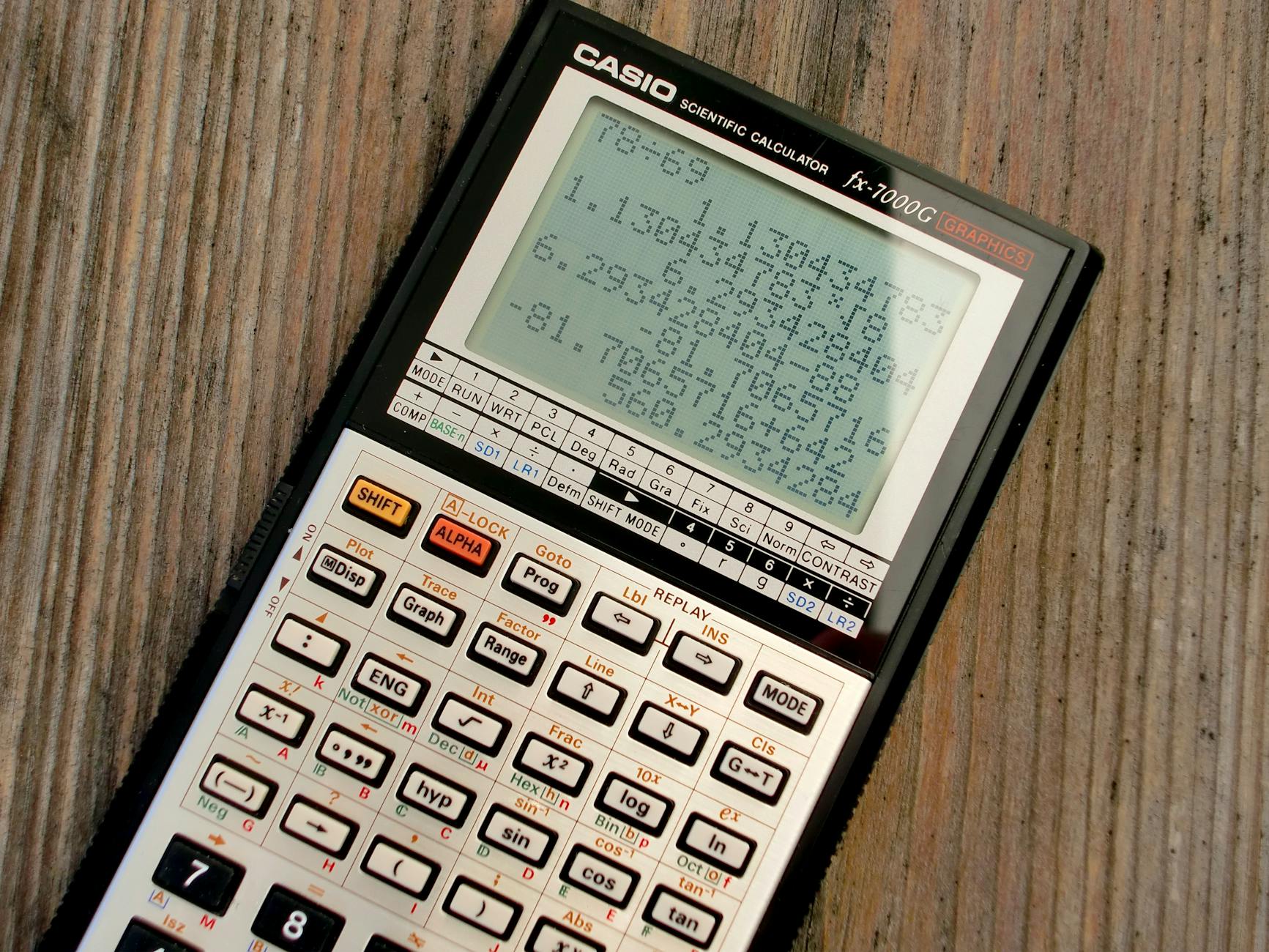
Hardware matters in any virtual learning environment. Tablets with styluses work best for drawing precision. Chromebooks with trackpads suffice, though results look shakier. GeoGuessr runs on anything with a browser. Book Creator's camera has require working webcams. Test your cart's oldest device before committing to a full lesson.
Slot these realistically. Drawing challenges fit 5-10 minute warm-ups. GeoGuessr needs 15 minutes for proper exploration; shorter and students guess randomly. Book Creator deserves 2-3 full class periods. Build in export time so students can save their work.
Skribbl.io for Quick Drawing Challenges
Skribbl.io turns doodling into vocabulary review, working as one of the quick games for online class that require zero prep. Create a private room, set a custom word list, and let students sketch concepts in real time. I used this last October with my 7th graders during Friday wind-downs.
Setup takes two minutes. Click "Create Private Room," set three rounds at 80 seconds, and paste in twenty vocabulary words from your current unit. The room caps at twelve players. Students join via link—no accounts needed. The drawing tools are basic but functional on touchscreens.
The educational twist comes from custom words. Ditch the random terms. Input "mitochondria" or "industrial revolution." Students visualize complex concepts, revealing understanding gaps. If a kid draws a factory for "textile mill," they grasp the context. Others draw literal definitions, showing memorization versus comprehension.
Management is simple. Mute chat if needed, or kick disruptive players instantly. It offers a moment to discuss digital citizenship when anonymous drawing gets silly. It runs on any browser, including old Chromebooks. I keep it bookmarked for emergency time-fillers.
GeoGuessr for Geography Exploration
GeoGuessr drops students into Google Street View and asks, "Where are you?" It ranks among the best interactive online games for students for geography units.
The platform offers three modes. Explorer lets kids wander freely. Challenge mode lets you create specific maps from your history unit, with students competing for proximity points. Battle Royale eliminates players round by round, perfect for high-energy synchronous learning days.
Educationally, it teaches latitude and longitude, field analysis, and cultural geography. Students spot arid climates, read foreign road signs, and distinguish urban from rural. I use it with 4th grade and up; younger kids get frustrated by ambiguity.
The free version allows three games daily. Pro costs $2.99 monthly for unlimited play. You need decent bandwidth for Street View, and some imagery is dated. The gamification keeps them hunting clues not guessing randomly.
Book Creator for Digital Storytelling Projects
Book Creator is digital binding for student stories. Unlike quick games in online class settings, this produces lasting portfolios.
Up to three students edit simultaneously in real time. The free version allows forty pages. Students embed audio, shoot video directly into pages, and use drawing tools. It pairs well with tools to support creative writers when you want polished products.
Project ideas span subjects:
Science classes build lab report books with embedded experiment videos.
History students create biography portfolios with primary source images.
Math classes illustrate story problems and explain solutions visually.
World language teachers compile conversation books with recorded dialogues.
Sharing happens via classroom library with QR codes, or export as ePub and PDF. The auto-narration turns books into videos. The interface works K-12, though limit font choices for younger grades to prevent rainbow-text disasters. This is formative assessment disguised as creation.
Which Team-Based Games Build Collaboration Skills?
The best team-based collaboration games are Breakout EDU Digital for problem-solving escape rooms (2-6 students per team), Minecraft Education Edition for creative builds with shared inventories, and Google Jamboard for real-time brainstorming with sticky notes. These platforms require communication, role delegation, and shared decision-making to succeed.
True collaboration differs from cooperation. These games for classroom online force interdependence—students must share unique clues or coordinate simultaneous actions. No one wins alone.
Cooperation means parallel work. Collaboration needs interdependence. In Breakout EDU Digital, scattered clues require information sharing—no student holds every answer. In Minecraft Education Edition, builders and inventory managers must synchronize actions in real time. This mirrors authentic collaborative learning methods that drive results.
Skip these class games online if students lack digital citizenship skills or bandwidth drops below 3 Mbps. I watched 7th graders sabotage a Minecraft build when lag hit. When infrastructure fails, use individual online games for students with chat instead.
Group strategically. Mix builders and planners heterogeneously for Minecraft. Match similar reading levels homogeneously for Breakout—clues are text-heavy. Use random groups for Jamboard brainstorming to disrupt echo chambers and spark diverse student engagement.
Breakout: 45-minute timed sessions, subject-specific content, high reading demand.
Minecraft: Open-ended builds, STEM-focused, requires sustained synchronous learning.
Jamboard: Flexible timing, brainstorming-focused, supports quick formative assessment.
Breakout EDU Digital for Problem-Solving
Each game contains 5-8 digital locks—combination, direction, color, or word-based—that seal a virtual box. Teams analyze primary source documents, solve math riddles, or decode ciphers to release them during intense 45-60 minute sessions. The countdown timer creates urgency without the stress of high-stakes grading.
Teams of 2-6 students receive identical clue sets but compete independently. I strictly limit hints to three per game through the teacher dashboard, forcing teams to wrestle with ambiguity rather than requesting immediate rescue. This constraint builds resilience and authentic problem-solving stamina.
Content spans disciplines effectively. "Into the Immune System" uses cell diagrams as cipher keys for biology. "Revolutionary War" embeds hidden codes within historical documents. "Math Mystery" locks algebra concepts behind equation solutions. Full library access costs $100 yearly, though free limited games let you trial the virtual learning environment before purchasing.
Minecraft Education Edition for Collaborative Builds
The shared inventory forces constant negotiation over limited resources, while teacher-monitored chat keeps all communication visible and safe from inappropriate sharing. Students use camera and portfolio tools to screenshot build progress, creating concrete artifacts for assessment. The Code Builder feature lets pairs program agent turtles to construct simultaneously, requiring precise coordination and joint debugging when scripts fail.
Lesson applications stretch across subjects. Environmental science classes build sustainable cities with functional wind turbines. History students recreate Roman aqueducts block by block, debating structural engineering in chat. For 6th through 12th grade, redstone engineering challenges teams to design working calculators or automated farms, blending physics with spatial reasoning in complex games to play in online class.
Technical barriers are non-negotiable. You need Office 365 Education accounts for every participant. The client runs on Windows, Mac, iPad, and Chromebook (Android), but standard Chromebooks require specific administrative setup. Each teacher-hosted world caps at 30 students, and you need 2 Mbps minimum bandwidth per device. Ignore these specs and synchronous learning devolves into frozen screens and frustration.
Google Jamboard for Real-Time Brainstorming
Google Jamboard supports up to 50 simultaneous editors on a single canvas, making it ideal for large-group student engagement. Students drop sticky notes that convert handwriting to text automatically, insert shapes and images to visualize concepts, or use the laser pointer tool to spotlight specific ideas during virtual presentations. The clean interface fades into the background, leaving only collective thinking visible.
Activity structures adapt to any subject with minimal setup. Use affinity mapping to categorize research questions during inquiry projects, organizing scattered thoughts into coherent themes. Build living KWL charts that evolve throughout units as students add new learning. For writing classes, groups storyboard narratives frame by frame, dragging scenes to reorder plots. Math teams solve problems side-by-side, displaying multiple calculation strategies simultaneously so peers see divergent thinking.
Know the constraints before launching. Each board limits you to 20 frames—sufficient for single lessons but insufficient for semester portfolios. No built-in content moderation exists; you must monitor actively for inappropriate sticky notes. While primary students can participate with support, the tool works best for 3rd through 12th graders with existing Google accounts and basic keyboard skills when implementing tech-enabled collaborative learning strategies.

Brain Break and Movement Games for Energy Release
Kids' brains need breaks. Every 20 to 30 minutes, a 2-5 minute movement burst sends oxygen to the prefrontal cortex and resets attention spans. Neuroplasticity research shows this is critical for K-5 learners.
Match the break to the energy level. Low energy breaks include breathing exercises and desk stretches. High energy breaks get kids dancing or running in place. Use high energy when the class gets sluggish after lunch. Use low energy before tests or when the room feels chaotic.
Not every kid wants to move on camera. Always offer camera-off alternatives like stretching at the desk. Safety matters: ensure three feet of clearance around desks, appropriate footwear, and never sharing devices while standing.
GoNoodle for Movement Breaks
GoNoodle hosts videos that get kids moving without chaos. The Brain Breaks category offers 2-5 minute bursts perfect for that mid-lesson reset. Need longer? Indoor Recess runs 10-20 minutes when weather traps you inside. The Flow and Think About It sections target SEL skills with celebrity athletes and musicians.
You share your screen. Students follow along from their own spaces. No accounts needed. It works on any device. I watched 4th graders giggle through Run the Red Carpet for cardio, master patterns with Popsicle Stick Dance, and use Melting for progressive muscle relaxation before testing. While designed for K-5, older students quietly enjoy the mindfulness content when anxiety spikes.
Choose high-energy tracks after lunch. Select Flow videos before assessments. This makes games for classroom online feel purposeful rather than random play.
ClassroomScreen Random Drawers for Quick Games
ClassroomScreen is a web-based Swiss Army knife. The random name picker eliminates "pick me" chaos. The dice roller generates numbers for math fluency. A visual timer counts down think time. Work symbols show noise levels, and the QR code generator shares links instantly.
Roll two dice and multiply for fact fluency practice.
Use the random picker for Would You Rather questions that spark discussion.
Set the timer for a Silent Ball variation where students freeze when the buzzer sounds.
No login required. The free version handles most needs. It works on smartboards or Chromebooks. For more structured options, see these classroom management games that actually work.
Virtual Scavenger Hunts for Camera Play
Virtual scavenger hunts get students moving without choreography. Share a list of ten items: something blue, something that makes you happy, something shaped like a circle. Give students three minutes to find and show on camera.
Make it academic. Ask students to find items starting with the current phonics sound, or objects representing vocabulary words. Geometry comes alive when they hunt for cylinders or right angles in their home environment.
Safety first. Remind students not to run and to stay in safe areas. Offer a "show and tell" alternative where students describe an object rather than retrieving it. This respects student engagement while keeping everyone physically safe in your virtual learning environment.
Sudoku for Brain Play
For a brain break that also sharpens logical thinking, Sudoku Bliss is a fantastic free option for classrooms. Students can play directly in the browser with no sign-up required, choosing from Easy, Medium, Hard, or Expert difficulty—making it easy to differentiate for different grade levels. Sudoku builds number sense, pattern recognition, and concentration, all while feeling like a fun puzzle rather than schoolwork. It's a great low-prep activity for early finishers, transition time, or a focused warm-up at the start of a lesson.

How Do You Choose the Right Game for Your Lesson?
Choose the right game by matching it to your objective first. Fact recall needs quick quiz tools, while concept application needs simulations or sandbox environments. Check your bandwidth and device compatibility before you commit. Keep gameplay under 15 minutes to protect focus.
When integrating educational technology into your lesson plans, start with your learning standard, not the flashy trailer you saw on Twitter. I learned this last spring with a 4th grade class. I launched a Minecraft Education build project without checking the district firewall. Twenty-five students sat staring at "connection failed" messages while I frantically checked settings. Now I run a three-step verification before any gamification activity to save face and instructional minutes.
Step 1: Map Games to Objectives
Create a decision matrix before browsing games to play in class online. If students need to memorize vocabulary or math facts, choose Kahoot or Quizizz for rapid-fire repetition. When they must apply scientific concepts or engineering principles, deploy PhET simulations or Minecraft Education. For creative projects requiring content creation, use Book Creator or Jamboard. If you need quick formative assessment data, Gimkit or Blooket track mastery in real time. Match the tool to the cognitive demand to maintain student engagement without sacrificing rigor.
Step 2: Run a Tech Audit
Test your infrastructure before the bell rings. Your room might have perfect Wi-Fi at 7 AM when empty, but struggle at 10 AM when the entire grade level is online. Run these checks:
Bandwidth test: Video-heavy games for classroom online need 2+ Mbps per student. Run a speed test during peak usage when neighboring classes stream video or take online assessments.
Device compatibility: Touchscreen tablets handle drawing apps better than Chromebook trackpads. Verify keyboard shortcuts work on student machines and that cameras function for augmented reality features.
Login requirements: Determine if students can use Google SSO or must create new accounts. New logins eat five minutes of a 40-minute period and create password reset headaches.
This prevents the panic of discovering incompatibility mid-lesson when you have no backup plan. Always have a low-tech alternative ready.
Step 3: Verify Accessibility Features
Not every virtual learning environment works for every child. Check for read-aloud options for ELL students who need auditory support. Look for color-blind modes in math games using red-green indicators. Confirm adjustable difficulty levels exist so struggling readers don't face the same speed challenges as advanced students. For students with ADHD, verify they can hide countdown timers that trigger anxiety. These has separate inclusive tools from flashy distractions that exclude learners.
Step 4: Pilot with Two Students
Never launch untested tools to full classes. Recruit two students with different tech comfort levels during lunch or morning work time. Watch them navigate the login process and first level while reinforcing digital citizenship basics like appropriate usernames and chat etiquette. Common failure points include district firewalls blocking Minecraft, audio echo in Jamboard when multiple tabs are open, or Kahoot game codes being impossible for 1st graders to type accurately. Fix these issues before go-live to protect your instructional time.
Red Flags: When to Skip the Game
Some moments call for traditional instruction. Avoid games to play in class online during high-stakes assessment periods when focus must remain on paper-based testing strategies. Skip them in classes under 15 minutes long—setup eats your entire block. Watch for screen fatigue signs like eye rubbing, headaches, or irritability; these signal it's time for offline discussion or paper tasks. Finally, avoid complex synchronous learning games when substitute teachers run the room without specific training on your virtual classroom management and support strategies. A confused sub plus glitchy tech equals chaos and lost learning.

Where Games For Classroom Online Is Heading
The next wave of games for classroom online is moving past simple points and flashy badges. We're seeing platforms that use AI to adjust math problems in real time or detect when a student is guessing on trivia questions. Gamification is becoming invisible—embedded in the formative assessment rather than sprayed on top. Last month, I watched a 4th grader work through a logic puzzle that automatically dialed down the difficulty when he missed two in a row. That's the shift: adaptive difficulty replacing one-size-fits-all leaderboards.
To stay ahead, quit collecting apps. Pick two or three tools that sync with your LMS and learn them inside out. Your virtual learning environment doesn't need more noise; it needs fewer, better choices. When every platform claims to boost student engagement, look for the ones that give you data you can actually use tomorrow morning. The teachers who win next year won't be the ones with the longest list of game links. They'll be the ones who know exactly which game fixes which specific learning gap.

Quiz and Trivia Games for Quick Assessment
Kahoot: 50 players free (100 with school license), multiple choice only, music and themes, best for grades 3-12.
Gimkit: 100 players, all question types, strategy power-ups, best for grades 5-12.
Quizizz: 500 players free, all question types, student-paced mode, best for grades 2-12.
Deploy Kahoot for high-energy review sessions. Cap quizzes at 20 questions or the room loses steam. Use Gimkit for depth and strategy, especially the homework mode for flipped learning where students play solo for 30 minutes. Choose Quizizz when you need differentiation—turn on read-aloud audio for ELL students or enable meme feedback for reluctant middle schoolers.
Check your bandwidth before going live. Kahoot requires 2 Mbps per device for the animated leaderboards. Gimkit works fine on 1:1 Chromebooks or even shared devices if you're short on tech. Quizizz lets young students scan QR codes instead of typing lengthy URLs.
Watch the nickname field. Last spring, my 7th graders tested boundaries with inappropriate handles during a vocabulary review. Fix this before it starts: enable Kahoot's "Friendly nickname generator" or require Google login in Quizizz to kill anonymity.
Kahoot-Style Platforms for Real-Time Competition
You build a 5-20 question quiz in Kahoot. Students open kahoot.it, punch in the 6-digit code, and wait for the beat to drop. The 20-second timer forces quick decisions without time to phone a friend. The free tier supports 50 players, though most school licenses bump that to 100. The music and leaderboard create artificial urgency that keeps 7th graders glued to cell organelle reviews.
Alternatives exist if Kahoot feels stale. Quizalize differentiates follow-up assignments based on specific wrong answers. Quizlet Live forces teams of four to share one device, building collaboration under pressure. Blooket offers ten game modes including Tower Defense and Gold Quest—same vocabulary words, different competitive skin.
I watched a 7th-grade science teacher run a 15-question Kahoot on cell organelles before a lab. She embedded microscope images, demanded 80% class accuracy as a group, then released students to the simulation. No one touched the microscopes until they earned it through the classroom gamification methods to boost interest embedded in the game.
Gimkit for Strategy-Based Review Sessions
Gimkit plays differently than standard classroom games online. Students earn virtual currency for correct answers, then spend that cash on power-ups like multipliers, insurance against wrong answers, or streak freezes. The game ends when someone hits $10,000 or the clock runs out. This economy layer keeps 8th graders calculating risk while reviewing Civil War battles.
The KitCollab feature changes the dynamic. Students submit questions during class through their devices. You approve them in real-time, building the quiz together. It creates instant buy-in for high school review sessions—nobody argues with a test they wrote themselves.
Free accounts store only five Kits (quizzes). The Pro version runs $7.99 monthly for unlimited storage and supports 100 students per game. Homework mode lets students play asynchronously for up to 30 minutes, perfect for flipped instruction or absentee work.
Quizizz for Self-Paced Homework Games
Quizizz works as innovative tools to engage and inspire students without the pressure of a live leaderboard. In live mode, students race against each other. In homework mode, they see a progress bar and can pause for snack breaks. Both modes generate question-level analytics showing exactly which three standards need reteaching tomorrow.
The accessibility has win over elementary teachers. Read-aloud audio supports 20+ languages. Adjustable font sizes help struggling readers. You can hide the leaderboard entirely for anxious students who freeze under competition, turning these online classroom games like kahoot into safe practice spaces.
Quizizz imports directly from Google Forms or Excel spreadsheets. You assign through Google Classroom with one click, and grades sync to your gradebook automatically. These has fit naturally into games for classroom online environments where flexibility matters more than speed.
Math and STEM Games That Adapt to Student Levels
Adaptive learning platforms adjust question difficulty in real-time while students work. The algorithm targets a 70-80% success rate—the Goldilocks zone where kids stay challenged but not frustrated. These games for classroom online outperform static worksheets. Research shows students using adaptive platforms demonstrate greater growth on standardized math assessments compared to those grinding through paper packets.
Three tools cover distinct STEM needs. Boddle Learning builds arithmetic fluency for K-6 students in a 3D virtual learning environment. Desmos handles algebraic reasoning for grades 6-12 through interactive graphing. PhET facilitates scientific inquiry for grades 3-12 with browser-based labs.
Technical requirements vary by platform. Boddle needs a WebGL-enabled browser—check that Chrome or Edge are updated. Desmos requires JavaScript enabled. PhET runs on HTML5, so it works on older devices and aging Chromebooks with minimal processing power.
Boddle Learning for Adaptive Math Practice
Boddle drops students into a 3D virtual learning environment where spherical cartoon characters roll through math challenges. Kids customize avatars and answer questions to unlock accessories. The adaptive engine pinpoints exactly where a child struggles—whether that's place value versus fractions—and adjusts difficulty to maintain that 70-80% success rate. This gamification layer masks serious diagnostic work. Unlike simple shape games online, Boddle maps to specific Common Core domains including OA, NBT, NF, MD, and G.
The platform serves K-6 mathematics. A placement test takes 15-20 minutes, then recommends 20-minute sessions three times weekly. I watched my 4th graders play boddlelearning last October. The dashboard showed three students stuck at 40% mastery on division with remainders. I pulled them for intervention that afternoon while the algorithm adjusted difficulty for others automatically.
Teachers get granular data for formative assessment. The dashboard displays time on task, accuracy by standard, and exportable RTI documentation. It also tracks digital citizenship metrics like appropriate avatar naming behavior.
Desmos Classroom Activities for Graphing
Desmos moves beyond calculation into algebraic reasoning for grades 6-12. The Activity Builder lets teachers create or borrow lessons where students manipulate sliders, match graphs, or play Polygraph—a 20-questions-style guessing game about mathematical properties. These activities work best for synchronous learning when you want every student working simultaneously in a shared virtual learning environment.
Specific activities show the platform's range:
Marbleslides: Students adjust parabola parameters to collect stars, learning vertex form through trial and error.
Card Sort: Kids match equations to graphs and tables, revealing misconceptions about slope and intercepts.
Function Carnival: Shows a video of a cannonball, then asks students to predict and graph the motion before seeing the actual trajectory.
The teacher dashboard displays every student's graph in real-time using an overlay view. You can spot the kid who flipped the slope instantly. Anonymous mode lets you project wrong answers safely—students see mistakes as learning data, not shame. Desmos requires JavaScript enabled but runs smoothly on updated browsers. Check our guide to digital math resources to transform your classroom for more graphing tools.
PhET Interactive Simulations for Science Labs
PhET brings inquiry-based science to grades 3-12 without requiring lab equipment. The Circuit Construction Kit lets middle schoolers build DC circuits with batteries and light bulbs, while the high school version adds AC power. Build an Atom helps elementary and middle school students visualize subatomic particles. Energy Skate Park demonstrates conservation of energy as kids adjust friction and track height, boosting student engagement through direct manipulation of variables.
These simulations run on HTML5, so they work on older Chromebooks with weak processors. No login required means immediate access, and the site runs offline after initial loading, solving connectivity issues during games for online teaching. Each simulation includes downloadable activity guides aligned with NGSS standards that support formative assessment through structured inquiry prompts.
PhET emphasizes accessibility for diverse learners. Full keyboard navigation, screen reader compatibility, and color-blind friendly palettes ensure all students participate. The site offers translations in over 90 languages. For more lab options, see our collection of STEM-focused games and activities.
What Are the Best Creative and Drawing Games?
The best creative online classroom games include Skribbl.io for vocabulary-based drawing (12 players max), GeoGuessr for geography exploration using Google Street View, and Book Creator for multimedia digital storytelling. These tools require minimal setup, accommodate elementary through high school students, and integrate visual arts with core content standards.
Creative games for online class belong in your rotation. They shift students from passive clicking to active making, which wakes up the visual learners who tune out during straight lecture.
True creative games for classroom online demand student production, not just consumption. I look for three things: can kids build something original, does it reach spatial learners who think in images, and can they share the result? These elements drive student engagement better than passive video watching. The best options generate artifacts—drawings, maps, or digital books—that students want to show parents.
Hardware matters in any virtual learning environment. Tablets with styluses work best for drawing precision. Chromebooks with trackpads suffice, though results look shakier. GeoGuessr runs on anything with a browser. Book Creator's camera has require working webcams. Test your cart's oldest device before committing to a full lesson.
Slot these realistically. Drawing challenges fit 5-10 minute warm-ups. GeoGuessr needs 15 minutes for proper exploration; shorter and students guess randomly. Book Creator deserves 2-3 full class periods. Build in export time so students can save their work.
Skribbl.io for Quick Drawing Challenges
Skribbl.io turns doodling into vocabulary review, working as one of the quick games for online class that require zero prep. Create a private room, set a custom word list, and let students sketch concepts in real time. I used this last October with my 7th graders during Friday wind-downs.
Setup takes two minutes. Click "Create Private Room," set three rounds at 80 seconds, and paste in twenty vocabulary words from your current unit. The room caps at twelve players. Students join via link—no accounts needed. The drawing tools are basic but functional on touchscreens.
The educational twist comes from custom words. Ditch the random terms. Input "mitochondria" or "industrial revolution." Students visualize complex concepts, revealing understanding gaps. If a kid draws a factory for "textile mill," they grasp the context. Others draw literal definitions, showing memorization versus comprehension.
Management is simple. Mute chat if needed, or kick disruptive players instantly. It offers a moment to discuss digital citizenship when anonymous drawing gets silly. It runs on any browser, including old Chromebooks. I keep it bookmarked for emergency time-fillers.
GeoGuessr for Geography Exploration
GeoGuessr drops students into Google Street View and asks, "Where are you?" It ranks among the best interactive online games for students for geography units.
The platform offers three modes. Explorer lets kids wander freely. Challenge mode lets you create specific maps from your history unit, with students competing for proximity points. Battle Royale eliminates players round by round, perfect for high-energy synchronous learning days.
Educationally, it teaches latitude and longitude, field analysis, and cultural geography. Students spot arid climates, read foreign road signs, and distinguish urban from rural. I use it with 4th grade and up; younger kids get frustrated by ambiguity.
The free version allows three games daily. Pro costs $2.99 monthly for unlimited play. You need decent bandwidth for Street View, and some imagery is dated. The gamification keeps them hunting clues not guessing randomly.
Book Creator for Digital Storytelling Projects
Book Creator is digital binding for student stories. Unlike quick games in online class settings, this produces lasting portfolios.
Up to three students edit simultaneously in real time. The free version allows forty pages. Students embed audio, shoot video directly into pages, and use drawing tools. It pairs well with tools to support creative writers when you want polished products.
Project ideas span subjects:
Science classes build lab report books with embedded experiment videos.
History students create biography portfolios with primary source images.
Math classes illustrate story problems and explain solutions visually.
World language teachers compile conversation books with recorded dialogues.
Sharing happens via classroom library with QR codes, or export as ePub and PDF. The auto-narration turns books into videos. The interface works K-12, though limit font choices for younger grades to prevent rainbow-text disasters. This is formative assessment disguised as creation.
Which Team-Based Games Build Collaboration Skills?
The best team-based collaboration games are Breakout EDU Digital for problem-solving escape rooms (2-6 students per team), Minecraft Education Edition for creative builds with shared inventories, and Google Jamboard for real-time brainstorming with sticky notes. These platforms require communication, role delegation, and shared decision-making to succeed.
True collaboration differs from cooperation. These games for classroom online force interdependence—students must share unique clues or coordinate simultaneous actions. No one wins alone.
Cooperation means parallel work. Collaboration needs interdependence. In Breakout EDU Digital, scattered clues require information sharing—no student holds every answer. In Minecraft Education Edition, builders and inventory managers must synchronize actions in real time. This mirrors authentic collaborative learning methods that drive results.
Skip these class games online if students lack digital citizenship skills or bandwidth drops below 3 Mbps. I watched 7th graders sabotage a Minecraft build when lag hit. When infrastructure fails, use individual online games for students with chat instead.
Group strategically. Mix builders and planners heterogeneously for Minecraft. Match similar reading levels homogeneously for Breakout—clues are text-heavy. Use random groups for Jamboard brainstorming to disrupt echo chambers and spark diverse student engagement.
Breakout: 45-minute timed sessions, subject-specific content, high reading demand.
Minecraft: Open-ended builds, STEM-focused, requires sustained synchronous learning.
Jamboard: Flexible timing, brainstorming-focused, supports quick formative assessment.
Breakout EDU Digital for Problem-Solving
Each game contains 5-8 digital locks—combination, direction, color, or word-based—that seal a virtual box. Teams analyze primary source documents, solve math riddles, or decode ciphers to release them during intense 45-60 minute sessions. The countdown timer creates urgency without the stress of high-stakes grading.
Teams of 2-6 students receive identical clue sets but compete independently. I strictly limit hints to three per game through the teacher dashboard, forcing teams to wrestle with ambiguity rather than requesting immediate rescue. This constraint builds resilience and authentic problem-solving stamina.
Content spans disciplines effectively. "Into the Immune System" uses cell diagrams as cipher keys for biology. "Revolutionary War" embeds hidden codes within historical documents. "Math Mystery" locks algebra concepts behind equation solutions. Full library access costs $100 yearly, though free limited games let you trial the virtual learning environment before purchasing.
Minecraft Education Edition for Collaborative Builds
The shared inventory forces constant negotiation over limited resources, while teacher-monitored chat keeps all communication visible and safe from inappropriate sharing. Students use camera and portfolio tools to screenshot build progress, creating concrete artifacts for assessment. The Code Builder feature lets pairs program agent turtles to construct simultaneously, requiring precise coordination and joint debugging when scripts fail.
Lesson applications stretch across subjects. Environmental science classes build sustainable cities with functional wind turbines. History students recreate Roman aqueducts block by block, debating structural engineering in chat. For 6th through 12th grade, redstone engineering challenges teams to design working calculators or automated farms, blending physics with spatial reasoning in complex games to play in online class.
Technical barriers are non-negotiable. You need Office 365 Education accounts for every participant. The client runs on Windows, Mac, iPad, and Chromebook (Android), but standard Chromebooks require specific administrative setup. Each teacher-hosted world caps at 30 students, and you need 2 Mbps minimum bandwidth per device. Ignore these specs and synchronous learning devolves into frozen screens and frustration.
Google Jamboard for Real-Time Brainstorming
Google Jamboard supports up to 50 simultaneous editors on a single canvas, making it ideal for large-group student engagement. Students drop sticky notes that convert handwriting to text automatically, insert shapes and images to visualize concepts, or use the laser pointer tool to spotlight specific ideas during virtual presentations. The clean interface fades into the background, leaving only collective thinking visible.
Activity structures adapt to any subject with minimal setup. Use affinity mapping to categorize research questions during inquiry projects, organizing scattered thoughts into coherent themes. Build living KWL charts that evolve throughout units as students add new learning. For writing classes, groups storyboard narratives frame by frame, dragging scenes to reorder plots. Math teams solve problems side-by-side, displaying multiple calculation strategies simultaneously so peers see divergent thinking.
Know the constraints before launching. Each board limits you to 20 frames—sufficient for single lessons but insufficient for semester portfolios. No built-in content moderation exists; you must monitor actively for inappropriate sticky notes. While primary students can participate with support, the tool works best for 3rd through 12th graders with existing Google accounts and basic keyboard skills when implementing tech-enabled collaborative learning strategies.
Brain Break and Movement Games for Energy Release
Kids' brains need breaks. Every 20 to 30 minutes, a 2-5 minute movement burst sends oxygen to the prefrontal cortex and resets attention spans. Neuroplasticity research shows this is critical for K-5 learners.
Match the break to the energy level. Low energy breaks include breathing exercises and desk stretches. High energy breaks get kids dancing or running in place. Use high energy when the class gets sluggish after lunch. Use low energy before tests or when the room feels chaotic.
Not every kid wants to move on camera. Always offer camera-off alternatives like stretching at the desk. Safety matters: ensure three feet of clearance around desks, appropriate footwear, and never sharing devices while standing.
GoNoodle for Movement Breaks
GoNoodle hosts videos that get kids moving without chaos. The Brain Breaks category offers 2-5 minute bursts perfect for that mid-lesson reset. Need longer? Indoor Recess runs 10-20 minutes when weather traps you inside. The Flow and Think About It sections target SEL skills with celebrity athletes and musicians.
You share your screen. Students follow along from their own spaces. No accounts needed. It works on any device. I watched 4th graders giggle through Run the Red Carpet for cardio, master patterns with Popsicle Stick Dance, and use Melting for progressive muscle relaxation before testing. While designed for K-5, older students quietly enjoy the mindfulness content when anxiety spikes.
Choose high-energy tracks after lunch. Select Flow videos before assessments. This makes games for classroom online feel purposeful rather than random play.
ClassroomScreen Random Drawers for Quick Games
ClassroomScreen is a web-based Swiss Army knife. The random name picker eliminates "pick me" chaos. The dice roller generates numbers for math fluency. A visual timer counts down think time. Work symbols show noise levels, and the QR code generator shares links instantly.
Roll two dice and multiply for fact fluency practice.
Use the random picker for Would You Rather questions that spark discussion.
Set the timer for a Silent Ball variation where students freeze when the buzzer sounds.
No login required. The free version handles most needs. It works on smartboards or Chromebooks. For more structured options, see these classroom management games that actually work.
Virtual Scavenger Hunts for Camera Play
Virtual scavenger hunts get students moving without choreography. Share a list of ten items: something blue, something that makes you happy, something shaped like a circle. Give students three minutes to find and show on camera.
Make it academic. Ask students to find items starting with the current phonics sound, or objects representing vocabulary words. Geometry comes alive when they hunt for cylinders or right angles in their home environment.
Safety first. Remind students not to run and to stay in safe areas. Offer a "show and tell" alternative where students describe an object rather than retrieving it. This respects student engagement while keeping everyone physically safe in your virtual learning environment.
Sudoku for Brain Play
For a brain break that also sharpens logical thinking, Sudoku Bliss is a fantastic free option for classrooms. Students can play directly in the browser with no sign-up required, choosing from Easy, Medium, Hard, or Expert difficulty—making it easy to differentiate for different grade levels. Sudoku builds number sense, pattern recognition, and concentration, all while feeling like a fun puzzle rather than schoolwork. It's a great low-prep activity for early finishers, transition time, or a focused warm-up at the start of a lesson.
How Do You Choose the Right Game for Your Lesson?
Choose the right game by matching it to your objective first. Fact recall needs quick quiz tools, while concept application needs simulations or sandbox environments. Check your bandwidth and device compatibility before you commit. Keep gameplay under 15 minutes to protect focus.
When integrating educational technology into your lesson plans, start with your learning standard, not the flashy trailer you saw on Twitter. I learned this last spring with a 4th grade class. I launched a Minecraft Education build project without checking the district firewall. Twenty-five students sat staring at "connection failed" messages while I frantically checked settings. Now I run a three-step verification before any gamification activity to save face and instructional minutes.
Step 1: Map Games to Objectives
Create a decision matrix before browsing games to play in class online. If students need to memorize vocabulary or math facts, choose Kahoot or Quizizz for rapid-fire repetition. When they must apply scientific concepts or engineering principles, deploy PhET simulations or Minecraft Education. For creative projects requiring content creation, use Book Creator or Jamboard. If you need quick formative assessment data, Gimkit or Blooket track mastery in real time. Match the tool to the cognitive demand to maintain student engagement without sacrificing rigor.
Step 2: Run a Tech Audit
Test your infrastructure before the bell rings. Your room might have perfect Wi-Fi at 7 AM when empty, but struggle at 10 AM when the entire grade level is online. Run these checks:
Bandwidth test: Video-heavy games for classroom online need 2+ Mbps per student. Run a speed test during peak usage when neighboring classes stream video or take online assessments.
Device compatibility: Touchscreen tablets handle drawing apps better than Chromebook trackpads. Verify keyboard shortcuts work on student machines and that cameras function for augmented reality features.
Login requirements: Determine if students can use Google SSO or must create new accounts. New logins eat five minutes of a 40-minute period and create password reset headaches.
This prevents the panic of discovering incompatibility mid-lesson when you have no backup plan. Always have a low-tech alternative ready.
Step 3: Verify Accessibility Features
Not every virtual learning environment works for every child. Check for read-aloud options for ELL students who need auditory support. Look for color-blind modes in math games using red-green indicators. Confirm adjustable difficulty levels exist so struggling readers don't face the same speed challenges as advanced students. For students with ADHD, verify they can hide countdown timers that trigger anxiety. These has separate inclusive tools from flashy distractions that exclude learners.
Step 4: Pilot with Two Students
Never launch untested tools to full classes. Recruit two students with different tech comfort levels during lunch or morning work time. Watch them navigate the login process and first level while reinforcing digital citizenship basics like appropriate usernames and chat etiquette. Common failure points include district firewalls blocking Minecraft, audio echo in Jamboard when multiple tabs are open, or Kahoot game codes being impossible for 1st graders to type accurately. Fix these issues before go-live to protect your instructional time.
Red Flags: When to Skip the Game
Some moments call for traditional instruction. Avoid games to play in class online during high-stakes assessment periods when focus must remain on paper-based testing strategies. Skip them in classes under 15 minutes long—setup eats your entire block. Watch for screen fatigue signs like eye rubbing, headaches, or irritability; these signal it's time for offline discussion or paper tasks. Finally, avoid complex synchronous learning games when substitute teachers run the room without specific training on your virtual classroom management and support strategies. A confused sub plus glitchy tech equals chaos and lost learning.
Where Games For Classroom Online Is Heading
The next wave of games for classroom online is moving past simple points and flashy badges. We're seeing platforms that use AI to adjust math problems in real time or detect when a student is guessing on trivia questions. Gamification is becoming invisible—embedded in the formative assessment rather than sprayed on top. Last month, I watched a 4th grader work through a logic puzzle that automatically dialed down the difficulty when he missed two in a row. That's the shift: adaptive difficulty replacing one-size-fits-all leaderboards.
To stay ahead, quit collecting apps. Pick two or three tools that sync with your LMS and learn them inside out. Your virtual learning environment doesn't need more noise; it needs fewer, better choices. When every platform claims to boost student engagement, look for the ones that give you data you can actually use tomorrow morning. The teachers who win next year won't be the ones with the longest list of game links. They'll be the ones who know exactly which game fixes which specific learning gap.
Still grading everything by hand?
EMStudio is a free teaching management app — manage your classes, students, lessons, and more!
Learn More
Still grading everything by hand?
EMStudio is a free teaching management app — manage your classes, students, lessons, and more!
Learn More





Notion4Teachers
Notion templates to simplify administrative tasks and enhance your teaching experience.



2026 Notion4Teachers. All Rights Reserved.
Notion4Teachers
Notion templates to simplify administrative tasks and enhance your teaching experience.
2026 Notion4Teachers. All Rights Reserved.
Notion4Teachers
Notion templates to simplify administrative tasks and enhance your teaching experience.
2026 Notion4Teachers. All Rights Reserved.