
12 Digital Teacher Planners to Streamline Your School Year
12 Digital Teacher Planners to Streamline Your School Year

Article by
Milo
ESL Content Coordinator & Educator
ESL Content Coordinator & Educator
All Posts
I watched a student teacher last September dump her entire tote bag on the copier room floor, searching for the sticky note where she'd written her small group schedule. Twenty minutes of hunting. That's when I knew she needed a digital teacher planner, not another color-coded binder. I've been there — the frantic pat-downs, the "did I leave it in the car?" panic, the lesson plans scribbled on napkins that never made it back to the binder.
Paper planners work until they don't. Usually that moment comes right around October when the binding starts splitting or you leave it on the bus during a field trip. Then you're reconstructing a week of lessons from memory while eating lunch in three bites.
That's exactly why I switched three years ago, and why I'm picky about which ones I'll actually recommend to the teachers I mentor. The best options do more than replace your paper calendar. They sync your lesson plan template with your digital gradebook, link your academic calendar to your actual teaching resources, and keep your classroom management tools in one spot you can actually find. No more digging through three apps to check if Johnny made up that quiz.
In this guide, I'm breaking down twelve planners I've personally tested or watched colleagues use daily. That includes free options that won't nickel-and-dime you, plus specialized setups for art teachers and PE coaches who need different layouts than the rest of us. If you're looking to streamline your teacher organization or finally ditch the pile of half-used notebooks, these are the tools that actually hold up during a real school year.
Still grading everything by hand?
EMStudio is a free teaching management app — manage your classes, students, lessons, and more!
Learn More

Still grading everything by hand?
EMStudio is a free teaching management app — manage your classes, students, lessons, and more!
Learn More
Table of Contents
Best All-in-One Digital Teacher Planners for Daily Management
An all-in-one digital teacher planner pulls your attendance, grades, lesson plans, and IEP tracking into one interface. No more checking three apps to find if Jayden was absent Tuesday or if he has accommodations for the quiz. Everything lives in one searchable place.
These premium systems run between $15 and $50 as one-time purchases, though some subscription models exist. I’ve tested both types extensively. The one-time fees hurt less upfront, but subscription tools often sync better with your school’s SIS.
John Hattie’s research pegs teacher clarity at an effect size of 0.75. That clarity gets nearly impossible when you’re making 1,500+ instructional decisions daily. Centralized planning cuts that cognitive load. You see everything at once.
Here is the breakdown: Notion offers infinite customization but needs a steep learning curve. GoodNotes PDF planners give you tactile handwriting with limited auto-calculation. Bundle systems come comprehensive yet vendor-locked.
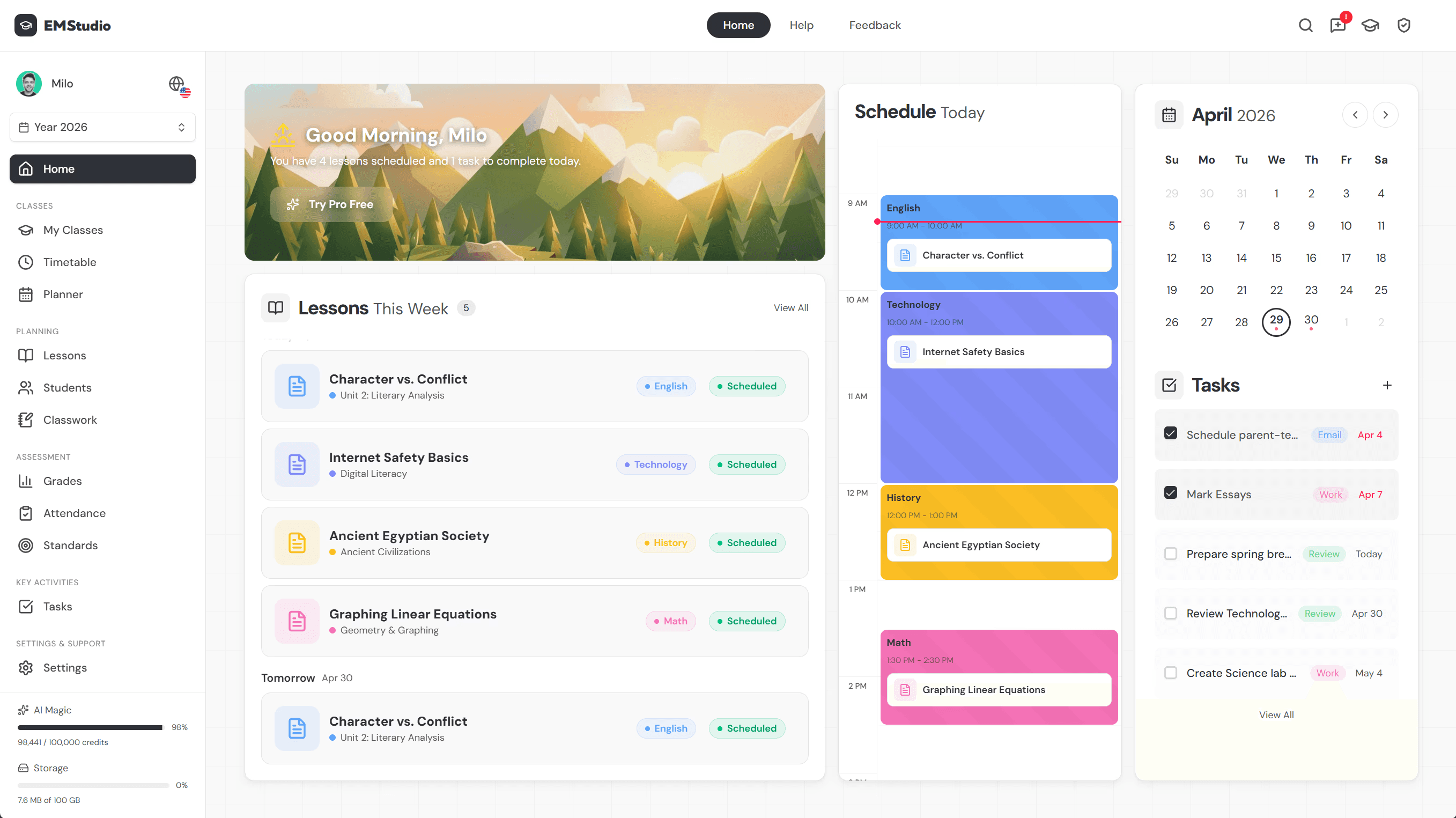
EMStudio
Education Management Studio is by far the best all-in-one digital teacher planner for all things teaching.
This online teacher planner is for lesson plans, gradebook, attendance, and curriculum planning. Built for teachers, tutors, and homeschool families.
The Notion Teacher Planner Dashboard
I built my first Notion teacher planner during winter break. The relational databases link your Students table to your Assessments table, so grades auto-populate when you input scores. No more double entry on spreadsheets or separate digital gradebook systems manually.
Plan for two to three hours of initial setup. You’re building the infrastructure before school starts. The free Notion tier suffices for most teachers, and it works on every device you own. Your laptop, phone, and classroom iPad stay synced without any extra cost.
I’ve seen three setups that actually survive the school year. A secondary English teacher tracked 150 students across five periods using filtered database views. A special ed case manager monitored IEP goal progress with linked databases that connected to specific accommodations. A department chair shared curriculum maps with her team through shared pages instantly, killing the endless PDF email chains.
If you want to skip the build entirely, check Notion templates for educators that come pre-linked and ready for your full roster import.
Happy Digital Teacher Planner for GoodNotes
This is the best teacher planner if you miss paper but need searchability. The Happy Digital Teacher Planner runs as a hyperlinked PDF with over 1,000 tabs covering July through June. You get fifty-plus sticker pages and an index navigation system that jumps to any week with one tap.
It costs between $18 and $25 on Etsy or Teachers Pay Teachers. You’ll need an iPad with Apple Pencil (first or second generation) or an Android tablet with stylus support. The GoodNotes 5 or 6 app runs free to $12 depending on your subscription plan.
This setup shines for elementary teachers juggling three or four preps who prefer handwriting notes. The tactile feel helps you process the day differently than typing. First grade teachers especially love the sticker pages for marking IEP meetings or early dismissals on the academic calendar. Just know the math functions don’t auto-calculate like Excel. You’re writing numbers, not formulas. Keep a calculator handy for grade averages.
Epic Self Digital Teacher Planner Bundle
The Epic Self bundle includes over forty lesson plan template components and classroom management tools. You get sub plan generators, parent contact logs, professional development trackers, behavior tracking sheets, and budget sheets for classroom supplies. It covers every administrative task that eats your planning period time.
This targets special education teachers managing twenty-plus IEPs or elective teachers with complex inventories like art supplies and instruments. The system handles details that generic planners ignore, like tracking which student borrowed your colored pencils or valve oil last week.
At $35 one-time, you receive both Notion and GoodNotes versions. You can start in GoodNotes for quick handwritten notes, then migrate to Notion when you’re ready for relational databases and auto-calculations. It’s the most flexible comprehensive digital teacher planner option without subscription fees. See our comprehensive digital teacher planner options for similar full-year bundles that mix formats and include video tutorials.

Which Digital Teacher Planners Work Best for Lesson Planning?
PlanbookEdu and Teacherly excel for standards-aligned lesson planning, offering CCSS and state standards databases with drag-and-drop pacing. Notion templates suit teachers building custom curriculum maps. The best choice depends on whether you need district compliance reporting (PlanbookEdu) or creative flexibility (Teacherly/Notion).
Lesson planning is more than filling boxes. You need standards alignment that actually matches your state's current requirements, views that show your whole month at a glance, and space to attach the PDF you made at 10 PM last night.
Most digital planner for teachers tools promise standards tracking, but only a few integrate CCSS, NGSS, and TEKS directly into the interface. Look for pacing calendar views that let you shift entire units when assemblies eat your Tuesday. Resource attachment capabilities matter too—if you can't link that Google Slide deck or upload a video, you'll end up with half your teaching resources in the planner and half scattered on your desktop. Some platforms even include a basic digital gradebook, though I prefer keeping grades separate from planning.
Tool | Cost | Platform | Key Feature |
|---|---|---|---|
PlanbookEdu | $12/year | Web-based | Admin sharing |
Teacherly | $4.99/month | Native apps | Visual timeline |
Notion | Free | Web + apps | Relational databases |
Here is the trap: standards databases go stale. I once bought a lesson plan template that listed 2020 ELA standards while my district required the 2024 updates. Before purchasing any digital teacher planner, scroll to the footer or settings menu and check the standards version date. Email the company if you don't see it. Outdated codes mean you'll manually re-tag every lesson later, doubling your workload during report card season.
PlanbookEdu Digital Planning Platform
PlanbookEdu builds the academic calendar around compliance. The searchable database covers all 50 states, dropping the exact standard code into your plan with one click. When snow days hit, the bump/extend feature pushes your whole sequence forward without breaking links or overwriting your notes. Individual licenses run $12 yearly; school licenses cost $25 per teacher.
This tool fits public school teachers in districts requiring weekly plan submissions to administration. Principals can view your plans in real-time. The limitation? You need internet for full functionality. That rural classroom with spotty Wi-Fi will frustrate you during last-minute adjustments.
Teacherly Digital Lesson Planner
Teacherly swaps spreadsheets for a visual timeline. You drag lesson blocks across days like moving sticky notes on a whiteboard. Color-coding tracks differentiation groups—red for kids needing reteaching, green for extension activities. Attach PDFs or videos up to 50MB directly to the block.
Montessori and PBL teachers love this flexibility for nonlinear scheduling. The app works natively on iOS and Android, so you can rearrange tomorrow's math block while waiting in car line. Pricing runs $4.99 monthly or $29.99 yearly. It is a classroom management tools favorite for visual thinkers who hate rigid grid layouts and need quick adjustments.
Notion Curriculum and Unit Planner Template
Notion templates approach planning through backward design. The Understanding by Design framework includes sections for Essential Questions, Evidence of Learning, and Learning Plan, plus a formula that calculates unit duration automatically. You can streamline your lesson planning process by importing existing curriculum from Google Sheets CSV files.
This setup suits teachers writing new curriculum or homeschooling parents building custom scopes from scratch. The free tier includes unlimited pages, so you won't hit paywalls mid-semester when you add your fourth quarter unit. Check our step-by-step unit planning guide to set up your first database. It takes more front-end work than plug-and-play apps, but the teacher organization payoff lasts for years.

What Are the Top Free Digital Teacher Planners for Budget-Conscious Educators?
Google Sheets and Microsoft OneNote offer robust free digital teacher planners with unlimited students and cloud storage. Notion's free tier includes basic templates but limits file uploads. These options work best for tech-comfortable teachers who can self-support, as free plans lack dedicated customer service.
"Free" has asterisks. Google Sheets stops at 15GB across your entire Google account—two video projects and you're upgrading to Workspace for $6 monthly. OneNote charges nothing to use, but printing your academic calendar wastes toner; pages print with massive margins that chew through $40 in ink by June. Factor in your time too—free tools lack phone support when grades disappear at 10 PM.
Choose your fighter wisely. Pick Google Sheets if you want formulas auto-calculating averages and attendance rates without manual entry. Grab OneNote if you annotate lessons with a stylus and need handwriting recognition. Use Notion only if you need relational databases linking students to intervention logs and classroom management tools.
Here's where we mess up. We download complex templates with twelve color-coded tabs, spend September debugging formulas, then surrender to sticky notes. Start smaller. Run attendance and a basic digital gradebook for six weeks. Once that rhythm sticks, add your teaching resources library. Master the core before adding the clever.
Google Sheets Teacher Planner Template
I migrated my gradebook to Sheets after coffee killed my paper planner. The formulas do the heavy lifting. Use =AVERAGE(B2:B25) for calculating averages, or =COUNTIF(C2:C25,"P")/COUNTA(C2:C25) to generate attendance percentages instantly. I also use =IF(D2<60,"Contact Parent","OK") to flag struggling students automatically.
Conditional formatting catches struggling students fast. Set rules turning cells red below 60%, yellow 60-79%, green 80%+. You'll spot the kid tanking before they fail the unit. I check the color patterns during my prep period instead of calculating manually.
Sharing works until it doesn't. Click Share, add co-teachers with Editor rights, parents with Viewer links. The hard cap is 100 collaborators per sheet. If you team-teach across grade levels or share with specialists, that limit arrives by November.
Microsoft OneNote Class Notebook Planner
OneNote mimics a physical binder for your lesson plan template without the ripped holes. The structure matters: Content Library stores read-only materials, Collaboration Space hosts group work, and individual Student Notebooks house portfolios. It integrates with Microsoft Teams, pushing assignments directly into your gradebook without duplicate entry.
Storage splits by account type. Personal accounts get 5GB—adequate for one year of text-based planning if you avoid audio recordings. School accounts receive unlimited storage. The ink-to-text conversion handles handwritten meeting notes surprisingly well, converting stylus scribbles into searchable text you can find later.
The hidden cost hits at the copier. OneNote pages don't respect standard margins. Printing a week's lessons consumes twice the paper you'd expect. Budget accordingly, or go fully paperless.
Free Notion Teacher Template Library Options
Notion's free tier suits text-heavy digital teacher planner free setups. I tested three community-built options that function without paid features. Teacher OS by Easlo tracks schedules and tasks without bloat. Notion's official Academic Planner handles basic teacher organization. The Special Ed Tracker from Reddit's r/Notion community manages IEP timelines and goals.
Browse our curated free Notion teacher templates or follow our online teacher planner setup guide for step-by-step help building your system.
Know the guardrails. Free accounts cap file uploads at 5MB—roughly one high-res photo, zero videos. Version history vanishes after seven days. If your digital teacher planner relies on image-heavy portfolios or needs rollback protection, you'll outgrow free quickly.

Best Digital Teacher Planners for Elective and Specialist Teachers
Specialist teachers don't have the luxury of one tidy roster. You rotate through A/B schedules or 6-day cycles. You don't have a homeroom. You're managing paint, basketballs, or tubas instead of just worksheets. A regular digital teacher planner collapses under that weight. You see 500 kids weekly. That's 500 assessments and 500 projects to track. Your needs split three ways: art teachers need visual documentation, PE teachers need skill progression tracking, and music teachers need ensemble management. One size never fits all here.
Art Teacher Digital Portfolio and Planner
I embed Seesaw portfolio links straight into my Notion pages. Each student gets a thumbnail grid—500 artworks visible in one scroll. Last October, I found a 3rd grader's clay project in seconds during a parent conference. No more hunting through camera rolls.
For supplies, I built a database with columns for consumables inventory. When my glaze hits five bottles, the row turns red using a simple formula. I track paper stock, clay bags, and specialty markers the same way. Low-stock alerts save me from mid-project panic when twelve kids need turquoise and I only have eight bottles.
Safety lives here too. Kiln firing logs, ventilation checks, and chemical storage notes sit next to rotating schedule tags. I see 3rd graders on Day 1 and Day 4, never the same time. My lesson plan template includes a safety checkbox and a cycle-day tag so I know exactly where we left off. Everything lives in one spot because I can't run back to the art room during lunch duty.
PE Teacher Digital Curriculum Planner
I track SHAPE America standards inside PlanbookEdu using custom dropdowns. Kindergarteners work on locomotor skills—skipping, galloping—while fifth graders need strategic gameplay breakdowns. Same teacher digital planner template, different benchmarks. I can glance at my PE teacher instructional planning and see exactly which skills need reinforcement before the next report card period.
Weather contingency planning is non-negotiable. I maintain parallel indoor and outdoor lesson slots mapped to specific locations. Purple tags mean gym activities. Green means field. Orange means blacktop. When thunder rolls in, I switch tabs instead of scrambling through loose papers. My academic calendar shows both schedules side by side.
Equipment checkout lists keep me sane. I track 30 basketballs, 15 jump ropes, and 20 hula hoops digitally. Students sign out gear on an iPad at the gym door. I know immediately if someone walked off with a volleyball. No manual counts in the freezing rain. Photo tags in my digital gradebook capture throwing form as visual evidence for all 500 kids.
Music Teacher Ensemble and Rehearsal Organizer
You can pay $400 a year for Charms Office Assistant or build a DIY system in Notion or Sheets. Charms gives you drag-and-drop chair charts and built-in instrument checkout logs. Notion gives you freedom. I built a repertoire database with difficulty ratings—grade 2.5, grade 3—and linked it to my festival preparation checklist.
Backward planning saves my sanity. I start 12 weeks out from the winter concert. Week 12: distribute music. Week 8: begin sectionals. Week 4: dress rehearsal. Week 1: performance. Each milestone lives in my digital teacher planner with automatic reminders. I never miss a library book return or bus reservation again.
Chair placement charts matter. I drag names around in Notion until the balance sounds right. Violins left, cellos center, percussion back. When the 2nd clarinet kid switches to alto sax mid-year, I shift them in seconds. Volunteer coordination lives here too—parent emails, snack sign-ups, and ticket sales all link to the concert date. My teaching resources for the semester live in the same sidebar.
How to Choose the Right Digital Teacher Planner for Your Teaching Style?
Choose a digital teacher planner based on your tech comfort and prep load: use hyperlinked PDFs (GoodNotes) for visual planners, relational databases (Notion) for data-driven teachers, and structured platforms (PlanbookEdu) for compliance-heavy environments. Start with a free option to test your workflow before investing.
Map Your Tech Comfort Against Your Prep Load
Rate yourself 1-5 on two scales. First, your tech comfort: do you enjoy tinkering with formulas or does new software make you anxious? Second, your planning complexity: how many preps do you juggle daily? Three or more preps with IEP accommodations and behavior tracking counts as high complexity. Be honest here. I once thought I was a 5 on tech until I spent three hours debugging a Notion relation during report card week when I should have been grading essays.
If you scored high on both scales, you need a relational database like Notion. You can link your lesson plan template directly to your digital gradebook and academic calendar without duplicating work across documents. If you scored low on both, stick with a hyperlinked PDF in GoodNotes. It feels like paper but lives on your iPad, giving you the security of handwriting with a search function. Medium scores usually fit structured platforms like PlanbookEdu that offer built-in teacher organization tools without the setup headache.
Mismatched scores require compromise. High tech comfort with low complexity means you might over-engineer simple systems, wasting time on automation for one prep. Low tech comfort with high complexity means you need help—either a pre-built template with heavy support or a hybrid approach where you keep paper for quick notes and digital for your academic calendar.
When Analog Still Beats Digital
Sometimes paper wins. If your school bans devices for teachers during instruction, stay analog. If you have strong visual or tactile memory—where the physical act of writing parent conversations or sticky notes helps you recall details—digital might actually hurt your retention. I taught in a building with spotty WiFi for one semester; my cloud-based digital teacher planner became a brick during fire drills or outages. Check your infrastructure before you commit.
Watch for admin requirements too. Some districts mandate specific lesson plan template formats for evaluations. If your chosen app cannot export to their required PDF layout, you will do the work twice. I learned this the hard way during my formal observation when I could not produce the district’s preferred format from my app.
Test Before You Commit
Never switch everything in August. That is the fastest way to abandon ship by October when the chaos hits. Instead, pilot your chosen system with just one class during the last month of school. Test how your classroom management tools and teaching resources integrate when the stakes are low. May is perfect because you can compare the digital workflow against your paper habits while finishing the year strong. If the system survives those four weeks without you cursing at your screen, you have proof it will survive September.
Start with your easiest class. Maybe that is the AP section with motivated seniors, not the 8th period freshman group that drains your energy. You want to test the tool, not your classroom management. If the digital workflow saves you ten minutes with that group, you know it will handle your tougher preps.
Remember, the best system is the one you actually maintain. I have abandoned fancy setups mid-year because they required twenty minutes of upkeep daily that I did not have during basketball season. Focus on choosing a planner you will actually stick with, not the one with the most has or the prettiest templates. Your future self will thank you when you are not retyping lesson plans at midnight because the sync failed again.

Setting Up Your Digital Teacher Planner for Success This School Year
Your digital teacher planner works best when you feed it good data upfront. I learned this the hard way after manually typing 28 student names last August while my coffee got cold. Never again. Thirty minutes of prep now saves you three hours of frustration later when you're hunting for a student's reading level during a surprise parent conference.
Data migration comes first. Export last year's roster and standards from whatever system your district used. Most platforms spit out a CSV file that imports cleanly into Notion or whatever tool you chose. Check that the columns line up. Fix the formatting now, not when you're entering grades at 10 PM on a Tuesday. I do this while Netflix plays in the background. It takes half an hour, tops.
Next, configure your repeating events. Input that rotating schedule your principal loves—Day 1 through Day 6, or A/B blocks, whatever calendar chaos you follow. Set these as recurring entries so you never wonder whether today is Blue Day or Gold Day. While you're there, automate your backups. I export a PDF to Google Drive every Sunday night. When the Wi-Fi crashes on a Monday morning, I still have my lesson plan template and attendance sheets on my phone.
Test your print margins before the first bell rings. Print one emergency sub plan in black-and-white right now. Check for dark backgrounds that guzzle ink or text that vanishes in grayscale. Your sub can't read light gray text on a whiteboard photo. You don't want to waste toner on decorative banners when you're printing classroom management tools at 6 AM with a fever and a substitute heading your way.
Finally, lock in the Friday 10-minute review. Every week, spend ten minutes clearing digital clutter. Archive old assignments. Update your digital gradebook. Check next week's academic calendar for surprises like assemblies or early dismissal. This ritual prevents the Sunday night scramble that eats your weekend alive and keeps your system from becoming a digital junk drawer by December.
Research shows teachers spend three to five hours weekly on planning. A clean setup cuts that by 45 to 90 minutes. That's an entire prep period or a real lunch break. That's time you could spend grading papers, coaching soccer, or simply eating dinner while it's hot. The habits of highly effective planners all start with these small systems.
Your teacher organization system is a living thing. It needs tending, but not babying. Build these teaching resources once, maintain them weekly, and trust them to carry you through the chaos of October and the slog of February. The right time management strategies for teachers aren't about doing more. They're about making the technology work while you focus on the kids.

Should You Try Digital Teacher Planner?
I still have my paper planner from 2019 sitting on a shelf. It’s pretty. I never open it. My digital teacher planner lives on my iPad and phone, which means I actually check it during lunch duty when a parent emails about tomorrow’s field trip. If you’re tired of carrying a binder that weighs five pounds, or finding coffee-stained lesson plan templates three weeks after you needed them, digital wins.
Start small. Pick one tool from the list above and import just next week’s plans. Don’t try to migrate your entire year on a Sunday night. Test the search function. See if the digital gradebook actually saves you time during report cards, or if it just creates new clicks to manage. You’ll know by Friday if it fits your teacher organization style or if it’s another tech chore.
The best planner is the one you actually open during your prep period. So ask yourself: what’s the one planning headache that steals ten minutes from you every single day? That’s where you start.

Best All-in-One Digital Teacher Planners for Daily Management
An all-in-one digital teacher planner pulls your attendance, grades, lesson plans, and IEP tracking into one interface. No more checking three apps to find if Jayden was absent Tuesday or if he has accommodations for the quiz. Everything lives in one searchable place.
These premium systems run between $15 and $50 as one-time purchases, though some subscription models exist. I’ve tested both types extensively. The one-time fees hurt less upfront, but subscription tools often sync better with your school’s SIS.
John Hattie’s research pegs teacher clarity at an effect size of 0.75. That clarity gets nearly impossible when you’re making 1,500+ instructional decisions daily. Centralized planning cuts that cognitive load. You see everything at once.
Here is the breakdown: Notion offers infinite customization but needs a steep learning curve. GoodNotes PDF planners give you tactile handwriting with limited auto-calculation. Bundle systems come comprehensive yet vendor-locked.
EMStudio
Education Management Studio is by far the best all-in-one digital teacher planner for all things teaching.
This online teacher planner is for lesson plans, gradebook, attendance, and curriculum planning. Built for teachers, tutors, and homeschool families.
The Notion Teacher Planner Dashboard
I built my first Notion teacher planner during winter break. The relational databases link your Students table to your Assessments table, so grades auto-populate when you input scores. No more double entry on spreadsheets or separate digital gradebook systems manually.
Plan for two to three hours of initial setup. You’re building the infrastructure before school starts. The free Notion tier suffices for most teachers, and it works on every device you own. Your laptop, phone, and classroom iPad stay synced without any extra cost.
I’ve seen three setups that actually survive the school year. A secondary English teacher tracked 150 students across five periods using filtered database views. A special ed case manager monitored IEP goal progress with linked databases that connected to specific accommodations. A department chair shared curriculum maps with her team through shared pages instantly, killing the endless PDF email chains.
If you want to skip the build entirely, check Notion templates for educators that come pre-linked and ready for your full roster import.
Happy Digital Teacher Planner for GoodNotes
This is the best teacher planner if you miss paper but need searchability. The Happy Digital Teacher Planner runs as a hyperlinked PDF with over 1,000 tabs covering July through June. You get fifty-plus sticker pages and an index navigation system that jumps to any week with one tap.
It costs between $18 and $25 on Etsy or Teachers Pay Teachers. You’ll need an iPad with Apple Pencil (first or second generation) or an Android tablet with stylus support. The GoodNotes 5 or 6 app runs free to $12 depending on your subscription plan.
This setup shines for elementary teachers juggling three or four preps who prefer handwriting notes. The tactile feel helps you process the day differently than typing. First grade teachers especially love the sticker pages for marking IEP meetings or early dismissals on the academic calendar. Just know the math functions don’t auto-calculate like Excel. You’re writing numbers, not formulas. Keep a calculator handy for grade averages.
Epic Self Digital Teacher Planner Bundle
The Epic Self bundle includes over forty lesson plan template components and classroom management tools. You get sub plan generators, parent contact logs, professional development trackers, behavior tracking sheets, and budget sheets for classroom supplies. It covers every administrative task that eats your planning period time.
This targets special education teachers managing twenty-plus IEPs or elective teachers with complex inventories like art supplies and instruments. The system handles details that generic planners ignore, like tracking which student borrowed your colored pencils or valve oil last week.
At $35 one-time, you receive both Notion and GoodNotes versions. You can start in GoodNotes for quick handwritten notes, then migrate to Notion when you’re ready for relational databases and auto-calculations. It’s the most flexible comprehensive digital teacher planner option without subscription fees. See our comprehensive digital teacher planner options for similar full-year bundles that mix formats and include video tutorials.
Which Digital Teacher Planners Work Best for Lesson Planning?
PlanbookEdu and Teacherly excel for standards-aligned lesson planning, offering CCSS and state standards databases with drag-and-drop pacing. Notion templates suit teachers building custom curriculum maps. The best choice depends on whether you need district compliance reporting (PlanbookEdu) or creative flexibility (Teacherly/Notion).
Lesson planning is more than filling boxes. You need standards alignment that actually matches your state's current requirements, views that show your whole month at a glance, and space to attach the PDF you made at 10 PM last night.
Most digital planner for teachers tools promise standards tracking, but only a few integrate CCSS, NGSS, and TEKS directly into the interface. Look for pacing calendar views that let you shift entire units when assemblies eat your Tuesday. Resource attachment capabilities matter too—if you can't link that Google Slide deck or upload a video, you'll end up with half your teaching resources in the planner and half scattered on your desktop. Some platforms even include a basic digital gradebook, though I prefer keeping grades separate from planning.
Tool | Cost | Platform | Key Feature |
|---|---|---|---|
PlanbookEdu | $12/year | Web-based | Admin sharing |
Teacherly | $4.99/month | Native apps | Visual timeline |
Notion | Free | Web + apps | Relational databases |
Here is the trap: standards databases go stale. I once bought a lesson plan template that listed 2020 ELA standards while my district required the 2024 updates. Before purchasing any digital teacher planner, scroll to the footer or settings menu and check the standards version date. Email the company if you don't see it. Outdated codes mean you'll manually re-tag every lesson later, doubling your workload during report card season.
PlanbookEdu Digital Planning Platform
PlanbookEdu builds the academic calendar around compliance. The searchable database covers all 50 states, dropping the exact standard code into your plan with one click. When snow days hit, the bump/extend feature pushes your whole sequence forward without breaking links or overwriting your notes. Individual licenses run $12 yearly; school licenses cost $25 per teacher.
This tool fits public school teachers in districts requiring weekly plan submissions to administration. Principals can view your plans in real-time. The limitation? You need internet for full functionality. That rural classroom with spotty Wi-Fi will frustrate you during last-minute adjustments.
Teacherly Digital Lesson Planner
Teacherly swaps spreadsheets for a visual timeline. You drag lesson blocks across days like moving sticky notes on a whiteboard. Color-coding tracks differentiation groups—red for kids needing reteaching, green for extension activities. Attach PDFs or videos up to 50MB directly to the block.
Montessori and PBL teachers love this flexibility for nonlinear scheduling. The app works natively on iOS and Android, so you can rearrange tomorrow's math block while waiting in car line. Pricing runs $4.99 monthly or $29.99 yearly. It is a classroom management tools favorite for visual thinkers who hate rigid grid layouts and need quick adjustments.
Notion Curriculum and Unit Planner Template
Notion templates approach planning through backward design. The Understanding by Design framework includes sections for Essential Questions, Evidence of Learning, and Learning Plan, plus a formula that calculates unit duration automatically. You can streamline your lesson planning process by importing existing curriculum from Google Sheets CSV files.
This setup suits teachers writing new curriculum or homeschooling parents building custom scopes from scratch. The free tier includes unlimited pages, so you won't hit paywalls mid-semester when you add your fourth quarter unit. Check our step-by-step unit planning guide to set up your first database. It takes more front-end work than plug-and-play apps, but the teacher organization payoff lasts for years.
What Are the Top Free Digital Teacher Planners for Budget-Conscious Educators?
Google Sheets and Microsoft OneNote offer robust free digital teacher planners with unlimited students and cloud storage. Notion's free tier includes basic templates but limits file uploads. These options work best for tech-comfortable teachers who can self-support, as free plans lack dedicated customer service.
"Free" has asterisks. Google Sheets stops at 15GB across your entire Google account—two video projects and you're upgrading to Workspace for $6 monthly. OneNote charges nothing to use, but printing your academic calendar wastes toner; pages print with massive margins that chew through $40 in ink by June. Factor in your time too—free tools lack phone support when grades disappear at 10 PM.
Choose your fighter wisely. Pick Google Sheets if you want formulas auto-calculating averages and attendance rates without manual entry. Grab OneNote if you annotate lessons with a stylus and need handwriting recognition. Use Notion only if you need relational databases linking students to intervention logs and classroom management tools.
Here's where we mess up. We download complex templates with twelve color-coded tabs, spend September debugging formulas, then surrender to sticky notes. Start smaller. Run attendance and a basic digital gradebook for six weeks. Once that rhythm sticks, add your teaching resources library. Master the core before adding the clever.
Google Sheets Teacher Planner Template
I migrated my gradebook to Sheets after coffee killed my paper planner. The formulas do the heavy lifting. Use =AVERAGE(B2:B25) for calculating averages, or =COUNTIF(C2:C25,"P")/COUNTA(C2:C25) to generate attendance percentages instantly. I also use =IF(D2<60,"Contact Parent","OK") to flag struggling students automatically.
Conditional formatting catches struggling students fast. Set rules turning cells red below 60%, yellow 60-79%, green 80%+. You'll spot the kid tanking before they fail the unit. I check the color patterns during my prep period instead of calculating manually.
Sharing works until it doesn't. Click Share, add co-teachers with Editor rights, parents with Viewer links. The hard cap is 100 collaborators per sheet. If you team-teach across grade levels or share with specialists, that limit arrives by November.
Microsoft OneNote Class Notebook Planner
OneNote mimics a physical binder for your lesson plan template without the ripped holes. The structure matters: Content Library stores read-only materials, Collaboration Space hosts group work, and individual Student Notebooks house portfolios. It integrates with Microsoft Teams, pushing assignments directly into your gradebook without duplicate entry.
Storage splits by account type. Personal accounts get 5GB—adequate for one year of text-based planning if you avoid audio recordings. School accounts receive unlimited storage. The ink-to-text conversion handles handwritten meeting notes surprisingly well, converting stylus scribbles into searchable text you can find later.
The hidden cost hits at the copier. OneNote pages don't respect standard margins. Printing a week's lessons consumes twice the paper you'd expect. Budget accordingly, or go fully paperless.
Free Notion Teacher Template Library Options
Notion's free tier suits text-heavy digital teacher planner free setups. I tested three community-built options that function without paid features. Teacher OS by Easlo tracks schedules and tasks without bloat. Notion's official Academic Planner handles basic teacher organization. The Special Ed Tracker from Reddit's r/Notion community manages IEP timelines and goals.
Browse our curated free Notion teacher templates or follow our online teacher planner setup guide for step-by-step help building your system.
Know the guardrails. Free accounts cap file uploads at 5MB—roughly one high-res photo, zero videos. Version history vanishes after seven days. If your digital teacher planner relies on image-heavy portfolios or needs rollback protection, you'll outgrow free quickly.
Best Digital Teacher Planners for Elective and Specialist Teachers
Specialist teachers don't have the luxury of one tidy roster. You rotate through A/B schedules or 6-day cycles. You don't have a homeroom. You're managing paint, basketballs, or tubas instead of just worksheets. A regular digital teacher planner collapses under that weight. You see 500 kids weekly. That's 500 assessments and 500 projects to track. Your needs split three ways: art teachers need visual documentation, PE teachers need skill progression tracking, and music teachers need ensemble management. One size never fits all here.
Art Teacher Digital Portfolio and Planner
I embed Seesaw portfolio links straight into my Notion pages. Each student gets a thumbnail grid—500 artworks visible in one scroll. Last October, I found a 3rd grader's clay project in seconds during a parent conference. No more hunting through camera rolls.
For supplies, I built a database with columns for consumables inventory. When my glaze hits five bottles, the row turns red using a simple formula. I track paper stock, clay bags, and specialty markers the same way. Low-stock alerts save me from mid-project panic when twelve kids need turquoise and I only have eight bottles.
Safety lives here too. Kiln firing logs, ventilation checks, and chemical storage notes sit next to rotating schedule tags. I see 3rd graders on Day 1 and Day 4, never the same time. My lesson plan template includes a safety checkbox and a cycle-day tag so I know exactly where we left off. Everything lives in one spot because I can't run back to the art room during lunch duty.
PE Teacher Digital Curriculum Planner
I track SHAPE America standards inside PlanbookEdu using custom dropdowns. Kindergarteners work on locomotor skills—skipping, galloping—while fifth graders need strategic gameplay breakdowns. Same teacher digital planner template, different benchmarks. I can glance at my PE teacher instructional planning and see exactly which skills need reinforcement before the next report card period.
Weather contingency planning is non-negotiable. I maintain parallel indoor and outdoor lesson slots mapped to specific locations. Purple tags mean gym activities. Green means field. Orange means blacktop. When thunder rolls in, I switch tabs instead of scrambling through loose papers. My academic calendar shows both schedules side by side.
Equipment checkout lists keep me sane. I track 30 basketballs, 15 jump ropes, and 20 hula hoops digitally. Students sign out gear on an iPad at the gym door. I know immediately if someone walked off with a volleyball. No manual counts in the freezing rain. Photo tags in my digital gradebook capture throwing form as visual evidence for all 500 kids.
Music Teacher Ensemble and Rehearsal Organizer
You can pay $400 a year for Charms Office Assistant or build a DIY system in Notion or Sheets. Charms gives you drag-and-drop chair charts and built-in instrument checkout logs. Notion gives you freedom. I built a repertoire database with difficulty ratings—grade 2.5, grade 3—and linked it to my festival preparation checklist.
Backward planning saves my sanity. I start 12 weeks out from the winter concert. Week 12: distribute music. Week 8: begin sectionals. Week 4: dress rehearsal. Week 1: performance. Each milestone lives in my digital teacher planner with automatic reminders. I never miss a library book return or bus reservation again.
Chair placement charts matter. I drag names around in Notion until the balance sounds right. Violins left, cellos center, percussion back. When the 2nd clarinet kid switches to alto sax mid-year, I shift them in seconds. Volunteer coordination lives here too—parent emails, snack sign-ups, and ticket sales all link to the concert date. My teaching resources for the semester live in the same sidebar.
How to Choose the Right Digital Teacher Planner for Your Teaching Style?
Choose a digital teacher planner based on your tech comfort and prep load: use hyperlinked PDFs (GoodNotes) for visual planners, relational databases (Notion) for data-driven teachers, and structured platforms (PlanbookEdu) for compliance-heavy environments. Start with a free option to test your workflow before investing.
Map Your Tech Comfort Against Your Prep Load
Rate yourself 1-5 on two scales. First, your tech comfort: do you enjoy tinkering with formulas or does new software make you anxious? Second, your planning complexity: how many preps do you juggle daily? Three or more preps with IEP accommodations and behavior tracking counts as high complexity. Be honest here. I once thought I was a 5 on tech until I spent three hours debugging a Notion relation during report card week when I should have been grading essays.
If you scored high on both scales, you need a relational database like Notion. You can link your lesson plan template directly to your digital gradebook and academic calendar without duplicating work across documents. If you scored low on both, stick with a hyperlinked PDF in GoodNotes. It feels like paper but lives on your iPad, giving you the security of handwriting with a search function. Medium scores usually fit structured platforms like PlanbookEdu that offer built-in teacher organization tools without the setup headache.
Mismatched scores require compromise. High tech comfort with low complexity means you might over-engineer simple systems, wasting time on automation for one prep. Low tech comfort with high complexity means you need help—either a pre-built template with heavy support or a hybrid approach where you keep paper for quick notes and digital for your academic calendar.
When Analog Still Beats Digital
Sometimes paper wins. If your school bans devices for teachers during instruction, stay analog. If you have strong visual or tactile memory—where the physical act of writing parent conversations or sticky notes helps you recall details—digital might actually hurt your retention. I taught in a building with spotty WiFi for one semester; my cloud-based digital teacher planner became a brick during fire drills or outages. Check your infrastructure before you commit.
Watch for admin requirements too. Some districts mandate specific lesson plan template formats for evaluations. If your chosen app cannot export to their required PDF layout, you will do the work twice. I learned this the hard way during my formal observation when I could not produce the district’s preferred format from my app.
Test Before You Commit
Never switch everything in August. That is the fastest way to abandon ship by October when the chaos hits. Instead, pilot your chosen system with just one class during the last month of school. Test how your classroom management tools and teaching resources integrate when the stakes are low. May is perfect because you can compare the digital workflow against your paper habits while finishing the year strong. If the system survives those four weeks without you cursing at your screen, you have proof it will survive September.
Start with your easiest class. Maybe that is the AP section with motivated seniors, not the 8th period freshman group that drains your energy. You want to test the tool, not your classroom management. If the digital workflow saves you ten minutes with that group, you know it will handle your tougher preps.
Remember, the best system is the one you actually maintain. I have abandoned fancy setups mid-year because they required twenty minutes of upkeep daily that I did not have during basketball season. Focus on choosing a planner you will actually stick with, not the one with the most has or the prettiest templates. Your future self will thank you when you are not retyping lesson plans at midnight because the sync failed again.
Setting Up Your Digital Teacher Planner for Success This School Year
Your digital teacher planner works best when you feed it good data upfront. I learned this the hard way after manually typing 28 student names last August while my coffee got cold. Never again. Thirty minutes of prep now saves you three hours of frustration later when you're hunting for a student's reading level during a surprise parent conference.
Data migration comes first. Export last year's roster and standards from whatever system your district used. Most platforms spit out a CSV file that imports cleanly into Notion or whatever tool you chose. Check that the columns line up. Fix the formatting now, not when you're entering grades at 10 PM on a Tuesday. I do this while Netflix plays in the background. It takes half an hour, tops.
Next, configure your repeating events. Input that rotating schedule your principal loves—Day 1 through Day 6, or A/B blocks, whatever calendar chaos you follow. Set these as recurring entries so you never wonder whether today is Blue Day or Gold Day. While you're there, automate your backups. I export a PDF to Google Drive every Sunday night. When the Wi-Fi crashes on a Monday morning, I still have my lesson plan template and attendance sheets on my phone.
Test your print margins before the first bell rings. Print one emergency sub plan in black-and-white right now. Check for dark backgrounds that guzzle ink or text that vanishes in grayscale. Your sub can't read light gray text on a whiteboard photo. You don't want to waste toner on decorative banners when you're printing classroom management tools at 6 AM with a fever and a substitute heading your way.
Finally, lock in the Friday 10-minute review. Every week, spend ten minutes clearing digital clutter. Archive old assignments. Update your digital gradebook. Check next week's academic calendar for surprises like assemblies or early dismissal. This ritual prevents the Sunday night scramble that eats your weekend alive and keeps your system from becoming a digital junk drawer by December.
Research shows teachers spend three to five hours weekly on planning. A clean setup cuts that by 45 to 90 minutes. That's an entire prep period or a real lunch break. That's time you could spend grading papers, coaching soccer, or simply eating dinner while it's hot. The habits of highly effective planners all start with these small systems.
Your teacher organization system is a living thing. It needs tending, but not babying. Build these teaching resources once, maintain them weekly, and trust them to carry you through the chaos of October and the slog of February. The right time management strategies for teachers aren't about doing more. They're about making the technology work while you focus on the kids.
Should You Try Digital Teacher Planner?
I still have my paper planner from 2019 sitting on a shelf. It’s pretty. I never open it. My digital teacher planner lives on my iPad and phone, which means I actually check it during lunch duty when a parent emails about tomorrow’s field trip. If you’re tired of carrying a binder that weighs five pounds, or finding coffee-stained lesson plan templates three weeks after you needed them, digital wins.
Start small. Pick one tool from the list above and import just next week’s plans. Don’t try to migrate your entire year on a Sunday night. Test the search function. See if the digital gradebook actually saves you time during report cards, or if it just creates new clicks to manage. You’ll know by Friday if it fits your teacher organization style or if it’s another tech chore.
The best planner is the one you actually open during your prep period. So ask yourself: what’s the one planning headache that steals ten minutes from you every single day? That’s where you start.
Still grading everything by hand?
EMStudio is a free teaching management app — manage your classes, students, lessons, and more!
Learn More
Still grading everything by hand?
EMStudio is a free teaching management app — manage your classes, students, lessons, and more!
Learn More





Notion4Teachers
Notion templates to simplify administrative tasks and enhance your teaching experience.



2026 Notion4Teachers. All Rights Reserved.
Notion4Teachers
Notion templates to simplify administrative tasks and enhance your teaching experience.
2026 Notion4Teachers. All Rights Reserved.
Notion4Teachers
Notion templates to simplify administrative tasks and enhance your teaching experience.
2026 Notion4Teachers. All Rights Reserved.