
How to build a beginner Japanese study plan in Notion
How to build a beginner Japanese study plan in Notion

Article by
Milo
ESL Content Coordinator & Educator
ESL Content Coordinator & Educator
All Posts
Sponsored by Sapilumen.
Build your Japanese study plan around the next task you intend to do. Start with one Notion page, a small session database, and links to the material for each task. Add a review date when you decide to return to something. That gives the plan a clear job: show what you are working on and where to pick it up again.
The setup below is a suggested starting point for an independent beginner. Its sample goals, labels, and schedules are illustrative, not a tested learning program. Adapt them to your materials and available time. Keep the page plain at first; a useful session entry matters more than a finished-looking dashboard.
Ultimate Teacher Planner
The ultimate all-in-one education management system in Notion.
Learn More
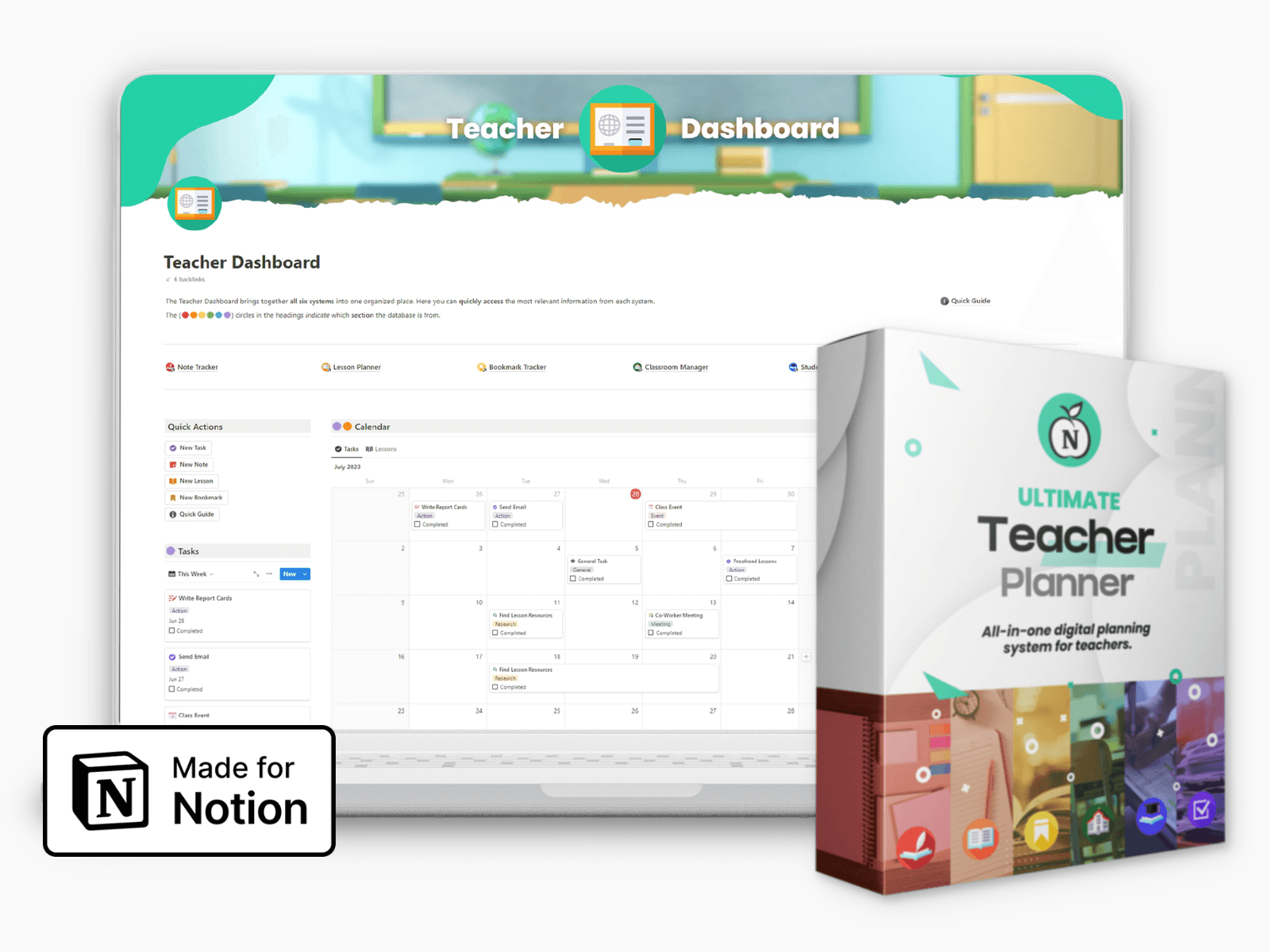
Ultimate Teacher Planner
The ultimate all-in-one education management system in Notion.
Learn More
Table of Contents
Start with a small weekly outcome
Choose something you could demonstrate at the end of a week. For example: "Work through one small set of characters in my guide, then try to identify them with the reference closed." Treat that as a trial goal, not a promise about how much a beginner should learn in seven days.
Write down what would count as finishing the task. "Study Japanese" leaves too much to decide when you sit down. "Attempt the selected exercise, check the answers, and note which items need another attempt" gives you a specific stopping point. Choose the exercise before adding more sessions.
For an illustrative first week, you might reserve three short study slots and leave another slot open. Use the open slot to revisit unfinished work or take a break. Choose the duration to suit your week rather than trying to fill a calendar.
Set a separate limit for organizing the page. A few minutes of planning is enough to choose a task and find its resource. Then close the dashboard and do the exercise. Record what happened afterward, including an unfinished attempt; you do not need to turn every session into a completed box.
Create one page and a table view database
Create a page called "Japanese study plan." Put your current weekly outcome near the top, followed by a short note about the material you intend to use. Leave room below for your session database. There is no need to design separate dashboards for every part of your learning before you have tried a few entries.
On desktop or the web, type/Table viewon the page and press Enter to create an inline database. Notion’s table view documentation describes this route. Interface labels can differ by device or language, so follow the database option if your screen looks slightly different.
Choose a database in table view rather than a simple table. A simple table is for displaying text; it does not offer database properties, filtering, or sorting. Each row in a database can also open as its own page, giving you a place for the exercise instructions and notes from the attempt.
Use one row for one session task. Keep the title short enough to recognize when you return to the plan, such as "Try the selected reading exercise." Put longer instructions inside that row's page. Avoid copying an entire textbook or guide into the dashboard; record the relevant resource and the part you intend to use.
Add only the properties you will use
The table below is an illustrative scheme, not a built-in Japanese learning template. The column names are suggestions. Notion's database property types supply the underlying functions: Select stores one tag, Status tracks progress, and a Checkbox records a true-or-false condition.
Property name | Type | Suggested use |
|---|---|---|
Session | Title | Name one task you intend to attempt. |
Focus | Select | Choose your own category, such as reading or practice. |
Status | Status | Record whether the task is to do, in progress, or complete. |
Next review | Date | Enter a return date that you choose manually. |
Resource | URL | Keep the web address of the material for this task. |
Checked without looking | Checkbox, optional | Record whether you attempted a specific check with the reference closed. |
UseAdd propertyfor a first property, or the+beside the rightmost column to add another. Give it a name and choose its type. For Focus, create only the categories you need now. Status provides progress groups; any task names or labels you customize belong to your setup, not to an official course.
A Date property can hold a date or range, with an optional time. For this plan, a single manually chosen day is enough. A URL property stores a web link. Keep your observations in the session page rather than squeezing them into extra columns.
You can filter or sort through a property's menu. Start with the full table, then use sorting by Next review if that helps you choose what to revisit. Omit the optional Checkbox if you would not use it differently from Status.
Turn a learning roadmap into session tasks
Choose a resource before filling the table with tasks. Sapilumen’s Japanese learning guide offers a beginner study path with links to hiragana, katakana, reading guides, and short quizzes. Use those website materials to choose a manageable activity, then keep the relevant resource address in the session entry. You are selecting material yourself; this setup does not describe an integration between the two services.
For an illustrative starting sequence, make an entry called "Read one section of the hiragana guide." Inside its page, name the section you chose and write one question you want it to answer. Stop the task at that boundary rather than leaving "learn hiragana" as an open-ended assignment.
A later example row could be "Try a short quiz and check my answers." After attempting it, note which items you want to revisit. Another could be "Return to one reading example." These are suggested task names, not required steps or a claim about how quickly you should progress.
When a task feels too broad, divide it before your next session. If it is already clear and manageable, keep it as it is. Resist adding rows for every resource you encounter. Keep a resource only when you can name what you intend to do with it, and leave the full explanations on the source site where you can read them in context.
Choose the next review date yourself
After a session, decide whether the task needs another attempt and pick a return date in the Date field. Consider both your notes and your available time. If an exercise remains unfinished, you might choose your next study slot. If you have completed it, you can decide when you want to try it again. These are planning choices, not prescribed intervals.
Define a small self-check before using the optional Checkbox. For example, close the reference, attempt the items you selected, then reopen the material to check them. Tick "Checked without looking" only if you made that attempt. The tick records the condition you defined; it does not certify mastery. Note any errors or uncertainty separately.
Keep the next action specific. An illustrative note might read: "I needed the guide for two items. Try those again before adding another task." You choose which items and which day.
Use the property menu to sort by Next review when deciding what to open. You still need to enter and change those dates yourself. This manual tracker is not an automated spaced-repetition system, and it does not calculate an optimal review interval.
Make a session template after trying the structure
Write a few session notes before deciding which prompts deserve a template. Keep the prompts you actually answer and remove those that produce empty text. A note can be brief: the task, what happened, and the next action may be all you need.
To make a database template, open the dropdown besideNewand select+ New template. Give it a name such as "Study session." A template can preset properties and page content. Choose it when creating a new database page, then adapt that entry to the task in front of you.
For a suggested session layout, use the prompts "What I will practice," "What I tried without looking," and "What needs another session." Under the first, name the exercise and its boundary. Under the second, describe the attempt rather than assigning yourself a broad ability label. Under the last, write a next action only when you have one.
Leave the example answers out of the reusable template. Keep the Resource and Next review values specific to each task rather than carrying an irrelevant link or date into new entries. The template is available within the database where you created it; it does not automatically become a template for every database in your workspace.
Use a short weekly review to decide what comes next
At the end of your chosen week, read the session notes before scheduling more work. Look for one decision: repeat a task, make it smaller, or move on to another activity. Use the notes from your attempts to explain that decision. A full calendar or a run of completed rows is not, by itself, a description of what you can do.
As an illustrative review, imagine you planned three sessions but attempted two. One is complete, and the other contains a question you have not resolved. Keep that question visible, choose a resource section to consult, and schedule the unfinished task if you still want to do it. Do not add a replacement week of work merely to make the plan look complete.
If you missed a session, decide whether to move it, shrink it, or drop it. There is no need to record a fictional catch-up attempt. Adjust the next week's workload to the time you are willing to set aside.
Finish the review by choosing your next concrete task and checking that its resource is ready. Stop editing the dashboard there. Open the material, make the attempt, and return to the session note when you have something worth recording.
Start with a small weekly outcome
Choose something you could demonstrate at the end of a week. For example: "Work through one small set of characters in my guide, then try to identify them with the reference closed." Treat that as a trial goal, not a promise about how much a beginner should learn in seven days.
Write down what would count as finishing the task. "Study Japanese" leaves too much to decide when you sit down. "Attempt the selected exercise, check the answers, and note which items need another attempt" gives you a specific stopping point. Choose the exercise before adding more sessions.
For an illustrative first week, you might reserve three short study slots and leave another slot open. Use the open slot to revisit unfinished work or take a break. Choose the duration to suit your week rather than trying to fill a calendar.
Set a separate limit for organizing the page. A few minutes of planning is enough to choose a task and find its resource. Then close the dashboard and do the exercise. Record what happened afterward, including an unfinished attempt; you do not need to turn every session into a completed box.
Create one page and a table view database
Create a page called "Japanese study plan." Put your current weekly outcome near the top, followed by a short note about the material you intend to use. Leave room below for your session database. There is no need to design separate dashboards for every part of your learning before you have tried a few entries.
On desktop or the web, type/Table viewon the page and press Enter to create an inline database. Notion’s table view documentation describes this route. Interface labels can differ by device or language, so follow the database option if your screen looks slightly different.
Choose a database in table view rather than a simple table. A simple table is for displaying text; it does not offer database properties, filtering, or sorting. Each row in a database can also open as its own page, giving you a place for the exercise instructions and notes from the attempt.
Use one row for one session task. Keep the title short enough to recognize when you return to the plan, such as "Try the selected reading exercise." Put longer instructions inside that row's page. Avoid copying an entire textbook or guide into the dashboard; record the relevant resource and the part you intend to use.
Add only the properties you will use
The table below is an illustrative scheme, not a built-in Japanese learning template. The column names are suggestions. Notion's database property types supply the underlying functions: Select stores one tag, Status tracks progress, and a Checkbox records a true-or-false condition.
Property name | Type | Suggested use |
|---|---|---|
Session | Title | Name one task you intend to attempt. |
Focus | Select | Choose your own category, such as reading or practice. |
Status | Status | Record whether the task is to do, in progress, or complete. |
Next review | Date | Enter a return date that you choose manually. |
Resource | URL | Keep the web address of the material for this task. |
Checked without looking | Checkbox, optional | Record whether you attempted a specific check with the reference closed. |
UseAdd propertyfor a first property, or the+beside the rightmost column to add another. Give it a name and choose its type. For Focus, create only the categories you need now. Status provides progress groups; any task names or labels you customize belong to your setup, not to an official course.
A Date property can hold a date or range, with an optional time. For this plan, a single manually chosen day is enough. A URL property stores a web link. Keep your observations in the session page rather than squeezing them into extra columns.
You can filter or sort through a property's menu. Start with the full table, then use sorting by Next review if that helps you choose what to revisit. Omit the optional Checkbox if you would not use it differently from Status.
Turn a learning roadmap into session tasks
Choose a resource before filling the table with tasks. Sapilumen’s Japanese learning guide offers a beginner study path with links to hiragana, katakana, reading guides, and short quizzes. Use those website materials to choose a manageable activity, then keep the relevant resource address in the session entry. You are selecting material yourself; this setup does not describe an integration between the two services.
For an illustrative starting sequence, make an entry called "Read one section of the hiragana guide." Inside its page, name the section you chose and write one question you want it to answer. Stop the task at that boundary rather than leaving "learn hiragana" as an open-ended assignment.
A later example row could be "Try a short quiz and check my answers." After attempting it, note which items you want to revisit. Another could be "Return to one reading example." These are suggested task names, not required steps or a claim about how quickly you should progress.
When a task feels too broad, divide it before your next session. If it is already clear and manageable, keep it as it is. Resist adding rows for every resource you encounter. Keep a resource only when you can name what you intend to do with it, and leave the full explanations on the source site where you can read them in context.
Choose the next review date yourself
After a session, decide whether the task needs another attempt and pick a return date in the Date field. Consider both your notes and your available time. If an exercise remains unfinished, you might choose your next study slot. If you have completed it, you can decide when you want to try it again. These are planning choices, not prescribed intervals.
Define a small self-check before using the optional Checkbox. For example, close the reference, attempt the items you selected, then reopen the material to check them. Tick "Checked without looking" only if you made that attempt. The tick records the condition you defined; it does not certify mastery. Note any errors or uncertainty separately.
Keep the next action specific. An illustrative note might read: "I needed the guide for two items. Try those again before adding another task." You choose which items and which day.
Use the property menu to sort by Next review when deciding what to open. You still need to enter and change those dates yourself. This manual tracker is not an automated spaced-repetition system, and it does not calculate an optimal review interval.
Make a session template after trying the structure
Write a few session notes before deciding which prompts deserve a template. Keep the prompts you actually answer and remove those that produce empty text. A note can be brief: the task, what happened, and the next action may be all you need.
To make a database template, open the dropdown besideNewand select+ New template. Give it a name such as "Study session." A template can preset properties and page content. Choose it when creating a new database page, then adapt that entry to the task in front of you.
For a suggested session layout, use the prompts "What I will practice," "What I tried without looking," and "What needs another session." Under the first, name the exercise and its boundary. Under the second, describe the attempt rather than assigning yourself a broad ability label. Under the last, write a next action only when you have one.
Leave the example answers out of the reusable template. Keep the Resource and Next review values specific to each task rather than carrying an irrelevant link or date into new entries. The template is available within the database where you created it; it does not automatically become a template for every database in your workspace.
Use a short weekly review to decide what comes next
At the end of your chosen week, read the session notes before scheduling more work. Look for one decision: repeat a task, make it smaller, or move on to another activity. Use the notes from your attempts to explain that decision. A full calendar or a run of completed rows is not, by itself, a description of what you can do.
As an illustrative review, imagine you planned three sessions but attempted two. One is complete, and the other contains a question you have not resolved. Keep that question visible, choose a resource section to consult, and schedule the unfinished task if you still want to do it. Do not add a replacement week of work merely to make the plan look complete.
If you missed a session, decide whether to move it, shrink it, or drop it. There is no need to record a fictional catch-up attempt. Adjust the next week's workload to the time you are willing to set aside.
Finish the review by choosing your next concrete task and checking that its resource is ready. Stop editing the dashboard there. Open the material, make the attempt, and return to the session note when you have something worth recording.
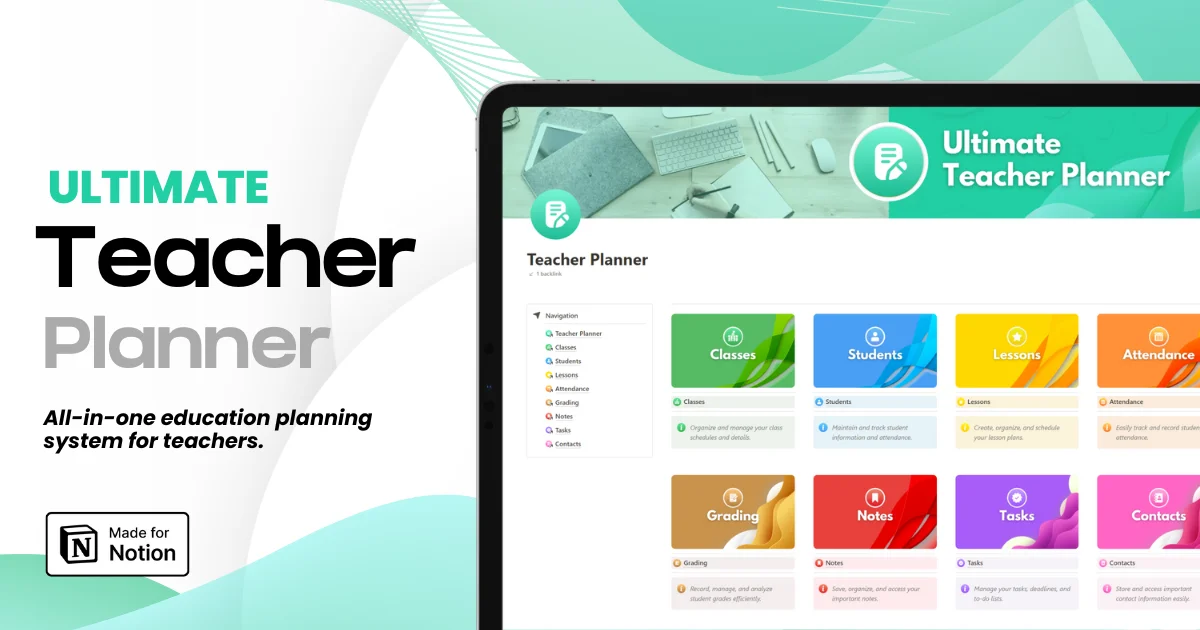
Ultimate Teacher Planner
The ultimate all-in-one education management system in Notion.
Learn More
Ultimate Teacher Planner
The ultimate all-in-one education management system in Notion.
Learn More


Notion4Teachers
Notion templates to simplify administrative tasks and enhance your teaching experience.



2026 Notion4Teachers. All Rights Reserved.
Notion4Teachers
Notion templates to simplify administrative tasks and enhance your teaching experience.
2026 Notion4Teachers. All Rights Reserved.
Notion4Teachers
Notion templates to simplify administrative tasks and enhance your teaching experience.
2026 Notion4Teachers. All Rights Reserved.