
Build a Classroom Coloring Page Library in Notion (and Fill the Gaps With Free AI Pages)
Build a Classroom Coloring Page Library in Notion (and Fill the Gaps With Free AI Pages)

Article by
Milo
ESL Content Coordinator & Educator
ESL Content Coordinator & Educator
All Posts
Most teachers have a coloring page problem that has nothing to do with coloring. The pages exist. They are somewhere in a downloads folder, a binder from three years ago, a shared drive called "Misc," and an email a colleague sent last October. When a fire drill eats half of a lesson or six students finish their math early, nobody has time to dig.
A small Notion database fixes the finding part. Stock it with what you already own, top it up from collections of free printable coloring pages, and use a free AI tool for the pages nobody has made yet. You end up with one place that answers two questions fast: what do I already have for this unit, and what is still missing? Here is how to set it up in an afternoon.
Still grading everything by hand?
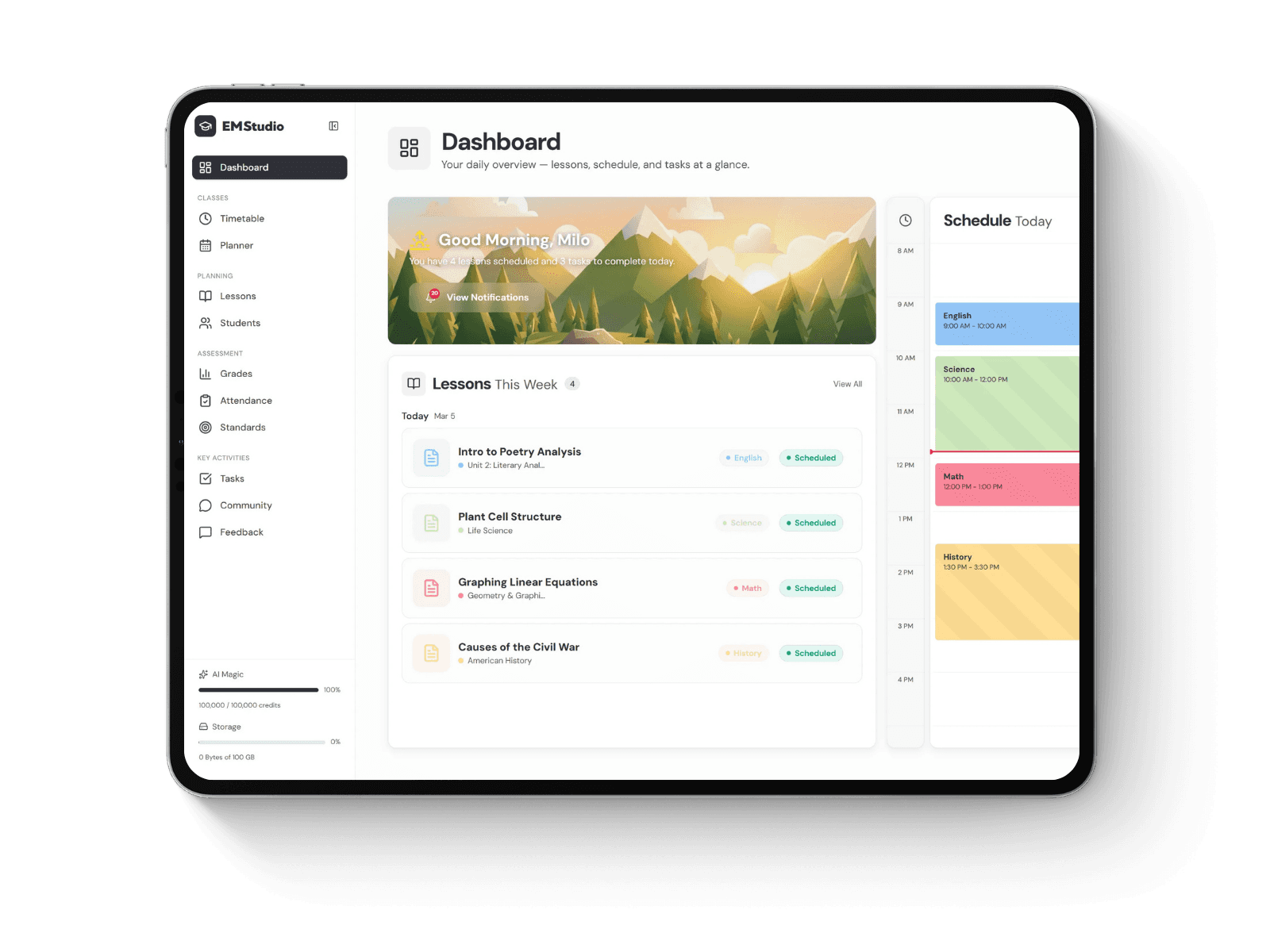
EMStudio is a free teaching management app — manage your classes, students, lessons, and more!
Learn More
Still grading everything by hand?
EMStudio is a free teaching management app — manage your classes, students, lessons, and more!
Learn More
Table of Contents
Step 1: Set up the database
Create a new page called Coloring Page Library and add a full-page database. Each row is one printable page, not one file. Seven properties cover almost everything:
Page name (title): the file name, so the two always match. More on naming below.
Subject (select): Science, ELA, Math, Social Studies, Seasonal.
Grade (multi-select): K, 1, 2 and so on. Many seasonal pages work for several grades.
Unit / theme (select): Plants, Weather, Alphabet, Fall, Winter.
Use (select): Whole class, Early finisher, Sub plans.
File (URL): the link to the PDF in Google Drive.
Last used (date): so you can see what the class has already colored this year.
Add a Status property with three options: Ready, Needs check, To make. The To make rows are the useful ones. When you plan a unit and notice there is nothing for "2D shapes," you add a row with no file and a red To make tag. That list becomes your shopping list for the next step.

An illustrative mockup of the library (not a Notion screenshot). Two rows are still marked To make.
Step 2: Fill the gaps with free AI pages
For the To make rows, a free AI coloring page generator can turn a one-line description into a printable page, which is faster than searching ten sites for a weather page that matches your exact unit. The generator linked here lets you start without an account. Its pricing page lists 4 free credits with no sign-up, 10 bonus credits when you sign up and up to 18 free credits a week from a daily check-in, with PNG and PDF downloads and no watermark. The free plan is for personal and non-commercial use, so it fits pages you print for your own class but not pages you plan to sell.
Choose Text to Coloring, describe the page, and pick a difficulty. Easy gives big shapes that suit younger students; Hard adds fine detail for older ones. There is also a Name to Coloring Page mode, handy for the first week of school.

A classroom prompt typed into the text-to-coloring form, with Easy (big shapes) selected.
Good prompts name the subject, the setting and the grade. A few that work as templates:
"A squirrel collecting acorns under an oak tree with falling leaves, simple bold lines for second graders"
"The life cycle of a bean plant in four circles with arrows: seed, sprout, seedling, plant, labeled"
"A big bubble letter S with a snail, a sun, a star and a sock, for kindergarten"
If the first result is too busy, add "fewer details" or "larger shapes" to the prompt and run it again rather than settling.

A seasonal page for a fall unit. Large closed shapes are easier for small hands and cheap printers.
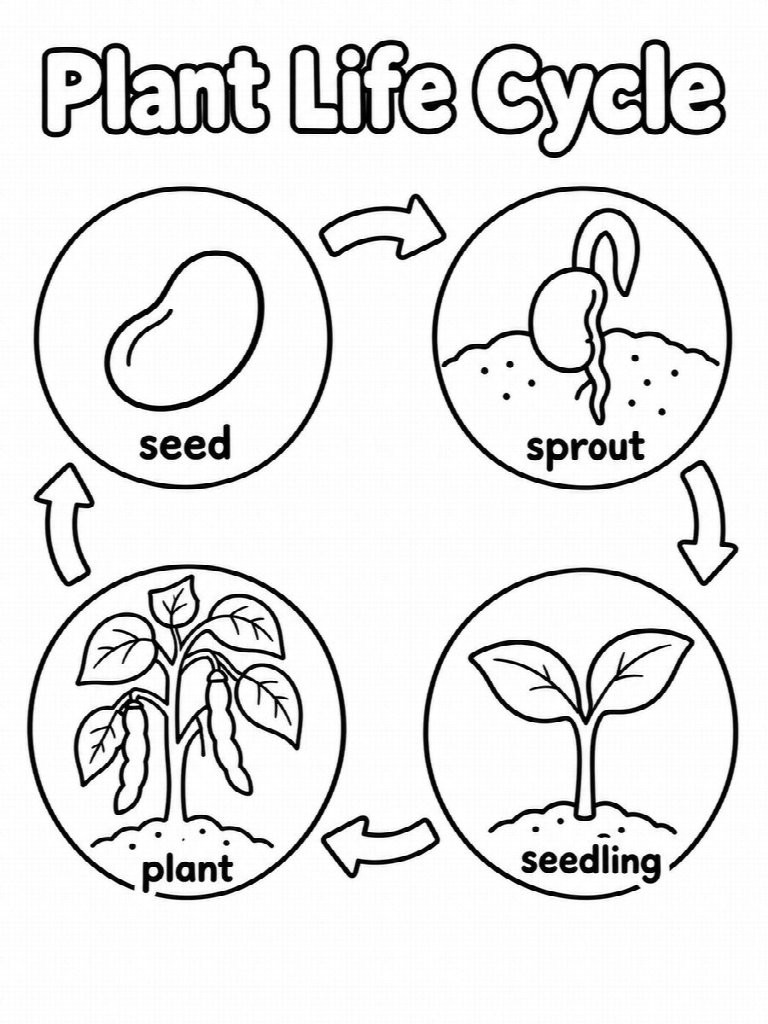
A labeled science page doubles as a review sheet: students color, then retell the cycle out loud.
Photos need one extra thought. A photo to coloring page converter can turn a picture of the class pet, a leaf from a nature walk or the school building into line art, and kids tend to pay more attention to a page that comes from their own classroom. Skip photos of students' faces unless your school's photo policy allows it, and note the source in the row so you remember where the picture came from.
Step 3: Check every page before you print 30 copies
An AI page needs the same quick look you would give any worksheet. Before it gets the Ready tag, check:
Spelling and facts. Read every label. A science page with the stages out of order teaches the wrong thing.
Closed shapes. Gaps in outlines make coloring frustrating for younger kids.
Line weight. Thin lines fade on a tired classroom copier. Regenerate on Easy if needed.
No gray fill. Shading wastes toner and looks muddy in black and white.
Page size. Download for US Letter or A4 to match your printer, then print one test copy.
No recognizable characters. Keep pages original so there are no copyright questions.
Anything that fails one of these stays at Needs check until you fix or replace it.
Step 4: Name files the same way every time
A naming pattern lets you search Drive and Notion with the same words. One that works well:
SUBJECT_GRADE_Topic_version, for example SCI_G2_PlantLifeCycle_v1 or SEA_K-2_FallSquirrel_v2.
Keep the PDFs in a single Google Drive folder with subfolders by subject, and paste each file's share link into the File property. Drive holds the files; Notion holds everything you know about them. If a colleague wants to borrow your library, share the Drive folder and the Notion page so they can make their own copy.
Step 5: Add views that match how you plan
The default table is fine for data entry, but the real speed comes from saved views:
By month (calendar): add a Planned for date property and show it as a calendar. Drop October pages onto October and you can see the whole fall at a glance.
By unit (board): group by Unit / theme. Each column shows what is ready and what is still To make.
Early finishers: a filtered table where Use is Early finisher and Status is Ready, sorted by Last used with the oldest first. This surfaces the pages students have not seen in a while.
To make: filter by Status. Open it once a week, generate what is missing and close it.

Alphabet pages like this one are natural early finisher material in kindergarten and first grade.
Putting it to work in the classroom
For whole class pages, open the calendar view on Friday, print what next week needs and update Last used when you hand them out. That one date field stops you from giving the same snowman twice in December.
For early finishers, print five or six copies of three pages from the Early finishers view at the start of each unit and keep them in a labeled tray. Students who finish early pick one, color it and, for science or letter pages, tell a partner one thing about it. When the tray runs low, check the view, swap in pages the class has not seen and update the dates.
Sub plans work the same way. Keep two or three Ready pages tagged Sub plans for each grade so a substitute always has a quiet, low-prep activity waiting.
Keep it small
The library does not need to be complete on day one. Start with the pages you already have for your next two units, mark the gaps as To make and fill them as you go. By the end of the year you will have a catalog that is easy to search, easy to share with a teammate and ready to reuse next fall.
Step 1: Set up the database
Create a new page called Coloring Page Library and add a full-page database. Each row is one printable page, not one file. Seven properties cover almost everything:
Page name (title): the file name, so the two always match. More on naming below.
Subject (select): Science, ELA, Math, Social Studies, Seasonal.
Grade (multi-select): K, 1, 2 and so on. Many seasonal pages work for several grades.
Unit / theme (select): Plants, Weather, Alphabet, Fall, Winter.
Use (select): Whole class, Early finisher, Sub plans.
File (URL): the link to the PDF in Google Drive.
Last used (date): so you can see what the class has already colored this year.
Add a Status property with three options: Ready, Needs check, To make. The To make rows are the useful ones. When you plan a unit and notice there is nothing for "2D shapes," you add a row with no file and a red To make tag. That list becomes your shopping list for the next step.
An illustrative mockup of the library (not a Notion screenshot). Two rows are still marked To make.
Step 2: Fill the gaps with free AI pages
For the To make rows, a free AI coloring page generator can turn a one-line description into a printable page, which is faster than searching ten sites for a weather page that matches your exact unit. The generator linked here lets you start without an account. Its pricing page lists 4 free credits with no sign-up, 10 bonus credits when you sign up and up to 18 free credits a week from a daily check-in, with PNG and PDF downloads and no watermark. The free plan is for personal and non-commercial use, so it fits pages you print for your own class but not pages you plan to sell.
Choose Text to Coloring, describe the page, and pick a difficulty. Easy gives big shapes that suit younger students; Hard adds fine detail for older ones. There is also a Name to Coloring Page mode, handy for the first week of school.
A classroom prompt typed into the text-to-coloring form, with Easy (big shapes) selected.
Good prompts name the subject, the setting and the grade. A few that work as templates:
"A squirrel collecting acorns under an oak tree with falling leaves, simple bold lines for second graders"
"The life cycle of a bean plant in four circles with arrows: seed, sprout, seedling, plant, labeled"
"A big bubble letter S with a snail, a sun, a star and a sock, for kindergarten"
If the first result is too busy, add "fewer details" or "larger shapes" to the prompt and run it again rather than settling.
A seasonal page for a fall unit. Large closed shapes are easier for small hands and cheap printers.
A labeled science page doubles as a review sheet: students color, then retell the cycle out loud.
Photos need one extra thought. A photo to coloring page converter can turn a picture of the class pet, a leaf from a nature walk or the school building into line art, and kids tend to pay more attention to a page that comes from their own classroom. Skip photos of students' faces unless your school's photo policy allows it, and note the source in the row so you remember where the picture came from.
Step 3: Check every page before you print 30 copies
An AI page needs the same quick look you would give any worksheet. Before it gets the Ready tag, check:
Spelling and facts. Read every label. A science page with the stages out of order teaches the wrong thing.
Closed shapes. Gaps in outlines make coloring frustrating for younger kids.
Line weight. Thin lines fade on a tired classroom copier. Regenerate on Easy if needed.
No gray fill. Shading wastes toner and looks muddy in black and white.
Page size. Download for US Letter or A4 to match your printer, then print one test copy.
No recognizable characters. Keep pages original so there are no copyright questions.
Anything that fails one of these stays at Needs check until you fix or replace it.
Step 4: Name files the same way every time
A naming pattern lets you search Drive and Notion with the same words. One that works well:
SUBJECT_GRADE_Topic_version, for example SCI_G2_PlantLifeCycle_v1 or SEA_K-2_FallSquirrel_v2.
Keep the PDFs in a single Google Drive folder with subfolders by subject, and paste each file's share link into the File property. Drive holds the files; Notion holds everything you know about them. If a colleague wants to borrow your library, share the Drive folder and the Notion page so they can make their own copy.
Step 5: Add views that match how you plan
The default table is fine for data entry, but the real speed comes from saved views:
By month (calendar): add a Planned for date property and show it as a calendar. Drop October pages onto October and you can see the whole fall at a glance.
By unit (board): group by Unit / theme. Each column shows what is ready and what is still To make.
Early finishers: a filtered table where Use is Early finisher and Status is Ready, sorted by Last used with the oldest first. This surfaces the pages students have not seen in a while.
To make: filter by Status. Open it once a week, generate what is missing and close it.
Alphabet pages like this one are natural early finisher material in kindergarten and first grade.
Putting it to work in the classroom
For whole class pages, open the calendar view on Friday, print what next week needs and update Last used when you hand them out. That one date field stops you from giving the same snowman twice in December.
For early finishers, print five or six copies of three pages from the Early finishers view at the start of each unit and keep them in a labeled tray. Students who finish early pick one, color it and, for science or letter pages, tell a partner one thing about it. When the tray runs low, check the view, swap in pages the class has not seen and update the dates.
Sub plans work the same way. Keep two or three Ready pages tagged Sub plans for each grade so a substitute always has a quiet, low-prep activity waiting.
Keep it small
The library does not need to be complete on day one. Start with the pages you already have for your next two units, mark the gaps as To make and fill them as you go. By the end of the year you will have a catalog that is easy to search, easy to share with a teammate and ready to reuse next fall.
Still grading everything by hand?
EMStudio is a free teaching management app — manage your classes, students, lessons, and more!
Learn More
Still grading everything by hand?
EMStudio is a free teaching management app — manage your classes, students, lessons, and more!
Learn More


Notion4Teachers
Notion templates to simplify administrative tasks and enhance your teaching experience.



2026 Notion4Teachers. All Rights Reserved.
Notion4Teachers
Notion templates to simplify administrative tasks and enhance your teaching experience.
2026 Notion4Teachers. All Rights Reserved.
Notion4Teachers
Notion templates to simplify administrative tasks and enhance your teaching experience.
2026 Notion4Teachers. All Rights Reserved.