
How to Turn a Notion Lesson Plan Into a Short Video Lesson
How to Turn a Notion Lesson Plan Into a Short Video Lesson

Article by
Milo
ESL Content Coordinator & Educator
ESL Content Coordinator & Educator
All Posts
A short video lesson is a recorded explanation of one idea, usually under six minutes, that a student can watch at their own pace before, during or after class. If your lesson plan already lives in Notion, you have done most of the thinking. What is left is turning that plan into a script, recording it, and cutting the recording down to what matters.
That work deserves a repeatable process, because planning already takes a large share of the week. In the OECD's TALIS 2013 survey, lower secondary teachers reported about 7 hours a week planning and preparing lessons, within a working week of roughly 38 hours. Length also decides whether a video gets watched. A study of 6.9 million video watching sessions on edX found that median engagement time was at most 6 minutes, whatever the length of the video, and its authors recommend planning lessons in chunks shorter than 6 minutes.
This guide takes you from a Notion lesson plan to a finished short video in six steps: outline, script, record, edit with invideo editor, caption, and publish back into Notion.

Still grading everything by hand?
EMStudio is a free teaching management app — manage your classes, students, lessons, and more!
Learn More
Still grading everything by hand?
EMStudio is a free teaching management app — manage your classes, students, lessons, and more!
Learn More
Table of Contents
What a Good Short Video Lesson Workflow Needs
Before choosing any tool, decide what "good" means. The best large-scale evidence on instructional video comes from the edX study by Guo, Kim and Rubin, which covered 862 videos and about 128,000 students in four courses. Its findings turn into a short checklist for any teacher.
Check | What to aim for | Where it happens |
One idea per video | One learning objective, under 6 minutes | Step 1 |
Built from your plan | A script drawn from the lesson page, not written from scratch | Steps 1 and 2 |
Easy to record | Phone or webcam, quiet room, informal setting | Step 3 |
Tight edit | Pauses and filler words trimmed, examples in the right order | Step 4 |
Accessible | Captions proofread, audio levels even | Step 5 |
Easy to find | Video embedded on the lesson page and tracked in a database | Step 6 |
Three findings from that study shape the rest of this guide:
Length. Median engagement time was at most 6 minutes, whatever the length of the video. The shortest videos (0 to 3 minutes) held viewers best: 75% of their sessions lasted over three quarters of the video.
Planning. The edX producers felt that pre-production had the largest effect on engagement. A lesson planned as a short chunk worked better than a long classroom recording chopped up afterwards.
Feel. In the one pair of courses where the study could compare them, an informal recording at an office desk held attention longer than a multi-million dollar TV studio.
Keep one limit in mind. The study looked at math and science courses from the first edX batch in Fall 2012, so treat it as a strong guide and not a rule for every classroom.
Step 1: Outline the Lesson in Notion

Start with one lesson and pick one idea inside it. A lesson plan often holds three or four ideas. Each can become its own video, so begin with the idea students most often get stuck on.
Give each lesson page a small set of properties so every video starts the same way:
Objective: one sentence, such as "Students can add fractions with unlike denominators."
Key idea: the one thing the video must get across.
Example: one worked example or demonstration.
Check: one question students answer at the end.
Video status: a Status property with Not started, Scripted, Recorded, Edited and Published.
Video link: a URL property for the finished video.
If you do not have a lesson database yet, the free Lesson Planner from Notion4Teachers is a ready starting point for creating, customizing and managing lesson plans.
Next, write the outline on the lesson page itself, under the properties, in five short blocks: hook, key idea, example, check and wrap-up. For a fractions lesson it might read:
Hook: "Why can't we just add the tops and the bottoms?"
Key idea: fractions need the same denominator before they can be added.
Example: 1/3 + 1/4, converted to twelfths.
Check: "Try 1/2 + 1/5, and pause the video while you work."
Wrap-up: same denominator first, then add.
Keeping the outline on the same page as the plan means the video cannot drift from what you actually teach. The Status property also gives you a quick view of which lessons already have a video and which are still waiting.
Step 2: Turn the Outline Into a Short Script
A script keeps the recording short. Without one, a five-minute idea can sprawl into a much longer recording and a harder edit. Write the script under the outline, one paragraph per block, and use this table to give each part a time.
Lesson plan block | Video segment | Suggested length |
Hook | An opening question or problem | 15 to 20 seconds |
Key idea | A plain explanation in your own words | 60 to 90 seconds |
Example | A step-by-step demonstration on screen | 90 to 120 seconds |
Check | One question, with a pause for students to answer | 20 to 30 seconds |
Wrap-up | A one-sentence recap and what comes next | 15 seconds |
Those times add up to between 3 minutes 20 seconds and 4 minutes 35 seconds, which leaves room under the 6-minute mark.
For sizing, the edX data averaged 156 spoken words per minute, so a 4-minute script runs about 625 words and a 5-minute script about 780. Speaking speed in that data ranged from 48 to 254 words per minute, so treat the numbers as a rough guide.
A few habits make the script easier to record and edit:
Write the way you talk. Read each paragraph aloud and rewrite any sentence you stumble over.
Mark visuals in brackets, such as [show the number line] or [screen: worked example], so you know what to have ready.
Mark pauses for students, such as [pause 5 seconds], so they are built in and not added later.
Leave out the names and details of individual students.
If a slide deck suits the lesson better than a recorded explanation, Notion4Teachers also has a guide on going from a lesson plan to classroom slides in ten minutes.
Step 3: Record the Lesson

Pick a recording style that matches the lesson, then record in the same blocks you scripted. The edX data gives three useful pointers on style:
Face plus visuals beats visuals alone. Videos that cut between the instructor's face and slides or code held viewers longer than slides or code on their own.
Drawing by hand suits step-by-step problems. Khan-style tablet tutorials held viewers 1.5 to 2 times as long as slide or code tutorials.
Informal is fine. The authors suggest filming in an informal setting with good eye contact, because it costs less and may work better than a studio.
A simple setup is enough:
Camera and sound: a phone or webcam works. Put the lens at eye level, face a window or lamp, and keep the microphone close to you. Muffled audio is hard to repair later.
Script on screen: keep the Notion lesson page open on a second screen or tablet, and look at the lens, not at the script.
One block at a time: leave a two-second pause before and after each block so the cuts in Step 4 come out clean.
Retakes: when you slip, stop, pause, and say the whole sentence again. Saying "retake" out loud gives you a marker to find when you edit.
Screen demos: for the worked example, record your screen as you talk it through, using a stylus on a tablet if you have one.
Privacy: keep students out of the frame and keep names and student work off the screen.
You do not need a perfect take. You need a complete one, because the next step is where the pauses, slips and extra seconds come out.
Step 4: Cut the Recording Into a Short Lesson With Invideo Editor
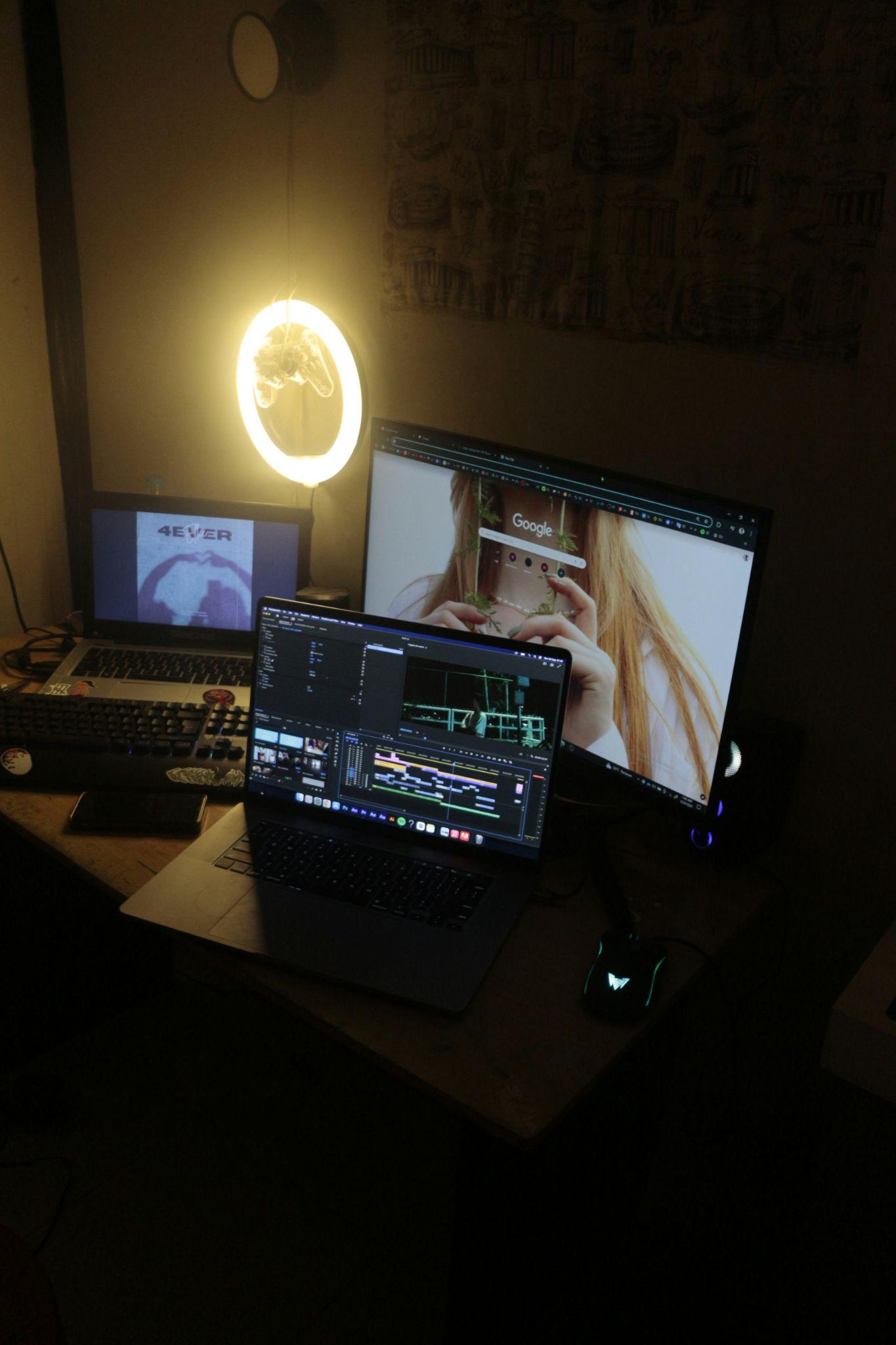
Editing is where a raw recording becomes a short lesson. The edX producers described tightly editing out "umm", "uhh", filler words and other pauses, on the view that viewers can always pause a video themselves. They also found that chopping a long classroom lecture into pieces worked worse than planning short chunks from the start, which is why Steps 1 and 2 come first.
Invideo editor suits this step because it is built around an editing agent that works from your instructions. Follow this simple four-step flow: upload footage, describe the edit, review the cut, export. Four details matter to a teacher:
Find a moment by describing it. The editing agent watches every clip and logs it in memory.
One direction, every shot. Give the agent a single instruction and it applies it across the timeline, from cutting the pauses to matching the look.
Plain words. You describe the edit the way you would tell a colleague. The agent works on a real multitrack timeline that you can take over at any frame.
Shared editing. Multiplayer mode lets people work together in real time with live cursors, which can suit a co-teacher or a department partner.
A workable sequence looks like this:
Upload the clips from Step 3, with the segments in order.
Type a first instruction, such as "Cut the pauses and filler words, keep the worked example in full, and bring the whole video under five minutes."
Ask for specific fixes, such as "Move the part where I explain common denominators to right after the opening question."
Review the cut on the timeline. Play it from start to finish and fix anything by hand.
Export the finished video.
The review is the step that keeps you in control, so check three things. Did the edit remove a pause that students need after your check question? Does the worked example still show every step? Is the audio level steady from one segment to the next?
On cost, the starter at $20 per seat per month with 400 credits per seat, and it currently shows 50% off for annual billing. In invideo editor, the timeline editor is listed with full access on all three plans shown (Starter, Plus and Max). Check the current plan details before you commit, and check your school's rules on AI tools and student footage before you upload anything.
Any editor that can trim, reorder and export will do the job, and the other steps in this guide work the same way. The reason to try an editing agent is the first pass: it handles the repetitive cuts, so your time goes into reviewing the lesson.
Step 5: Add Captions, Check the Audio, and Do a Final Pass
Captions are worth the extra few minutes. Morton Ann Gernsbacher's review of the research cites more than 100 empirical studies showing that captioning a video improves comprehension of, attention to and memory for it. The benefit is largest for students watching in a non-native language, children and adults learning to read, and students who are deaf or hard of hearing. The paper also reports a survey of several hundred K-12 teachers across 45 U.S. states in which the majority had never turned on the captions in the videos they showed.
Most editors and video hosts can generate captions automatically, but the same paper notes that captions from automatic speech recognition were not yet free of errors. Proofread them against your script, especially subject terms and names.
Then run a final pass before you publish:
Length: under 6 minutes, with one idea.
Audio: an even level from one segment to the next, and any background music kept well under your voice.
Captions: proofread against the script.
Pauses: the check question still leaves room for students to answer.
Privacy: no student names, faces or work visible anywhere in the frame.
File name: the lesson name and unit in the title, so the video is easy to find later.
Step 6: Publish the Video and Link It Back in Notion
Put the video where students will watch it, then bring it back to the lesson page. Notion's video block gives you two options: embed a link from a streaming service such as YouTube or Vimeo, or upload the file and play it in Notion's own player.
The upload route has a limit that matters for video. According to Notion's Help Center, files on the Free plan must be under 5 MB, and paid plans allow files up to 5 GB each. A five-minute video will usually be much larger than 5 MB, so on a free workspace, host the video on an unlisted link at YouTube or Vimeo, or on your school's video platform, and embed that link. Check your school's policy on where lesson videos can be hosted first.
Then set up the lesson page:
Type /video on the lesson page and choose Embed link, then paste the share URL. You can also paste the URL and choose Create embed.
Add a caption to the video block with the lesson title and length.
Under the video, add the key points, the check question and the practice task, so students who skip the video can still follow the lesson.
Paste the same URL into the lesson's Video link property and set Video status to Published.
Add a gallery view to the lesson database, filtered to Published, so you and your students can browse the finished videos in one place.
Over a term this builds a library. Each lesson keeps its plan, script and finished video together, and the Status view shows what is still waiting.
Key Takeaways
Plan one idea per video. Median engagement in the edX data was at most 6 minutes, so build each lesson as a chunk shorter than that.
Build the video from your Notion lesson plan: outline first, then script, with a Status property to track each lesson.
Record in blocks, informally, with your face and your visuals. A phone and a quiet room are enough.
Edit tightly: remove pauses and filler words, keep the worked example whole, and review every cut yourself.
Caption every video and proofread the captions against your script.
Embed the finished video on the lesson page. Free Notion plans limit uploads to 5 MB, so host the file elsewhere and embed the link.
Frequently Asked Questions
How long should a short video lesson be?
Aim for under 6 minutes. In the edX study of 6.9 million sessions, median engagement time was at most 6 minutes whatever the length of the video, and viewers often got less than halfway through videos longer than 9 minutes. The shortest videos, at 0 to 3 minutes, held viewers best. Those results come from online math and science courses, so test the length with your own class.
Do I need a studio or special equipment?
No. In the one pair of courses the edX authors could compare, an informal desk recording held attention longer than a studio production. A phone or webcam, a quiet room and a microphone close to you are enough. Clear audio is the one thing to get right, because muffled sound is hard to repair later.
Do I have to be on camera?
No. Screen recordings with a voiceover and tablet drawings work too. In the edX data, Khan-style tablet tutorials held viewers 1.5 to 2 times as long as slide or code tutorials, and videos that mixed the instructor's face with slides beat slides alone. Pick the style you are comfortable with and keep it steady across a unit.
Can I upload the video straight into Notion?
Yes, with a limit. Notion's video block can upload a file and play it in Notion's own player, but files on the Free plan must be under 5 MB, and paid plans allow up to 5 GB per file. On the Free plan, embed a link from YouTube, Vimeo or your school's video platform instead.
Is it appropriate to use an AI editing agent on lesson footage?
It can be, if your school allows it. You stay in control of the result: the flow in invideo editor is upload, describe the edit, review the cut and export, and the timeline stays open to you at any frame. The homepage lists SOC 2 and GDPR compliance, but that does not replace your school's own approval process. Keep students out of the footage, and ask your IT or data protection lead before you upload anything.
How many videos should I make for a unit?
Start with one video for the hardest idea in the unit. Once the process works, add a short video for each idea students ask you to repeat. The Status property in your lesson database shows which lessons already have one.
Conclusion
A short video lesson does not need a new lesson. It needs the plan you already have, cut down to one idea, said out loud and edited tightly. Notion holds the outline, the script and the finished video in one place. The recording takes one clear session, and an editing agent like the one in invideo editor can take the first pass at the cut while you stay in charge of the review. Start with a single lesson, keep it under six minutes, and caption it. After that, each new video gets quicker because the process is already in place.
Which lesson in your Notion planner would make the best first six-minute video?
Sources
Philip J. Guo, Juho Kim and Rob Rubin (2014), How Video Production Affects Student Engagement: An Empirical Study of MOOC Videos
OECD Education and Skills Today (2015), Are teachers hard-working professionals? (TALIS 2013 data, lower secondary teachers)
Morton Ann Gernsbacher (2015), Video Captions Benefit Everyone, Policy Insights from the Behavioral and Brain Sciences
Notion Help Center, Images, files & media
Invideo homepage, for the editing flow, the editing agent, multiplayer mode and plan details
What a Good Short Video Lesson Workflow Needs
Before choosing any tool, decide what "good" means. The best large-scale evidence on instructional video comes from the edX study by Guo, Kim and Rubin, which covered 862 videos and about 128,000 students in four courses. Its findings turn into a short checklist for any teacher.
Check | What to aim for | Where it happens |
One idea per video | One learning objective, under 6 minutes | Step 1 |
Built from your plan | A script drawn from the lesson page, not written from scratch | Steps 1 and 2 |
Easy to record | Phone or webcam, quiet room, informal setting | Step 3 |
Tight edit | Pauses and filler words trimmed, examples in the right order | Step 4 |
Accessible | Captions proofread, audio levels even | Step 5 |
Easy to find | Video embedded on the lesson page and tracked in a database | Step 6 |
Three findings from that study shape the rest of this guide:
Length. Median engagement time was at most 6 minutes, whatever the length of the video. The shortest videos (0 to 3 minutes) held viewers best: 75% of their sessions lasted over three quarters of the video.
Planning. The edX producers felt that pre-production had the largest effect on engagement. A lesson planned as a short chunk worked better than a long classroom recording chopped up afterwards.
Feel. In the one pair of courses where the study could compare them, an informal recording at an office desk held attention longer than a multi-million dollar TV studio.
Keep one limit in mind. The study looked at math and science courses from the first edX batch in Fall 2012, so treat it as a strong guide and not a rule for every classroom.
Step 1: Outline the Lesson in Notion
Start with one lesson and pick one idea inside it. A lesson plan often holds three or four ideas. Each can become its own video, so begin with the idea students most often get stuck on.
Give each lesson page a small set of properties so every video starts the same way:
Objective: one sentence, such as "Students can add fractions with unlike denominators."
Key idea: the one thing the video must get across.
Example: one worked example or demonstration.
Check: one question students answer at the end.
Video status: a Status property with Not started, Scripted, Recorded, Edited and Published.
Video link: a URL property for the finished video.
If you do not have a lesson database yet, the free Lesson Planner from Notion4Teachers is a ready starting point for creating, customizing and managing lesson plans.
Next, write the outline on the lesson page itself, under the properties, in five short blocks: hook, key idea, example, check and wrap-up. For a fractions lesson it might read:
Hook: "Why can't we just add the tops and the bottoms?"
Key idea: fractions need the same denominator before they can be added.
Example: 1/3 + 1/4, converted to twelfths.
Check: "Try 1/2 + 1/5, and pause the video while you work."
Wrap-up: same denominator first, then add.
Keeping the outline on the same page as the plan means the video cannot drift from what you actually teach. The Status property also gives you a quick view of which lessons already have a video and which are still waiting.
Step 2: Turn the Outline Into a Short Script
A script keeps the recording short. Without one, a five-minute idea can sprawl into a much longer recording and a harder edit. Write the script under the outline, one paragraph per block, and use this table to give each part a time.
Lesson plan block | Video segment | Suggested length |
Hook | An opening question or problem | 15 to 20 seconds |
Key idea | A plain explanation in your own words | 60 to 90 seconds |
Example | A step-by-step demonstration on screen | 90 to 120 seconds |
Check | One question, with a pause for students to answer | 20 to 30 seconds |
Wrap-up | A one-sentence recap and what comes next | 15 seconds |
Those times add up to between 3 minutes 20 seconds and 4 minutes 35 seconds, which leaves room under the 6-minute mark.
For sizing, the edX data averaged 156 spoken words per minute, so a 4-minute script runs about 625 words and a 5-minute script about 780. Speaking speed in that data ranged from 48 to 254 words per minute, so treat the numbers as a rough guide.
A few habits make the script easier to record and edit:
Write the way you talk. Read each paragraph aloud and rewrite any sentence you stumble over.
Mark visuals in brackets, such as [show the number line] or [screen: worked example], so you know what to have ready.
Mark pauses for students, such as [pause 5 seconds], so they are built in and not added later.
Leave out the names and details of individual students.
If a slide deck suits the lesson better than a recorded explanation, Notion4Teachers also has a guide on going from a lesson plan to classroom slides in ten minutes.
Step 3: Record the Lesson
Pick a recording style that matches the lesson, then record in the same blocks you scripted. The edX data gives three useful pointers on style:
Face plus visuals beats visuals alone. Videos that cut between the instructor's face and slides or code held viewers longer than slides or code on their own.
Drawing by hand suits step-by-step problems. Khan-style tablet tutorials held viewers 1.5 to 2 times as long as slide or code tutorials.
Informal is fine. The authors suggest filming in an informal setting with good eye contact, because it costs less and may work better than a studio.
A simple setup is enough:
Camera and sound: a phone or webcam works. Put the lens at eye level, face a window or lamp, and keep the microphone close to you. Muffled audio is hard to repair later.
Script on screen: keep the Notion lesson page open on a second screen or tablet, and look at the lens, not at the script.
One block at a time: leave a two-second pause before and after each block so the cuts in Step 4 come out clean.
Retakes: when you slip, stop, pause, and say the whole sentence again. Saying "retake" out loud gives you a marker to find when you edit.
Screen demos: for the worked example, record your screen as you talk it through, using a stylus on a tablet if you have one.
Privacy: keep students out of the frame and keep names and student work off the screen.
You do not need a perfect take. You need a complete one, because the next step is where the pauses, slips and extra seconds come out.
Step 4: Cut the Recording Into a Short Lesson With Invideo Editor
Editing is where a raw recording becomes a short lesson. The edX producers described tightly editing out "umm", "uhh", filler words and other pauses, on the view that viewers can always pause a video themselves. They also found that chopping a long classroom lecture into pieces worked worse than planning short chunks from the start, which is why Steps 1 and 2 come first.
Invideo editor suits this step because it is built around an editing agent that works from your instructions. Follow this simple four-step flow: upload footage, describe the edit, review the cut, export. Four details matter to a teacher:
Find a moment by describing it. The editing agent watches every clip and logs it in memory.
One direction, every shot. Give the agent a single instruction and it applies it across the timeline, from cutting the pauses to matching the look.
Plain words. You describe the edit the way you would tell a colleague. The agent works on a real multitrack timeline that you can take over at any frame.
Shared editing. Multiplayer mode lets people work together in real time with live cursors, which can suit a co-teacher or a department partner.
A workable sequence looks like this:
Upload the clips from Step 3, with the segments in order.
Type a first instruction, such as "Cut the pauses and filler words, keep the worked example in full, and bring the whole video under five minutes."
Ask for specific fixes, such as "Move the part where I explain common denominators to right after the opening question."
Review the cut on the timeline. Play it from start to finish and fix anything by hand.
Export the finished video.
The review is the step that keeps you in control, so check three things. Did the edit remove a pause that students need after your check question? Does the worked example still show every step? Is the audio level steady from one segment to the next?
On cost, the starter at $20 per seat per month with 400 credits per seat, and it currently shows 50% off for annual billing. In invideo editor, the timeline editor is listed with full access on all three plans shown (Starter, Plus and Max). Check the current plan details before you commit, and check your school's rules on AI tools and student footage before you upload anything.
Any editor that can trim, reorder and export will do the job, and the other steps in this guide work the same way. The reason to try an editing agent is the first pass: it handles the repetitive cuts, so your time goes into reviewing the lesson.
Step 5: Add Captions, Check the Audio, and Do a Final Pass
Captions are worth the extra few minutes. Morton Ann Gernsbacher's review of the research cites more than 100 empirical studies showing that captioning a video improves comprehension of, attention to and memory for it. The benefit is largest for students watching in a non-native language, children and adults learning to read, and students who are deaf or hard of hearing. The paper also reports a survey of several hundred K-12 teachers across 45 U.S. states in which the majority had never turned on the captions in the videos they showed.
Most editors and video hosts can generate captions automatically, but the same paper notes that captions from automatic speech recognition were not yet free of errors. Proofread them against your script, especially subject terms and names.
Then run a final pass before you publish:
Length: under 6 minutes, with one idea.
Audio: an even level from one segment to the next, and any background music kept well under your voice.
Captions: proofread against the script.
Pauses: the check question still leaves room for students to answer.
Privacy: no student names, faces or work visible anywhere in the frame.
File name: the lesson name and unit in the title, so the video is easy to find later.
Step 6: Publish the Video and Link It Back in Notion
Put the video where students will watch it, then bring it back to the lesson page. Notion's video block gives you two options: embed a link from a streaming service such as YouTube or Vimeo, or upload the file and play it in Notion's own player.
The upload route has a limit that matters for video. According to Notion's Help Center, files on the Free plan must be under 5 MB, and paid plans allow files up to 5 GB each. A five-minute video will usually be much larger than 5 MB, so on a free workspace, host the video on an unlisted link at YouTube or Vimeo, or on your school's video platform, and embed that link. Check your school's policy on where lesson videos can be hosted first.
Then set up the lesson page:
Type /video on the lesson page and choose Embed link, then paste the share URL. You can also paste the URL and choose Create embed.
Add a caption to the video block with the lesson title and length.
Under the video, add the key points, the check question and the practice task, so students who skip the video can still follow the lesson.
Paste the same URL into the lesson's Video link property and set Video status to Published.
Add a gallery view to the lesson database, filtered to Published, so you and your students can browse the finished videos in one place.
Over a term this builds a library. Each lesson keeps its plan, script and finished video together, and the Status view shows what is still waiting.
Key Takeaways
Plan one idea per video. Median engagement in the edX data was at most 6 minutes, so build each lesson as a chunk shorter than that.
Build the video from your Notion lesson plan: outline first, then script, with a Status property to track each lesson.
Record in blocks, informally, with your face and your visuals. A phone and a quiet room are enough.
Edit tightly: remove pauses and filler words, keep the worked example whole, and review every cut yourself.
Caption every video and proofread the captions against your script.
Embed the finished video on the lesson page. Free Notion plans limit uploads to 5 MB, so host the file elsewhere and embed the link.
Frequently Asked Questions
How long should a short video lesson be?
Aim for under 6 minutes. In the edX study of 6.9 million sessions, median engagement time was at most 6 minutes whatever the length of the video, and viewers often got less than halfway through videos longer than 9 minutes. The shortest videos, at 0 to 3 minutes, held viewers best. Those results come from online math and science courses, so test the length with your own class.
Do I need a studio or special equipment?
No. In the one pair of courses the edX authors could compare, an informal desk recording held attention longer than a studio production. A phone or webcam, a quiet room and a microphone close to you are enough. Clear audio is the one thing to get right, because muffled sound is hard to repair later.
Do I have to be on camera?
No. Screen recordings with a voiceover and tablet drawings work too. In the edX data, Khan-style tablet tutorials held viewers 1.5 to 2 times as long as slide or code tutorials, and videos that mixed the instructor's face with slides beat slides alone. Pick the style you are comfortable with and keep it steady across a unit.
Can I upload the video straight into Notion?
Yes, with a limit. Notion's video block can upload a file and play it in Notion's own player, but files on the Free plan must be under 5 MB, and paid plans allow up to 5 GB per file. On the Free plan, embed a link from YouTube, Vimeo or your school's video platform instead.
Is it appropriate to use an AI editing agent on lesson footage?
It can be, if your school allows it. You stay in control of the result: the flow in invideo editor is upload, describe the edit, review the cut and export, and the timeline stays open to you at any frame. The homepage lists SOC 2 and GDPR compliance, but that does not replace your school's own approval process. Keep students out of the footage, and ask your IT or data protection lead before you upload anything.
How many videos should I make for a unit?
Start with one video for the hardest idea in the unit. Once the process works, add a short video for each idea students ask you to repeat. The Status property in your lesson database shows which lessons already have one.
Conclusion
A short video lesson does not need a new lesson. It needs the plan you already have, cut down to one idea, said out loud and edited tightly. Notion holds the outline, the script and the finished video in one place. The recording takes one clear session, and an editing agent like the one in invideo editor can take the first pass at the cut while you stay in charge of the review. Start with a single lesson, keep it under six minutes, and caption it. After that, each new video gets quicker because the process is already in place.
Which lesson in your Notion planner would make the best first six-minute video?
Sources
Philip J. Guo, Juho Kim and Rob Rubin (2014), How Video Production Affects Student Engagement: An Empirical Study of MOOC Videos
OECD Education and Skills Today (2015), Are teachers hard-working professionals? (TALIS 2013 data, lower secondary teachers)
Morton Ann Gernsbacher (2015), Video Captions Benefit Everyone, Policy Insights from the Behavioral and Brain Sciences
Notion Help Center, Images, files & media
Invideo homepage, for the editing flow, the editing agent, multiplayer mode and plan details
Still grading everything by hand?
EMStudio is a free teaching management app — manage your classes, students, lessons, and more!
Learn More
Still grading everything by hand?
EMStudio is a free teaching management app — manage your classes, students, lessons, and more!
Learn More


Notion4Teachers
Notion templates to simplify administrative tasks and enhance your teaching experience.



2026 Notion4Teachers. All Rights Reserved.
Notion4Teachers
Notion templates to simplify administrative tasks and enhance your teaching experience.
2026 Notion4Teachers. All Rights Reserved.
Notion4Teachers
Notion templates to simplify administrative tasks and enhance your teaching experience.
2026 Notion4Teachers. All Rights Reserved.