
How Teachers Can Turn Screen Recordings Into Step-by-Step Guides for Classroom Tech
How Teachers Can Turn Screen Recordings Into Step-by-Step Guides for Classroom Tech

Article by
Milo
ESL Content Coordinator & Educator
ESL Content Coordinator & Educator
All Posts
Teachers can record a classroom tech task once, such as submitting work in the LMS or starting a lesson on the smartboard, and turn that recording into a written guide with annotated screenshots. Review the steps, fix the wording, then share the guide in Notion, your LMS or by link so students, subs and parents can follow it.
Every school year starts with the same round of questions. How do I turn in my work? Where is the attendance button? Why is the projector showing a blank screen? Most teachers answer these one at a time, in the hallway, by email, or at 9 p.m. the night before a sub day.
Written steps solve part of that, but writing them is slow. You take screenshots, crop them, paste them into a doc and describe every click. A screen recording is faster to make, yet harder to skim. The approach below combines the two, so you record a task once and end up with a guide people can actually follow.
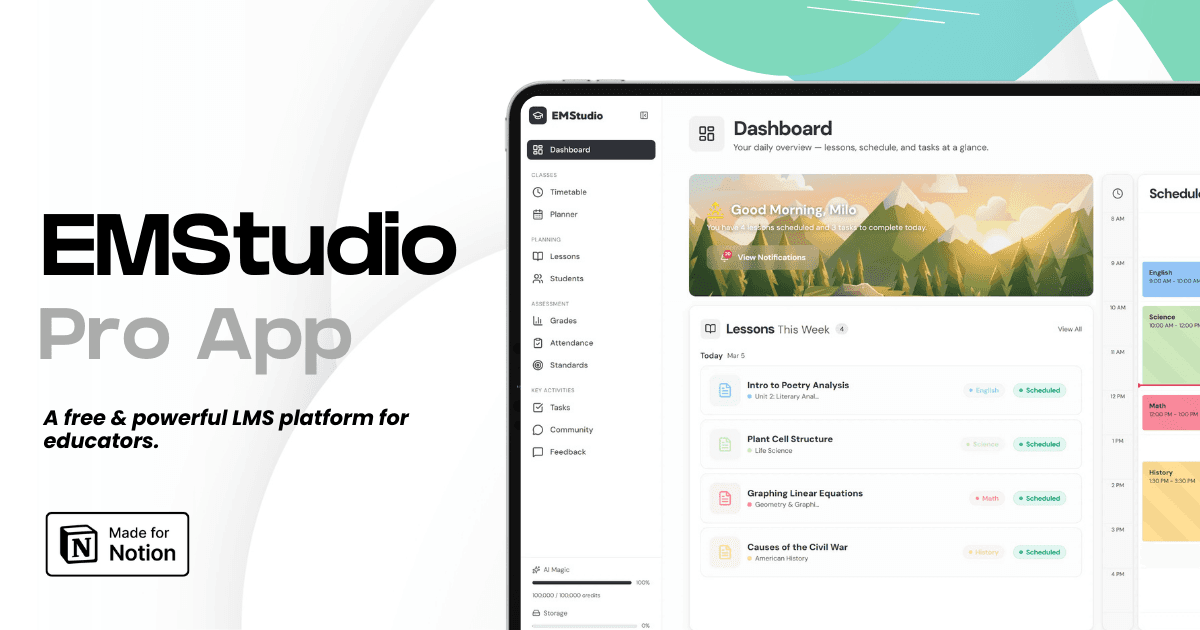
Still grading everything by hand?
EMStudio is a free teaching management app — manage your classes, students, lessons, and more!
Learn More
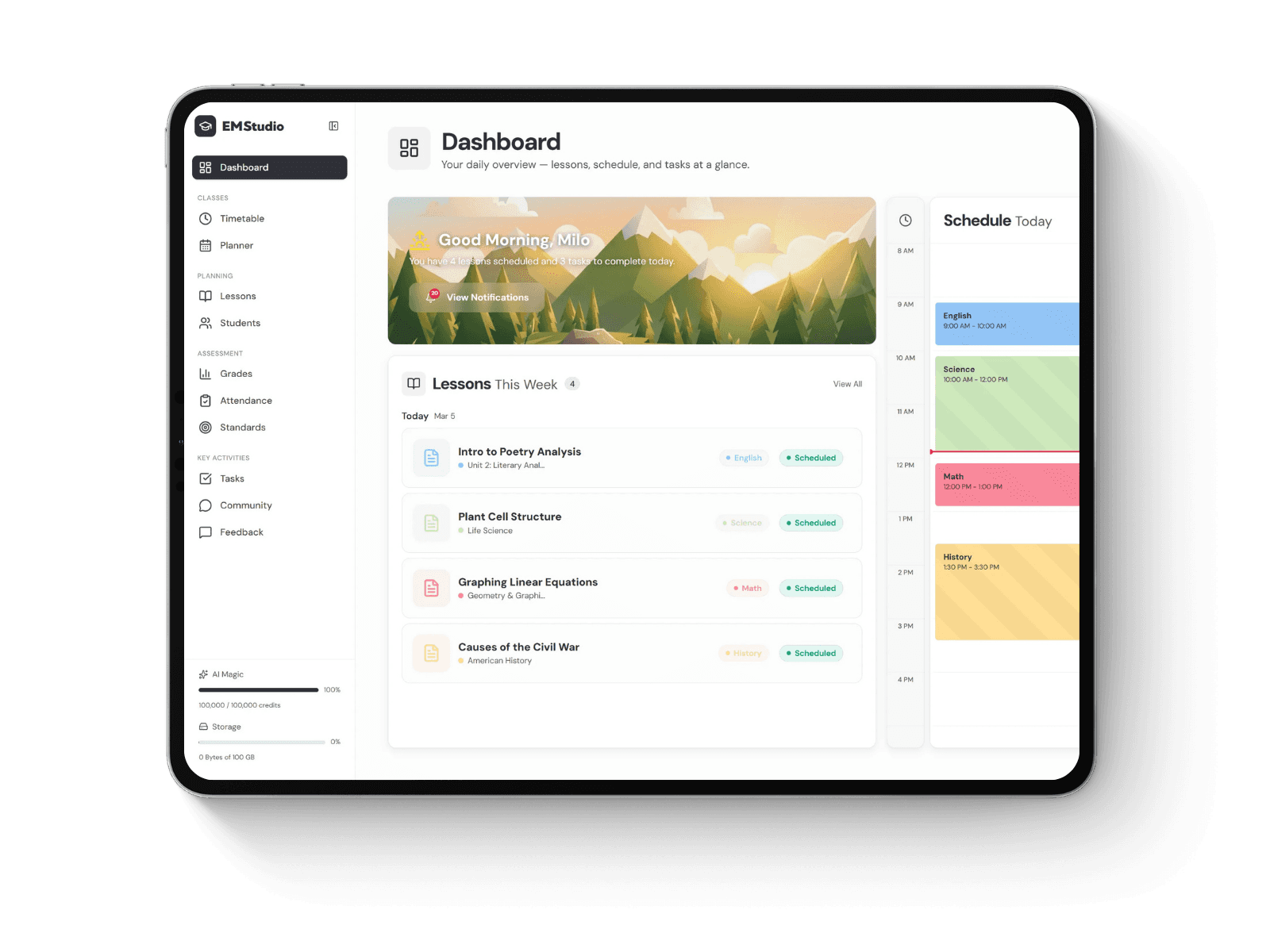
Still grading everything by hand?
EMStudio is a free teaching management app — manage your classes, students, lessons, and more!
Learn More
Table of Contents
Why Classroom Tech Needs Written Steps
Teachers now run a large part of the day through software: the learning management system, the gradebook, the district attendance portal, interactive whiteboards, quiz tools and, for many Notion4Teachers readers, a Notion workspace that holds lesson plans and student tracking. Each tool comes with a handful of tasks that someone other than you will eventually need to do.
That someone changes all the time. Students need to know how to submit an assignment. A substitute needs to take attendance and open the day's slides. A new colleague needs to find the shared unit plans, and parents want to check grades. A short step-by-step guide serves all of them better than a verbal explanation, because it is there when the question comes up, not only when you are.
What a Good Classroom Tech Guide Includes
Before you make your first one, it helps to know what separates a guide people use from one they ignore:
One task per guide. “Submit an assignment in Google Classroom” is easier to find and follow than “Google Classroom basics.”
A screenshot for every click. Younger students, visual learners and English learners all follow pictures faster than paragraphs.
Plain verbs. Click, type, select, drag. Skip the terms your district IT team uses and name buttons exactly as they appear on screen.
A clear finish line. End with what the screen should show when the task is done, so the reader knows it worked.
Writing all of that by hand for a dozen tasks is a weekend project. Recording it takes a few minutes per task.
Step 1: List the Questions You Answer Every Week
Start with your inbox and the questions students ask at the start of class. Write down the five tasks you explain most often. For most classrooms, that list includes submitting work, finding missing assignments, joining a video call and downloading a file. For a sub plan, add attendance, the bell schedule and how to start the projector.
Keep the list short. Five useful guides beat twenty half-finished ones, and you can add more once the first batch is in use.
Step 2: Record the Task Once, Start to Finish
Open the tool and record yourself doing the task at a normal pace. Narrate as you go if that helps, but don't aim for a perfect take. Close extra tabs first, and use a demo or teacher view rather than a screen that shows student names or grades.
Most screen recorders save the whole thing as a single video. That works for a quick demo, but a five-minute clip is hard to scan when a student only needs step four. Turning the recording into separate written steps is what makes it useful later.
Step 3: Turn the Recording Into a Written Guide
Instead of rewatching the video and typing out each step yourself, use a tool that does the conversion. Trails, for example, turns a screen recording into a written guide and a narrated video from the same capture. You record with its Chrome extension or its desktop app for Mac and PC, and it produces a step-by-step guide with annotated screenshots plus a training video with an AI voiceover.
Read the generated steps the way a student would. Shorten long sentences, swap in the button names students actually see, and delete anything you clicked by accident. Editing the guide's text also updates the video, so you don't need video editing software to fix a mistake. If a screenshot shows a student's name or email address, blur it before you share the guide.
Step 4: Share Guides Where People Already Look
A guide only helps if people can find it. Share it by link, embed it in a knowledge base, or export it as a PDF for a printed sub binder. If your class runs on Notion, add the links to your class dashboard or a “How To” page next to your lesson plans, so students and subs find them in the same place as everything else.
Point people to the guide every time the question comes up. After a few weeks, many students start checking the page before they raise a hand.
Step 5: Update Guides When the Software Changes
Schools switch tools and vendors redesign menus, often over the summer. Add a short review to your back-to-school checklist: open each guide, click through the steps, and record the task again wherever the screen no longer matches. Since a new recording takes minutes, keeping guides current never turns into another big project.
FAQs
Can students use these guides on their own?
Yes, as long as each guide covers one task and uses the button names students see on their own screens. Short guides with screenshots work well for middle and high school students, while younger students may do better with the narrated video and an adult nearby.
Do I need video editing skills to make a training video?
No. With a tool like Trails, the video is generated from the guide, and changing the guide's text updates the video. Your part is recording the task and reviewing the steps.
What does a tool like Trails cost for a teacher?
Trails lists its Creator plan at $29 per month for one user, with private guides and AI videos included, and offers 20% off when you pay annually plus a 7-day trial. Its pricing page also says discounted pricing is available for education and nonprofit use if you contact the team.
Start With the Task You Explain Most
Pick the question you answered most often this week and record the answer tomorrow. Turn it into a guide, put the link where students and subs already look, and notice how often the question comes back. Once one guide saves you from repeating yourself, the next five come much more easily.
Why Classroom Tech Needs Written Steps
Teachers now run a large part of the day through software: the learning management system, the gradebook, the district attendance portal, interactive whiteboards, quiz tools and, for many Notion4Teachers readers, a Notion workspace that holds lesson plans and student tracking. Each tool comes with a handful of tasks that someone other than you will eventually need to do.
That someone changes all the time. Students need to know how to submit an assignment. A substitute needs to take attendance and open the day's slides. A new colleague needs to find the shared unit plans, and parents want to check grades. A short step-by-step guide serves all of them better than a verbal explanation, because it is there when the question comes up, not only when you are.
What a Good Classroom Tech Guide Includes
Before you make your first one, it helps to know what separates a guide people use from one they ignore:
One task per guide. “Submit an assignment in Google Classroom” is easier to find and follow than “Google Classroom basics.”
A screenshot for every click. Younger students, visual learners and English learners all follow pictures faster than paragraphs.
Plain verbs. Click, type, select, drag. Skip the terms your district IT team uses and name buttons exactly as they appear on screen.
A clear finish line. End with what the screen should show when the task is done, so the reader knows it worked.
Writing all of that by hand for a dozen tasks is a weekend project. Recording it takes a few minutes per task.
Step 1: List the Questions You Answer Every Week
Start with your inbox and the questions students ask at the start of class. Write down the five tasks you explain most often. For most classrooms, that list includes submitting work, finding missing assignments, joining a video call and downloading a file. For a sub plan, add attendance, the bell schedule and how to start the projector.
Keep the list short. Five useful guides beat twenty half-finished ones, and you can add more once the first batch is in use.
Step 2: Record the Task Once, Start to Finish
Open the tool and record yourself doing the task at a normal pace. Narrate as you go if that helps, but don't aim for a perfect take. Close extra tabs first, and use a demo or teacher view rather than a screen that shows student names or grades.
Most screen recorders save the whole thing as a single video. That works for a quick demo, but a five-minute clip is hard to scan when a student only needs step four. Turning the recording into separate written steps is what makes it useful later.
Step 3: Turn the Recording Into a Written Guide
Instead of rewatching the video and typing out each step yourself, use a tool that does the conversion. Trails, for example, turns a screen recording into a written guide and a narrated video from the same capture. You record with its Chrome extension or its desktop app for Mac and PC, and it produces a step-by-step guide with annotated screenshots plus a training video with an AI voiceover.
Read the generated steps the way a student would. Shorten long sentences, swap in the button names students actually see, and delete anything you clicked by accident. Editing the guide's text also updates the video, so you don't need video editing software to fix a mistake. If a screenshot shows a student's name or email address, blur it before you share the guide.
Step 4: Share Guides Where People Already Look
A guide only helps if people can find it. Share it by link, embed it in a knowledge base, or export it as a PDF for a printed sub binder. If your class runs on Notion, add the links to your class dashboard or a “How To” page next to your lesson plans, so students and subs find them in the same place as everything else.
Point people to the guide every time the question comes up. After a few weeks, many students start checking the page before they raise a hand.
Step 5: Update Guides When the Software Changes
Schools switch tools and vendors redesign menus, often over the summer. Add a short review to your back-to-school checklist: open each guide, click through the steps, and record the task again wherever the screen no longer matches. Since a new recording takes minutes, keeping guides current never turns into another big project.
FAQs
Can students use these guides on their own?
Yes, as long as each guide covers one task and uses the button names students see on their own screens. Short guides with screenshots work well for middle and high school students, while younger students may do better with the narrated video and an adult nearby.
Do I need video editing skills to make a training video?
No. With a tool like Trails, the video is generated from the guide, and changing the guide's text updates the video. Your part is recording the task and reviewing the steps.
What does a tool like Trails cost for a teacher?
Trails lists its Creator plan at $29 per month for one user, with private guides and AI videos included, and offers 20% off when you pay annually plus a 7-day trial. Its pricing page also says discounted pricing is available for education and nonprofit use if you contact the team.
Start With the Task You Explain Most
Pick the question you answered most often this week and record the answer tomorrow. Turn it into a guide, put the link where students and subs already look, and notice how often the question comes back. Once one guide saves you from repeating yourself, the next five come much more easily.
Still grading everything by hand?
EMStudio is a free teaching management app — manage your classes, students, lessons, and more!
Learn More
Still grading everything by hand?
EMStudio is a free teaching management app — manage your classes, students, lessons, and more!
Learn More


Notion4Teachers
Notion templates to simplify administrative tasks and enhance your teaching experience.



2026 Notion4Teachers. All Rights Reserved.
Notion4Teachers
Notion templates to simplify administrative tasks and enhance your teaching experience.
2026 Notion4Teachers. All Rights Reserved.
Notion4Teachers
Notion templates to simplify administrative tasks and enhance your teaching experience.
2026 Notion4Teachers. All Rights Reserved.