
From Notion Lesson Plan to Classroom Slides in Ten Minutes
From Notion Lesson Plan to Classroom Slides in Ten Minutes

Article by
Milo
ESL Content Coordinator & Educator
ESL Content Coordinator & Educator
All Posts
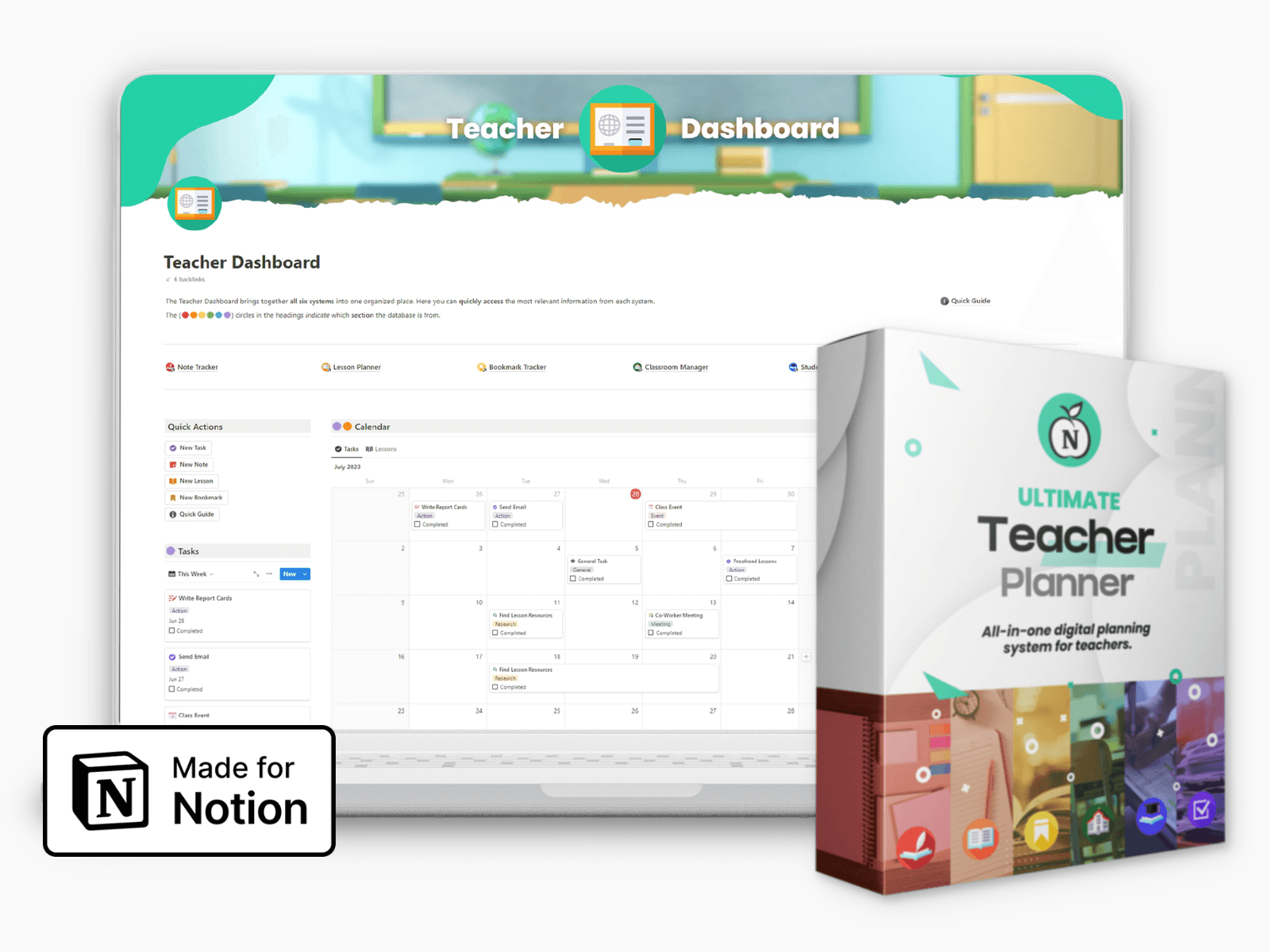
Ultimate Teacher Planner
The ultimate all-in-one education management system in Notion.
Learn More
Ultimate Teacher Planner
The ultimate all-in-one education management system in Notion.
Learn More
Table of Contents
Teachers who plan in Notion usually hit the same wall on Sunday evening. The lesson plan is done: objectives, activities, timings, the exit ticket. What is not done is the thing students will actually look at for forty-five minutes. Turning a good plan into slides still means an hour of copying, pasting and formatting per lesson, and with five preps a week that hour is the first thing to go. This post describes a workflow that gets a Notion lesson plan onto slides in about ten minutes, and what to check before you put it in front of a class.
Structure the plan so it can become slides
Slides follow the lesson's phases, so write the plan that way. A structure that converts cleanly:
Hook (1 slide): the question, image or problem that opens the lesson.
Objective (1 slide): "By the end you can…" in student language.
Input (3 to 5 slides): one idea per heading, two or three short lines under each.
Guided practice (1 to 2 slides): the task, the time limit, what "done" looks like.
Exit ticket (1 slide): one question that checks the objective.
Use Notion headings (H2) for each future slide and keep the text under each heading to what you would want on screen. Teacher-only notes go in a toggle or a callout, so they are easy to leave out of the export.
Export, then generate
From the page menu choose Export and pick PDF (or Markdown if you prefer). That file is the input. An AI presentation maker such as Wonderslide takes the exported document, keeps your headings and wording, and returns a designed deck in a few minutes. You pick a style once, and every lesson in the unit comes out looking like part of the same course, which students notice more than we expect. The free plan allows three presentations a month; for a full timetable the pay-per-deck and weekly options are cheaper than most template subscriptions.
Two settings matter for classrooms. Choose a high-contrast style, because projectors wash out pastel text. And keep generated images off unless they serve the content; a decorative stock-style picture next to a definition is a distraction, not an illustration.
The five-minute check before class
Read the back-row test. Stand three metres from your laptop. Anything you cannot read goes to a bigger size or off the slide.
One task per practice slide. Instructions, time and success criteria visible at once, so you do not have to repeat them six times.
Check names and numbers. Generation keeps your text, but formulas, dates and spellings of names deserve a human eye.
Add the exit ticket last. If the final slide does not check the objective from slide two, fix the objective or the question.
Reusing last year's material
Most of us have years of lessons that exist only as PDFs: exported handouts, scanned packs, decks from a colleague who left. Rebuilding them by hand is nobody's idea of planning time. A free PDF to PPTX converter turns those files back into editable slides, so you can update the dates and examples and drop them into this year's unit. It needs no account, which also makes it safe to recommend to students who only have a PDF of their own project.
Keep the source of truth in Notion
The habit that makes this sustainable: edit the plan, not the slides. When a lesson changes, change the Notion page and regenerate. Your database of lessons stays current, the slides are always a rendering of the latest plan, and next year's you inherits something better than a folder of files named "final_v3".
A tagged Notion database (unit, week, standard, status) plus a ten-minute export-and-generate routine gives back roughly four hours a week at a five-prep load. That is a free period nobody had to schedule.
Teachers who plan in Notion usually hit the same wall on Sunday evening. The lesson plan is done: objectives, activities, timings, the exit ticket. What is not done is the thing students will actually look at for forty-five minutes. Turning a good plan into slides still means an hour of copying, pasting and formatting per lesson, and with five preps a week that hour is the first thing to go. This post describes a workflow that gets a Notion lesson plan onto slides in about ten minutes, and what to check before you put it in front of a class.
Structure the plan so it can become slides
Slides follow the lesson's phases, so write the plan that way. A structure that converts cleanly:
Hook (1 slide): the question, image or problem that opens the lesson.
Objective (1 slide): "By the end you can…" in student language.
Input (3 to 5 slides): one idea per heading, two or three short lines under each.
Guided practice (1 to 2 slides): the task, the time limit, what "done" looks like.
Exit ticket (1 slide): one question that checks the objective.
Use Notion headings (H2) for each future slide and keep the text under each heading to what you would want on screen. Teacher-only notes go in a toggle or a callout, so they are easy to leave out of the export.
Export, then generate
From the page menu choose Export and pick PDF (or Markdown if you prefer). That file is the input. An AI presentation maker such as Wonderslide takes the exported document, keeps your headings and wording, and returns a designed deck in a few minutes. You pick a style once, and every lesson in the unit comes out looking like part of the same course, which students notice more than we expect. The free plan allows three presentations a month; for a full timetable the pay-per-deck and weekly options are cheaper than most template subscriptions.
Two settings matter for classrooms. Choose a high-contrast style, because projectors wash out pastel text. And keep generated images off unless they serve the content; a decorative stock-style picture next to a definition is a distraction, not an illustration.
The five-minute check before class
Read the back-row test. Stand three metres from your laptop. Anything you cannot read goes to a bigger size or off the slide.
One task per practice slide. Instructions, time and success criteria visible at once, so you do not have to repeat them six times.
Check names and numbers. Generation keeps your text, but formulas, dates and spellings of names deserve a human eye.
Add the exit ticket last. If the final slide does not check the objective from slide two, fix the objective or the question.
Reusing last year's material
Most of us have years of lessons that exist only as PDFs: exported handouts, scanned packs, decks from a colleague who left. Rebuilding them by hand is nobody's idea of planning time. A free PDF to PPTX converter turns those files back into editable slides, so you can update the dates and examples and drop them into this year's unit. It needs no account, which also makes it safe to recommend to students who only have a PDF of their own project.
Keep the source of truth in Notion
The habit that makes this sustainable: edit the plan, not the slides. When a lesson changes, change the Notion page and regenerate. Your database of lessons stays current, the slides are always a rendering of the latest plan, and next year's you inherits something better than a folder of files named "final_v3".
A tagged Notion database (unit, week, standard, status) plus a ten-minute export-and-generate routine gives back roughly four hours a week at a five-prep load. That is a free period nobody had to schedule.
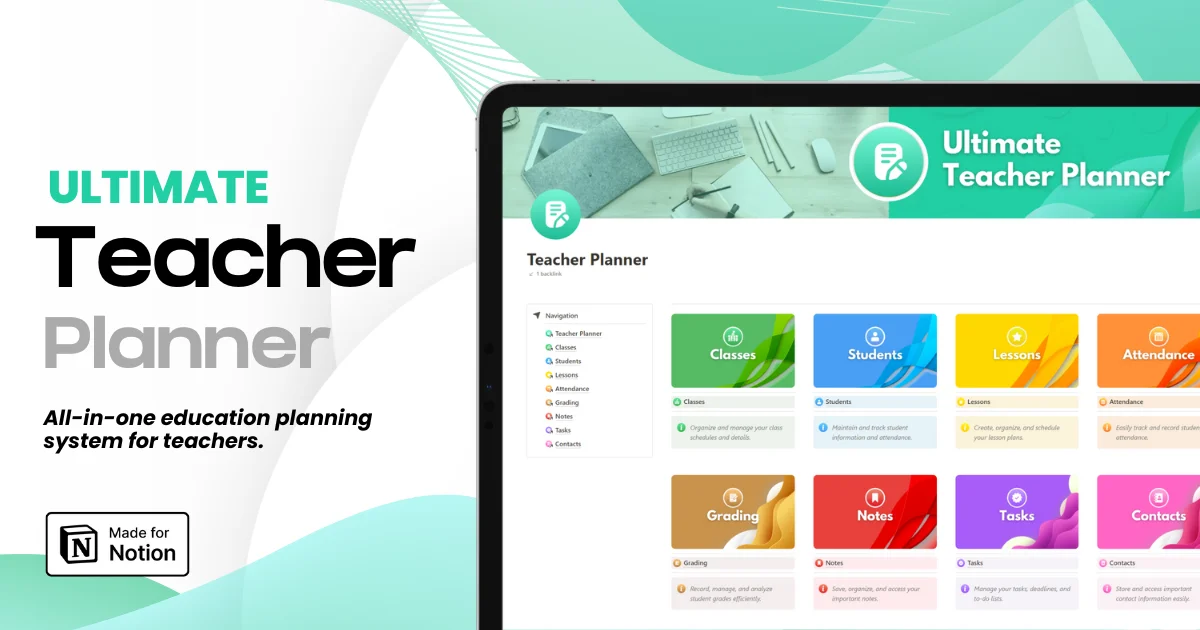
Ultimate Teacher Planner
The ultimate all-in-one education management system in Notion.
Learn More
Ultimate Teacher Planner
The ultimate all-in-one education management system in Notion.
Learn More


Notion4Teachers
Notion templates to simplify administrative tasks and enhance your teaching experience.



2026 Notion4Teachers. All Rights Reserved.
Notion4Teachers
Notion templates to simplify administrative tasks and enhance your teaching experience.
2026 Notion4Teachers. All Rights Reserved.
Notion4Teachers
Notion templates to simplify administrative tasks and enhance your teaching experience.
2026 Notion4Teachers. All Rights Reserved.