Catch-Up Pages for Absent Students: A Notion Template That Does the Explaining

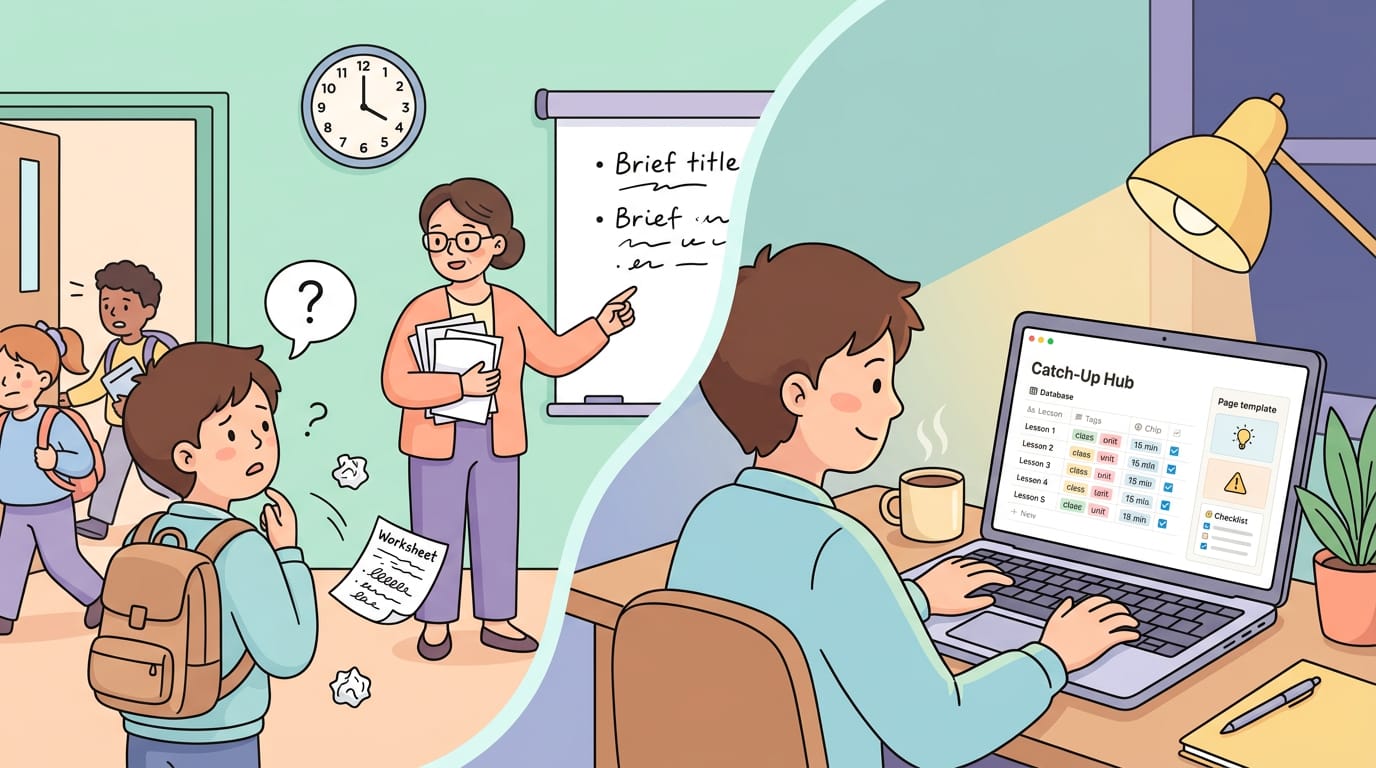
A student misses Tuesday. On Wednesday they ask, "Did I miss anything?" and you have about forty seconds before the bell to answer. You point at a slide deck, promise to find the worksheet, and hope a friend fills in the rest.
The slides rarely do the job alone. They were built to sit behind your voice, so the examples, the warnings and the "this part trips people up" are missing. A catch-up page puts that explanation back in one place that a student can open at home.
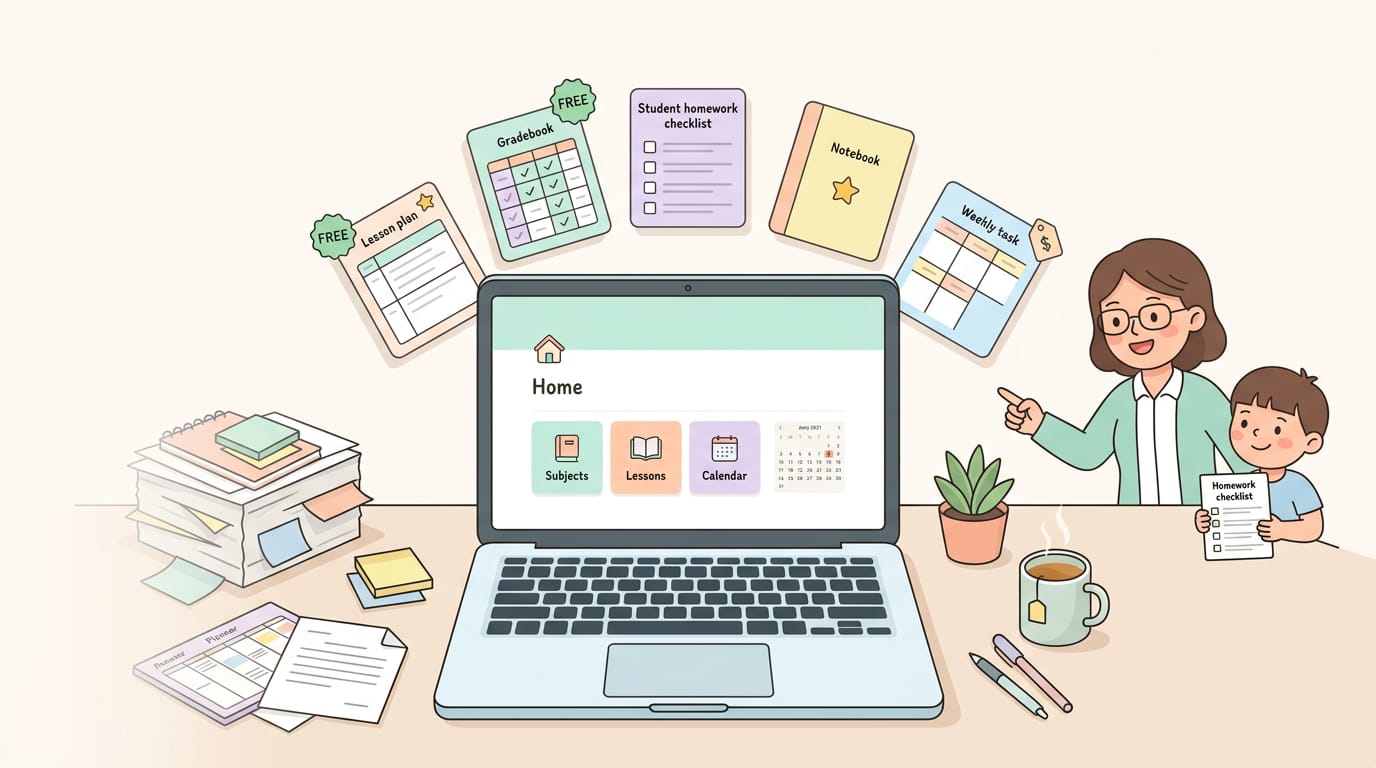
You can build one in Notion with a single database and a reusable template. Set it up once, and each new lesson becomes a short filling-in job.
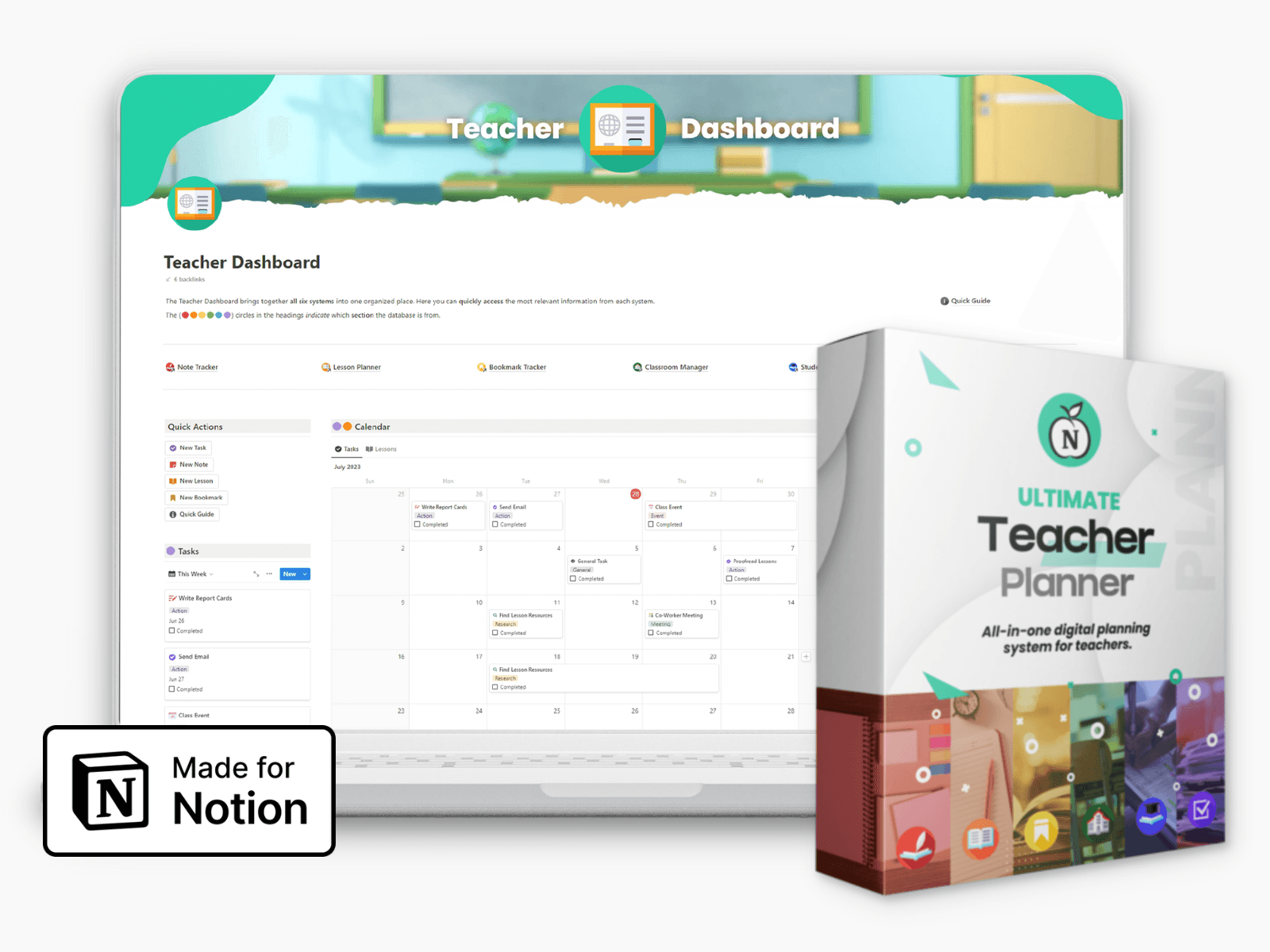
Ultimate Teacher Planner
The ultimate all-in-one education management system in Notion.
Start with one database
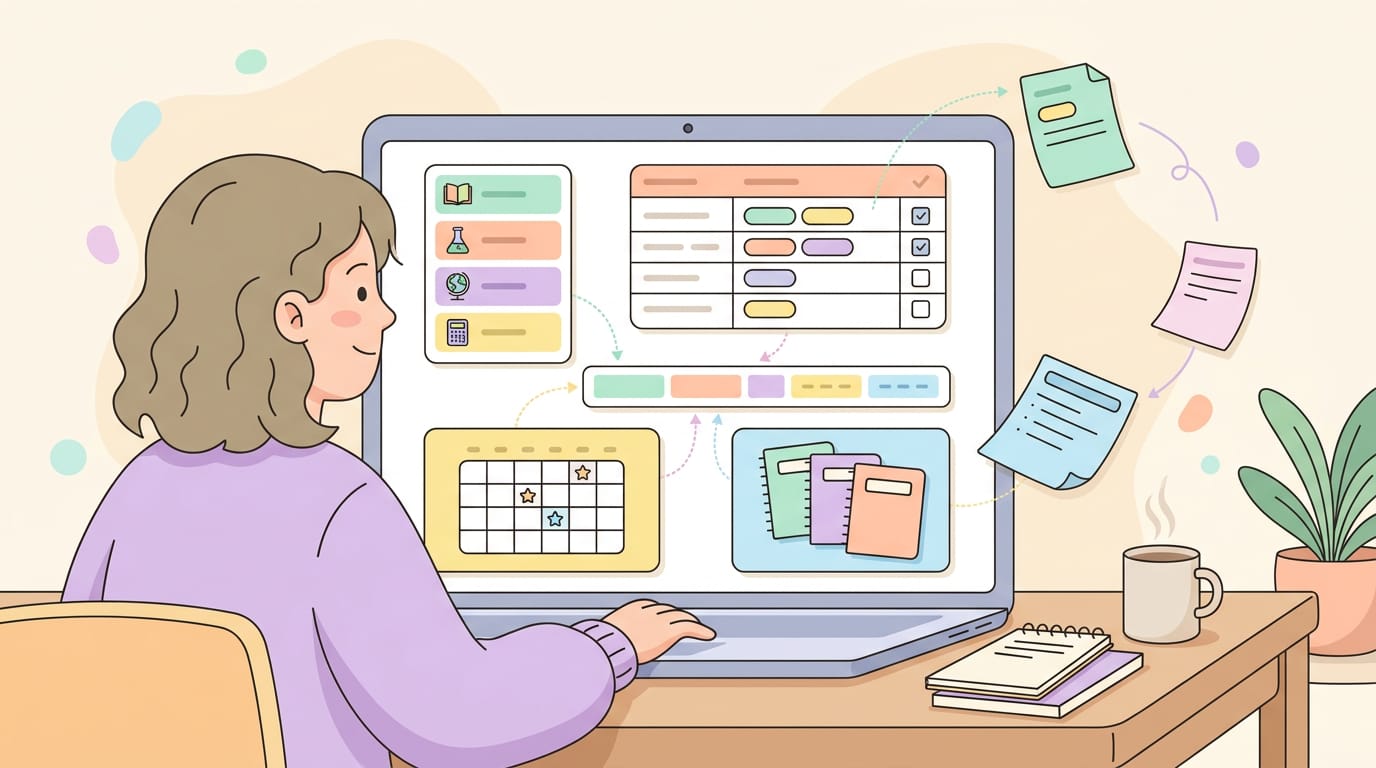
Create a database called Catch-Up Hub, with one entry for each lesson. Keeping everything in a database means you can sort, filter and reuse it, which a stack of loose pages won't let you do.
Add only the properties you will actually fill in:
Lesson date (date), so students can find the day they missed
Class (select), if you teach more than one group
Unit (select), to group lessons by topic
Time needed (select), such as 15, 30 or 45 minutes
Ready (checkbox), so half-finished pages stay hidden
Next, make a view for each class. Filter it to that class and to pages where Ready is checked, then sort by lesson date with the newest first. A student should reach the right lesson in two clicks.
Build the page template
Inside the database, create a template called Missed Lesson. Every new entry can then open with the same headings, and students learn where to look.
What we did. Three sentences at most, written the way you would say them aloud.
What you need to know. Two or three learning goals in plain language.
Learn it. The slides, a reading and an audio recap.
Try it. One short task that shows whether the idea landed.
Check yourself. Three questions, with answers tucked inside toggle blocks.
Still stuck? When and how to ask you for help.
Put a callout at the very top that reads: "Start here. You don't need to copy every slide. Work down the page and bring one question to class." That small note matters. A returning student often assumes they have to recreate the whole hour, and a clear starting point lowers that barrier.
Keep the task small. A catch-up page should cover the essential idea, not every activity from the room. If a lab or group discussion can't be repeated at home, say so and explain what replaces it. For a science practical, that might be a photo of the setup, a results table and two questions about what the numbers show.
The self-check questions deserve a minute of your time. Write at least one that asks the student to explain or apply an idea, because a page of definitions is easy to skim past. Ask them to answer before opening the toggle.
Give students more than one way in
A page full of text works for some students and stalls others. The CAST Universal Design for Learning Guidelines encourage teachers to offer information in more than one form, so that a single format doesn't become the obstacle.
For a catch-up page, that can stay simple:
Slides or a labeled diagram for anything visual
A short written summary that can be reread or translated
An audio recap for students who follow an explanation better when they hear it
A worked example for any process with steps
You don't need all four every time. Pick the formats that suit the lesson. A graph needs to be seen, while the causes of a historical event can work well as a spoken explanation.
Add an audio recap without recording one
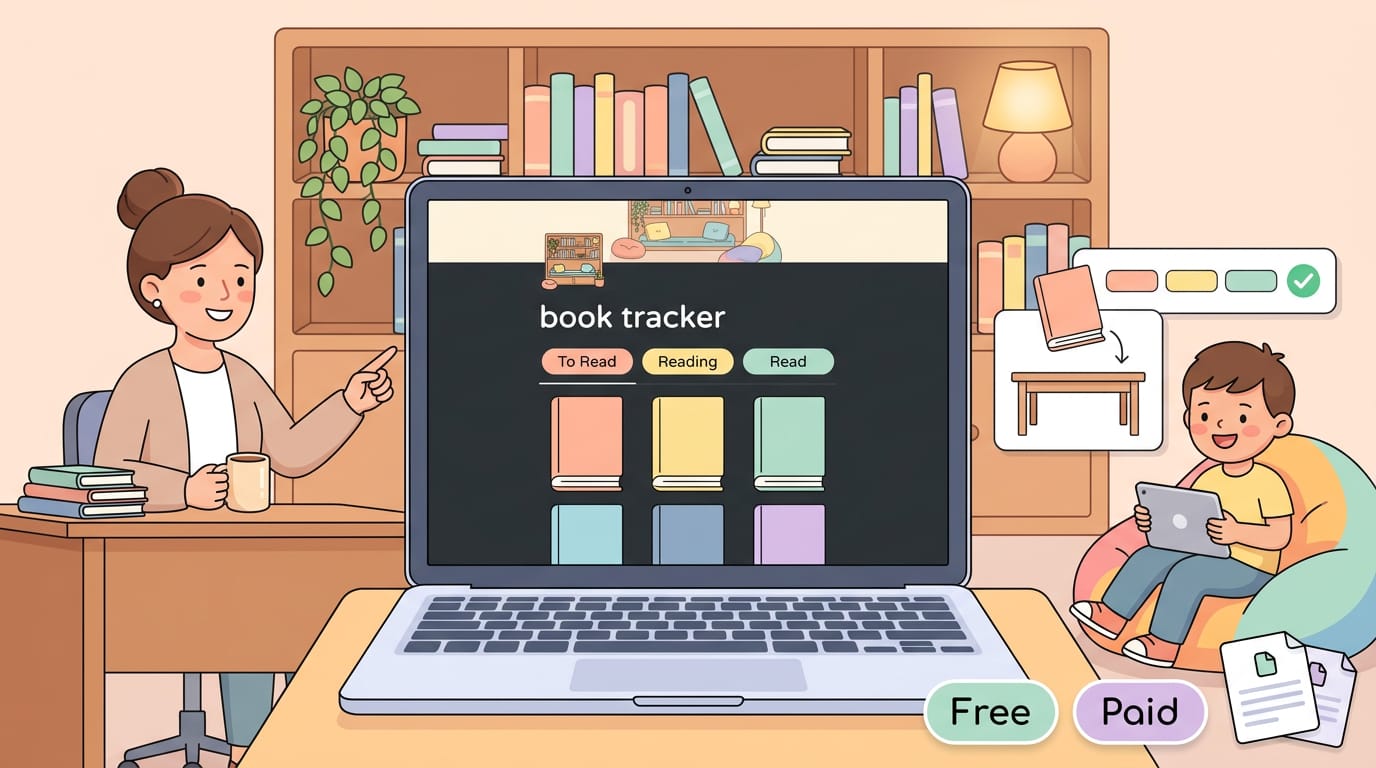
Recording yourself is a lovely option, but it takes a quiet room and usually a second take. If that isn't realistic on a busy afternoon, StudySoba's AI podcast generator for notes and slides can create an audio lesson from material you already have. It accepts sources such as PDFs, PowerPoint files, images, pasted text, public web pages and YouTube links, and it is free to try, with paid plans available.
A workable routine looks like this:
Upload that lesson's slides or your notes. Remove student names and other personal details first.
Generate the study podcast.
Listen to the whole episode before any student does.
Check facts, terms and pronunciation against your source, and make sure it hasn't skipped your main point.
Add it to the Learn it section, using whichever sharing or export option your account offers. Test it while signed out, as a student would see it.
Step three is the one to protect. AI tools can misread a slide, flatten a nuance or stress the wrong detail. You know what your class was taught, so you make the final call. If an episode is off, tighten your notes and try again, or leave audio out for that lesson.
Audio also works better with something to do. Above the player, add two listening questions, such as "What are the two causes?" and "Which one would you argue mattered more?" Students then have a reason to pay attention.
Always keep a written route through the lesson. Some students can't use audio, and others may have a shared device, no headphones or a weak connection. A five-line summary under the player covers those cases.
Make it a classroom habit
The best template fails if students don't know it exists. Share the class view in the same place you post assignments, and show it to everyone during one lesson. Open a sample page, work through a toggle question and point out where to ask for help.
Then change your answer to "Did I miss anything?" Try: "Yes. Open Tuesday's page, do the task and show me your question." After a few weeks, many students can begin before they speak to you.
To keep your workload manageable, set a minimum version. Every lesson gets the three-sentence summary, the main resource and one task. Audio and extra examples are added for lessons that introduce something new or tend to cause trouble.
Fill in the page while the lesson is fresh, ideally as part of closing your planning for the day. If you co-teach, agree who owns each class view so pages don't get written twice or not at all.
Protect student privacy
A page published to the web may be visible to anyone who has the link. Keep names, absence records, grades and health details out of the hub entirely. Attendance belongs in your school's approved system.
Before you publish, check your school's rules on Notion, AI tools and student accounts, including any age limits in each service's terms. Review the sharing settings on the hub and its subpages. Also confirm you have the right to upload and share any textbook pages or third-party materials.
Review it once a term
Ask two or three students who have used the hub what slowed them down. Maybe a link was locked, the task ran long or the instructions assumed something said in class. Fix the template first, so every future page benefits.
At the end of the year, uncheck Ready on anything outdated and keep the strong pages. Next year you can update dates and examples instead of starting from a blank screen.
Start with this week's most important lesson. Build one page, hand it to a student who missed class, and watch where they pause. Their first five minutes will tell you what to change before you make the next one.
Ultimate Teacher Planner
The ultimate all-in-one education management system in Notion.