The Best Notion Reading Journal Templates (Free and Paid)

Here are 13 Notion reading journal templates in three kinds: book trackers and reading logs, reading journals, and book notes. Our own Aesthetic Notion Book Tracker (paid) comes first, with a link to its page, and it is the pick for a teacher or student who wants a finished tracker. If you want to spend nothing, every entry says whether it is free or paid, and further down you can build a free reading log of your own in a few minutes.
Still grading everything by hand?
EMStudio is a free teaching management app — manage your classes, students, lessons, and more!
Notion Book Tracker and Reading Log Templates
A book tracker is a list of books with a few facts about each: the author, whether you have read it, and what you thought of it. In a classroom it is the simplest kind to keep up: a student adds a line when a book is started and ticks it off when it is finished, and the whole year's reading sits in one table.
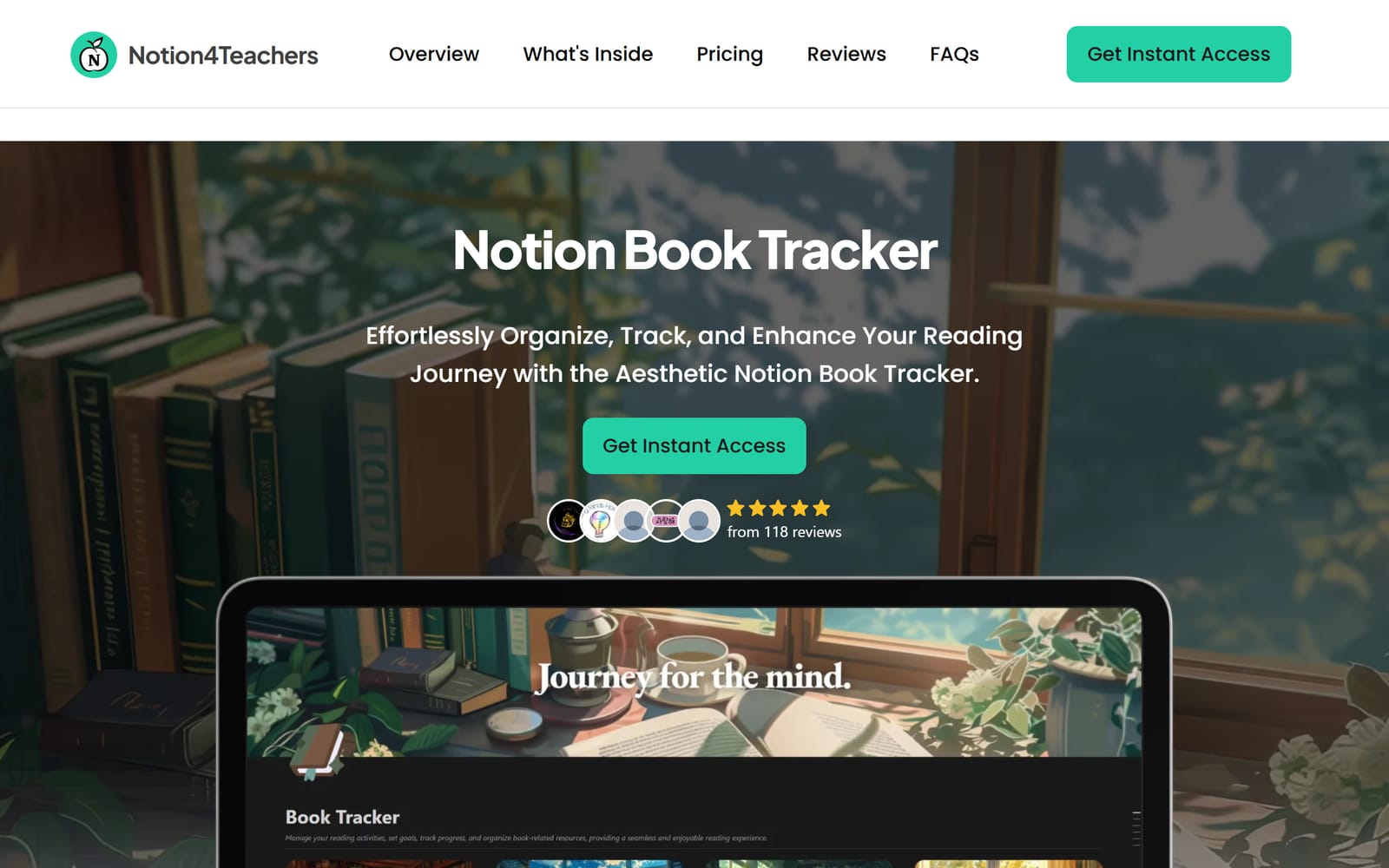
Aesthetic Notion Book Tracker
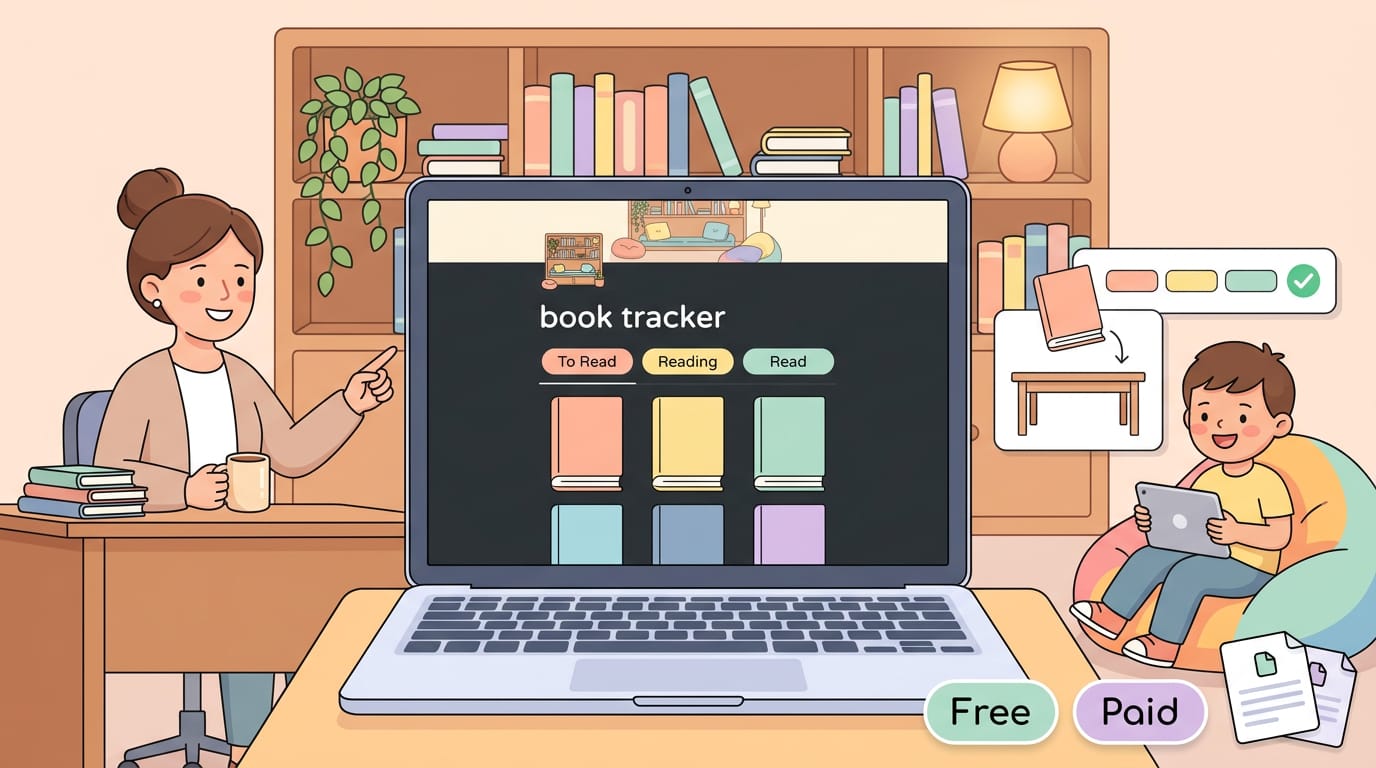
Our own book tracker: a dark-themed Notion page under a reading-nook banner that opens on a Book Tracker, with your books shown as a gallery of covers. Its page says it is for organizing your reading, setting goals and tracking progress. It suits a teacher's own reading list or a classroom library shelf. Paid.
Get the Aesthetic Notion Book Tracker
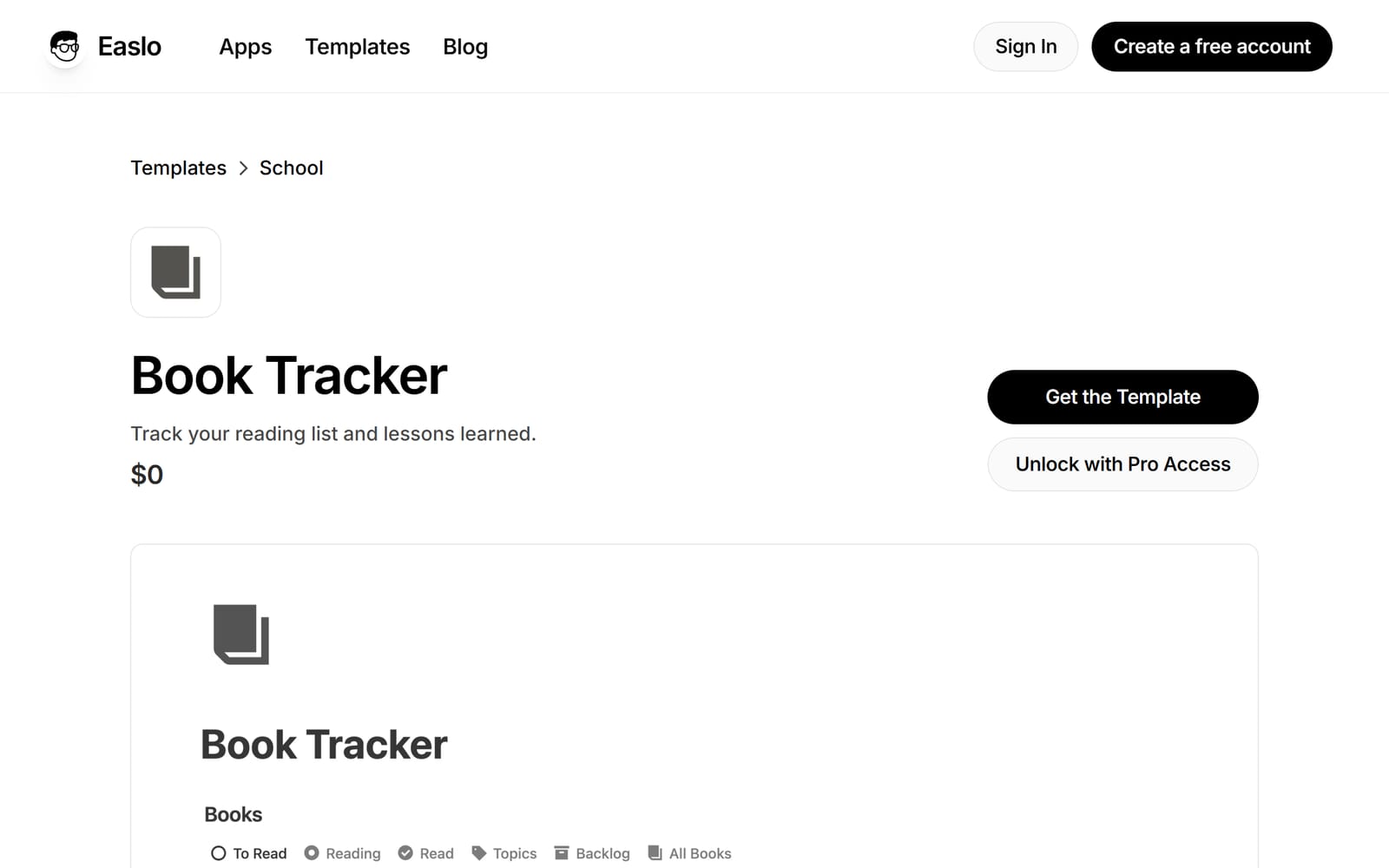
Easlo Book Tracker
A plain Book Tracker page from Easlo for your reading list and the lessons you take from each book. Its Books database has views for To Read, Reading, Read, Topics, Backlog and All Books, so a teacher can keep a professional-reading queue or a student can log a term's books. Free: the page lists it at $0, with a Pro Access option beside it.
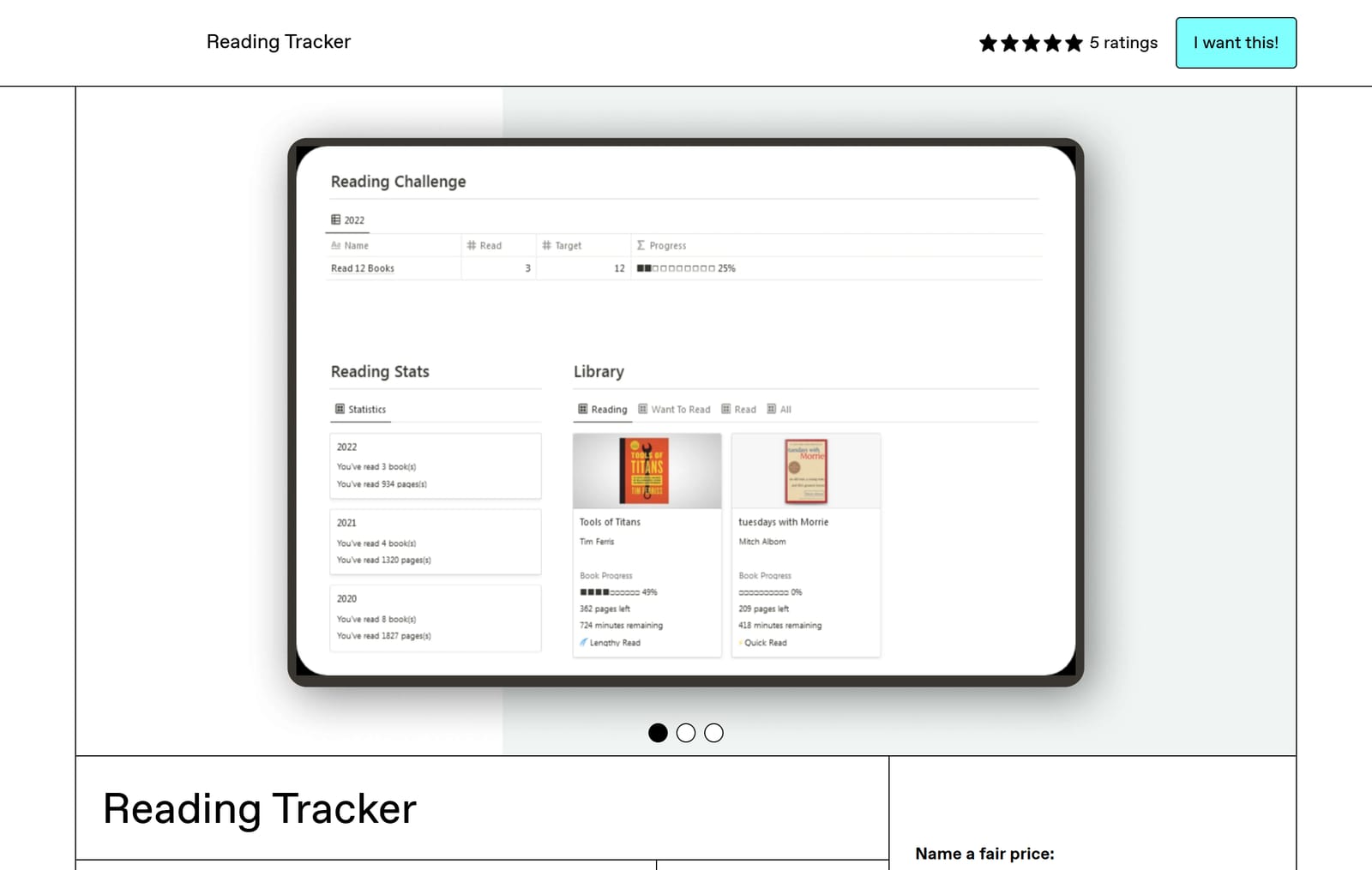
Book Reading Tracker by Bob
A Reading Tracker in three parts: a Reading Challenge table that counts books read against a yearly target (3 of 12, 25% in the preview), Reading Stats with books and pages read per year, and a Library of cover cards showing a progress bar, pages left and minutes remaining. It fits a class reading challenge. Pay what you want: it is sold on Gumroad, where the page asks you to name a fair price.
Get the Book Reading Tracker by Bob
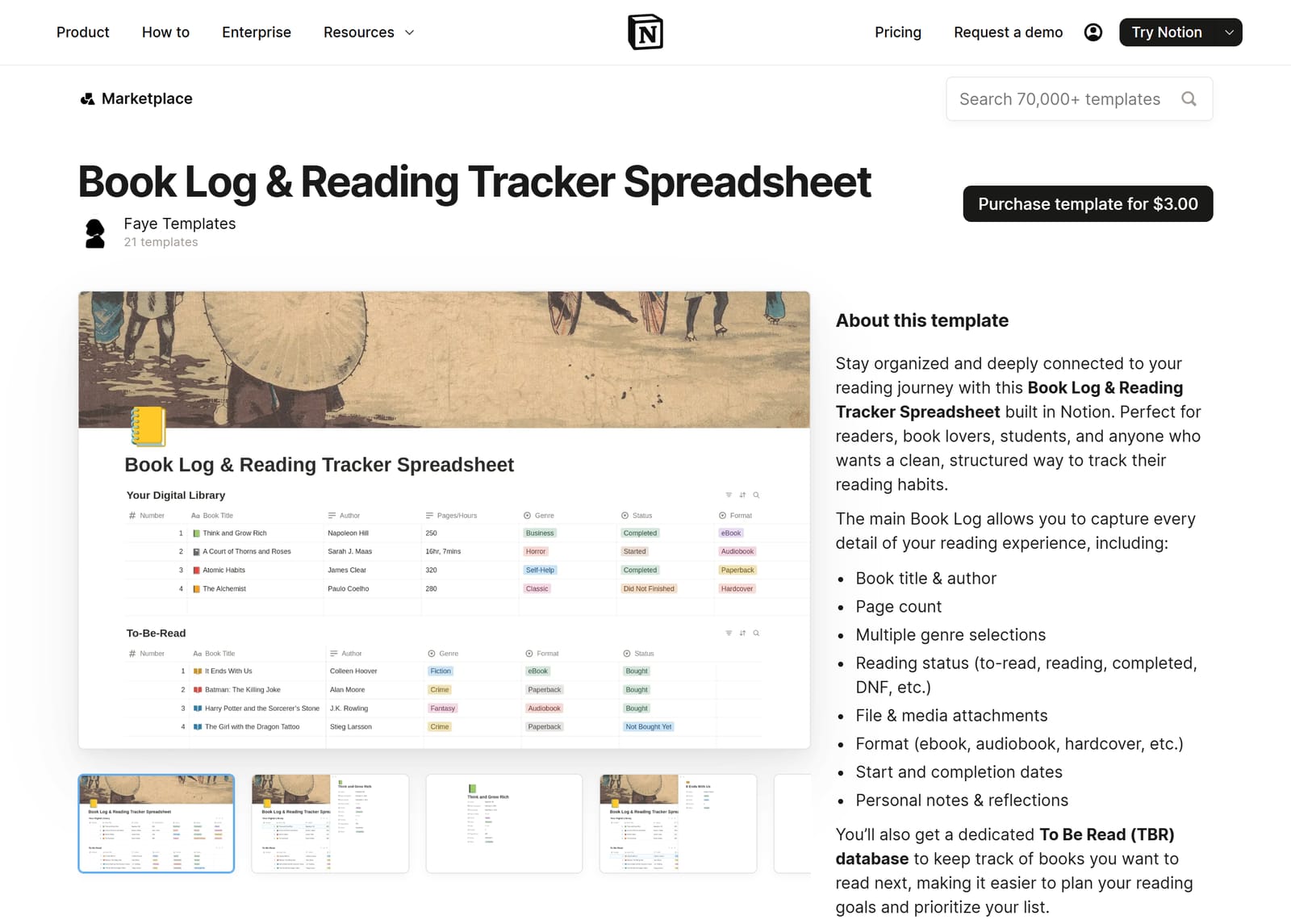
Book Log & Reading Tracker Spreadsheet by Faye Templates
A spreadsheet-style book log by Faye Templates. Its Your Digital Library table numbers each book with title, author, pages or hours, genre, status (Completed, Started) and format (eBook, Audiobook, Paperback, Hardcover); a To-Be-Read table below tracks the books still waiting and whether you have bought them. It suits a student's reading log. Paid, $3.00 on Notion's marketplace.
Get the Book Log & Reading Tracker Spreadsheet by Faye Templates
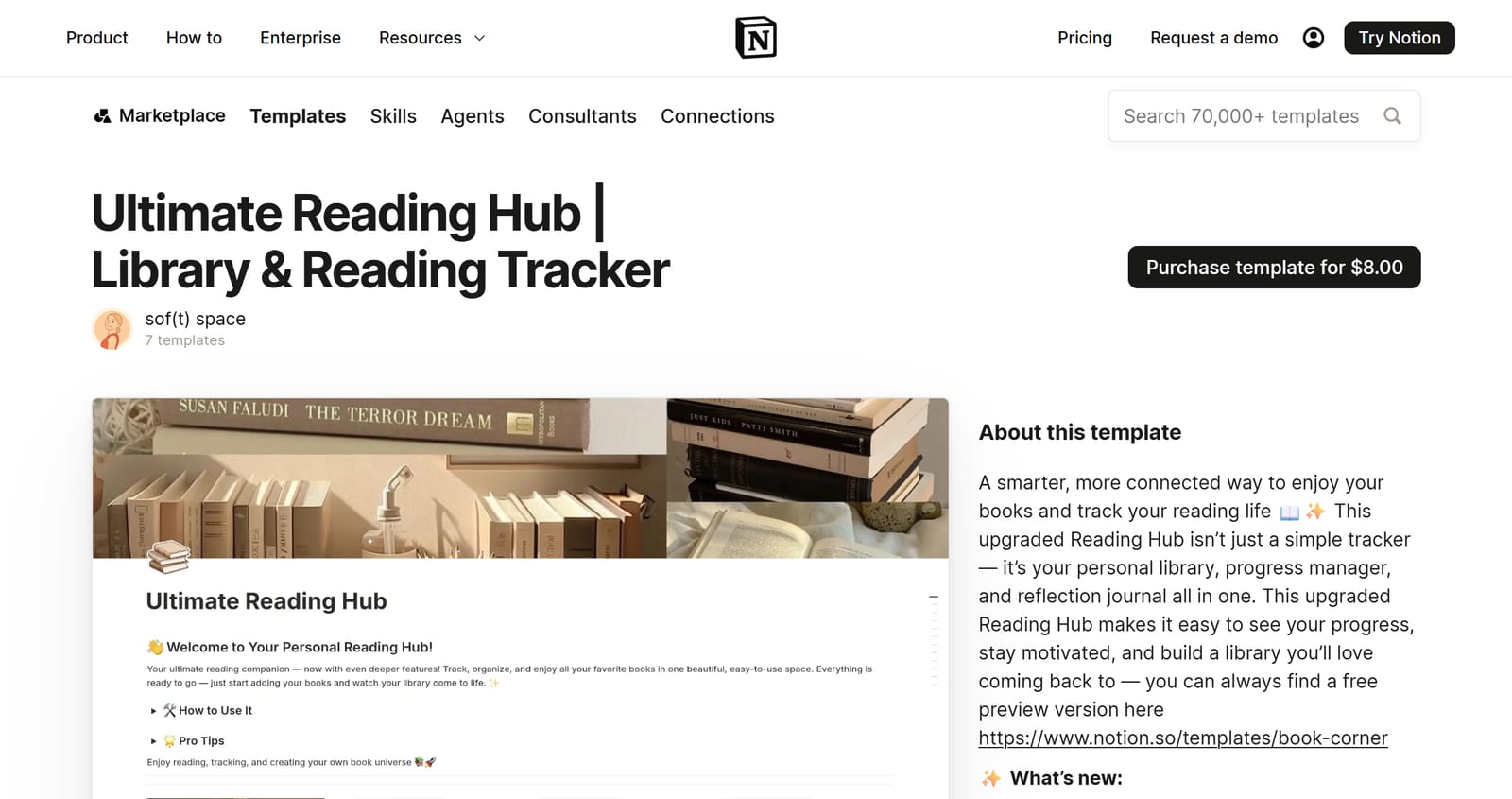
Ultimate Reading Hub: Library & Reading Tracker
A reading hub by sof(t) space that opens with a welcome note, How to Use It and Pro Tips toggles, and counters for Total Books Read, Total Pages Read and Reading Time Spent. Its page lists monthly and yearly goals with a tracker and author overviews among the features, and points to a free preview version. For a teacher who wants reading numbers at a glance. Paid, $8.00 on Notion's marketplace.
Get the Ultimate Reading Hub: Library & Reading Tracker
Notion Reading Journal Templates
A reading journal goes further than a list: each book gets room for your own words, so it suits a student writing responses to a class novel, or a teacher keeping track of their own reading over the summer. Look at what each one asks you to fill in, and pick the one that matches how much your students will actually write.
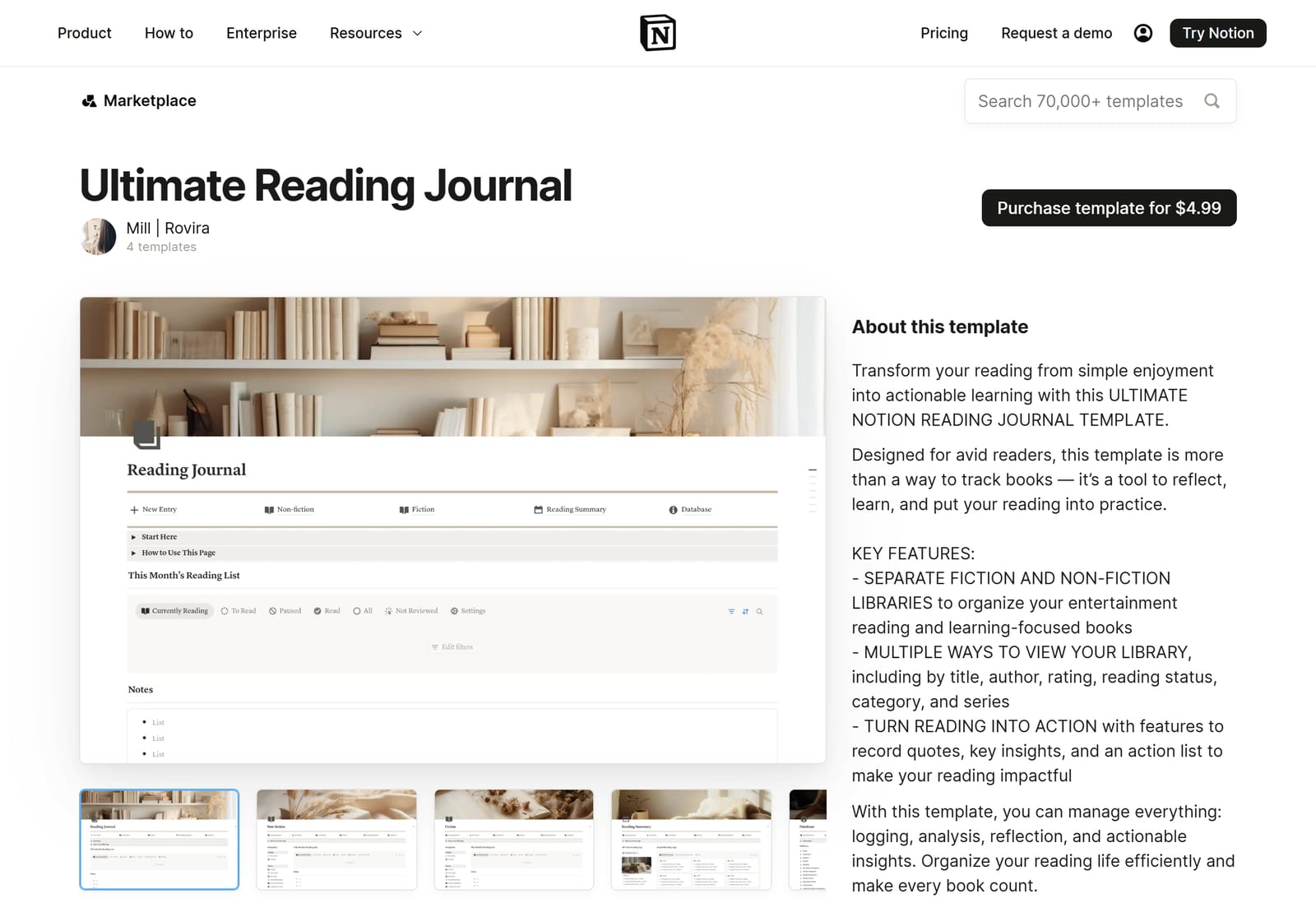
Ultimate Reading Journal
A reading journal by Mill | Rovira with separate Fiction and Non-Fiction libraries, a New Entry button and a Reading Summary across the top. This Month's Reading List has views for Currently Reading, To Read, Paused, Read, All and Not Reviewed, with a Notes list below; its page says each book gets quotes, key insights and an action list. Paid, $4.99 on Notion's marketplace.
Get the Ultimate Reading Journal
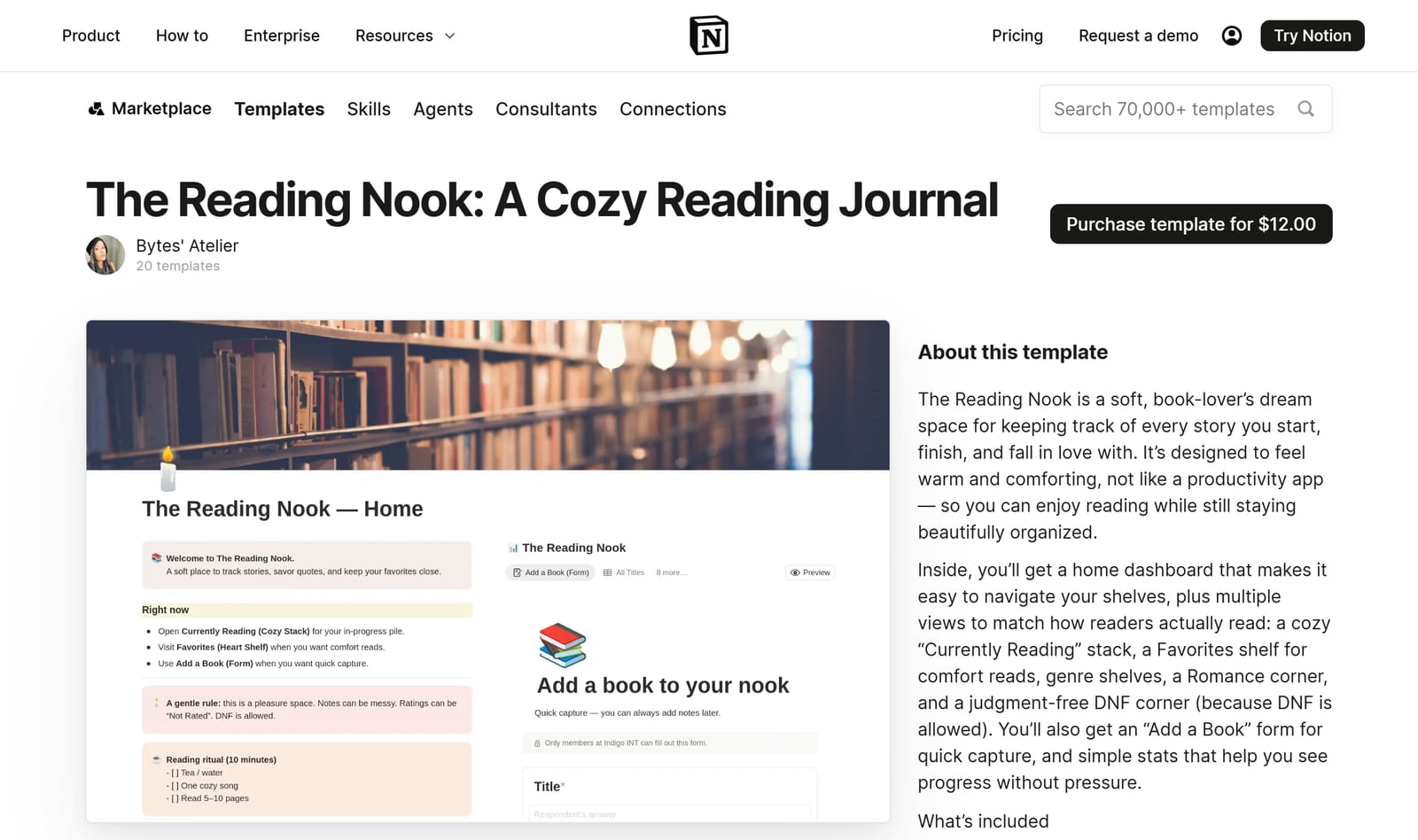
The Reading Nook: A Cozy Reading Journal
A soft-toned reading journal by Bytes' Atelier. Its home page has a welcome note, a Right now list, a 10-minute reading ritual checklist and an Add a book form for quick capture; its page also describes a Currently Reading stack, a Favorites shelf, genre shelves, a DNF corner and simple stats. It fits a student who wants a calm, low-pressure journal. Paid, $12.00 on Notion's marketplace.
Get The Reading Nook: A Cozy Reading Journal
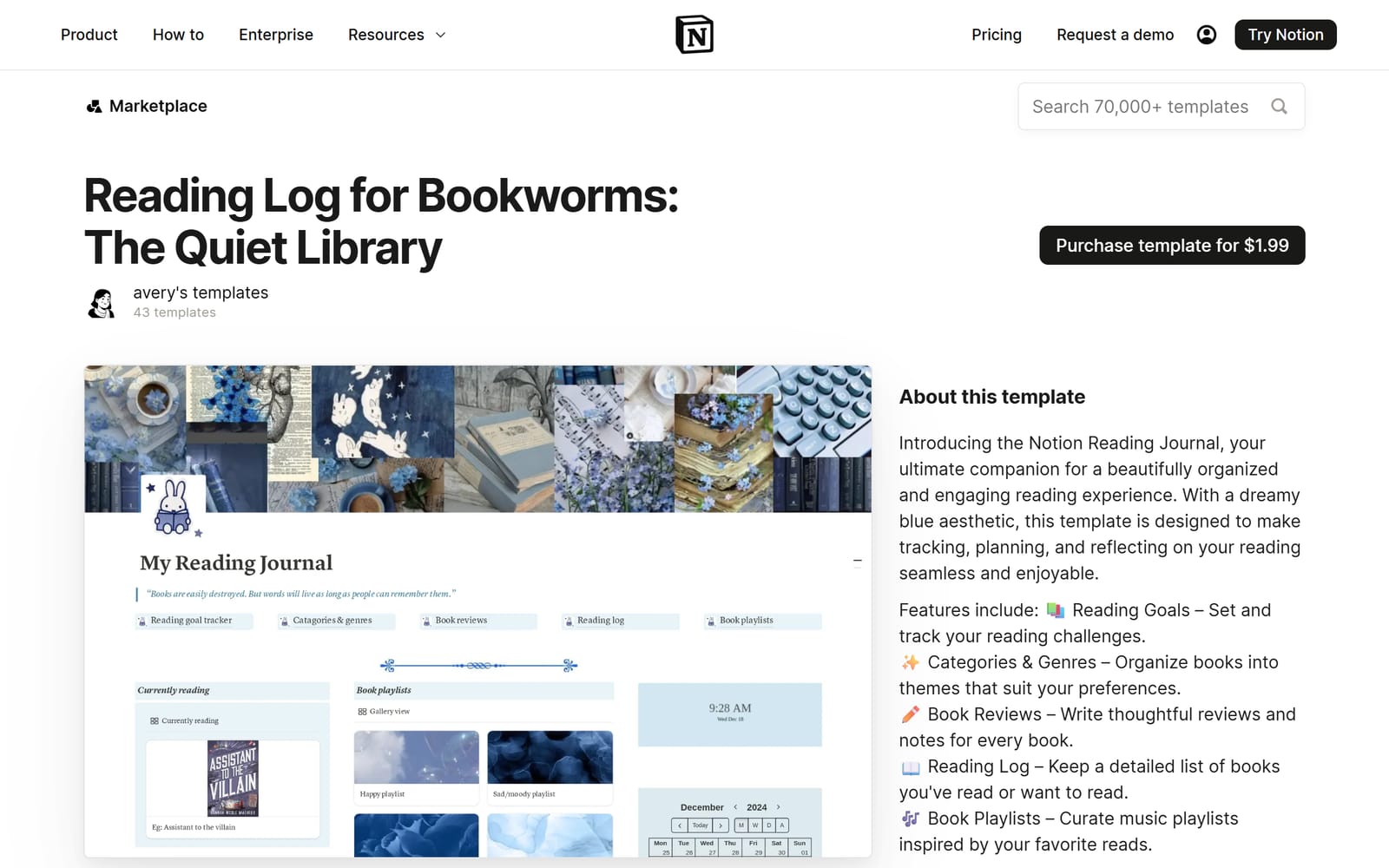
The Quiet Library Reading Log
Paid ($1.99) template from Notion's own marketplace. Its preview is a page called My Reading Journal under a blue photo-collage cover, with links to a reading goal tracker, categories and genres, book reviews, a reading log and book playlists, then a Currently reading gallery of book covers, a clock and a monthly calendar. Suits a student logging a year of independent reading, or a teacher tracking their own books.
Get The Quiet Library Reading Log
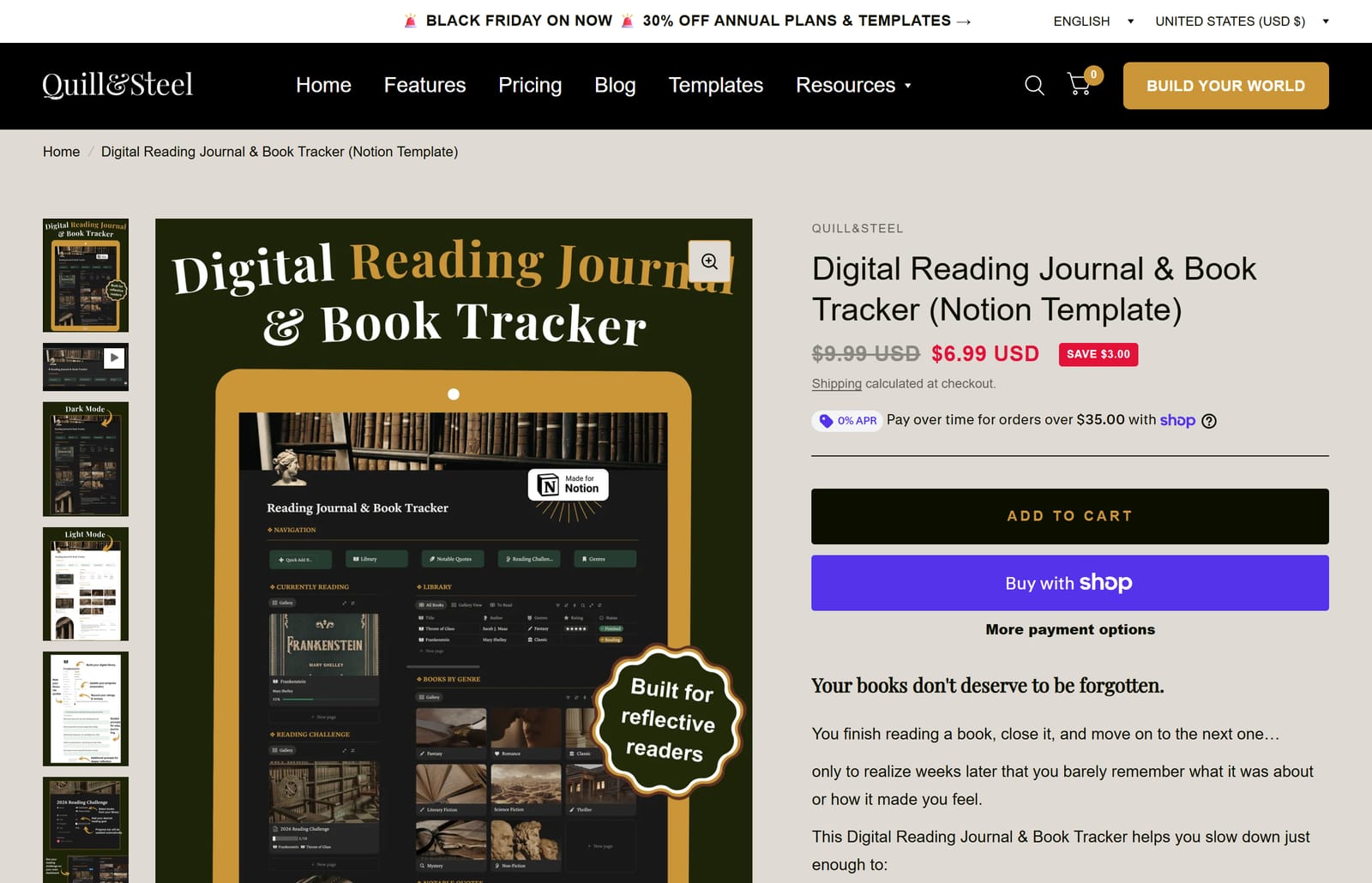
Quill & Steel Reading Journal & Book Tracker
Paid: $9.99. A dark Notion page, with a light version too, called Reading Journal & Book Tracker: a row of navigation buttons, a Currently reading card, a library table, a gallery of books by genre and a reading challenge. Made, its page says, for reflective readers: an older student or a teacher who wants to think back on each book, not only list it.
Get the Quill & Steel Reading Journal & Book Tracker
Pensio Reading & Book Journal
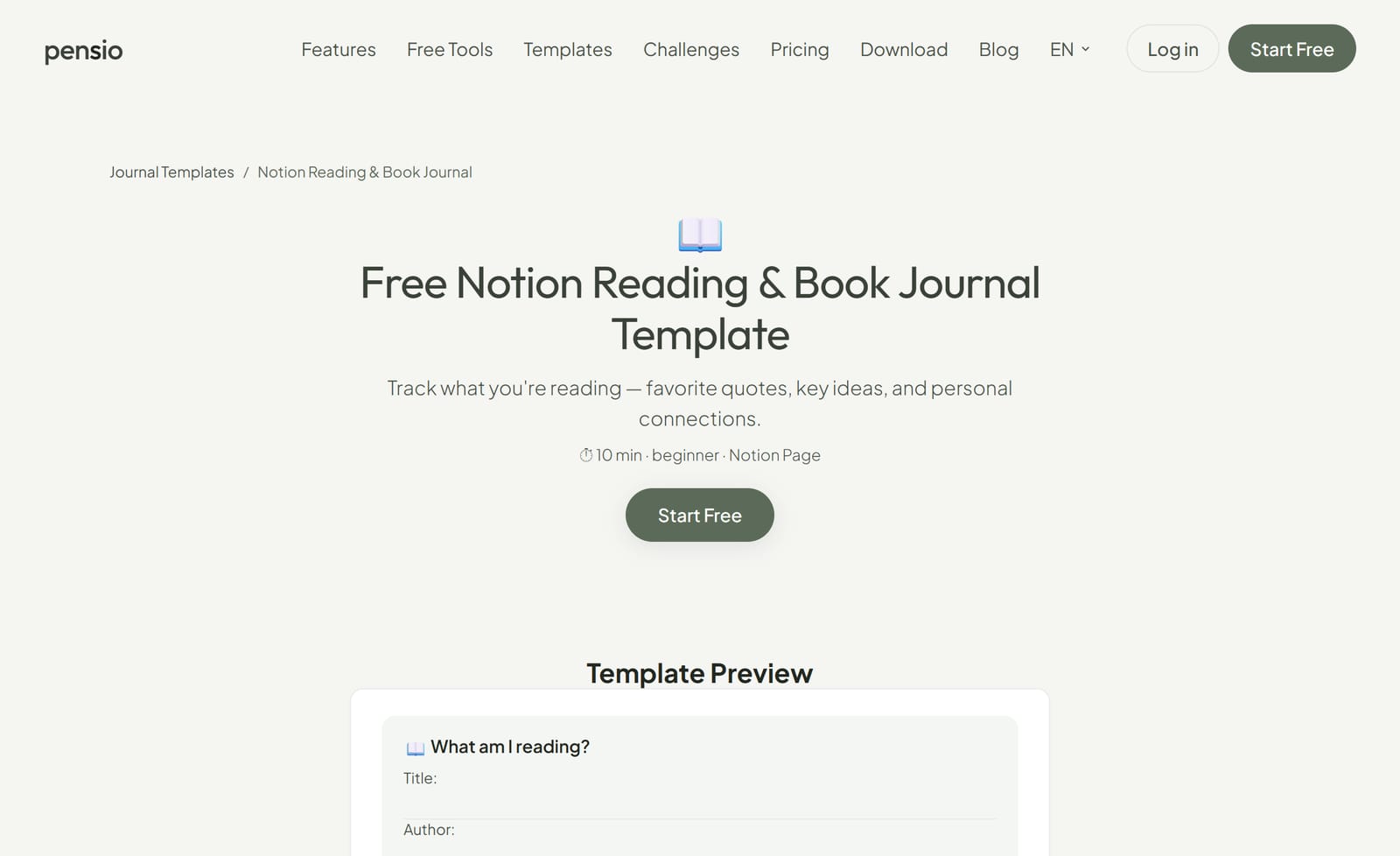
Free: the page calls it a free Notion reading and book journal, and its button reads Start Free. It is a single Notion page, marked beginner and 10 minutes, that opens with What am I reading? and fields for title and author; the page says it keeps favorite quotes, key ideas and personal connections. Simple enough for a student's response to one book.
Get the Pensio Reading & Book Journal
Notion Book Notes Templates
Book notes templates are for what you take away from a book rather than how many you read: quotes, key ideas and what you will do with them. They fit nonfiction best, such as a book on teaching that you want to come back to when you plan next term.
Reading List & Actionable Book Notes by Pika
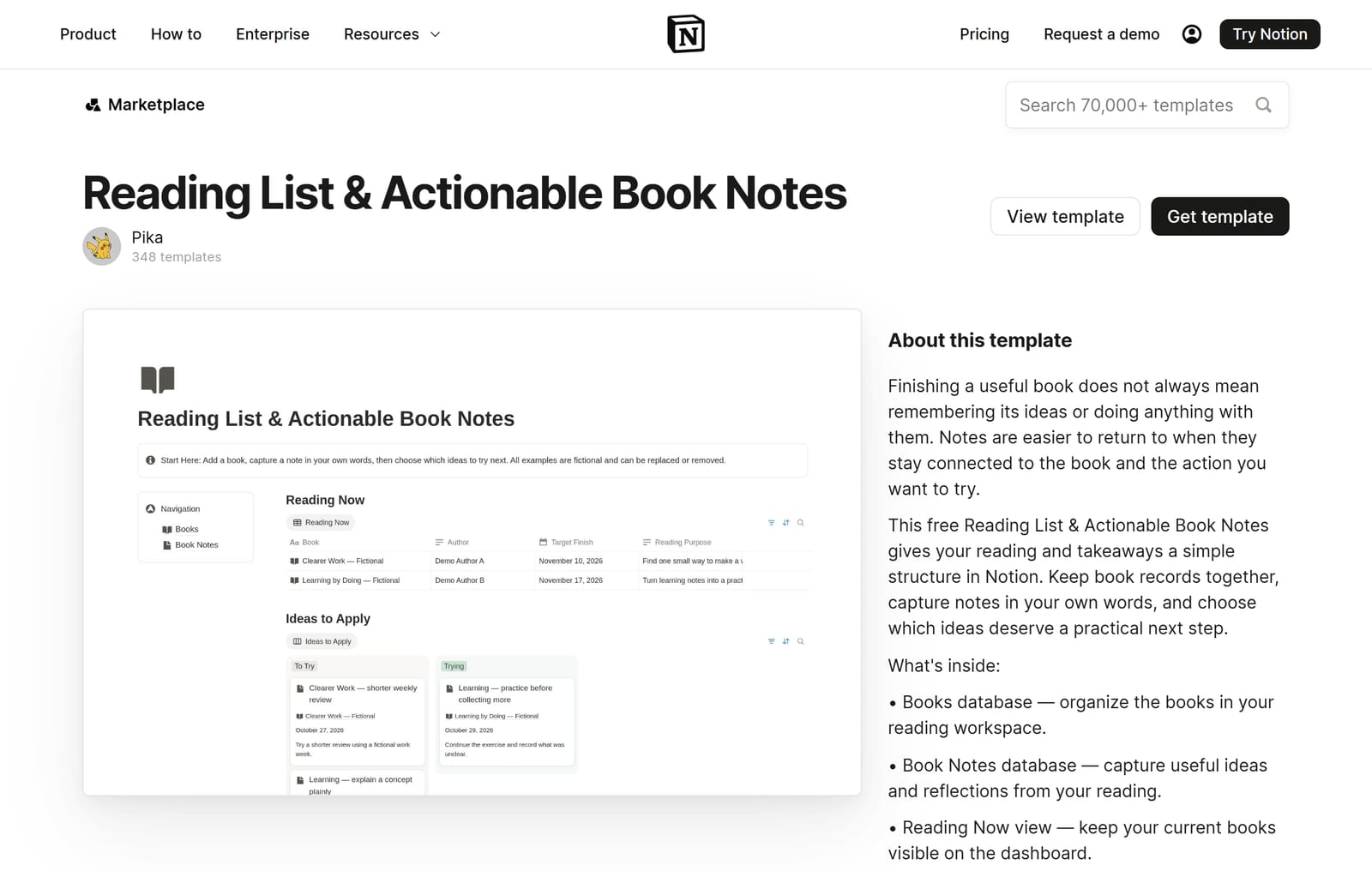
Two linked databases by Pika, Books and Book Notes, with a Reading Now table (book, author, target finish date, reading purpose) and an Ideas to Apply board split into To Try and Trying. It is built for turning a book's ideas into a next step, which suits teachers reading professional books. Free: its page calls it free and offers Get template with no price.
Get the Reading List & Actionable Book Notes by Pika
Book Notes by Ali Abdaal
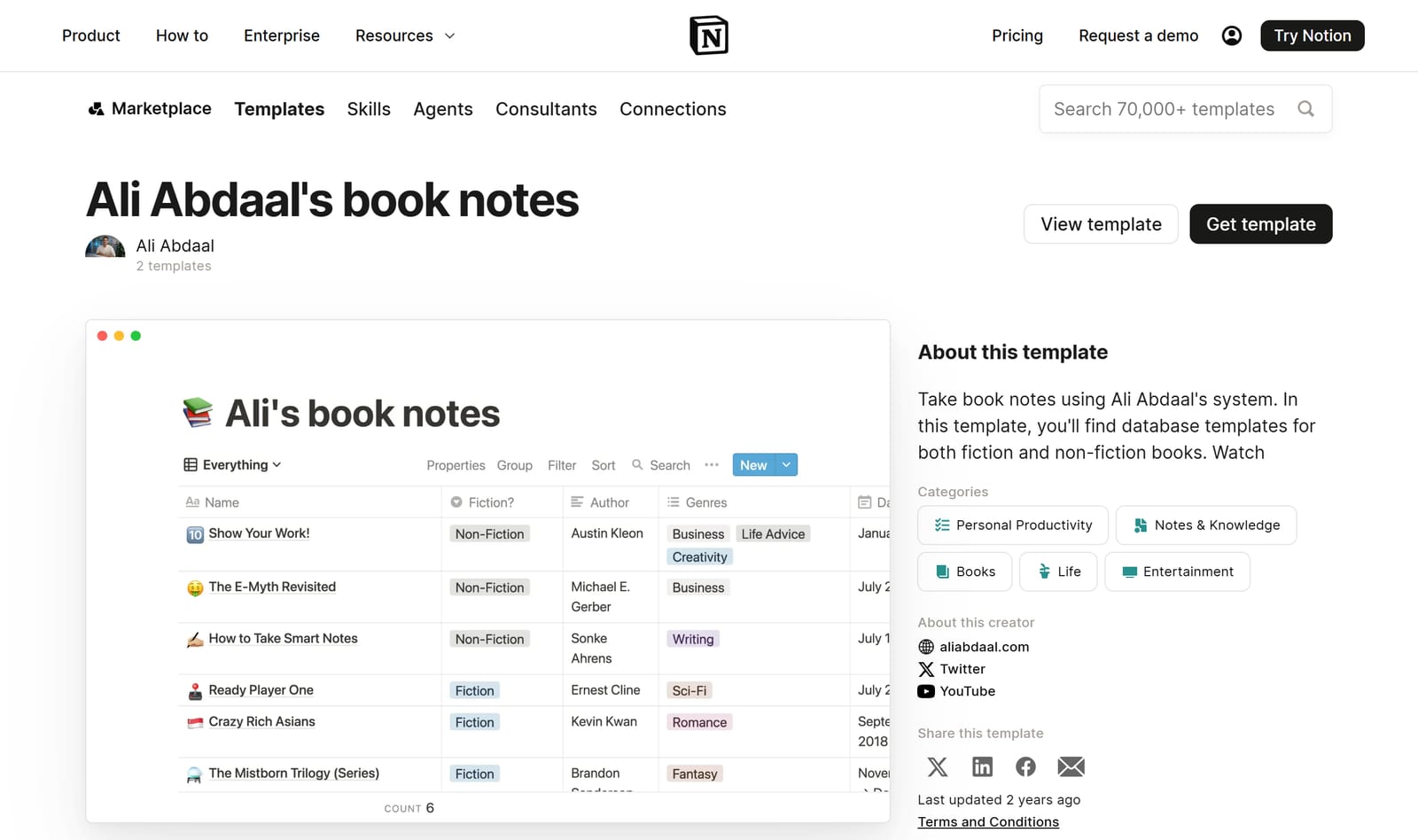
Ali Abdaal's own book-notes database: an Everything view listing his example books with columns for Fiction or Non-Fiction, author, genres and date. It comes with page templates for fiction and non-fiction notes, so a student can write up every book the same way. Free: Get template, with no price.
Get the Book Notes by Ali Abdaal
Tracking Professional + Personal Reading Template
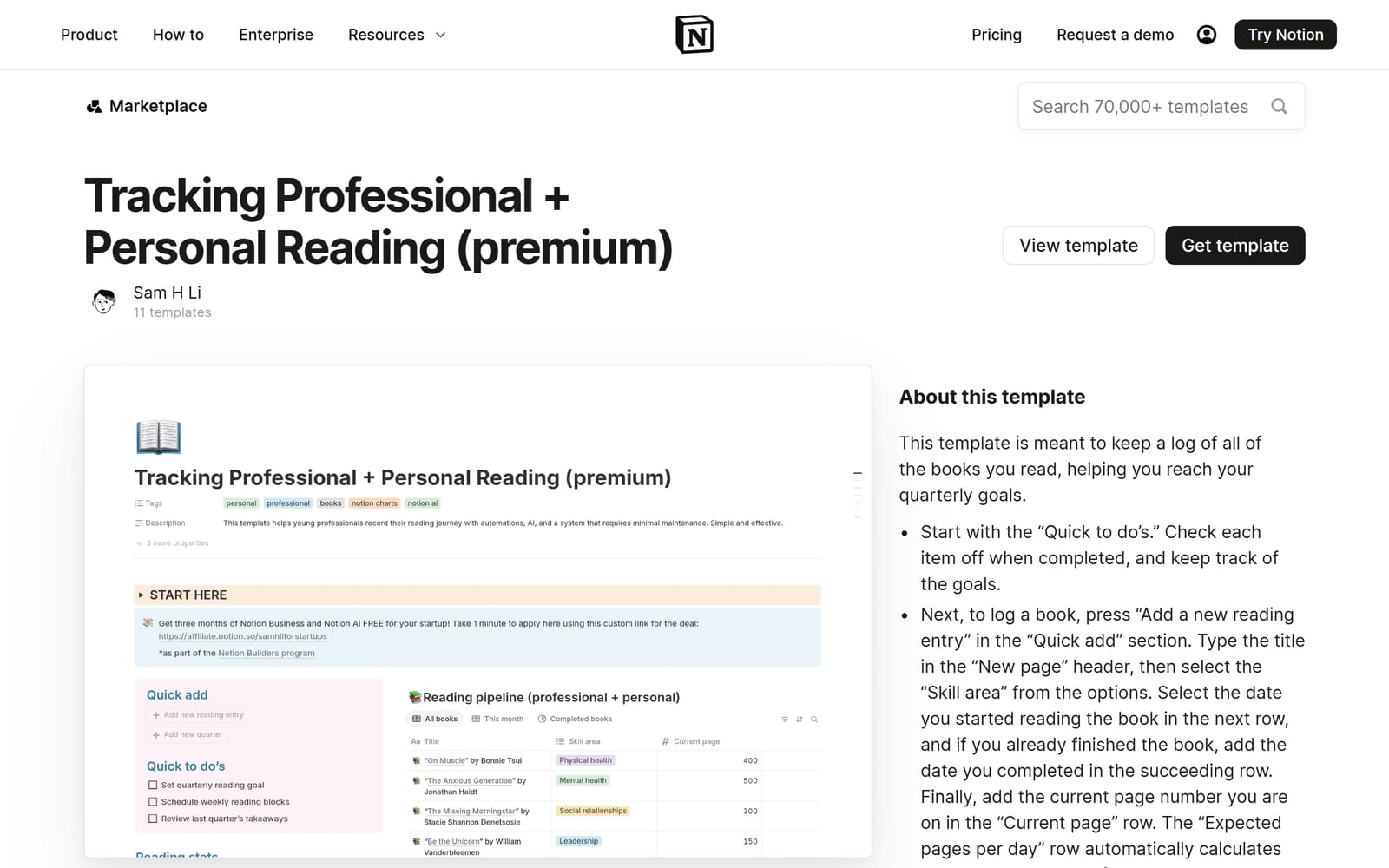
A reading log by Sam H Li built around quarterly goals: Quick add buttons for a new reading entry or a new quarter, a Quick to do's checklist (set a quarterly goal, schedule weekly reading blocks), and a Reading pipeline table that tags each book with a skill area such as Mental health or Leadership and its current page. Free: Get template with no price, despite the (premium) in its name.
Get the Tracking Professional + Personal Reading Template
What a reading template can track
Before you pick one, decide what you want to keep. Between them, reading templates are built around six things:
Books read: the list itself, with title and author.
Reading goals: a number of books for the year or the term.
A to-be-read list: books you mean to read next.
Ratings: stars or a score for each book.
Quotes: lines you want to remember.
Notes: your own thoughts, a summary or a response.
A book tracker does the first four well. If quotes and notes matter more to you, look at the reading journals and book notes groups. Each entry above says what its page shows.
Free or paid: what the buttons tell you
Each entry above says whether it is free or paid; one, on Gumroad, is pay what you want. The button on a template's page tells you the same thing before you press it:
On Notion's own template gallery (8 of the 13 are there), a free template's button reads Get template. A paid one reads Purchase template for $… with its price on the button; in this list those run from $1.99 to $12.00.
Easlo's page has Get the Template, which leads to the template on Notion's marketplace, and Unlock with Pro Access, which leads to Easlo's pricing page.
Gumroad asks you to Name a fair price, and I want this! opens Gumroad's checkout.
Quill & Steel's shop has ADD TO CART.
Pensio's page has Start Free, which leads to its sign-up page.
Our own page has Get Instant Access.
A free template is a good way to find out which layout you actually use. You can always build the simple version yourself, as shown below.
How to add a template to your own Notion
Getting a template into Notion takes three steps. A paid template has a checkout in the middle:
Open the template's page from its entry above.
Press its button. A free template on Notion's gallery has Get template. A paid template goes through checkout first, where you pay:
Our page: press Get Instant Access and pay at our checkout.
Gumroad: type your price in Name a fair price and press I want this!, which opens Gumroad's checkout. With 0 as the price, the checkout asks for an Email address and has a Get button.
Notion's gallery and other shops: press the button (Purchase template for $… on Notion's gallery, ADD TO CART at Quill & Steel) and pay there first.
Choose the workspace you want it in.
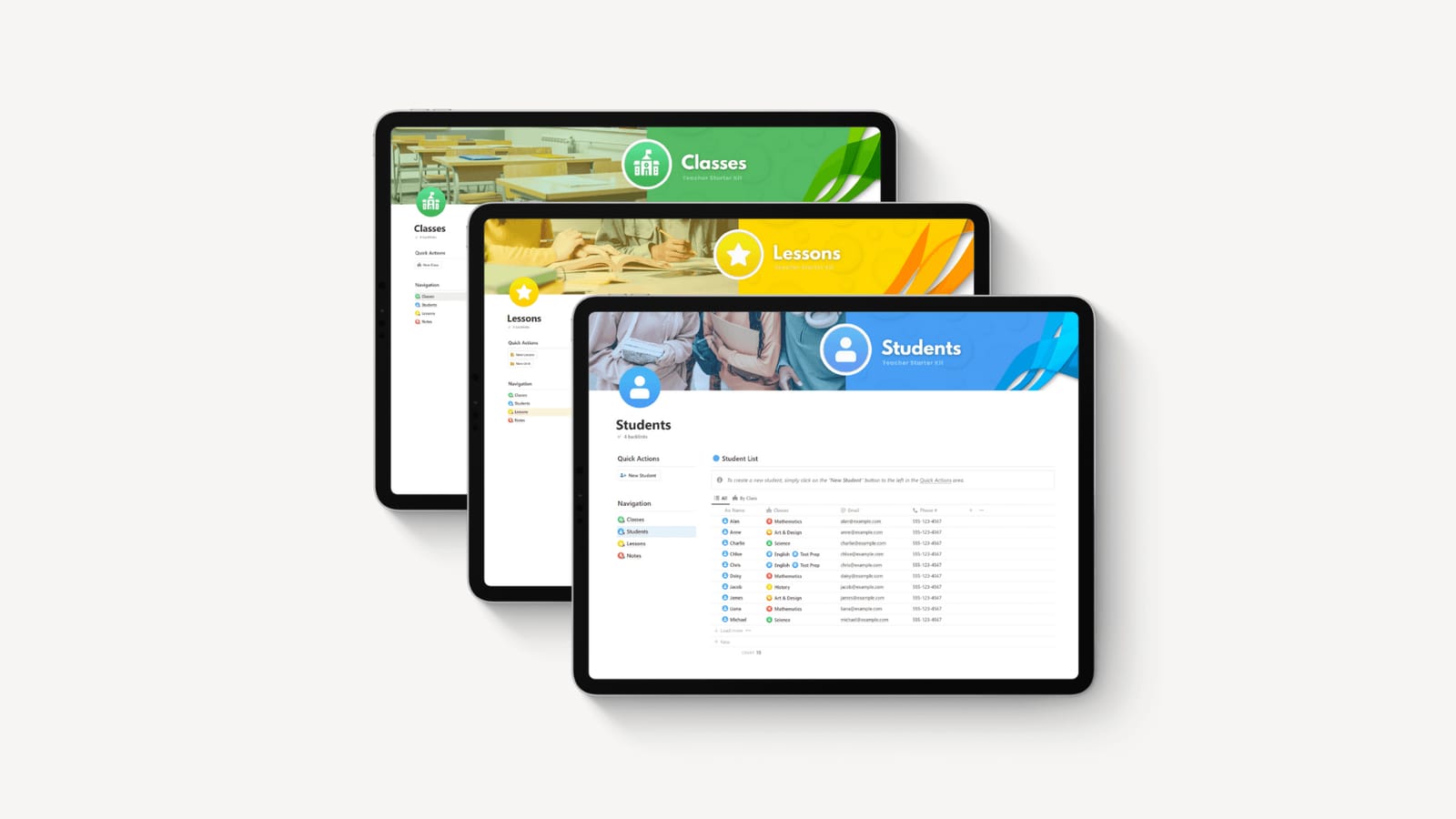
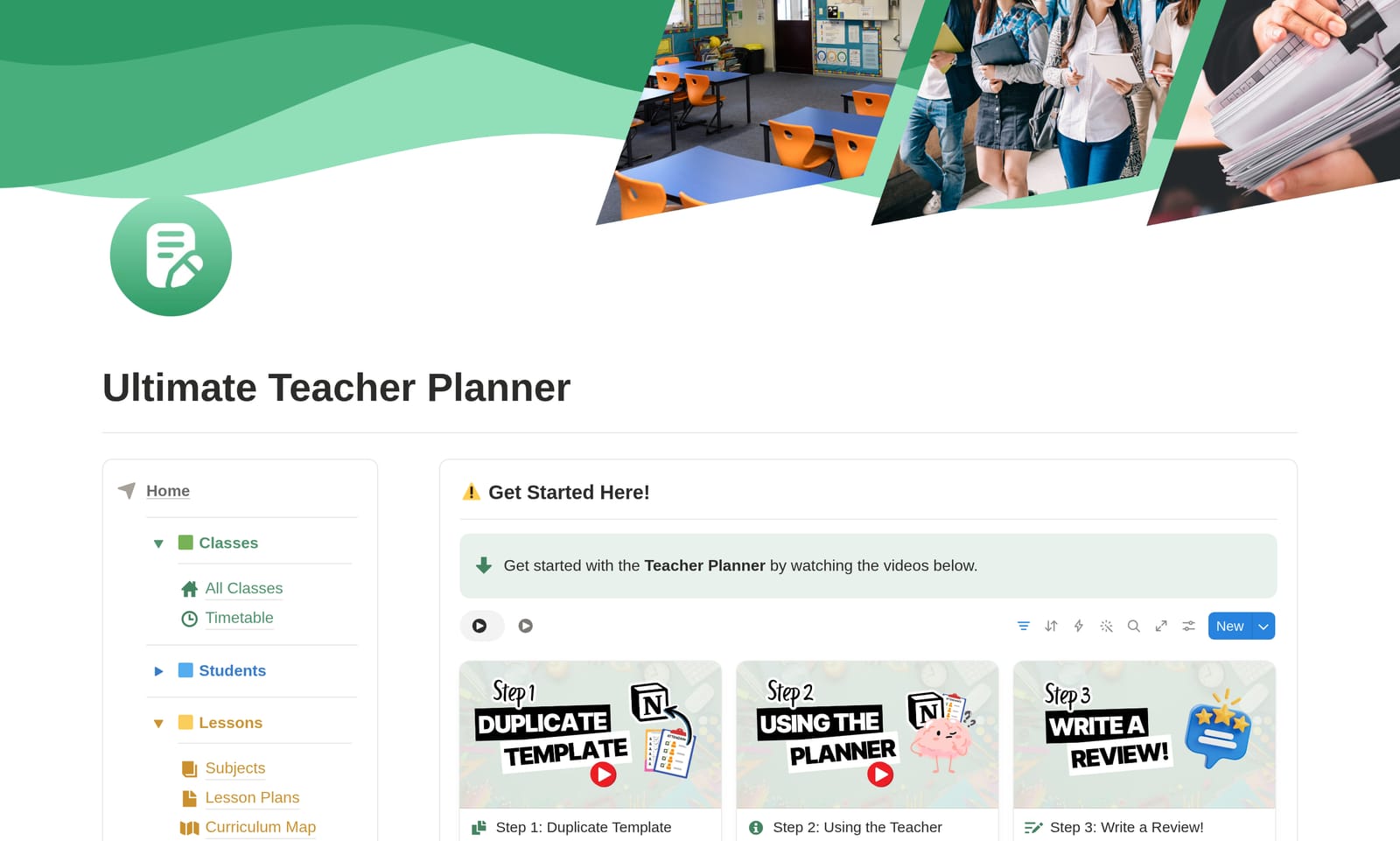
From then on the template is a page in your workspace like any page of your own: you open it, rename it and fill it with your books. This is what a template looks like once it is in, here our Ultimate Teacher Planner's home page, with its menu of classes, students and lessons on the left and its getting-started videos on the right.
If you like having your planning in templates too, see the best Notion task manager templates.
How to build a simple reading log in Notion
If you only need a list of books, you do not need a template at all. This is a log with four columns (Title, Author, Status and Rating), built on a new page.
Make the database
On a new page, type
/databaseand choose Database - Inline.
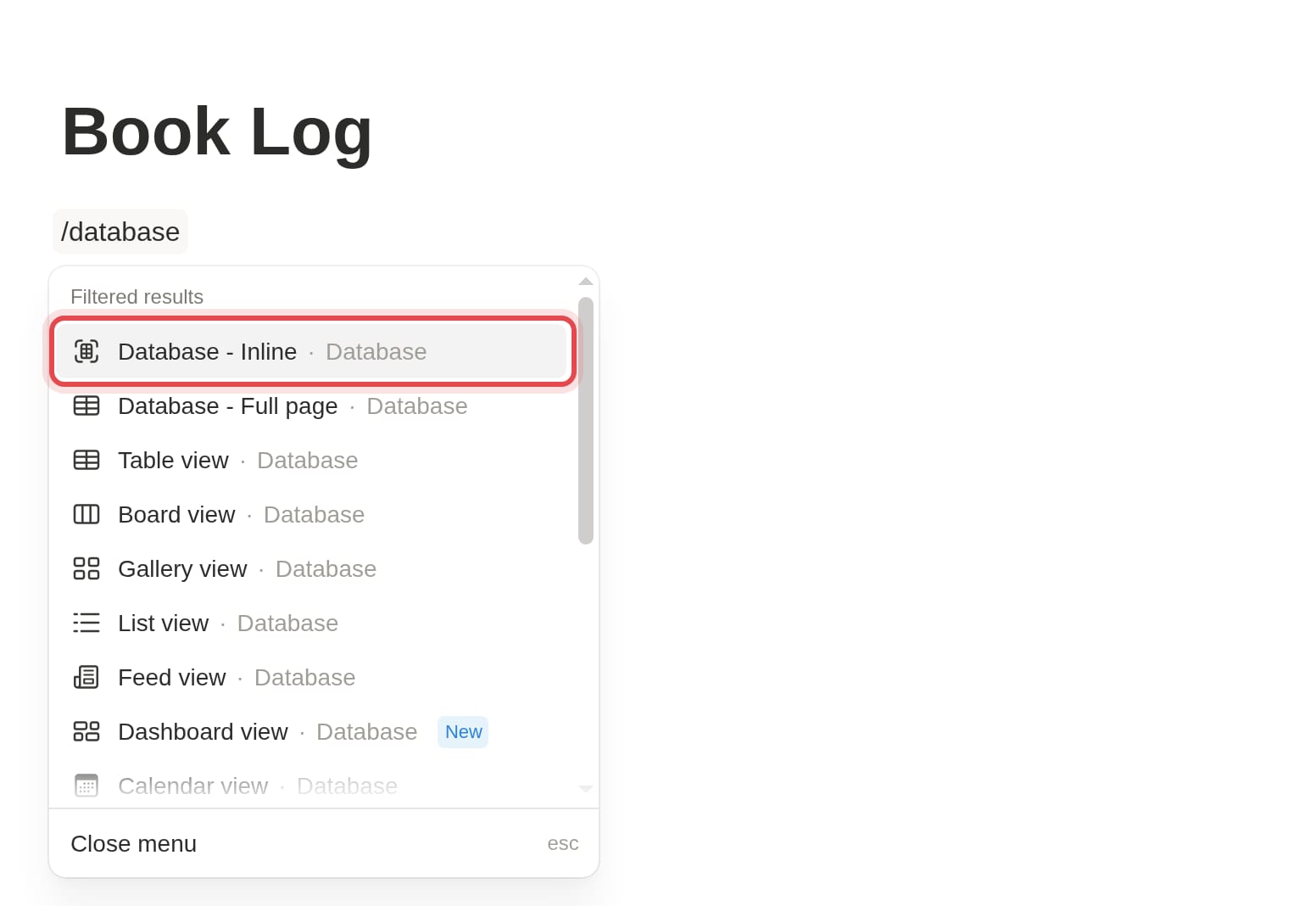
Notion adds an empty table. Click its title, New database, and type a name; ours is My Reading Log.
Click the first column, Name. In the Property name box that opens, replace the word with Title and press Enter.
Add the columns
Press the + at the right end of the column headings. Type Author in Type property name… and choose Text.
Press + again, type Status and choose Select. Do the same for Rating, again with Select.
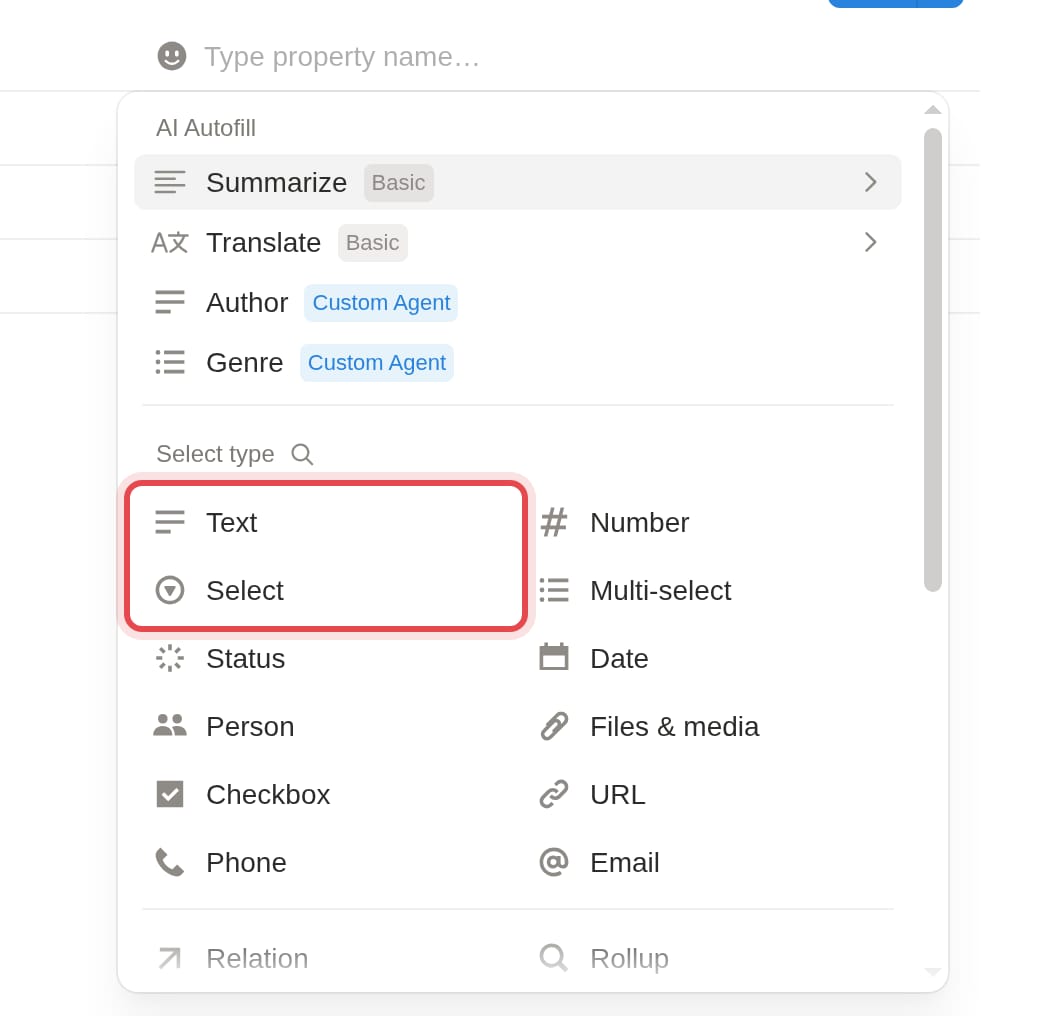
The top of that menu also offers AI Autofill suggestions; for a plain column, choose from the types under Select type. Notion's help page on database properties explains every type.
Add your first book
Click New page under the table, type the book's title and press Enter.
Click the book's Author cell and type the author.
Click its Status cell and type Finished. Notion offers Create Finished: press Enter to make that option.
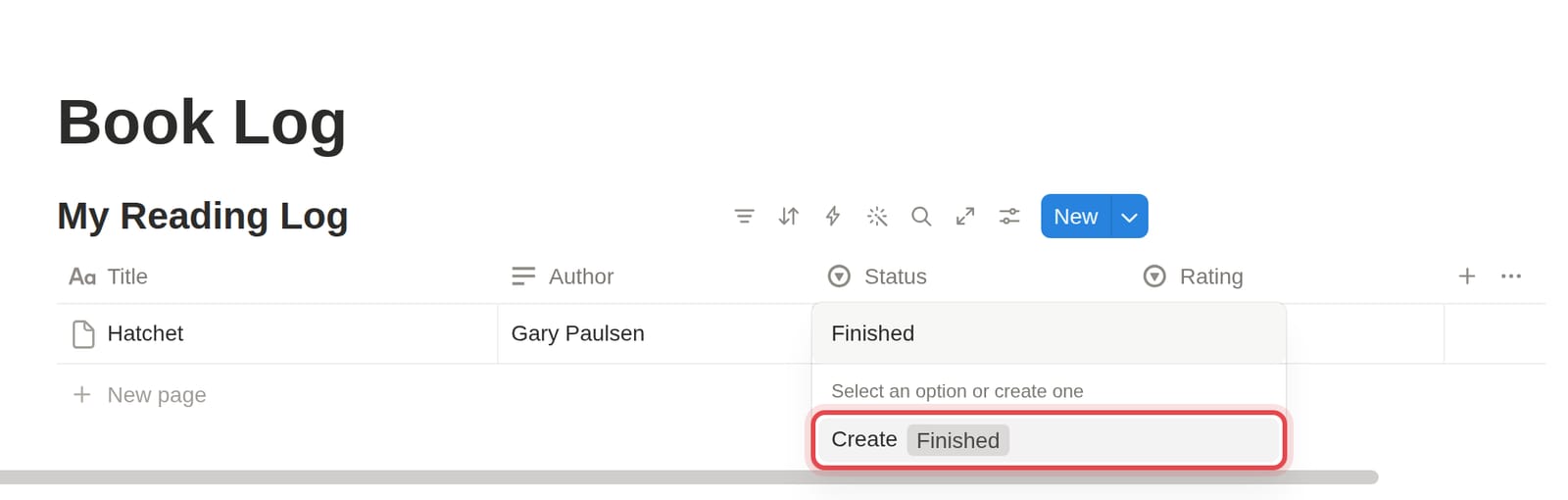
Click its Rating cell, paste in five stars and press Enter in the same way. Most keyboards have no star key, so copy them from here: ★★★★★ (or ★★★★, ★★★, and so on). A Select with stars as its options gives you a star rating. If you would rather not copy stars, type the numbers 1 to 5 instead: each one becomes an option in the same way.
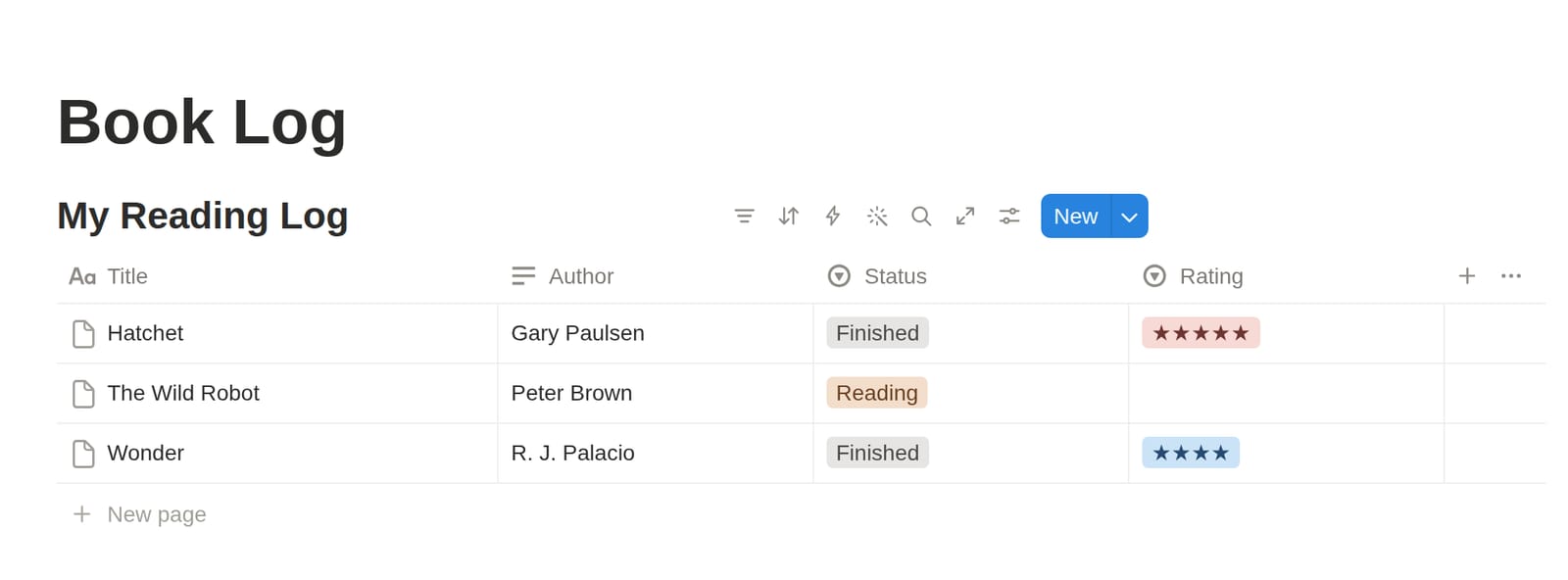
Add the rest of your books the same way. Ours has three: two finished and one still being read.
See it as a gallery
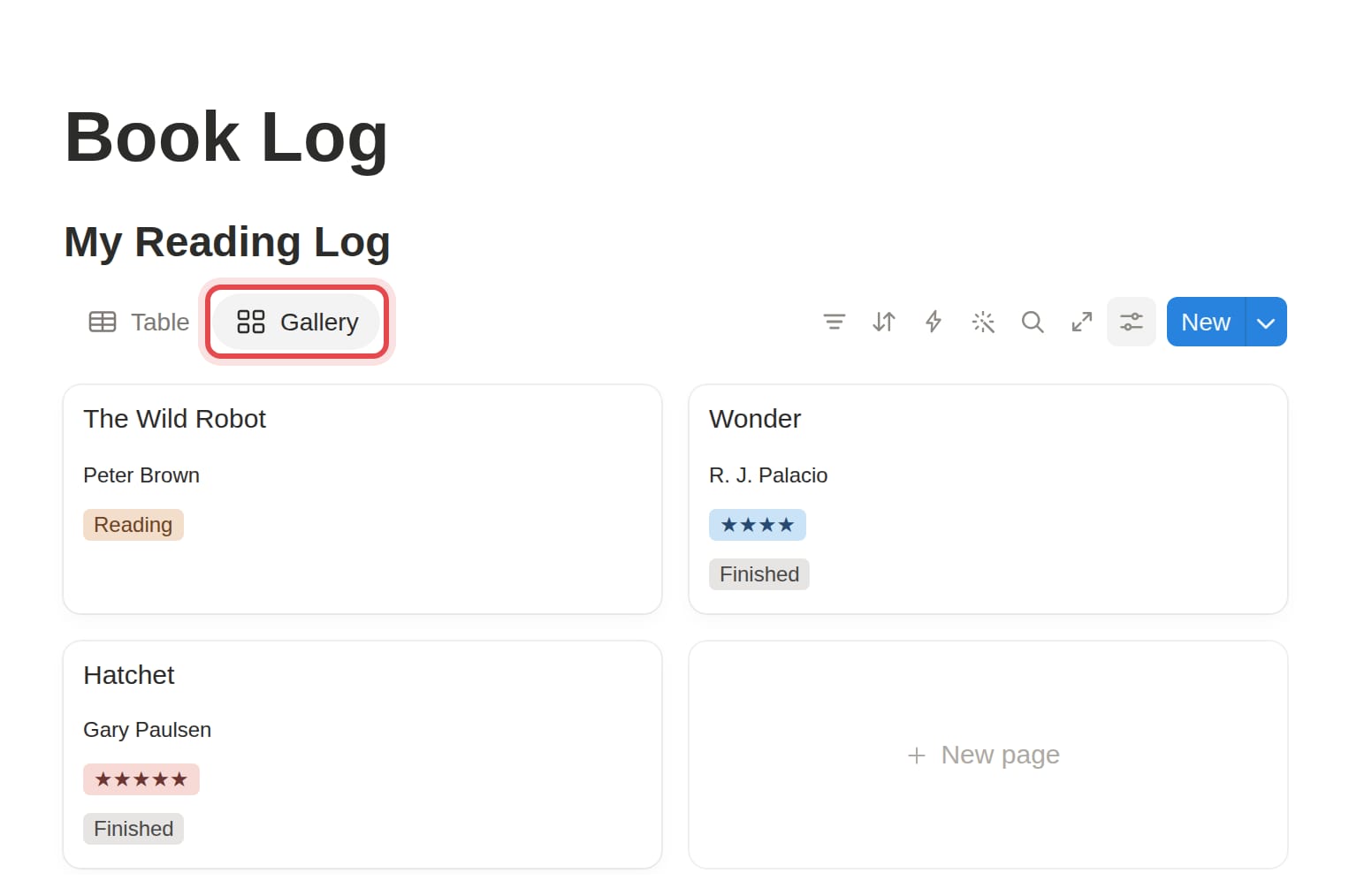
A table is quick to fill in; a gallery shows each book as a card, which is nicer to browse.
Press the + beside the database's name and choose Gallery.
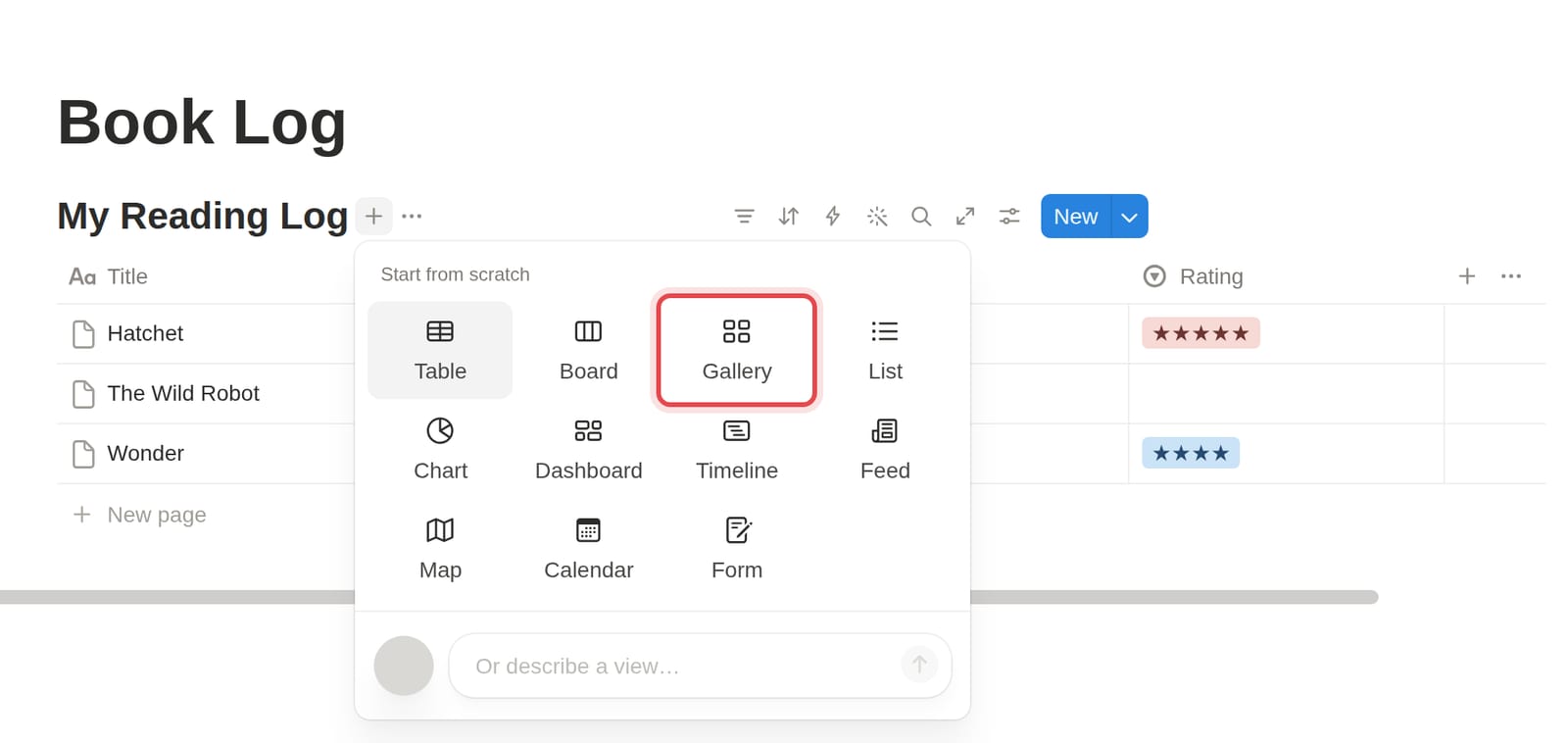
Notion opens the gallery's layout settings straight away. At first the cards show only the title, above an empty preview box. To show the other columns, open Settings (the sliders icon left of New), choose Property visibility and press Show all.
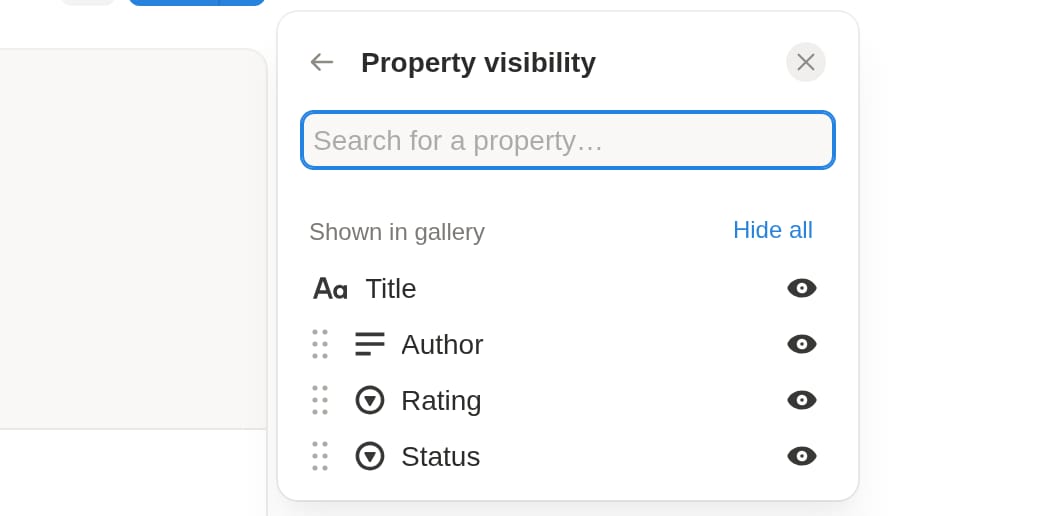
To drop the empty box from the cards, open Settings again, choose Layout, then Card preview, and pick None. (The same menu has Page cover, if you give each book page a cover.)
Each book is now a card with its author, rating and status. The Table and Gallery tabs sit above the cards, so you switch between the two with one click. The gallery may list the books in a different order from the table; ours did. Notion's help page on views, filters and sorts shows how to sort a view.
Write notes on a book
Click a book's card. Its page opens over the log, with its Author, Rating and Status at the top and the words "Press 'enter' to continue with an empty page" below.
Press Enter and write: a summary, a favorite part, a line you want to keep.
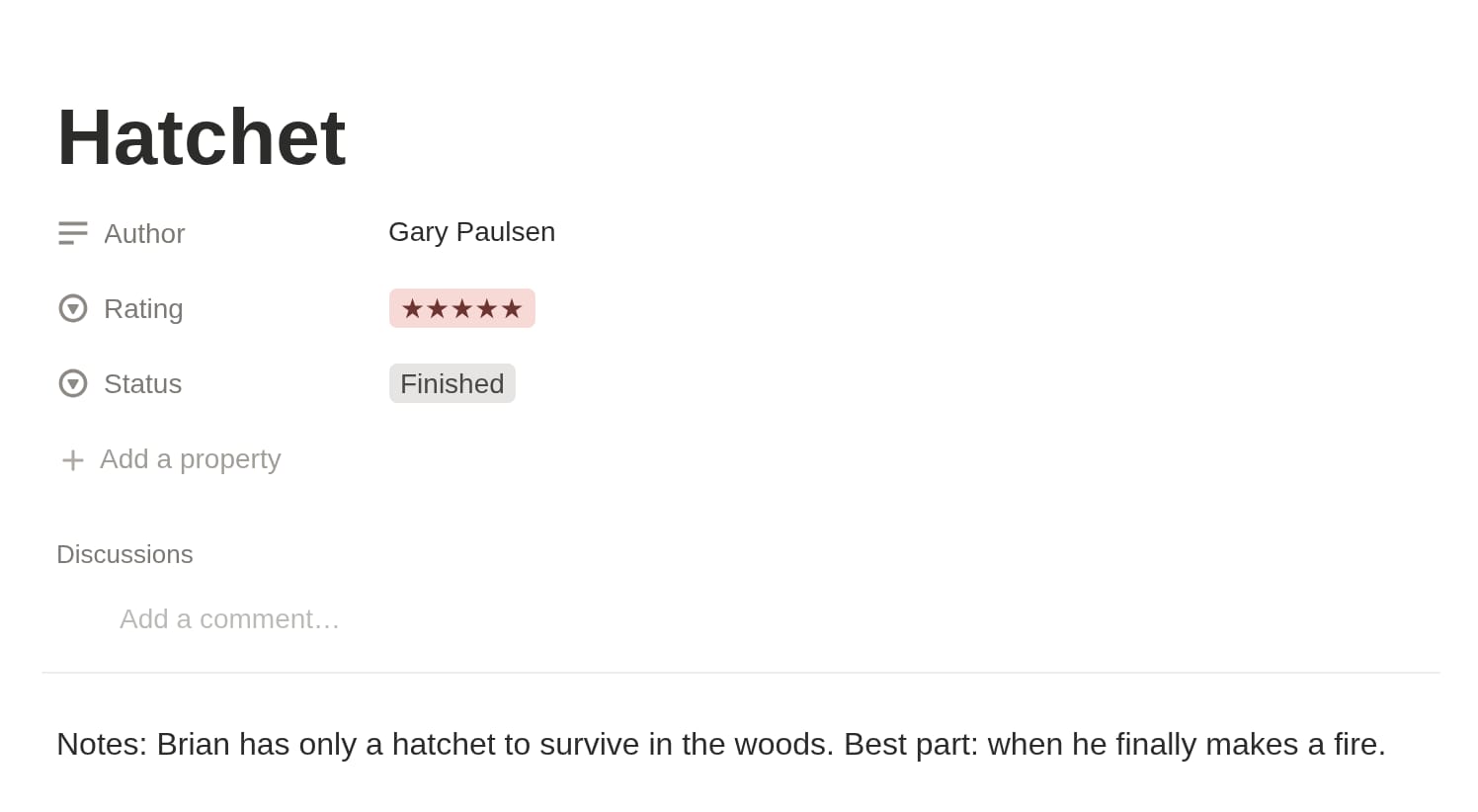
That turns the log into a simple reading journal: the list in the table or gallery, and your own words inside each book.
A reading log for your class
The log above works for school reading as it is. A student keeps one for a year of independent reading: a line for each book when it is chosen, Status moved from Reading to Finished when it is done, and a rating at the end. A teacher can keep one for the class read-alouds or for a reading list, with Status showing where the class has got to.
If you need dates, the same + menu has a Date type, so a column for when each book was finished takes one more step. And if you want the log to push a daily reading habit, the steps in how to make a habit tracker in Notion fit alongside it on the same page.
FAQ
Is there a free Notion reading journal template?
Yes. Every entry in this list says whether it is free or paid, and on Notion's own gallery a free template's button reads Get template. You can also build the simple reading log above yourself for nothing.
What is the difference between a book tracker and a reading journal?
A book tracker is a list: title, author, status and rating. A reading journal adds room for your own writing about each book, and book notes templates are mostly that writing: quotes and ideas.
Can students use a Notion reading log for school?
Yes. A log with Title, Author, Status and Rating covers what most reading logs for school ask for, and a Date column can be added from the same menu as the others.
How do I add a star rating to a book in Notion?
Add a Select column called Rating, click a book's cell, paste in stars copied from here (★★★★★) and press Enter to create that option. Each number of stars becomes an option of its own. With no star key on your keyboard, plain numbers 1 to 5 work the same way.
Where do quotes and notes go in a Notion reading log?
Each book in the log is a page of its own. Click the book, press Enter under its columns and write your quotes and notes there.
How do I get a template into my Notion?
Open the template's page and press its button: Get template on Notion's gallery for a free one. A paid template goes through checkout first (Get Instant Access on ours, I want this! on Gumroad, Purchase template for $… on Notion's gallery). Then choose the workspace you want it in.
Still grading everything by hand?
EMStudio is a free teaching management app — manage your classes, students, lessons, and more!