How to Make a Habit Tracker in Notion

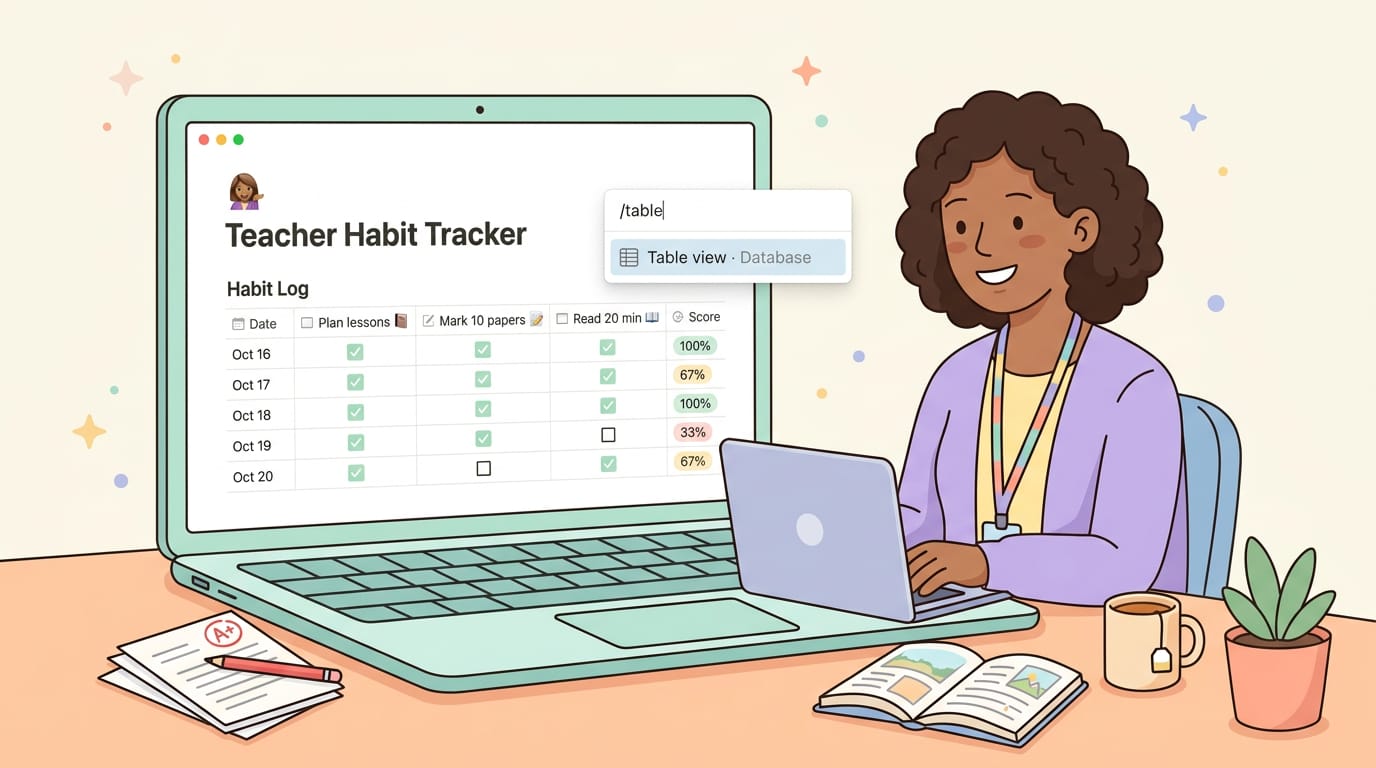
To make a habit tracker in Notion, type /table on a new page and choose Table view · Database. Add a Date property and one Checkbox property for each habit, then add a Formula property that counts the ticked boxes and turns them into a percentage. Every day gets one row, and the formula fills in the score for you.
The steps below build a tracker for three habits a busy teacher might want to keep: plan tomorrow's lessons, mark 10 papers, and read for 20 minutes. Swap in your own habits as you go.
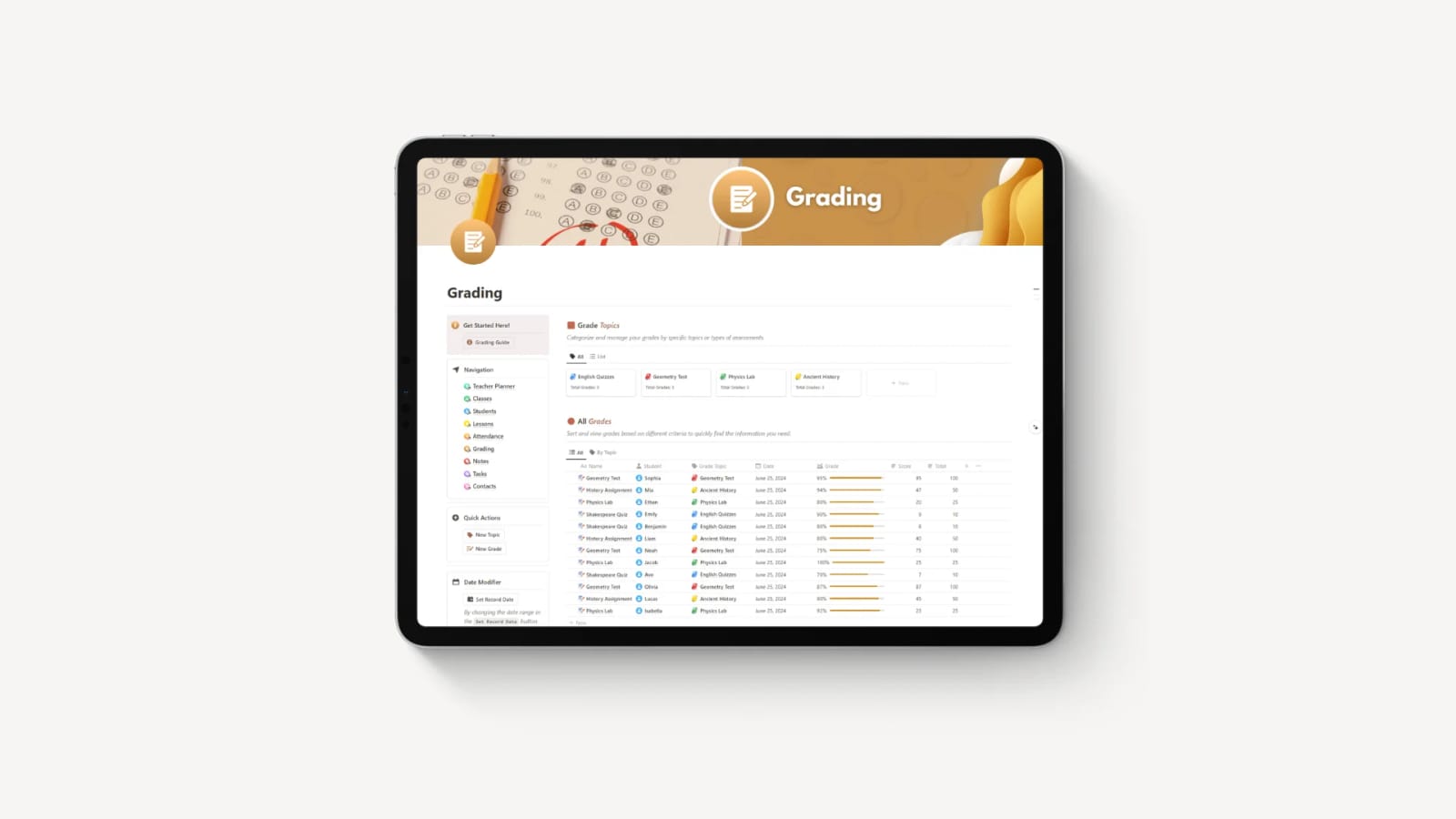
Still grading everything by hand?
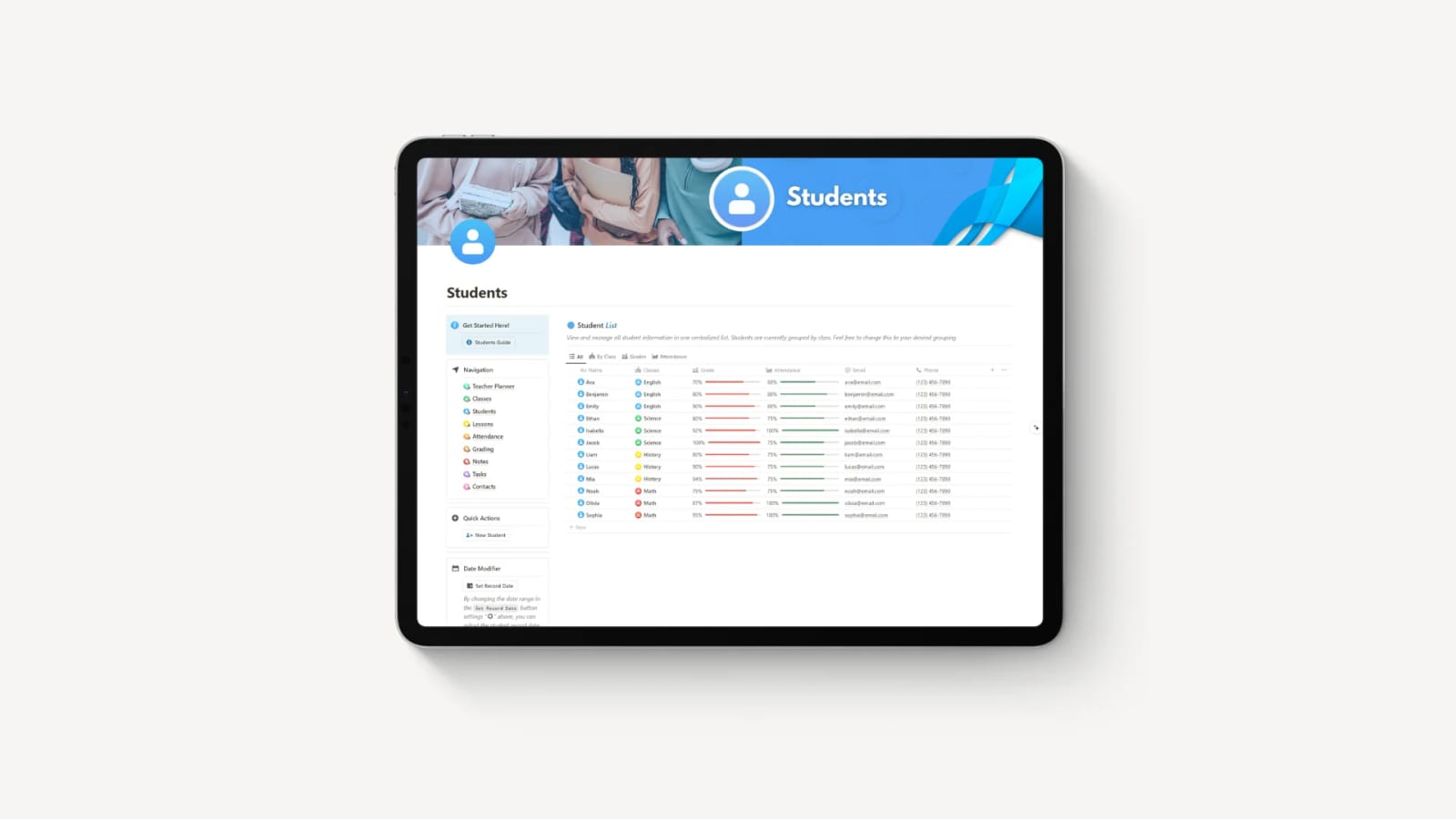
EMStudio is a free teaching management app — manage your classes, students, lessons, and more!
Step 1: Add a table database to a new page
Start on a new, empty page and give it a title. Ours is called "Teacher Habit Tracker".
Click on the empty line under the title. Notion shows the hint "Press / to insert blocks".
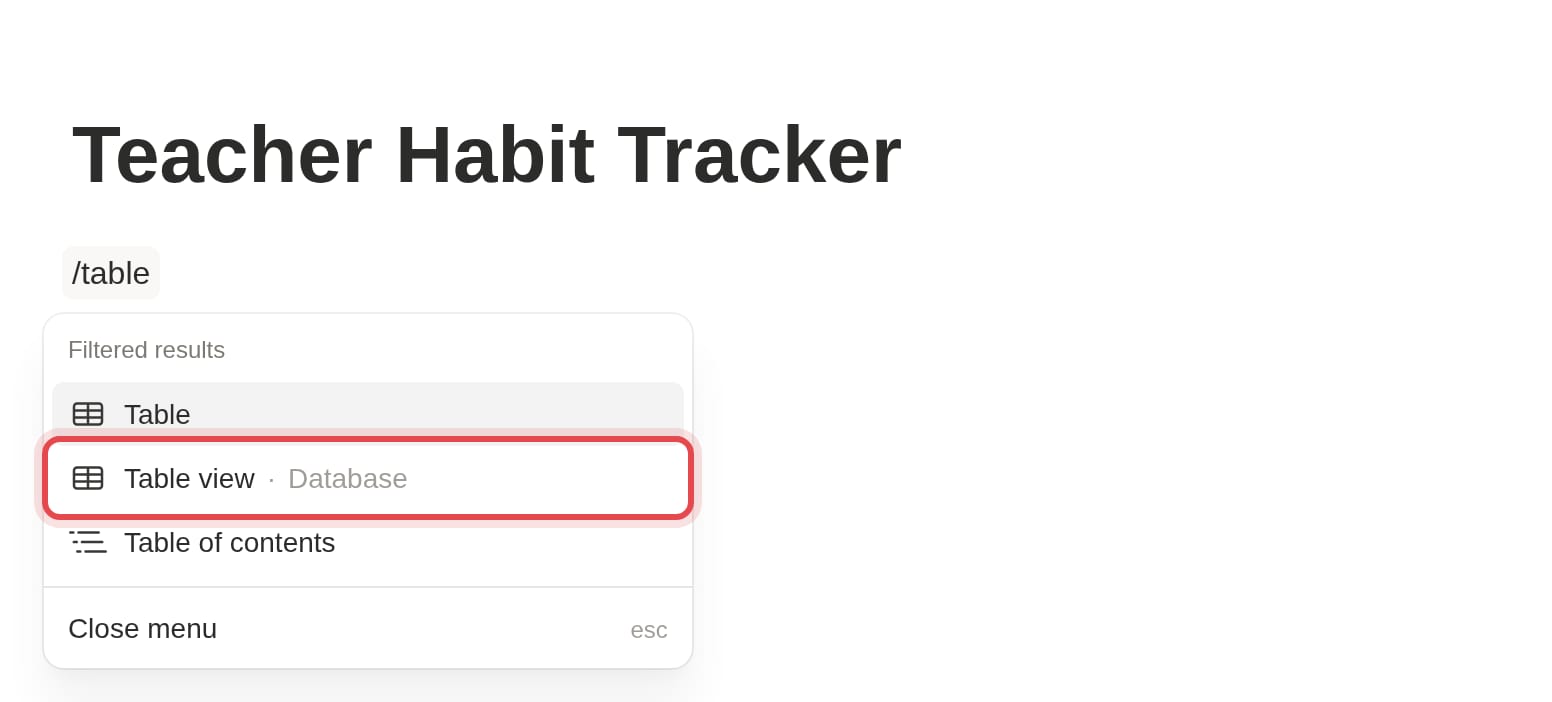
Type /table. A short menu called "Filtered results" opens with three choices: Table, Table view · Database and Table of contents.
Choose Table view · Database. The plain Table option makes a simple grid with no properties, so it cannot hold checkboxes or a formula.
Notion adds an empty database with the grey placeholder "New database", a Name column and a + Add property button. Click the placeholder and type a name. We called ours "Habit Log".
Step 2: Add a Date column and a checkbox for each habit
Click + Add property. A box opens with "Type property name…" at the top and a list of types under "Select type".
Type Date. Notion picks the Date type for you and highlights it, so press Enter to accept.
For the habits, click the Date column header. A menu opens with options such as Edit property, Sort, Hide, Insert left and Insert right.
Choose Insert right, type the habit's name (for example "Mark 10 papers"), then click Search types…, type Checkbox and press Enter.
Repeat for every habit. We added "Plan lessons", "Read 20 minutes" and "Mark 10 papers", so each one has its own checkbox column.
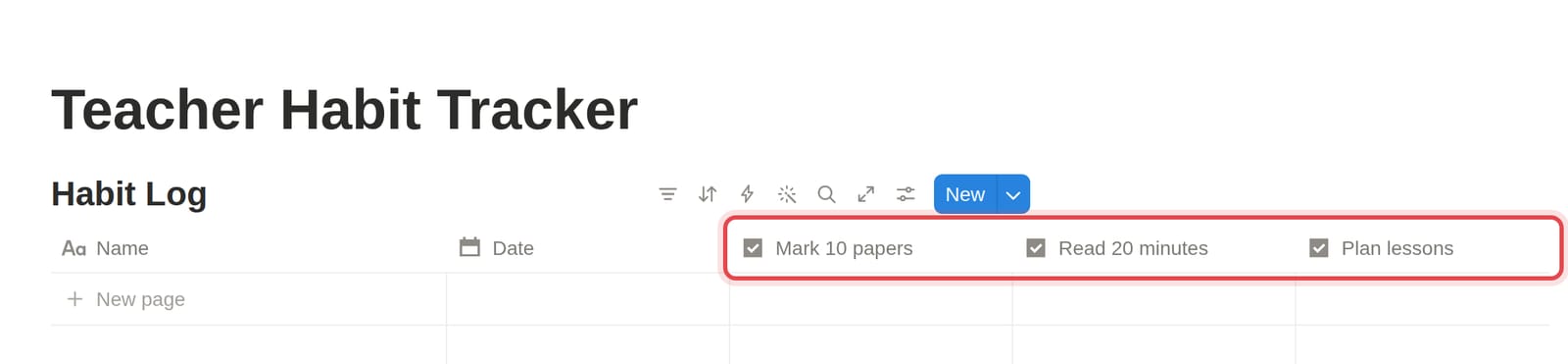
Each new column appears right next to the one you opened the menu on, so if you want the habits in a set order, add them from left to right or pick Insert left instead.
Step 3: Fill in a week
Give every day its own row.
Click + New page under the table. A new row opens with the cursor in its Name cell. Type a short name for the day (we used "Mon 16 Nov") and press Esc.
Click the row's empty Date cell. A small calendar opens; click the day (16). The cell then reads "November 16, 2026".
Tick each habit you finished that day.
Do the same for the rest of the week: "Tue 17 Nov", "Wed 18 Nov" and so on.
Our rows did not stay in date order once the whole week was in, so we sorted them: click the Sort icon (the two arrows above the table) and choose Date. Notion sorts old → new and shows a ↑ Date chip above the table, so the week reads Monday to Friday and every new day lands at the bottom.
A few days in, the table already shows a pattern: in our example week, Wednesday was the day the marking and the reading both slipped.
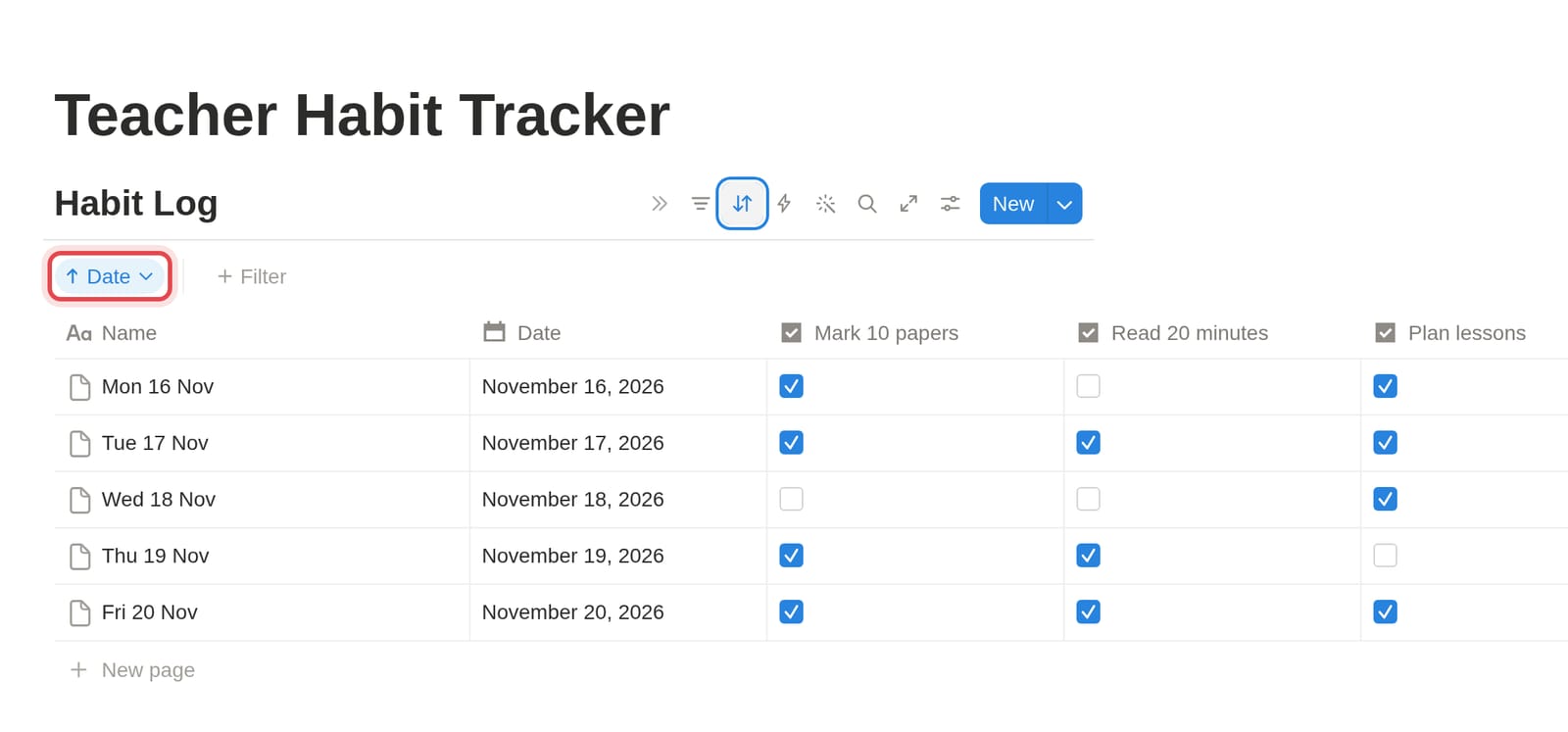
Once you add the Progress column in Step 4, the table has six columns and runs past the right edge of the page: the third habit, Plan lessons, is then reached by scrolling sideways with the bar under the table. To fit the whole table on screen, open the page's ••• menu at the top right, point at Appearance & layout and click Full width. That is how the finished picture in Step 4 shows all six columns.
Step 4: Add a progress formula
The formula turns the ticks in a row into one score for the day.
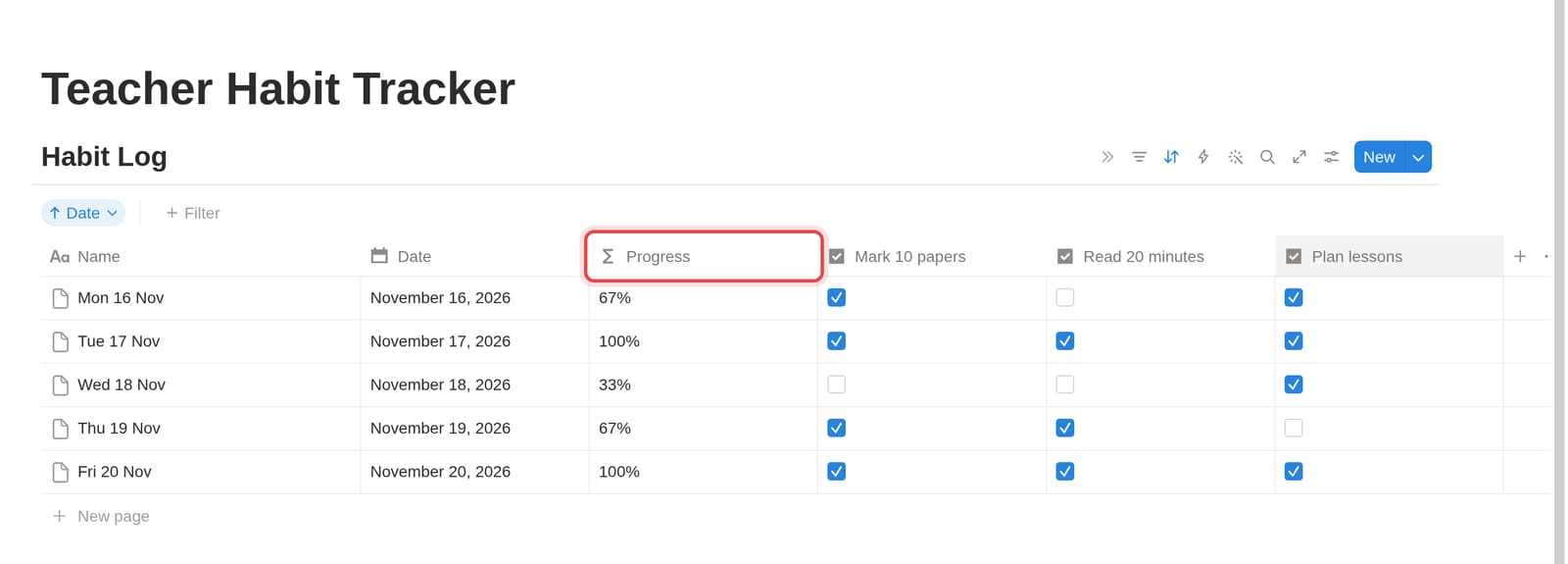
Click the Date header again, choose Insert right, type Progress, click Search types…, type Formula and press Enter. The new column has a Σ symbol and is empty for now.
Point at one of your rows and click the Open button that appears next to its name (we opened "Mon 16 Nov"). The row opens at the side of the screen and lists its properties; next to Progress it says Empty.
Click Empty. The Edit formula panel opens, with a box for the formula and a "Preview with" line underneath.
Type this formula, using your own column names:
format(round((prop("Plan lessons").toNumber() + prop("Mark 10 papers").toNumber() + prop("Read 20 minutes").toNumber()) / 3 * 100)) + "%"
As you type, Notion turns each prop("…") into a grey chip with the column's name, and the preview shows the answer for the row you opened. For our Monday, with two of three habits ticked, it showed 67% and "Type: text".
Notion wraps a long formula wherever the box ends, even mid-word. To make it readable, put the cursor just in front of the third habit's chip (we used the arrow keys) and press Shift+Enter. Notion moves that habit onto an indented second line; the preview still shows 67%.
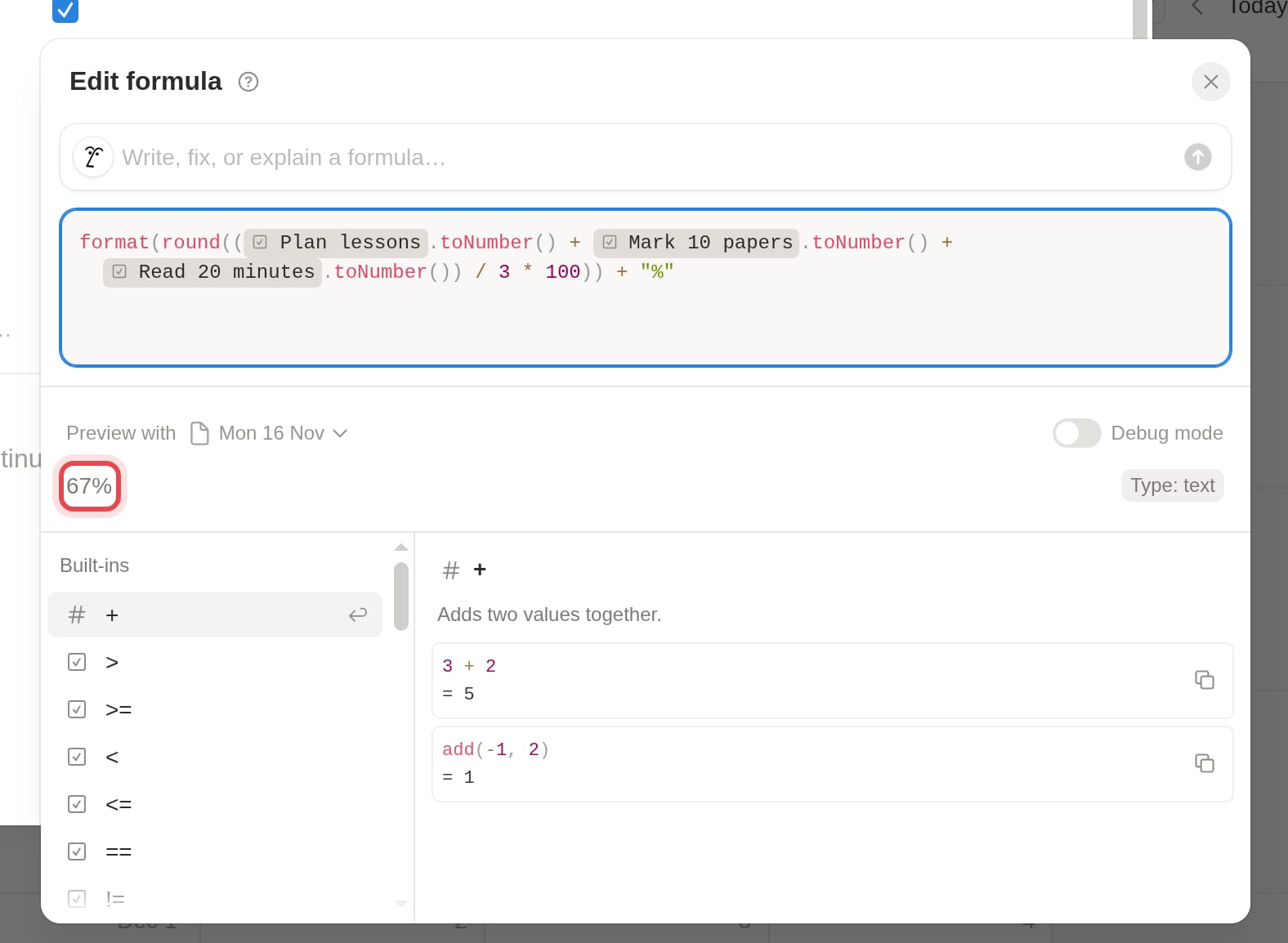
Press Esc to close the panel. The formula is kept, line break included: the row now shows 67% next to Progress, and every row in the table has its score.
What the formula does: toNumber() turns a ticked box into 1 and an empty box into 0, the three are added up and divided by 3 (the number of habits), multiplied by 100 and rounded, and format(…) + "%" adds the percent sign.
To track a fourth habit, add a checkbox column for it first. Then, in the formula, type + prop("Your habit").toNumber() straight after the third habit's .toNumber() and before ) / 3, and change / 3 to / 4. With a fourth habit called "Drink water", the whole formula is:
format(round((prop("Plan lessons").toNumber() + prop("Mark 10 papers").toNumber() + prop("Read 20 minutes").toNumber() + prop("Drink water").toNumber()) / 4 * 100)) + "%"
Step 5: Add a calendar view
A second view shows the same rows a different way. A calendar puts each day's score on the month, so a bad week stands out.
Click the + next to the database's title, Habit Log. A "Start from scratch" menu opens with Table, Board, Gallery, List, Chart, Dashboard, Timeline, Feed, Map, Calendar and Form.
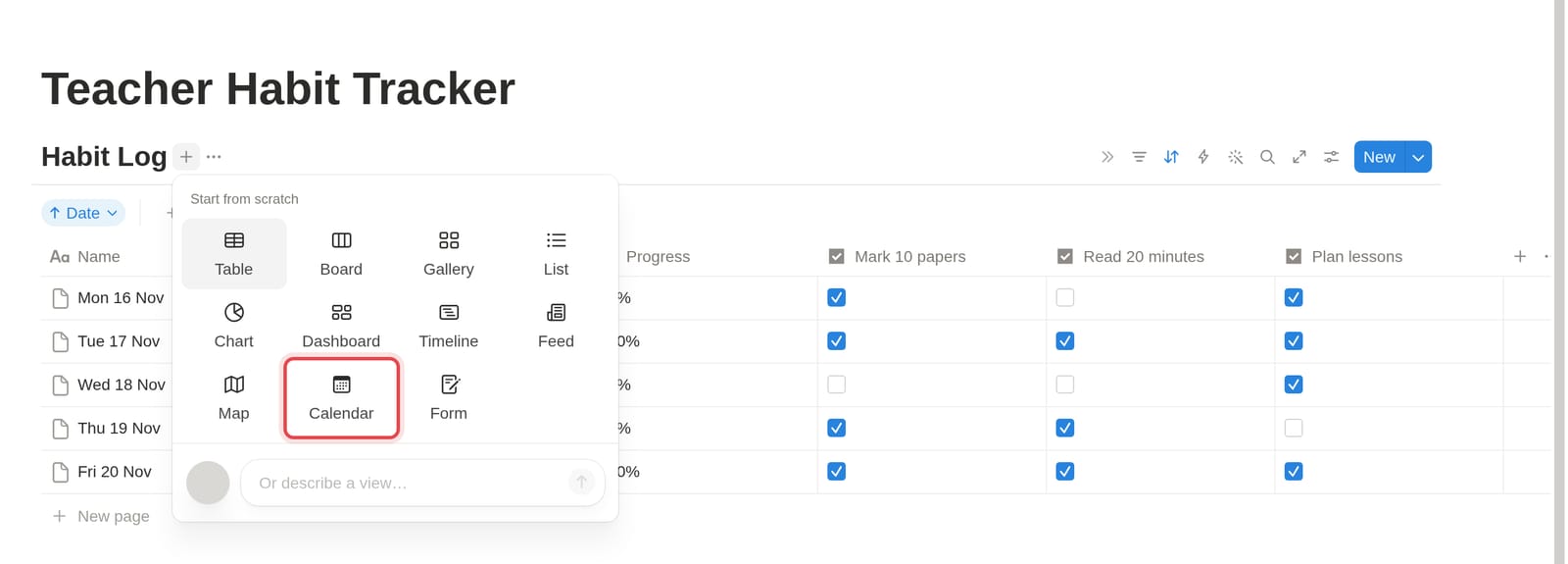
Choose Calendar. The table turns into a month calendar and a New view panel opens on the right.
Type a name in the View name box (we typed "Calendar").
Check Show calendar by: it should say Date. Ours was set already, because Date is the only date property in the table; if you have more than one, click it and pick Date. Show calendar as says Month.
Click Done. Two tabs, Table and Calendar, now sit above the database, and each day's row is on its date. The cards show only the day's name so far.
To put the score on the cards, click the Settings icon (the sliders at the top right of the database), choose Property visibility, and click the eye next to Progress. Progress moves up under "Shown in calendar".
Press Esc. Each card now shows its score under the name.
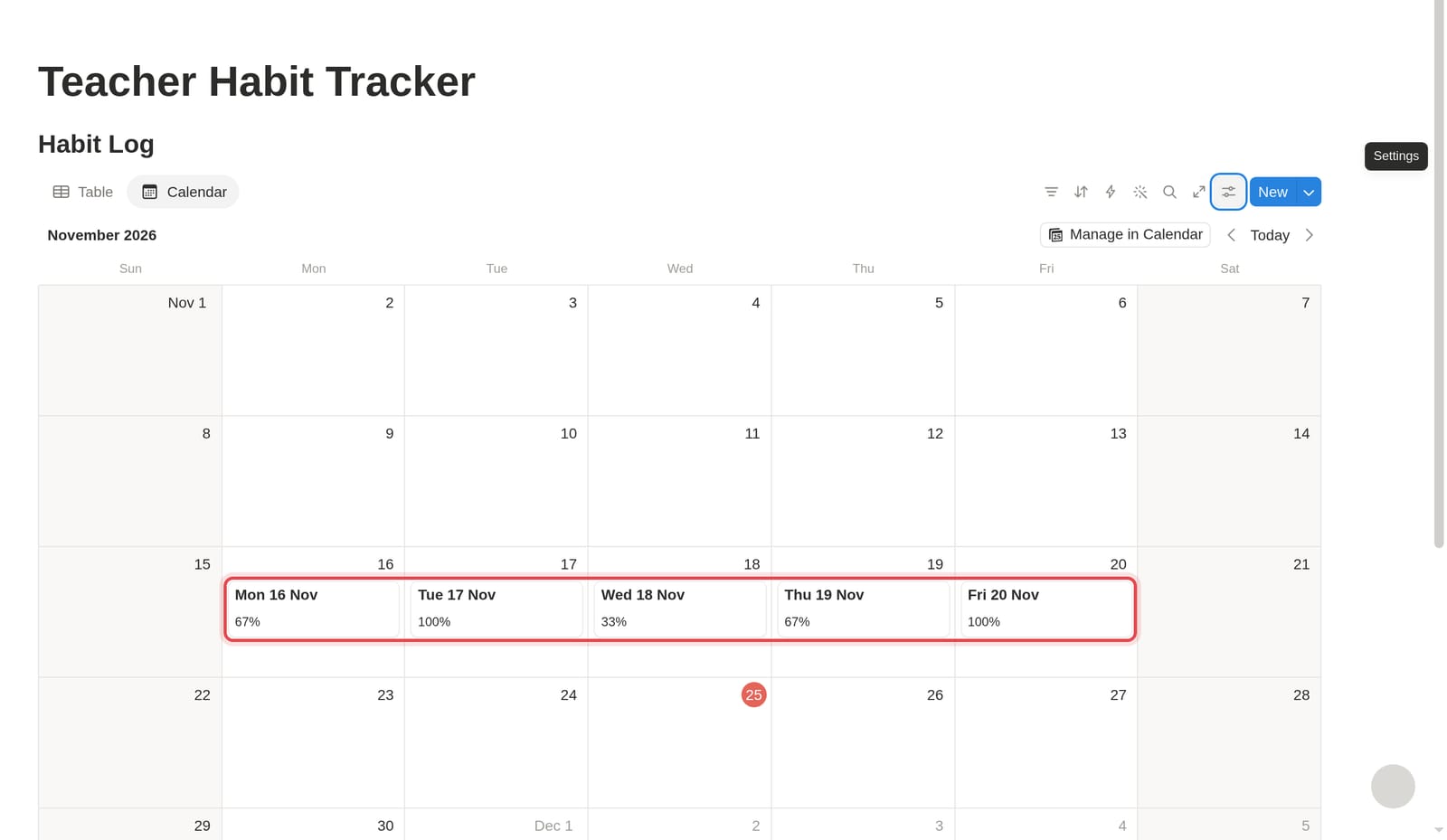
Both tabs show the same Habit Log rows, so there is nothing to copy across: the five days we had entered in the table were on the calendar as soon as it opened.
Reusing the tracker each week
You don't need a new tracker every Monday. Keep adding one row a day to the same Habit Log; the Progress column fills itself in for each new row, and with the Date sort old weeks stay above the new ones as a record. When a habit changes (say marking season ends), add a new checkbox column for the new habit and change the formula's column names and the number you divide by.
Be aware that Notion works a formula out again for every row whenever you change it, so past weeks' Progress scores change too: an old row scores 0 for a habit that did not exist yet. To keep the old scores as they were, start a fresh tracker for the new term (build it as above, or use Duplicate in the page's ••• menu and change the habits in the copy) and leave the old one alone. Keeping the old habit in the formula next to the new one is not enough on its own: once you divide by 4 instead of 3, the old rows score lower too.
If you'd rather run a habit with your whole class, see our class habit challenge in Notion. For bigger goals than daily habits, see the 20 best Notion goal tracker templates.
What can go wrong
You chose Table instead of Table view · Database. The plain table has no property types, so there is nowhere to add a checkbox or a formula. Type /table on a new line and pick Table view · Database.
The new column is the wrong type. When you type a column's name, Notion highlights the type it thinks you want (for "Date" it picked Date). For a habit, use Search types… and pick Checkbox before you press Enter.
Check the chips. Each name inside
prop("…")must be written exactly like the column header, capitals and spaces included. A name Notion recognises turns into a grey chip, as in the picture above.The score shows 0.666666666667. That is the formula without
* 100,roundandformat. Use the full formula from Step 4 to get a percentage.
For every function the formula box understands, Notion's own guide to formulas lists them with examples.
FAQ
Can I track habits in Notion without a formula?
Yes. The Date column and one checkbox per habit are a complete tracker on their own. The formula only adds a daily score so you can see good and bad days at a glance.
How do I change the formula if I add a fourth habit?
Open any row and click its Progress value to open Edit formula. Type + prop("Your habit").toNumber() straight after the third habit's .toNumber() and before ) / 3, then change / 3 to / 4 (the full four-habit formula is at the end of Step 4). Every older row is then scored out of 4 as well.
Why does the formula use toNumber()?
A checkbox is true or false, not a number. toNumber() turns a ticked box into 1 and an empty one into 0, so the boxes can be added up.
Do I need a new tracker every week?
No. Keep adding a row a day to the same database. Each new row gets its Progress score automatically, and with the table sorted by date, earlier weeks stay above as your history.
Can students use the same tracker?
Yes. Students can build it the same way for their own habits, such as reading or homework, or a teacher can run it for a whole class.
Still grading everything by hand?
EMStudio is a free teaching management app — manage your classes, students, lessons, and more!