
How to Build a Simple Reading Tracker for Language Learners in Notion
How to Build a Simple Reading Tracker for Language Learners in Notion

Article by
Milo
ESL Content Coordinator & Educator
ESL Content Coordinator & Educator
All Posts
By Emily Carter, Language Learning Expert at Eppika
Ask a student how their reading went between lessons and you’ll usually hear something like this: they started a story, looked up a few words and got stuck somewhere in the middle. Which chapter? What did they understand? What should they read next? Nobody is quite sure.
Independent reading is hard to follow when the only record is a pile of browser tabs, screenshots and half-finished vocabulary lists.
A small reading tracker in Notion gives learners one place for their books, reading plans and useful expressions. It also gives teachers something better to discuss than whether homework got done. And it doesn’t need a complicated dashboard. One database, a short reading log and a realistic weekly goal are enough to start.
Still grading everything by hand?
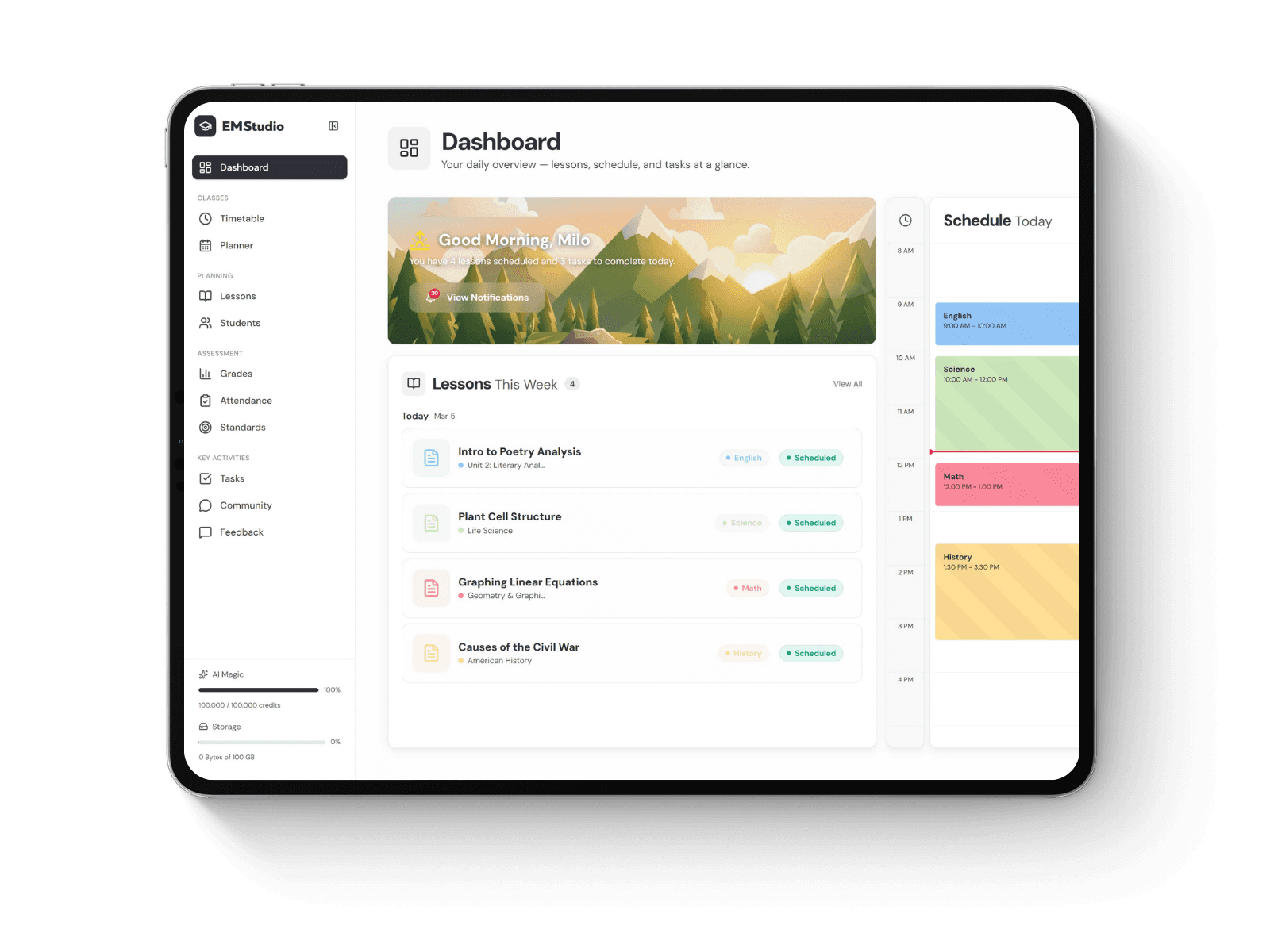
EMStudio is a free teaching management app — manage your classes, students, lessons, and more!
Learn More
Still grading everything by hand?
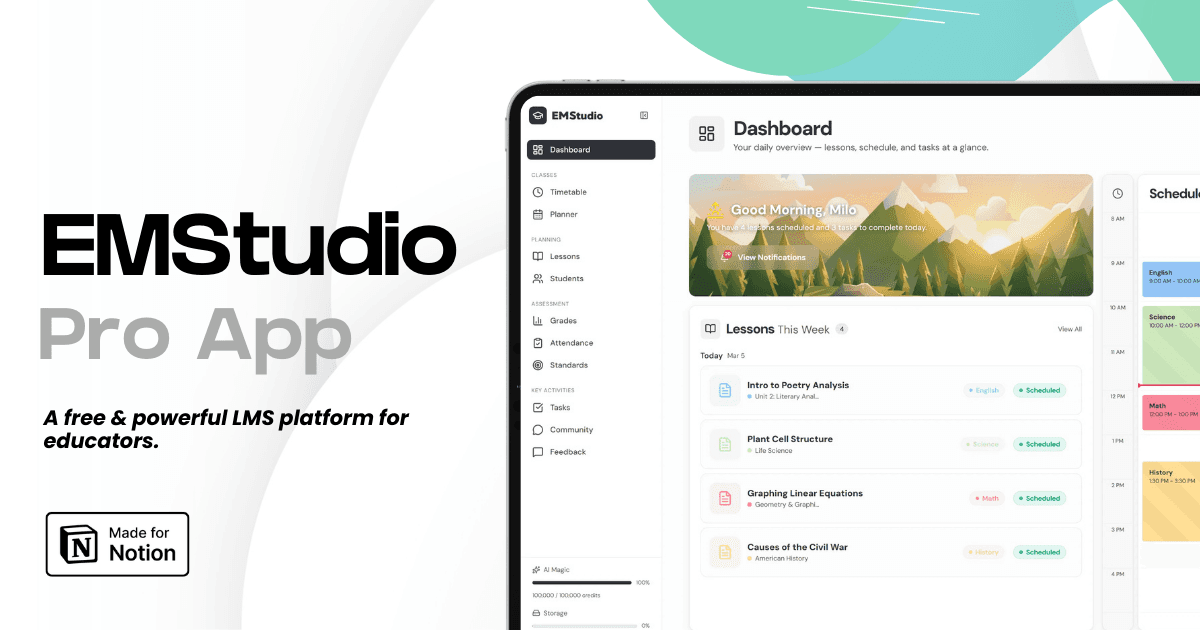
EMStudio is a free teaching management app — manage your classes, students, lessons, and more!
Learn More
Table of Contents
Step 1: Create a reading database
Open Notion, create a new page and call it Language Reading Tracker. On that page, choose a Table database. You can also type /database on an existing page and pick a new database. Make sure you create a real database and not a plain text table, since you’ll want to filter entries and open each book as its own page.
Name the database My Reading List and add these properties:
Property | Notion property type | What to record |
Book / Text | Title | The story, book, or article |
Language | Select | Spanish, French, English, etc. |
Level | Select | A1, A2, B1, B2, or another suitable label |
Status | Status | To read, Reading, Finished |
Reading Link | URL | Where the text can be accessed |
Current Spot | Text | Chapter, page, or section |
Next Reading | Date | The next planned session |
Use Add property and pick the matching type for each column. A student reading Spanish at A2 level might end up with a row like this:
Book / Text | Language | Level | Status | Current Spot |
A Short Mystery | Spanish | A2 | Reading | Scene 3 |
The learner updates Current Spot after every session. For an online article without page numbers, a section heading works just as well.
Resist the urge to track reading speed, percentages, streaks or every unfamiliar word. Those can wait until they prove useful. For now the tracker only has to answer three questions: What am I reading? Where did I stop? What comes next?
Step 2: Add a reading log inside each book
Every row in a Notion database can open as its own page, so you can keep notes about a book without adding more columns to the main table. Open the example book and add three headings:
Reading Log: the date, the section read and a one-sentence summary.
Useful Expressions: a few words or phrases worth remembering, with enough context to see how they’re used.
Questions for My Teacher: anything confusing, or interesting enough to discuss in the next lesson.
A student’s entry might look like this:
Reading Log: Tuesday
Read Scene 3, about 12 minutes. The detective spoke to a neighbor who seemed to be hiding something.
Useful expression: darse cuenta de (to realize or notice something).
Question: Why does the character use the past tense in this sentence?
An entry like this gives the teacher real material for a short conversation, and it nudges the learner to think about meaning rather than just collect words.
To avoid rebuilding these headings for every book, create a database template. Open the dropdown beside New, choose New template and add the same three headings. Each new book will then start with the same structure.
Keep the vocabulary notes selective. Two expressions a learner can recognize and use are worth more than a list of 30 words copied without context.
Step 3: Set a realistic weekly reading goal
A tracker is most useful when it supports a routine and not just a list of unfinished books. At the top of the Language Reading Tracker page, add a short section called This Week’s Reading Goal. For a learner who is still getting comfortable with independent reading, it might say:
Read twice for 10 to 15 minutes.
Continue the same story where possible.
Write one sentence about each session.
Save up to three useful expressions.
Add two checkboxes underneath for the planned sessions. These are sample targets, not universal requirements: a beginner reading a hard text may need shorter sessions, while an intermediate learner might prefer one longer chapter a week. What matters is that the next session feels achievable.
It also helps to separate time spent reading from time spent on the whole assignment. Looking up vocabulary, writing a summary and discussing a passage all take extra time. Notion4Teachers’ guide to estimating reading time for lesson planning is a useful starting point for thinking about workload.
If a student keeps missing the goal, don’t reach for reminders first. Ask whether the text is too difficult, the sessions are too long or the material simply isn’t interesting.
Step 4: Create views that make the tracker easier to use
As the reading list grows, one table gets hard to navigate. Notion can show the same database in different views without duplicating any entries, and three are enough.
Currently Reading. Filter for entries where Status is Reading, and sort by Next Reading with the earliest date first. This is the learner’s starting point when they have a few minutes to read, so they don’t have to scroll past every book they’ve ever added.
Want to Read. Filter for To read. Learners can park recommendations here without feeling obliged to start them right away, and a teacher can suggest two or three suitable texts and let the learner choose.
Finished Books. Filter for Finished. It works as a simple record of what the learner has completed, and opening an old entry lets them revisit earlier summaries and see how much more they understand now.
Don’t add more views at the start. If students regularly use only one or two, that’s fine.
Step 5: Help learners use the tracker between lessons
The tracker works best when the learner owns the process. A teacher can introduce it in a lesson, help the student enter their first book and show how to write a useful log entry. After that, the student should be able to handle the essentials alone.
A short weekly check-in can use three questions:
What happened in the story this week?
Which expression would you like to remember?
What would make your next reading session easier?
The answers can steer the next lesson. If the student struggled to follow the plot, an easier adaptation may be the fix. If they understood the story but missed important details, the next activity might focus on inference or rereading a short scene.
Avoid making the tracker a daily reporting requirement. Students need room to read without stopping after every paragraph to enter data.
For younger learners, the teacher can manage the tracking page and go through updates in class. Any student-facing workspace should follow school policies and age-appropriate account and sharing rules, and personal or sensitive student information should never go into public templates.
Step 6: Use digital reading tools without adding another dashboard
Notion is good for planning and reflection, but the reading itself doesn’t have to happen there. Students can use printed books, library e-books, articles or reading apps, then return to Notion for a short update. What they read matters more than whether it connects automatically to the tracker.
For students who find ordinary books too hard, teachers might suggest shorter graded readers or texts adapted to the learner’s level. Eppika, for example, offers a collection of adapted books for learning languages, with translation support, saved vocabulary and optional audio narration for many titles. A learner can read in the app and use Notion to record the title, the current section and one expression to bring to class. The teacher doesn’t have to monitor another platform or transfer activity data by hand.
The split is simple: the reading tool supports the reading experience, and Notion supports the learning plan and reflection. There’s no need to make the two systems more complicated than that.
A simple weekly reading routine
Here’s one way to use the tracker with a learner who has a single language lesson per week.
When | Learner's action | Teacher's role |
Monday | Choose a book and set two reading sessions | Help check the level and goal |
Tuesday | Read for 10–15 minutes and add a short note | No action needed |
Thursday | Continue the story and save useful expressions | No action needed |
Next lesson | Share a summary and one question | Discuss comprehension and adjust the plan |
Adjust the routine to the learner’s age, confidence, reading level and schedule. Some learners enjoy detailed notes, and others will only record a chapter number and a sentence. Either can work, as long as the record helps them get back into the reading and reflect on progress.
In the lesson, the teacher can open the tracker with the student instead of keeping a separate record of every reading session.
Keep the tracker smaller than the reading habit
The usual temptation with a Notion tracker is to keep adding features: word counts, progress formulas, dashboards, extra databases, automated reminders, detailed vocabulary records. Some may prove useful later, but every extra field is one more thing the learner has to maintain.
Start with one book, two reading sessions and a brief reflection. After a few weeks, ask which parts the learner actually uses. Keep those, simplify the rest and adjust the weekly goal as needed.
The tracker has done its job when a student can open Notion, see where they stopped and get back into the story without the teacher telling them what to do next.
_______________________
About the author
Emily Carter is a Language Learning Expert at Eppika, a reading-based language-learning app used by more than 100,000 learners. She shapes the methodology behind Eppika’s library of 3,000+ books adapted for every level from A1 to C1, drawing on seven years of experience in language teaching and learning design.
Step 1: Create a reading database
Open Notion, create a new page and call it Language Reading Tracker. On that page, choose a Table database. You can also type /database on an existing page and pick a new database. Make sure you create a real database and not a plain text table, since you’ll want to filter entries and open each book as its own page.
Name the database My Reading List and add these properties:
Property | Notion property type | What to record |
Book / Text | Title | The story, book, or article |
Language | Select | Spanish, French, English, etc. |
Level | Select | A1, A2, B1, B2, or another suitable label |
Status | Status | To read, Reading, Finished |
Reading Link | URL | Where the text can be accessed |
Current Spot | Text | Chapter, page, or section |
Next Reading | Date | The next planned session |
Use Add property and pick the matching type for each column. A student reading Spanish at A2 level might end up with a row like this:
Book / Text | Language | Level | Status | Current Spot |
A Short Mystery | Spanish | A2 | Reading | Scene 3 |
The learner updates Current Spot after every session. For an online article without page numbers, a section heading works just as well.
Resist the urge to track reading speed, percentages, streaks or every unfamiliar word. Those can wait until they prove useful. For now the tracker only has to answer three questions: What am I reading? Where did I stop? What comes next?
Step 2: Add a reading log inside each book
Every row in a Notion database can open as its own page, so you can keep notes about a book without adding more columns to the main table. Open the example book and add three headings:
Reading Log: the date, the section read and a one-sentence summary.
Useful Expressions: a few words or phrases worth remembering, with enough context to see how they’re used.
Questions for My Teacher: anything confusing, or interesting enough to discuss in the next lesson.
A student’s entry might look like this:
Reading Log: Tuesday
Read Scene 3, about 12 minutes. The detective spoke to a neighbor who seemed to be hiding something.
Useful expression: darse cuenta de (to realize or notice something).
Question: Why does the character use the past tense in this sentence?
An entry like this gives the teacher real material for a short conversation, and it nudges the learner to think about meaning rather than just collect words.
To avoid rebuilding these headings for every book, create a database template. Open the dropdown beside New, choose New template and add the same three headings. Each new book will then start with the same structure.
Keep the vocabulary notes selective. Two expressions a learner can recognize and use are worth more than a list of 30 words copied without context.
Step 3: Set a realistic weekly reading goal
A tracker is most useful when it supports a routine and not just a list of unfinished books. At the top of the Language Reading Tracker page, add a short section called This Week’s Reading Goal. For a learner who is still getting comfortable with independent reading, it might say:
Read twice for 10 to 15 minutes.
Continue the same story where possible.
Write one sentence about each session.
Save up to three useful expressions.
Add two checkboxes underneath for the planned sessions. These are sample targets, not universal requirements: a beginner reading a hard text may need shorter sessions, while an intermediate learner might prefer one longer chapter a week. What matters is that the next session feels achievable.
It also helps to separate time spent reading from time spent on the whole assignment. Looking up vocabulary, writing a summary and discussing a passage all take extra time. Notion4Teachers’ guide to estimating reading time for lesson planning is a useful starting point for thinking about workload.
If a student keeps missing the goal, don’t reach for reminders first. Ask whether the text is too difficult, the sessions are too long or the material simply isn’t interesting.
Step 4: Create views that make the tracker easier to use
As the reading list grows, one table gets hard to navigate. Notion can show the same database in different views without duplicating any entries, and three are enough.
Currently Reading. Filter for entries where Status is Reading, and sort by Next Reading with the earliest date first. This is the learner’s starting point when they have a few minutes to read, so they don’t have to scroll past every book they’ve ever added.
Want to Read. Filter for To read. Learners can park recommendations here without feeling obliged to start them right away, and a teacher can suggest two or three suitable texts and let the learner choose.
Finished Books. Filter for Finished. It works as a simple record of what the learner has completed, and opening an old entry lets them revisit earlier summaries and see how much more they understand now.
Don’t add more views at the start. If students regularly use only one or two, that’s fine.
Step 5: Help learners use the tracker between lessons
The tracker works best when the learner owns the process. A teacher can introduce it in a lesson, help the student enter their first book and show how to write a useful log entry. After that, the student should be able to handle the essentials alone.
A short weekly check-in can use three questions:
What happened in the story this week?
Which expression would you like to remember?
What would make your next reading session easier?
The answers can steer the next lesson. If the student struggled to follow the plot, an easier adaptation may be the fix. If they understood the story but missed important details, the next activity might focus on inference or rereading a short scene.
Avoid making the tracker a daily reporting requirement. Students need room to read without stopping after every paragraph to enter data.
For younger learners, the teacher can manage the tracking page and go through updates in class. Any student-facing workspace should follow school policies and age-appropriate account and sharing rules, and personal or sensitive student information should never go into public templates.
Step 6: Use digital reading tools without adding another dashboard
Notion is good for planning and reflection, but the reading itself doesn’t have to happen there. Students can use printed books, library e-books, articles or reading apps, then return to Notion for a short update. What they read matters more than whether it connects automatically to the tracker.
For students who find ordinary books too hard, teachers might suggest shorter graded readers or texts adapted to the learner’s level. Eppika, for example, offers a collection of adapted books for learning languages, with translation support, saved vocabulary and optional audio narration for many titles. A learner can read in the app and use Notion to record the title, the current section and one expression to bring to class. The teacher doesn’t have to monitor another platform or transfer activity data by hand.
The split is simple: the reading tool supports the reading experience, and Notion supports the learning plan and reflection. There’s no need to make the two systems more complicated than that.
A simple weekly reading routine
Here’s one way to use the tracker with a learner who has a single language lesson per week.
When | Learner's action | Teacher's role |
Monday | Choose a book and set two reading sessions | Help check the level and goal |
Tuesday | Read for 10–15 minutes and add a short note | No action needed |
Thursday | Continue the story and save useful expressions | No action needed |
Next lesson | Share a summary and one question | Discuss comprehension and adjust the plan |
Adjust the routine to the learner’s age, confidence, reading level and schedule. Some learners enjoy detailed notes, and others will only record a chapter number and a sentence. Either can work, as long as the record helps them get back into the reading and reflect on progress.
In the lesson, the teacher can open the tracker with the student instead of keeping a separate record of every reading session.
Keep the tracker smaller than the reading habit
The usual temptation with a Notion tracker is to keep adding features: word counts, progress formulas, dashboards, extra databases, automated reminders, detailed vocabulary records. Some may prove useful later, but every extra field is one more thing the learner has to maintain.
Start with one book, two reading sessions and a brief reflection. After a few weeks, ask which parts the learner actually uses. Keep those, simplify the rest and adjust the weekly goal as needed.
The tracker has done its job when a student can open Notion, see where they stopped and get back into the story without the teacher telling them what to do next.
_______________________
About the author
Emily Carter is a Language Learning Expert at Eppika, a reading-based language-learning app used by more than 100,000 learners. She shapes the methodology behind Eppika’s library of 3,000+ books adapted for every level from A1 to C1, drawing on seven years of experience in language teaching and learning design.
Still grading everything by hand?
EMStudio is a free teaching management app — manage your classes, students, lessons, and more!
Learn More
Still grading everything by hand?
EMStudio is a free teaching management app — manage your classes, students, lessons, and more!
Learn More


Notion4Teachers
Notion templates to simplify administrative tasks and enhance your teaching experience.



2026 Notion4Teachers. All Rights Reserved.
Notion4Teachers
Notion templates to simplify administrative tasks and enhance your teaching experience.
2026 Notion4Teachers. All Rights Reserved.
Notion4Teachers
Notion templates to simplify administrative tasks and enhance your teaching experience.
2026 Notion4Teachers. All Rights Reserved.