
Build a teaching video library in Notion: save TikTok lesson ideas with a TikTok Downloader
Build a teaching video library in Notion: save TikTok lesson ideas with a TikTok Downloader

Article by
Milo
ESL Content Coordinator & Educator
ESL Content Coordinator & Educator
All Posts
Teachers share a lot of good ideas on TikTok: a 30-second lesson hook, a classroom routine that ends the chaos after lunch, an anchor chart worth copying, a science demo students will remember. The trouble is that those ideas live in a scrolling feed, not in your planning system. A TikTok Downloader lets you save teaching videos as files, and a Notion database turns them into a searchable library you can link straight to your lesson plans.
Still grading everything by hand?
EMStudio is a free teaching management app — manage your classes, students, lessons, and more!
Learn More
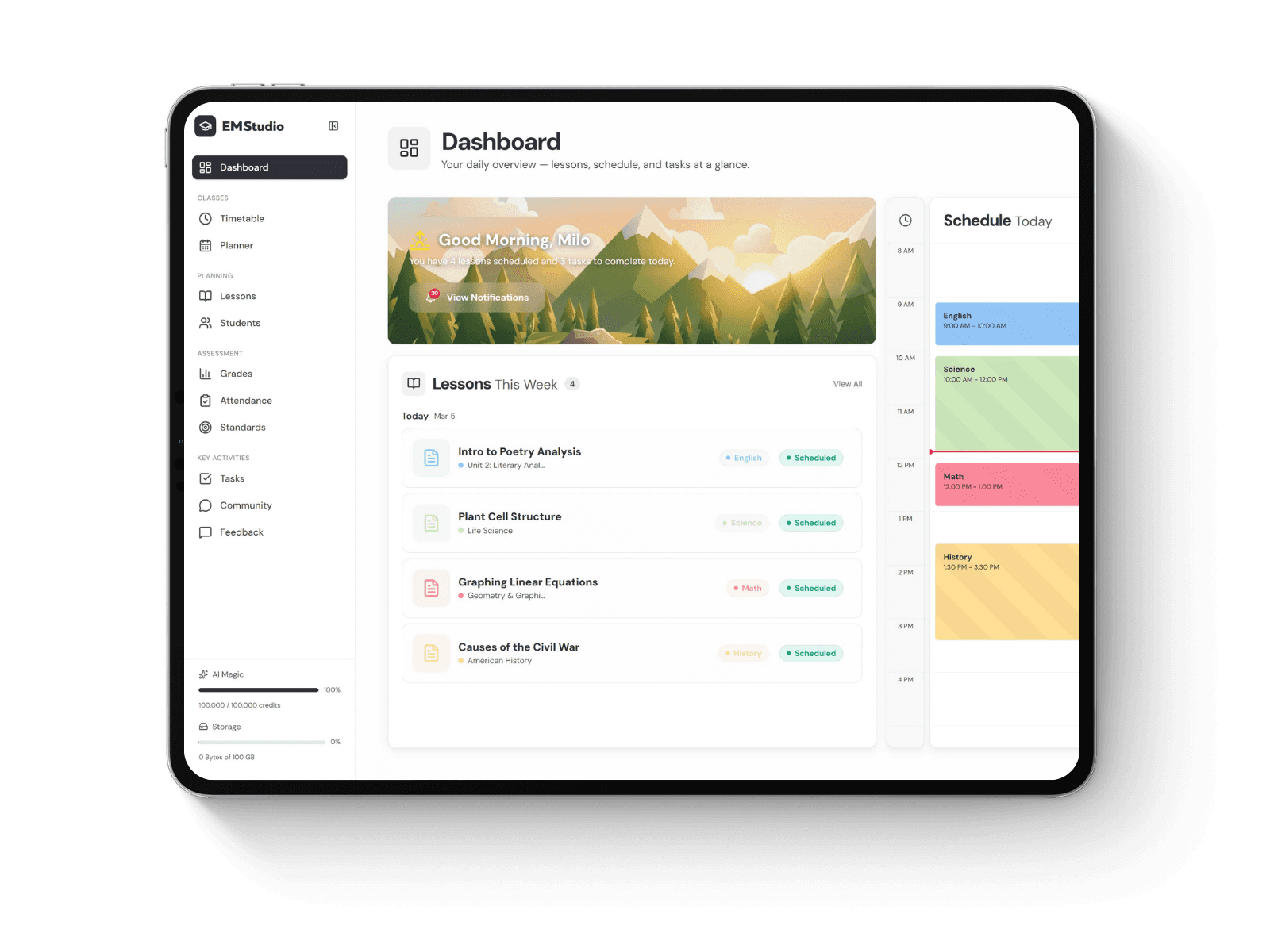
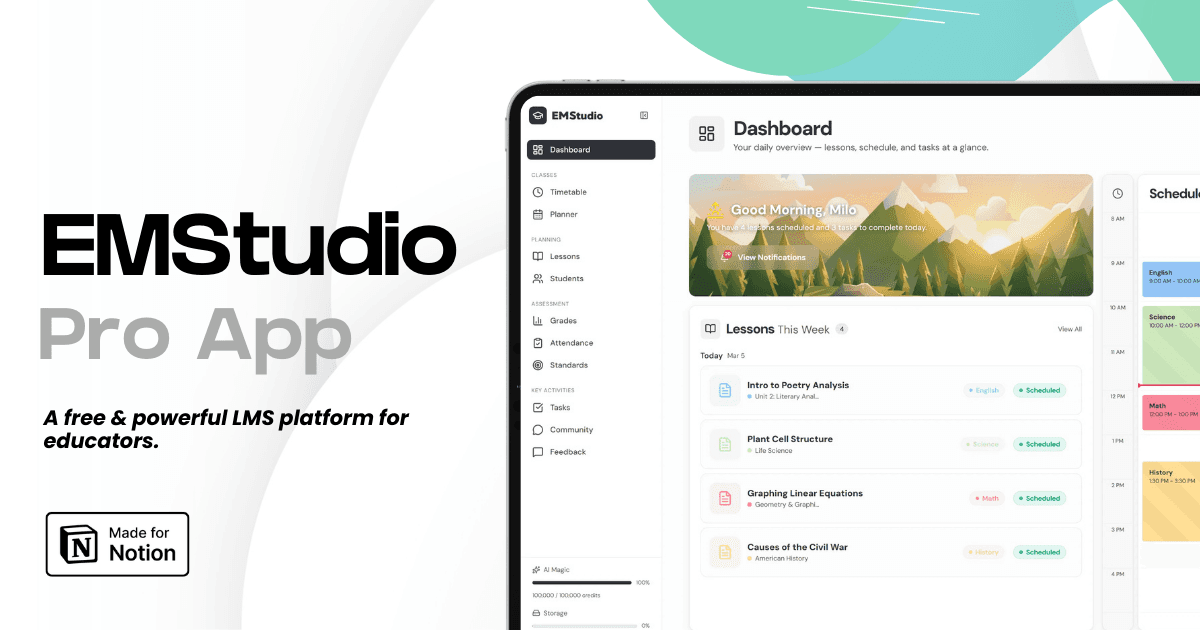
Still grading everything by hand?
EMStudio is a free teaching management app — manage your classes, students, lessons, and more!
Learn More
Table of Contents
What teachers find on TikTok
Lesson hooks and openers that grab attention in the first minute
Classroom management routines, transitions, and attention signals
Classroom setup and anchor chart ideas
Simple experiments and demonstrations
Tips for grading, feedback, and parent communication
How to save videos with a TikTok Downloader
Browser-based tools such as SSSTik handle tiktok video download without an extra app or account:
On the TikTok video, tap Share and choose Copy link.
Paste the link into the input field on the downloader.
Select Download and save the MP4 file.
When TikTok offers a watermark-free version, SSSTik links to it directly rather than editing the TikTok watermark out. Files download in HD when the original upload has it, which helps when you want to read an anchor chart or see how a demo is set up. The tool works in desktop, mobile, and tablet browsers.
Set up your Notion video database
Create a new database and add a few properties so you can filter quickly:
Property | Type | Example |
|---|---|---|
Subject | Select | Science |
Grade level | Multi-select | Grade 4, Grade 5 |
Idea type | Select | Lesson hook |
Creator | Text | Creator's handle |
Original link | URL | Link to the post |
Status | Select | To try, Tried, Keep |
Use a gallery view sorted by subject for browsing, and a filtered table for planning a specific unit.
Where to store the video files
You can add a video file to a Notion page, but upload limits depend on your plan, and a library of videos adds up quickly. Many teachers keep the files in a cloud drive folder instead and paste the file link into a property. Name each file so it matches its Notion entry, such as science-g5-density-tower-hook.mp4.
Link videos to your lesson plans
Add a relation property that connects your video database to your lesson planner. When you open a lesson, the linked ideas appear right there. After you try one, update its status and add a quick note on what worked, so your library improves each year.
Make a short PD compilation
For a team meeting or professional learning community, join four or five of the best clips on one theme, such as transitions or exit tickets, into a short compilation with a free editing app. It gives colleagues concrete examples to discuss. Credit each creator on screen and share the original links.
Using videos with students
Check your school's policy on using social media content in class
Preview every clip in full, including captions and audio
Credit creators, and ask before republishing their videos anywhere
Follow your school's rules on student privacy before filming in your own classroom
Downloading a video does not change who made it, so keep your library for planning and professional learning.
Saving ideas from Facebook and X
Teacher communities are active on other platforms too. fget.io saves Facebook videos with a similar paste-and-download process, and SSSTwitter does the same for public videos on X.
What teachers find on TikTok
Lesson hooks and openers that grab attention in the first minute
Classroom management routines, transitions, and attention signals
Classroom setup and anchor chart ideas
Simple experiments and demonstrations
Tips for grading, feedback, and parent communication
How to save videos with a TikTok Downloader
Browser-based tools such as SSSTik handle tiktok video download without an extra app or account:
On the TikTok video, tap Share and choose Copy link.
Paste the link into the input field on the downloader.
Select Download and save the MP4 file.
When TikTok offers a watermark-free version, SSSTik links to it directly rather than editing the TikTok watermark out. Files download in HD when the original upload has it, which helps when you want to read an anchor chart or see how a demo is set up. The tool works in desktop, mobile, and tablet browsers.
Set up your Notion video database
Create a new database and add a few properties so you can filter quickly:
Property | Type | Example |
|---|---|---|
Subject | Select | Science |
Grade level | Multi-select | Grade 4, Grade 5 |
Idea type | Select | Lesson hook |
Creator | Text | Creator's handle |
Original link | URL | Link to the post |
Status | Select | To try, Tried, Keep |
Use a gallery view sorted by subject for browsing, and a filtered table for planning a specific unit.
Where to store the video files
You can add a video file to a Notion page, but upload limits depend on your plan, and a library of videos adds up quickly. Many teachers keep the files in a cloud drive folder instead and paste the file link into a property. Name each file so it matches its Notion entry, such as science-g5-density-tower-hook.mp4.
Link videos to your lesson plans
Add a relation property that connects your video database to your lesson planner. When you open a lesson, the linked ideas appear right there. After you try one, update its status and add a quick note on what worked, so your library improves each year.
Make a short PD compilation
For a team meeting or professional learning community, join four or five of the best clips on one theme, such as transitions or exit tickets, into a short compilation with a free editing app. It gives colleagues concrete examples to discuss. Credit each creator on screen and share the original links.
Using videos with students
Check your school's policy on using social media content in class
Preview every clip in full, including captions and audio
Credit creators, and ask before republishing their videos anywhere
Follow your school's rules on student privacy before filming in your own classroom
Downloading a video does not change who made it, so keep your library for planning and professional learning.
Saving ideas from Facebook and X
Teacher communities are active on other platforms too. fget.io saves Facebook videos with a similar paste-and-download process, and SSSTwitter does the same for public videos on X.
Still grading everything by hand?
EMStudio is a free teaching management app — manage your classes, students, lessons, and more!
Learn More
Still grading everything by hand?
EMStudio is a free teaching management app — manage your classes, students, lessons, and more!
Learn More


Notion4Teachers
Notion templates to simplify administrative tasks and enhance your teaching experience.


2026 Notion4Teachers. All Rights Reserved.
Notion4Teachers
Notion templates to simplify administrative tasks and enhance your teaching experience.
2026 Notion4Teachers. All Rights Reserved.
Notion4Teachers
Notion templates to simplify administrative tasks and enhance your teaching experience.
2026 Notion4Teachers. All Rights Reserved.