

Class rewards on the board
Count kind acts, quiet minutes or points toward a class reward on the page you project. Set a goal of 30 and the bar fills as the room earns each one, so everyone can see how close the reward is.
Name what you count, pick a step and a goal, copy the link and paste it into any Notion page. Then tap + or − and the counter keeps the count.
One a line: up to four counters side by side.
0: no goal.
The ring fills to the goal, or every ten taps without one.
Today in Room 12
www.notion4teachers.com/embed/counterA click counter widget is a small web page with a number and two buttons, made to sit inside a Notion page. You paste its link into Notion, choose Create embed, and tap + or − right on the page. This one lets you name what you count, set a start, a step and a goal, choose a big number, tally marks or a ring, and keep up to four counters side by side. Nothing to install, and no account.
Teacher Home
Whenever something gets counted one at a time. Three moments where a tap beats a tally on paper:
Count kind acts, quiet minutes or points toward a class reward on the page you project. Set a goal of 30 and the bar fills as the room earns each one, so everyone can see how close the reward is.

Students keep a counter on their study page for books read, spelling words practiced or music lessons. One tap after each one, and the tally marks or the ring show the week at a glance.

Laps in gym class, hands raised in a quick vote, students back from the library. Keep the counter open on a tablet and tap as they come, or press Space and the arrows on a keyboard.
Set it up once, copy the link, and start tapping. Here is what you can change before you paste it into Notion.
Round − and + buttons are big enough for a phone or a classroom touch screen. Count by one or by any step up to 100, start from any number, and the count never drops below zero.
Give the counter a goal and it shows the count of the goal with a bar that fills as you go. When you reach it, the line turns to Goal reached with a check.
Show a big number, tally marks in groups of five the way they look on paper, or a ring that fills to the goal. Six color sets, four fonts and a clear or solid background.
Write one name a line under What you count and each line becomes its own counter with its own buttons. Count kind acts, books and homework on one block, each toward the same goal.
Drag the corners of the embed block and the counter grows or shrinks to fill it. A wide block makes a big count for the projector; a narrow column makes a small one beside your notes.
Five steps, about a minute. The same steps work for every widget on Notion4Teachers.
Name what you count and pick a start, a step, a goal and a look at the top of this page.
Press Copy Widget Link. Everything you chose is part of the link.
Click where the counter should go on your Notion page and paste.
Notion asks what to do with the link. Choose Create embed.
Pull the block’s corner until the counter is as big as you want.
The Ultimate Teacher Planner sets up your classes, lessons, grades and attendance in Notion. Put your widgets at the top of it in a minute.
See the Teacher PlannerTyping a number into Notion works. This counter is quicker to tap and easier to see across a room.
Round + and − buttons work with a mouse, a finger on a phone or a classroom touch screen.
A reset by mistake takes one tap to fix, and Ctrl+Z takes back the last tap.
Your count is kept in this browser on this device. Nothing is sent to us.
A big number, tally marks or a ring, in the colors of your page.
A clear background takes your page’s own color, so it fits both modes.
It shows your count and nothing else. No pop-ups, no logos, no sign-up.
Anyone who counts something one at a time and keeps the day in Notion.

On the class page shown on the board, for points toward a reward, kind acts or quiet minutes, and for a quick headcount at the door. The big buttons work from a laptop, a tablet or the classroom touch screen.

On a study dashboard, for books read, practice sessions or days in a row of homework done. A tap after each one is a small reward, and the tally marks or the ring show the progress.

On the day’s lesson page, for math facts practiced, pages read aloud or chores done. Two or three counters side by side keep a few small goals in view at once.
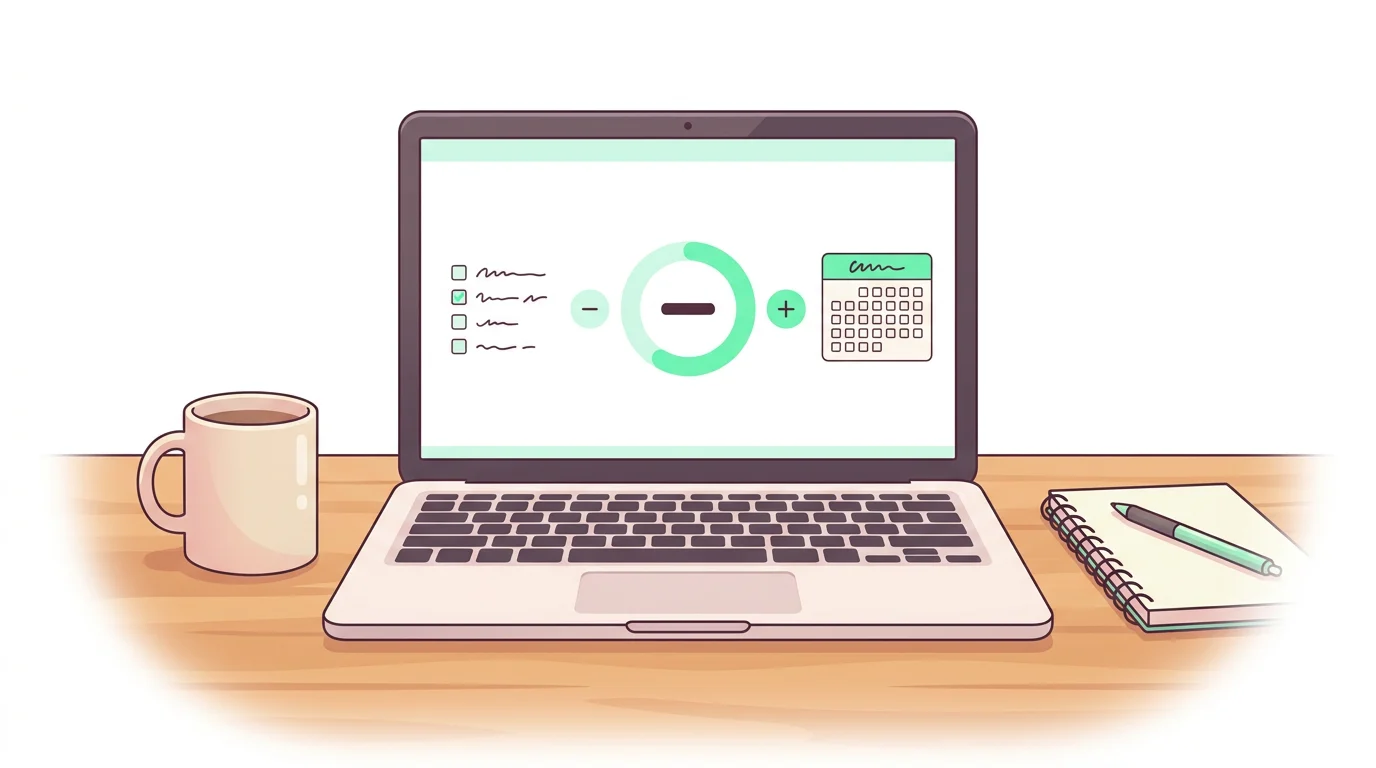
Click counter sites open in a tab of their own. This one sits inside your Notion page, beside your lesson plan or your study list, where you already look during the day.

The count stays in your browser on that device, so a reload keeps it. There is nothing to sign up for, and nothing you count is sent to us or shared with anyone.
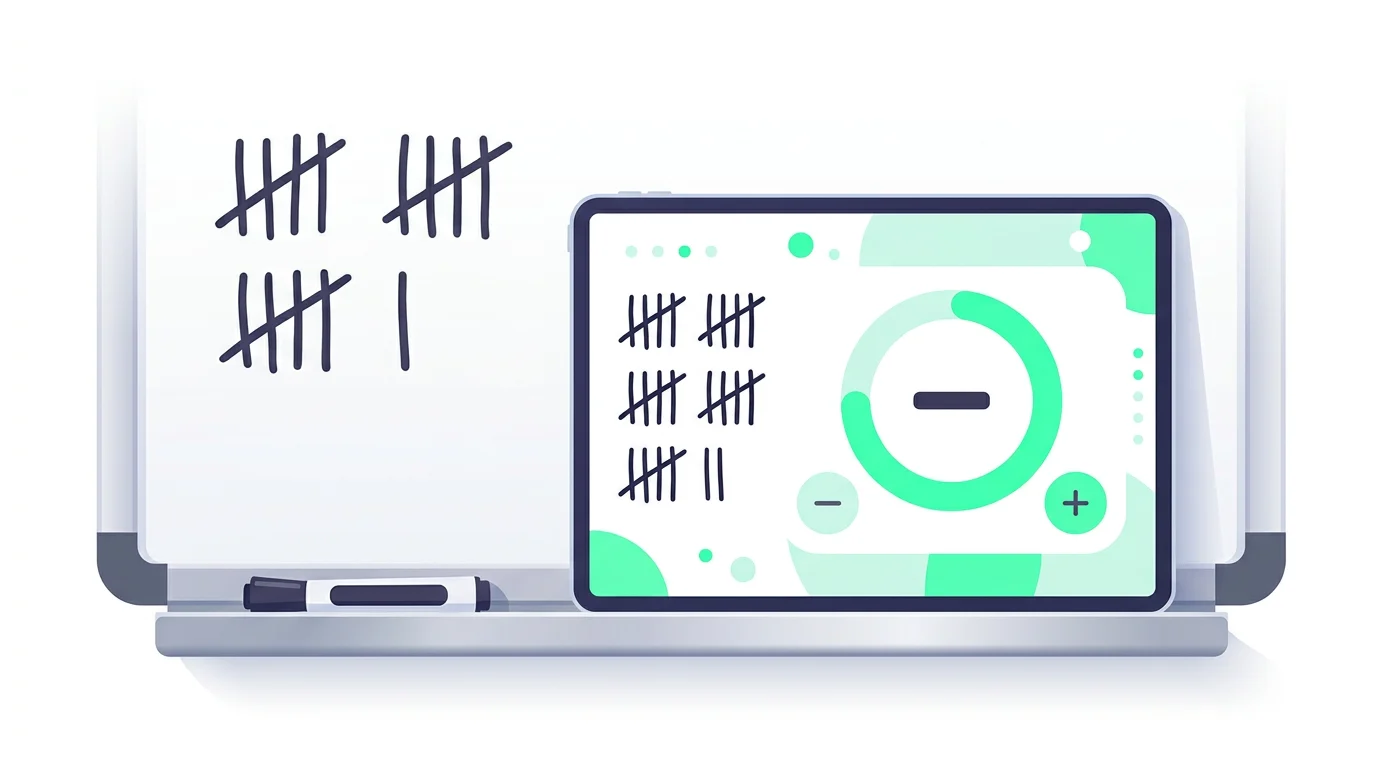
Choose tally marks and the count draws itself in groups of five, the way it looks on paper, so younger students can count the marks themselves and check the total.
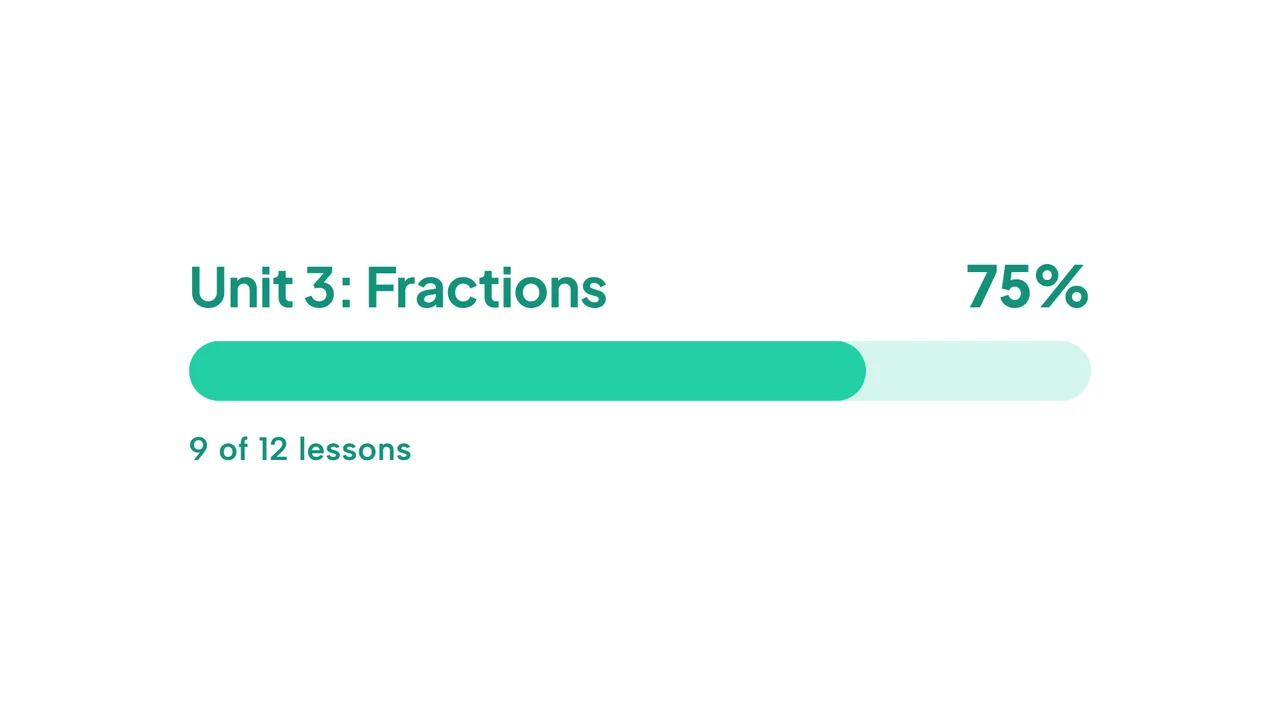
A bar, ring or battery that fills as you count lessons, pages or the days of a term.
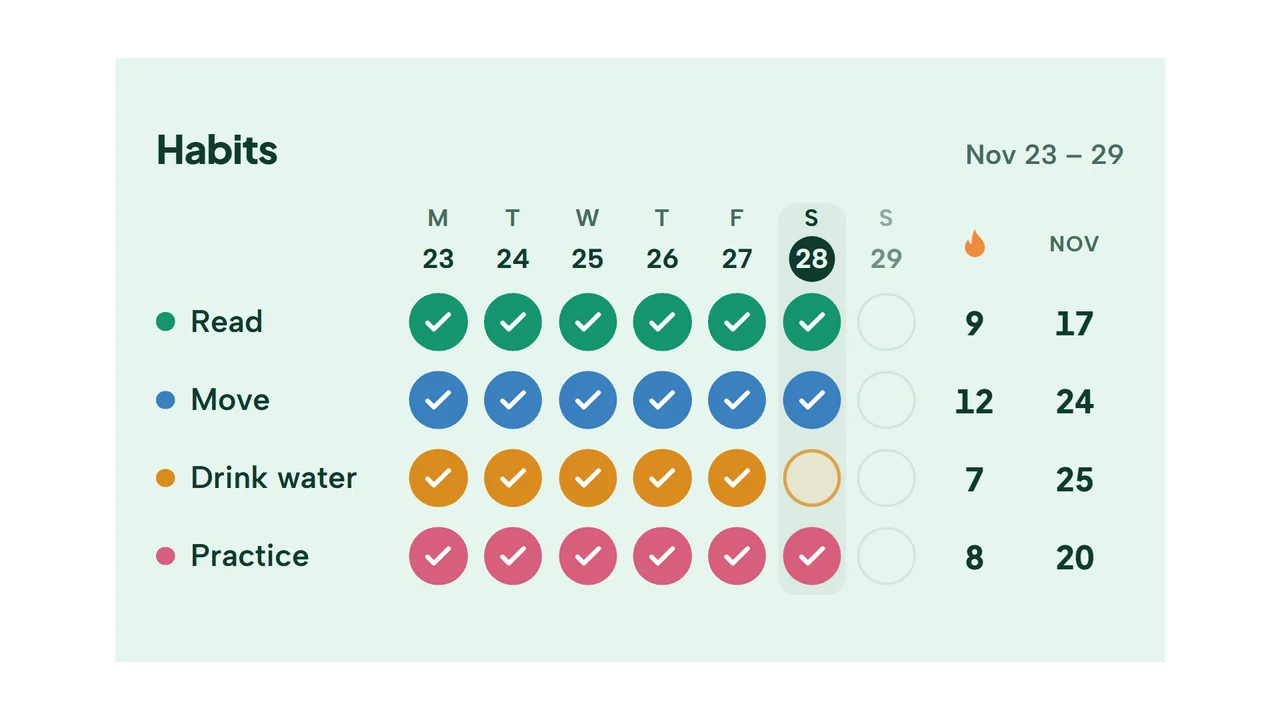
Tick off up to six habits each day and watch the streaks grow, week by week.
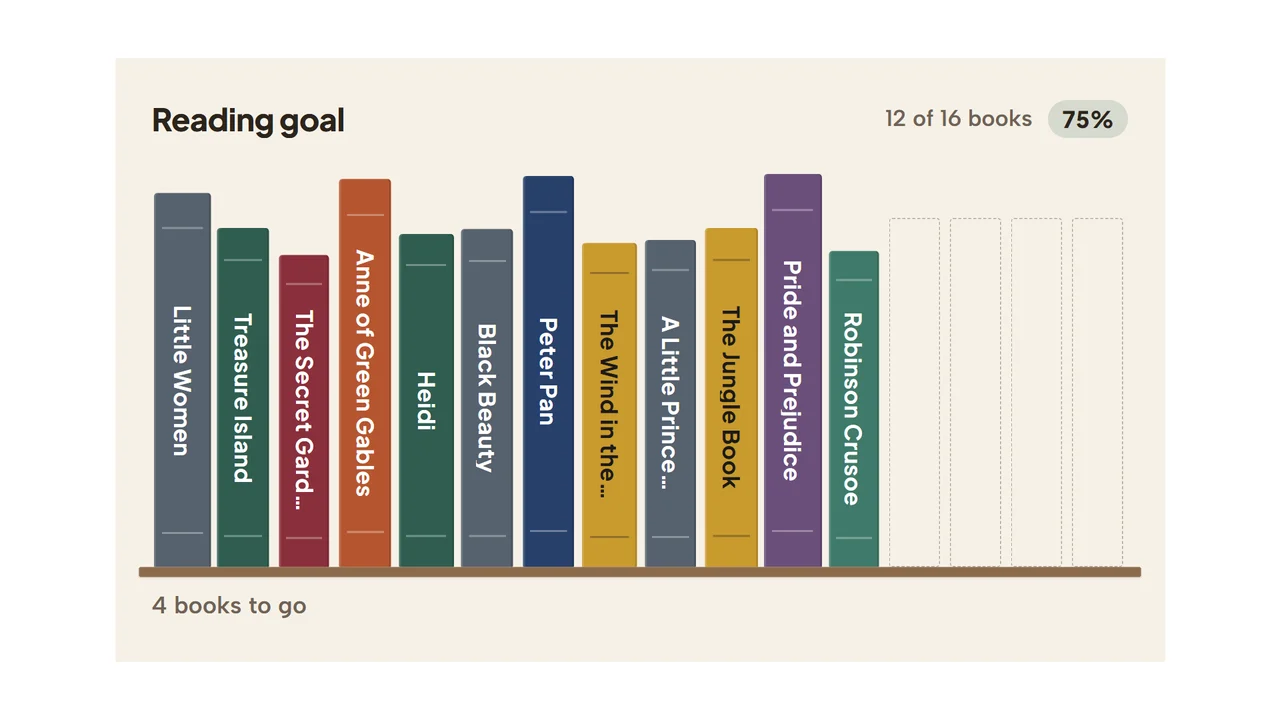
A shelf of books that fills toward your reading goal for the year.
Yes. The counter is free to set up, copy and use on as many Notion pages as you like. There is no account to make, no trial, no watermark and no ads, and the counts you tap are never sent to us.
Set up the counter at the top of this page and press Copy Widget Link. In Notion, click where you want it, paste the link and choose Create embed from the menu that appears. Then drag the corners of the block to make the counter the size you want.
Yes, in the browser that tapped it. The count is still there when the Notion page opens again on that computer, tablet or phone. Another device, or the Notion app on your phone, starts from the start value in the link. Nothing is saved on our side, and a private window starts fresh.
Yes. Click the counter once, then press Space, the up or right arrow, or + to add, and the down or left arrow or − to take away. With several counters, press 1 to 4 to choose one first. Ctrl+Z (⌘Z on a Mac) takes back the last tap.
Yes, up to four side by side. Under What you count, write one name a line, like Kind acts and Books read, and each line becomes its own counter with its own − and + buttons. They share the start, the step, the goal and the look.
Press the round arrow in the top corner and every count goes back to the start value. An Undo button takes its place for a few seconds, so a reset by mistake takes one tap to fix. To count down instead, set Start at to the number you begin with and tap −.
Keep the background on Clear and the counter sits on your Notion page’s own color, light or dark. The number uses a middle tone of the color set that reads on both. If you want a block of color behind it instead, choose Solid under Look.
Use a Number property when the count belongs to a row in a database, like pages read by each student, so Notion can sort and add it up. Use the counter for a quick tally you tap during the day or show on the classroom screen, with big buttons and no typing.

The Complete Bundle has every Notion4Teachers template, with the Ultimate Teacher Planner at its heart.
Get Complete Bundle40% OFF!