

A class reading goal on the board
Put the shelf on the class page you project and add each book the class finishes together. Students watch the spines line up and count how many places are still empty.
Set a goal of books for the year, type the titles you’ve read or tap + for each one, then copy the link into any Notion page. Watch the shelf fill up.
A title a line. The titles travel in the link.
Adds a book without a title, kept on that device.
Today in Room 12
www.notion4teachers.com/embed/reading-trackerA book tracker widget is a small web page that shows how many books you have read against a goal, made to sit inside a Notion page. You paste its link into Notion, choose Create embed, and it shows in that block. This one draws your books as spines on a shelf, a stack or a bar, with the percent and the books still to go. Type the titles once or tap + for each book. Nothing to install, and no account.
Teacher Home
Whenever a number of books is the goal. Three places it earns its spot:
Put the shelf on the class page you project and add each book the class finishes together. Students watch the spines line up and count how many places are still empty.

On a study page, the yearly goal sits above the books they are reading now. A tap on + after the last page is a small, satisfying moment.

Set a goal for the holidays and share the page with the family. Typed titles show for everyone who opens it, so the whole shelf is there to see.
Set it up once, copy the link, and the shelf shows how far along you are. Here is what you can change before you paste it into Notion.
Set a goal from 1 to 365 books. Every book read is a spine on the shelf and every book still to read is an empty place, so the shelf fills as the year goes on.
Type the books you have read, one a line, and they stand on the shelf with their titles on the spines. Or tap + in the widget for each book, and − takes the last one back.
Stand the books on a shelf, pile them in stacks of books lying flat, or show a bar with a big count and the last three titles read. Each look takes the same settings.
When the shelf is full the percent turns solid and a star says Goal reached. Keep going and the shelf grows past the goal, with how many more you have read.
Six color sets, from the deep spines of Library to soft Pastel and dark Night. Show the percent and the books to go, or turn them off for a quiet shelf.
Five steps, about a minute. The same steps work for every widget on Notion4Teachers.
Set the goal, type your books and choose the look at the top of this page.
Press Copy Widget Link. Your goal and your titles are part of the link.
Click where the tracker should go on your Notion page and paste.
Notion asks what to do with the link. Choose Create embed.
Pull the block’s corner until the shelf is as big as you want.
The Ultimate Teacher Planner sets up your classes, lessons, grades and attendance in Notion. Put your widgets at the top of it in a minute.
See the Teacher PlannerA book database keeps the details. This shows the year’s goal at a glance.
Books read, the percent and the books still to go, all on one shelf.
Tap + when you finish a book, with no title to type at all.
A shelf, a stack or a bar, in Library, Pastel, Sage, Sunset, Night or Paper.
The shelf fills the block, so a wide embed on the projector reads across the room.
No account and nothing stored on our side. Change the list, copy the new link.
Your books and your goal, and nothing else. No pop-ups and no logos.
Anyone counting books toward a goal.
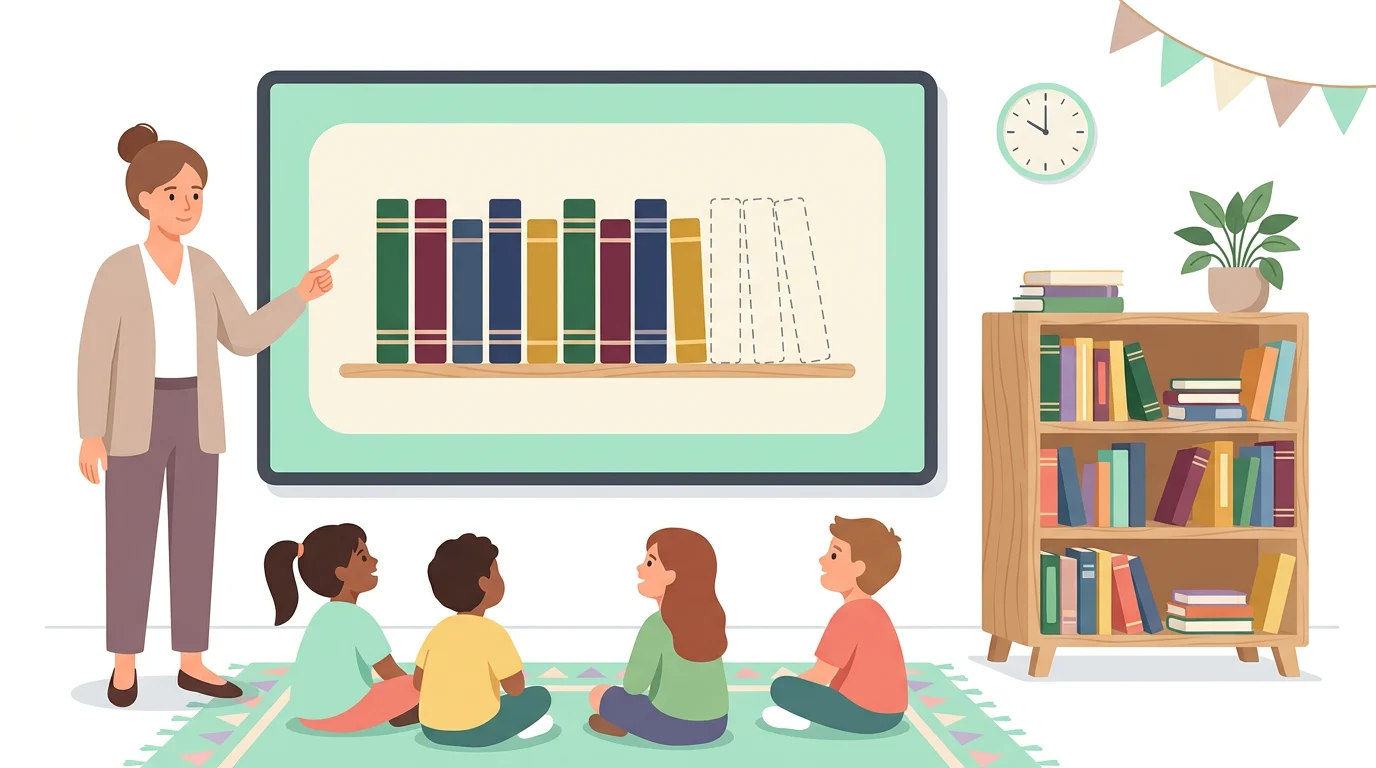
On the class reading page or a reading corner screen. A shared shelf turns every finished class book into something the room can see, and the empty places give everyone a target.

On a study dashboard, next to what they are reading now. Typing each title makes a reading log they can look back on, and the shelf shows the year’s progress.
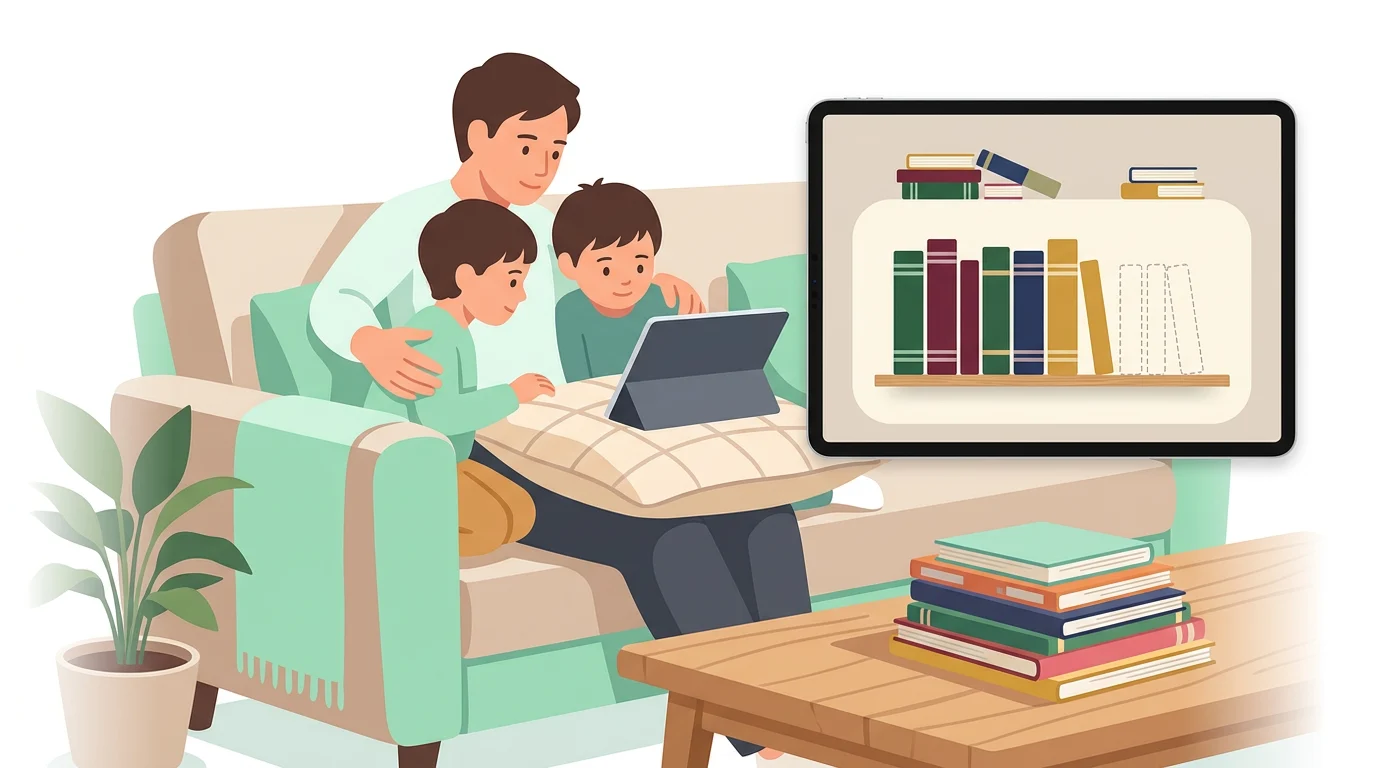
On the family or club page, for the books read together this year. The stack look piles the books up like a real stack on the table.

A Notion book tracker usually starts with a database, properties and a formula for the goal. Here you set the goal, type the titles and copy one link. Keep a database for the reviews and notes.

Books read stand as spines with their titles, books still to read are empty places on the shelf. You can see how far along the year is before you read a single number.
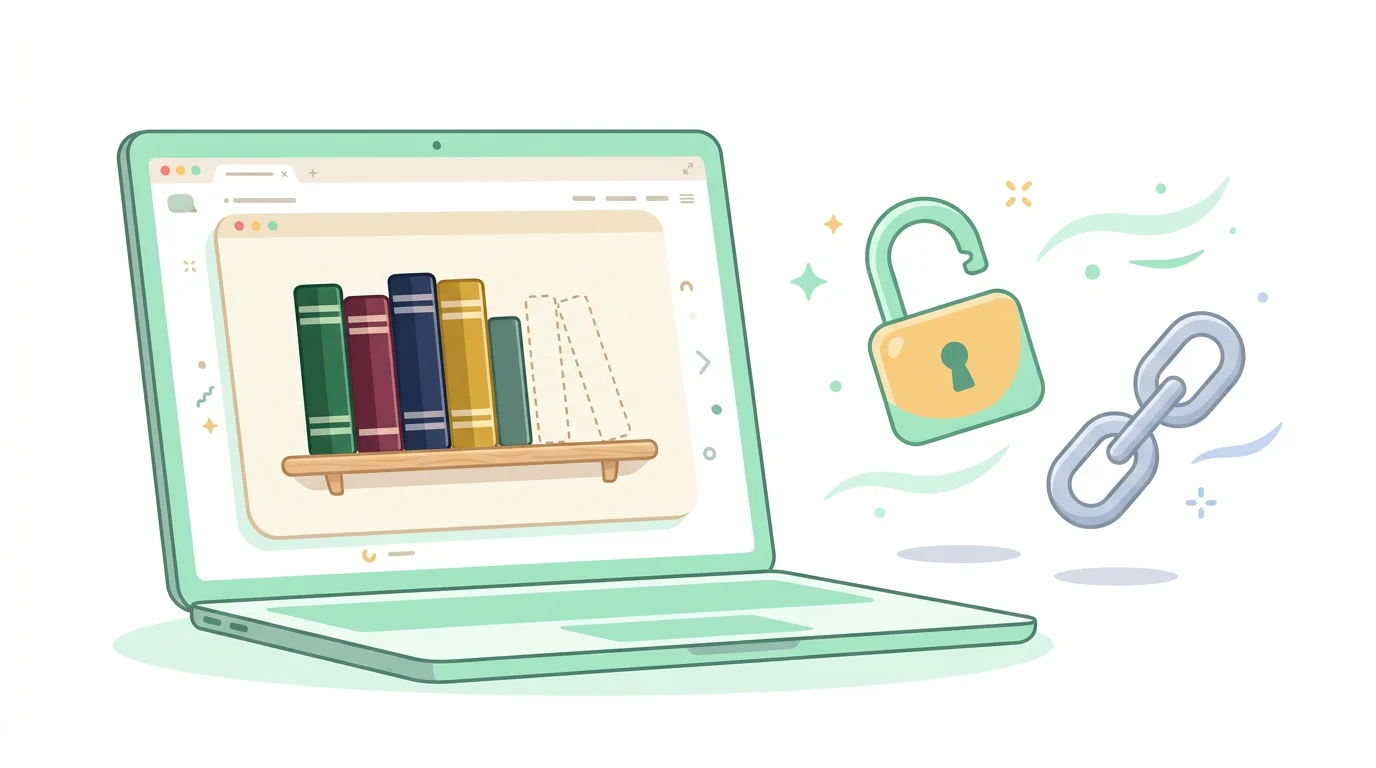
No sign-up, no trial and no watermark. Set the shelf up on this page, copy the link and paste it into Notion: nothing to register and nothing to pay.
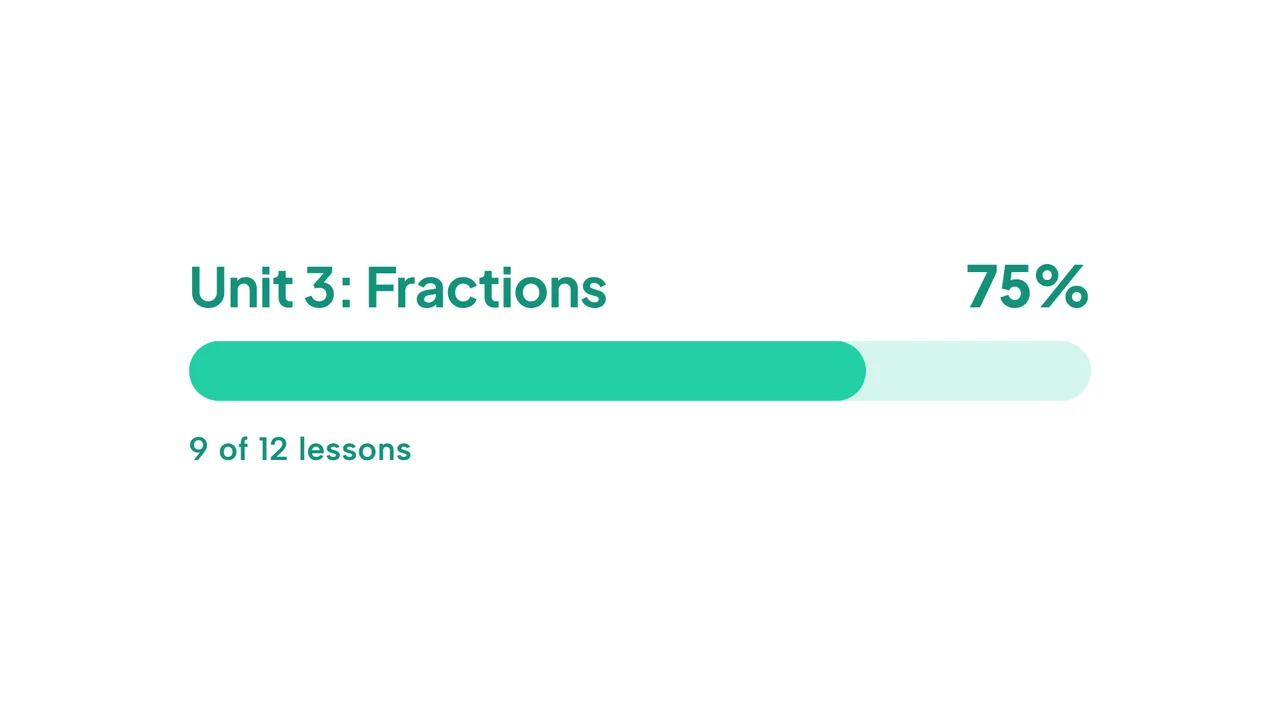
A bar, ring or battery that fills as you count lessons, pages or the days of a term.
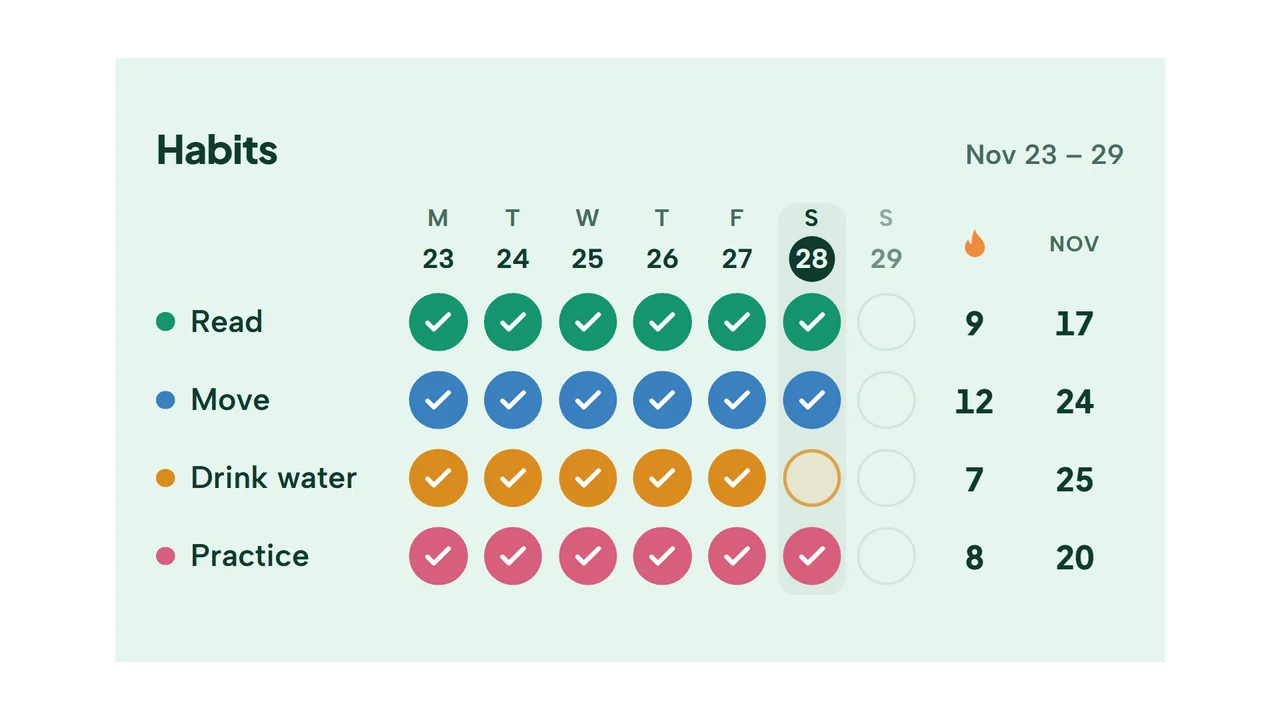
Tick off up to six habits each day and watch the streaks grow, week by week.
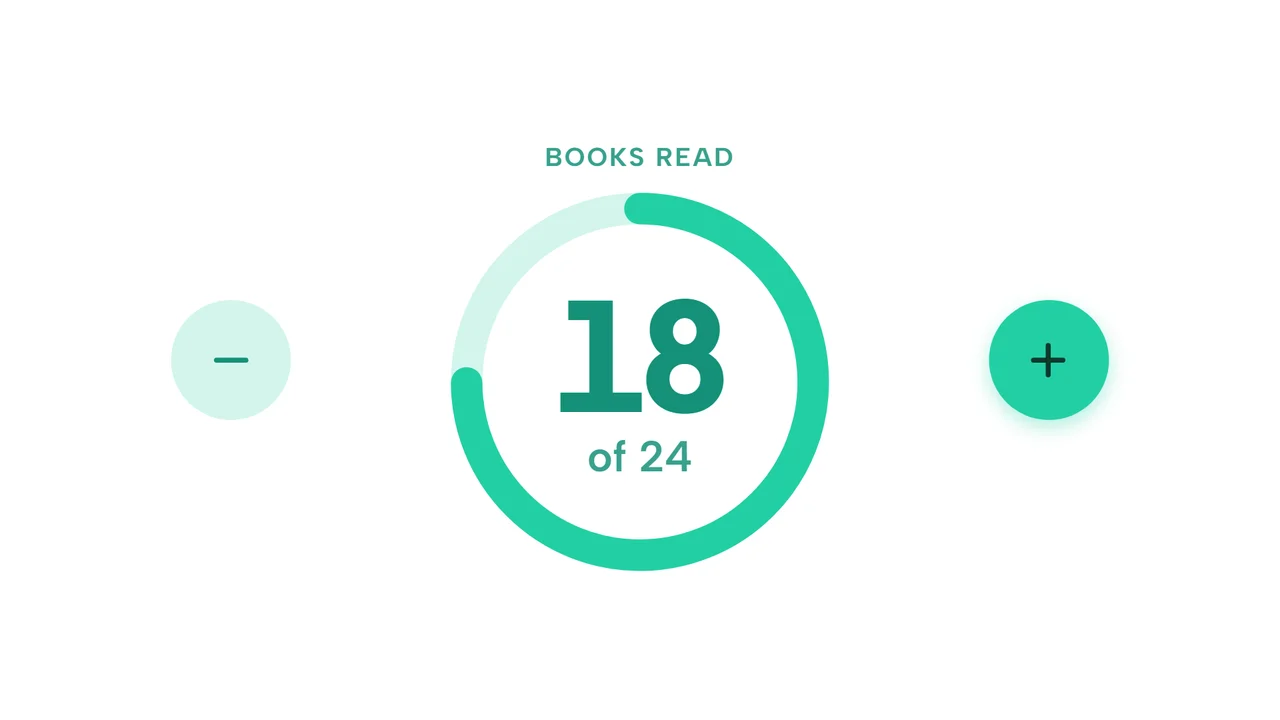
Tap + or − to count anything, with a goal, tally marks or a ring.
Yes. The reading tracker is free to set up, copy and use on as many Notion pages as you like. There is no account to make, no trial, no watermark and no ads, and nothing you add is stored on our side.
Set your goal and type the books you have read at the top of this page, then press Copy Widget Link. In Notion, click where the tracker should go, paste the link and choose Create embed. Drag the corners of the block to make it the size you want.
Two ways. On this page, press Change a widget you added, paste the tracker’s link (in Notion, ••• then View original shows it) and add the title under Books read. Copy the link again and, in Notion, choose ••• then Replace and paste it: books added with + stay. Or tap + in the widget, which adds a book without a title on that device.
The titles you type are part of the link, so anyone who has the link, or can open your Notion page, sees them. Nothing is stored on our side. Books added with + are kept only in the browser that added them, so another device shows the typed titles without them.
Use a Notion book database when you want authors, ratings, notes, covers and a reading status for every book. Use the widget when you want the year’s goal at a glance: a shelf that fills, the percent and the books to go, with nothing to build. You can also keep both: the database for the details, the widget at the top of the page.
The percent turns solid and a star appears with Goal reached under the shelf. Keep adding books and the shelf grows past the goal, the line says how many more you have read, and the percent goes past 100. To set a bigger goal, change Goal and paste the new link.
Yes. Put the tracker on the class page and type the titles the class has read under Books read, so everyone who opens the page sees the same shelf. Taps on + stay on the device that taps them, so for one shared count use the titles, or tap on one classroom computer only.
Yes. The tracker is part of the Notion page, so it shows wherever the page opens: the Notion app on iPhone, iPad and Android, the desktop app and the browser. Typed titles show everywhere, and books added with + stay on the device that added them.

The Complete Bundle has every Notion4Teachers template, with the Ultimate Teacher Planner at its heart.
Get Complete Bundle40% OFF!