

On the board during a unit
Put the bar at the top of the unit page you project in class. Students see how many lessons are done and how many are left, and the bar moves forward each time you add one.
Count lessons, pages or the days of a term, pick a bar, ring, segments or battery, then copy the link into any Notion page. It shows how far along you are.
You set how many are done; it shows the share.
The word after the count: 7 of 12 lessons.
Empty: January 1.
Empty: December 31.
The count is the number in the link.
Today in Room 12
www.notion4teachers.com/embed/progress-barA progress bar widget is a small web page that shows how much of something is done, made to sit inside a Notion page. You paste its link into Notion, choose Create embed, and it shows in that block. This one counts a number you set, like 7 of 12 lessons, or fills by itself between two dates. You choose the look, the colors and the words before you copy the link. Nothing to install, and no account.
Teacher Home
Whenever a number tells the story better than a list. Three places it earns its spot:
Put the bar at the top of the unit page you project in class. Students see how many lessons are done and how many are left, and the bar moves forward each time you add one.

Set the first and last day of the term and the bar fills a little every day on its own. Keep it on your planner to see where the weeks have gone and how many days are left.

Count books read, pages written or points earned toward a class reward. Turn on the − and + buttons and a quick tap moves the count when something gets done.
Set it up once, copy the link, and the bar shows where you are. Here is what you can change before you paste it into Notion.
A long bar that fills from the left, a ring with the percent in its middle, segments with one block per item, or a battery that charges as you go. Each look takes the same settings.
Type how many are done and the total, with a word like lessons or pages after the count. Or set a start and an end date and the bar fills by itself, day by day, all term.
Show the buttons and the count moves with a tap, by one or by any step you choose. Taps are kept in the browser that made them; everyone else sees the number in the link.
Six color sets on a clear background that sits on your Notion page’s color, or a solid block of color. Add a label, show the percent, the count, both or neither.
Drag the corners of the embed block and the bar grows or shrinks to fill it. A wide block makes a big bar for the projector; a narrow column makes a small one beside your notes.
Five steps, about a minute. The same steps work for every widget on Notion4Teachers.
Choose a number or dates, the look and the colors at the top of this page.
Press Copy Widget Link. Everything you chose is part of the link.
Click where the bar should go on your Notion page and paste.
Notion asks what to do with the link. Choose Create embed.
Pull the block’s corner until the bar is as big as you want.
The Ultimate Teacher Planner sets up your classes, lessons, grades and attendance in Notion. Put your widgets at the top of it in a minute.
See the Teacher PlannerNotion’s own bars live in a database. This one shows any goal you can count, and the days of a term.
Set a start and an end and it moves every day, with the days left under it.
A bar, a ring, segments or a battery, in the colors of your page.
It shows your progress and nothing else. No pop-ups, no logos, no sign-up.
A clear background takes your page’s own color, so it fits both modes.
The bar fills the block, so a wide embed on the projector reads across the room.
No account and nothing saved on our side. Change a setting, copy the new link.
Anyone who wants to see how far along something is at a glance.

On the unit page shown in class, at the top of a lesson planner, or on a class goal page. A bar the whole room can see makes progress something students notice and talk about.

On a study dashboard for a reading goal, a project or the weeks left before exams. Tapping the count up after each chapter is a small reward that keeps the goal in view.

On the week’s lesson page, so a child can see how many lessons are done and how close the next break is. The segments look gives every lesson a block of its own to fill.

Notion’s own bars need a Number property or a formula in a database. Here you type what is done and the total, or two dates, and the bar is ready to paste. Keep formulas for your database rows.
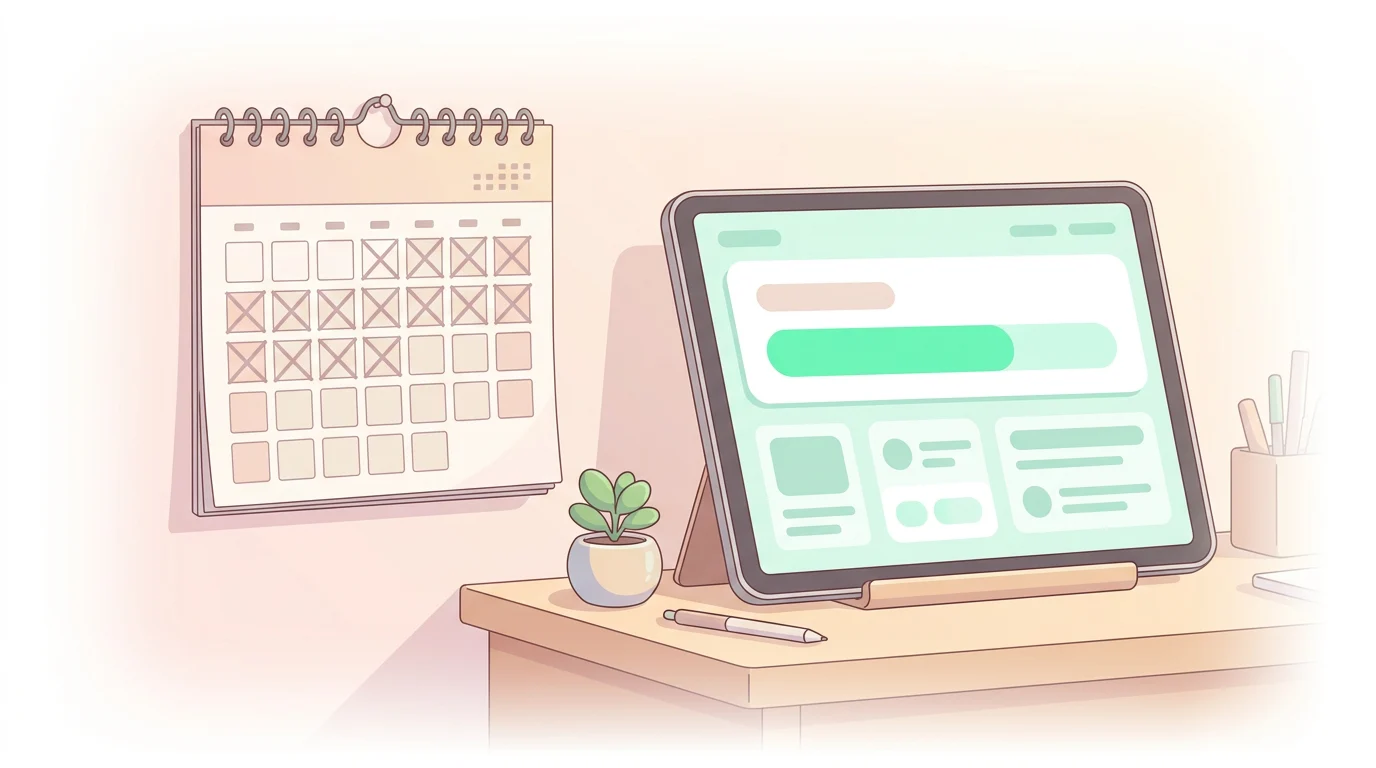
Give it the first and last day of the term and it fills every day by itself, on each viewer’s own calendar. You never have to come back and move it.

Many widget sites ask you to sign up before you can copy a link. Here you set the bar up on this page and copy it: nothing to register, nothing to pay.
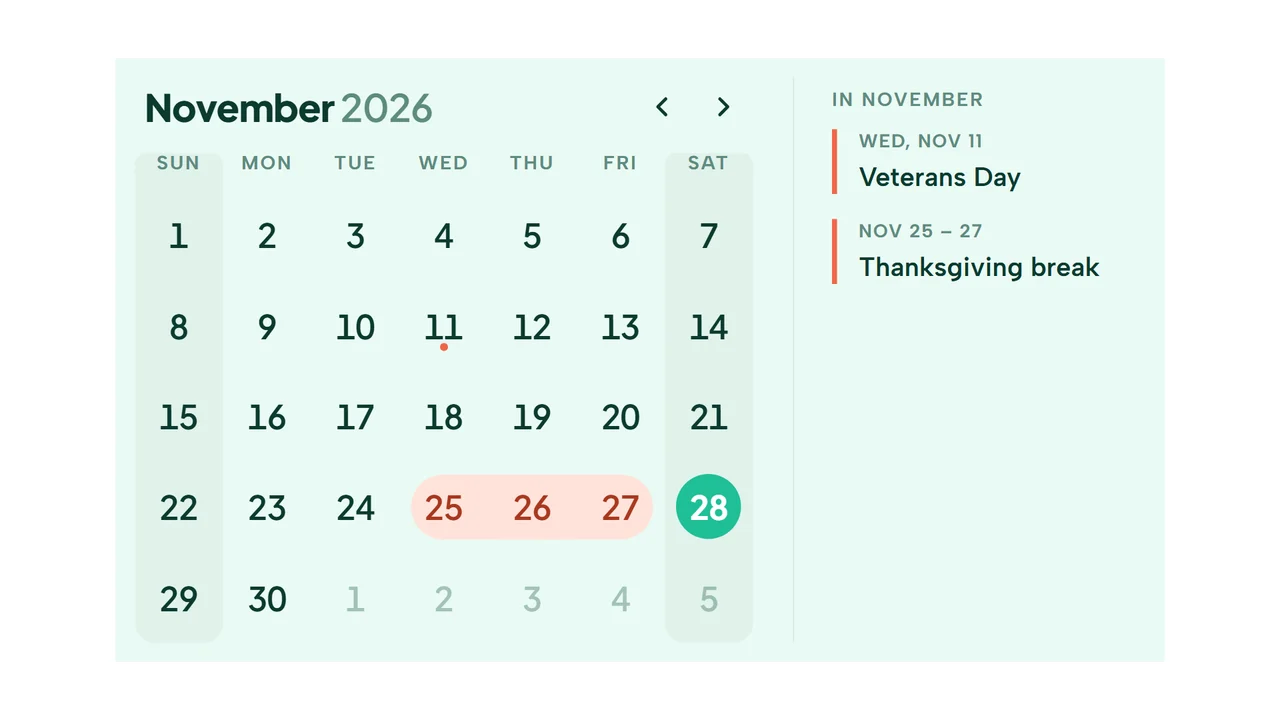
A month calendar with today marked, your colors and the holidays and tests you add.
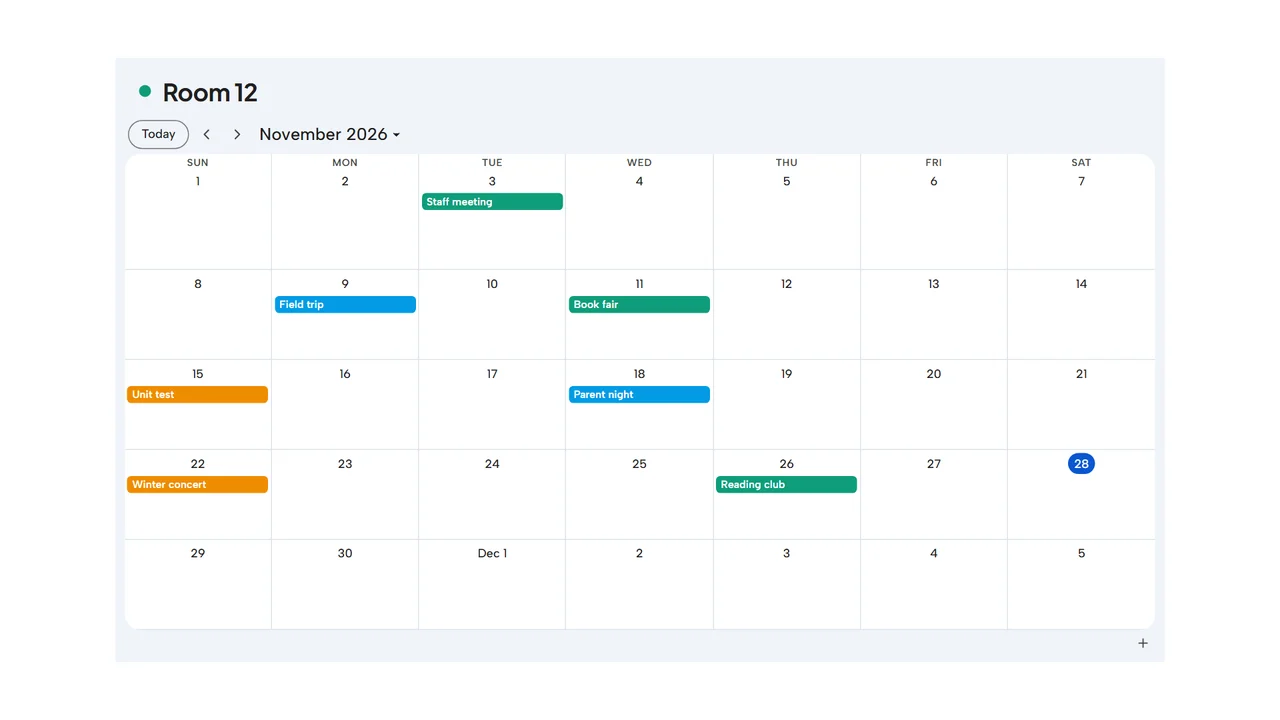
Your public Google Calendar in Notion, in month, week or agenda view, light or dark.
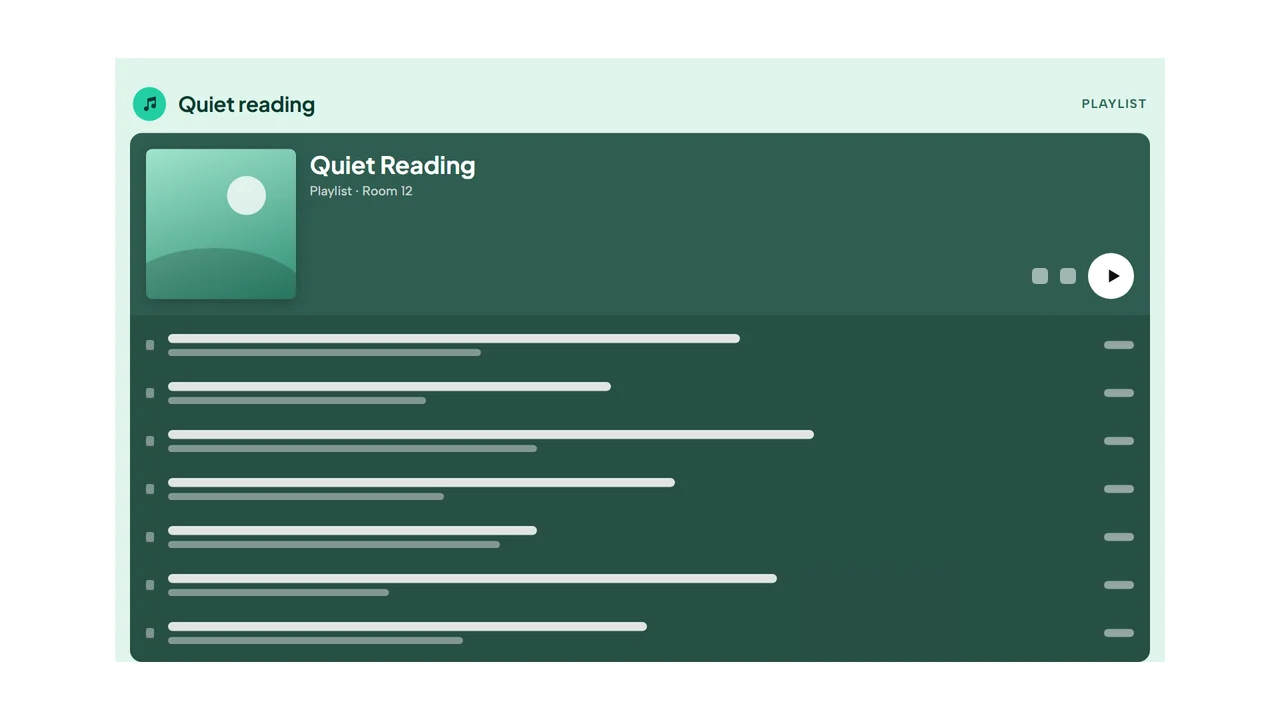
Spotify’s player for a playlist, album or podcast, in a frame that matches your page.
Yes. The widget is free to set up, copy and use on as many Notion pages as you like. There is no account to make, no trial and no watermark, and nothing inside the widget but your progress.
Set up the bar at the top of this page and press Copy Widget Link. In Notion, click where you want it, paste the link and choose Create embed from the menu that appears. Then drag the corners of the block to make it the size you want.
Yes, inside a database. A Number property can show as a bar or a ring, and a rollup or a formula can work out how many tasks are done. That is the right tool for rows in a database. The widget fits a goal that lives outside one: a term, a class goal or a reading count, or a big bar for the classroom screen.
Yes. Under Count by, choose Dates and set the first and last day of the term. The bar fills a little every day on its own and shows the day of the term and the days left. Leave both dates empty and it counts this calendar year instead.
They save it in the browser where you tap them, so it is still there the next time that browser opens the page. Other people and other devices see the number in the link. To change the count for everyone, set Done on this page and paste the new link in place of the old one.
Keep the background on Clear and your Notion page’s own color shows around the bar, light or dark. The words use a middle tone of the color set that reads on both. If you want a block of color behind it instead, choose Solid.
Yes. The progress bar is part of the Notion page, so it shows wherever the page opens: the Notion app on iPhone, iPad and Android, the desktop app and the browser.
Come back to this page, set it up again and copy the new link. In Notion, delete the old embed block and paste the new link in its place, then choose Create embed. Your settings live in the link, so a new link is a new bar.

The Complete Bundle has every Notion4Teachers template, with the Ultimate Teacher Planner at its heart.
Get Complete Bundle40% OFF!