

Music for quiet work time
Put a calm playlist at the top of the class page you project. Press play from the classroom computer when work time starts, and the room learns what the music means.
Paste a Spotify playlist, album, song or podcast link, choose the frame and the height, then copy the link into Notion. Spotify’s own player, in a frame that fits your page.
Player
In Spotify: Share, then Copy link. Paste it here.
The large player once the block is about 400 px tall.
Today in Room 12
www.notion4teachers.com/embed/spotify-playerA Spotify widget for Notion is a small web page that holds Spotify’s own player, made to sit inside a Notion page. Notion can embed a Spotify link by itself, as Spotify’s player alone. This widget puts that same player in a frame of yours: a title line, the frame’s colors, a compact or full height and Spotify’s colored or dark look. You paste its link into Notion the same way. Nothing to install, and no account.
Teacher Home
Whenever music or a podcast belongs to the lesson. Three places it earns its spot:
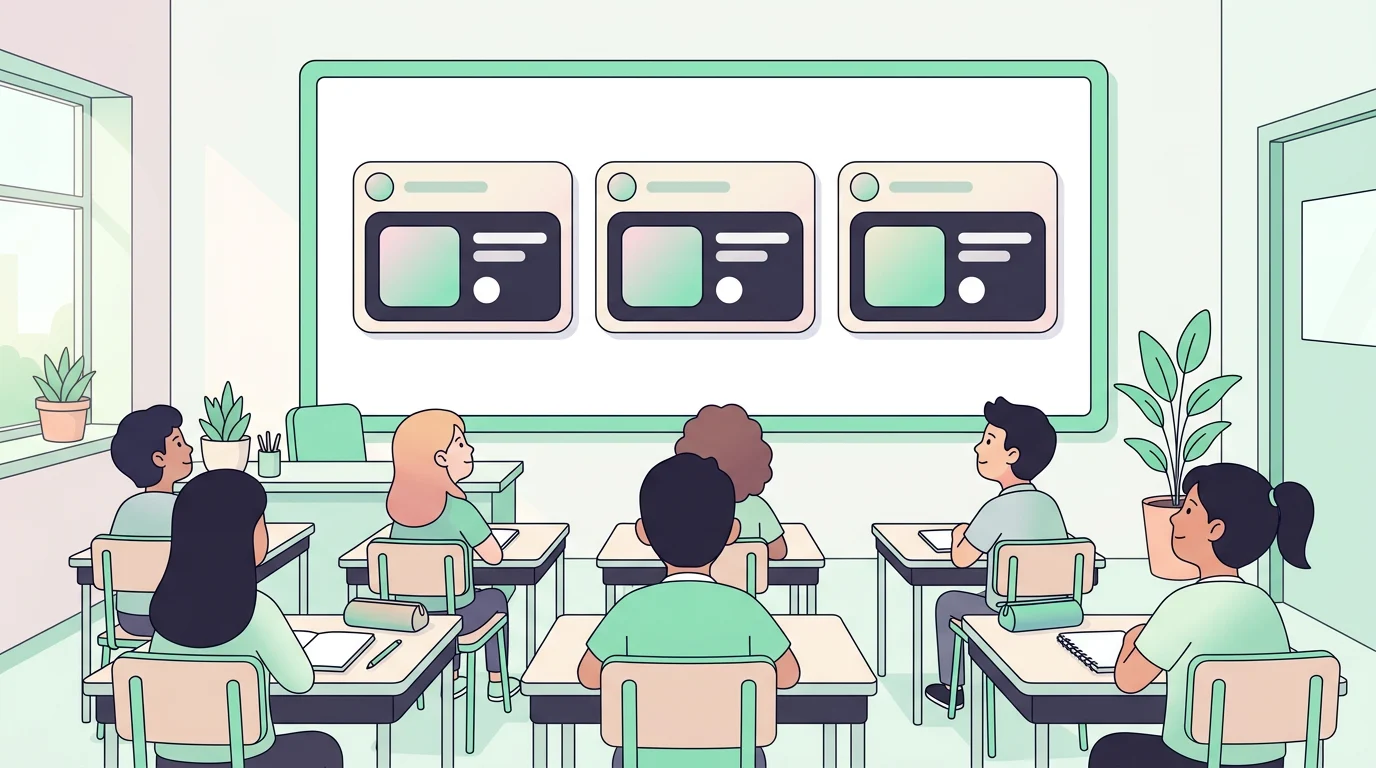
Put a calm playlist at the top of the class page you project. Press play from the classroom computer when work time starts, and the room learns what the music means.
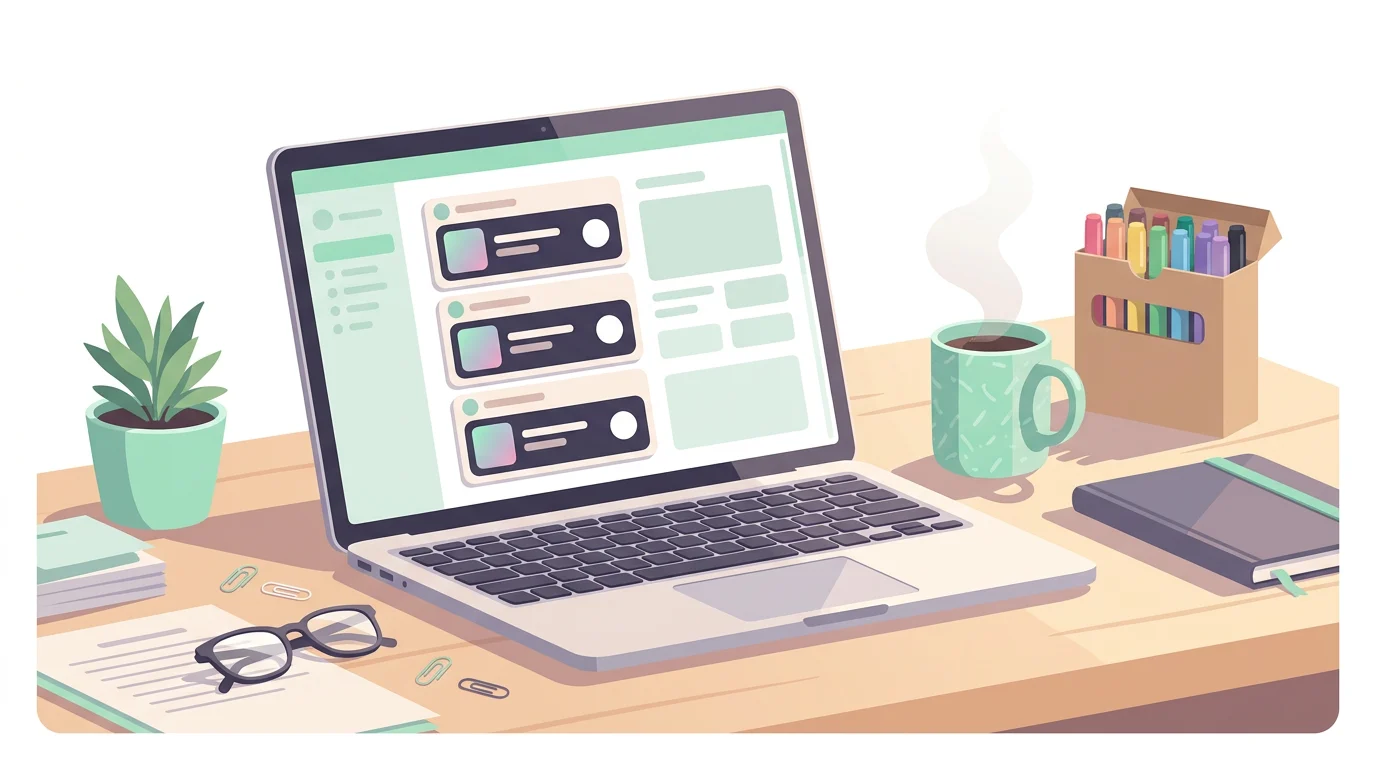
Keep one player for the morning warm-up, one for art class and one for clean-up, each with a title line that says what it is for. The right music is one click away.
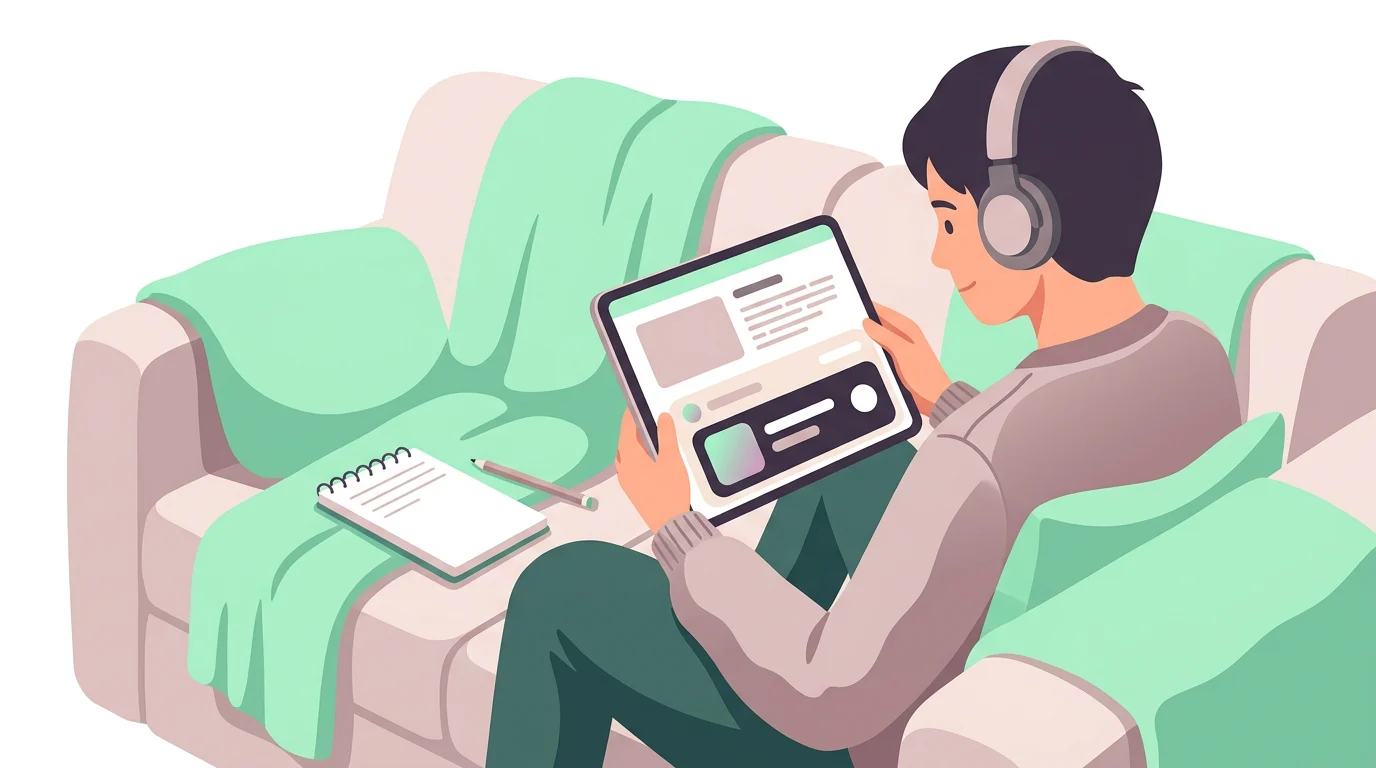
Add a podcast episode to the lesson page so students can listen at home before the class talks about it. Spotify’s player shows the episode and its play button right on the page.
Paste a link, set the frame once, and copy it. Here is what you can change before you paste it into Notion.
Paste a link to a playlist, an album, a song, a podcast episode or show, or an artist. Share links, spotify: addresses and Spotify’s embed code all work, and the player inside the frame is Spotify’s own.
Add up to 40 characters above the player, like Focus music for Period 3. The line shows a music note and the kind of link beside it, from Playlist and Album to Podcast.
Six frame colors, from white Paper to near-black Night. The color fills the whole embed block, edge to edge, and looks the same on light and dark Notion pages.
Spotify colors its player from the cover art, or draws it in black and gray. Pick the one that suits your frame and your Notion page; the frame keeps its own colors either way.
Full lets Spotify’s large player and a playlist’s track list fill a block about 400 px tall or more. Compact keeps the short player in any block, and a very short block gets a slim bar.
Five steps, about a minute. The same steps work for every widget on Notion4Teachers.
Paste the Spotify link, add a title and pick the frame at the top of this page.
Press Copy Widget Link. Everything you chose is part of the link.
Click where the player should go on your Notion page and paste.
Notion asks what to do with the link. Choose Create embed.
Pull the block’s corner until the player is as big as you want.
The Ultimate Teacher Planner sets up your classes, lessons, grades and attendance in Notion. Put your widgets at the top of it in a minute.
See the Teacher PlannerNotion shows Spotify’s player on its own. This frame gives it a title, your colors and a size that fits.
Play, skip and the track list are Spotify’s, exactly as on Spotify.
From white Paper to near-black Night, filling the whole block.
Say what it is for: Morning work, Clean-up, Listening lesson.
No Spotify account and no keys. Paste a link and copy yours.
The frame holds Spotify’s player and your title, nothing else.
No account and nothing saved on our side. Change a setting, copy the new link.
Anyone who plays music or podcasts from a Notion page.
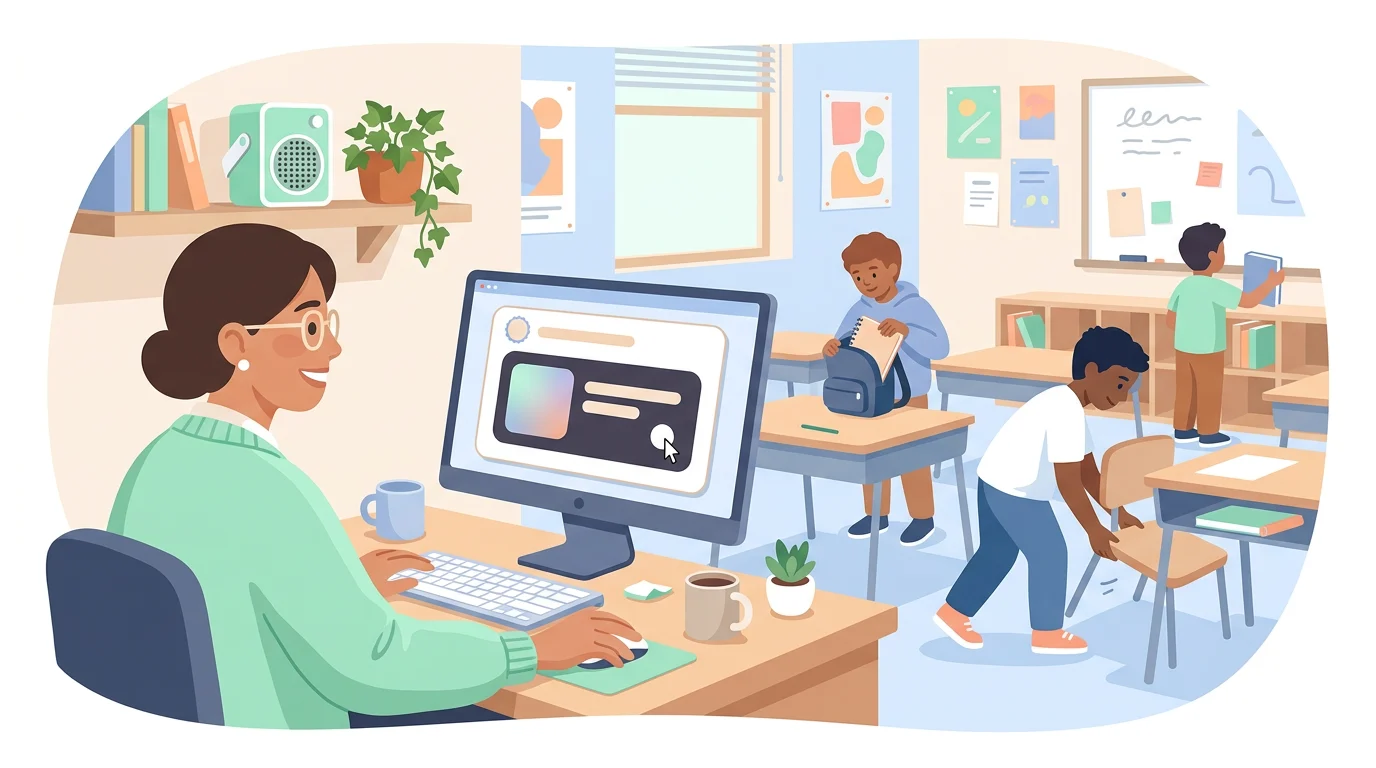
On the class page for quiet work, transitions and clean-up, and on lesson pages with a podcast episode to listen to. A title on each player means no hunting for the right playlist mid-lesson.
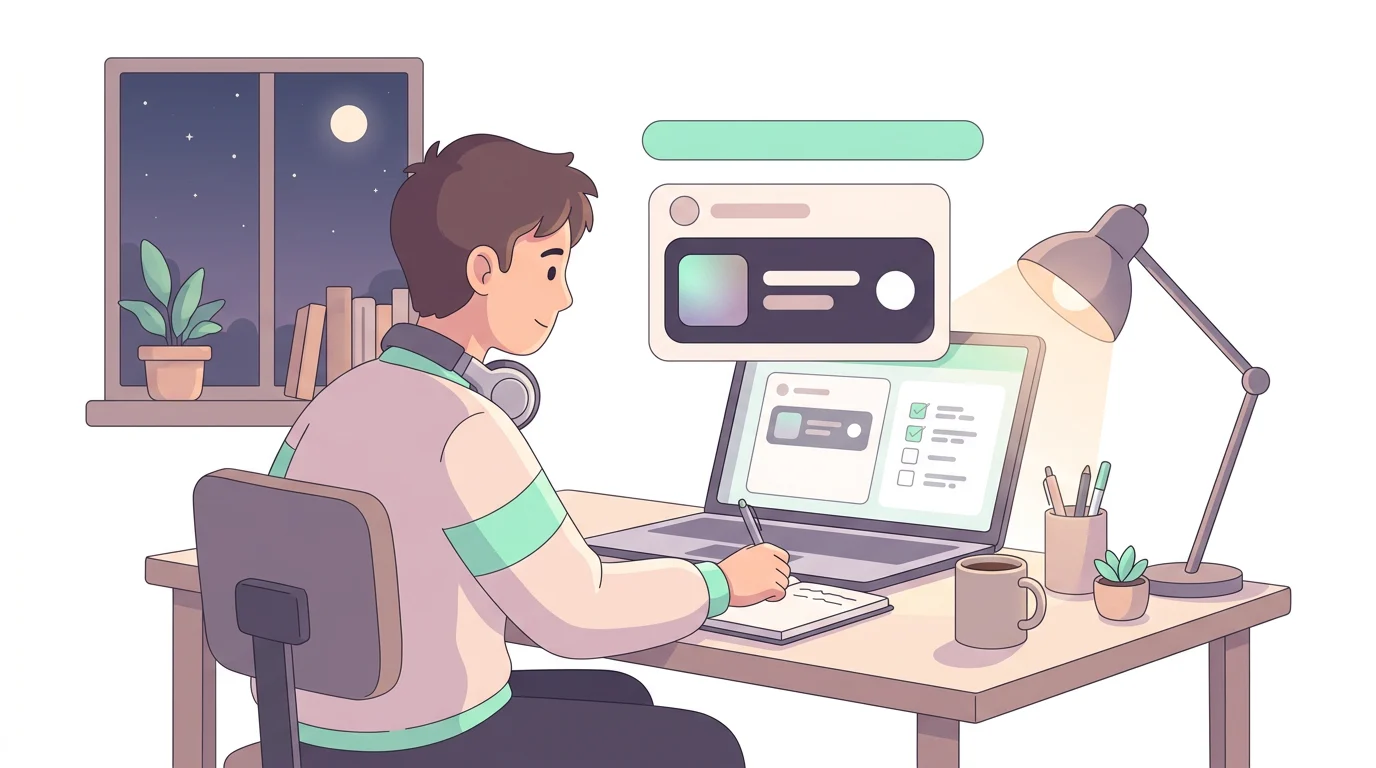
On a study dashboard with a focus playlist beside the to-do list and a timer. The player is on the page, so the music is there without opening the Spotify app.

On the day’s lesson page, with songs for music time or a story podcast for reading time. One page holds the plan and the sound, ready when the lesson starts.
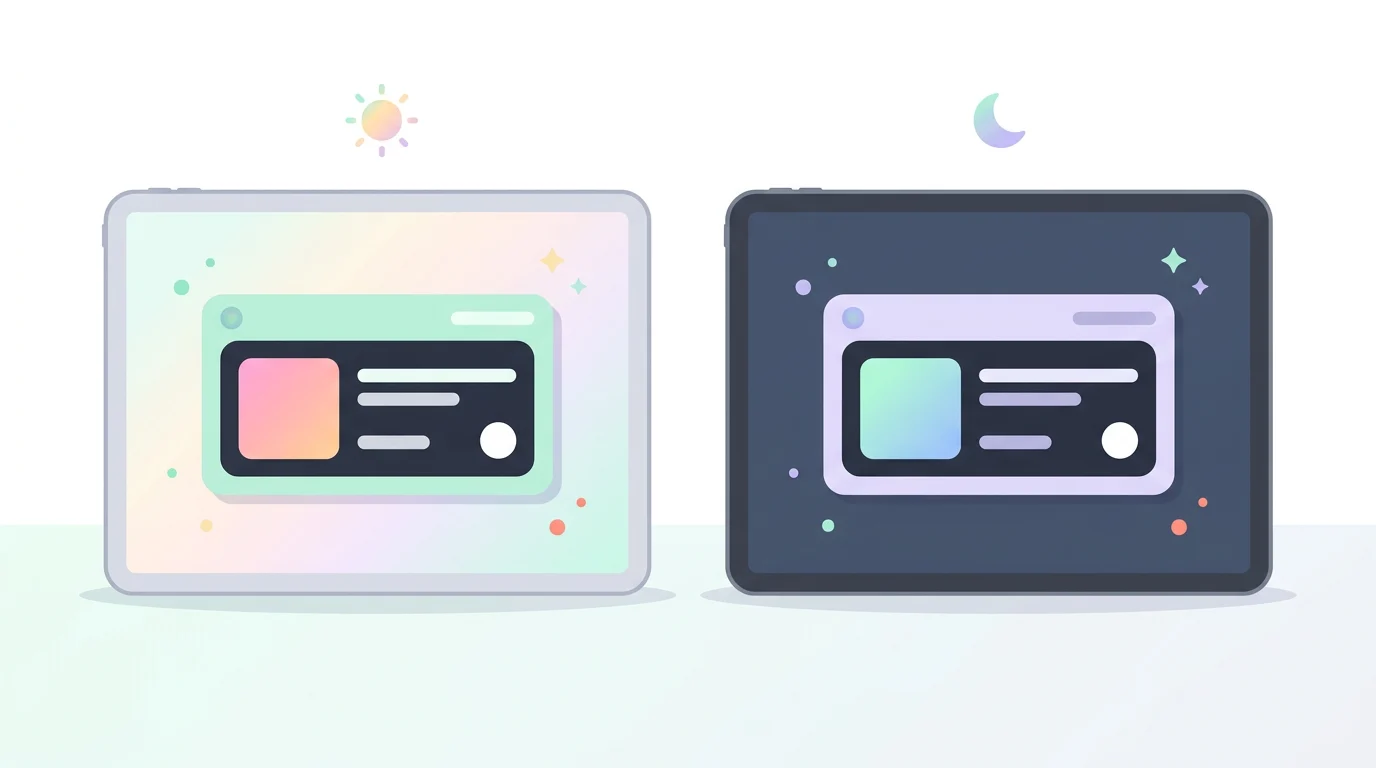
Pasted straight into Notion, Spotify’s player sits on the page as it is. Here it gets a frame in your colors that fills the whole block, on light and dark pages alike.
Notion shows the player alone. This one adds a line above it, like Clean-up songs or Listening lesson, and names the kind of link, so students know what they are about to hear.
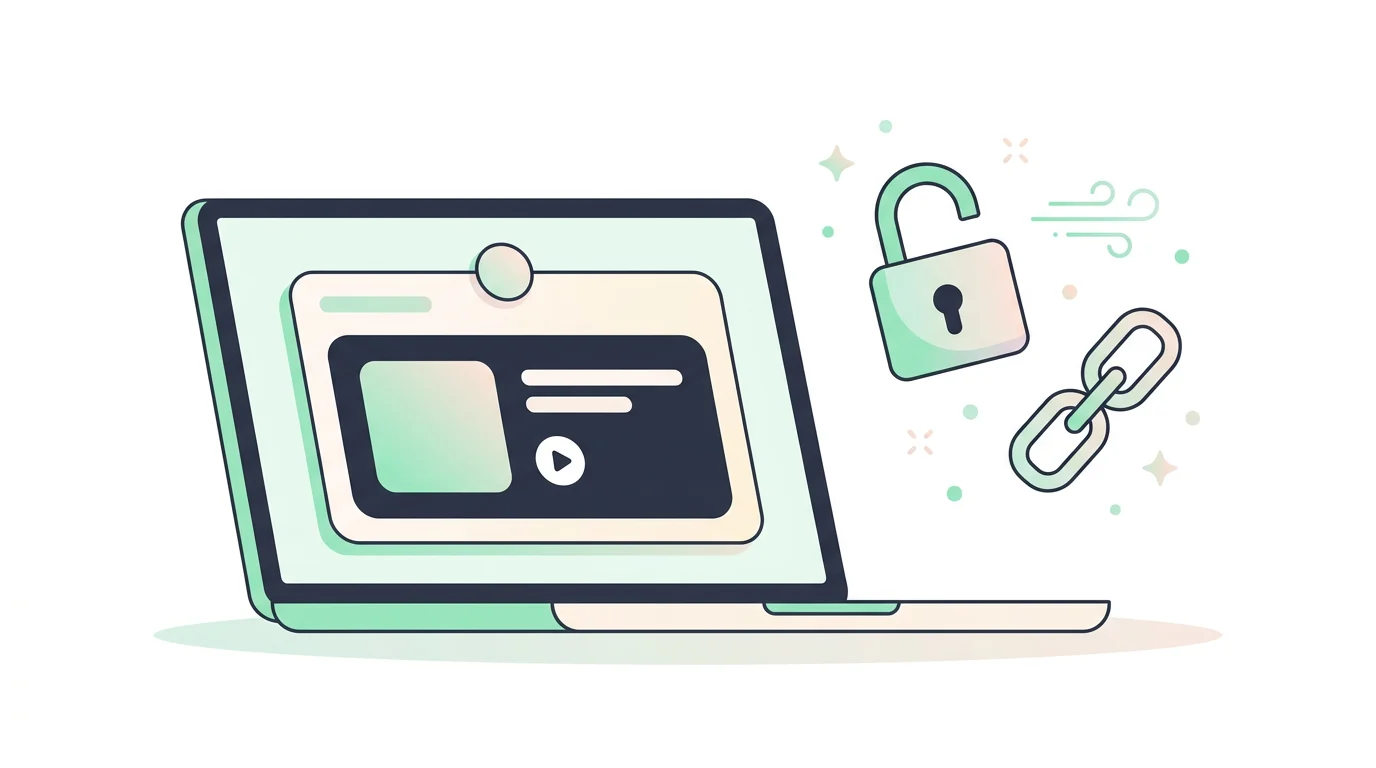
Many widget sites ask you to sign up before you can copy a link. Here you paste a Spotify link on this page and copy yours: no Spotify login, no keys, nothing to pay.
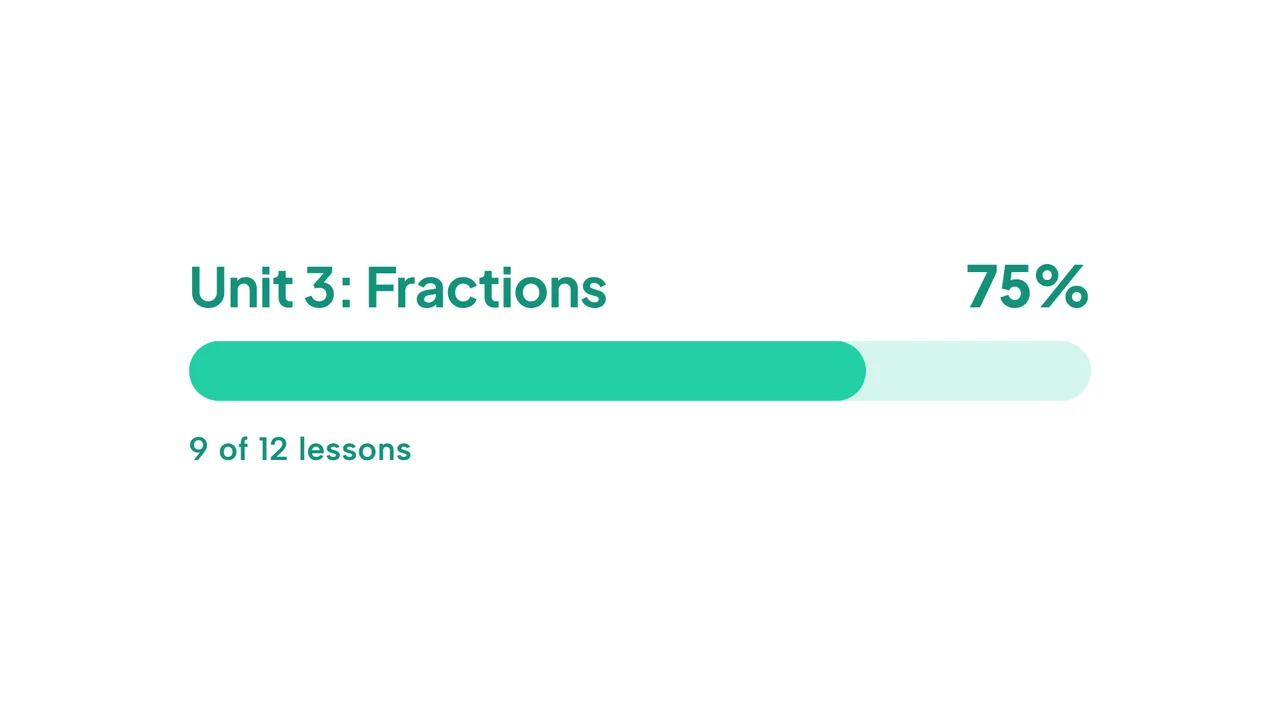
A bar, ring or battery that fills as you count lessons, pages or the days of a term.
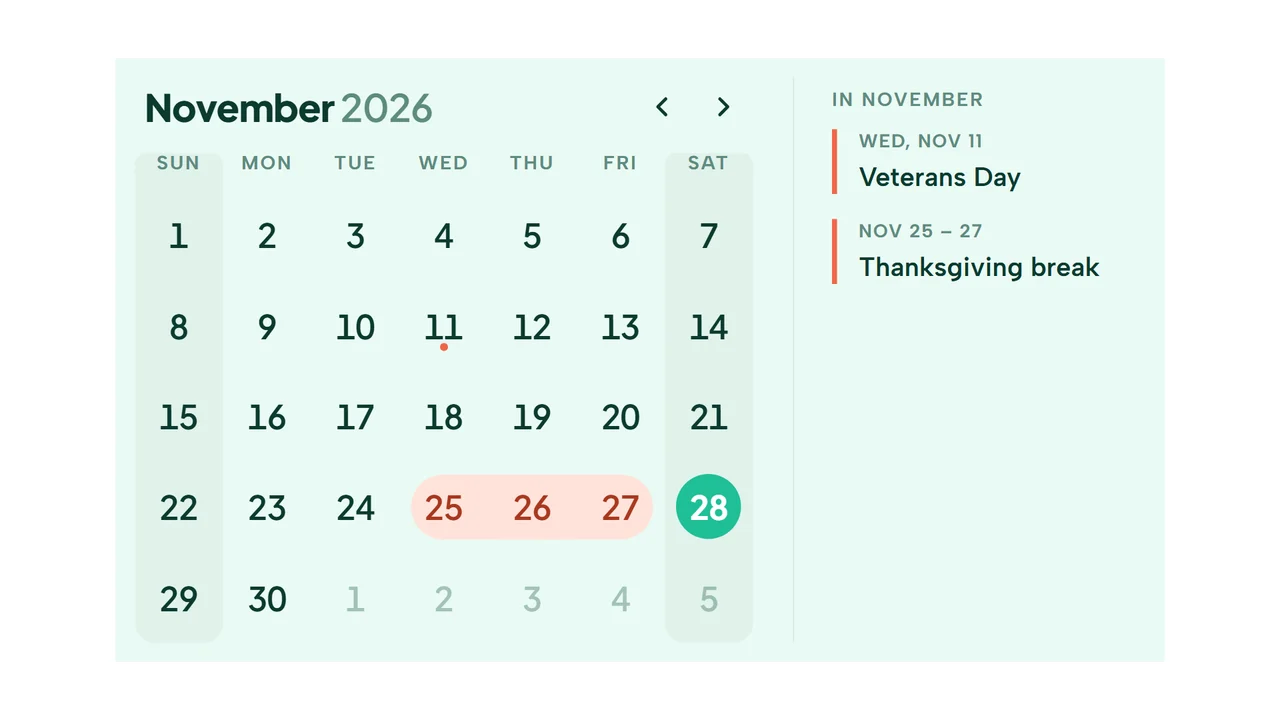
A month calendar with today marked, your colors and the holidays and tests you add.
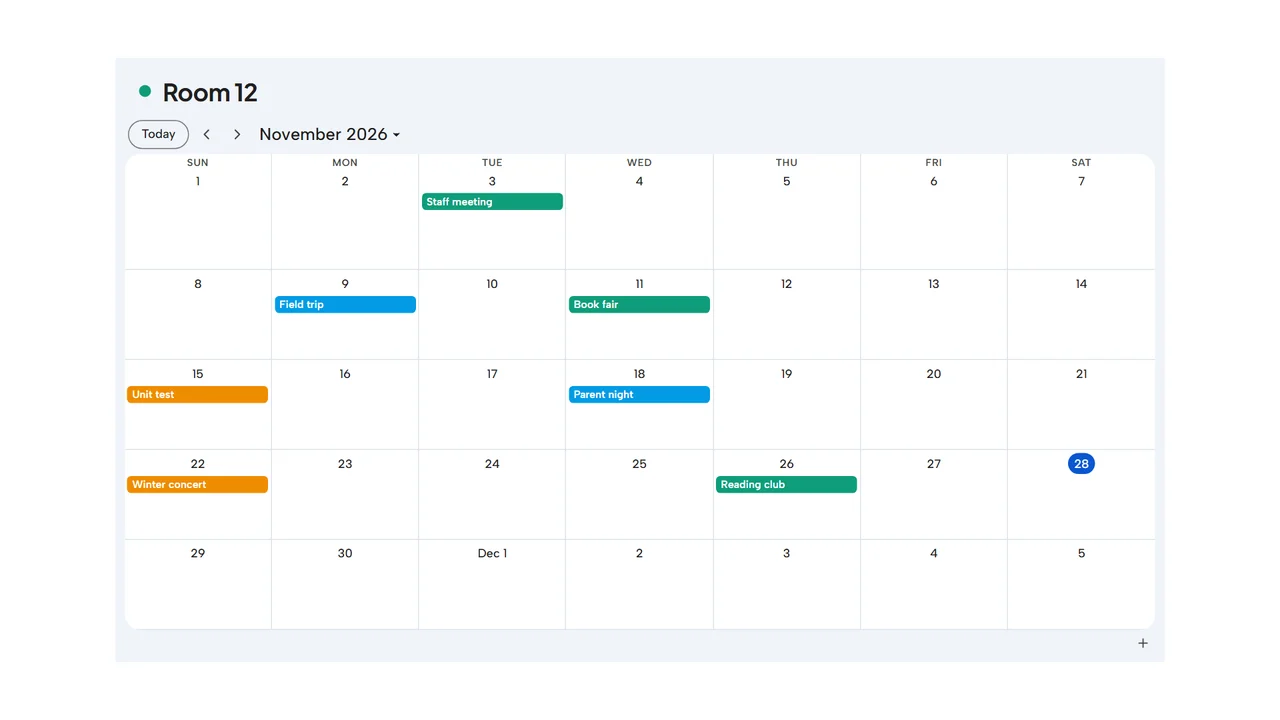
Your public Google Calendar in Notion, in month, week or agenda view, light or dark.
Two ways. Copy a link in Spotify with Share, then Copy link, paste it into Notion and choose Create embed, and Notion shows Spotify’s player as it is. Or paste the link at the top of this page, add a title and pick the frame, press Copy Widget Link and paste that into Notion instead.
Yes. The widget is free to set up, copy and use on as many Notion pages as you like. There is no account to make, no trial and no watermark, and nothing in the frame but Spotify’s player and your title.
Not to set it up. There is no login and no key to paste. To hear whole songs, the person listening needs to be logged in to Spotify in that browser or app. Without a login, Spotify’s player plays short previews and marks them Preview.
Anything Spotify’s player takes from a link: a playlist, an album, a song, a podcast episode, a whole podcast or an artist’s top tracks. Paste the share link, a spotify: address or the embed code from Spotify’s Share menu; the widget reads all three.
Links that start with spotify.link come from the phone app and only point to the real address, which the widget can’t look up. Open the link in a browser, copy the open.spotify.com address it lands on, and paste that instead.
No. Showing your current song needs your Spotify login and a server of our own to ask Spotify for it. This player has neither: it plays the one link you paste, and nothing about you or your listening is sent to us.
Yes. Pick one of six frame colors, from white Paper to near-black Night, and Spotify’s colored or dark look. Choose Compact for the short player, or Full to let a playlist fill a tall block with its track list.
Songs you add to the same playlist in Spotify show up by themselves. For a different playlist, paste its link on this page, copy the widget link again, delete the old embed block in Notion and paste the new link in its place, then choose Create embed.

The Complete Bundle has every Notion4Teachers template, with the Ultimate Teacher Planner at its heart.
Get Complete Bundle40% OFF!