The Best AI Lesson Planners for Teachers

Below are 17 AI lesson planners of four kinds: planners that live in Notion, all-in-one AI teacher assistants, AI lesson plan generators, and AI tools for differentiation and classroom activities. Ours come first, each with its own page. If you already plan in Notion, start with the free Notion AI Lesson Planner, or the paid Ultimate Teacher Planner if you want AI-made lessons filed in folders next to the rest of your week. If you'd rather use a separate site, MagicSchool and Flint are free for teachers and write a whole lesson plan from a grade and a topic.
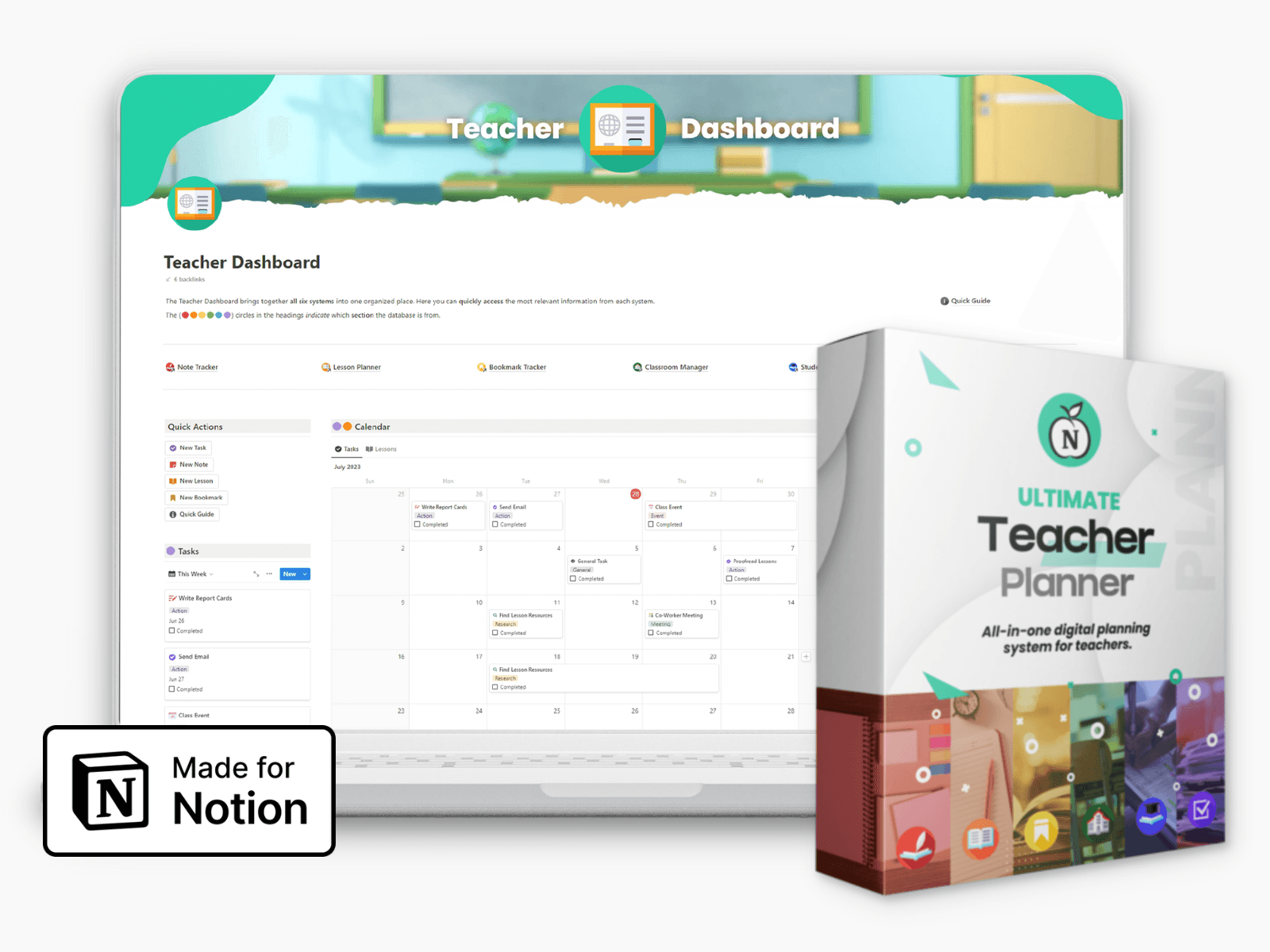
Ultimate Teacher Planner
The ultimate all-in-one education management system in Notion.
How to choose an AI lesson planner
Three questions narrow the list down quickly.
Where will the lessons live? The first two are Notion templates, so the lessons Notion AI writes are pages in your own workspace, next to your timetable and your to-do list. Every other tool here is a website you sign in to, and you copy what it writes into your planner yourself.
What do you need help with? A teacher assistant puts many AI tools for teachers in one place, and lesson plans are one of them. A lesson plan generator is built around the plan itself. The last group works on the lesson you already have: texts for different readers, and activities for the class.
Free or paid? MagicSchool, Flint and Khanmigo are free for teachers. Brisk Teaching, Eduaide.Ai and Monsha are free to start, and Kuraplan, TeacherMatic and Diffit are free to try, with paid plans beside. LessonPlans.ai and Auto Classmate are paid. Check what a free plan includes on the site itself before you build your planning around it.
AI lesson planners in Notion
These two are Notion templates. Notion AI writes the lesson from the details you choose, and the lesson stays in your workspace as a page you can edit, file and find again. The Ultimate Teacher Planner has a Notion AI Lesson Planner page inside a full teacher planner. The steps after this list show that page.
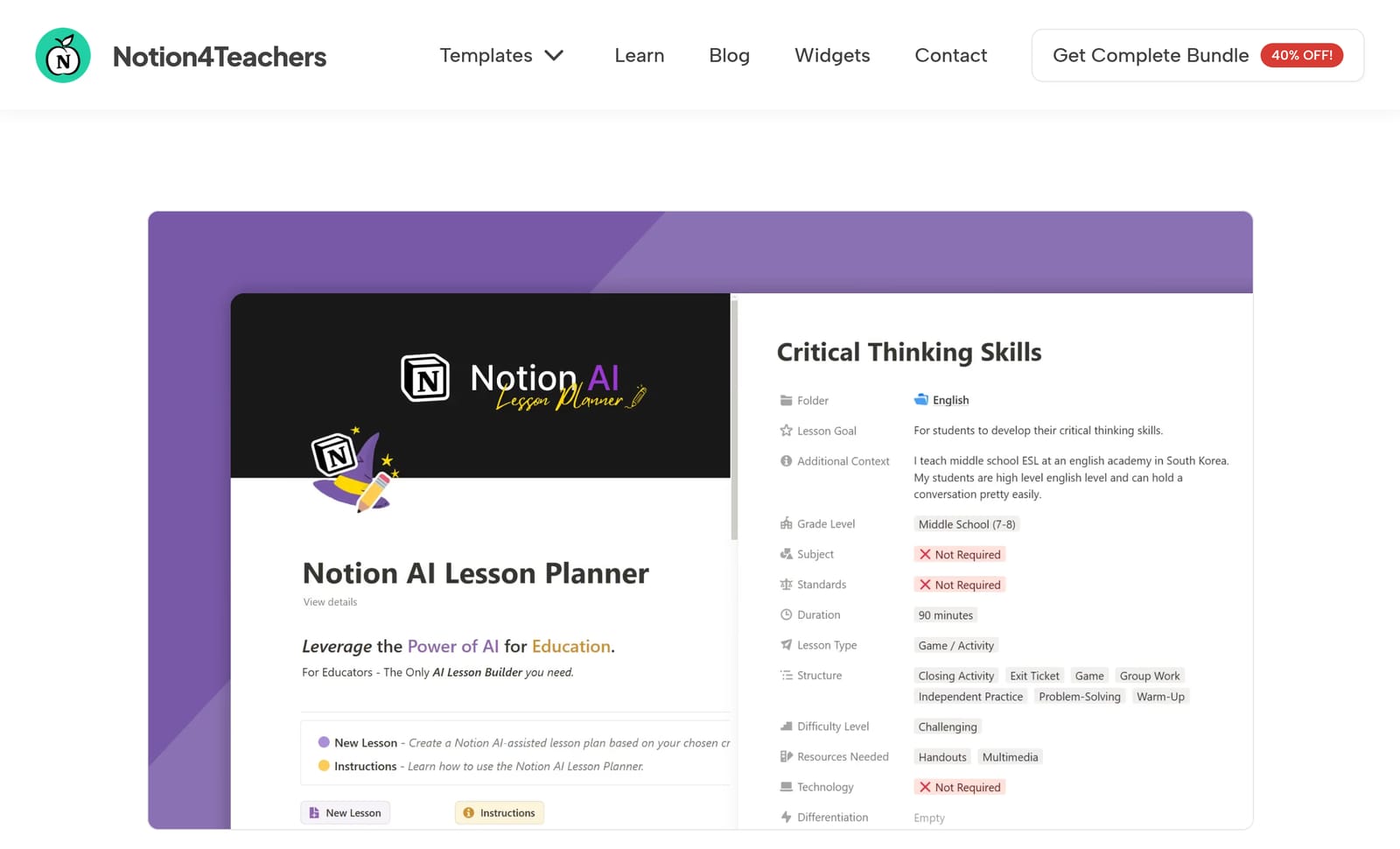
Notion AI Lesson Planner
A free Notion template for planning lessons with Notion AI. Its New Lesson button starts a Notion AI-assisted lesson plan, and an Instructions page explains how to use it. The sample lesson, Critical Thinking Skills, shows what you fill in: the lesson goal, context about your class, grade level, duration, lesson type, structure (exit ticket, game, group work), difficulty and resources needed. Free.
Get the Notion AI Lesson Planner
Ultimate Teacher Planner
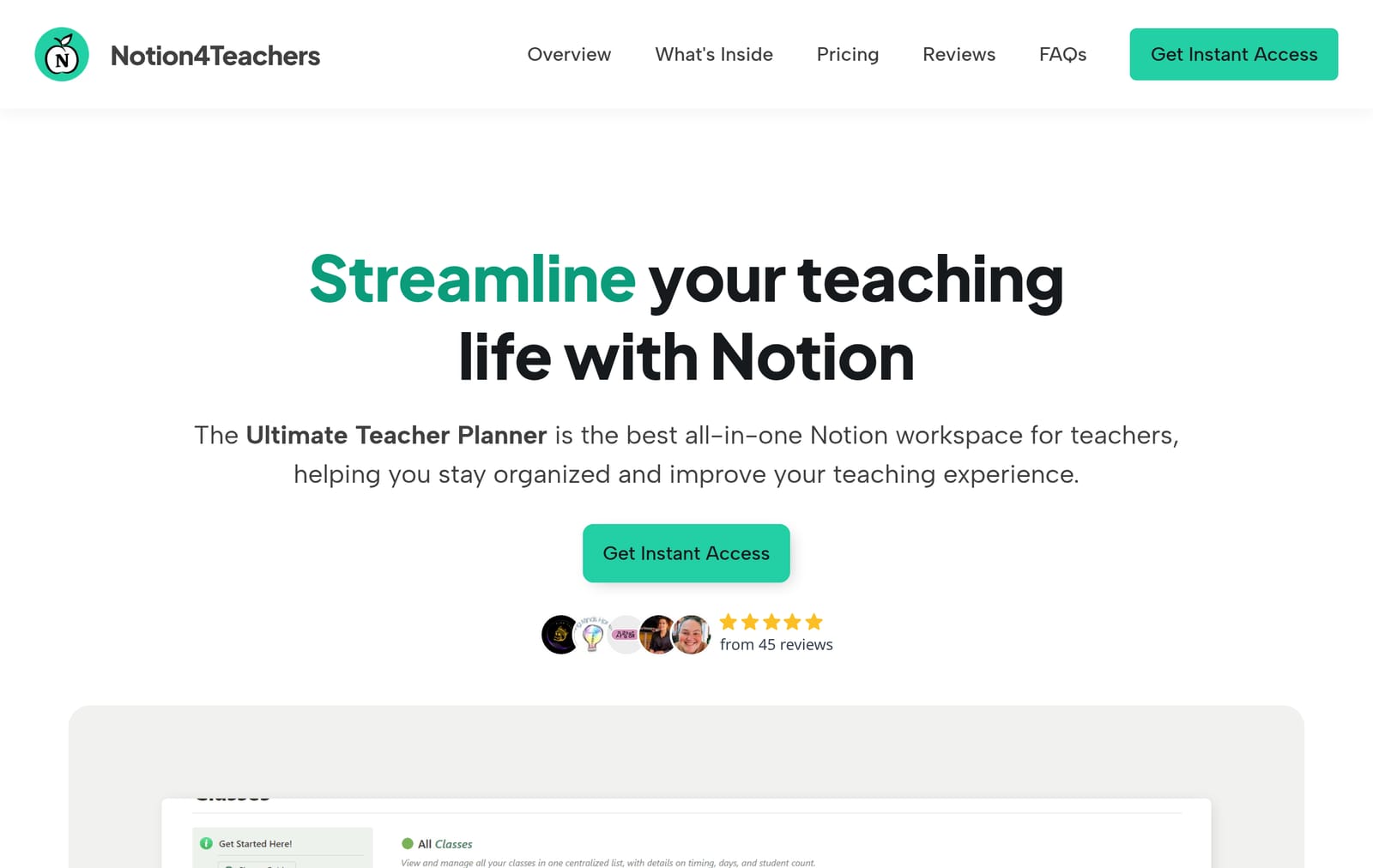
Our all-in-one Notion workspace for teachers, for a teacher who wants AI-made lessons next to their classes and the rest of their week. It holds a Notion AI Lesson Planner page, where the lessons Notion AI writes are filed in folders by subject or class (the how-to below shows it). Its page opens on a preview of the Classes page: one list of all your classes with their times, days and number of students. Paid: Get Instant Access leads to its page.
Get the Ultimate Teacher Planner
How to keep AI lesson plans in Notion
In the Ultimate Teacher Planner, the Notion AI Lesson Planner page holds every lesson you make with Notion AI in one database, and files each one in a folder (one per subject or class, for example). Here is the page in a copy of the planner.
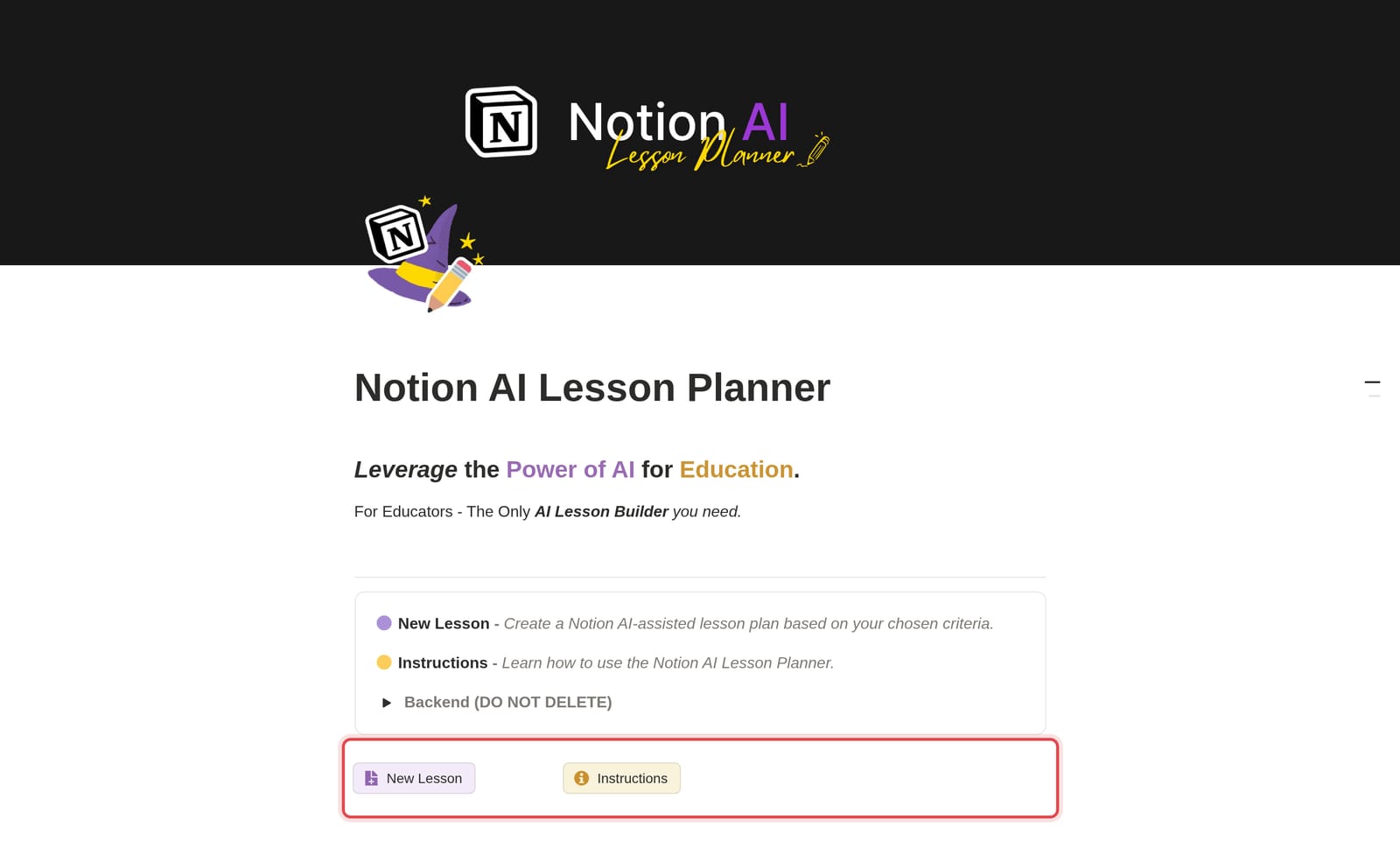
Open the planner and go to Notion AI Lesson Planner. At the top are two buttons: New Lesson ("Create a Notion AI-assisted lesson plan based on your chosen criteria") and Instructions ("Learn how to use the Notion AI Lesson Planner").
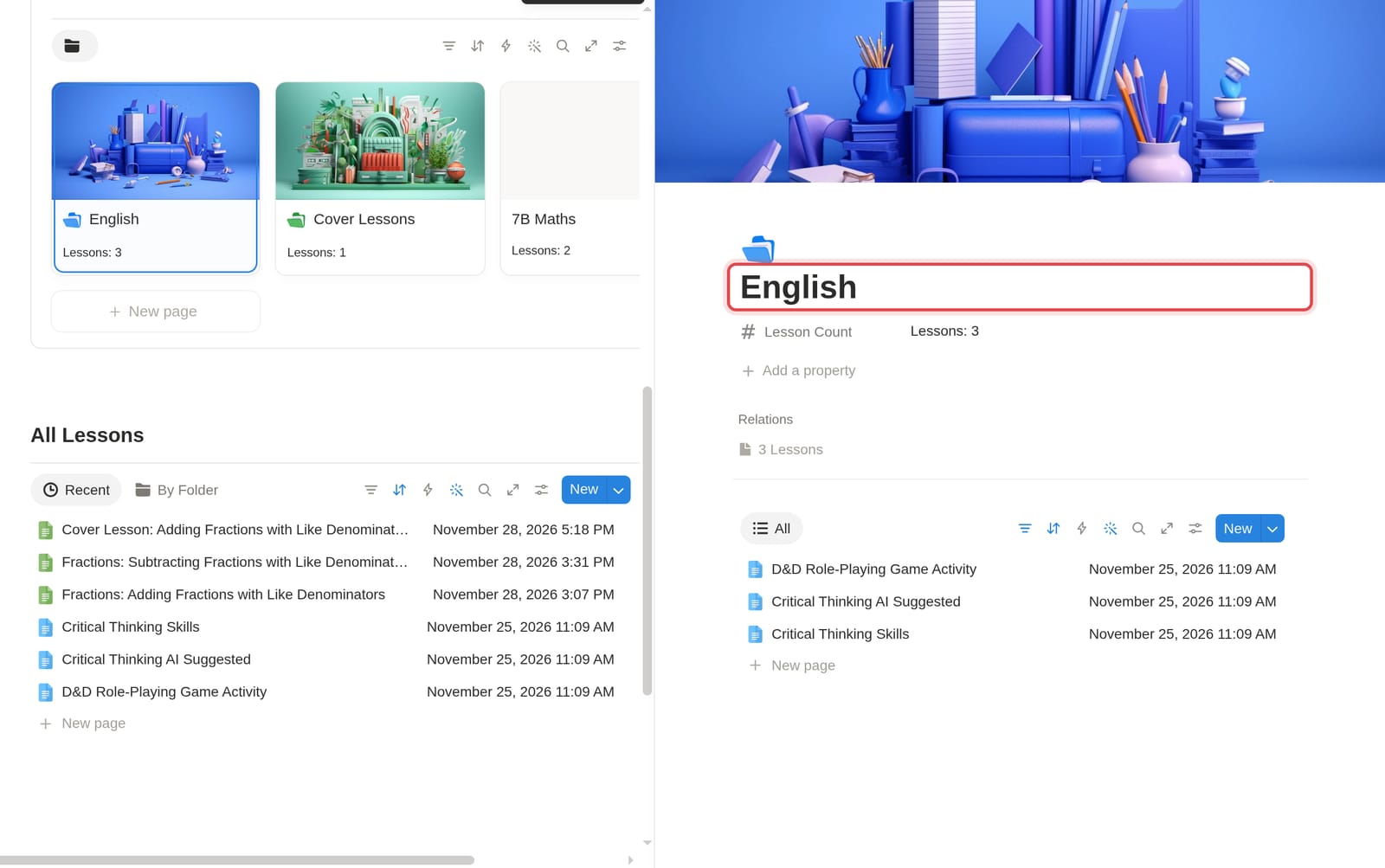
Scroll down. Lesson Folders shows a card for each folder with the number of lessons in it (English shows "Lessons: 3"). Below it, All Lessons lists every lesson with the date and time it was created. It has two tabs, Recent and By Folder.
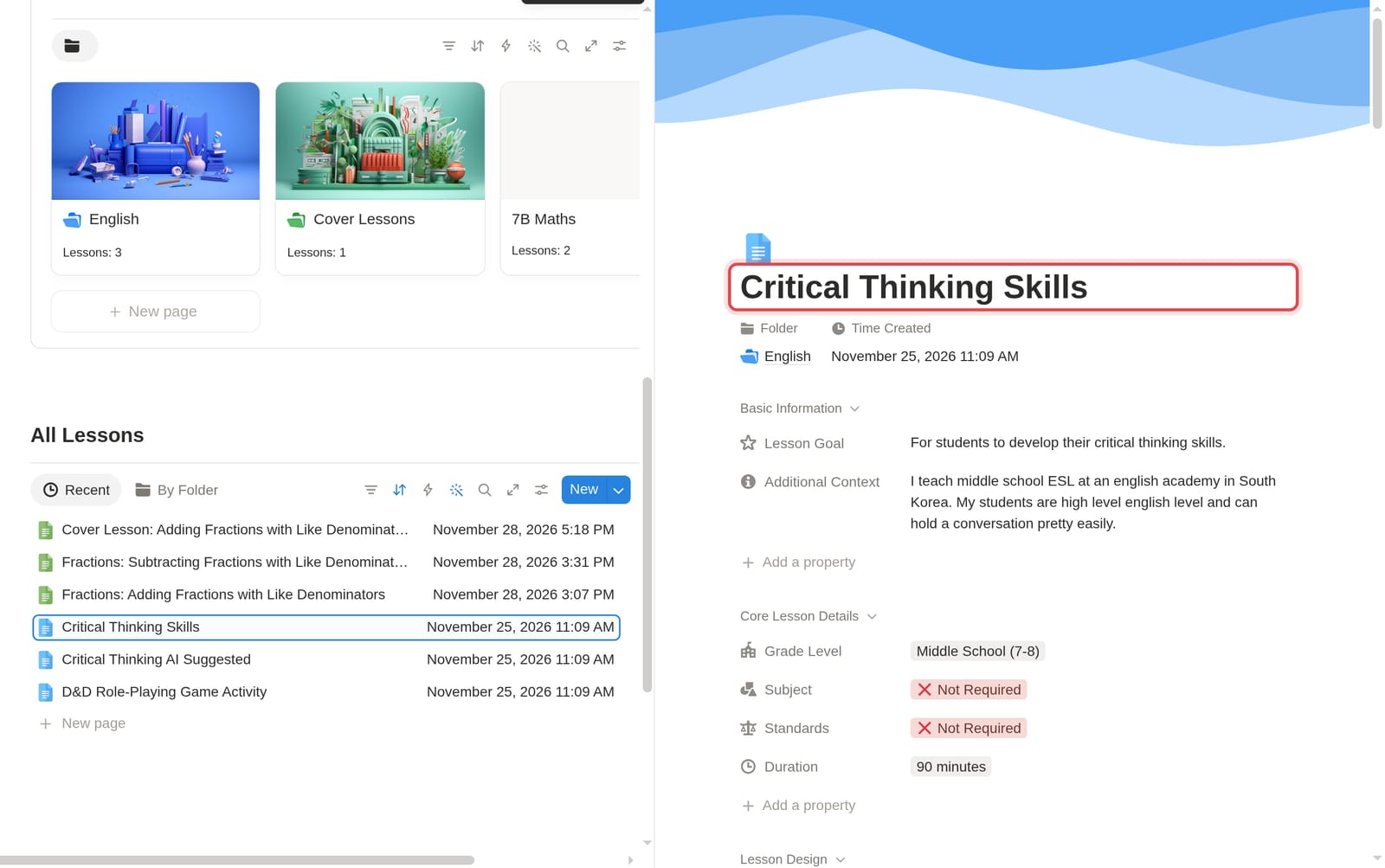
Click a lesson's name to open it beside the list. Here it is "Critical Thinking Skills". At the top are its Folder (English) and Time Created. Below them are the details Notion AI works from, in four groups:
Basic Information: Lesson Goal ("For students to develop their critical thinking skills.") and Additional Context (who the students are).
Core Lesson Details: Grade Level (Middle School (7-8)), Subject, Standards and Duration (90 minutes).
Lesson Design: Lesson Type (Game / Activity), Structure (seven parts, from Warm-Up to Exit Ticket) and Difficulty Level (Challenging).
Resources & Support: Resources Needed, Technology and Differentiation.
Under those come Summary, which Notion AI fills in, and Outline.
Close the lesson and click a folder card. The English folder opens with its Lesson Count ("Lessons: 3") and a list of its own lessons: D&D Role-Playing Game Activity, Critical Thinking AI Suggested and Critical Thinking Skills. When you want this term's English lessons, you open the folder and don't have to scroll through everything.
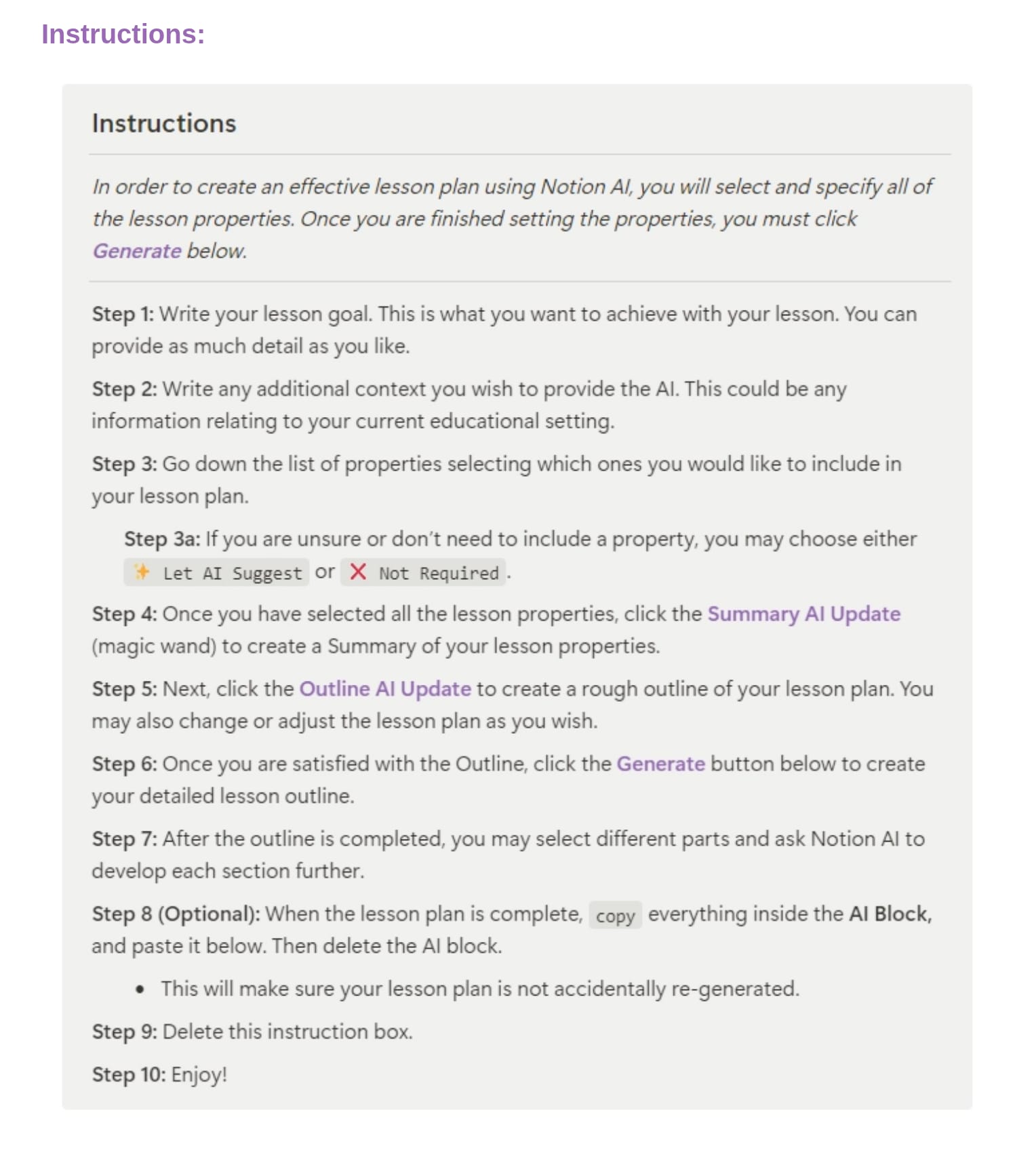
Back at the top of the page, press Instructions. The planner's guide opens over the page. It goes step by step: click New Lesson, give the lesson a name, select a folder, choose a template color, set the properties, then generate the lesson plan. Its example is a Dungeons & Dragons lesson for an ESL class. Its Instructions box tells you how to ask Notion AI for the lesson:
Write your lesson goal, then any additional context about your class.
Go down the properties and choose what to include. If you're unsure, or a property doesn't apply, choose Let AI Suggest or Not Required.
Click Summary AI Update (the magic wand) for a summary of your choices, then Outline AI Update for a rough outline you can change.
Click Generate for the detailed lesson, then ask Notion AI to develop any part of it further.
Optionally, copy everything inside the AI block, paste it below, and delete the AI block, so the plan can't be generated again by accident.
To get one of our templates, go to its page in the list above. On the free Notion AI Lesson Planner's page, press Free Download. It's free: the checkout asks only for your Email, then you press Complete order. The Ultimate Teacher Planner is paid. Its buttons, Get Instant Access and Get Ultimate Planner, lead to its page. To see what else it holds besides AI lessons, read the Ultimate Teacher Planner guide. If you'd rather build a planner yourself, follow how to create a lesson planner in Notion.
AI teacher assistants
A teacher assistant gathers many AI tools for teachers under one sign-in, and a lesson plan is one of them. These suit a teacher who wants help with more than planning. They live outside your planner, so you bring what they write back into it.
MagicSchool
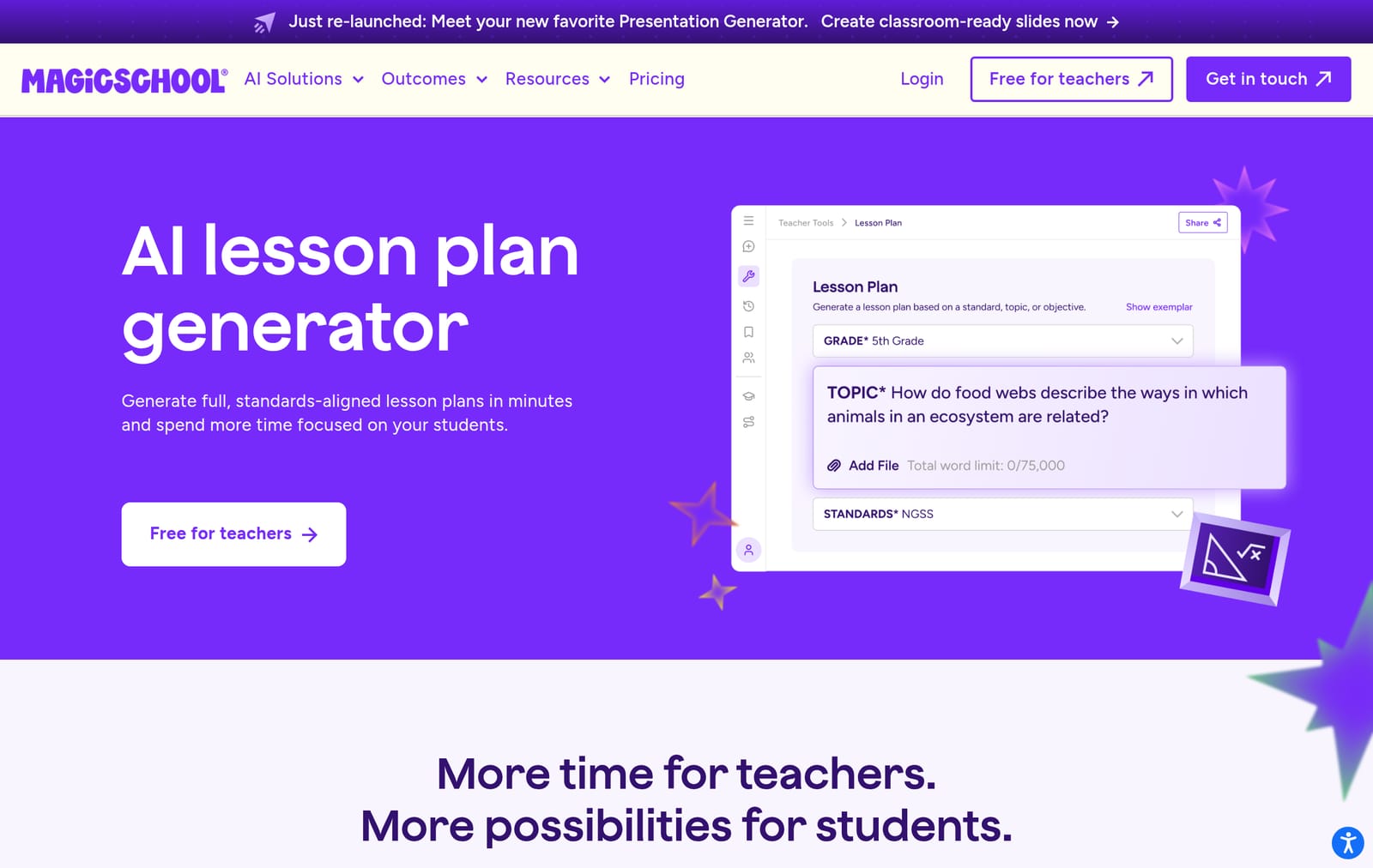
For a teacher who wants a full, standards-aligned lesson plan in minutes. You pick a grade, type a topic, choose your standards (NGSS, for example) and can add a file of your own, and it writes the plan from those. Free for teachers.
Brisk Teaching
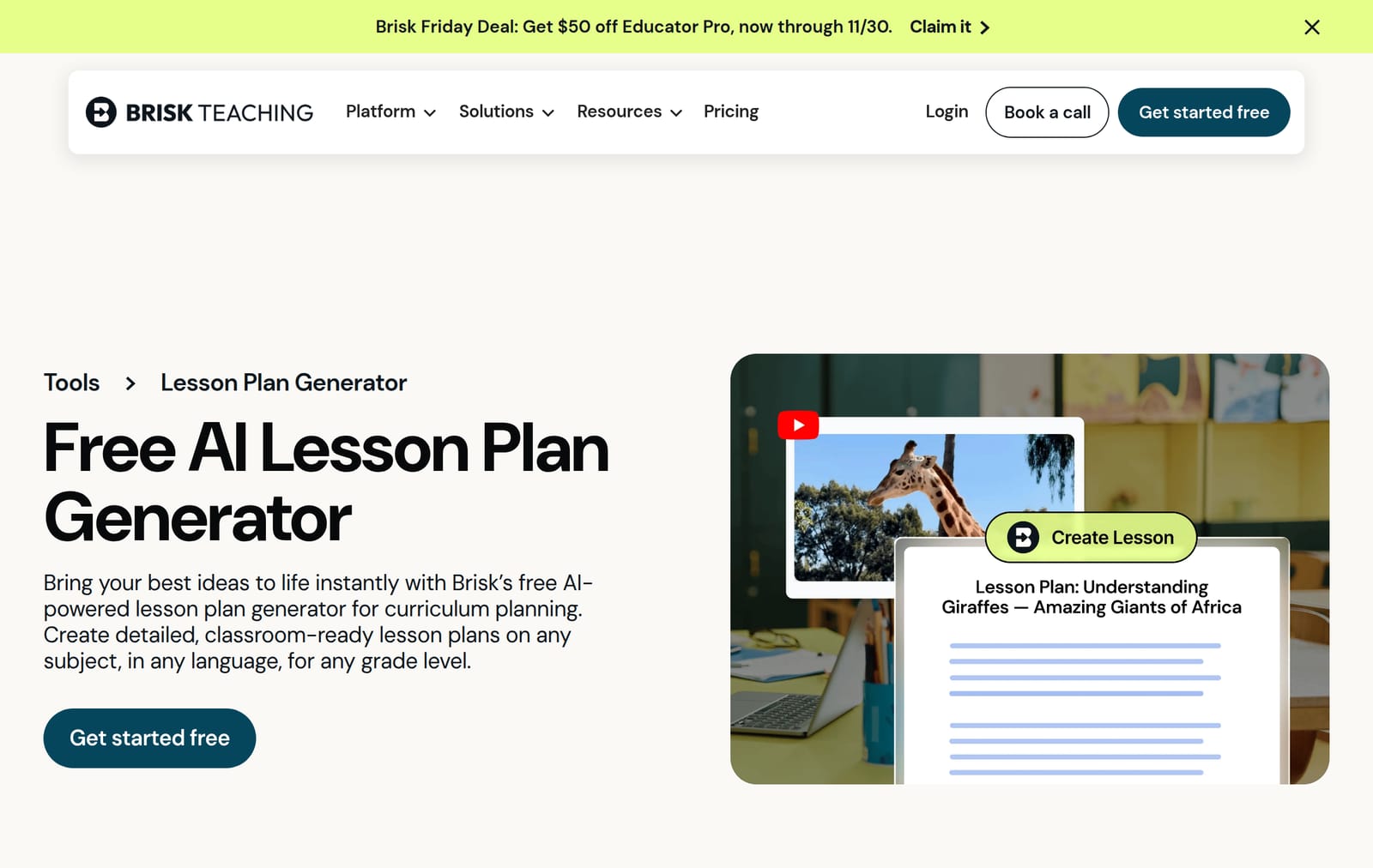
For a teacher who wants a detailed, classroom-ready lesson plan on any subject, in any language, for any grade level. It is Brisk's lesson plan generator, made for curriculum planning. Free to start with Get started free; a paid Educator Pro plan is offered too.
Khanmigo
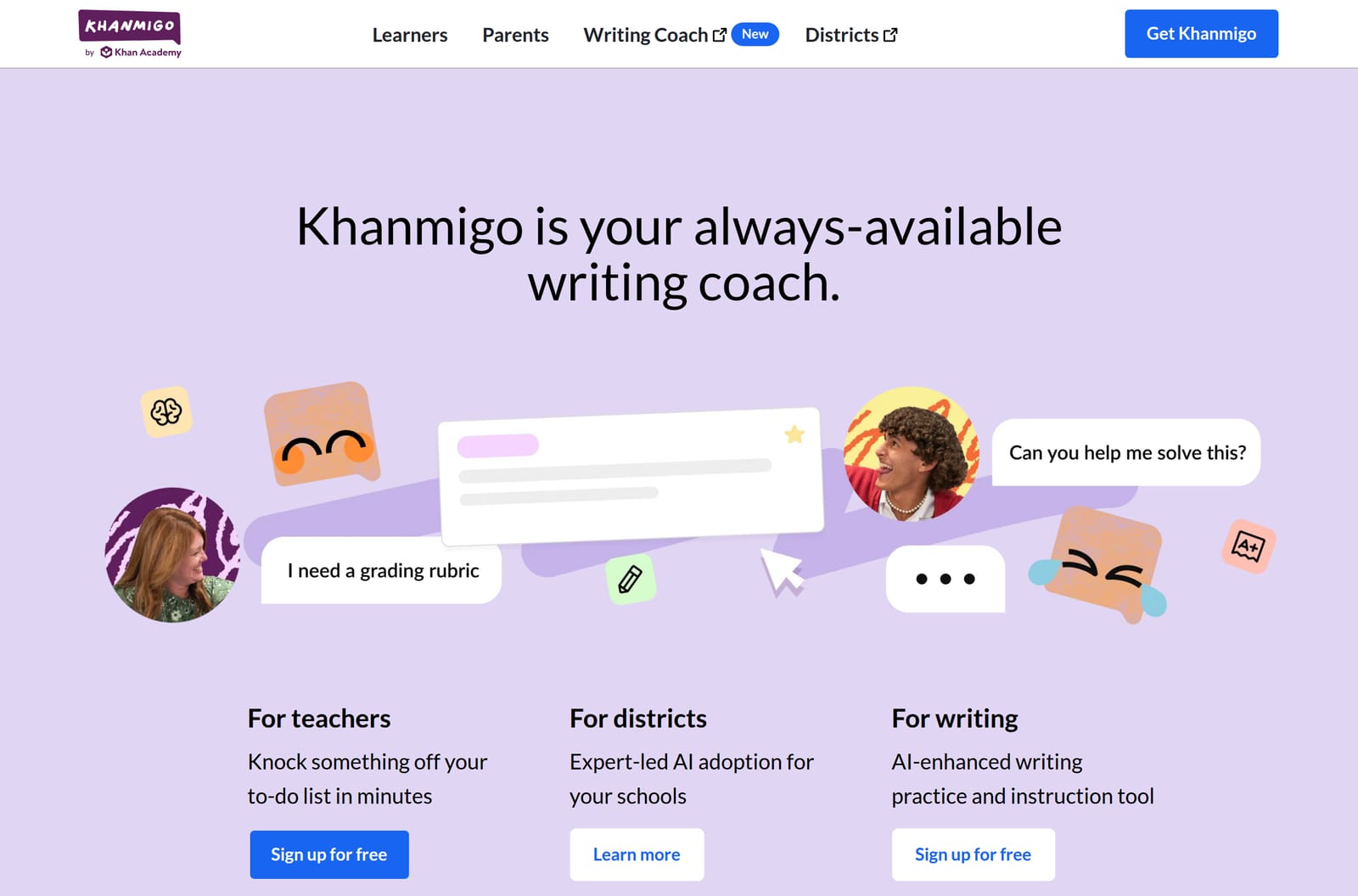
For a school that wants one AI assistant for students and teachers alike. Khan Academy's assistant leads with a writing coach for students; for teachers it promises to knock something off your to-do list in minutes, such as a grading rubric. Free for teachers: Sign up for free.
Eduaide.Ai
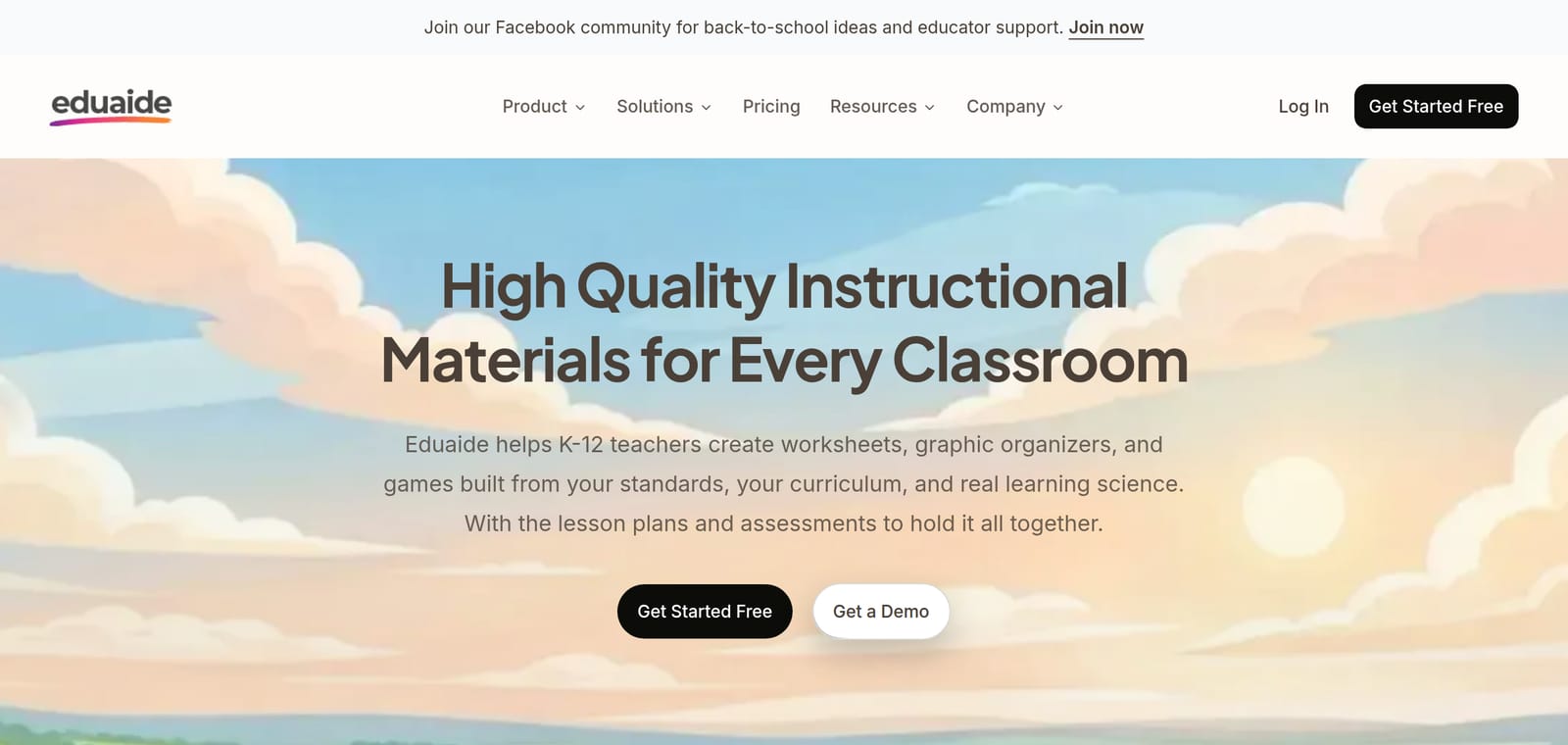
For a K-12 teacher who wants materials built from their own standards and curriculum: worksheets, graphic organizers and games, with lesson plans and assessments to hold them together. Free to start with Get Started Free; a school can ask for a demo with Get a Demo.
TeacherMatic
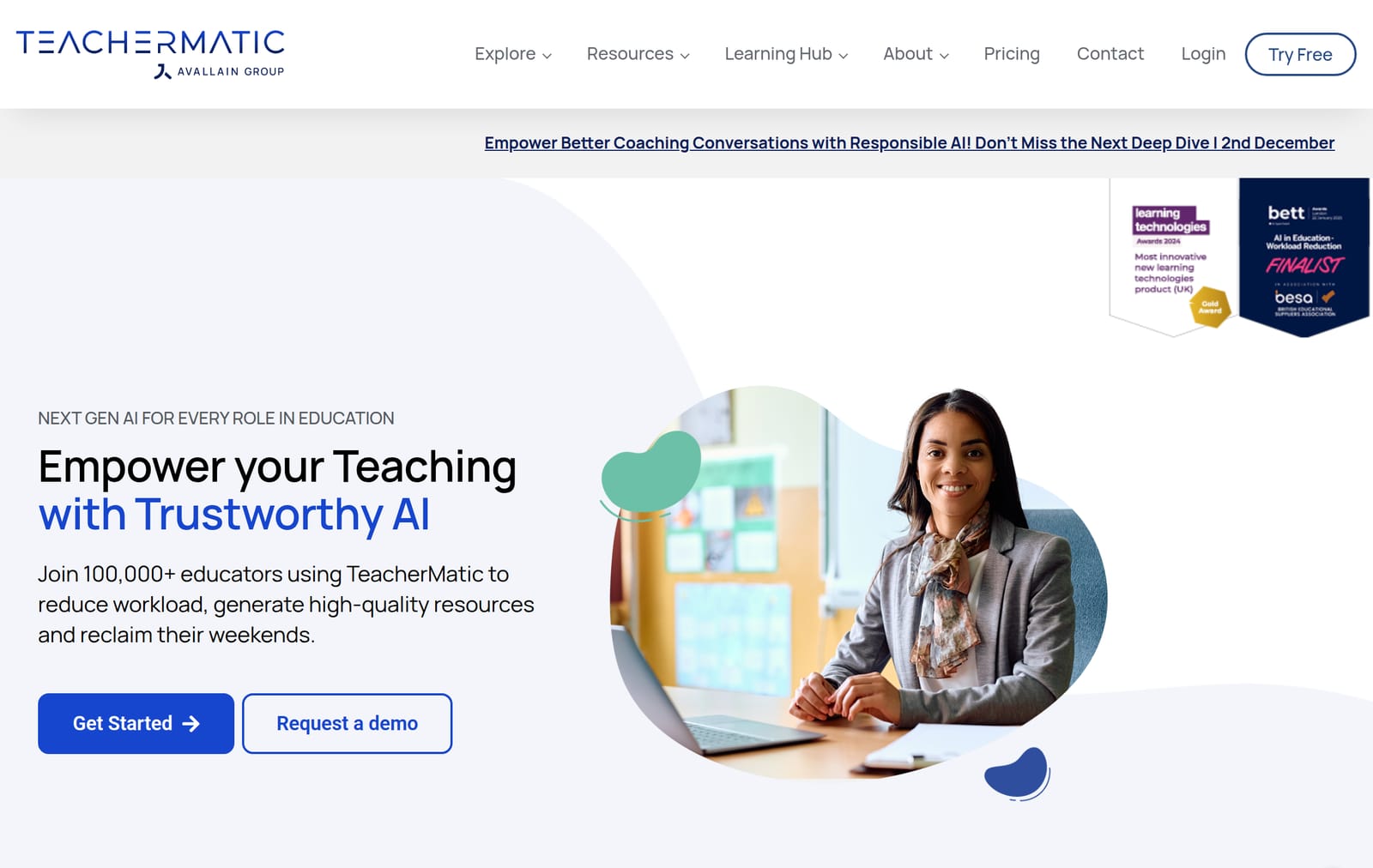
For a school that wants one AI toolkit for everyone on its staff, made to cut a teacher's workload by generating classroom resources. It comes from the Avallain Group. Free to try with Try Free; it also has a Pricing page and a Request a demo button for schools.
Flint
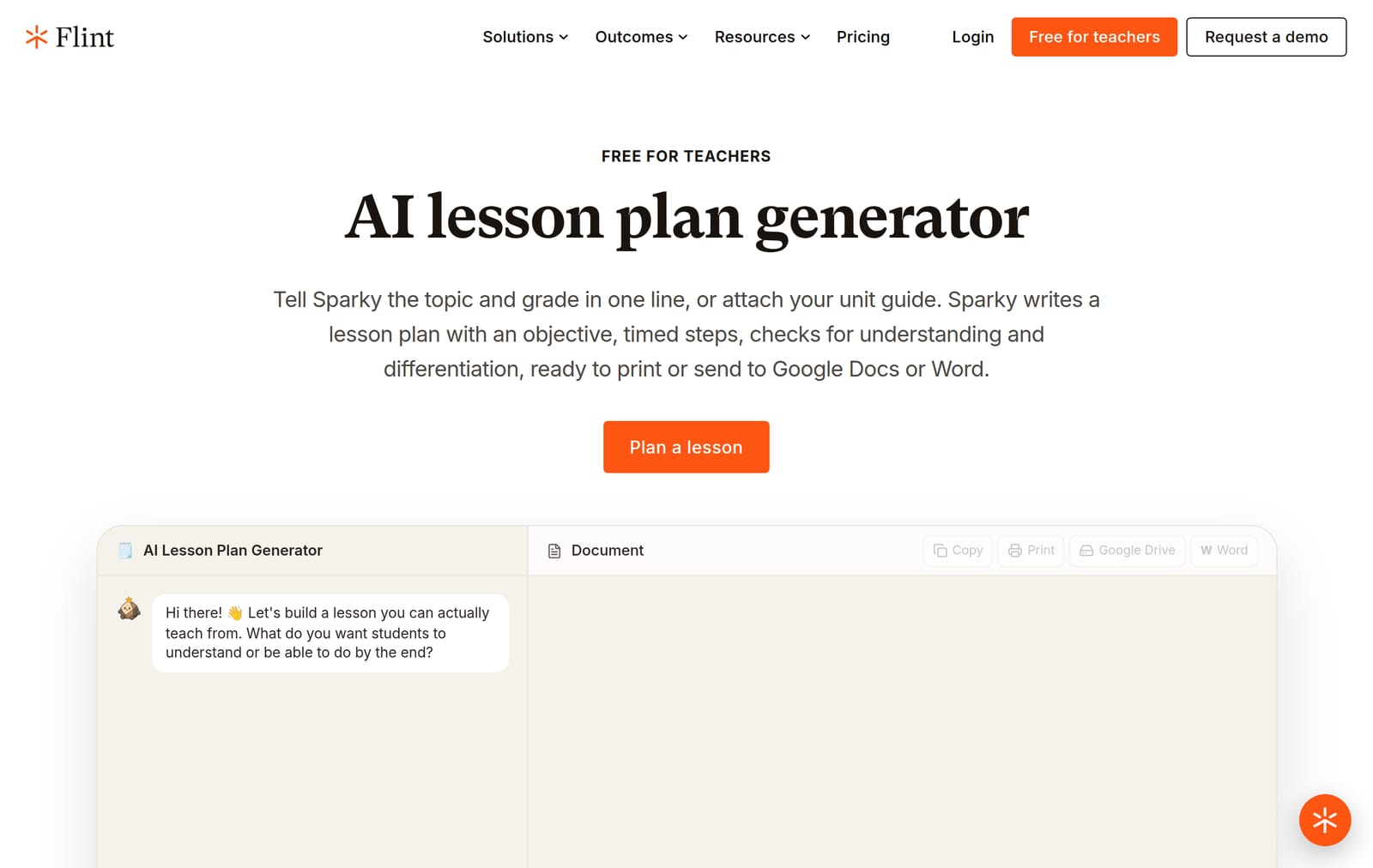
For a teacher who would rather describe a lesson in a chat than fill in a form. Tell Sparky the topic and grade in one line, or attach your unit guide, and it writes a plan with an objective, timed steps, checks for understanding and differentiation, which you can copy, print or send to Google Drive or Word. Free for teachers: press Plan a lesson.
ChatGPT
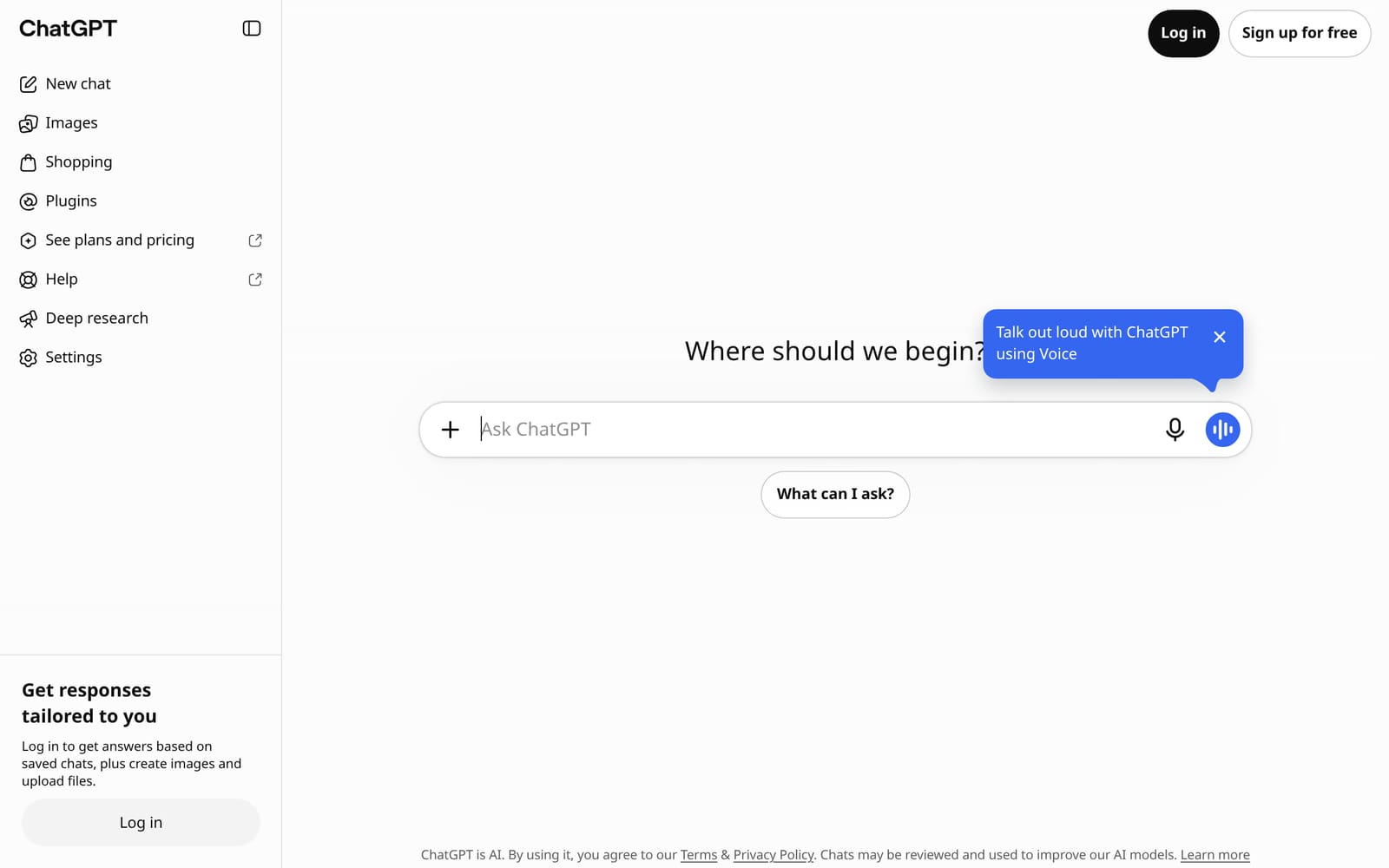
For a teacher who already uses ChatGPT and is happy to spell out the request. It is a general AI chat, not made for teachers: you type what you need into one Ask ChatGPT box, such as a lesson on a topic for the grade and length you name. Free: the box is there before you log in, and Sign up for free opens an account; it also has paid plans.
AI lesson plan generators
You describe the lesson you need and a generator writes a plan for it. These suit a teacher who wants a first draft quickly. Treat the draft as a starting point and check it before class (see below).
LessonPlans.ai
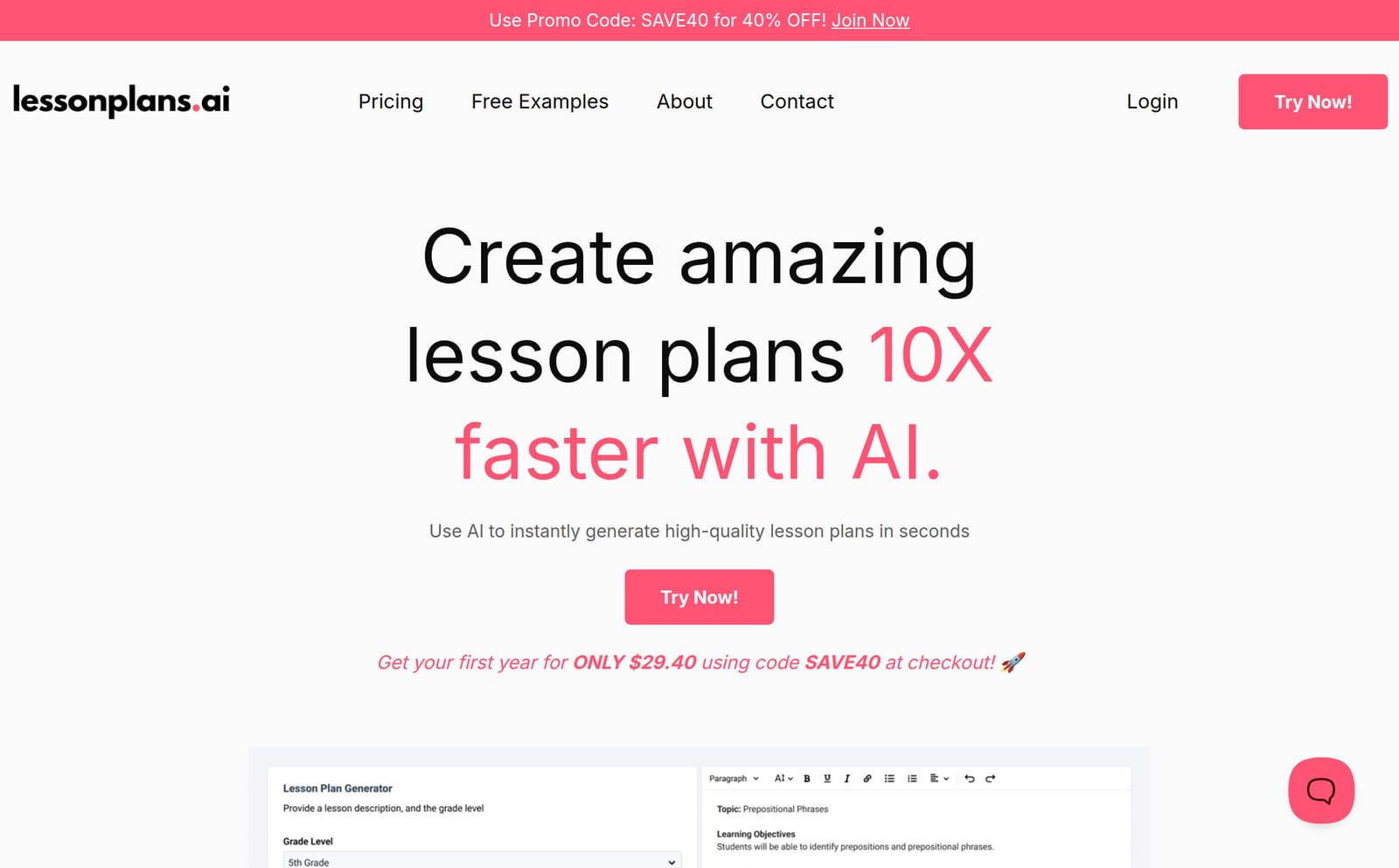
For a teacher who wants a plan from a one-line description. You write a short lesson description and choose a grade level, and it writes a lesson plan into an editor you can change, starting with learning objectives. It has Free Examples to read first. Paid, sold by the year.
Kuraplan
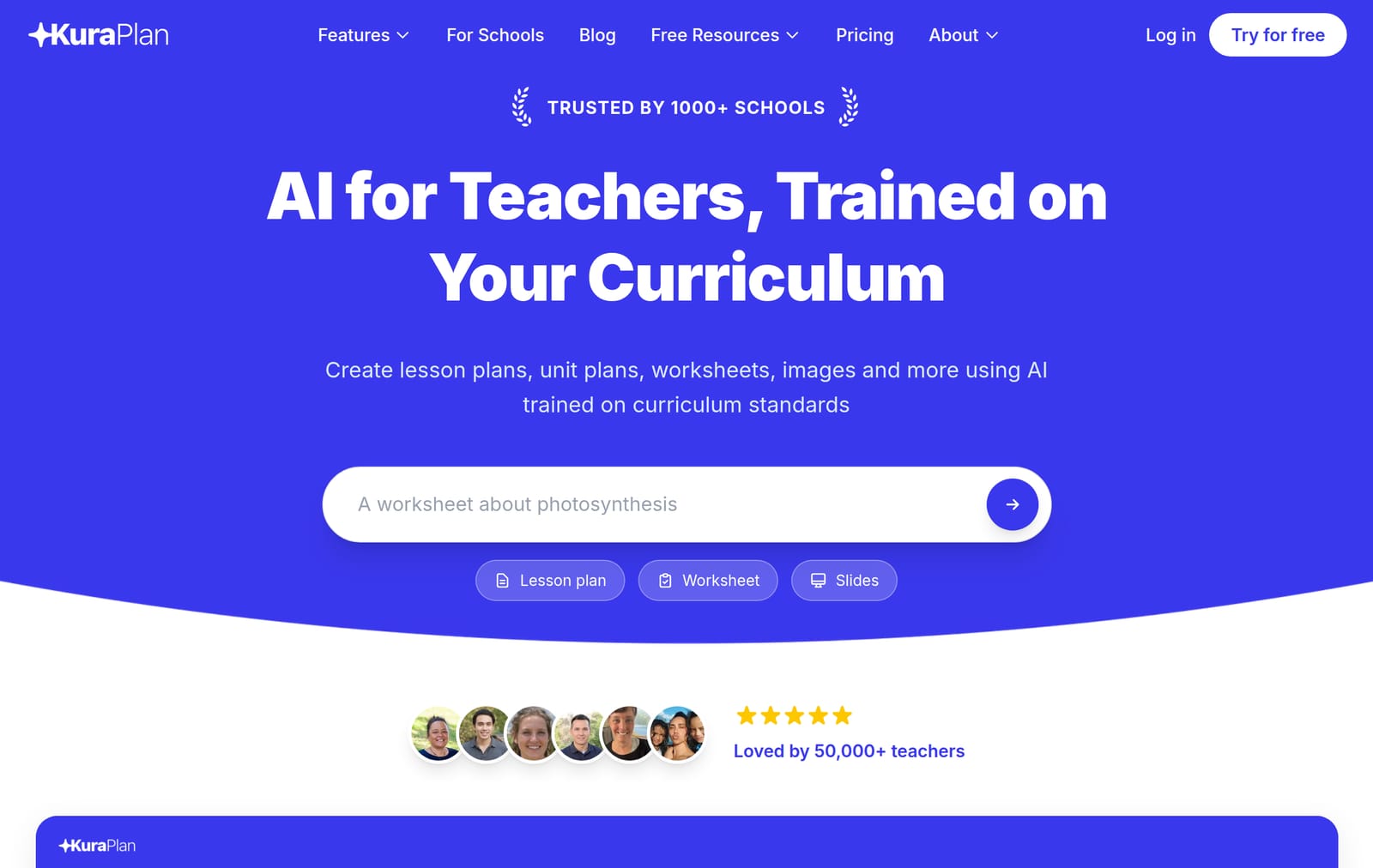
For a teacher who wants plans and materials from one box: lesson plans, unit plans, worksheets, slides and images, trained on curriculum standards. You type what you need and choose Lesson plan, Worksheet or Slides. Free to try with Try for free; its plans are on a Pricing page.
Chalkie
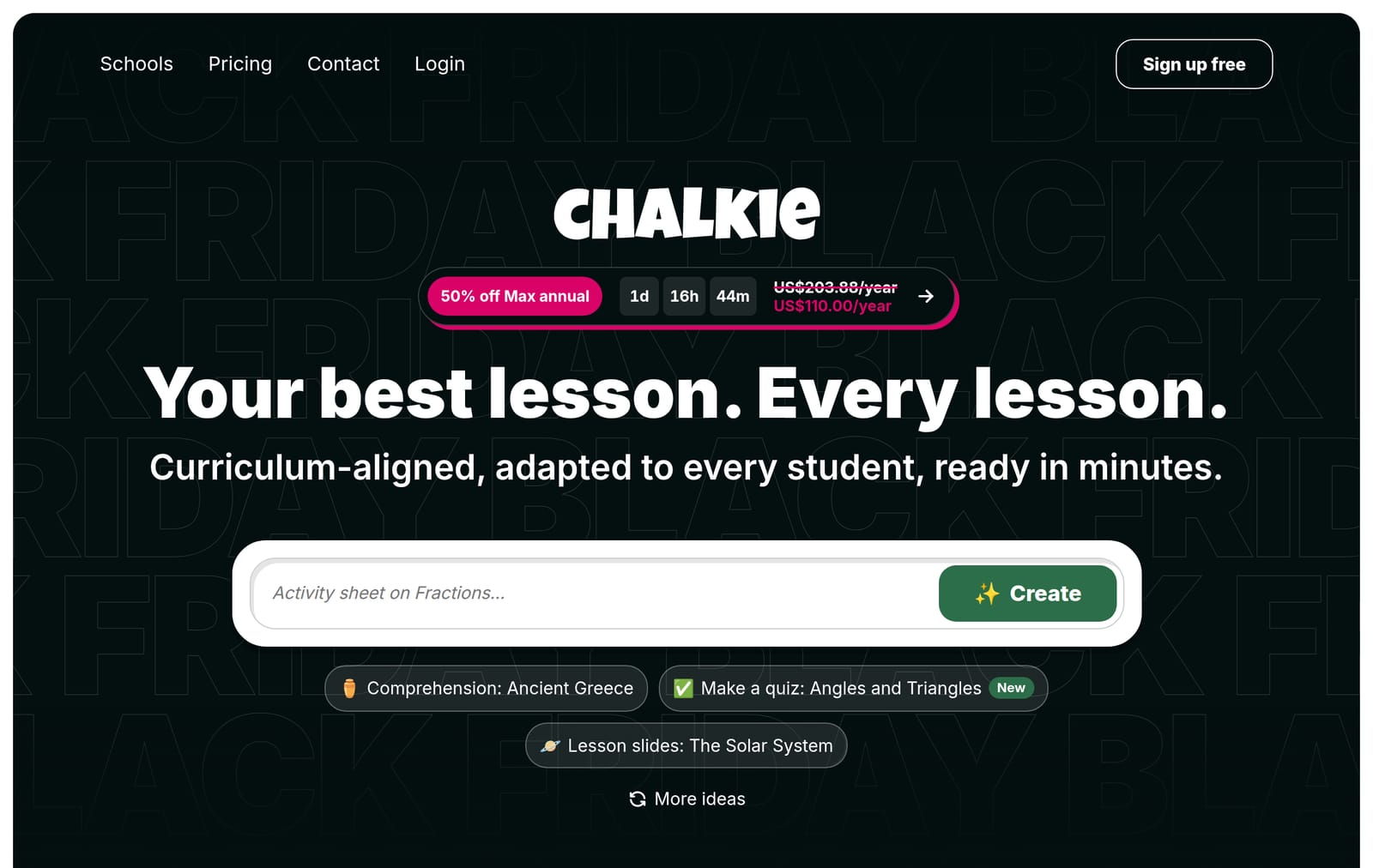
For a teacher who wants a lesson and its materials from one request: curriculum-aligned, adapted to every student, ready in minutes. You type what you need, such as an activity sheet on fractions, a quiz or lesson slides, and press Create. Free to sign up, with a paid Max plan sold by the year.
Monsha
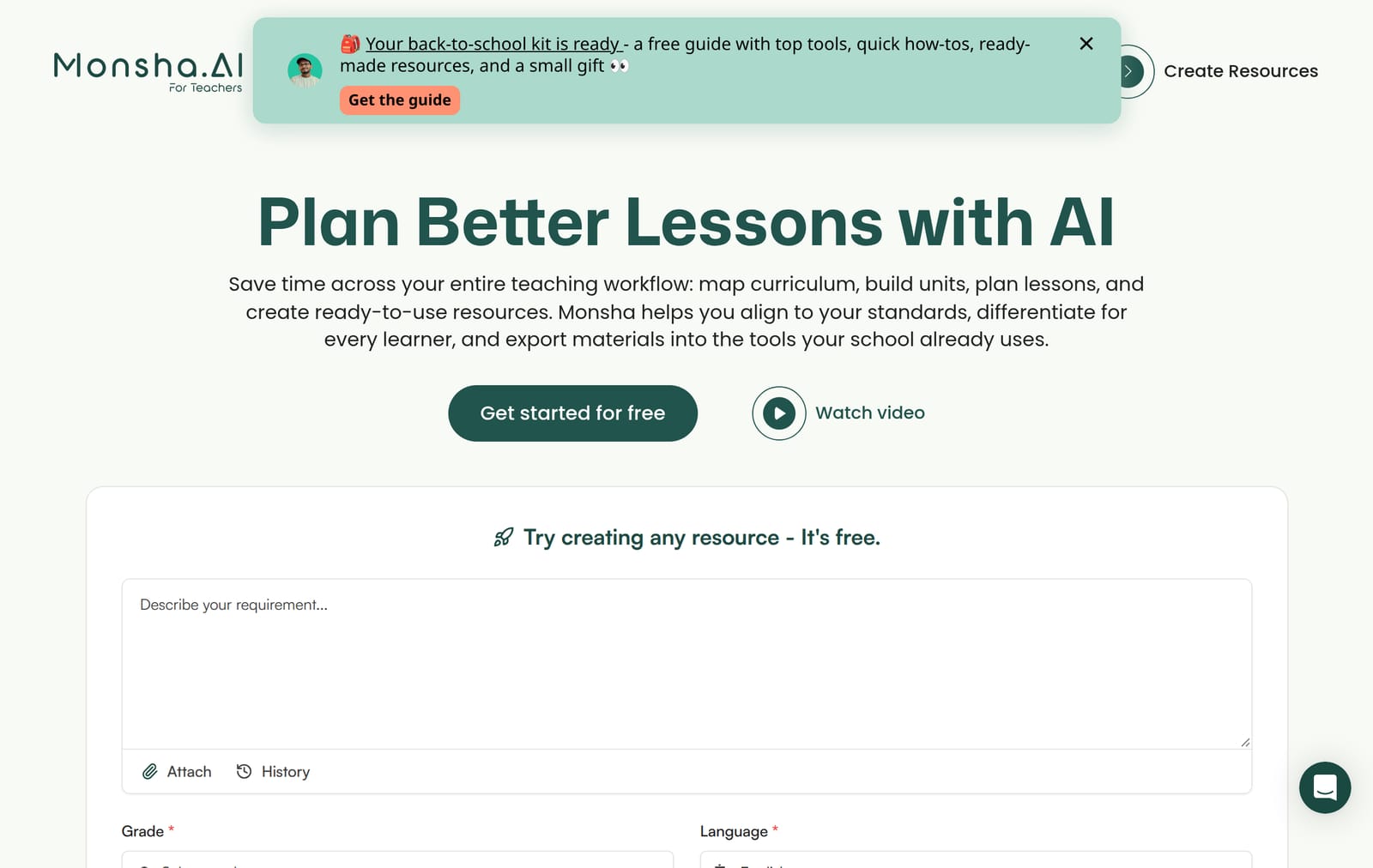
For a teacher or department planning a whole course, not one lesson at a time: it maps a curriculum, builds units, plans lessons and makes ready-to-use resources aligned to your standards, with differentiation and export to the tools your school already uses. You can try it on its home page: describe the resource you need, then choose a grade and a language. Free to start with Get started for free.
Aila by Oak National Academy
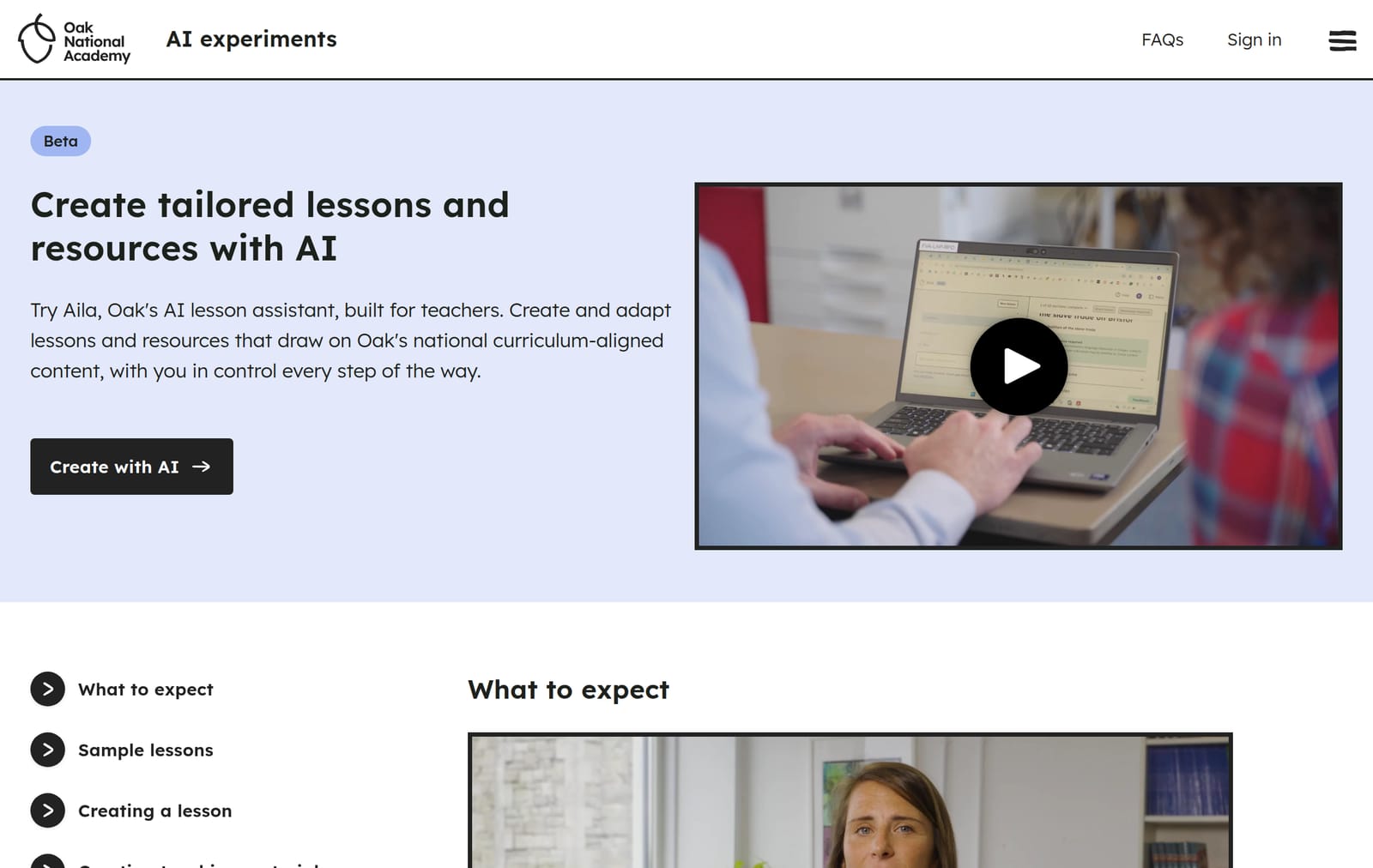
For a teacher who wants lessons built from Oak National Academy's national curriculum-aligned content, with the teacher in control of each step. Aila, Oak's AI lesson assistant, still in Beta, creates and adapts lessons and resources: start with Create with AI. Its page also has a video, sample lessons and a guide to creating a lesson.
Get the Aila by Oak National Academy
Auto Classmate
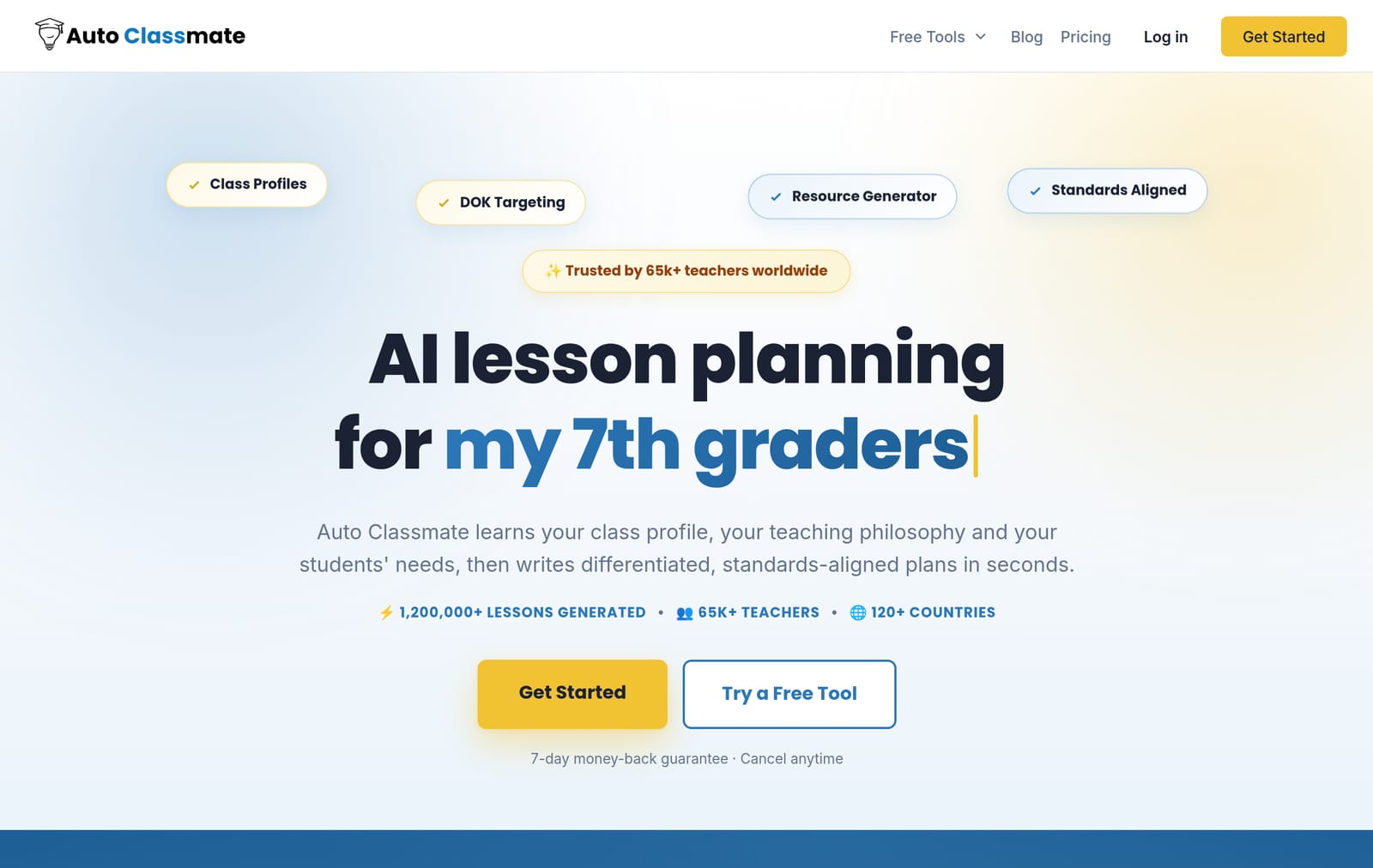
For a teacher who wants plans written for one particular class. It learns your class profile, your teaching philosophy and your students' needs, then writes differentiated, standards-aligned lesson plans, with DOK targeting and a resource generator. Paid, with a 7-day money-back guarantee; Try a Free Tool and a Free Tools menu offer some tools for free.
AI tools for differentiation and classroom activities
These tools work on the lesson rather than the plan: a text rewritten for different readers, or an activity for the whole class. They sit beside your planner rather than replacing it.
Diffit
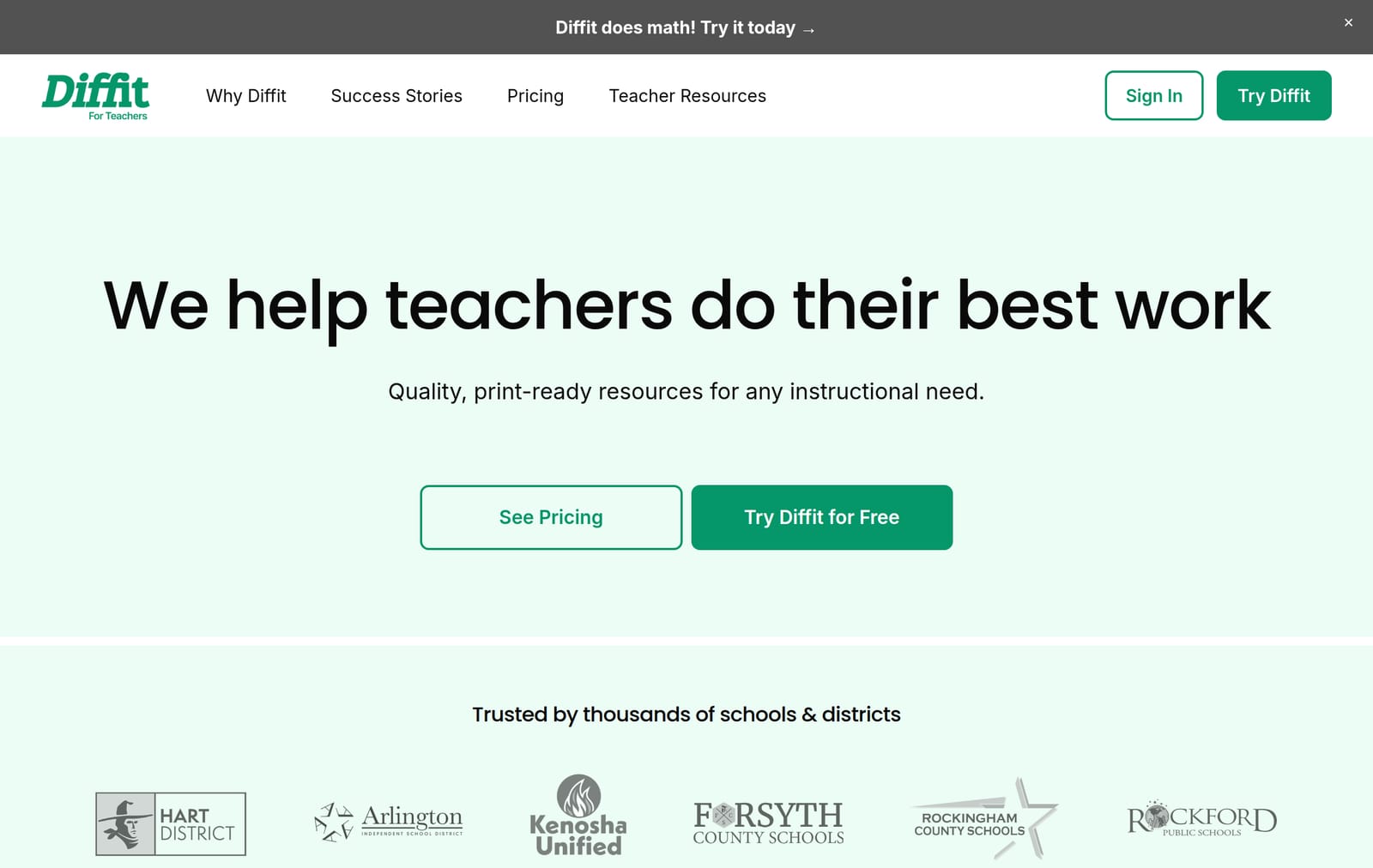
It suits a teacher who needs a reading or an activity ready to print for tomorrow. It makes print-ready classroom resources for any instructional need, and now does math too. Free to try with Try Diffit for Free, and it has a See Pricing button too.
Curipod
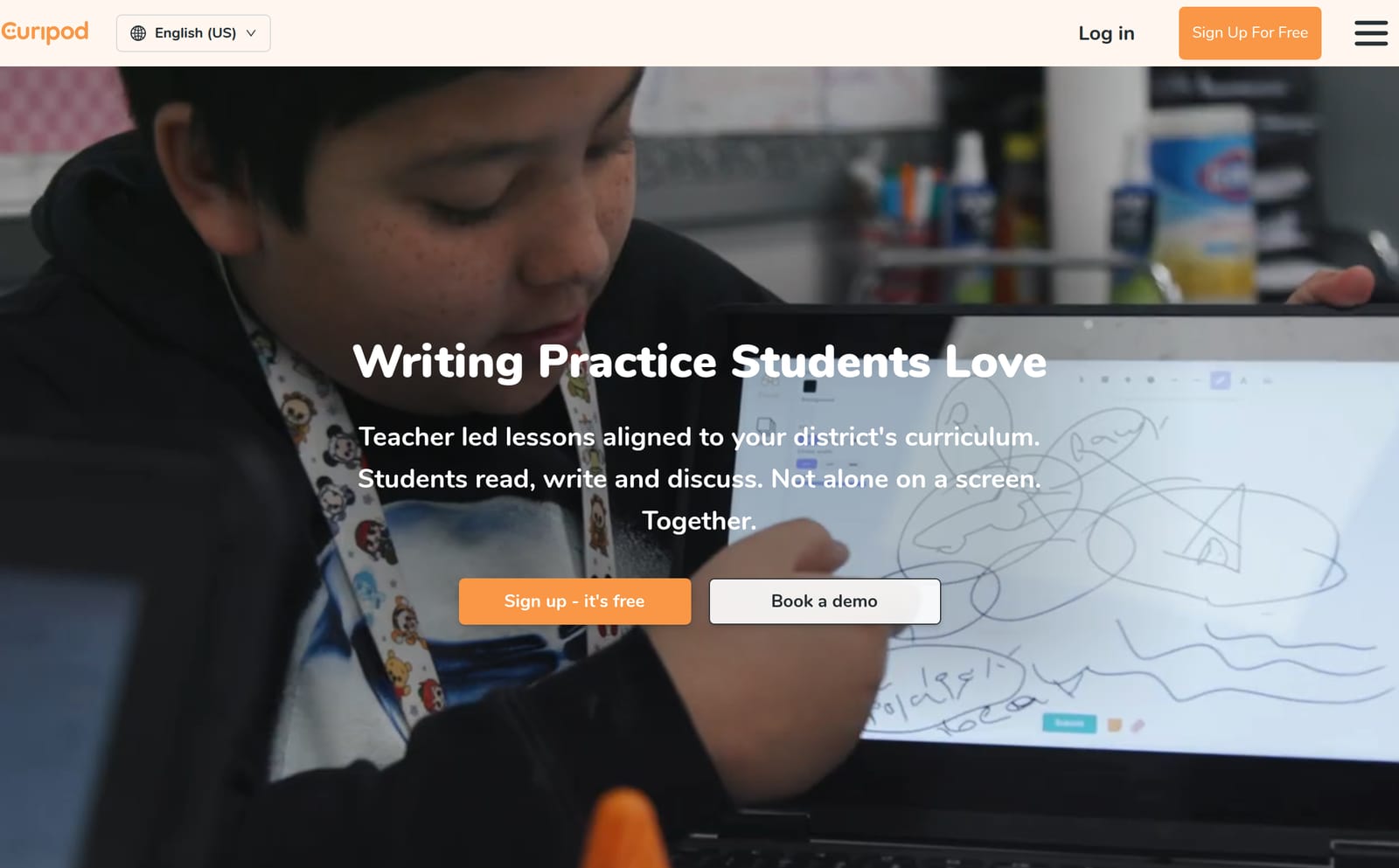
For a teacher who wants students writing and talking together in class rather than alone on a screen. It makes teacher-led lessons aligned to your district's curriculum, built around writing practice, where students read, write and discuss together. Free to sign up (Sign up - it's free); schools can book a demo.
Check an AI lesson plan before you teach it
Whichever tool wrote it, an AI lesson plan is a first draft. Before it goes in front of a class, check three things:
Objectives. Does the plan teach the goal you set, at your students' level? In the Notion planner, the Lesson Goal is at the top of every lesson, so you can read the plan against it.
Standards. If your school expects them, name the standard yourself. The example lesson above has Standards set to Not Required. That's fine for a club activity but not for an observed lesson. Check any standard code an AI writes against your own curriculum's wording, and leave out any code you can't find there.
Timing. Add up the minutes. The example lesson has a Duration of 90 minutes and seven parts in its Structure. Give each part its minutes and see whether they fit your period.
Then make it yours. Use the resources you really have (the example's Resources Needed are Handouts and Multimedia), and add the support particular students need, which the example's Differentiation leaves empty. For more ready-made pages to plan with, see our Notion templates for teachers.
FAQ
What is the best AI lesson planner for teachers?
It depends on where you plan. If your week is in Notion, a Notion template keeps AI lessons with everything else: start with the free Notion AI Lesson Planner, or the paid Ultimate Teacher Planner for a whole planner. If you want a separate site, start with one that's free for teachers, such as MagicSchool or Flint.
Is there a free AI lesson planner?
Yes. Our Notion AI Lesson Planner is free, and its checkout asks only for an email. MagicSchool, Flint and Khanmigo are free for teachers, and Brisk Teaching, Eduaide.Ai and Monsha are free to start. Check what the free plan includes on the site itself.
Do I need Notion AI to use the Notion AI Lesson Planner?
Yes, for the three steps that write the lesson: Summary AI Update, Outline AI Update and Generate are Notion AI's. Without Notion AI you can still use the folders and the lesson pages, and fill in the plan yourself.
Can AI write a lesson plan that meets my standards?
It can name a standard, but checking it is your job. Set the standard yourself, then compare every code in the plan with your curriculum before you teach the lesson.
How do I keep AI lesson plans organized?
Keep them in one place, filed by subject or class. In the Ultimate Teacher Planner each lesson has a Folder, and each folder card shows how many lessons it holds. Open a folder to see only its lessons.
Ultimate Teacher Planner
The ultimate all-in-one education management system in Notion.