Notion tips and tricks for media literacy teachers who archive vanishing clips
Notion tips and tricks for media literacy teachers who archive vanishing clips

Article by
Milo
ESL Content Coordinator & Educator
ESL Content Coordinator & Educator
All Posts
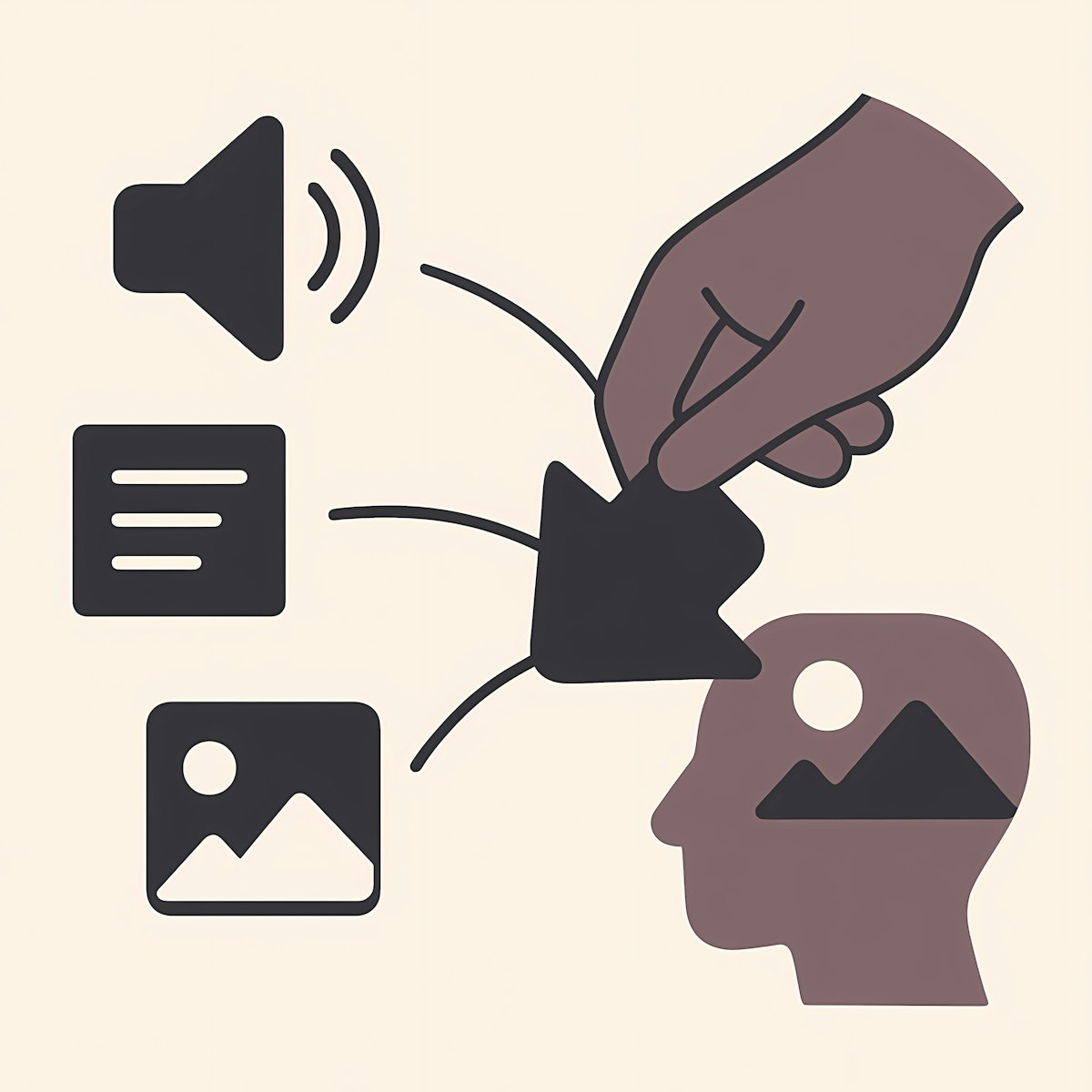
That perfect example of a viral claim spreading in real time can vanish before your next class. The source often disappears faster than the lesson you built around it.
Notion gives you a quiet place to catch these moments. A few setup habits turn a scattered list of links into a clip archive that survives deletions, suspensions, and the daily churn of the feed.
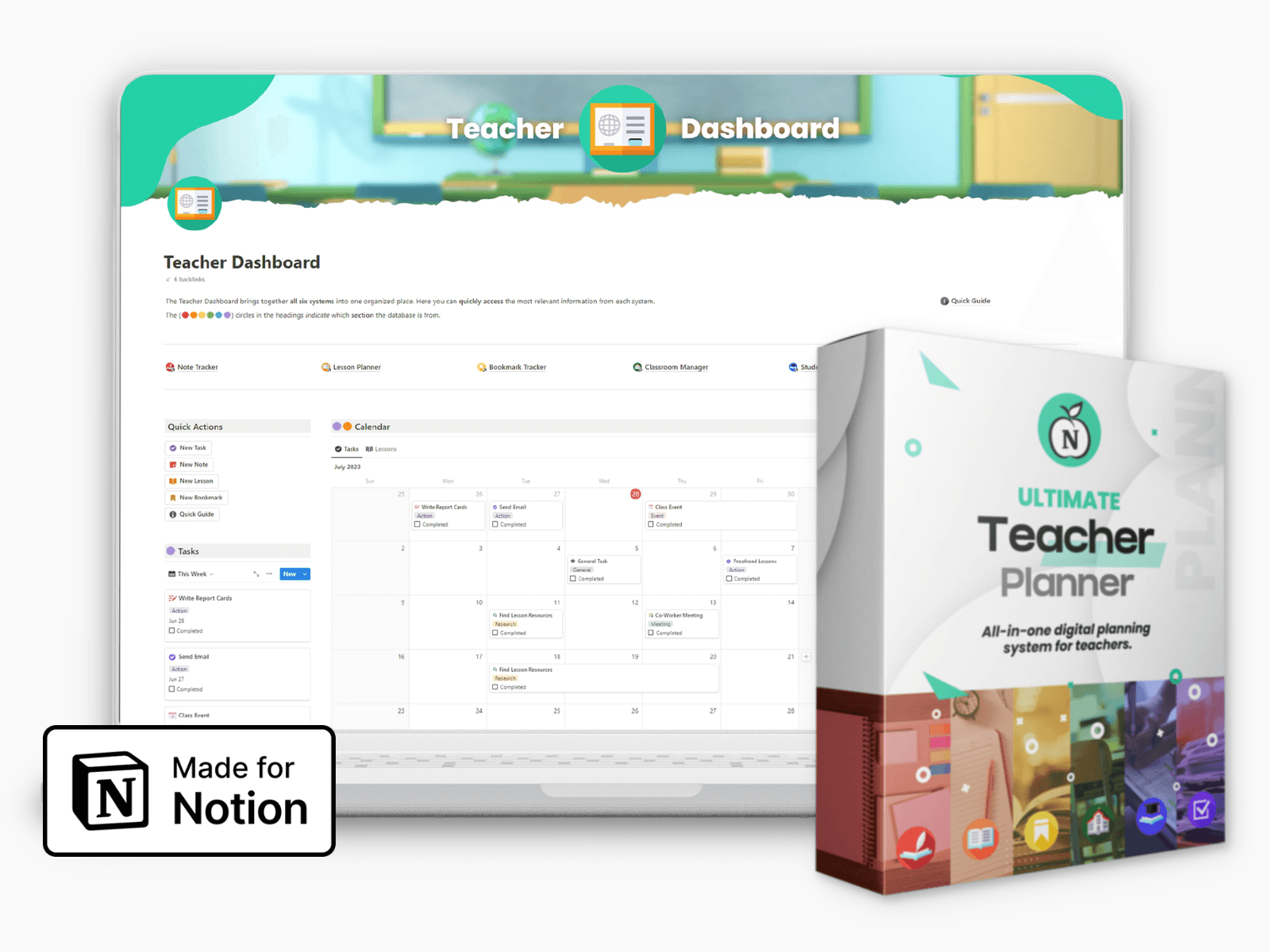
Ultimate Teacher Planner
The ultimate all-in-one education management system in Notion.
Learn More
Ultimate Teacher Planner
The ultimate all-in-one education management system in Notion.
Learn More
Table of Contents
Build a database, not a pile of links
Most teachers start by pasting links onto one long page. That page becomes unsearchable by week three. A Notion database (a structured table where each row holds one media item) fixes this from the start.
Create a new database and make each row a single clip or post, never a whole lesson.
Add properties for Source, Date captured, Claim type, Credibility rating, Lesson unit, and Status.
Set Claim type as a Select property so you can filter by category, such as satire, misleading edit, or out-of-context quote.
Switch on a Gallery view to preview thumbnails while students discuss them aloud.
Save one filtered view per class period so each group sees only its current unit.
Small habits that keep it usable
Make a database template button for new entries. It pre-fills your rubric fields, so a student adding a clip never forgets the credibility rating or the date.
Use a relation property to connect each clip to a student analysis page. One source can link to many responses, and you can read them side by side during review.
Drop a synced block holding your evaluation rubric at the top of the archive. Edit it once, and every linked unit reflects the change without any copy and paste.
Turn on inline comments for async annotation. Students leave timestamped questions on a row at home, and you answer the whole thread before the bell rings.
Add a Board view grouped by Status. A clip moves from Captured to Analyzed to Archived, and you can see at a glance which examples still need a verdict.
How the storage options compare
Method | Search and filter | Survives source deletion | Student annotation |
|---|---|---|---|
Notion database | Strong, by any property | Yes, once the file is attached | Inline comments per row |
Shared cloud folder | Filename only | Yes | None built in |
Spreadsheet of links | Text match | No, links go dead | Cramped cells |
Why does this pay off in a media literacy room
Your goal is teaching students to examine primary sources, not to chase broken links. A stable archive lets a class return in March to the same example they first dissected in October.
Posts on X get deleted, accounts go private, and live broadcasts end without saving. Before a clip leaves the platform, you can download twitter video from link and attach the file to its Notion row, so the example stays ready for analysis after the original is gone.
With the source sitting beside its credibility rating and the student notes, your archive becomes the one place where evidence outlasts the news cycle.
Build a database, not a pile of links
Most teachers start by pasting links onto one long page. That page becomes unsearchable by week three. A Notion database (a structured table where each row holds one media item) fixes this from the start.
Create a new database and make each row a single clip or post, never a whole lesson.
Add properties for Source, Date captured, Claim type, Credibility rating, Lesson unit, and Status.
Set Claim type as a Select property so you can filter by category, such as satire, misleading edit, or out-of-context quote.
Switch on a Gallery view to preview thumbnails while students discuss them aloud.
Save one filtered view per class period so each group sees only its current unit.
Small habits that keep it usable
Make a database template button for new entries. It pre-fills your rubric fields, so a student adding a clip never forgets the credibility rating or the date.
Use a relation property to connect each clip to a student analysis page. One source can link to many responses, and you can read them side by side during review.
Drop a synced block holding your evaluation rubric at the top of the archive. Edit it once, and every linked unit reflects the change without any copy and paste.
Turn on inline comments for async annotation. Students leave timestamped questions on a row at home, and you answer the whole thread before the bell rings.
Add a Board view grouped by Status. A clip moves from Captured to Analyzed to Archived, and you can see at a glance which examples still need a verdict.
How the storage options compare
Method | Search and filter | Survives source deletion | Student annotation |
|---|---|---|---|
Notion database | Strong, by any property | Yes, once the file is attached | Inline comments per row |
Shared cloud folder | Filename only | Yes | None built in |
Spreadsheet of links | Text match | No, links go dead | Cramped cells |
Why does this pay off in a media literacy room
Your goal is teaching students to examine primary sources, not to chase broken links. A stable archive lets a class return in March to the same example they first dissected in October.
Posts on X get deleted, accounts go private, and live broadcasts end without saving. Before a clip leaves the platform, you can download twitter video from link and attach the file to its Notion row, so the example stays ready for analysis after the original is gone.
With the source sitting beside its credibility rating and the student notes, your archive becomes the one place where evidence outlasts the news cycle.
Ultimate Teacher Planner
The ultimate all-in-one education management system in Notion.
Learn More
Ultimate Teacher Planner
The ultimate all-in-one education management system in Notion.
Learn More



Notion4Teachers
Notion templates to simplify administrative tasks and enhance your teaching experience.



2026 Notion4Teachers. All Rights Reserved.
Notion4Teachers
Notion templates to simplify administrative tasks and enhance your teaching experience.
2026 Notion4Teachers. All Rights Reserved.
Notion4Teachers
Notion templates to simplify administrative tasks and enhance your teaching experience.
2026 Notion4Teachers. All Rights Reserved.