How to Track Your Time in Notion (A Time Log With Totals)

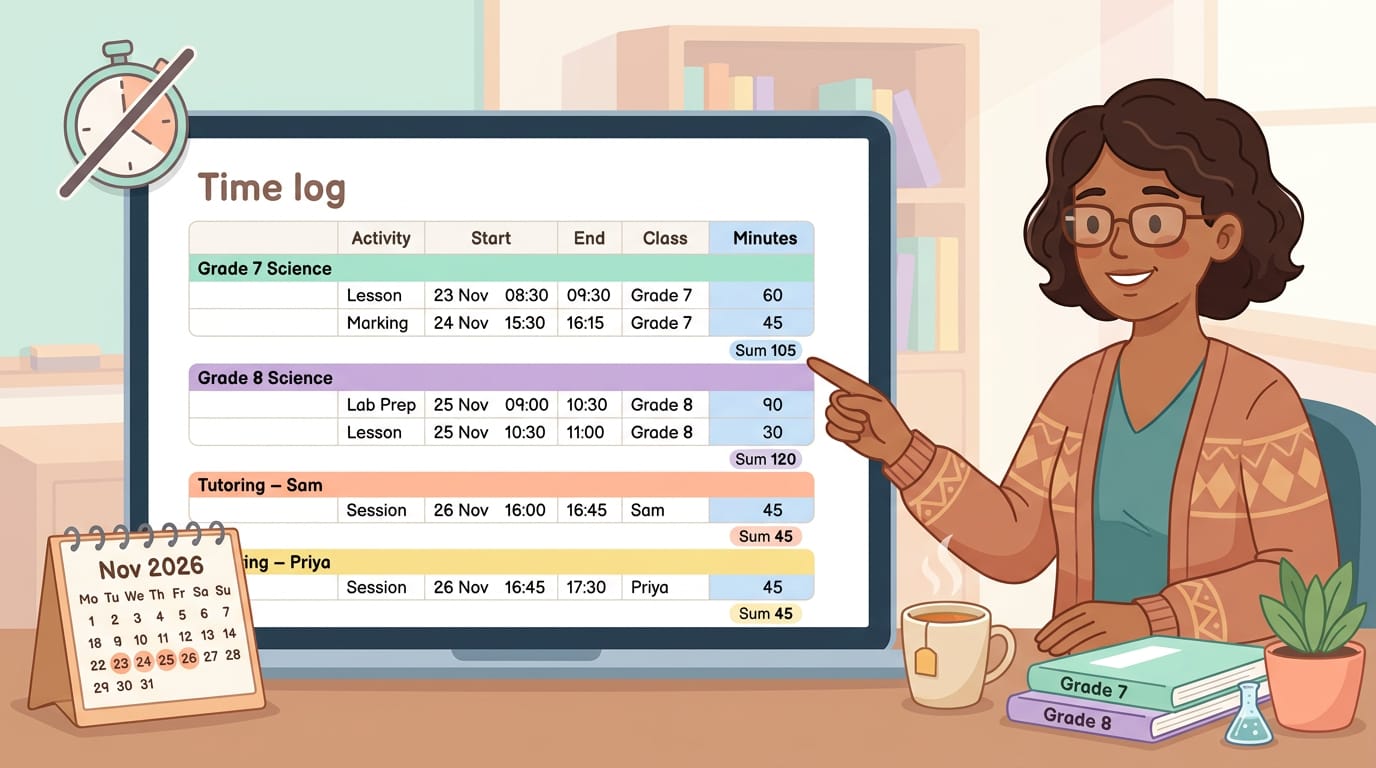
Notion has no start-stop timer, but a table database makes a good time log, and two buttons can stamp the start and end time with one click each. Give it Start and End date columns with Include time on, a formula column that counts the minutes between them, and Calculate → More options → Sum under it for your total. Group by class or by month and each group gets its own total.
The example is one teacher's week: Grade 7 and Grade 8 Science, plus two tutoring students, Sam and Priya. It logs 23 to 26 November 2026, plus a few earlier sessions.
Still grading everything by hand?
EMStudio is a free teaching management app — manage your classes, students, lessons, and more!
Make the time log table
On a new page, click an empty line, type
/table viewand press Enter. An empty table appears with one column, Name.Click the grey New database above the table, type the table's name, Time log, and press Enter.
Click the Name column header, click the name box at the top of the menu, delete Name, type Activity and press Enter. Press Escape to close the menu.
Click + Add property at the right end of the header row. Type Start as the name and pick Date from the list of types.
Click + again, name it End and pick Date.
Click + once more, name it Class and pick Select. This column says what the time was for: a class, a tutoring student, planning or admin.
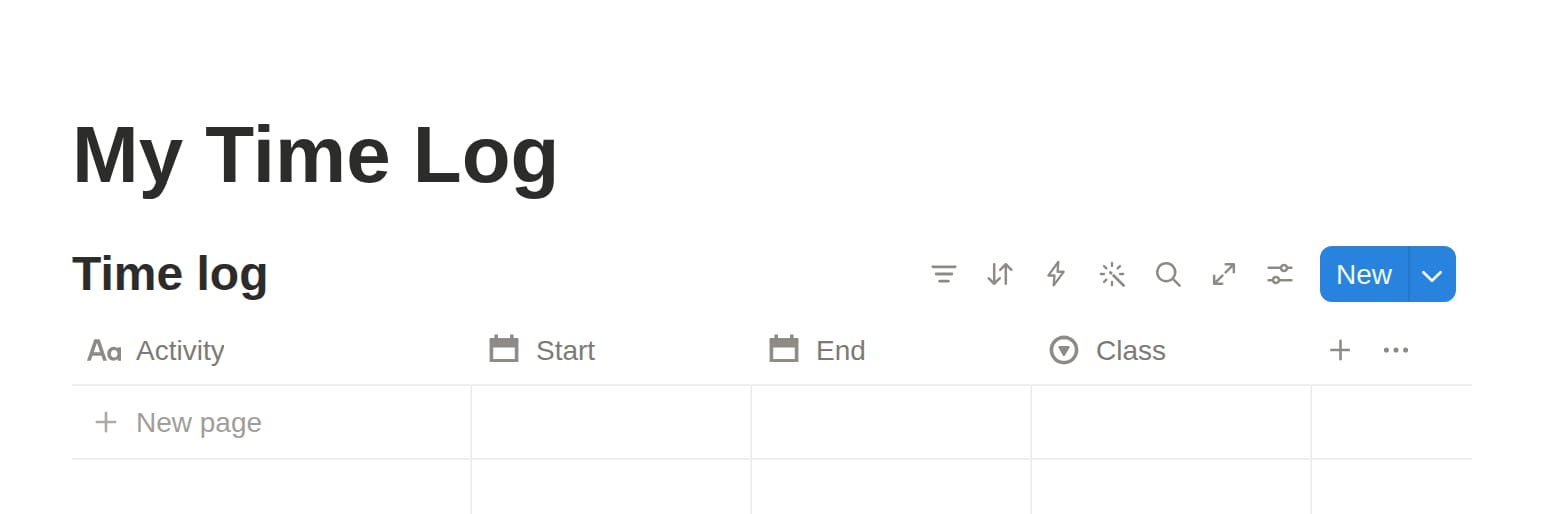
Why two date columns? The date picker's End date switch can hold a start and an end in one cell, but separate columns let the formula read each by name.
Add your first entry with start and end times
Click the blue New button above the table. A new page opens over the table.
Click its title, type Lesson planning and press Enter.
Click Empty beside Start to open the date picker, and switch on Include time. A time box appears next to the date at the top of the picker.
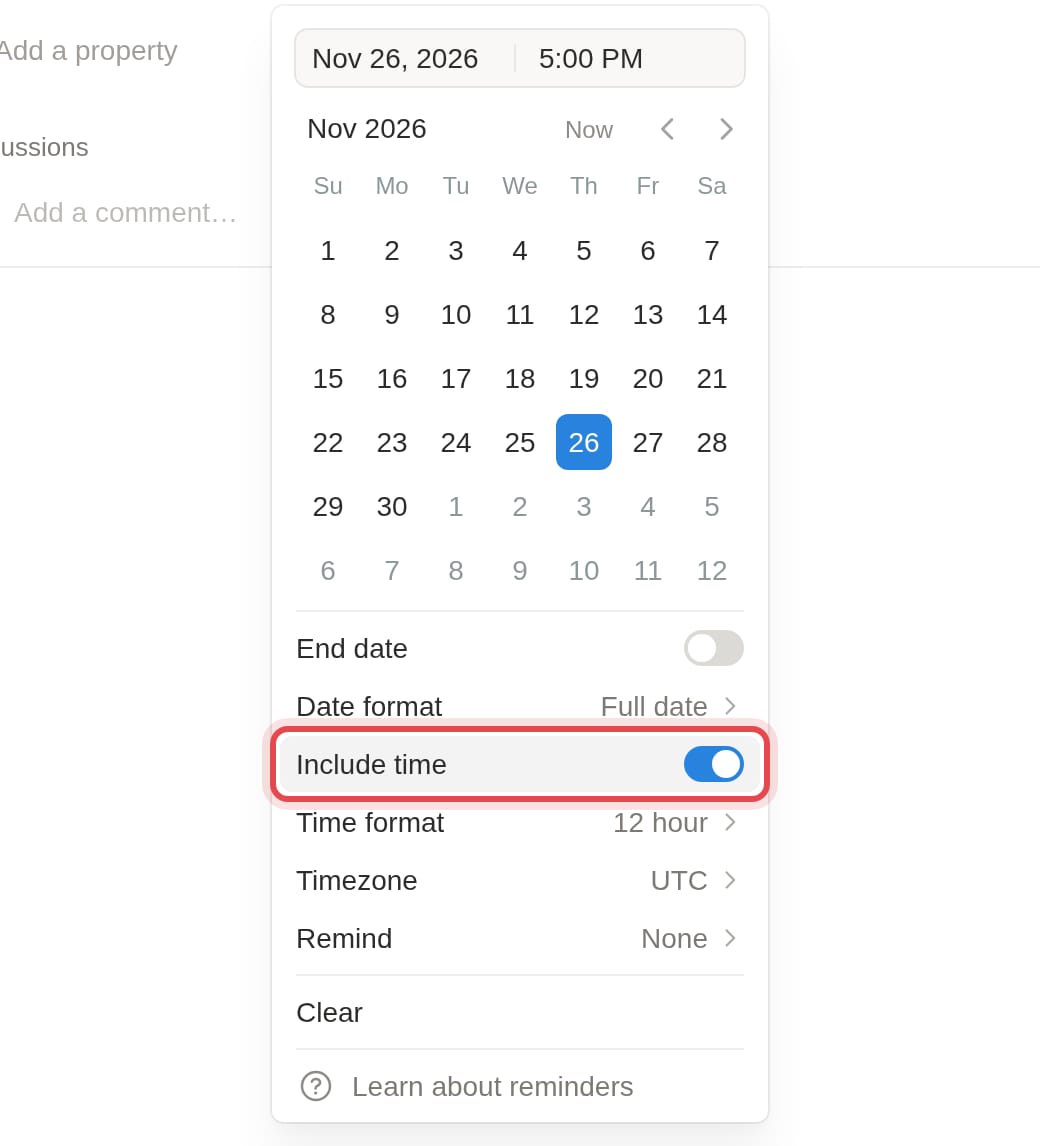
Click the date box, select the date and type
Nov 23, 2026, then press Enter. Click the time box, select the time and type4:00 PM, then press Enter. Press Escape.Do the same for End: Include time on, Nov 23, 2026,
5:30 PM.Click Empty beside Class, type Planning and press Enter. Notion offers Create Planning, so the option is made as you go.
Close the page.
Include time is not a column setting (Edit property only offers Date format, Time format and Notifications), and a second entry's picker opened with it off again. Duplicating an entry skips that (below), and so do the Start now and Stop now buttons further down.
Add a formula for the minutes
Click + at the right end of the header row and name the column Minutes.
Click Search types…, type Formula and choose Formula.
Click the Minutes cell of your Lesson planning row. The Edit formula panel opens.
Click the formula box and type:
dateBetween(prop("End"), prop("Start"), "minutes")
Notion turns prop("End") and prop("Start") into small grey labels. Under Preview with, the panel shows 90 for 4:00 to 5:30 PM, and Type: number on the right.
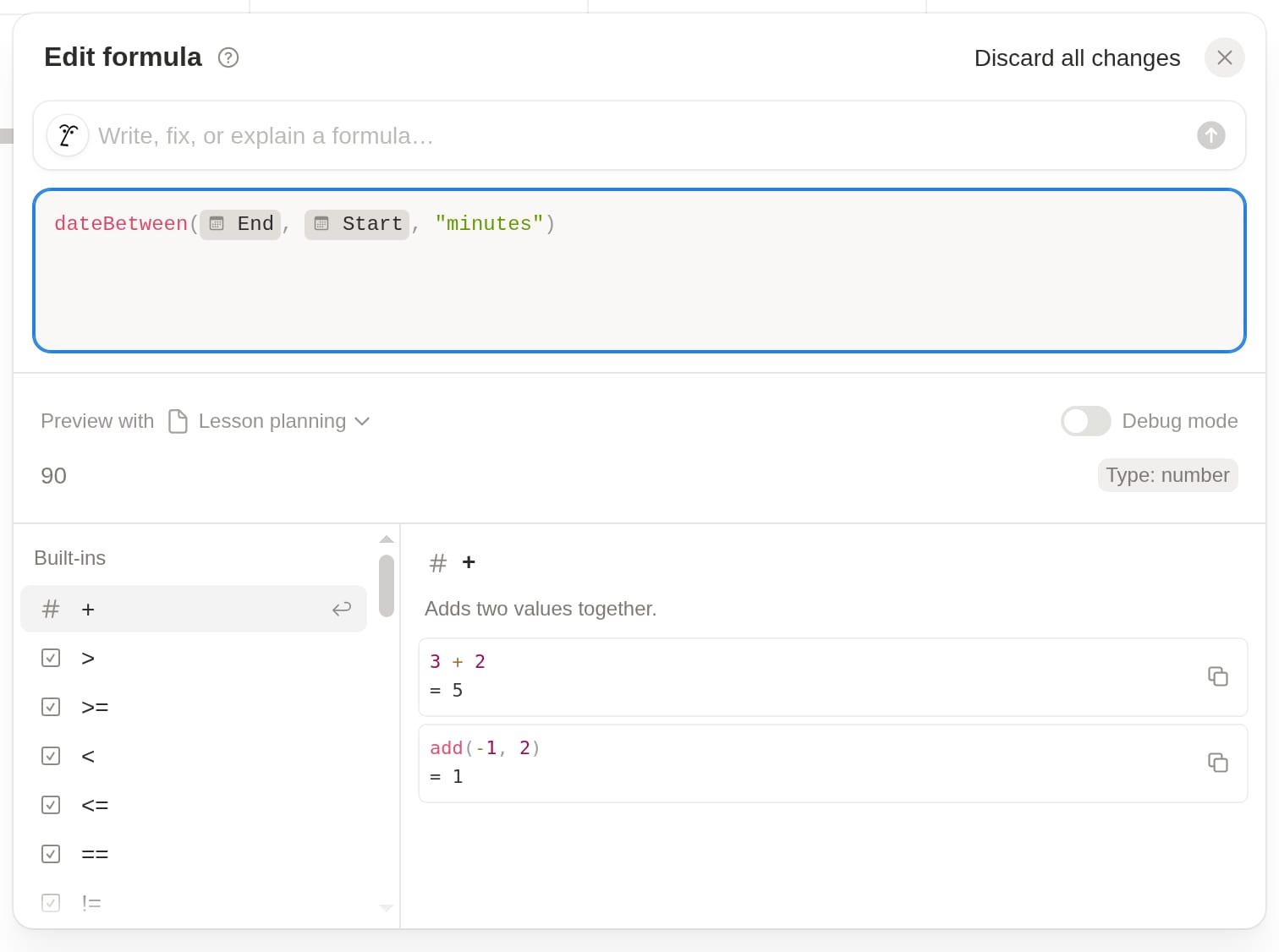
Press Escape to close the panel. The formula is kept.
Don't press Enter to finish: it adds the highlighted + from the list below the formula. If that happens, press Backspace, then Escape.
If you'd rather count hours
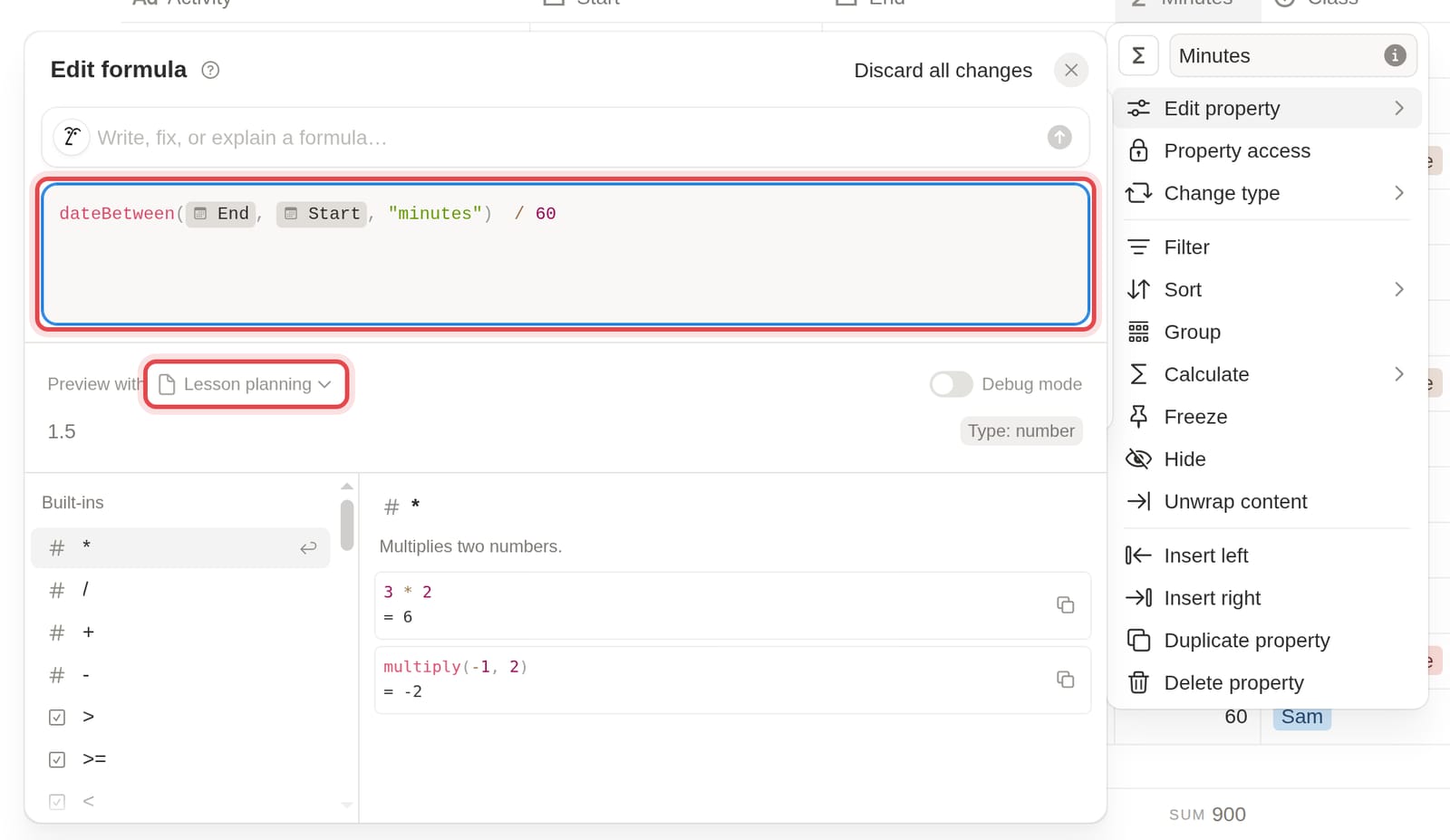
Open the formula again with the Minutes header → Edit property → Edit formula, and add / 60 to the end:
dateBetween(prop("End"), prop("Start"), "minutes") / 60
With Preview with set to the 90-minute Lesson planning entry, the panel showed 1.5. I clicked Discard all changes and kept minutes, which add up to round numbers. Notion's own formulas help page lists the other date functions.
Make the table fit and fill in your week
New columns land at the right end. I dragged the Minutes header to the left so it sits before Class.
Full dates make the table wider than the window. Click the Start header → Edit property → Date format → Short date, and the same for End: they read like "Nov 23 4:00 PM".
Add the rest of your week. The quickest way is to duplicate an entry: the copy keeps both times with Include time on.
Point at a row and click the ⋮⋮ handle at its left.
Choose Duplicate. The copy has (1) after its name and the same Start and End.
Click the copy's Start, click the new day and type the new time in the time box. Do the same for End.
Click the copy's name and delete the (1).
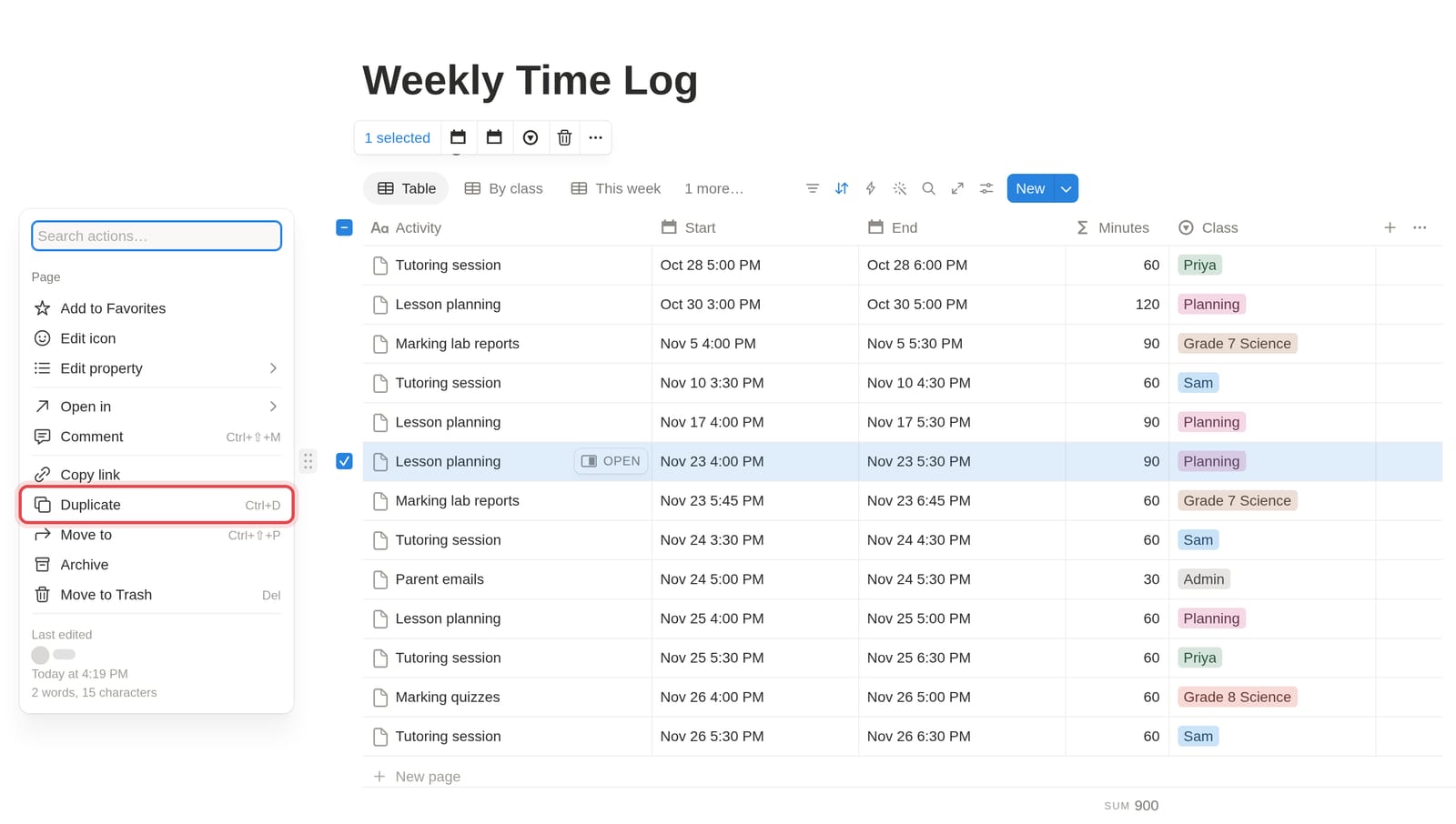
I moved a Lesson planning copy from Nov 23 to Nov 25 this way without switching Include time on. Then click Sort in the toolbar and choose Start (old → new), so the week reads top to bottom.
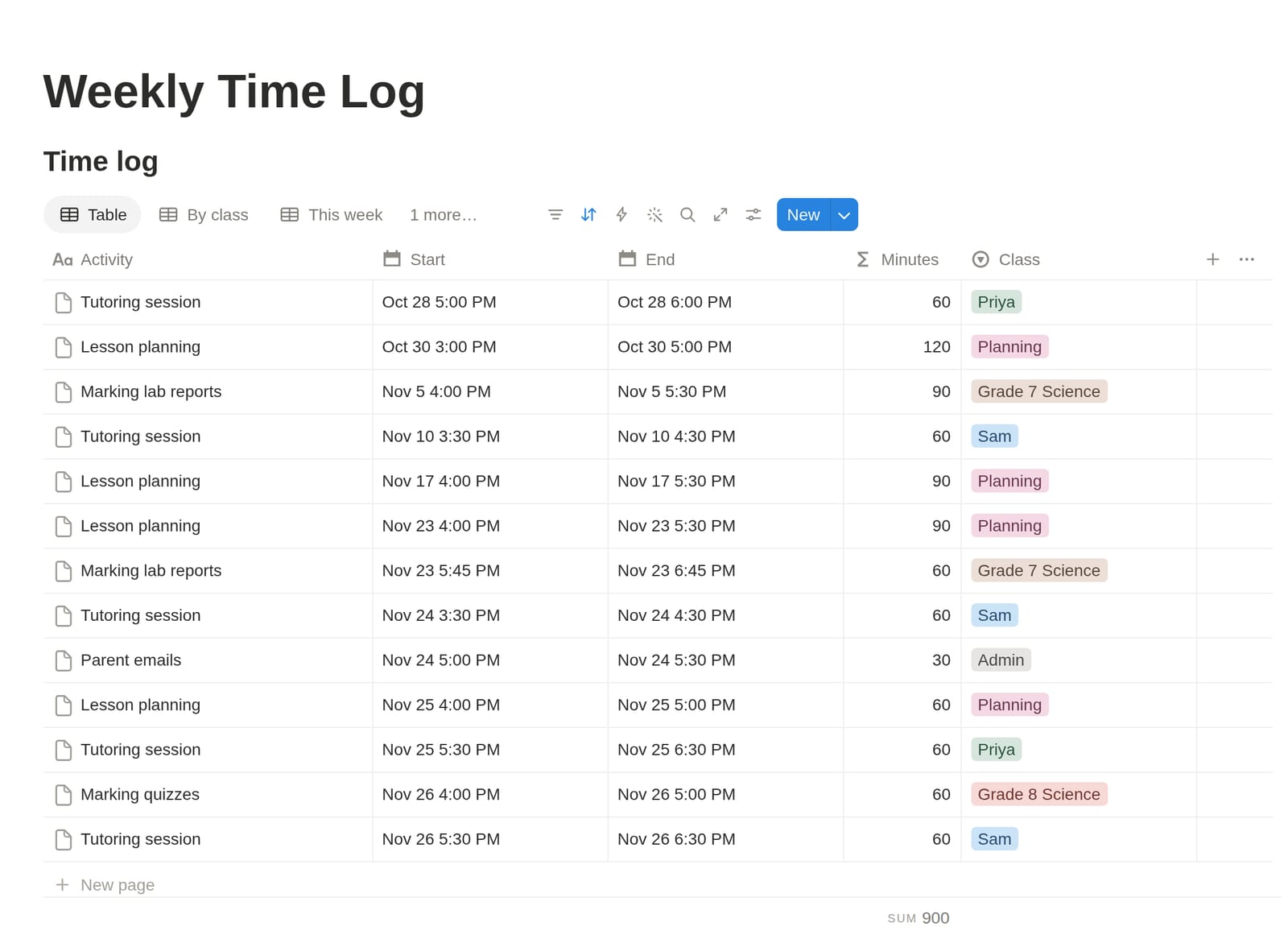
Total the minutes
Click the Minutes header and choose Calculate.
The list shows only None, Count, Percent and More options. Click More options and choose Sum.
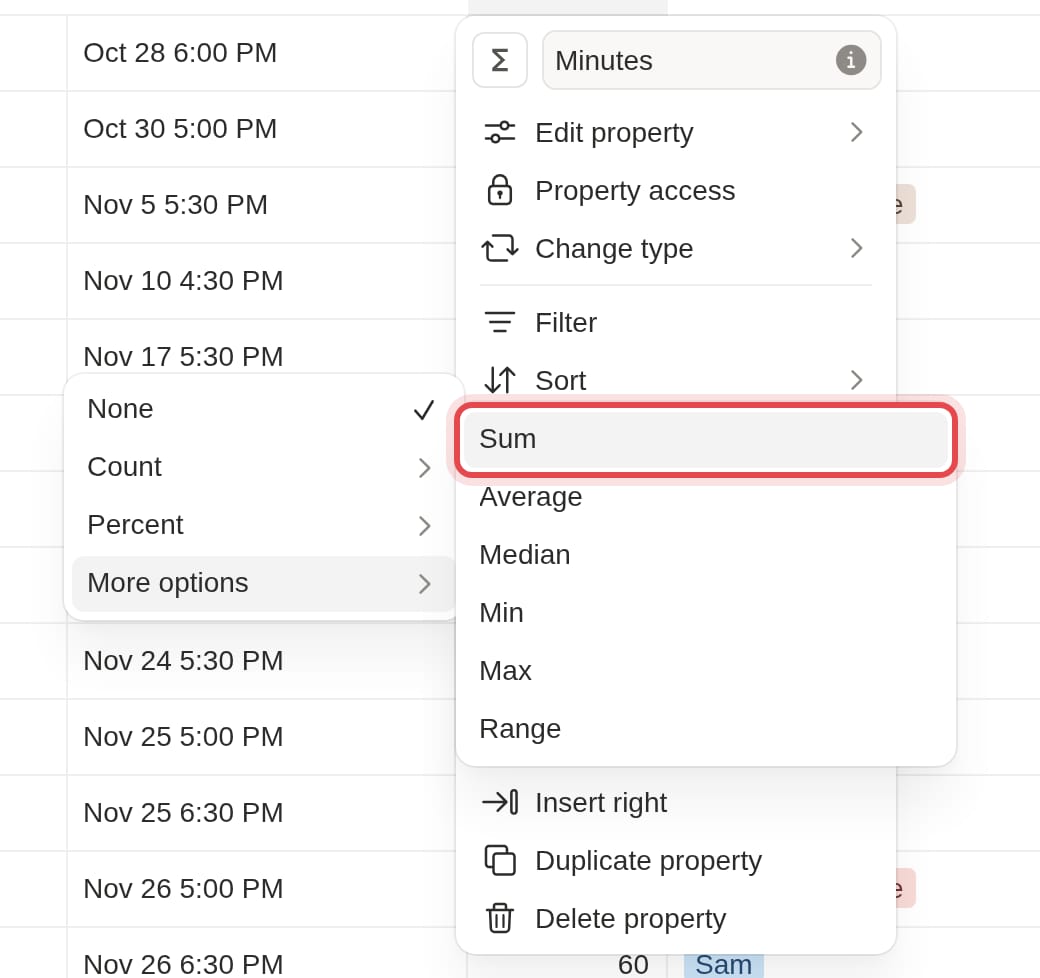
The total appears at the foot of the Minutes column: SUM 900 for this log, which is 15 hours.
Totals per class or per student
Views are the tabs above the table.
Point at the row of tabs above the table and click + (Add view). Choose Table.
In View name, type By class and click Done. The view's settings stay open.
Click Group, then Class. Close the panel.
Set the sum again in this view: Minutes header → Calculate → More options → Sum.
Sort by Start (old → new) again: each view keeps its own sort.
Each class gets its own total: Admin 30 minutes, Grade 7 Science 150, Grade 8 Science 60, Planning 360, Priya 120 and Sam 180. The foot of the view:
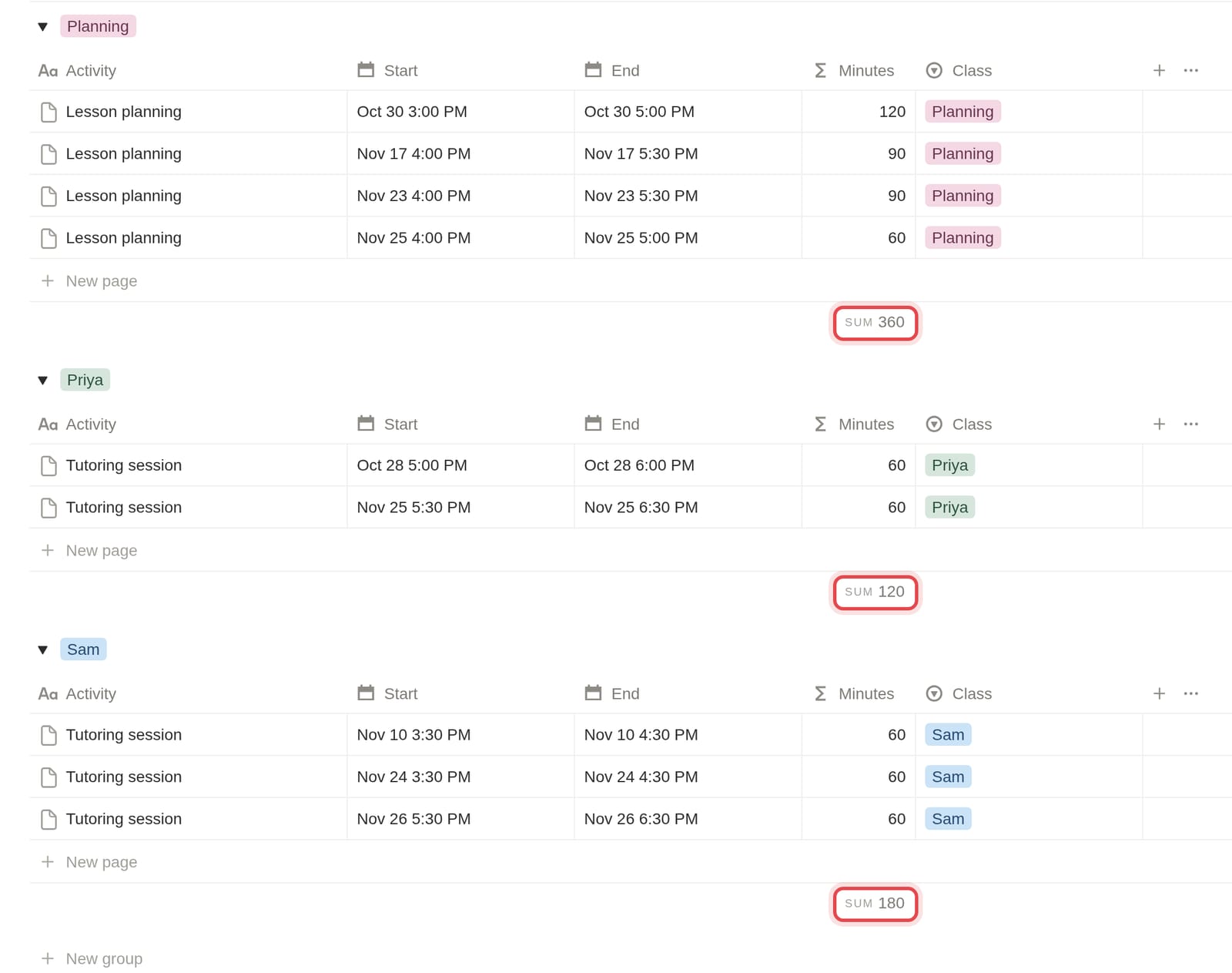
A tutor's billable hours from the same log
Because each tutoring student is an option in Class, the same view totals your time per student: above, Priya's group shows SUM 120 and Sam's SUM 180, 2 and 3 hours. Multiply the hours by your rate yourself (3 hours at $40 is $120). The sums count every entry in the view, here all of October and November.
For the rest of a tutoring setup, see our guide to Notion for private tutors.
A This week view
Add another view: + → Table, name it This week, click Done.
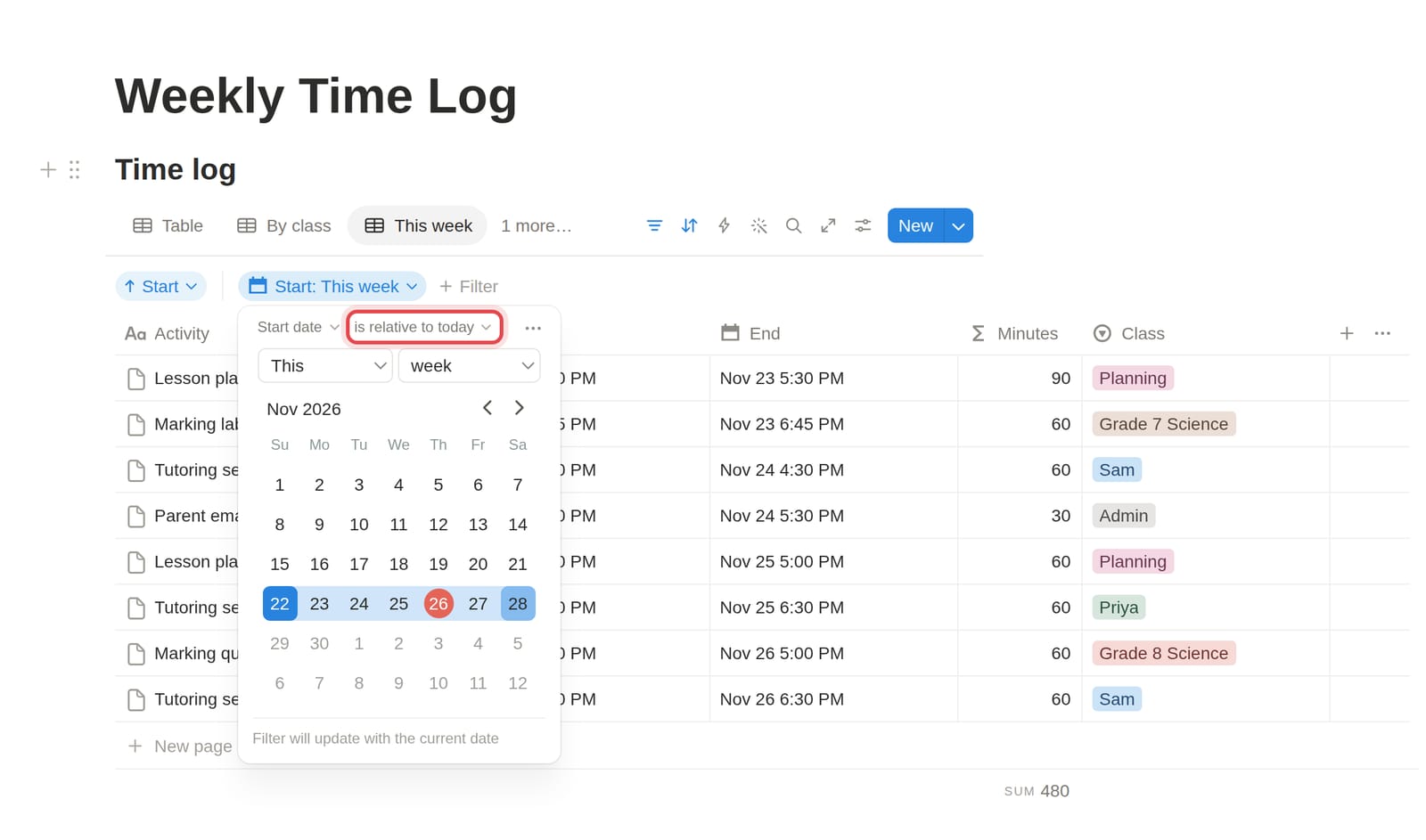
Click Filter, then Start. Notion fills the filter in by itself: Start is relative to today, This week.
Sort by Start (old → new) and set Calculate → More options → Sum on Minutes.
The view shows only Monday 23 to Thursday 26 November, with SUM 480 at the bottom: 8 hours this week. The calendar in the filter marks the week from Sunday 22 to Saturday 28.
A total for each month
Add a view: + → Table, name it By month, click Done.
Click Group, then Start. Date by starts as Relative: click it and choose Month. Close the panel.
Set Calculate → More options → Sum on Minutes, and sort by Start, old → new.
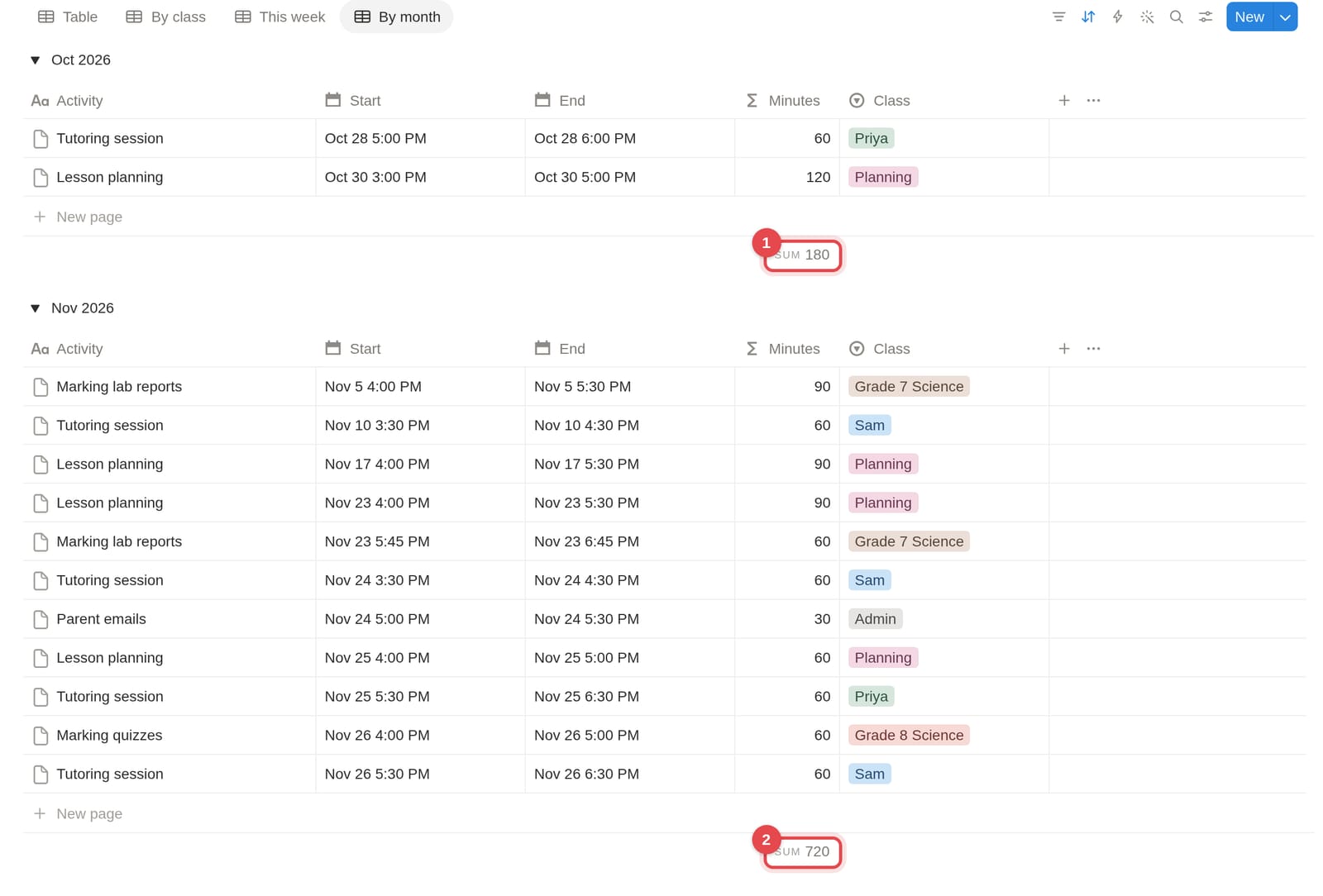
Each month gets its own group and its own total: Oct 2026 shows 180 minutes (3 hours), Nov 2026 shows 720 (12 hours).
To keep your classes themselves in order too, see how to organize your classes in Notion.
Notion has no timer: what to do instead
The property types have no timer, and nothing counts while you work. But a Button property can stamp the current time into Start or End with one click.
Click + at the right end of the header row, type Start now, click Search types…, type Button and choose Button. Every row gets a Start now button.
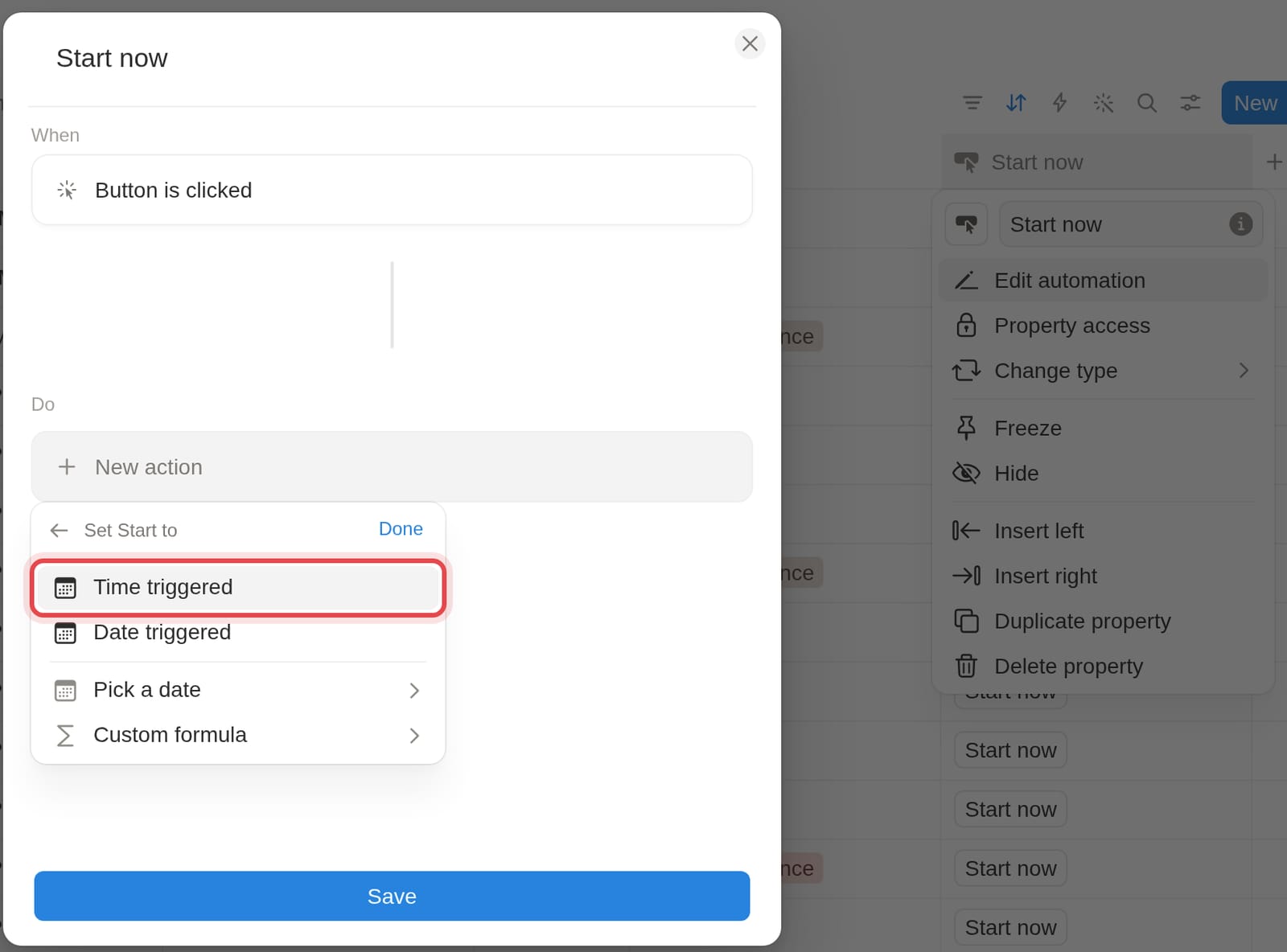
Click the Start now header and choose Edit automation. The panel says When: Button is clicked.
Under Do, click New action, then Edit property…, then Start.
Under Set Start to, choose Time triggered, the moment of the click. Click Save.
Make a Stop now button the same way, setting End to Time triggered.
On a new row, Marking homework, I clicked Start now: Start showed Nov 27 1:39 AM (its picker's timezone was UTC). Then Stop now: End showed 1:40 AM and Minutes 1. A second Stop now a minute later moved End to 1:41 AM and Minutes to 2: the last click counts.
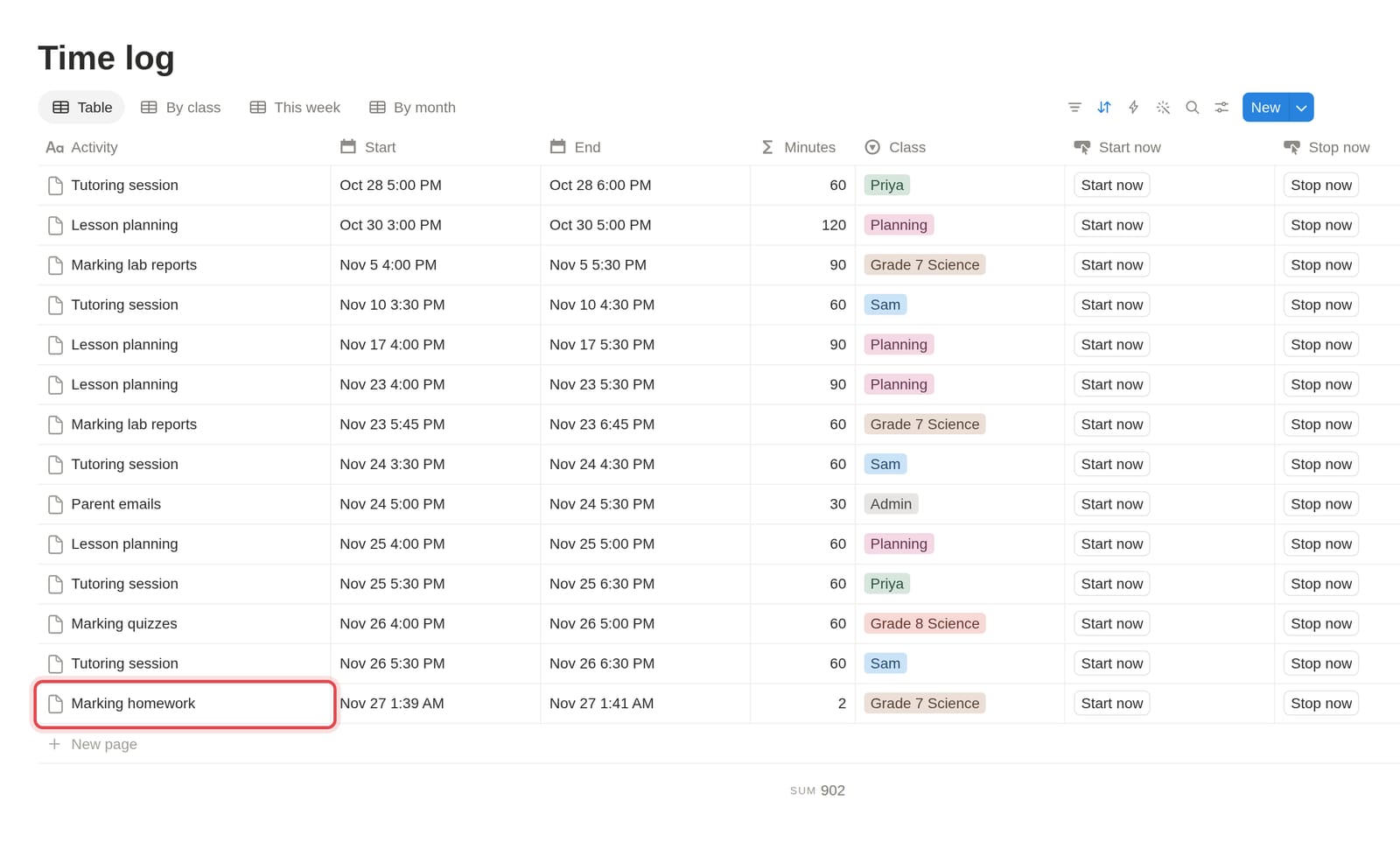
The time shows without switching anything on: I never touched Include time on that row, and its Start picker had Include time on already. It is still not a running timer: nothing counts on screen, and nothing reminds you to press Stop now. If you forget, type the End time in its picker.
If you'd rather tick off a daily routine than count minutes, a habit tracker in Notion is built the same way, with a table and a view.
What goes wrong
Include time is off on every new entry. Duplicate an entry instead and change its times, or use the Start now and Stop now buttons, which stamp the time with Include time on.
No timer among the property types. There isn't one, but a Button property can fill in the start and end time with one click (see above).
A
+at the end of the formula. Enter picks the highlighted built-in. Close the formula panel with Escape.No Sum in the Calculate list. It is under More options.
The table runs off the right edge. Switch Start and End to Short date.
Monthly groups show "Relative" groups. Change Date by to Month in the group settings.
A view's filter is not showing. Click the Filter icon in the toolbar to show the filter bar under the tabs.
A tab has gone missing. With four views, one hides under 1 more… beside the tabs.
FAQ
Does Notion have a built-in time tracker?
No. There is no timer among the property types. You can type a start and an end time, or add a Button property that fills in the start and end time with one click, and let a formula work out the minutes.
How do I total my hours for a month in Notion?
Make a view grouped by your Start date with Date by set to Month, then choose Calculate → More options → Sum under Minutes. Each month shows its own total in minutes; divide by 60 for hours.
How do I show hours instead of minutes?
Add / 60 to the end of the Minutes formula. A 90-minute entry then shows 1.5.
Can I track billable hours for each tutoring student?
Yes. Make each student an option in the Class column and group a view by Class. Each student's group shows its own sum, which you multiply by your rate.
Still grading everything by hand?
EMStudio is a free teaching management app — manage your classes, students, lessons, and more!