How to Make Flashcards in Notion

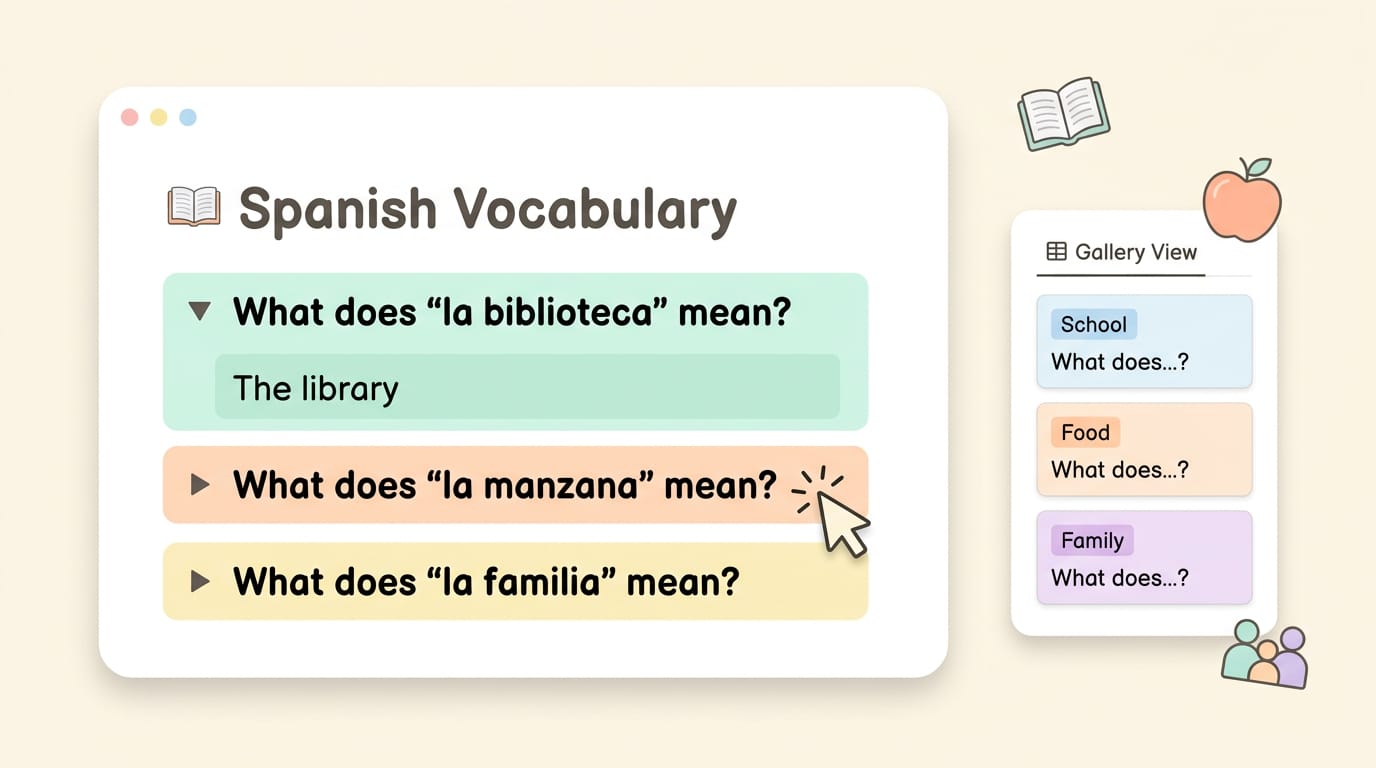
The quickest flashcard in Notion is a toggle block: the question is its title and the answer sits inside, hidden until you click the arrow. On any page, type > and a space, type the question, then click the line inside and type the answer. For a whole deck you can sort, tick off and review, put the cards in a database and show them as a gallery, where each card shows only its question.
The example all the way through is a beginner Spanish vocabulary deck: eight words from three topics (School, Food, Family).
Still grading everything by hand?
EMStudio is a free teaching management app — manage your classes, students, lessons, and more!
The quickest flashcards: toggle blocks
Open a new page and click on an empty line.
Type
>and a space. The line turns into a toggle with a small arrow in front of it.Type the question: What does 'la biblioteca' mean?
Under the question Notion shows a grey line, Empty toggle. Click or drop blocks inside. Click that line and type the answer: The library.
Click the arrow to close the toggle. Now only the question shows.
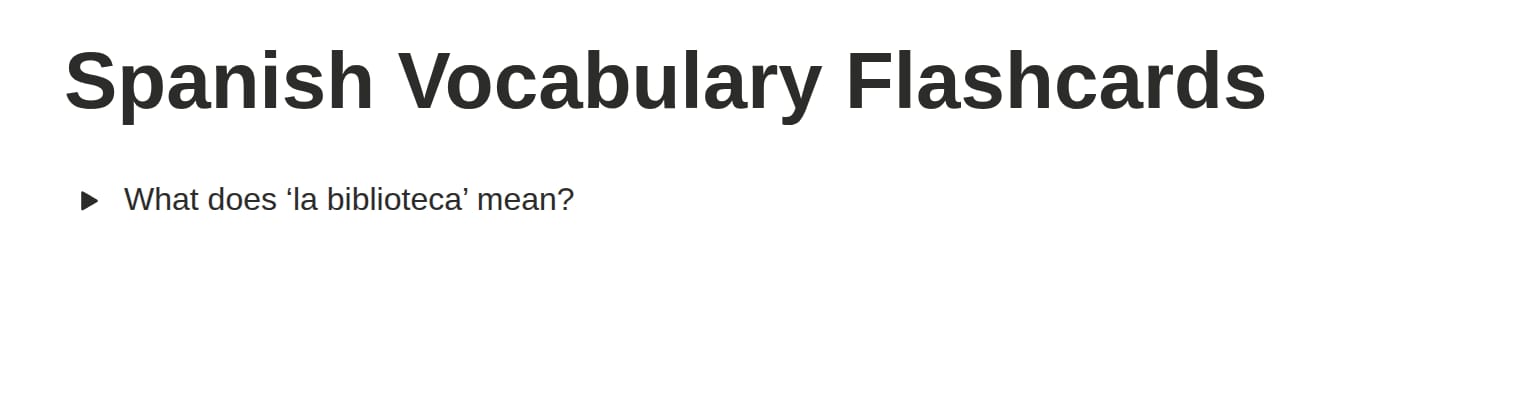
Click the arrow again when you want to check your answer.
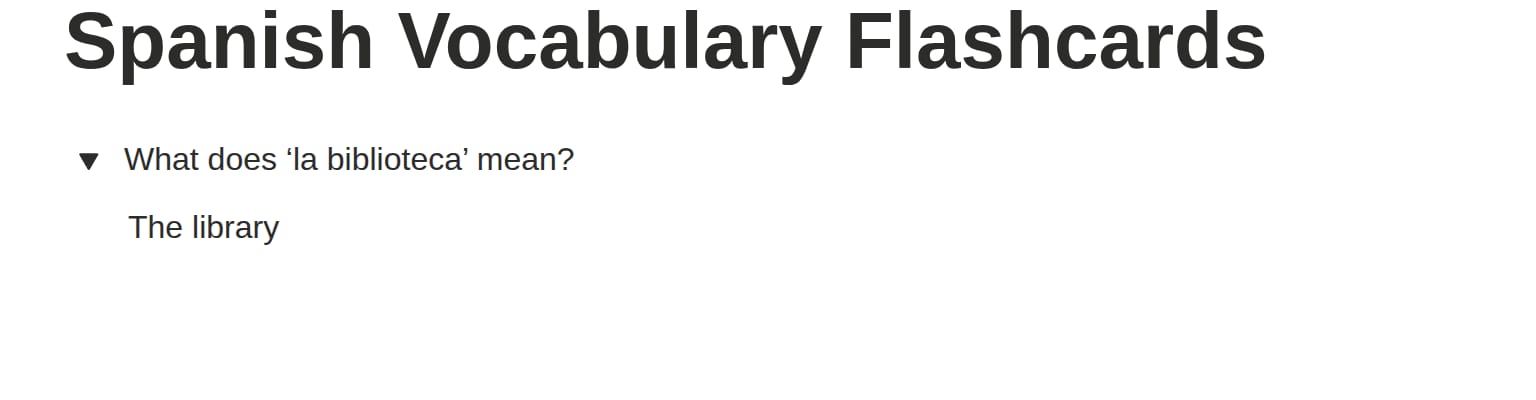
Make one toggle per word and you have a deck on a single page. Toggles work well inside class notes too: see how to make interactive classroom notes in Notion. What a page of toggles can't do is keep track of which words you already know. For that, use a database.
A deck you can study: a database with a gallery view
Make the table
On the same page, click an empty line and type
/table view. Press Enter.Choose New database, type the deck's name (Spanish Vocabulary Deck) and press Enter.
Click the Name column heading. In the Property name box, select the text, type Question and press Enter, then Esc.
Click Add property (the + at the end of the column headings). Type Answer in the Type property name… box and choose Text.
Do the same three more times:
Topic, as a Select (for the unit or topic: School, Food, Family)
Known, as a Checkbox
Next review, as a Date (you'll use it further down)
Add the first card
Click the blue New button. A new card opens at the side of the table.
Click its title, New page, and type the question: What does 'la biblioteca' mean? Press Enter.
You are now in the body of the card. Type
>and a space, then Show the answer. Click Empty toggle under it and type The library.Fill in the card's other columns in its row: the answer, its topic, a tick in Known if you know it already, and a date for Next review.
Add the rest of your cards the same way. New cards are added at the top, so if you want the deck in A to Z order, click the Sort button (the two arrows in the bar above the table) and choose Question.
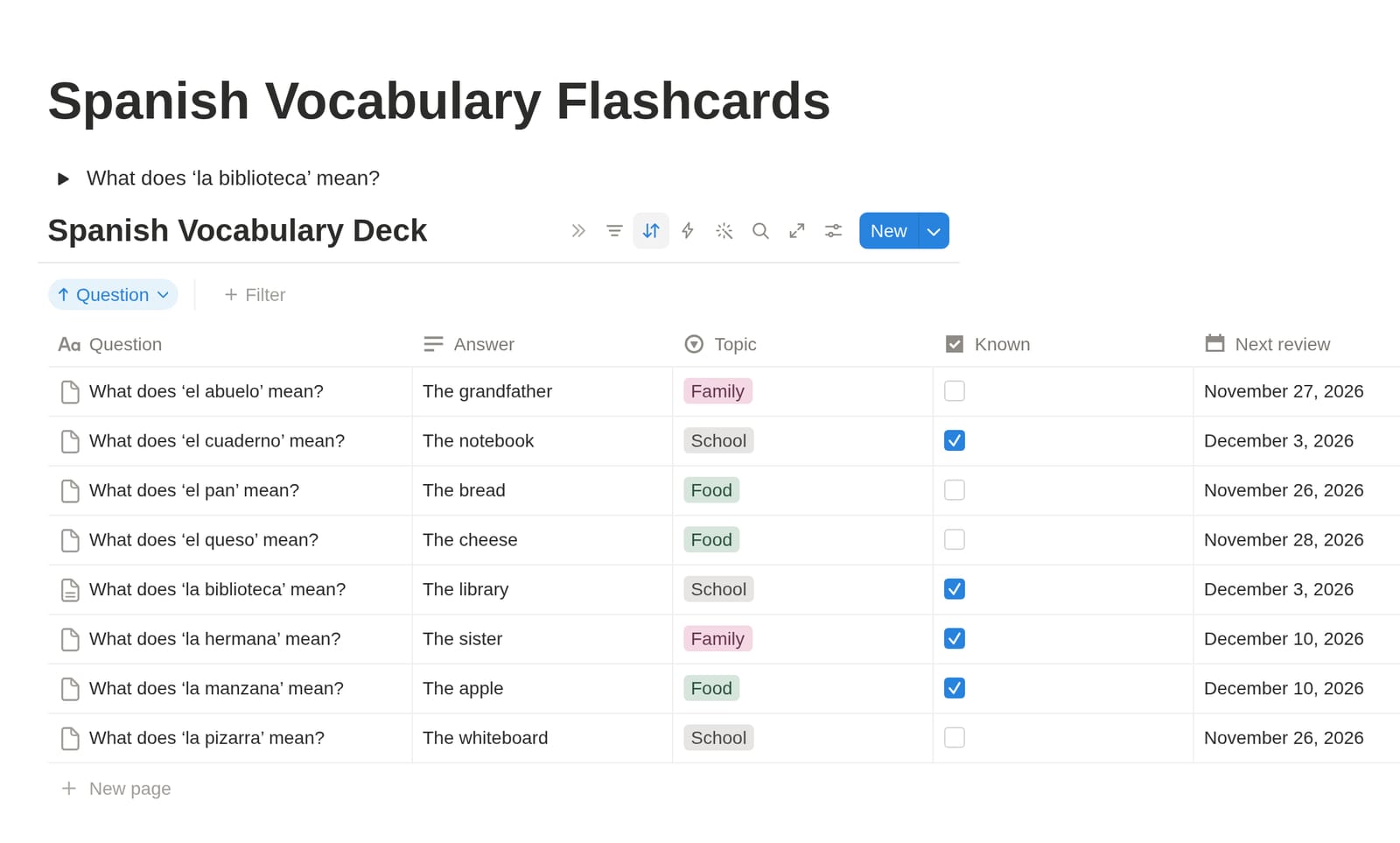
Show only the question: a gallery view
The table shows every answer next to its question, which is fine for checking the deck but not for studying it. A gallery view turns each row into a card.
Click Add view above the table. If you can't see it, point at the view names: the button only shows while the pointer is over them.
Choose Gallery.
In View name, type Flashcards and press Enter. The view's settings stay open.
Click Layout, then Card preview. It is set to Page content, which puts the first block of each card's page on the card. Choose None, so the card shows only its question.
Click Back, then Property visibility. It reads 1: Question is the only property shown. That is what you want, with no answer on the front of the card.
Close the settings. If you want the cards in A to Z order here too, sort this view by Question as well (Sort, then Question).
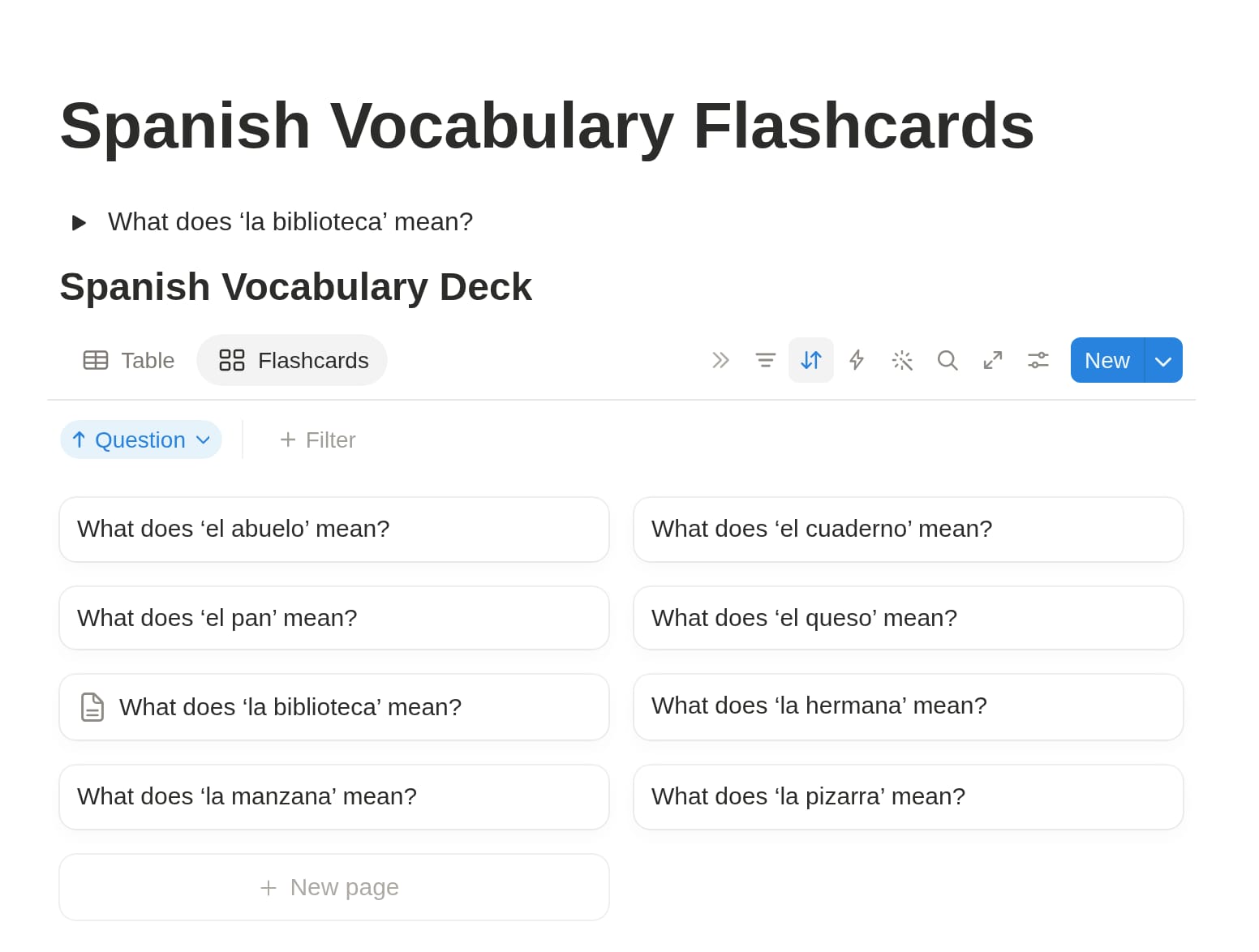
Open a card to see the answer
Click a card in the gallery. It opens at the side of the page, with buttons to go to the previous or next card. An opened card lists its properties at the top, so at first the Answer is right there above the toggle. Hide it once and it stays hidden on every card:
In the opened card, click the property name Answer.
Click Property visibility and choose Always hide.
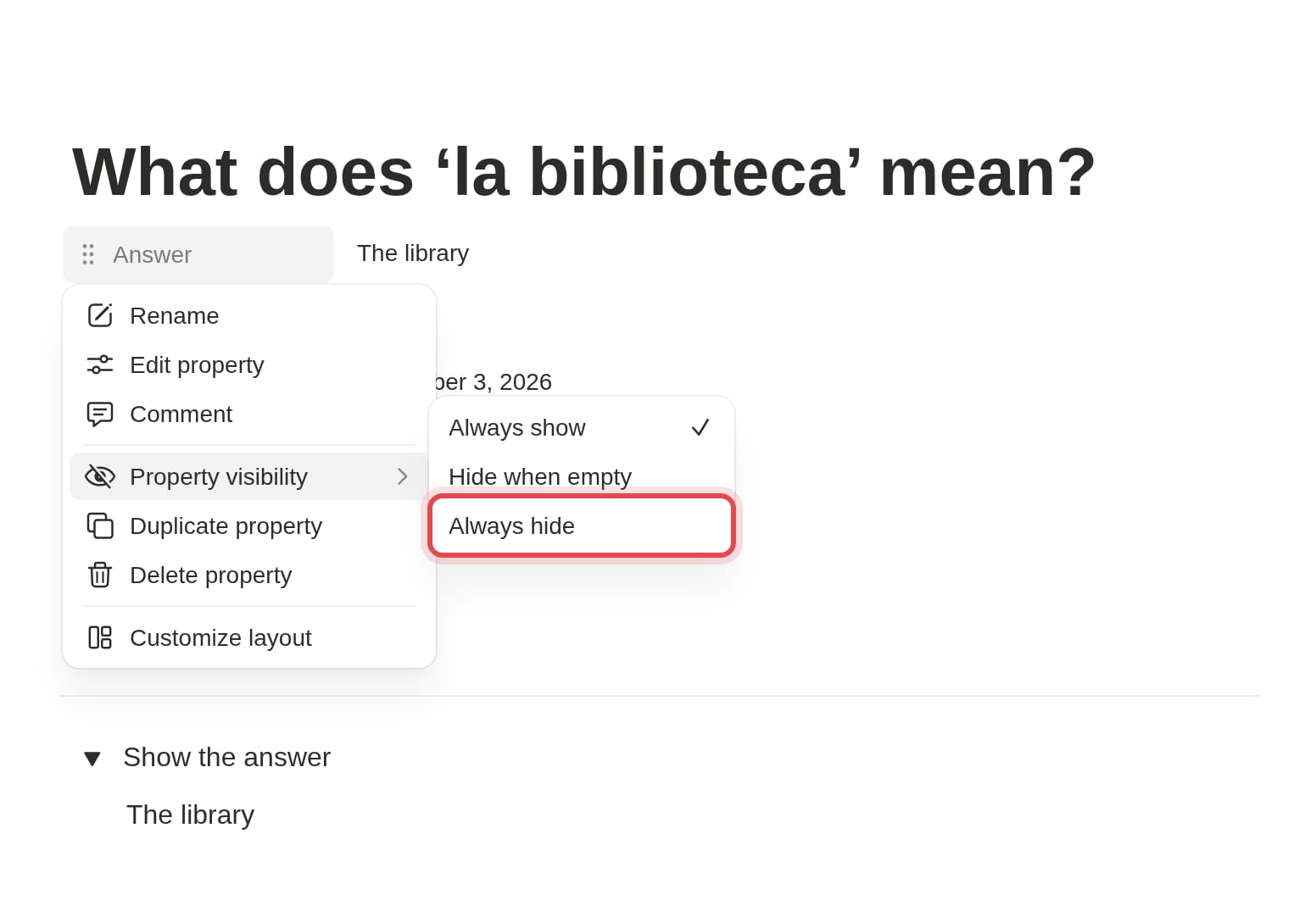
The Answer folds away under a grey 1 more property line, on this card and on every other card in the deck. Now the card shows the question, Known, Next review and Topic, and the answer waits in the Show the answer toggle below. Click the toggle's arrow to check yourself.
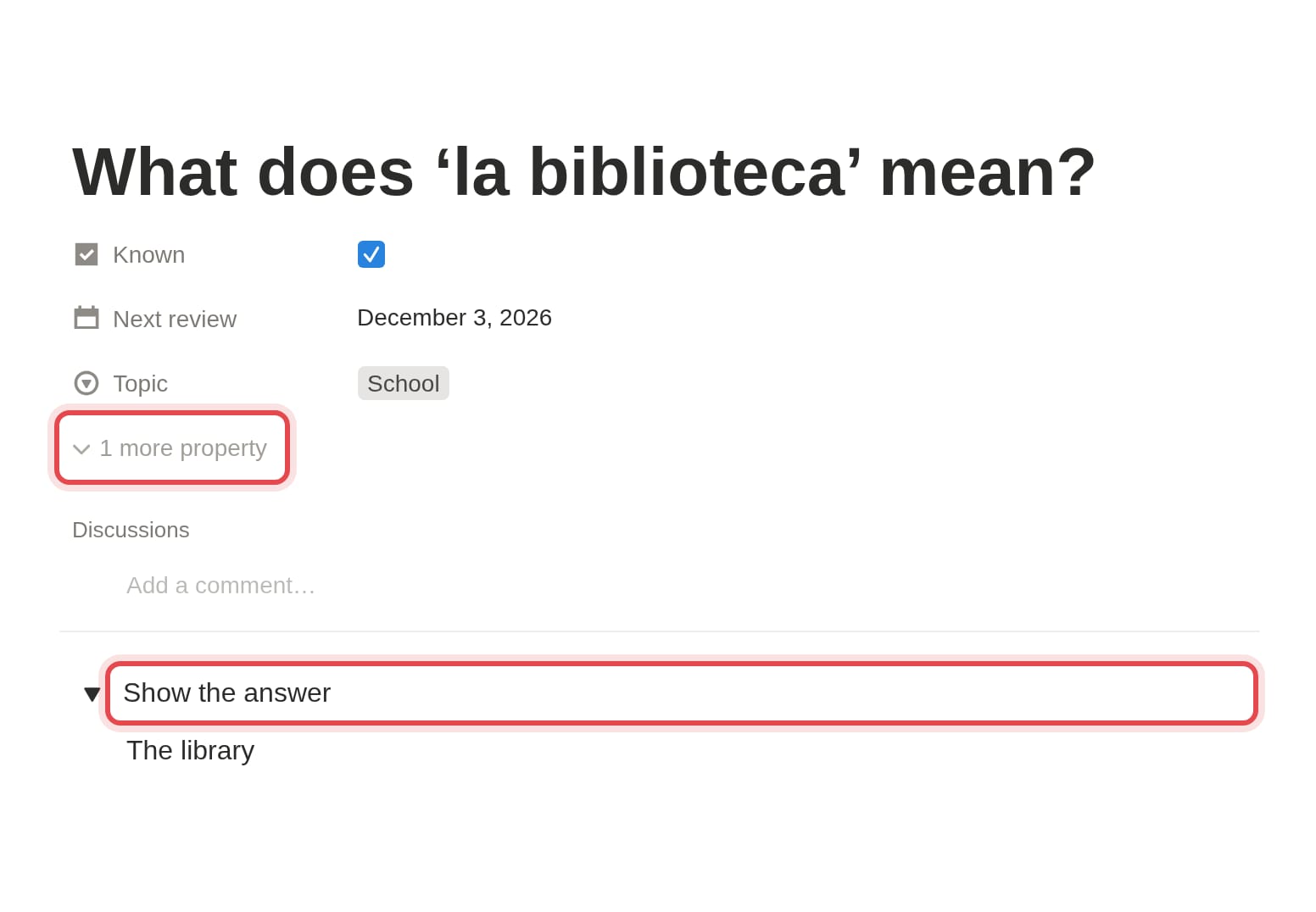
1 more property shows it again when you need it. The table keeps its Answer column: what a card hides doesn't change the views.
Tick Known and study what is left
Point at the view names and click Add view again. Choose Table and name it Still learning. Press Enter.
In the settings that open, click Filter, choose Known, then Unchecked. The panel shows Known: Unchecked.
A table shows every answer, so hide it in this view. Click Settings (the sliders, just left of New), then Property visibility, and click the eye next to Answer. Answer moves down under Hidden in table.
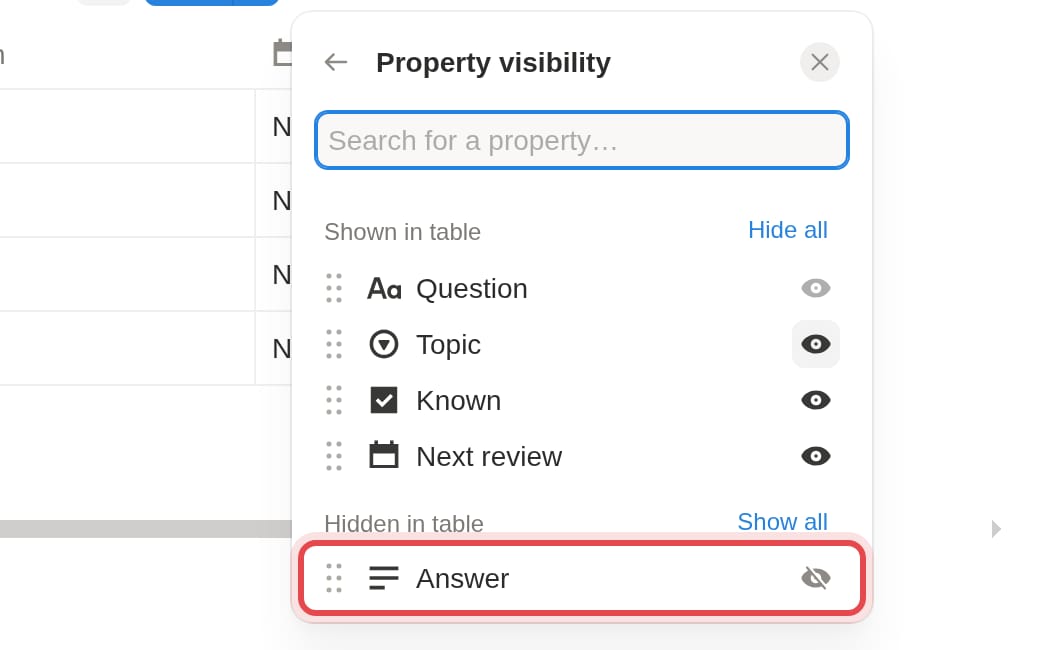
Later, Filter above the table shows the filter as a Known: Unchecked button.
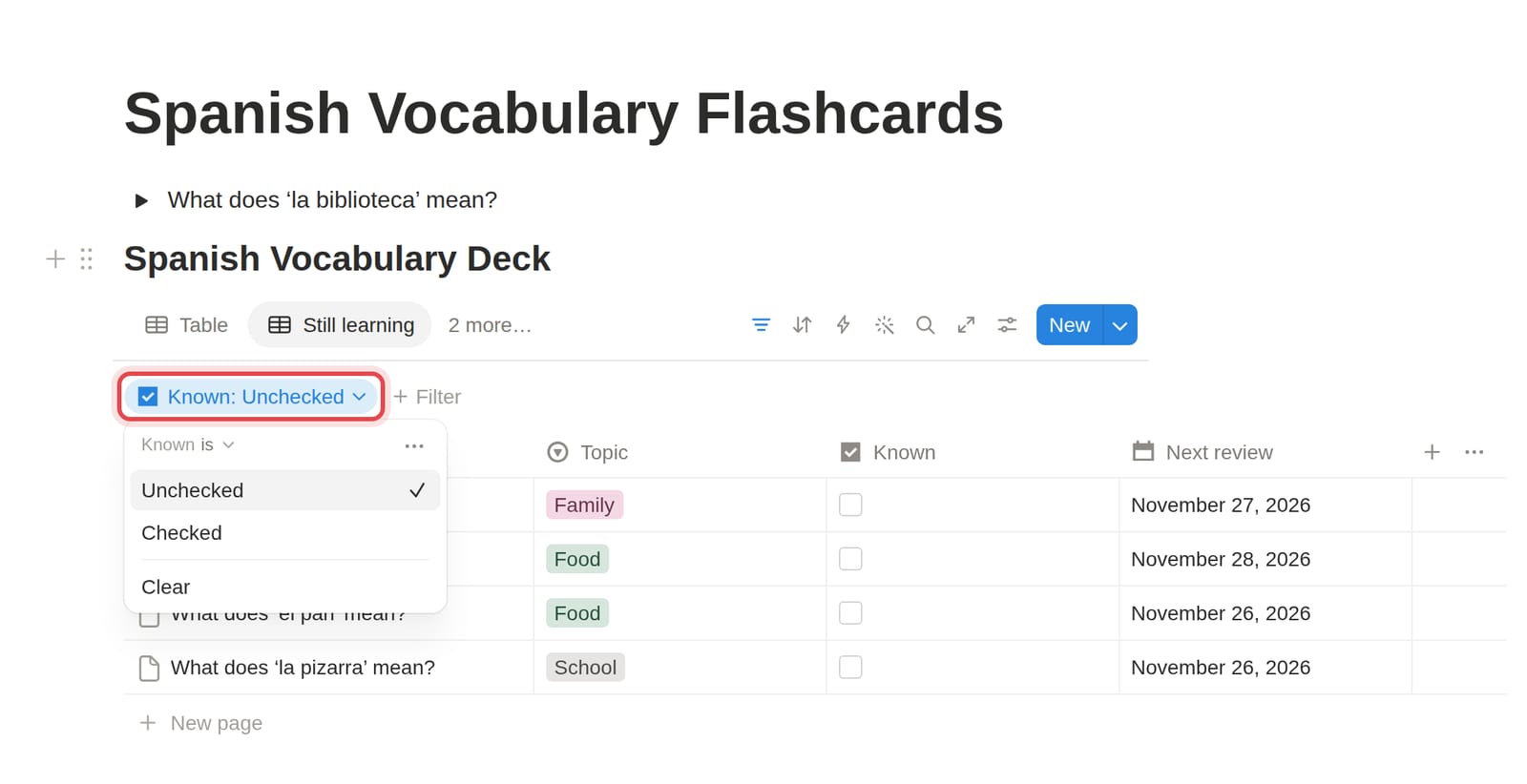
Only the cards you haven't ticked are left (four of the eight here), with no answers in sight. Study from this view: read the question, say the answer, then open the card and click Show the answer. When you get a word right, tick its Known box: the card leaves Still learning right away, and you're left with fewer cards each time you go through the list.
If a checkbox for each day sounds useful for more than vocabulary, the same idea runs a habit tracker in Notion.
Group the deck by unit or topic
Click the Table view, then the Settings button (the sliders, just left of New).
Click Group and choose Topic.
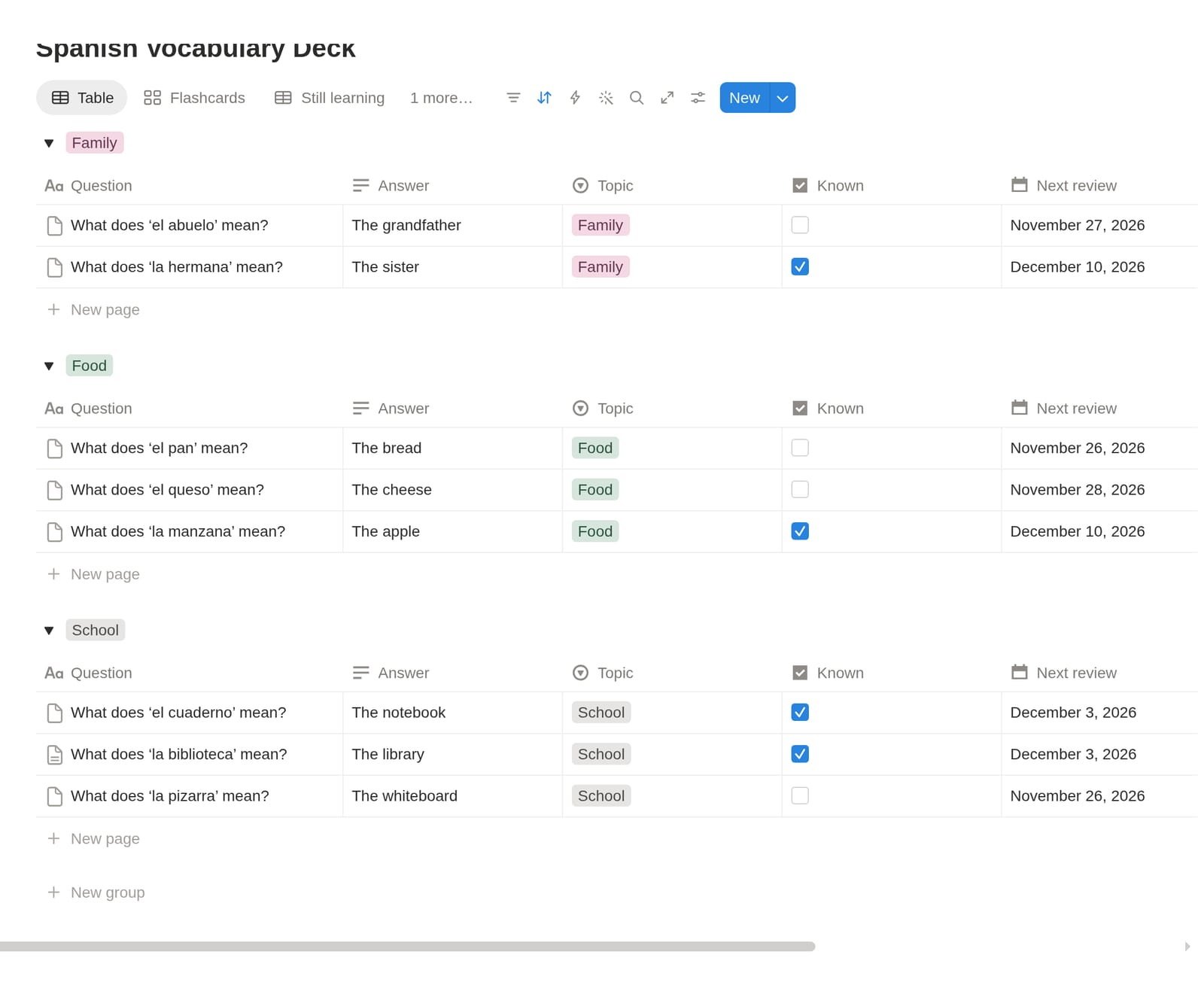
The deck splits into one block per topic (Family, Food, School), each with its own New page button at the bottom. Use units instead of topics if that's how your course runs (Unit 3, Unit 4).
Share one deck with your class
Before you share a deck, know that the Known box belongs to the card, not to the person who ticks it. In one shared deck, one student's tick ticks that card for everyone, and it drops out of everyone's Still learning view. Give each student their own copy instead.
Build the deck once, on its own page, with all its cards and views.
Untick every Known box, so each copy starts with every card in Still learning.
Click Share at the top right of the page. To let each student make their own copy, publish the page to the web and allow duplicating. Notion's guide to publishing a page to the web shows where each of those switches is.
Send your class the link. Each student duplicates the page into their own Notion workspace and ticks Known in their own copy. Your deck stays as you left it.
Notion has no spaced repetition: use a Next review date
Notion has no spaced repetition: it won't decide when a card should come back. You can still get close with the Next review date column and one more view.
With several views, the extra ones are tucked under 1 more… next to the view names. Click it, then New view.
Choose Table and name it Due today. Press Enter.
Click Filter, then Next review. Notion starts the filter at This week.
Click is relative to today and choose Is on or before.
Open the date dropdown and choose Today. The filter reads Next review: On or before Today, and under the calendar Notion notes that the filter will update with the current date.
Hide the answers here too: Settings, Property visibility, then the eye next to Answer.
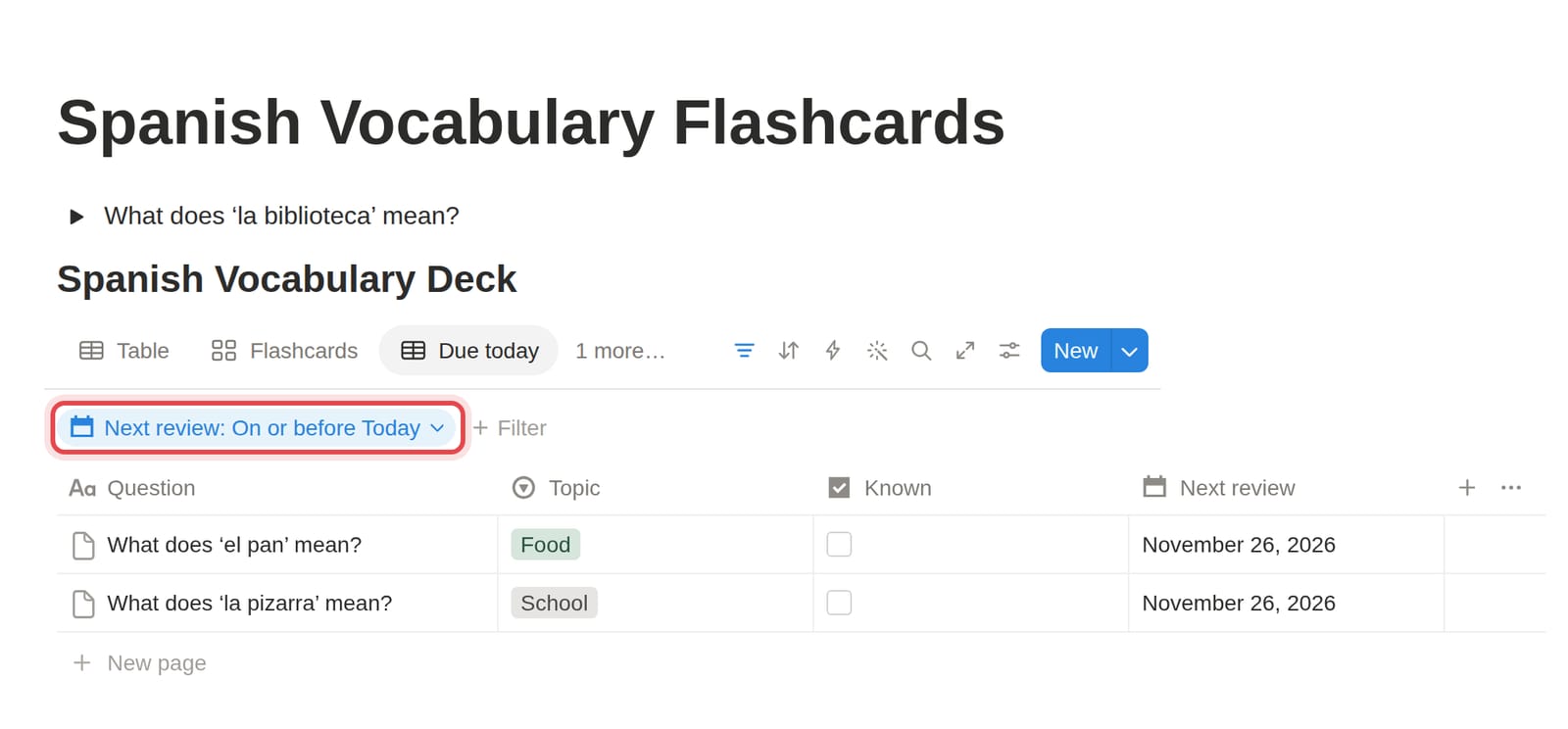
Every day this view shows the cards due today and any you missed. When you've reviewed one, click its Next review date and pick a later day: a few days on if you got it wrong, a week or two if you got it right. Close the calendar and the card drops out of Due today. You choose the gaps yourself. Notion just shows you what's due.
What goes wrong
The answer shows on the gallery card. Check Card preview (set it to None) and Property visibility in the view's Layout and settings.
The answer shows when a card opens. Click Answer in the card, then Property visibility and Always hide.
The answer shows in Still learning or Due today. Each view has its own Property visibility. Hide Answer in each view you study from.
FAQ
Can I make flashcards in Notion without a database?
Yes. One toggle block per card on an ordinary page is enough: the question as the toggle's title, the answer inside. You only need a database to tick cards off, filter them or group them.
Does Notion have spaced repetition?
No. Notion won't schedule cards for you. Add a Next review date to each card and a view filtered to On or before Today, then move the date on each time you review a card.
How do I see only the cards I don't know yet?
Add a Known checkbox and a table view filtered to Known is Unchecked, with Answer hidden in its Property visibility. Ticked cards disappear from that view the moment you tick them.
Can I keep separate decks for each unit?
You can keep one deck and give each card a Topic or unit, then group the table by it. That way each unit has its own section, and the Still learning and Due today views still work across the whole deck.
Can I share a flashcard deck with my class?
Yes, but give each student their own copy. The Known box is part of the card, so in one shared deck one student's tick changes it for the whole class. Publish the deck to the web with duplicating allowed, and each student duplicates it into their own workspace.
What else can students use Notion for?
Flashcards are one of many. See our list of the best Notion uses for students.
Still grading everything by hand?
EMStudio is a free teaching management app — manage your classes, students, lessons, and more!