How to Keep a Homeschool Portfolio in Notion (Template Walkthrough)

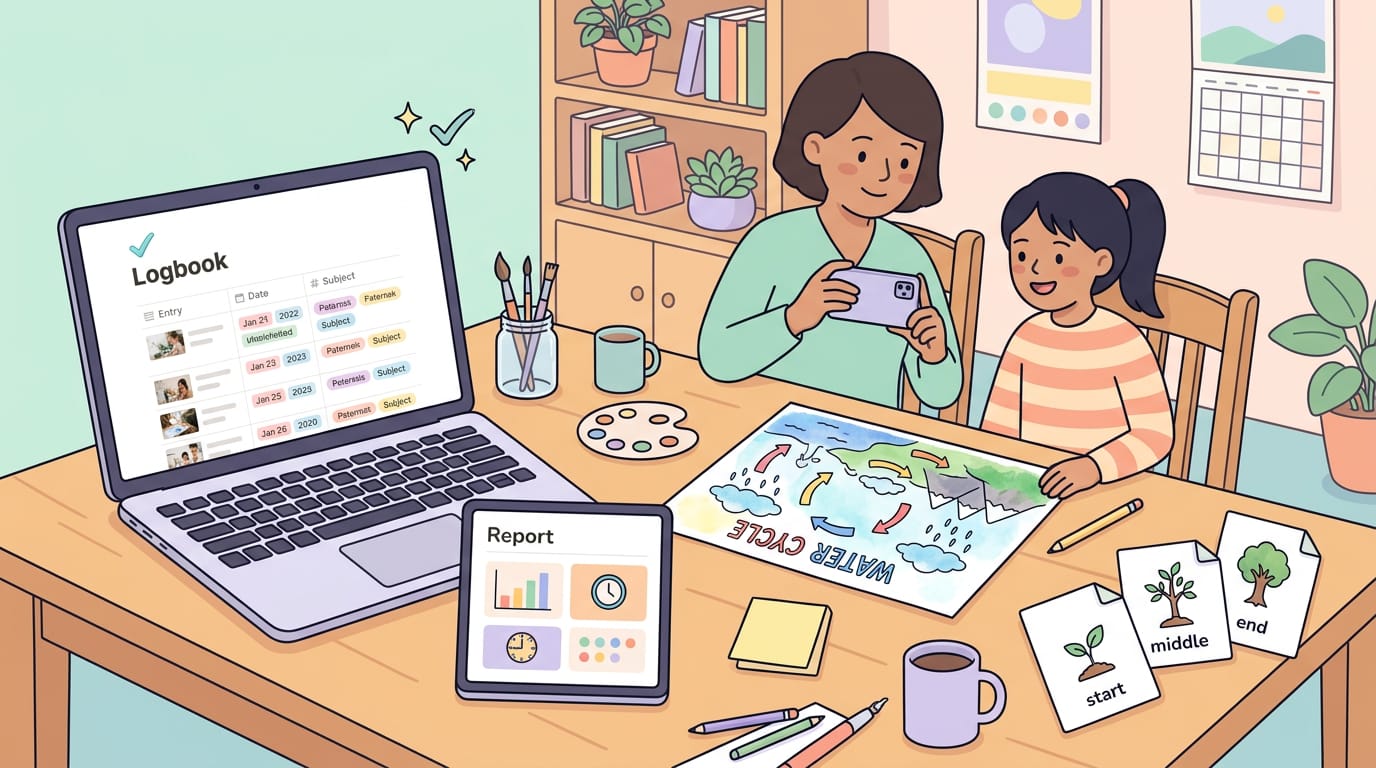
A homeschool portfolio is the record of your child's year: samples of their work, test scores, the lessons they covered and the time they spent. You can keep one in Notion as you go with the Ultimate Homeschool Planner. Each finished lesson becomes a Logbook entry with its date, score, student and a photo of the work. A Report page for each child then adds up lessons, hours, subjects and grades for the year. The steps below are the ones I took for a made-up Grade 5 student, Maya.
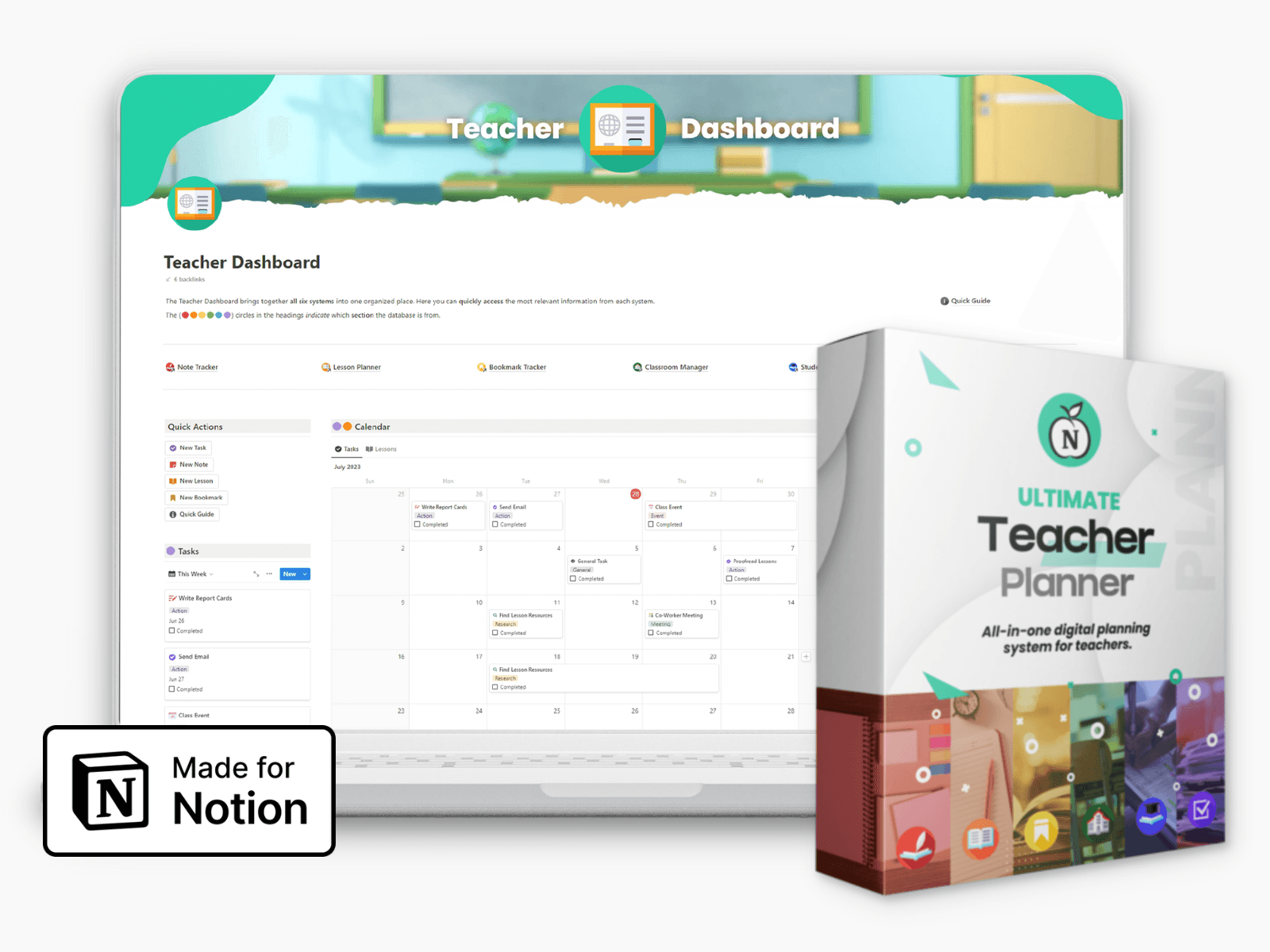
Ultimate Teacher Planner
The ultimate all-in-one education management system in Notion.
What to keep in a homeschool portfolio
For each subject, keep:
Work samples: a few pieces from the start, middle and end of the year, so progress shows.
Tests and quizzes, with the score.
The lessons or topics covered, with the date each was done.
Projects, with a photo when they don't fit in a folder.
Field trips, co-op classes and outside reading.
Time spent, if you are asked for hours.
Whether you need a portfolio, what has to be in it and who looks at it all depend on your state, and sometimes on your school district. Check your state's homeschool rules before the year starts. The template doesn't decide any of that for you. It keeps the record, so whatever you're asked for is already there.
Log as you go. Building a portfolio in May from a box of papers is the hard way. Logging a lesson the day it's done takes a minute, and there's nothing to piece together at the end.
What the template gives you
Two pages do the work:
Logbook: one entry per finished lesson. Each entry has Student, Subject, Lesson, Score, Date Completed and Duration (min.), plus an Upload Sample Work heading with three image slots.
Reports: one page per child for the period you choose. It shows # of Days, # of Lessons, Total Time and Subjects Learned, and four views: Logged Attendance, Student Grades, Time Spent on Subjects and Logged Lessons.
The Attendance page feeds the report's # of Days: one record per day, with Day, Student and Status (Step 4).
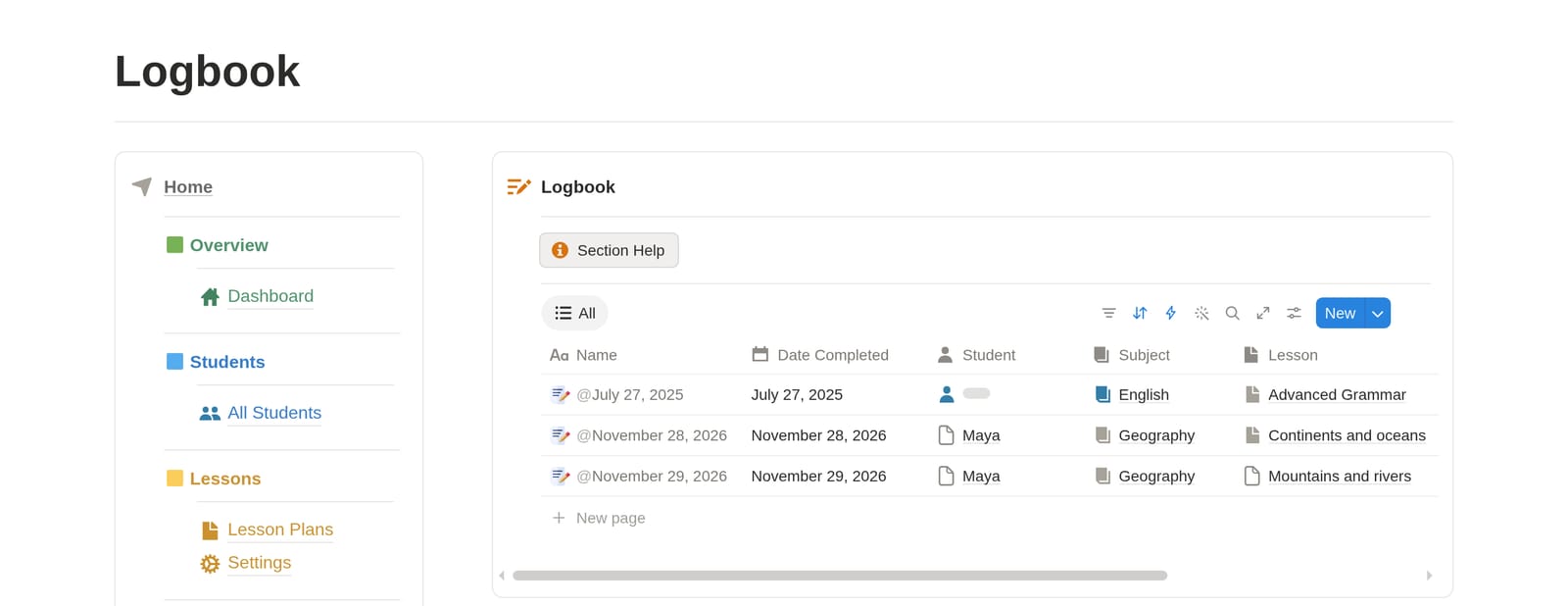
Here is the Logbook with two of Maya's Geography lessons in it (the first row is the template's own sample):
If you're new to the planner, the Ultimate Homeschool Planner guide walks through all its pages. This article sticks to the two pages that make the portfolio.
Step 1: Log a lesson the day it's done
The quickest way to fill the Logbook is to use the buttons on the lesson's own page.
Open the lesson's page. Lessons sit under Lessons in the template's menu (Lesson Plans). I used Maya's Geography lesson "Mountains and rivers".
Set the student: click Empty next to Student, pick the child from the list and press Escape. Click the empty value, not the word "Student". The word opens the property's own menu (Rename, Edit property and so on).
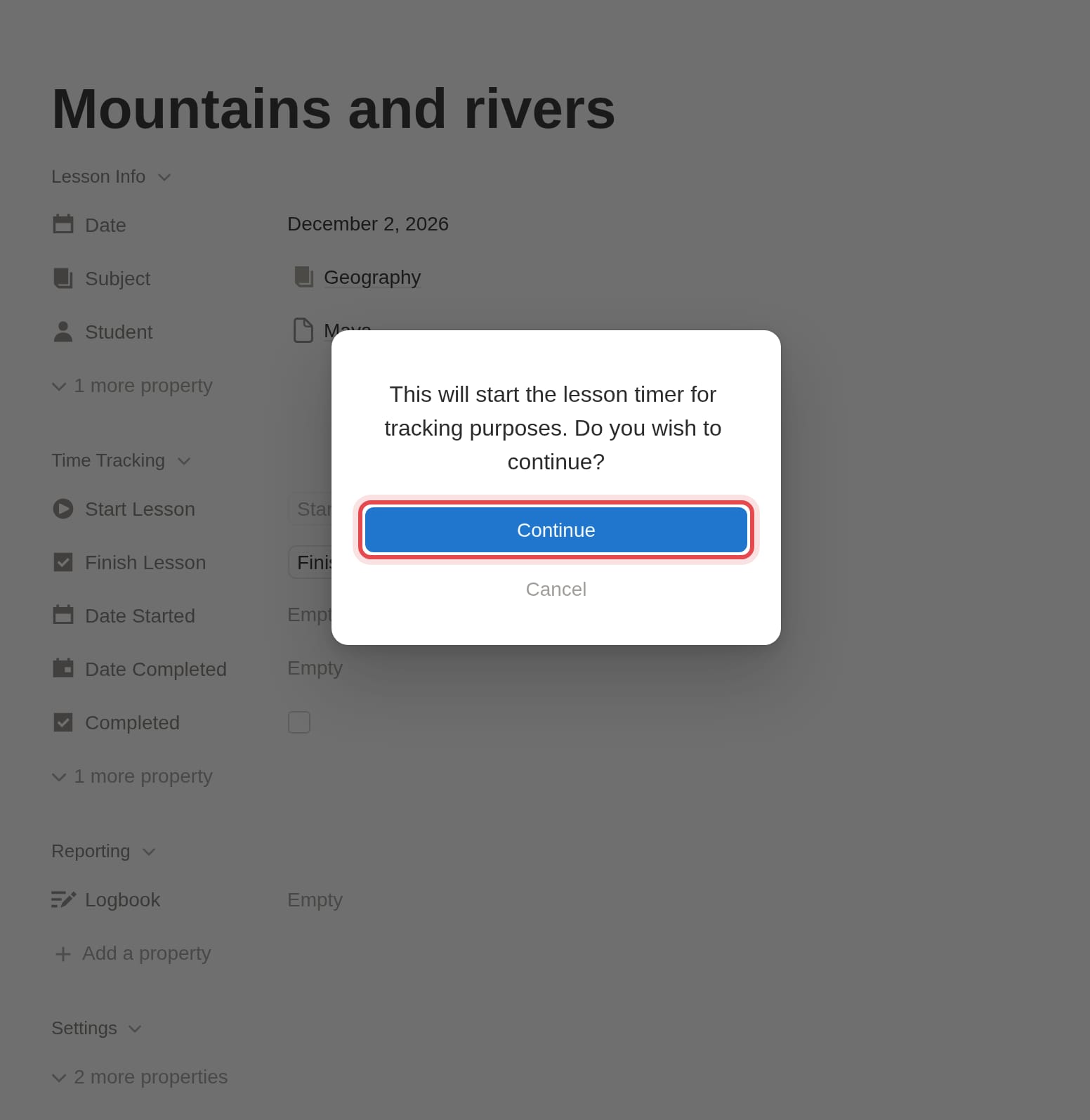
When the lesson starts, press Start Lesson ▶️. Notion asks: "This will start the lesson timer for tracking purposes. Do you wish to continue?" Press Continue. Date Started fills in with the date and time.
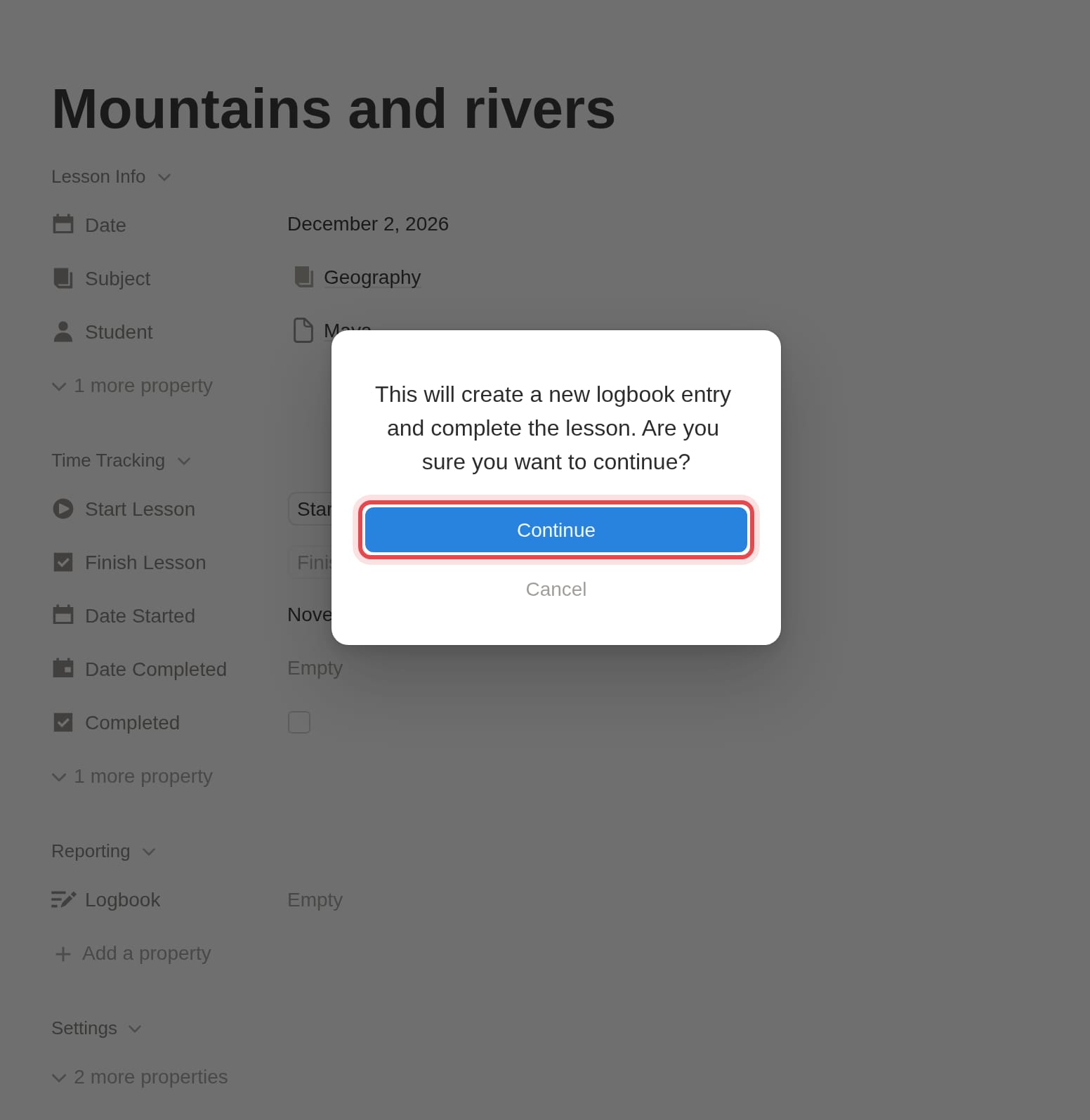
When the lesson is done, press Finish Lesson ✅. This time the message reads: "This will create a new logbook entry and complete the lesson. Are you sure you want to continue?" Press Continue.
The new Logbook entry opens beside the lesson. It is named after the day (@November 29, 2026), and its Student, Subject and Lesson come from the lesson. Date Completed is today. On the lesson itself, Completed is ticked, Date Completed is filled in, and Logbook links to the new entry.
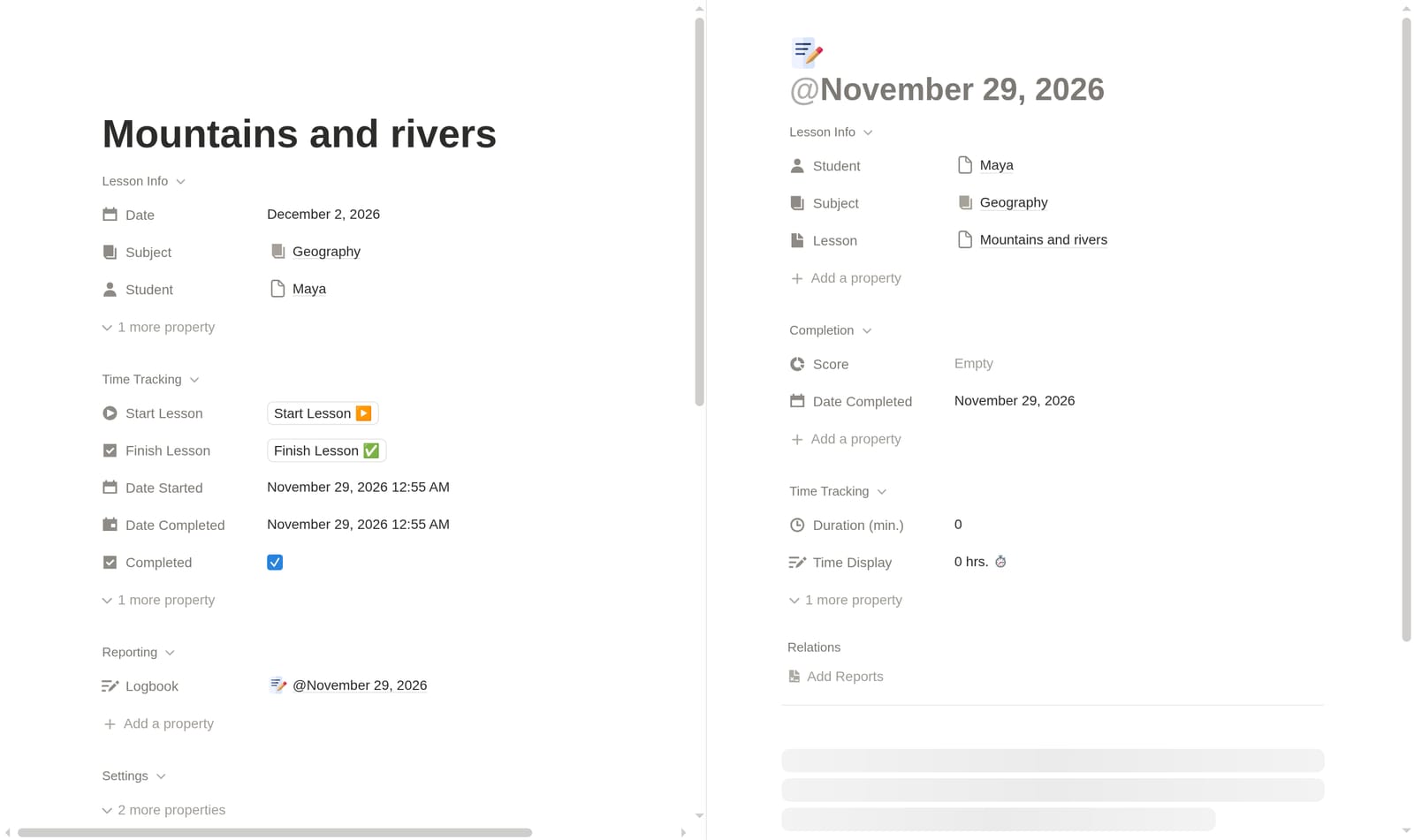
About Duration. The entry's Duration (min.) comes from the lesson's timer: clicking it shows it is taken from the lesson's own Duration (min.). I pressed Start and Finish within the same minute, so it read 0 and "0 hrs." If you forget to press Start Lesson, or press it late, fix Date Started on the lesson. Click the date, click the time box and type the real start time. I set Date Started 45 minutes before the finish, and the entry's Time Display then read 0.75 hrs. A Logbook entry for a lesson that was never timed shows Duration Empty, and its time is not counted.
Step 2: Add the score
Open the entry from the Logbook table. Here it's the entry for Maya's lesson "Continents and oceans".
Click Empty next to Score, type
92and press Enter. Score is a percentage. Typing 92 gives 92%. Typing 0.92 gives 0.92%, so type the whole number.If Student is empty (an entry you didn't make with Finish Lesson), click Empty next to it and pick the child.
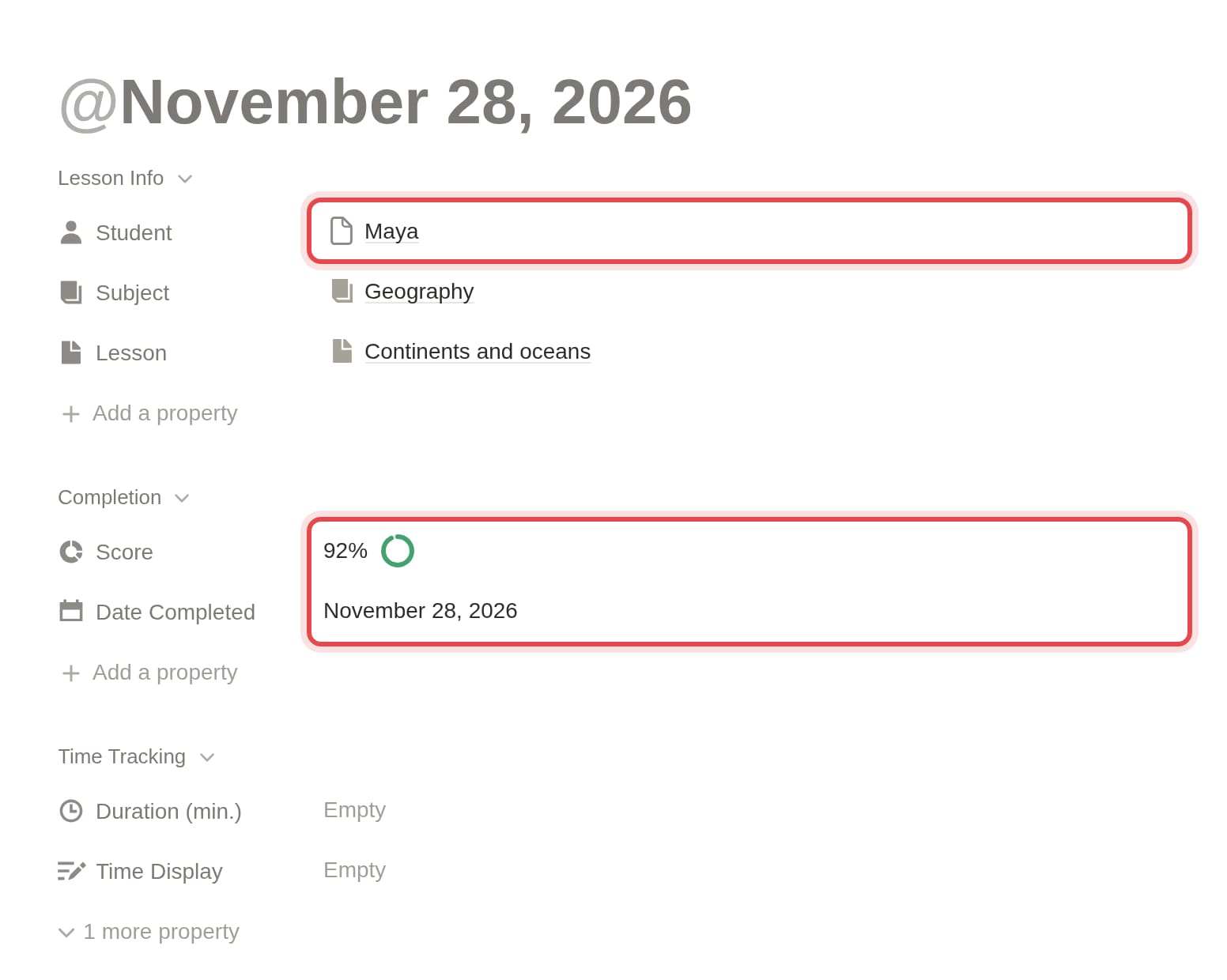
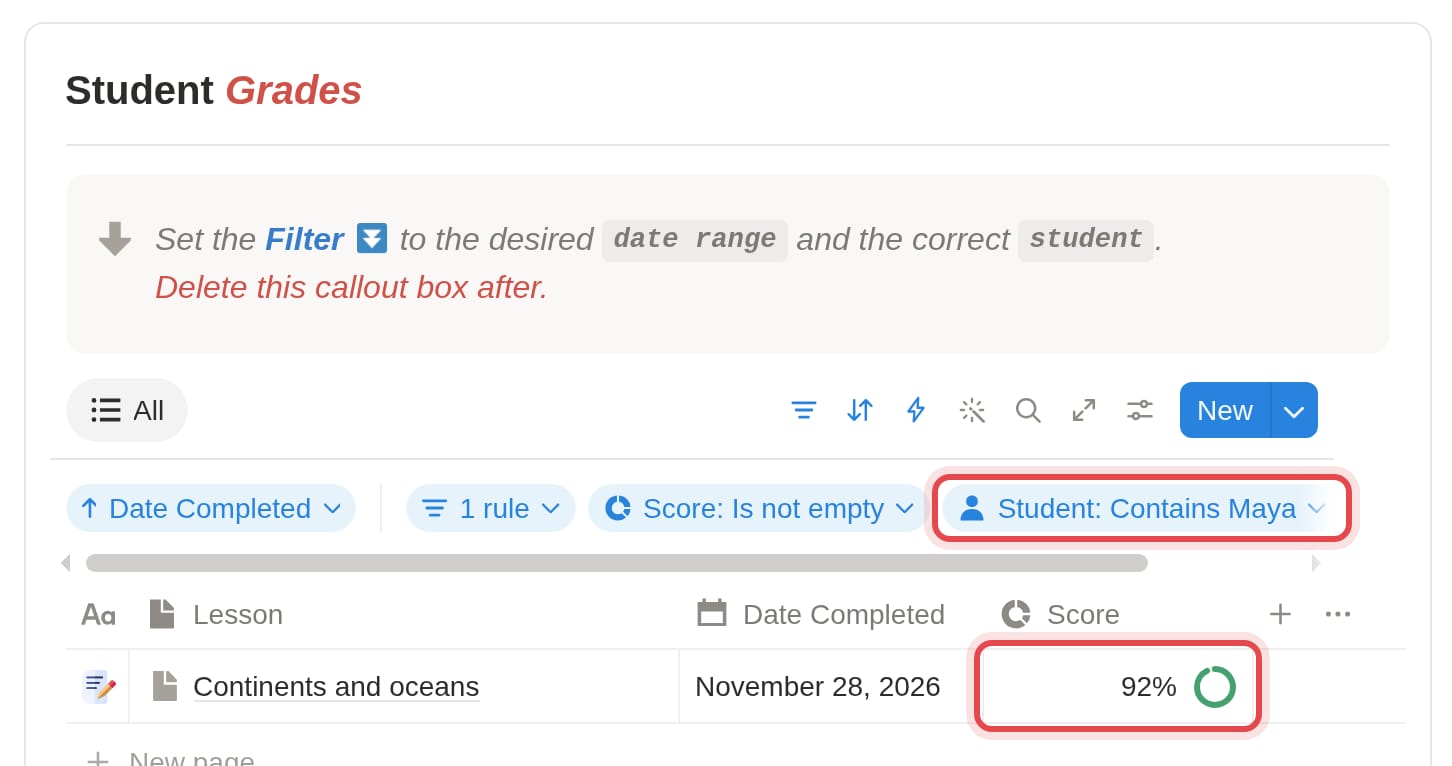
Only scored lessons appear in the report's Student Grades view (its filter is "Score: Is not empty"). Lessons without a test stay out of the grades.
Step 3: Upload a work sample
Scroll down the entry to the Upload Sample Work heading. Under it are three Add an image slots.
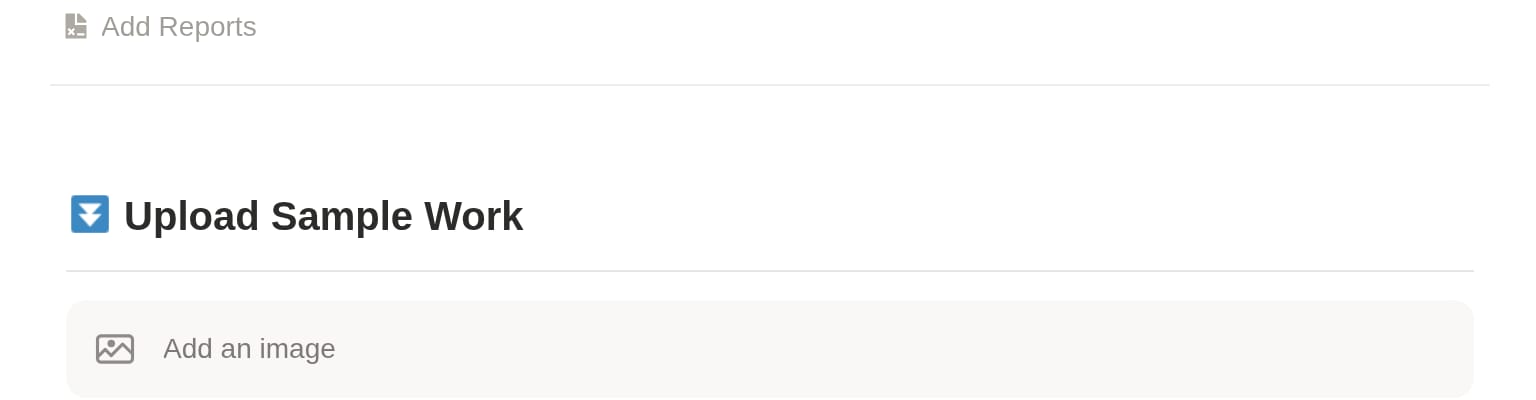
Click Add an image. A small panel opens. Press Upload image and choose the file: a photo of a worksheet, a scan of a map, a picture of a project.
The picture sits under the heading. Two slots are left for more pages of the same work.
In my example, the first slot holds a title card ("Continents and Oceans, Maya, Grade 5 Geography") standing in for Maya's map. In your portfolio it will be the photo or scan of the work itself.
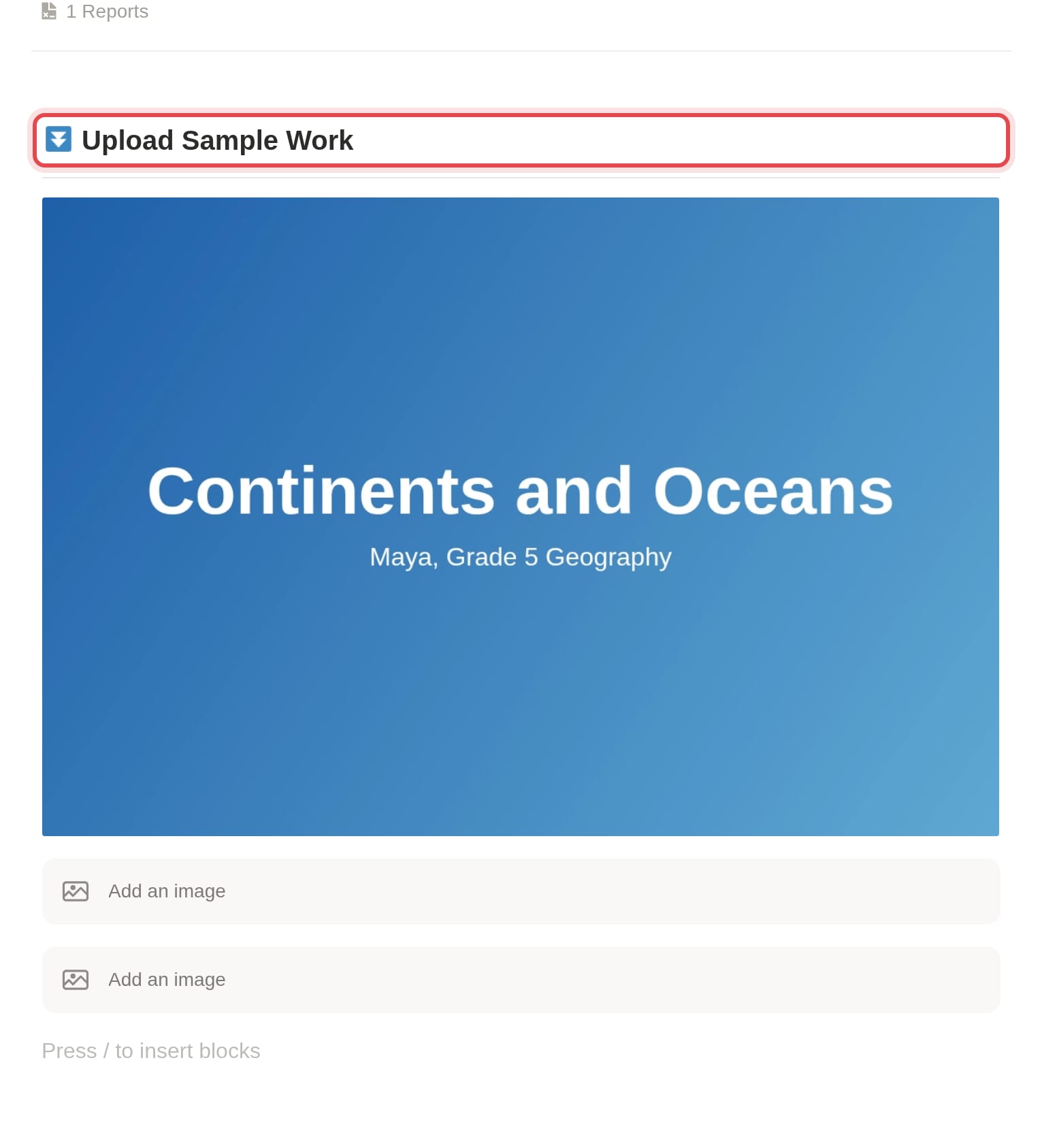
Above the heading, under Relations, the entry shows "1 Reports" once it is linked to a report (Step 4).
Step 4: Make the yearly report for one child
Open the Reports page and press New.
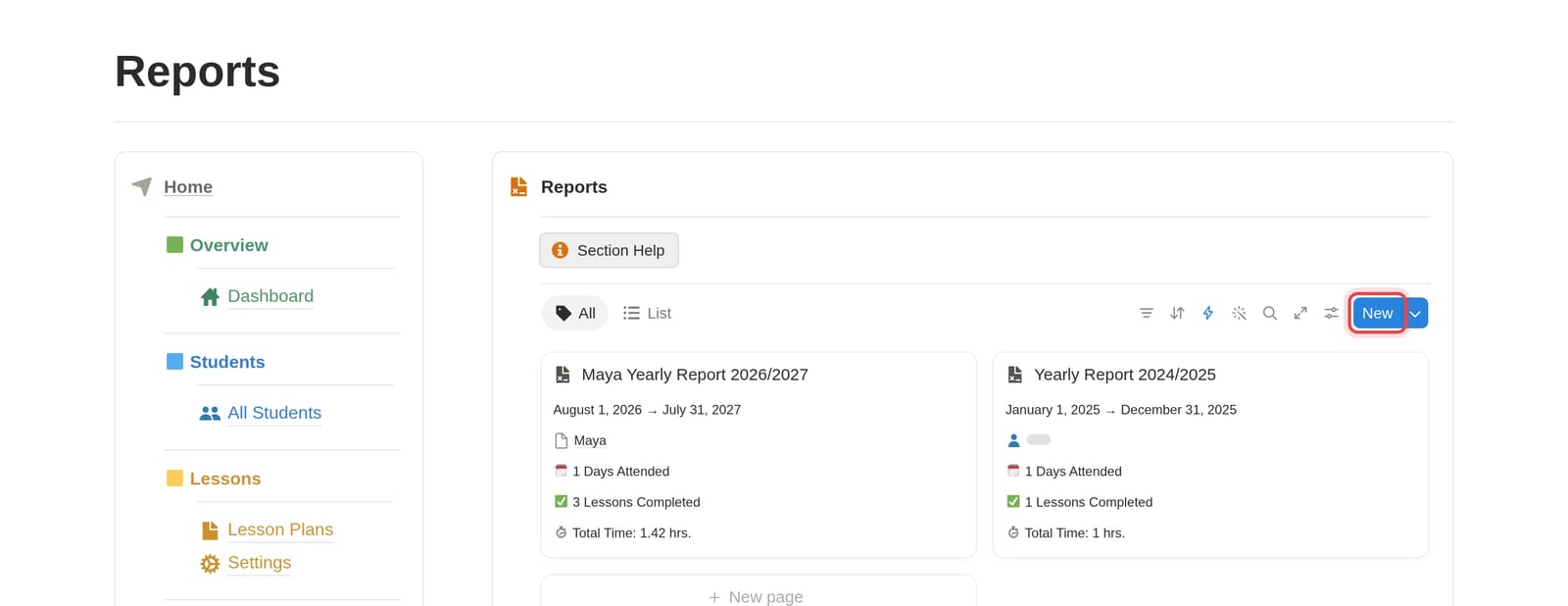
The new page opens with a list of templates at the bottom. Choose New Report. It adds the four views to the page.
Click the title and type a name, for example "Maya Yearly Report 2026/2027".
Click Empty next to Student, pick the child and press Escape.
Set the Report Date as a range. Click the date, turn on End date, type the first day in the first box (
Aug 1, 2026) and press Enter. Type the last day in the second box (Jul 31, 2027), press Enter, then Escape.
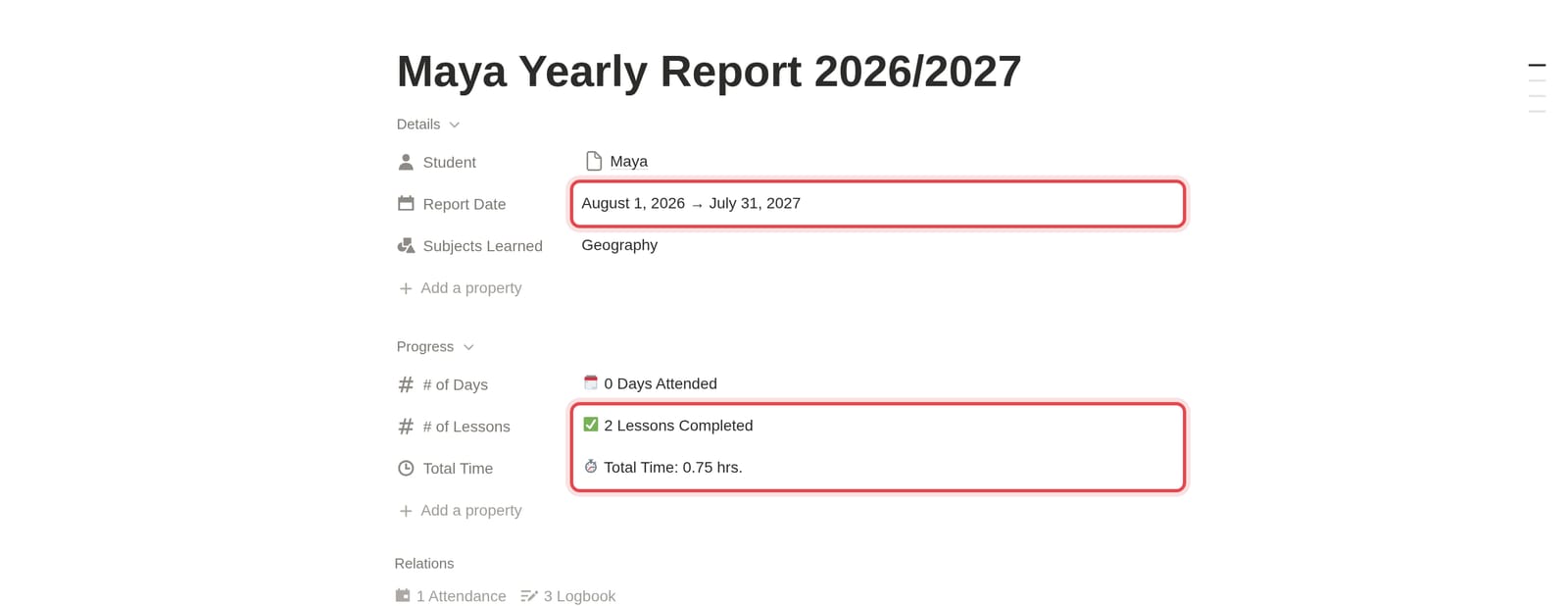
Use a range here. I first set Report Date to a single day (Today), and the report read 0 Lessons Completed, Total Time 0 hrs., with Subjects Learned Empty. Once it ran from August 1, 2026 to July 31, 2027, Subjects Learned showed Geography and # of Lessons showed 1 Lessons Completed.
Check which lessons the report counts. Under Relations at the bottom of the fields, the report shows how many Logbook entries it is linked to. It counts only those.
A new entry is not linked to the report by itself. I finished a lesson for Maya with Finish Lesson after her report existed, and the new entry's Relations read Add Reports, not "1 Reports". So link each new entry, from the report or from the entry.
From the report. My report had two entries linked: Maya's first lesson and the template's 2025 sample. The lesson I finished later was not linked. Click the Logbook link ("2 Logbook"). The linked entries are listed under "2 selected". Click the missing one under Select more.
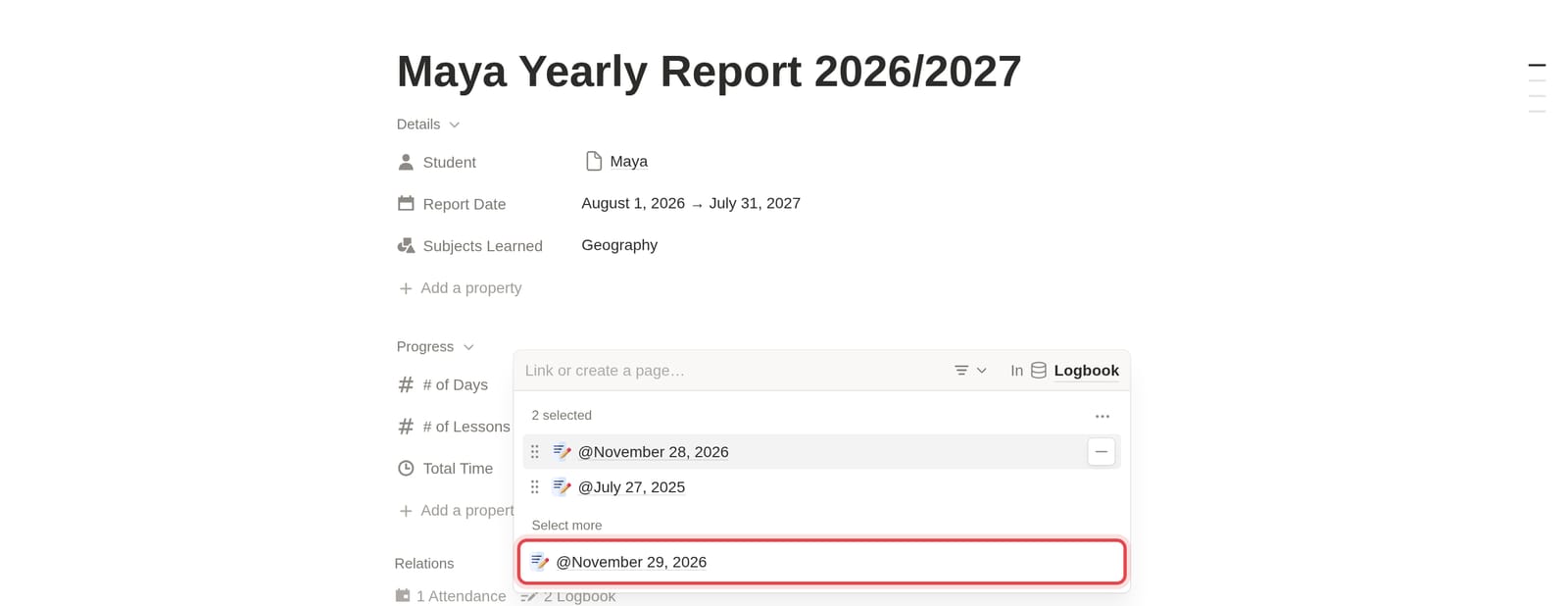
Once it was linked, the report read 2 Lessons Completed and Total Time: 0.75 hrs., with Geography under Subjects Learned:
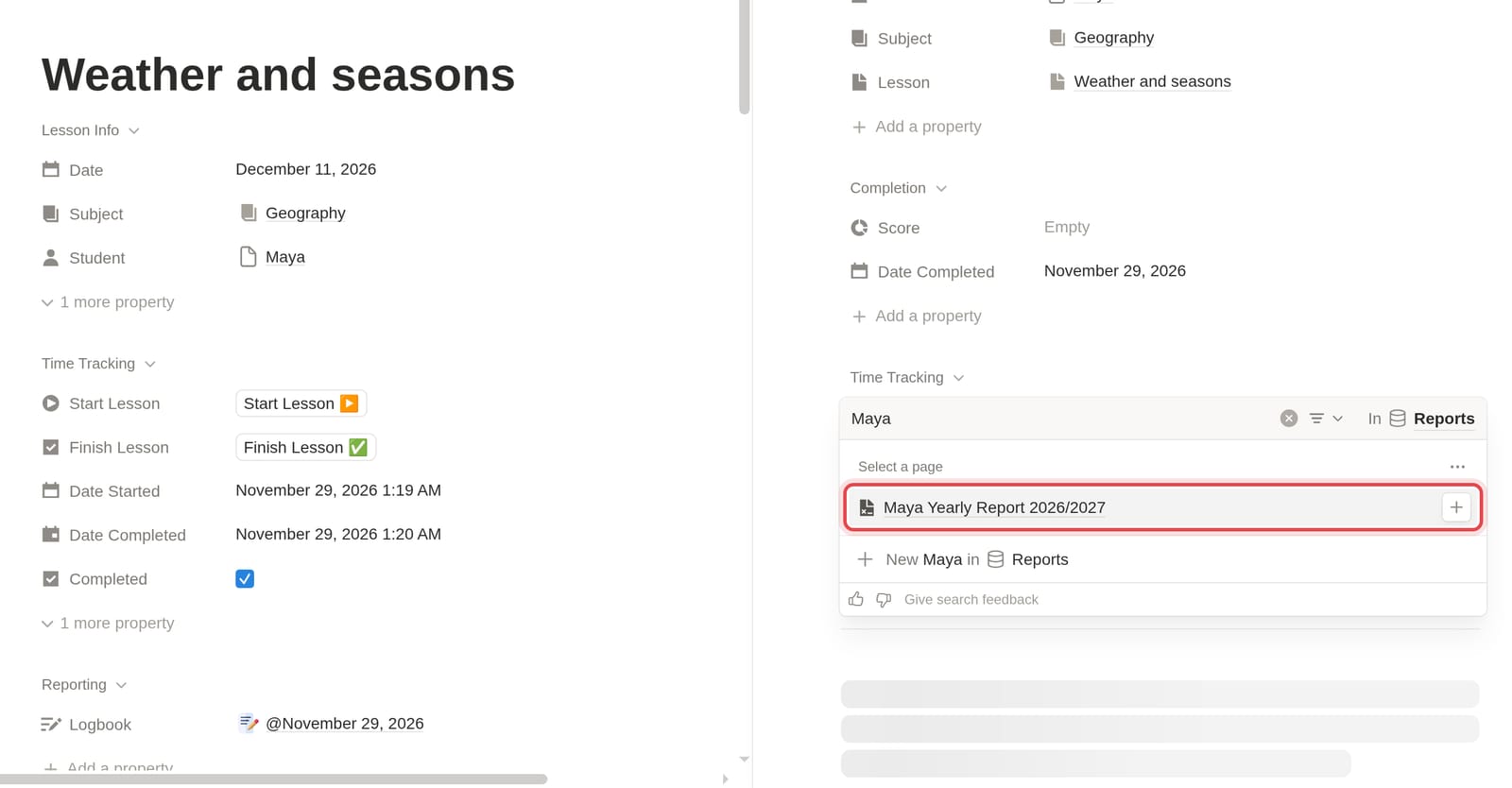
From the entry. On the entry, under Relations, click Add Reports, type the child's name and click the report. I did this for Maya's next lesson, "Weather and seasons". The entry then read "1 Reports", and the report read 3 Lessons Completed. I had pressed Start Lesson and Finish Lesson on it a minute apart, so I set the lesson's Date Started to 9:00 AM and its Date Completed to 9:40 AM, the way Step 1 explains. Its entry then read 0.67 hrs., and the report's Total Time went from 0.75 to 1.42 hrs.
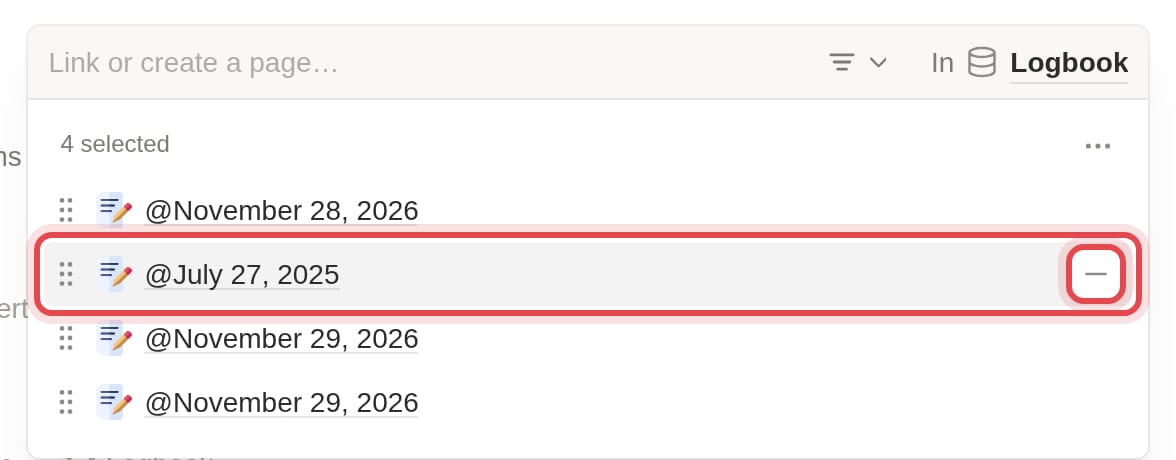
Take the template's sample off your report. Mine was also linked to the template's own sample entry, @July 27, 2025. Click the Logbook link, point at @July 27, 2025 and press the − at the end of its line (Unlink page). The report still read 3 Lessons Completed, because the sample falls outside the date range. The Logbook link now lists only Maya's lessons.
Count the days of attendance
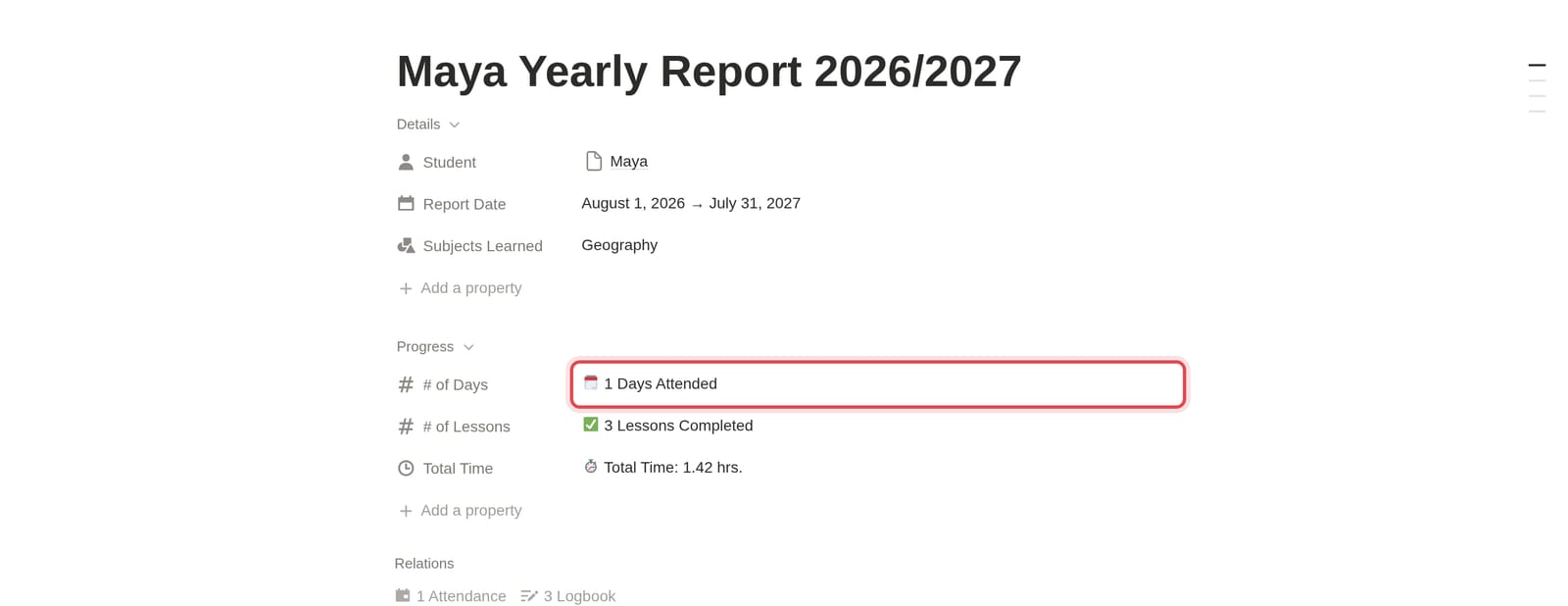
# of Days counts the days recorded on the template's Attendance page that are linked to the report. My report read 0 Days Attended until I recorded one:
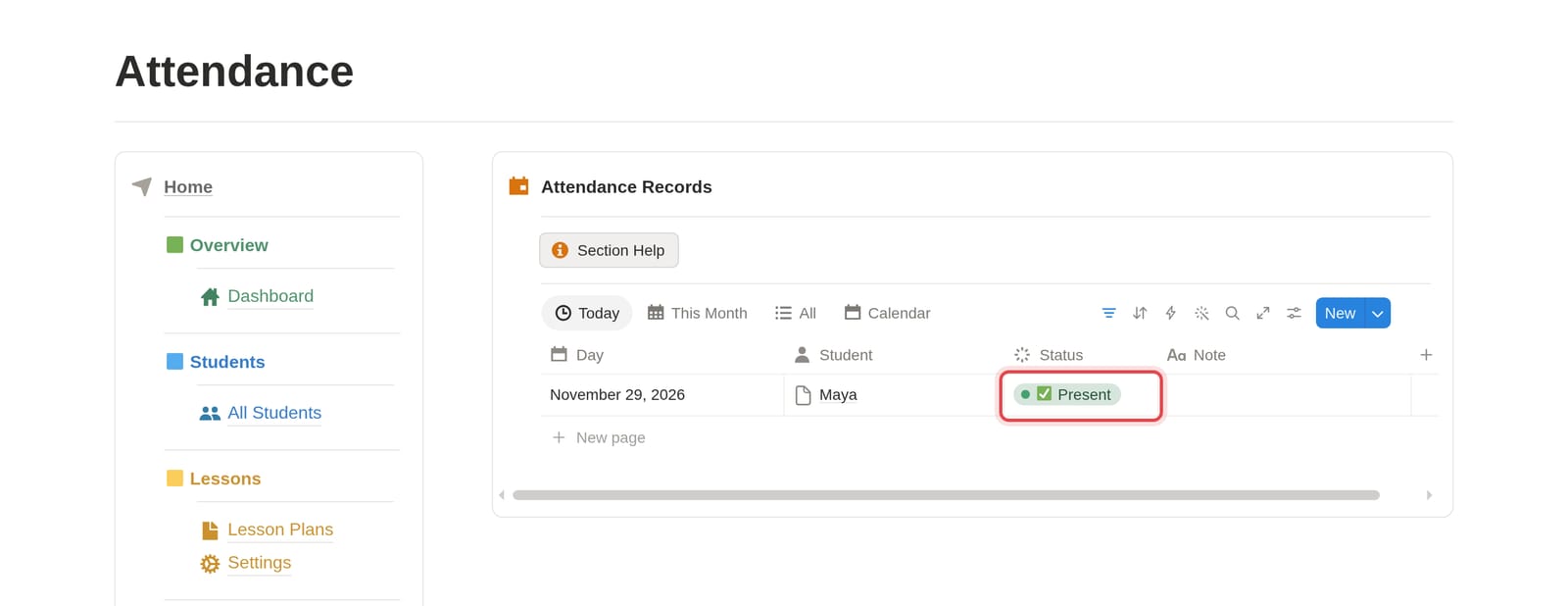
Open Attendance and press New. The record opens beside the table with Day set to today and Status set to n/a.
Click Empty next to Student and pick the child. Click n/a and choose Present (the other choices are n/a and Absent). Press Escape. The day shows in the Today view.
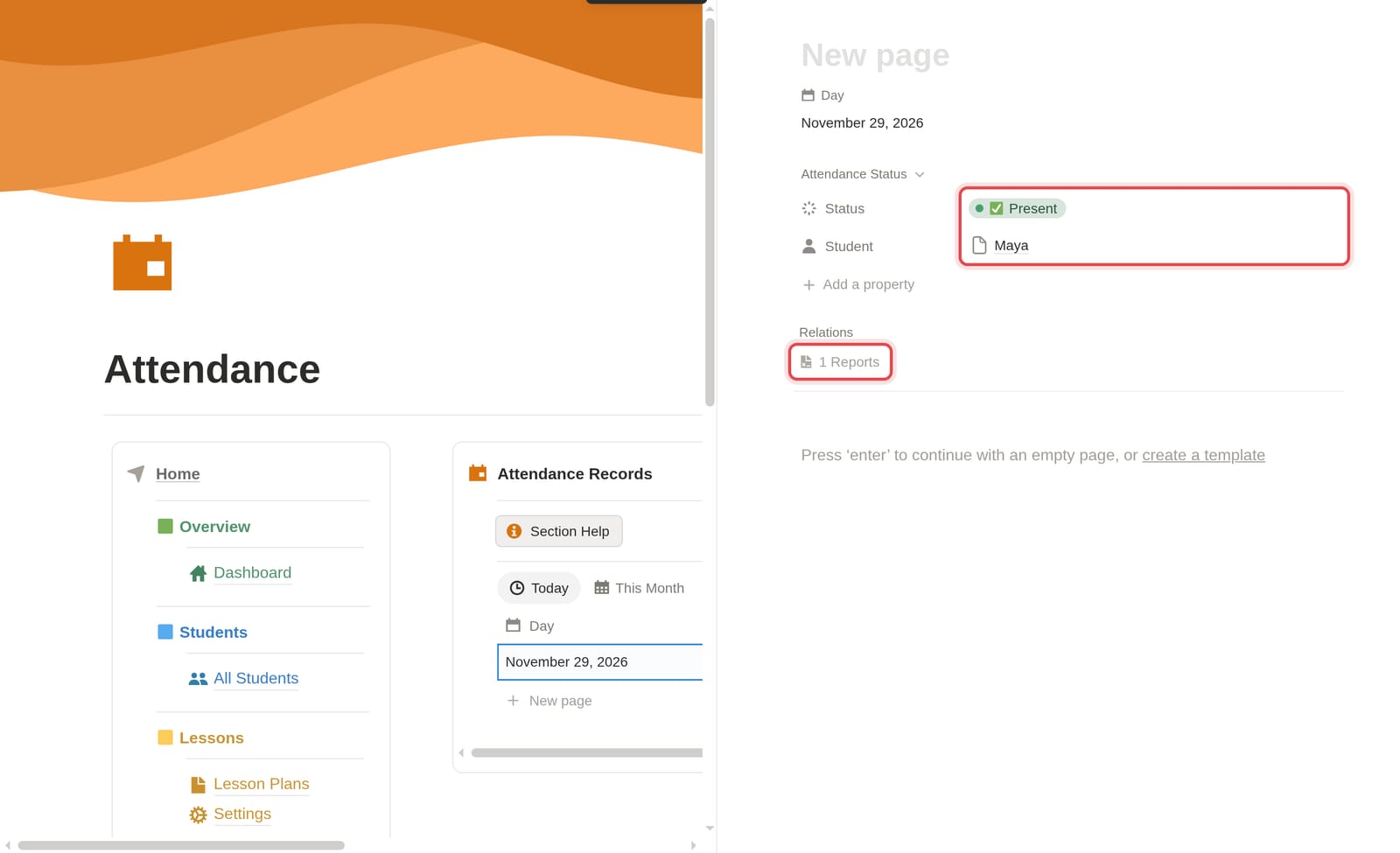
In the record beside the table, under Relations, click Add Reports, type the child's name and click the report. If you already closed the record, point at its row and press OPEN to get it back.
The report then read 1 Days Attended. Its Attendance link said "2 Attendance", because the template's own sample day from 2025 was linked too, though it was not counted.
Unlink the sample day the same way as the Logbook sample: click the report's Attendance link, point at the sample day and press the − at the end of its line. In that list both days were called "New page", because an attendance record has no name unless you give it a Note. The sample was the first one. The link then read "1 Attendance", so the report holds only your child's days.
Step 5: Filter the report's views to one child
The four views at the bottom of the report start out showing every student. Each one carries a note: "Set the Filter to the desired date range and the correct student. Delete this callout box after."
For each view:
Click the view's Filter icon (the lines at the top right of the view).
Click Student in the filter bar that opens and pick the child.
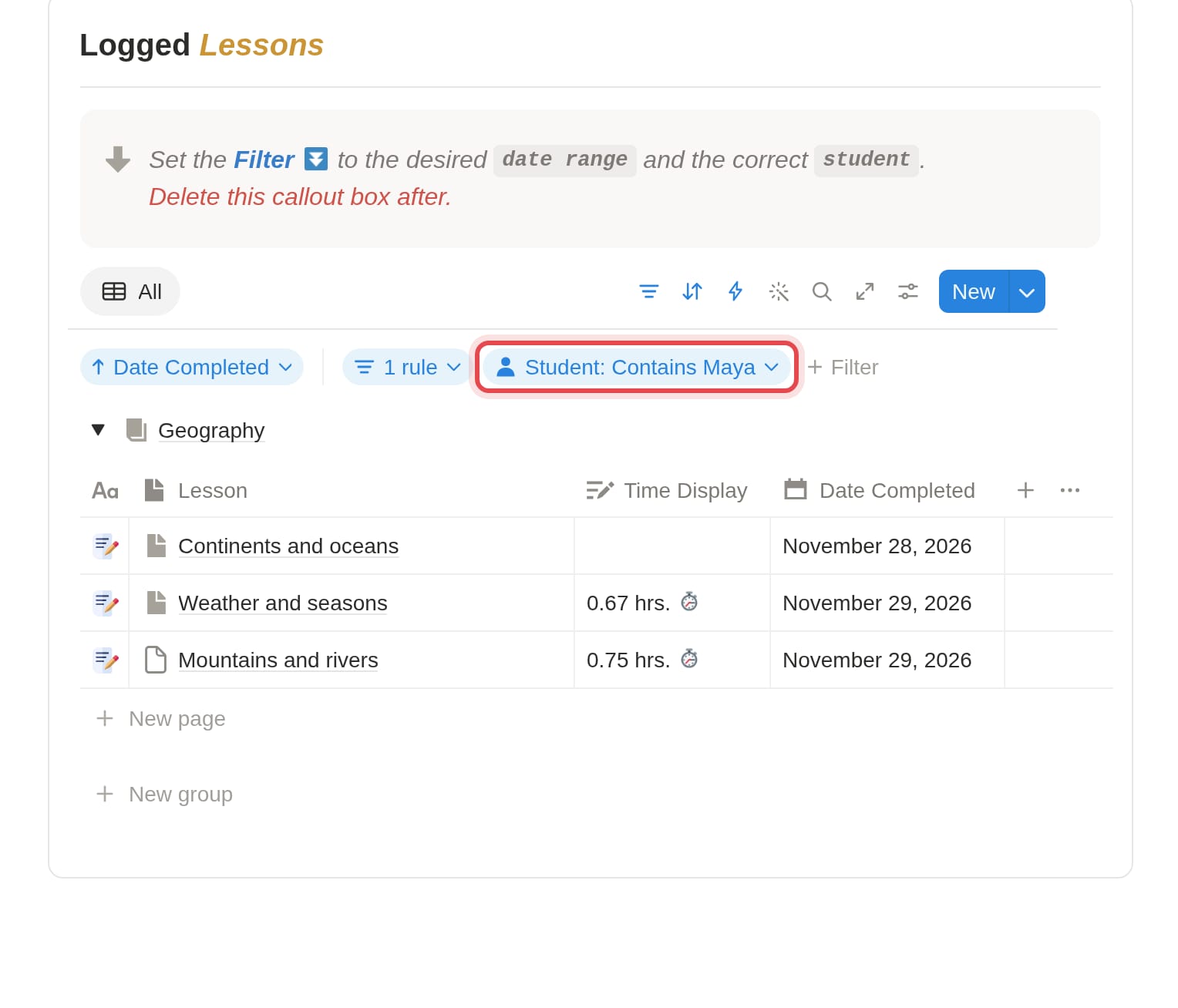
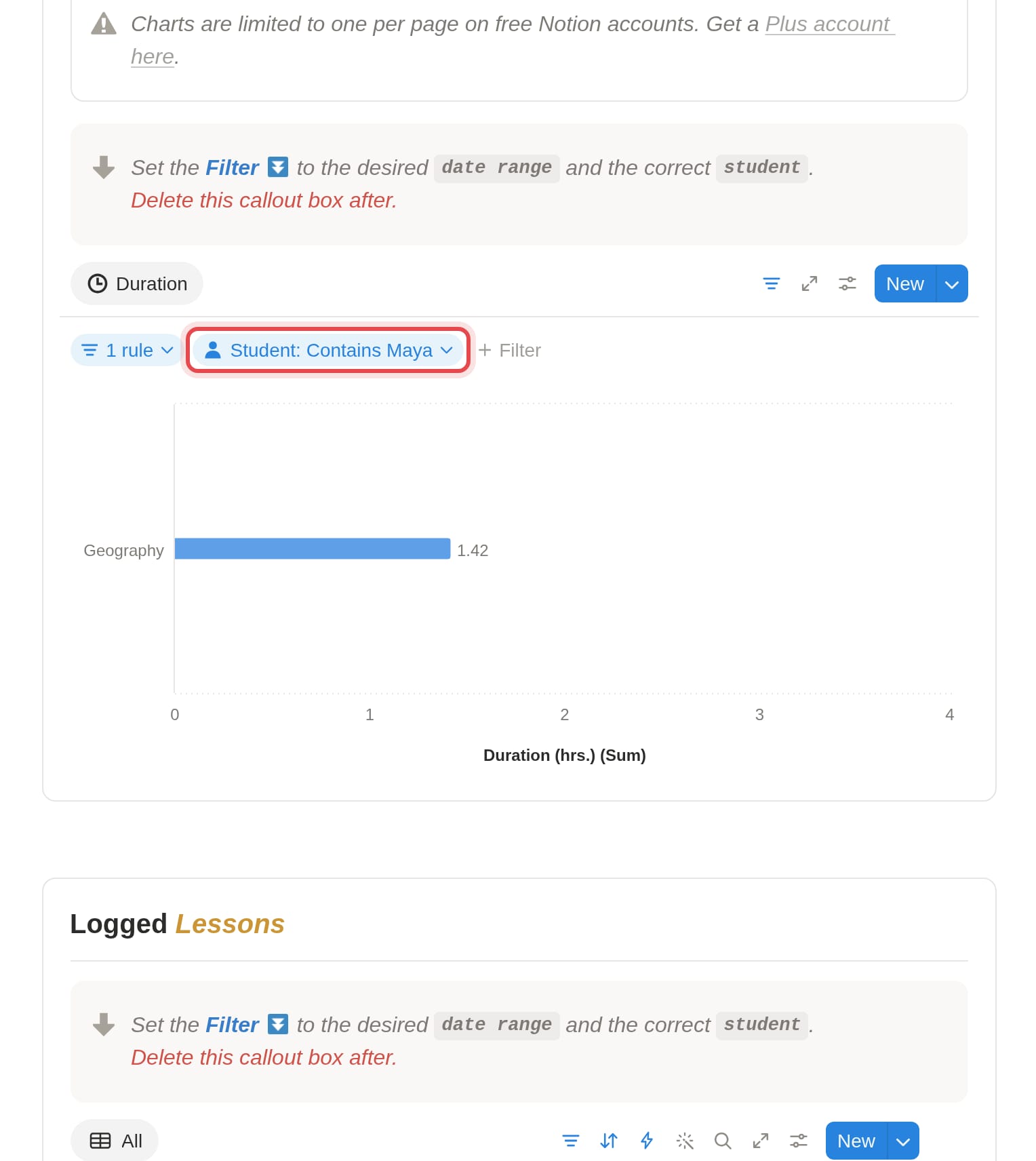
Press Escape. A Student: Contains Maya chip now sits next to the 1 rule filter the view already had.
I set the student only. The note also asks for a date range, which matters once a child's logbook covers more than one year.
Logged Lessons groups the lessons by subject, with Time Display and Date Completed. Maya's three lessons sit under Geography: Continents and oceans with no time (it was never timed), Weather and seasons at 0.67 hrs. and Mountains and rivers at 0.75 hrs.
Student Grades lists each scored lesson with its date and score:
Time Spent on Subjects is a bar chart of hours per subject. Before any of Maya's lessons had a duration, it said "No data". With all three lessons linked, the Geography bar reads 1.42 hours, the same as the report's Total Time:
The fourth view, Logged Attendance, carries the same note.
Get the Ultimate Homeschool Planner
Making it your own
One report per child, per year. Press New on Reports again for each child, and give each report its own Student and date range. Each report then counts only that child's work.
A property for the kind of work. The entry's groups each end in + Add a property. A select such as Test, Project or Field trip on the Logbook makes it easy to pick out the pieces a reviewer wants to see.
Choose samples on purpose. Three image slots per entry are plenty. Pick work from the start, middle and end of the year, so the change shows.
Field trips and projects as lessons. A trip to the science museum can be a lesson of its own, timed with Start and Finish Lesson, with photos under Upload Sample Work.
Delete the notes when you're done. Once each view is filtered, the "Set the Filter…" notes can go, as they say.
More planners for teachers and homeschool families are on our home page.
When something doesn't add up
A menu with Rename and Edit property opened: you clicked a property's name. Press Escape and click the value next to it.
The score reads 0.92%: type 92 instead.
Duration (min.) is Empty: the lesson wasn't timed. Set Date Started and Date Completed on the lesson.
The report reads 0: Report Date is a single day, or the lessons aren't linked under the report's Logbook. Give the date an end date and link the entries.
A new lesson isn't counted: its entry isn't linked yet. Link it from the report's Logbook link or from Add Reports on the entry.
# of Days reads 0: no attendance day is linked to the report. Mark the day Present on the Attendance page and link it with Add Reports.
"No data" in Time Spent on Subjects: no lesson in the filter has a duration yet.
A lesson is missing from Student Grades: it has no score.
A second chart won't fit: the template's own note says charts are limited to one per page on free Notion accounts.
FAQ
How do you do a homeschool portfolio?
Keep a record per subject of the lessons covered, test scores, work samples and time spent, and add to it every week rather than at the end of the year. In the Ultimate Homeschool Planner, Finish Lesson makes the Logbook entry, and the Reports page adds it all up per child.
What should a homeschool portfolio include?
Usually work samples from across the year, tests and scores, a list of lessons or topics with dates, projects, field trips and outside reading. Hours too, if you're asked for them. What's required depends on your state, so check its rules.
Can I keep a portfolio for more than one child in one template?
Yes. Student is picked from your list of students on every lesson, entry and report. Make one report per child and filter its views to that child.
Will a Notion portfolio meet my state's requirements?
That depends on your state and sometimes your district, and on what the person reviewing it asks for. The template keeps the record. Check with your state what has to be in it and in what form.
Can I add photos of work that isn't on paper?
Yes. Upload Sample Work takes images, so a photo of a model, a poster or a field trip goes in the same way as a scanned worksheet.
Ultimate Teacher Planner
The ultimate all-in-one education management system in Notion.