

Planning the rest of the term
With the term’s bar beside the year’s, you see at a glance that 80% of the semester has gone and 21 days are left, and you plan the last units around the time you really have.
Pick the rows, from the year down to today or a school term, choose bars, rings or dots, then copy the link into any Notion page. It fills by itself.
In the link: anyone with the link can see it.
Today in Room 12
www.notion4teachers.com/embed/year-progressA year progress bar is a small web page that shows how much of the year has gone, made to sit inside a Notion page. You paste its link into Notion, choose Create embed, and the bars fill by themselves in that block. This one shows the year, the month, the week, today and a school term in the rows you pick, as bars, rings or dots, with the days left. Nothing to install, and no account.
Teacher Home
Whenever it helps to see how much time is left. Three moments where it earns its place:
With the term’s bar beside the year’s, you see at a glance that 80% of the semester has gone and 21 days are left, and you plan the last units around the time you really have.

Show the term’s progress on the classroom screen at the start of a new unit or before a break. Students see how far the class has come, and how much is left before the holidays.

Students keep today’s bar and the week’s beside their to-do list and a timer. Watching the day’s bar fill is a calm push to finish the task in front of them.
Pick the rows once, copy the link, and the bars keep moving. Here is what you can set before you paste it into Notion.
Tick the rows you want and each one shows its share gone and its days left. The week can start on Monday or Sunday, and today counts down in hours and minutes.
Add the term’s first and last day and its name, like Fall semester. The bar fills day by day and shows the days left, says when it starts before the first day and Done after the last.
Three looks in six color sets, from Mint to Rainbow, where every row has its own color. In the dots, each dot is a month of the year, a day of the month or an hour of today.
Show the percent as a whole number or with one or two decimals, so the year’s bar visibly moves through the day. The days left sit beside each row, or switch them off for a cleaner bar.
Add a birth date and a number of years and a row shows how much of that life has gone, with the age beside it. It is off unless you tick it, and the birth date stays in the link.
Five steps, about a minute. The same steps work for every widget on Notion4Teachers.
Pick the rows, the term’s dates, the look and the colors at the top of this page.
Press Copy Widget Link. Everything you chose is part of the link.
Click where the bars should go on your Notion page and paste.
Notion asks what to do with the link. Choose Create embed.
Pull the block’s corner until the bars are as big as you want.
The Ultimate Teacher Planner sets up your classes, lessons, grades and attendance in Notion. Put your widgets at the top of it in a minute.
See the Teacher PlannerA progress bar you fill by hand is out of date by tomorrow. This one moves by itself.
The widget shows your bars and nothing else: no pop-ups, no banners, no logo.
Every row reads the clock of the device it runs on and moves on every second.
Set the term’s first and last day once and the bar follows it to the break.
See-through tracks and middle tones read on light and dark Notion pages alike.
No account and nothing saved on our side. Change a setting, copy the new link.
The bars fill the block, so a wide embed on the projector reads across the room.
Anyone who plans their weeks, terms or year in Notion.

On the planning page, to pace units against the weeks left in the term, and on the class board before a break. One glance shows how much teaching time is really left.

On a study dashboard beside the to-do list, to see how much of the term is left before exams and how much of today is still free for study.

On the family’s school page, to see how far through the school year everyone is and how many weeks are left in the term you set for yourselves.

Most year progress bars are apps, extensions or social posts. This one you set up on this page and paste into Notion: nothing to install, nothing to register, nothing to pay.

Besides the year, the month, the week and today, it counts a school term between the dates you set, so the bar matches your calendar, not only January to December.

There is no account and no saved widget: everything you chose is written into the link. After a change, copy the link again and paste the new one.
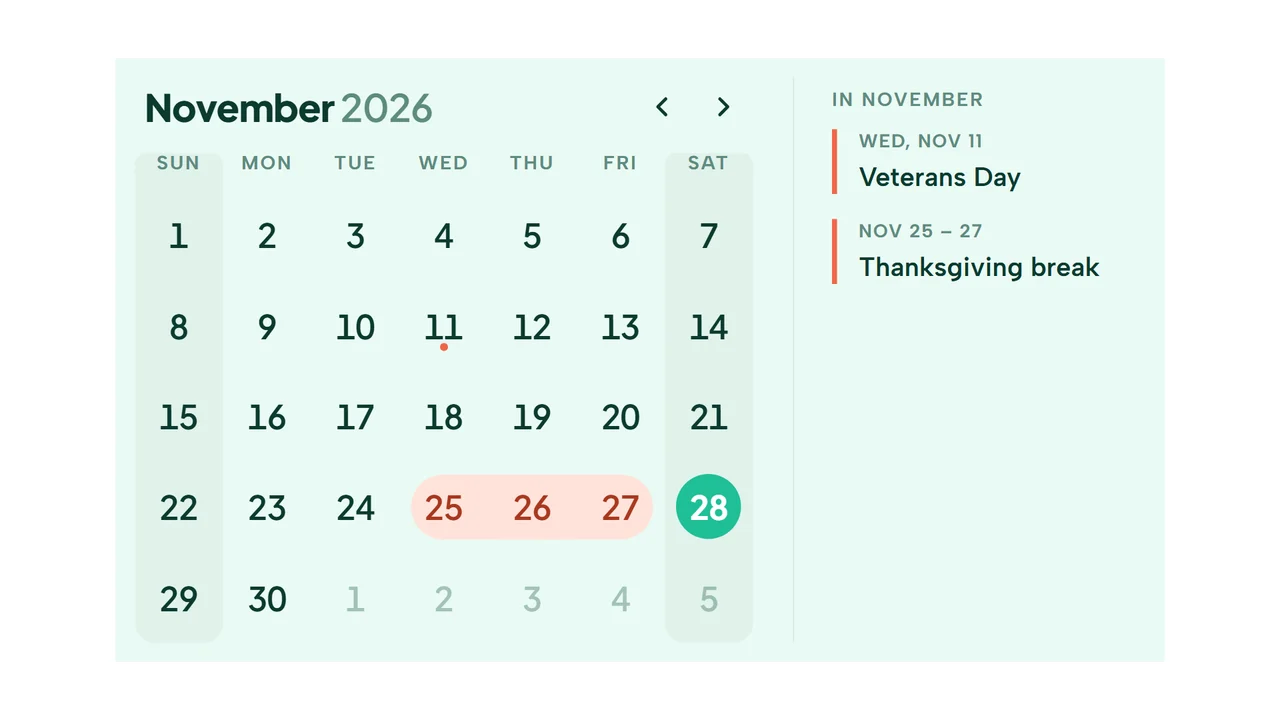
A month calendar with today marked, your colors and the holidays and tests you add.
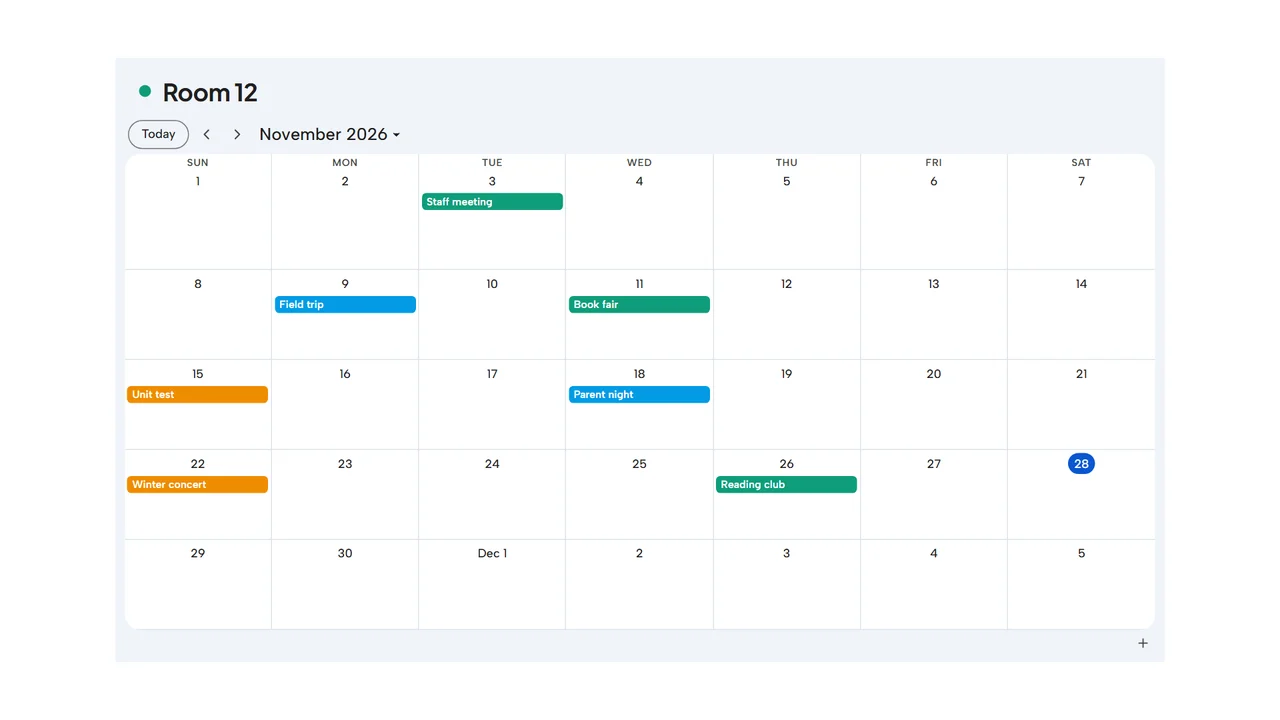
Your public Google Calendar in Notion, in month, week or agenda view, light or dark.
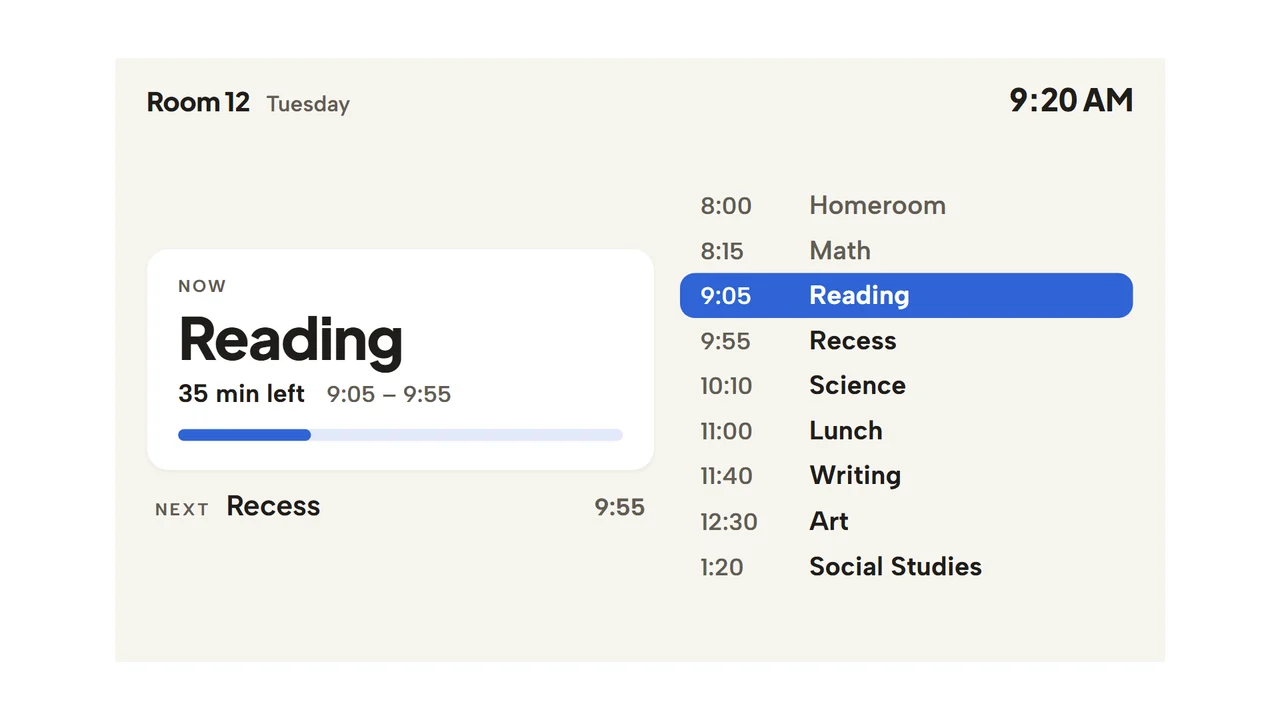
Today’s periods for the classroom screen, with what is on now and what comes next.
Yes. The year progress bar is free to set up, copy and use on as many Notion pages as you like. There is no account to make, no trial and no watermark, and nothing inside the widget but your progress bars.
Set up the bars at the top of this page and press Copy Widget Link. In Notion, click where you want them, paste the link and choose Create embed from the menu that appears. Then drag the corners of the block to make the bars the size you want.
Each row divides the time gone by the whole period, on the clock of the device that opens the page. A leap year counts 366 days. The percent is never rounded up, so it shows 100% only once the year, month or term is really over.
Yes. Under Rows, tick A school term, then set its first and last day and its name under Dates. The bar fills a little every day and shows the days left. Before the first day it says when the term starts, and after the last day it says Done.
Yes, with a formula in a database. Work out the days gone divided by the days in the year, and show the number as a bar. That suits a database you already keep. The widget is for a ready-made bar on any page, with the month, the week, today and a term beside it.
The life row shows how much of a life of the years you choose has gone, from a birth date. It is off unless you tick it. The birth date is kept only in the link, so anyone who has the link can see it, and nothing is stored on our side.
Keep the background on Clear. The tracks are see-through and the words use middle tones of the color set, so the bars read on Notion’s light and dark pages alike. Choose Solid if you want a block of color behind them.
Come back to this page and press Change a widget you added, under the preview. Paste the bar’s link (in Notion, ••• then View original shows it), change what you like and copy the link again. In Notion, choose ••• then Replace and paste it: the bar keeps its place and size.

The Complete Bundle has every Notion4Teachers template, with the Ultimate Teacher Planner at its heart.
Get Complete Bundle40% OFF!