

On the classroom screen all day
Put the schedule on the page you project and the class sees the period, the minutes left and what comes next. Transitions start on time, and fewer hands go up to ask.
Type your periods once, copy the link, and paste it into any Notion page. Your class timetable shows what is on now, how long is left and what comes next.
A line like Mon, Tue Thu or A day starts that day’s own list.
School days from it go A, B, A, B.
The time on the device that opens the page.
Today in Room 12
www.notion4teachers.com/embed/class-scheduleA class schedule widget is a small web page that reads your timetable and the clock, made to sit inside a Notion page. You paste its link into Notion, choose Create embed, and it shows the period on now, the minutes left and what comes next, all day long. This one takes your periods from a simple list, handles A/B days and days of their own, and fills the block for the classroom screen. Nothing to install, and no account.
Teacher Home
Whenever someone asks what is next. Three moments where it answers for you:
Put the schedule on the page you project and the class sees the period, the minutes left and what comes next. Transitions start on time, and fewer hands go up to ask.

Keep the schedule on your Notion home page above the lesson plans. Between classes you see where the day stands, how long until lunch and what to set up next.

Students put their own timetable on a study page, with A and B days if the school has them, so the next class and its room are a glance away.
Type the periods once, copy the link, and the schedule keeps up with the day. Here is what you can change before you paste it into Notion, and what it shows.
The period on now in big letters, the minutes left and its times, a bar that fills as it goes, and the next period with its start time underneath. It moves on by itself, minute by minute.
The day’s periods in a list with their start times, the current one marked in color and the ones already over set back. Show it alone, beside Now and next, or leave it out.
Before the first period it counts down to the start. Between periods it says Passing time with the minutes to the next class. After the last one it says when school starts again.
Start a list with A day and another with B day, set a date that was an A day, and school days alternate from there. A list under Wed, or Tue Thu, is for those days only.
Six color sets, from Paper and Mint to a dark Night, a deep Ocean and a green Chalkboard. Show the clock, 12 or 24 hour time, and a title like the room number.
Five steps, about a minute. The same steps work for every widget on Notion4Teachers.
One period a line at the top of this page, then pick the colors.
Press Copy Widget Link. Your periods and settings are part of the link.
Click where the schedule should go on your Notion page and paste.
Notion asks what to do with the link. Choose Create embed.
Pull the block’s corner until the schedule is the size you want.
The Ultimate Teacher Planner sets up your classes, lessons, grades and attendance in Notion. Put your widgets at the top of it in a minute.
See the Teacher PlannerA picture of a timetable sits still. This one knows what time it is.
It reads the clock and shows the period on now, the minutes left and what is next.
The schedule fills the block, so a wide embed on the projector reads across the room.
A and B days, and lists for some weekdays, from one simple list.
No account and nothing saved on our side. Change a period, copy the new link.
The widget shows your day and nothing else. No ads, no account and no watermark.
Six color sets, from Paper to a dark Night and a green Chalkboard.
Anyone whose day runs by the bell and is planned in Notion.

On the classroom screen so students see the period, the minutes left and what comes next, and on a planning page to keep track of the day between classes.

On a study dashboard with their own timetable, A and B days and all, so the next class is a glance away on a laptop or the phone in their pocket.

On the day’s lesson page with the subjects and breaks in order, so a child can see what comes next and how long until the break.

Many schedule makers ask you to sign up before you can publish an embed. Here you type the periods on this page and copy the link: nothing to register, nothing to pay.

A timetable in a Notion table shows the whole week, and you still have to find the time. This one reads the clock and puts the period on now, and the next one, front and center.
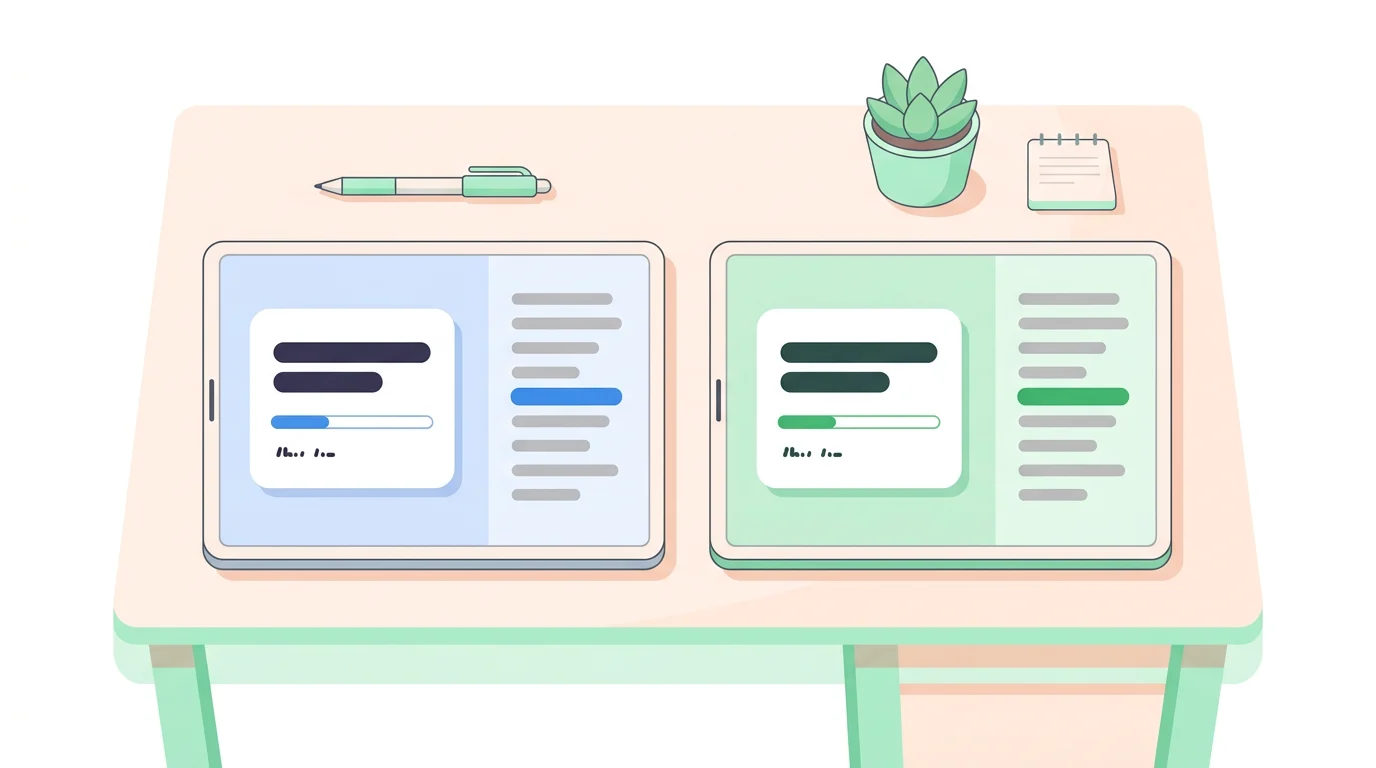
Passing time, lunch, A and B days, a different Wednesday and the weekend are all part of it, from one list you type once.
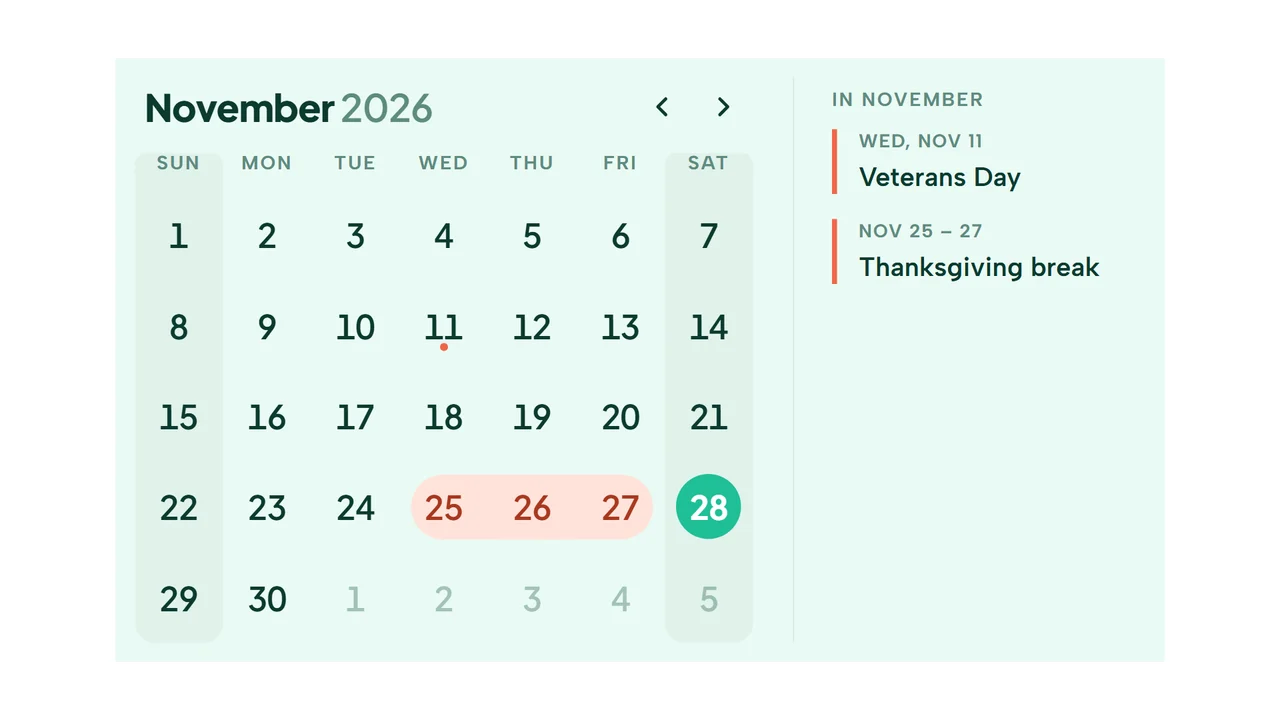
A month calendar with today marked, your colors and the holidays and tests you add.
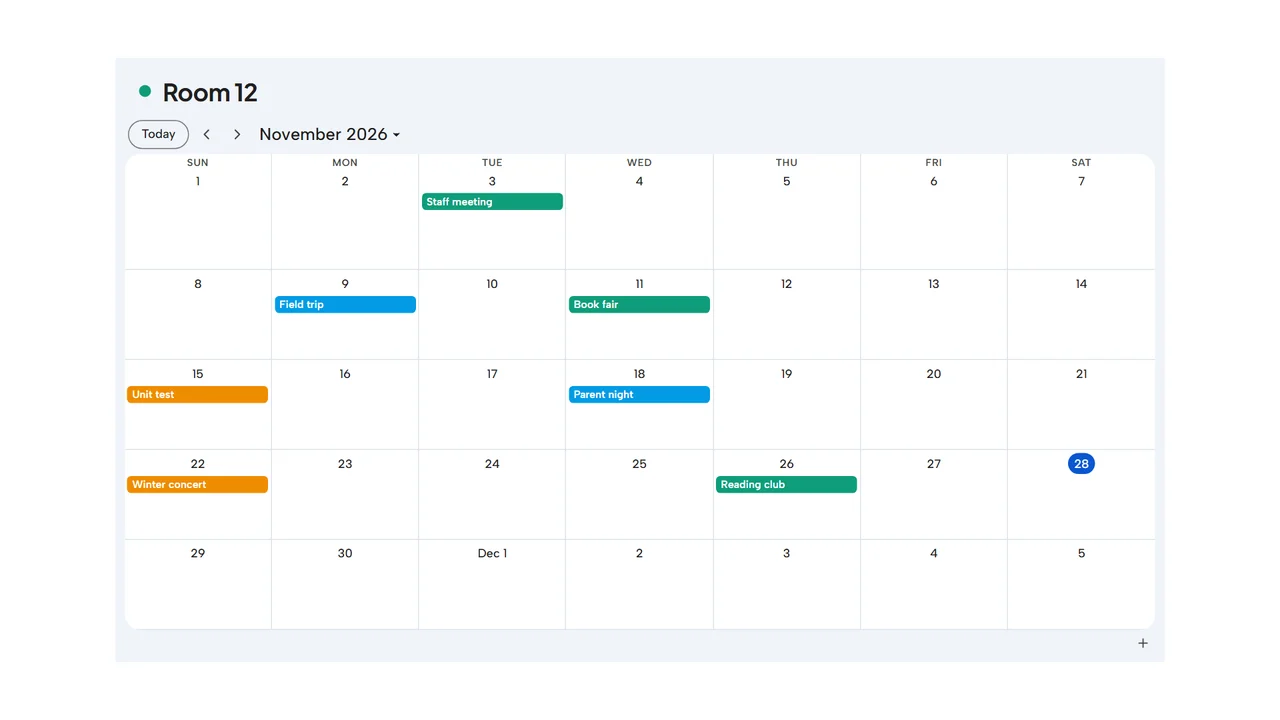
Your public Google Calendar in Notion, in month, week or agenda view, light or dark.
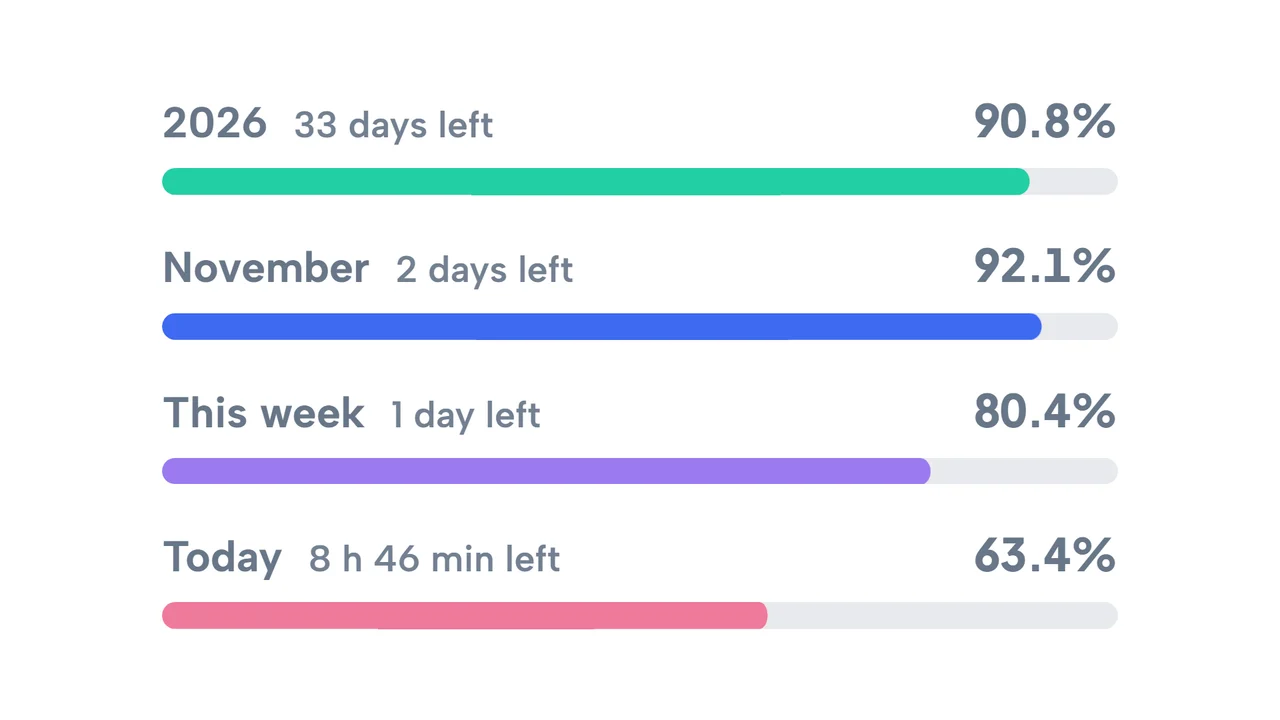
How much of the year, month, week, day or school term has gone, as bars.
Yes. The class schedule is free to set up, copy and use on as many Notion pages as you like. There is no account to make, no trial, no watermark and no ads, and your periods are kept in the link, not on our side.
Type your periods and pick the colors at the top of this page, then press Copy Widget Link. In Notion, click where the schedule should go, paste the link and choose Create embed. Drag the corners of the block to make it the size you want.
One period a line: the start time, a bar, then the name, like 8:15 | Math. A period ends when the next one starts, or put an end after a dash: 2:30-3:15 | Art. The last period without an end lasts 45 minutes. A time without AM or PM that comes after noon, like 1:00 after 12:15, is read as the afternoon.
Yes. Start a list with a line that says A day and another with B day, then set An A day to a date that was one: school days from it, Monday to Friday, go A, B, A, B. After a day off, set the date again. For some weekdays only, start a list with a line like Wed or Tue Thu.
Before the first period it says Before school and how long until the first one. Between periods it says Passing time, or Break for more than 15 minutes, with the minutes to the next one. After the last period it says After school and when the next school day starts.
By default the schedule follows the clock of each device that opens the page. Choose a city under Time zone and everyone sees that city’s time and that city’s place in the day, wherever they open the page.
Yes. The schedule is part of the Notion page, so it shows wherever the page opens: the Notion app on iPhone, iPad and Android, the desktop app and the browser. It moves on by itself, minute by minute.
Come back to this page and press Change a widget you added, under the preview. Paste the schedule’s link (in Notion, ••• then View original shows it) and your periods come back. Change what you like and copy the link again. In Notion, choose ••• then Replace and paste it: the schedule keeps its place and size.

The Complete Bundle has every Notion4Teachers template, with the Ultimate Teacher Planner at its heart.
Get Complete Bundle40% OFF!