
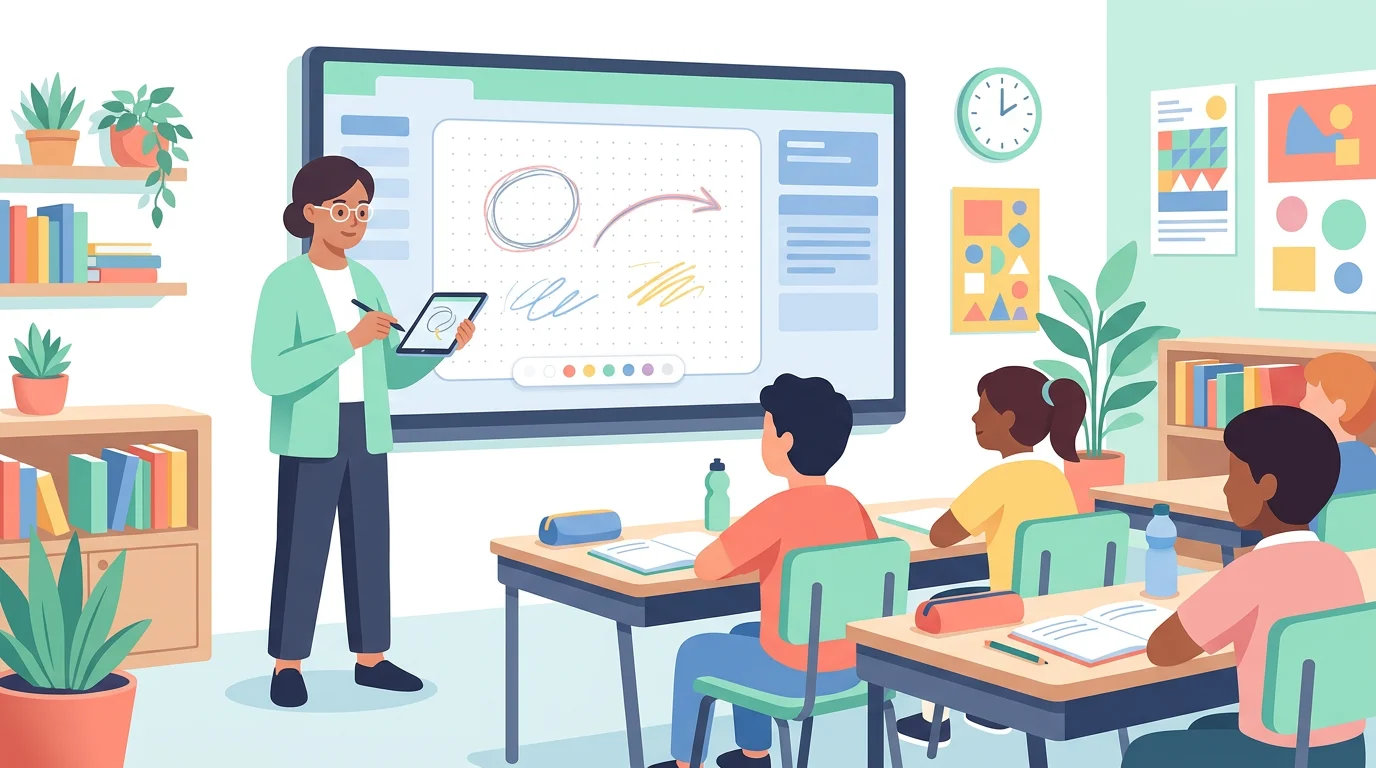
Sketching during a lesson
Draw a diagram, a number line or a quick map on the projected page while you explain. Students watch it take shape, and on that computer the drawing is still on the page next time.
Pick the board and the paper, copy the link, and paste it into any Notion page. Draw with a pen, a highlighter and an eraser, right inside the block.
Board
Each link is its own board, saved on the device.
Today in Room 12
www.notion4teachers.com/embed/whiteboardA whiteboard widget is a small web page you can draw on, made to sit inside a Notion page. You paste its link into Notion, choose Create embed, and draw in the block with a mouse, a stylus or a finger. This one has a pen, a highlighter and an eraser, five colors on each board and three sizes, four kinds of paper, and keeps your drawing on the device that drew it. Nothing to install, and no account.
Teacher Home
Whenever a picture explains it faster than words. Three moments where it helps:
Draw a diagram, a number line or a quick map on the projected page while you explain. Students watch it take shape, and on that computer the drawing is still on the page next time.
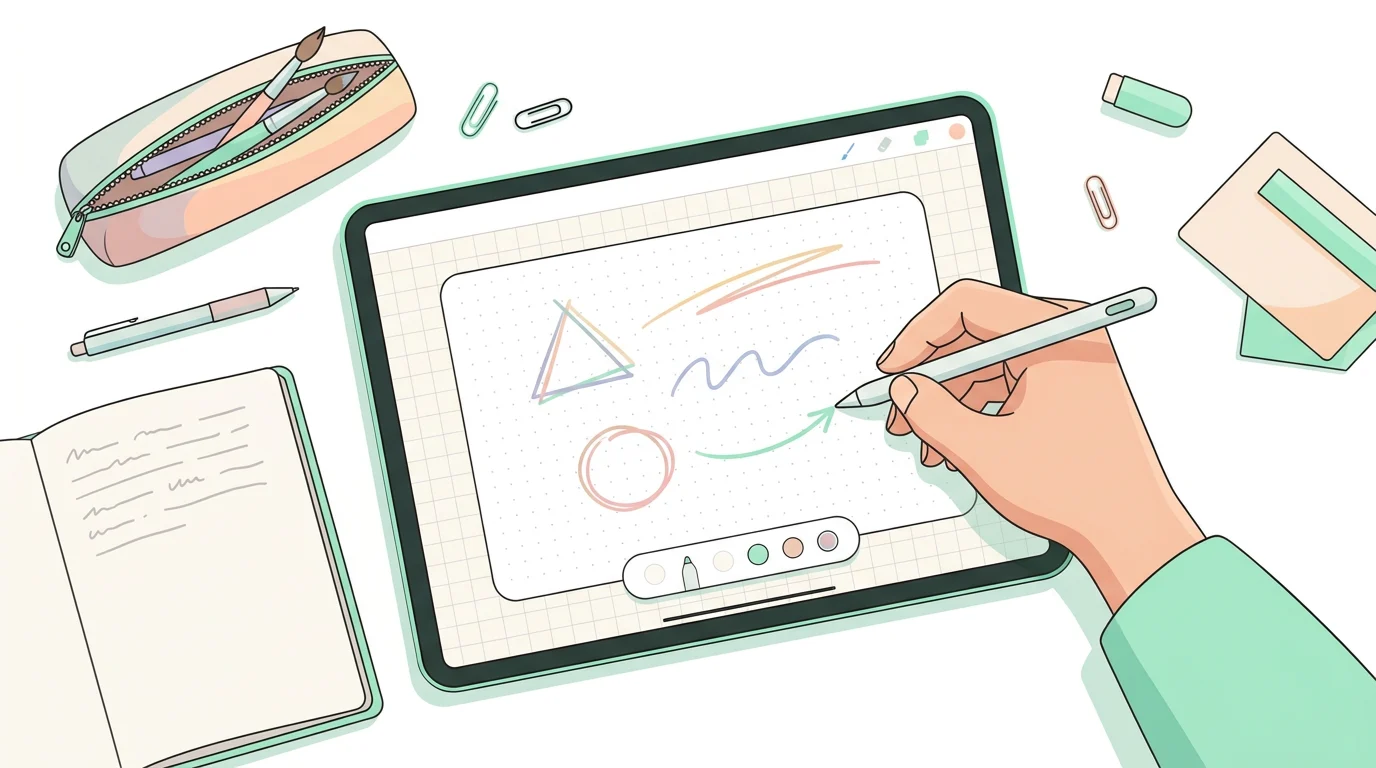
Show the steps of a math or science problem with the pen, then go over the key part with the highlighter. Undo a slip of the pen instead of starting the whole drawing again.

Keep a board on your planning page for seating plans, unit maps and quick ideas. Grid paper keeps tables and shapes straight, and lined paper is ready for jotting things down.
Set it up once, copy the link, and the board is ready in your page. Here is what you can change before you paste it into Notion, and what the board does.
Draw with the pen, mark over it with the see-through highlighter, and rub out with the eraser. Undo and Redo step back and forward, from the buttons or with Ctrl+Z and Ctrl+Y.
Choose plain paper, a grid for graphs and shapes, a dot grid for sketches, or ruled lines with a margin for handwriting. The paper stays behind the drawing and the eraser never rubs it out.
White, Cream, Mint, Chalkboard, Night and Blueprint. Each board comes with five pen colors chosen to read well on it, and three pen sizes, from a fine line to a thick marker.
The drawing is kept in this browser on this device, so it is still there when the Notion page opens again here. It is not sent to us or shared with other people, and Save as picture makes a PNG to share.
Drag the corners of the embed block and the board follows. The drawing scales with the width, so a sketch made on a wide page shows whole in a narrow column, and the toolbar folds up to fit.
Five steps, about a minute. The same steps work for every widget on Notion4Teachers.
Pick the board, the paper and where the tools sit at the top of this page.
Press Copy Widget Link. Everything you chose is part of the link.
Click where the board should go on your Notion page and paste.
Notion asks what to do with the link. Choose Create embed.
Pull the block’s corner until the board is the size you want.
The Ultimate Teacher Planner sets up your classes, lessons, grades and attendance in Notion. Put your widgets at the top of it in a minute.
See the Teacher PlannerA picture of a board can’t be drawn on. This one can, right inside your Notion page.
No separate app or tab. Draw in the embed block with a mouse, a stylus or a finger.
Your drawing is kept in this browser on this device. Nothing is sent to us, and nobody else sees it.
The widget shows the board and its tools. No ads, no account and no watermark.
Save as picture downloads the board, paper and all, to add to a page, a slide or a message.
Undo and Redo step through every line, and Undo even brings back a cleared board while the page is open.
The board fills the block, so a wide embed on the projector works as a board for the whole class.
Anyone who thinks better with a pen in hand and keeps their pages in Notion.
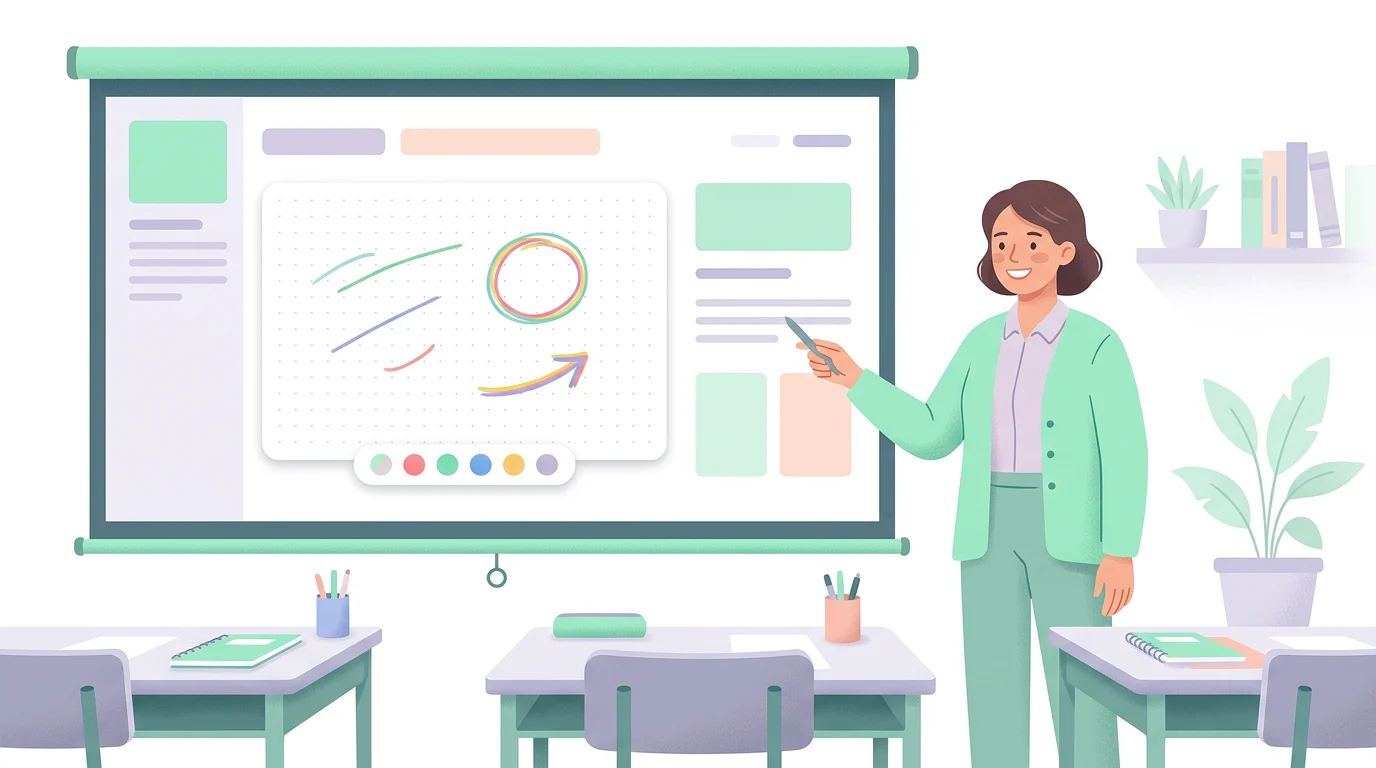
On the projected page for quick diagrams, number lines and maps during a lesson, and on a planning page for seating plans and unit sketches. One board per link, kept on the teacher’s own computer.

On a study page to sketch a diagram, work a problem out by hand or map an essay before writing it, right next to the notes instead of on a loose sheet of paper.
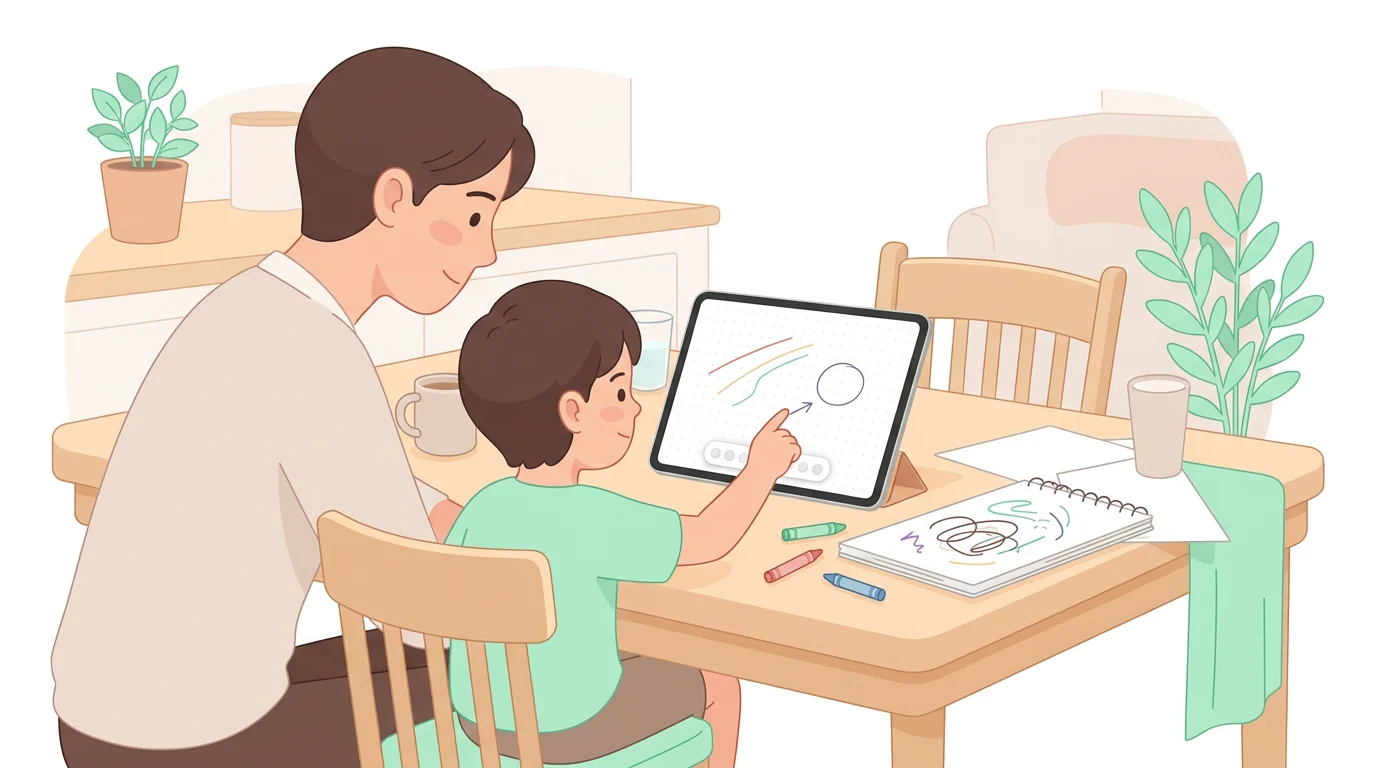
On the day’s lesson page, so a child can draw an answer, practice shapes or sketch a story, and a tutor can draw beside them on the same screen.
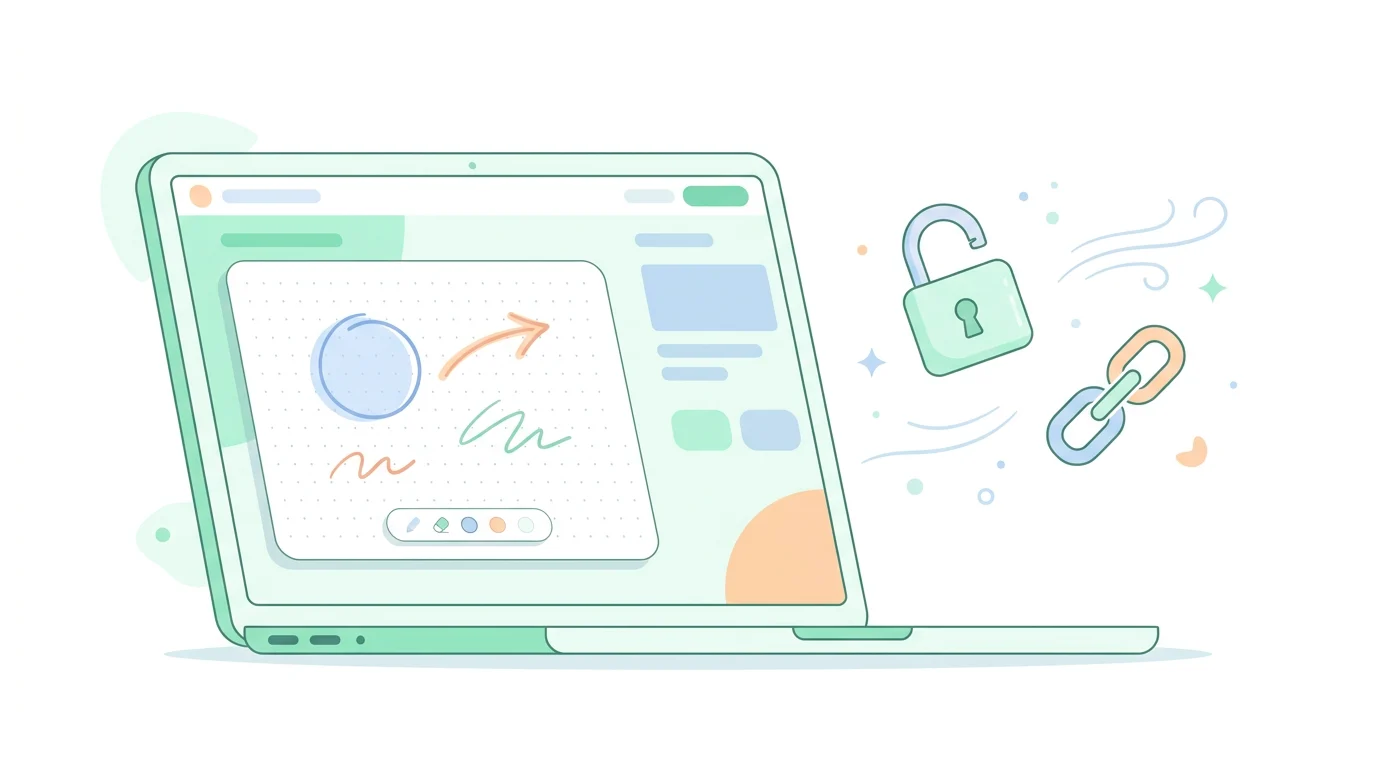
Many widget sites ask you to sign up before you can copy a link. Here you set the board up on this page and copy it: nothing to register, nothing to pay, and no room code to share.
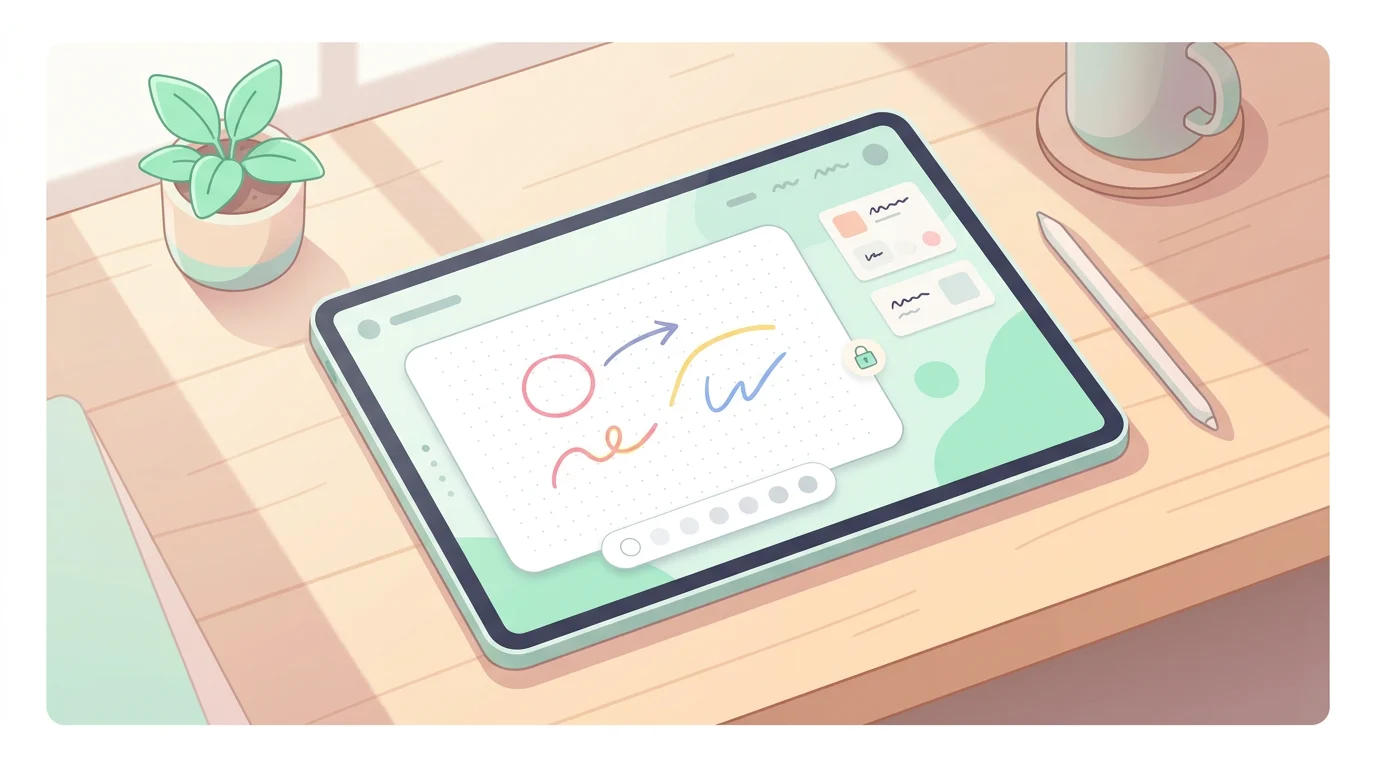
Shared online boards keep your drawing on a server for anyone with the room link. This board keeps it in your own browser, so a quick sketch or a seating plan stays private.
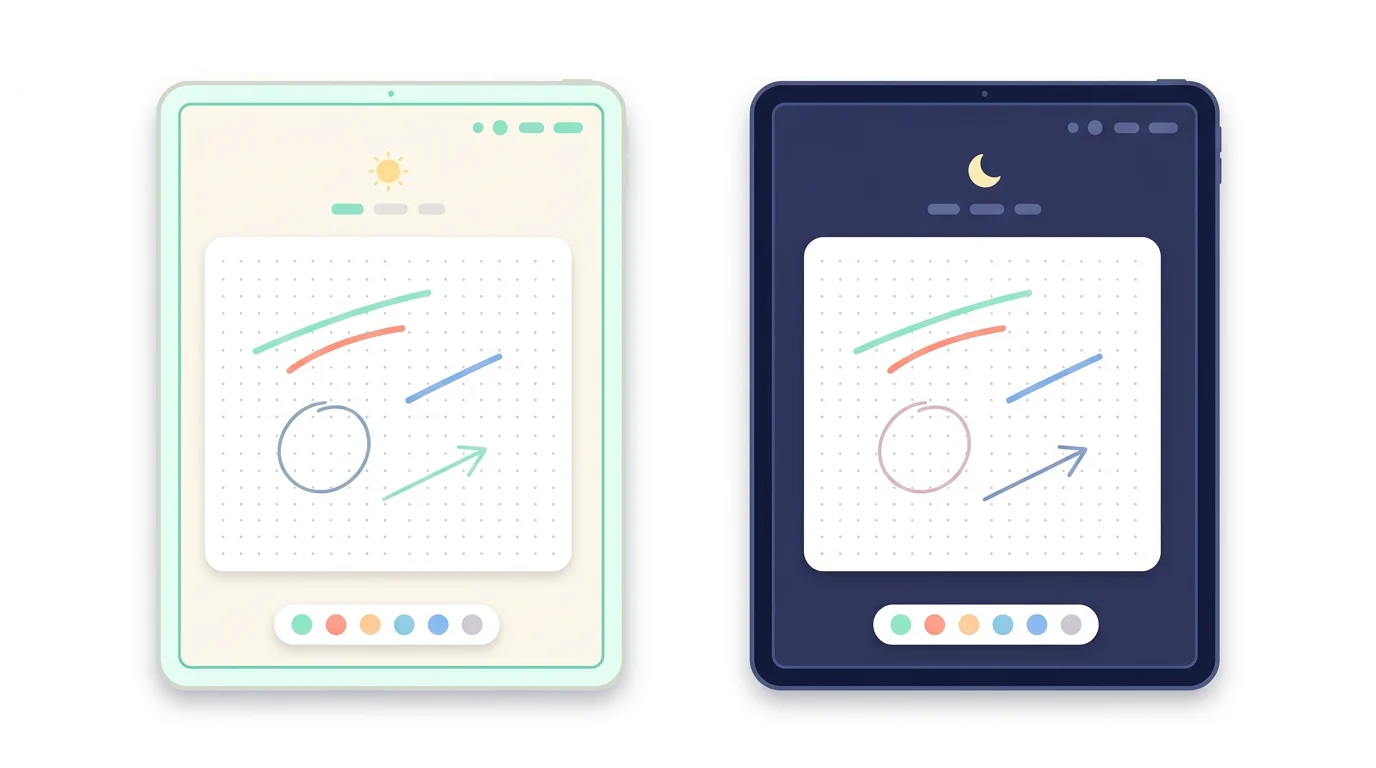
Six boards, from a white board to a dark Night for dark mode, four kinds of paper and a toolbar that folds to fit, so the board looks like part of your page in any size of block.
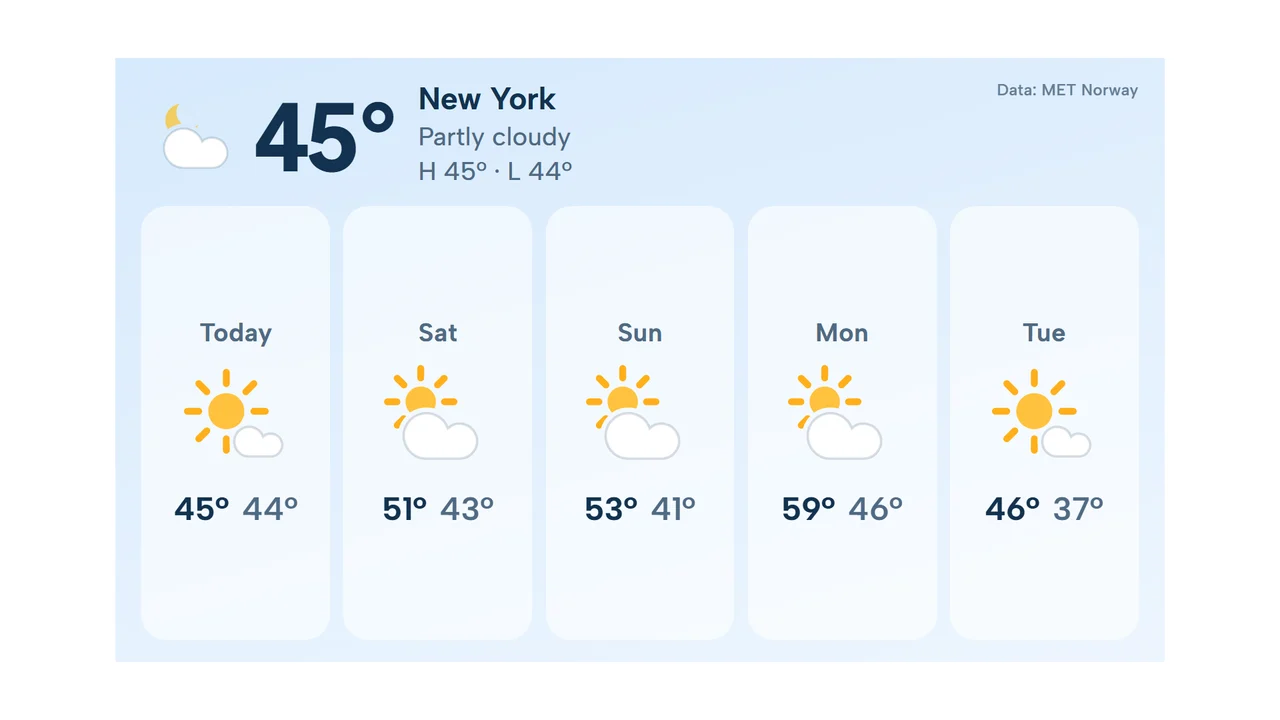
A live forecast card for your city, with the weather now, today, five days or the hours ahead.
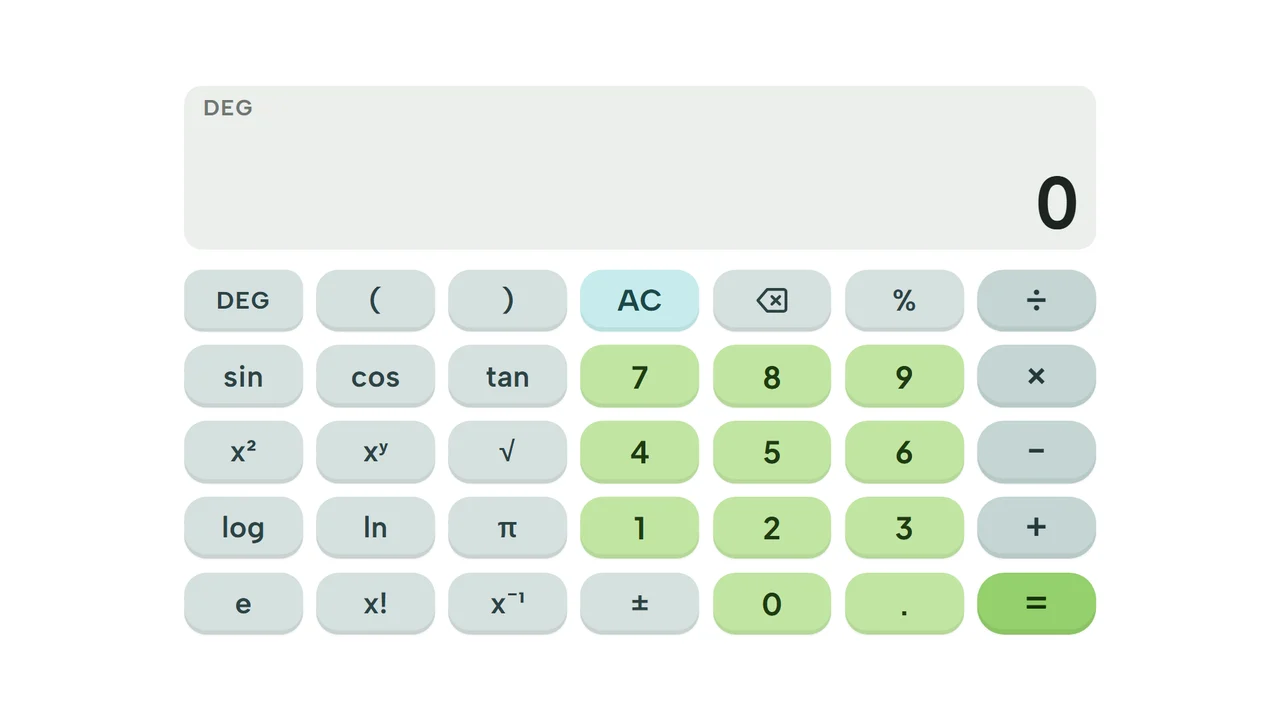
A soft scientific calculator for your Notion page, with trig, powers, roots and logs.
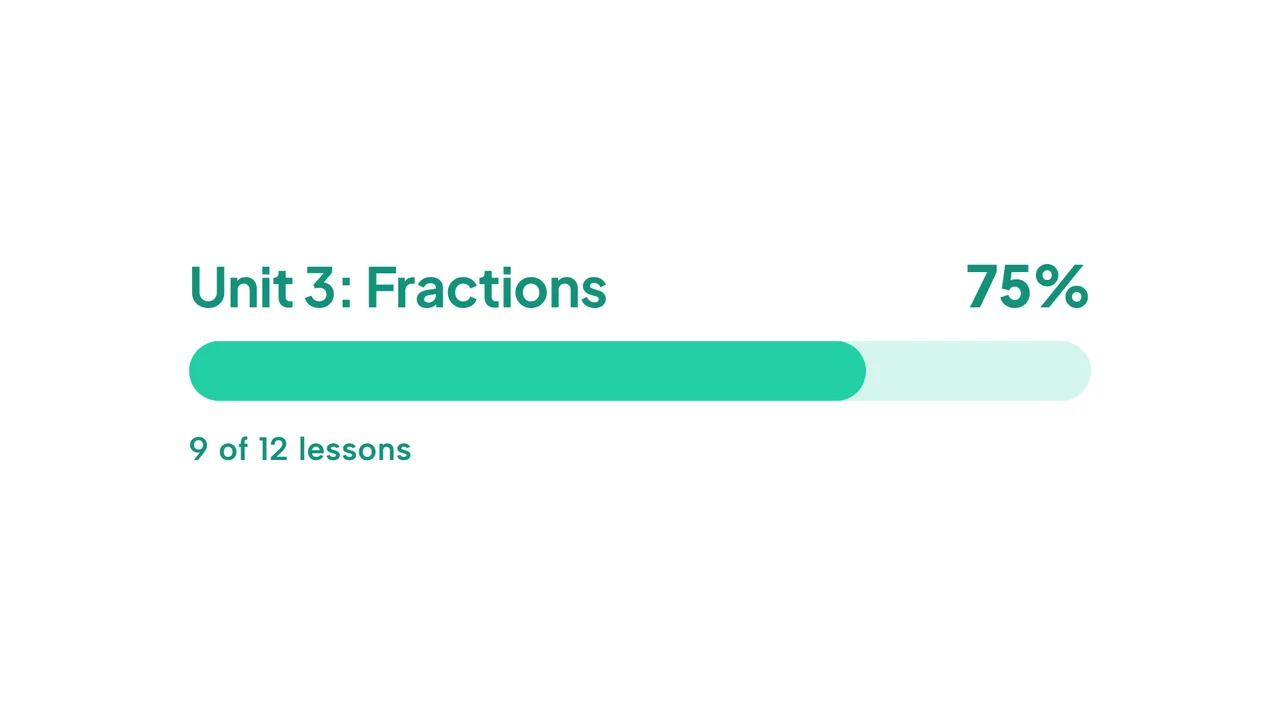
A bar, ring or battery that fills as you count lessons, pages or the days of a term.
Yes. The whiteboard is free to set up, copy and use on as many Notion pages as you like. There is no account to make, no trial, no watermark and no ads, and nothing you draw is sent to us.
Choose the board, the paper and where the tools sit at the top of this page, then press Copy Widget Link. In Notion, click where the board should go, paste the link and choose Create embed. Drag the corners of the block to make the board the size you want.
Yes, on the device that drew it. The board keeps your drawing in the browser, so it is still there when the Notion page opens again on that computer, tablet or phone. It is not saved on our side, and it won’t show in a private window or after the browser’s site data is cleared.
No. The drawing stays on the device that drew it and is not shared with anyone. Someone who opens the same Notion page on their own device sees their own board. To share a drawing, press Save as picture and add the PNG to the page.
Yes. The board follows a mouse, a stylus and a finger alike, and the lines come out smooth and sharp on any screen. Once a stylus has touched the board, a hand resting on a touch screen is ignored, so it does not leave marks.
Press Undo, or Ctrl+Z (⌘Z on a Mac), to take back the last line, and Redo or Ctrl+Y to bring it back. The bin button clears the whole board after asking first, and Undo brings a cleared board back while the page is still open.
Yes. Press Save as picture, the last button on the toolbar, and the board downloads as whiteboard.png, with the board’s color and its paper behind the drawing. Add it to a Notion page, a slide or a message.
Come back to this page, set the board up again and copy the new link. In Notion, delete the old embed block and paste the new link in its place. A new link is a new, empty board, so save your drawing as a picture first if you want to keep it.

The Complete Bundle has every Notion4Teachers template, with the Ultimate Teacher Planner at its heart.
Get Complete Bundle40% OFF!