
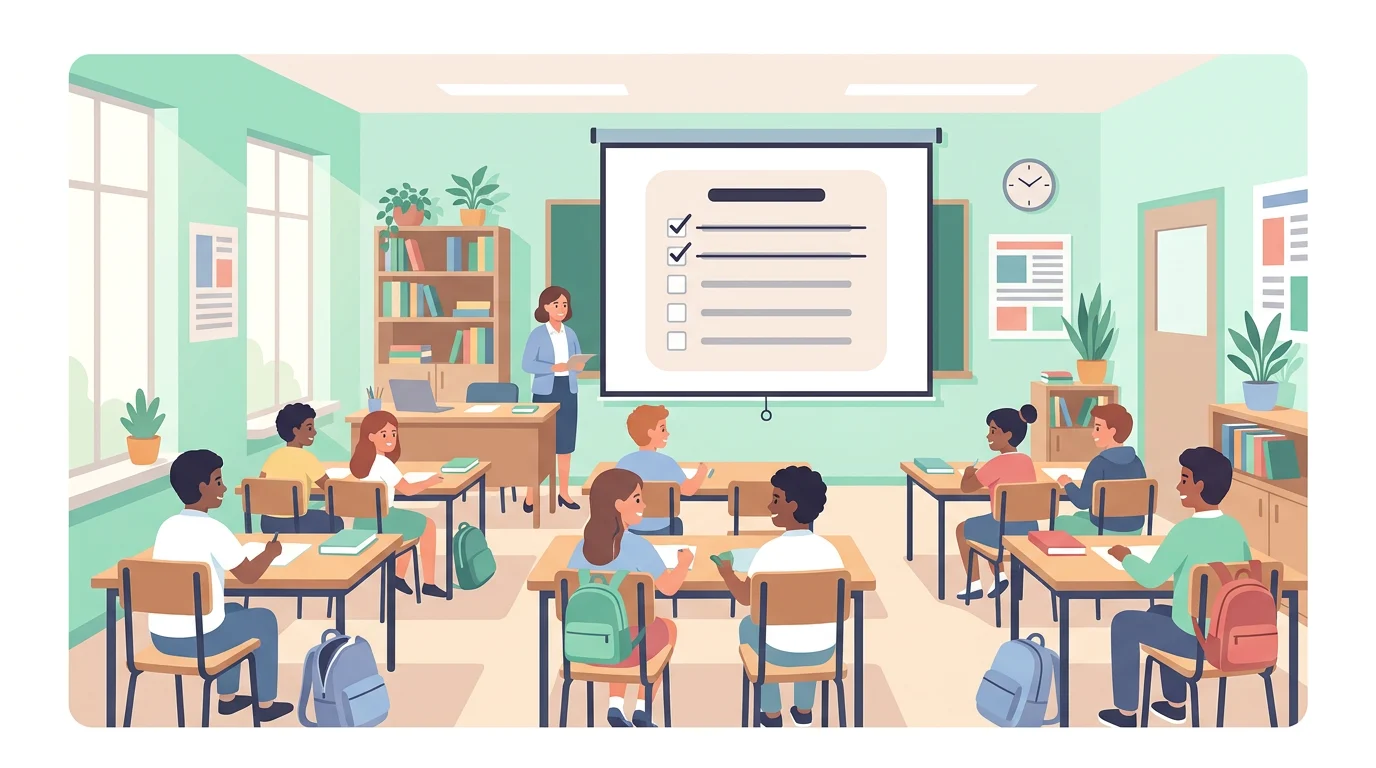
A checklist on the classroom screen
Put the steps for the start of a lesson on the projected page and tick them off together. With Tick only, the steps stay as you typed them, and nobody can delete one by mistake.
Type the starting tasks, pick the look, copy the link, and paste it into any Notion page. A list you tick, add to and clear right inside the block.
A new starting list starts every saved list over.
Ticks and new tasks are kept in that browser only.
Today in Room 12
www.notion4teachers.com/embed/to-do-listA to-do list widget is a small web page with a checklist, made to sit inside a Notion page. You paste its link into Notion, choose Create embed, and tick, add, delete and drag tasks in that block. This one starts from tasks you type, can untick itself each new day, comes in paper, minimal and aesthetic looks, and keeps your ticks in your own browser. Nothing to install, and no account.
Teacher Home
Whenever a short list should be in view and easy to tick. Three moments where it helps:
Put the steps for the start of a lesson on the projected page and tick them off together. With Tick only, the steps stay as you typed them, and nobody can delete one by mistake.

Keep the day’s jobs on your Notion home page beside the lesson plan. Add a task with Enter when it comes up, tick it when it is done, and clear the done ones before you leave.
For a routine that repeats, like taking attendance or posting the warm-up, switch on the daily reset. The ticks clear at midnight, and the list is ready again the next morning.
Set it up once, copy the link, and the list works inside your page. Here is what you can change before you paste it into Notion, and what the list does.
Type a task and press Enter to add it. Tick it by its box or its words, delete it with the cross, drag it into place by its handle, and clear every done task with one button.
Paper is a ruled sheet with a red margin. Minimal keeps round boxes and the words. Aesthetic has a serif title, soft light and rounded rows. Each comes in six color sets, light and dark.
Tick only leaves out the add line, the delete buttons and the dragging, so the list stays as you wrote it. Untick all clears the ticks for the next class.
Switch on Untick all each new day and the ticks clear when a new day starts on that device. The tasks stay, so a morning routine is ready again without touching the settings.
Ticks, new tasks and their order are kept in that browser, so they are still there when the Notion page opens again on that device. Nothing is sent to us, and the link carries only the starting tasks.
Five steps, about a minute. The same steps work for every widget on Notion4Teachers.
Type the starting tasks and pick the look at the top of this page.
Press Copy Widget Link. Everything you chose is part of the link.
Click where the list should go on your Notion page and paste.
Notion asks what to do with the link. Choose Create embed.
Pull the block’s corner until the list is the size you want.
The Ultimate Teacher Planner sets up your classes, lessons, grades and attendance in Notion. Put your widgets at the top of it in a minute.
See the Teacher PlannerA picture of a list can’t be ticked. This one can, right inside your Notion page.
Tick a task by its box or its words. No separate app or tab to open.
The daily reset unticks every task when a new day starts, and keeps the tasks.
Ticks and new tasks are kept in that browser. Nothing is sent to us.
The widget shows the list and nothing else. No ads, no account and no watermark.
A short list in a wide block reads from the back row, and a long one scrolls.
Six color sets, from cream paper to a dark Night set for Notion’s dark mode.
Anyone who keeps their day in Notion and likes ticking things off.

On the classroom screen for the steps of a lesson or a routine, with Tick only so the list stays put, and on a planning page for the day’s own jobs, ticked off between classes.

On a study page beside the notes and a timer, for homework and revision tasks. The aesthetic look in soft colors makes a list worth opening, and Clear done keeps it short.
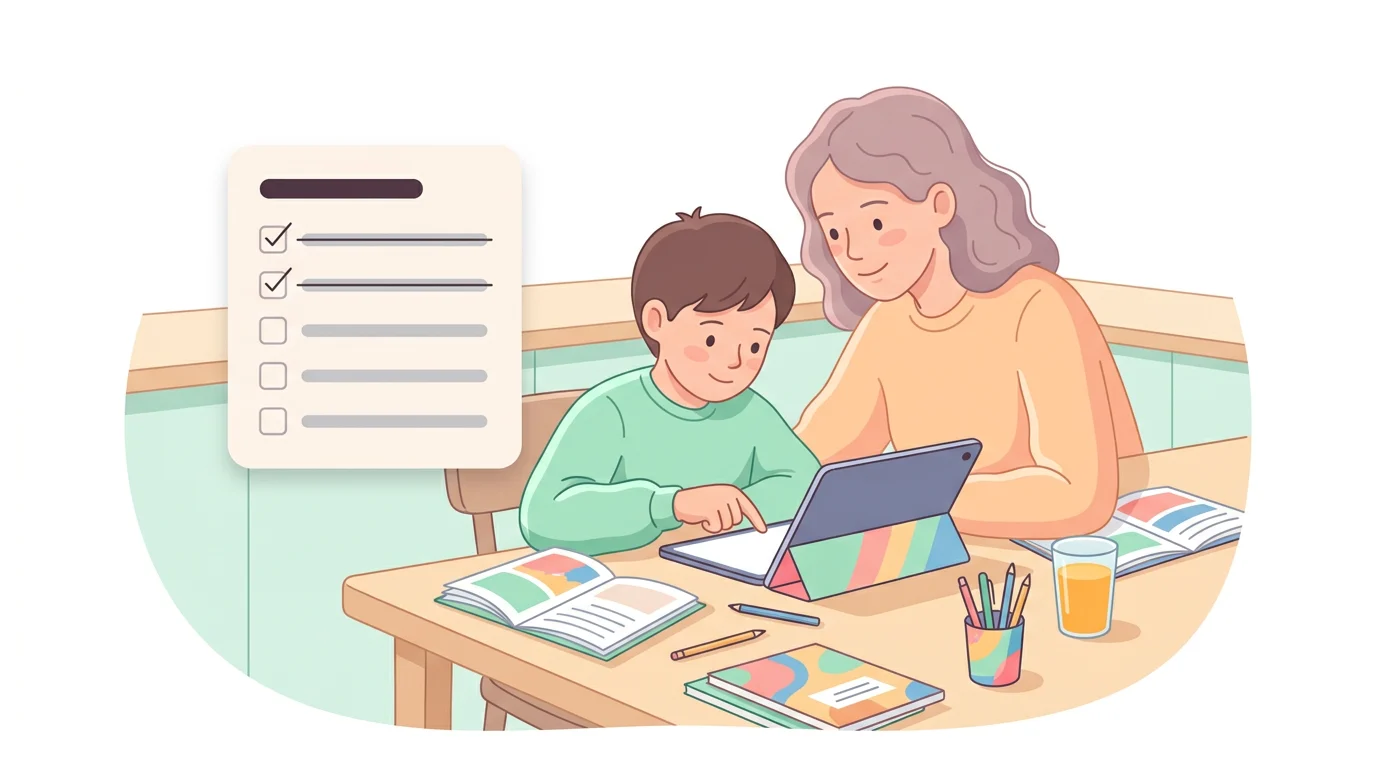
On the day’s lesson page, so a child can tick each subject as it is done. A daily list unticks itself overnight, ready for the next morning without any setting up.
Many widget sites ask you to sign up or connect your Notion before you can copy a link. Here you set the list up on this page and copy it: nothing to register, nothing to pay.
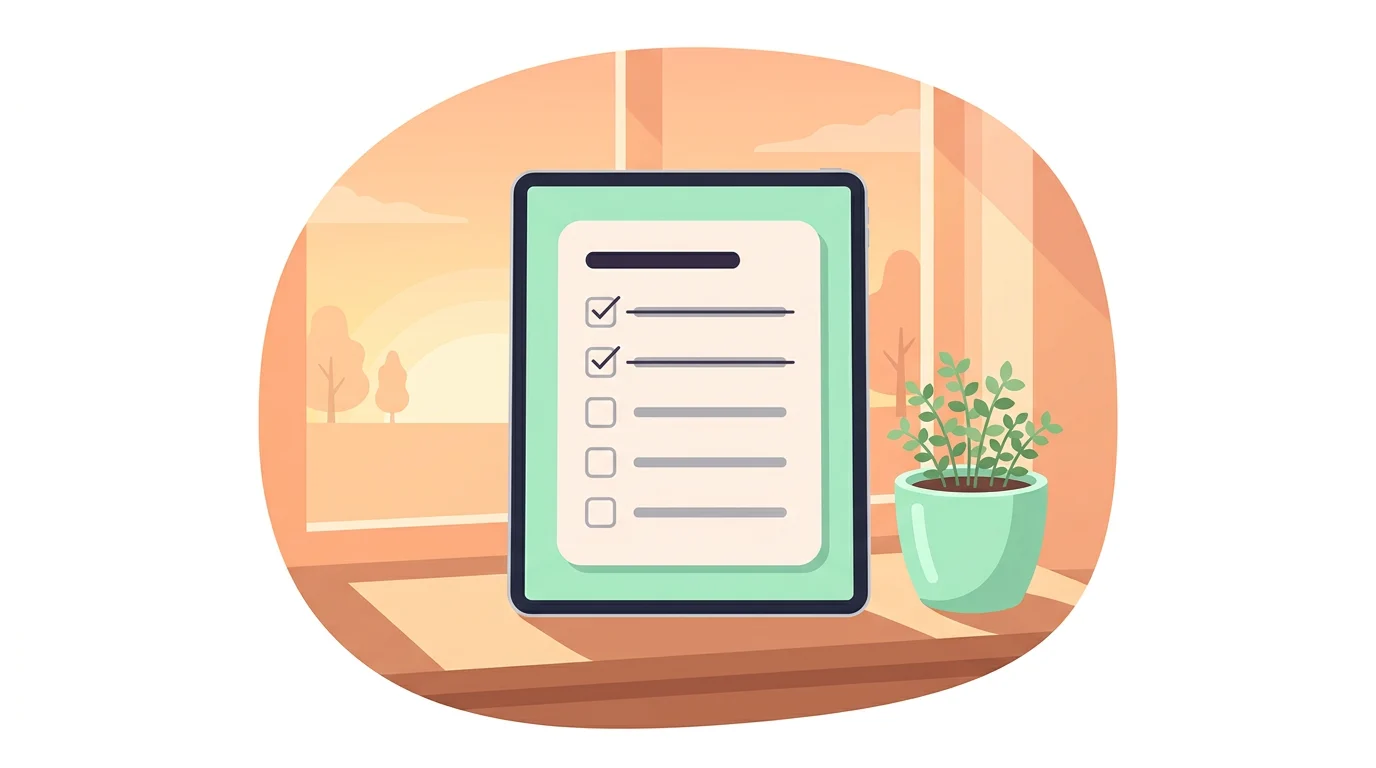
A Notion checkbox stays ticked until someone unticks it. This list can untick itself each new day, so a routine for the class or for you is ready again every morning.
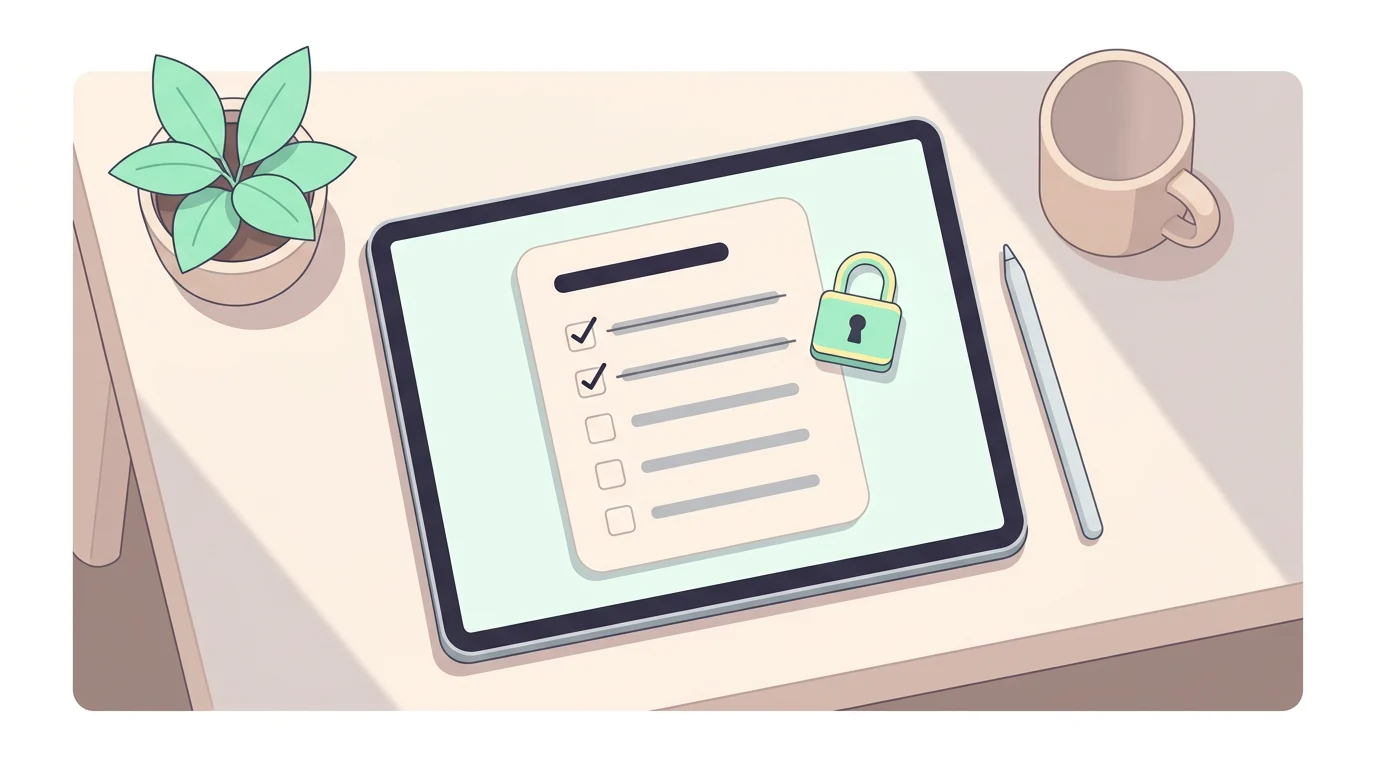
Your ticks and the tasks you add stay in the browser on your device. They are not sent to us or to anyone else, and the link itself carries only your starting tasks.
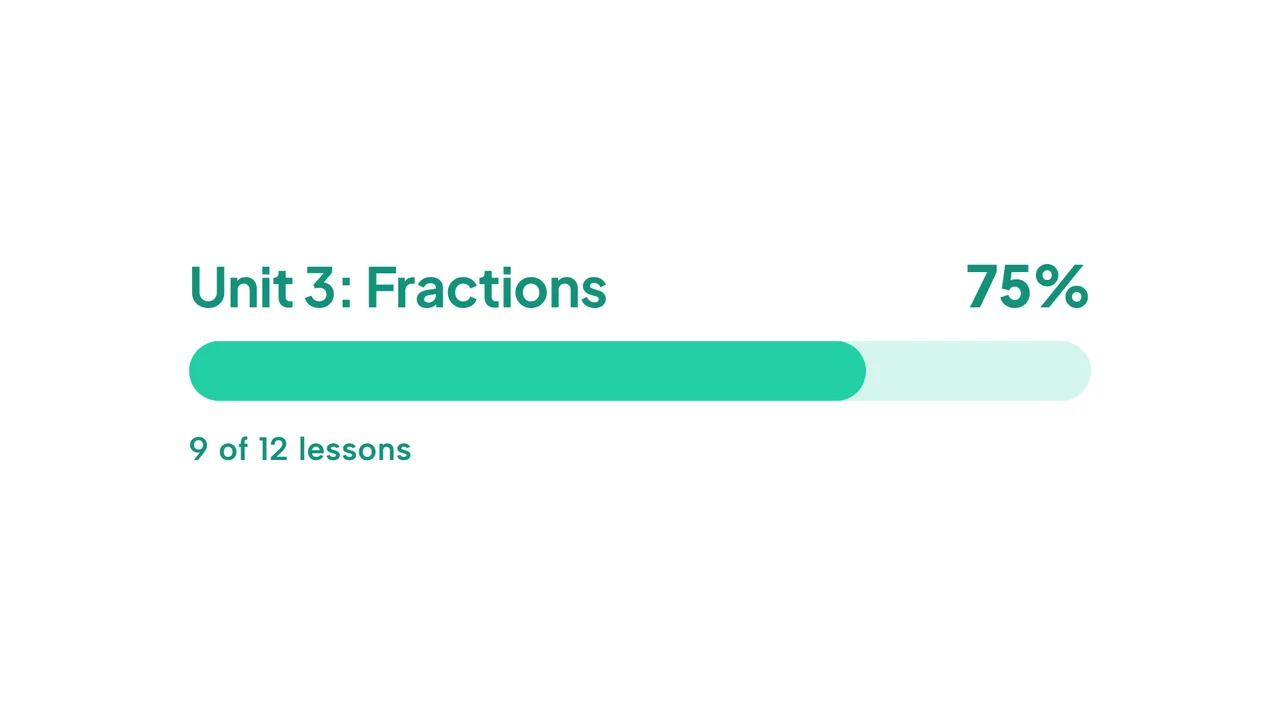
A bar, ring or battery that fills as you count lessons, pages or the days of a term.
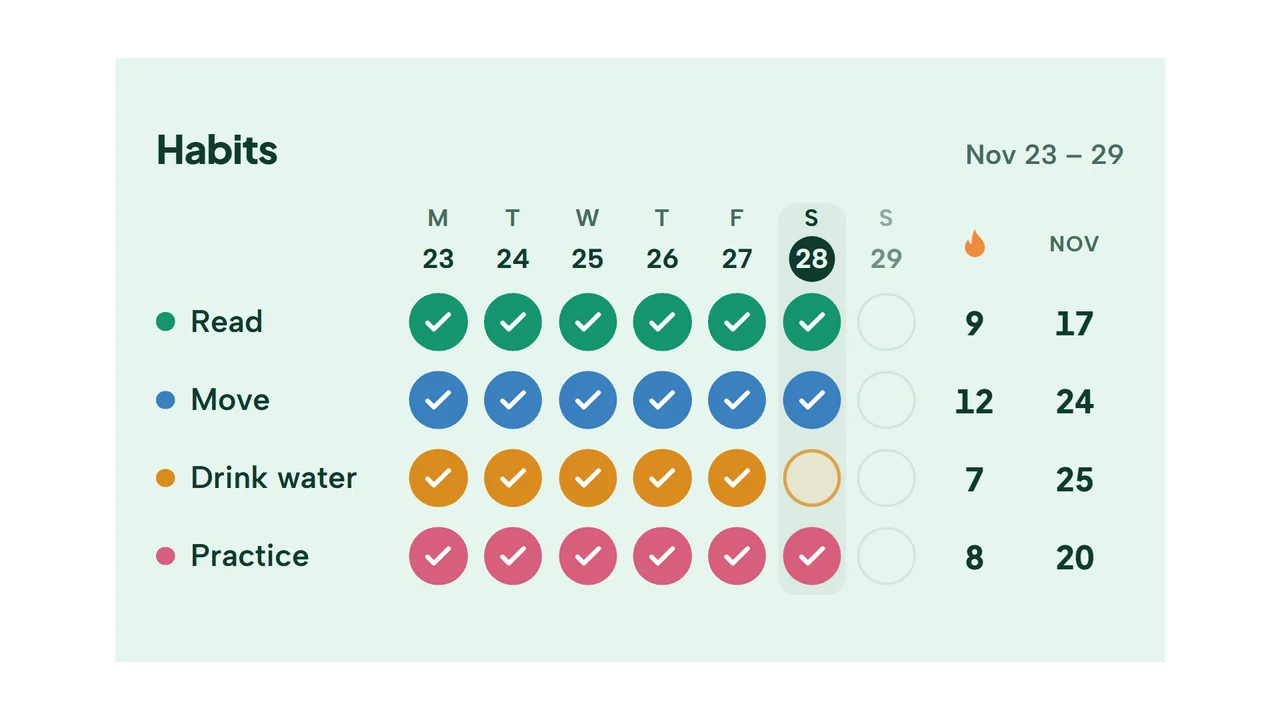
Tick off up to six habits each day and watch the streaks grow, week by week.
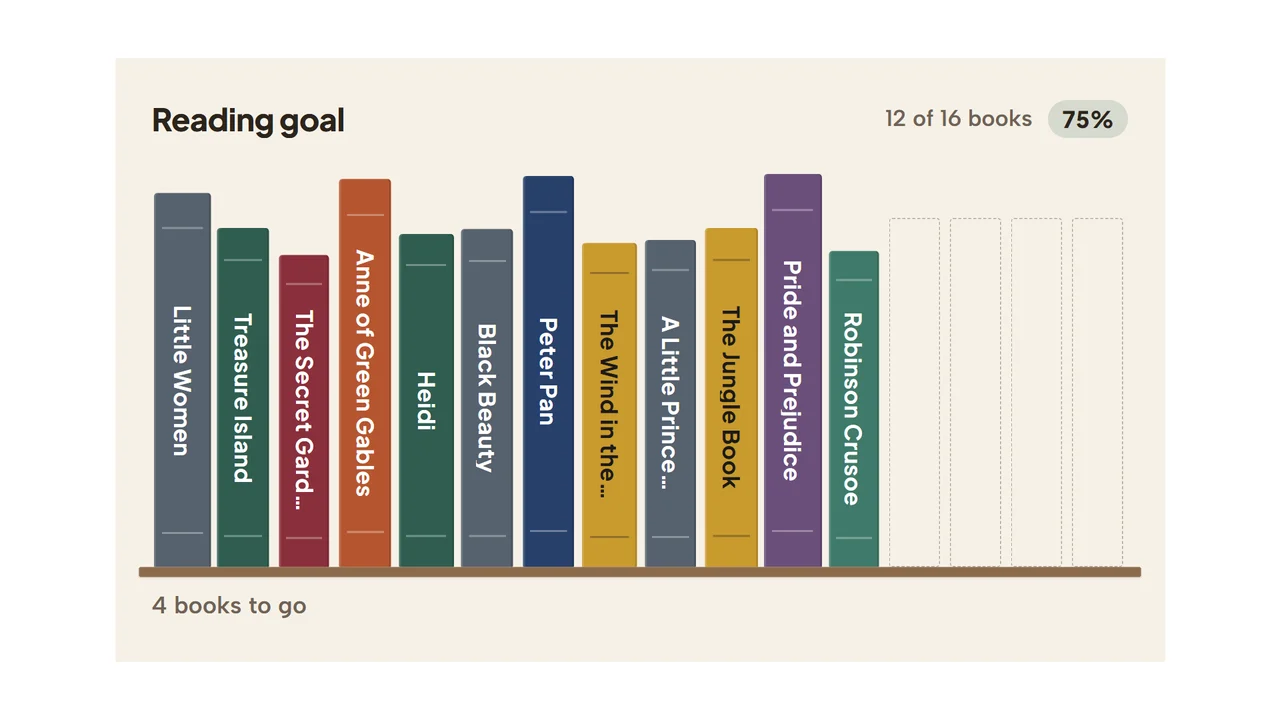
A shelf of books that fills toward your reading goal for the year.
Yes. The to-do list is free to set up, copy and use on as many Notion pages as you like. There is no account to make, no trial, no watermark and no ads, and the tasks you add are not sent to us.
Type your starting tasks and pick a look at the top of this page, then press Copy Widget Link. In Notion, click where the list should go, paste the link and choose Create embed. Drag the corners of the block to make the list the size you want.
In the browser on the device that made them. Ticks, new tasks and their order are still there when the Notion page opens again on that computer or tablet. Nothing is sent to us. Another computer, or the Notion app on a phone, starts from the link’s own starting tasks.
Use Notion’s to-do blocks (type /todo) for a list you share with a team: they are saved in the page and show the same ticks on every device. Use the widget for its looks, a daily list that unticks itself, or a checklist on the classroom screen that students tick without editing your page.
Yes. Switch on Untick all each new day and every task is unticked when a new day starts on that device, at midnight by its clock. The tasks stay on the list, so a morning routine or a daily checklist is ready again each day.
Yes. Choose Tick only under In the widget: the list has no add line, no delete buttons and no dragging, so the tasks stay as you typed them. Ticks are kept in each browser, so every student’s device keeps its own.
Yes. The list is part of the Notion page, so it shows wherever the page opens: the Notion app on iPhone, iPad and Android, the desktop app and the browser. Each device keeps its own ticks and its own added tasks.
Come back to this page and press Change a widget you added, under the preview. Paste the list’s link (in Notion, ••• then View original shows it), change what you like and copy the link again. In Notion, choose ••• then Replace and paste it: the list keeps its place and size. Ticks and new tasks stay unless you change the starting tasks; then the list starts over.

The Complete Bundle has every Notion4Teachers template, with the Ultimate Teacher Planner at its heart.
Get Complete Bundle40% OFF!