

A teacher’s planning time
List lesson planning, grading, email and meetings, and tap each one as you start it. At the end of the day the header shows the total, and the week chart shows which task took the most time.
Write your tasks or subjects, pick a look, then copy the link and paste it into any Notion page. Tap a task to time it, and see where the day went.
Up to 8, one per line. Add a color: "Math | orange".
Today in Room 12
www.notion4teachers.com/embed/time-trackerA time tracker widget is a small web page that times what you work on, made to sit inside a Notion page. You paste its link into Notion, choose Create embed, and the tracker works in that block. This one takes up to eight tasks or subjects, starts a clock with one tap, adds up today’s time and draws this week as bars. Nothing to install, and no account.
Teacher Home
Whenever you want to know where the hours go, without building a database. Three moments where it helps:
List lesson planning, grading, email and meetings, and tap each one as you start it. At the end of the day the header shows the total, and the week chart shows which task took the most time.

Students write their subjects, Math, Reading, Science, and tap the one they open. Switching subjects is one more tap, and the totals show how the evening was really spent.

Put the tracker on a revision page and keep it running while you study each subject. The bars for the week show whether every subject is getting its share before the exam.
Write your list once, copy the link, and the tracker is ready every day. Here is what you can change before you paste it into Notion.
Tap a task and its clock starts; the running task gets its own color around it. Tap another and the first one stops as the next one starts. Tap the running task again to stop it.
The header adds up today’s time, and each task shows its own. Beside them, this week’s days stand as bars stacked in your tasks’ colors, so the busy days and the busy tasks show at a glance.
The list fits a narrow column, tiles make big targets for a classroom touch screen, and Focus shows the running task’s time large with every task as a small button under it.
Write up to eight tasks or subjects, one per line. Each gets a color of its own, or name one after a bar, like Math | orange. The title at the top is yours too, Today unless you write another.
Paper white, a dark Night for Notion’s dark mode, and soft Mint, Sky, Blush and Sand. The panel fills the whole block, so it reads the same on any page, and the week can start on Monday or Sunday.
Five steps, about a minute. The same steps work for every widget on Notion4Teachers.
Type your tasks or subjects at the top of this page, one per line.
Press Copy Widget Link. Your tasks and your look are part of the link.
Click where the tracker should go on your Notion page and paste.
Notion asks what to do with the link. Choose Create embed.
Pull the block’s corner until the tracker is as big as you want.
The Ultimate Teacher Planner sets up your classes, lessons, grades and attendance in Notion. Put your widgets at the top of it in a minute.
See the Teacher PlannerA timer tells you how long one thing took. This one keeps every task’s time for the day and the week.
The tracker shows your tasks and your times, and nothing else.
They are kept in your browser only, never sent to us or anyone else.
Seven bars stacked in your tasks’ colors show the busy days and the busy tasks.
A running task keeps counting through a reload, a closed laptop and even midnight.
Every task is a large button, and Tiles makes them bigger still for a touch screen.
No account and nothing to sign in to. Change the list, copy the new link.
Anyone who wants to see where the day went without filling in a database.

On a planning dashboard, to see how much time lesson planning, grading, email and meetings really take each week, and to notice when one of them starts eating the evening.

On a study page with one task per subject, to time homework and revision and to see at the end of the week which subjects got the most time and which were left behind.

On the family’s lesson page, one task per subject, so a parent can see how the week’s hours were shared between reading, math and the rest without keeping a log by hand.

Time tracking in Notion usually means a database with start and end dates and a formula. Here you write your tasks once and tap them, and today’s total and the week are drawn for you.
There is no account and no server holding your hours. The times are kept in the browser on your device and go nowhere else, which also means they stay on that device.
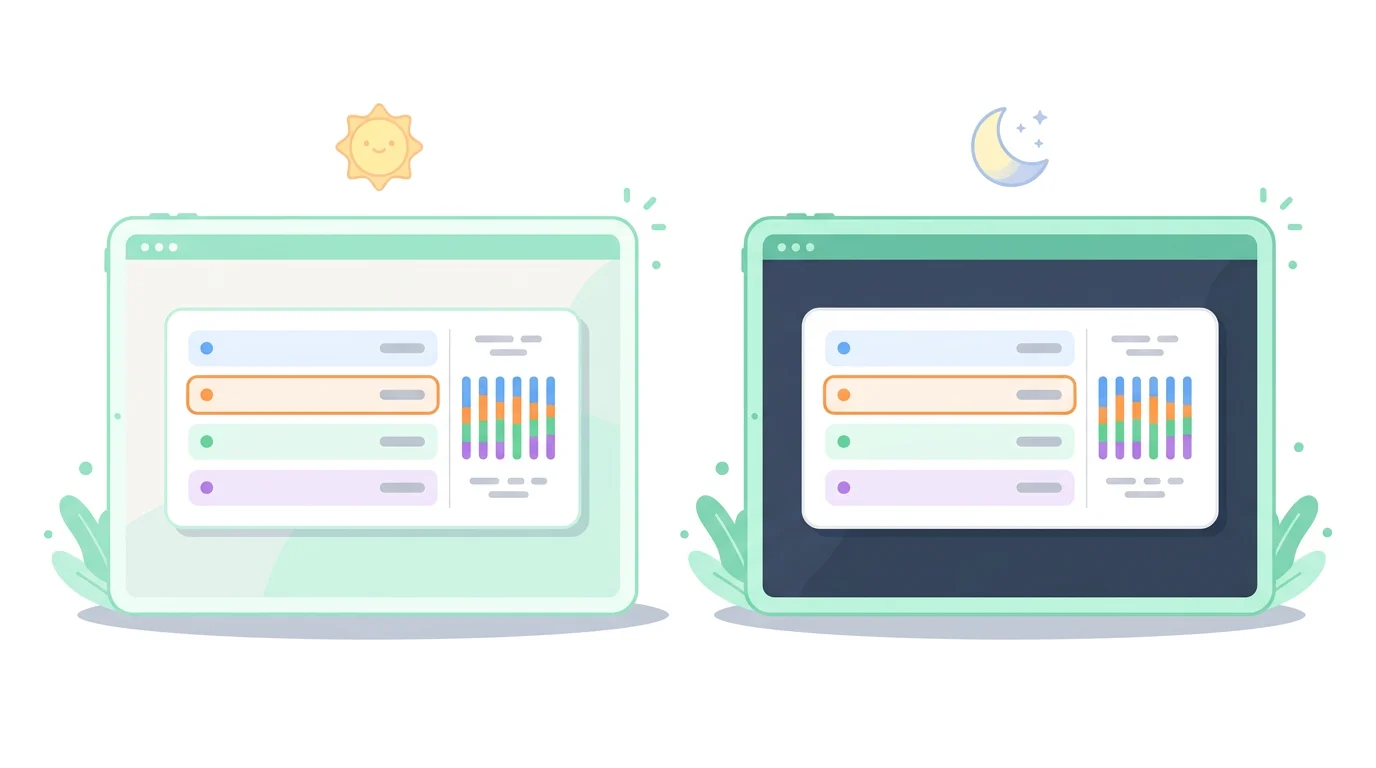
Pick a panel color that suits your page, from Paper white to a dark Night. The panel fills the whole block, so the tracker looks the same in light and dark mode.
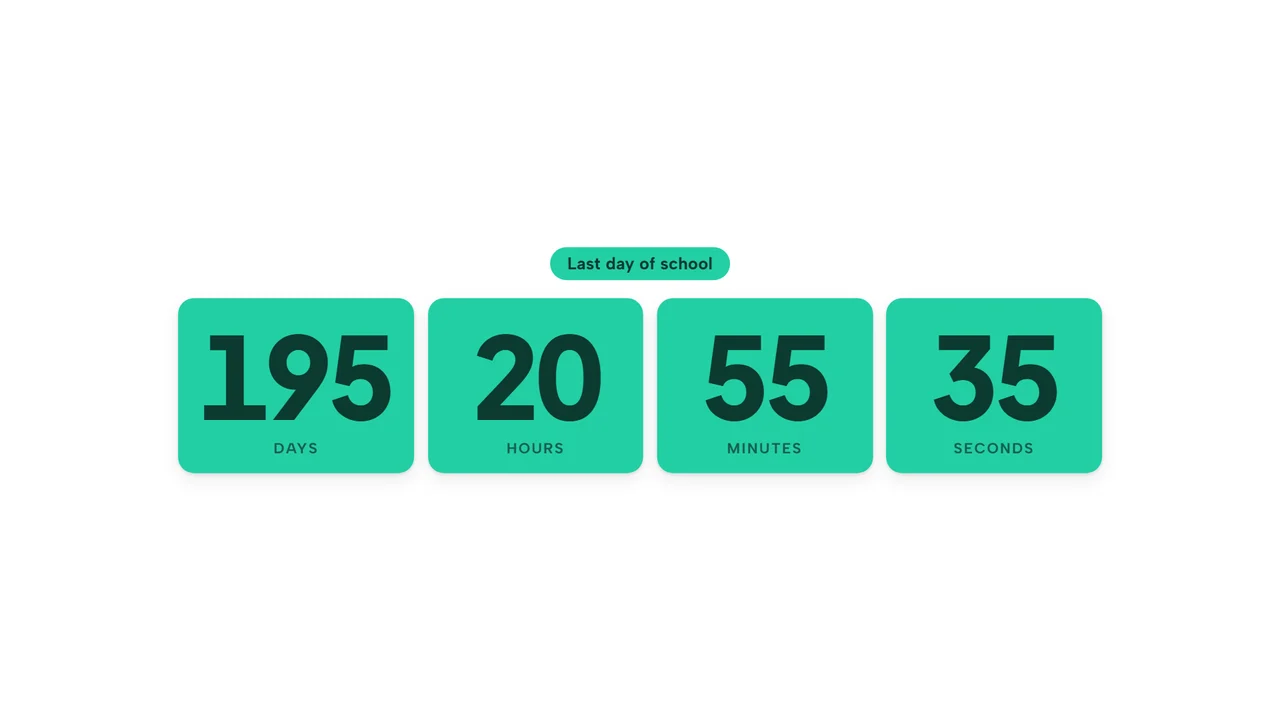
Days, hours, minutes and seconds to an exam, a holiday or the last day of school.
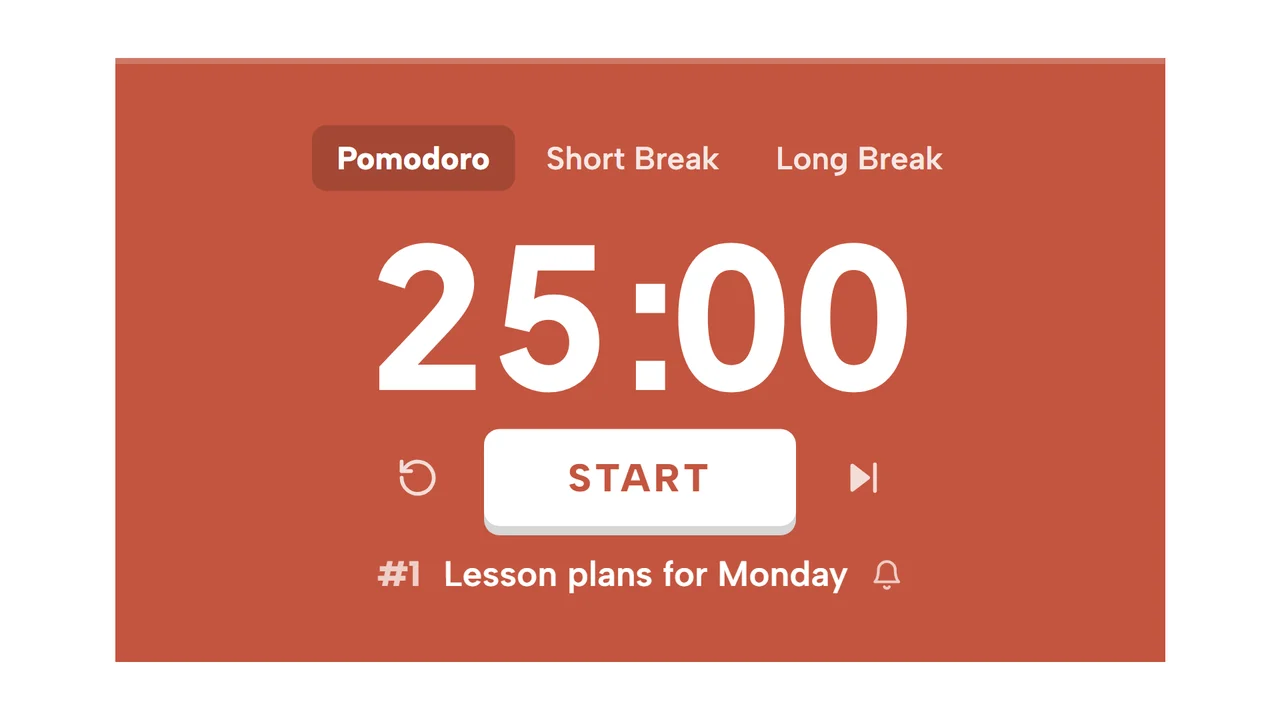
The classic Pomodoro timer with focus and break tabs, rounds and a bell, in your colors.
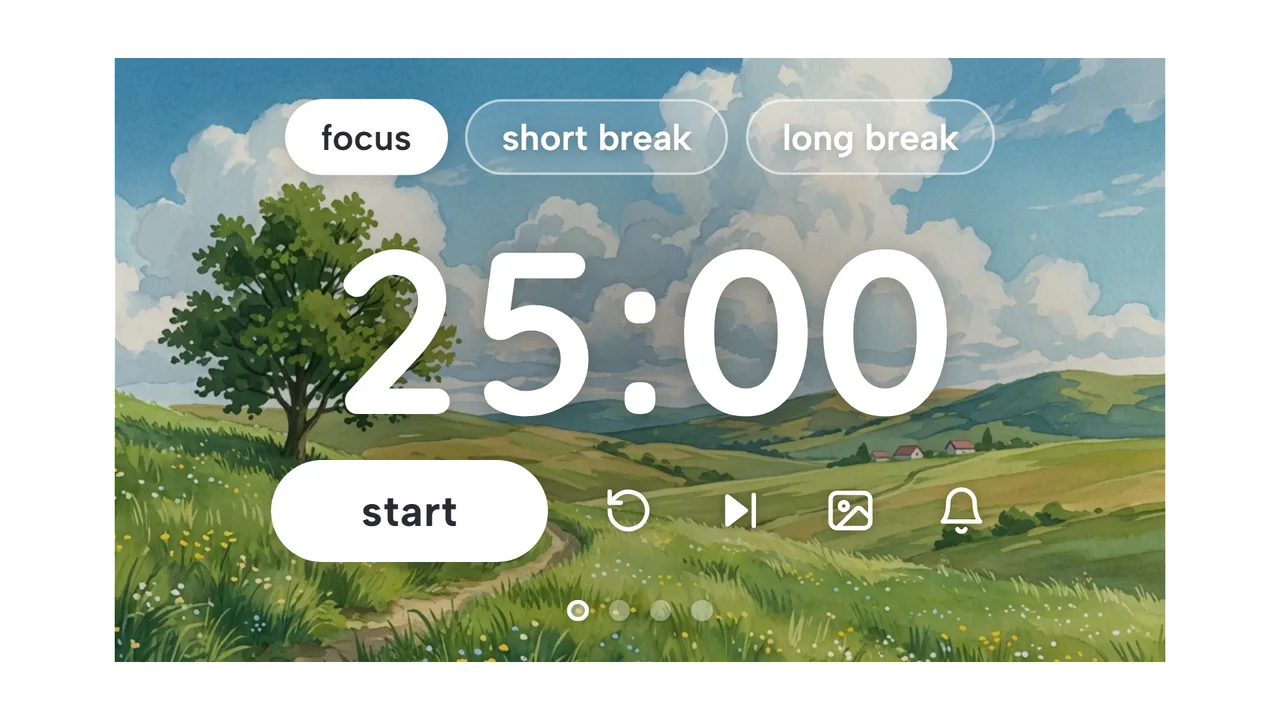
A Pomodoro timer over painted scenes, with gentle motion, a scene picker and three chimes.
Yes. The time tracker is free to set up, copy and use on as many Notion pages as you like. There is no account to make, no trial and no watermark, and no ads inside the widget. Your times are not sent to us or to anyone else.
Write your tasks at the top of this page, one per line, and press Copy Widget Link. In Notion, click where you want the tracker, paste the link and choose Create embed from the menu that appears. Then drag the corners of the block to make it the size you want.
Not with a timer: Notion has no clock that runs. A database can log time instead, with a Start and an End date property for each entry, filled in by hand or by a button that sets the time to now, and a formula such as dateBetween(prop(“End”), prop(“Start”), “minutes”) for the minutes.
When you want one tap per task and today’s total in view, with no database to build. The widget keeps its times in your browser, not in Notion, so they cannot be filtered, summed or shared like database entries. For records you need to keep or report, a Notion database is the better tool.
In the browser on the device that tracked them, under this tracker’s own link, for about forty days. Nothing is sent to us. Another computer, or the Notion app on a phone, starts with empty times, and so does a private window or a browser whose site data has been cleared.
No, one at a time. Tap a task to start its clock; tap another and the first stops as the second starts; tap the running task to stop it. On a keyboard, the number keys 1 to 8 do the same. Time that runs past midnight counts on both days.
Each day of this week as a bar, stacked in your tasks’ colors, with today marked. The week starts on Monday or Sunday, as you choose. Time logged under a task you later took off the list shows in gray. The chart appears where the block has room, beside the tasks or under them.
Come back to this page and press Change a widget you added. Paste the tracker’s link (in Notion, ••• then View original shows it), change the tasks and copy the link again. In Notion, choose ••• then Replace and paste it: the tracker keeps its place and size. Times stay with each task’s name, so a renamed task starts at zero. Reset today clears only today, after a second tap.

The Complete Bundle has every Notion4Teachers template, with the Ultimate Teacher Planner at its heart.
Get Complete Bundle40% OFF!