

Work time on the class screen
Project your Notion page during independent work. Students see 25 minutes of focus counting down, and when the panel turns teal they know the break has started, without you calling time.
Set the focus and break lengths, the rounds and the colors, then copy the link and paste it into any Notion page. A classic Pomodoro timer that runs by itself.
Shown under the timer during each Pomodoro.
Today in Room 12
www.notion4teachers.com/embed/pomodoroA Pomodoro widget is a small web page that times work in blocks, usually 25 minutes of focus and then a short break, made to sit inside a Notion page. You paste its link into Notion, choose Create embed, and the timer runs in that block. This one lets you set the lengths, the rounds before a long break, the colors and a task line before you copy the link. Nothing to install, and no account.
Teacher Home
Whenever work goes better in short, timed blocks. Three moments where it helps:
Project your Notion page during independent work. Students see 25 minutes of focus counting down, and when the panel turns teal they know the break has started, without you calling time.

Put the timer on a study page beside the to-do list. Work through one Pomodoro, take the break, and let the round number show how many blocks are done tonight.

Break a stack of grading or a week of lesson plans into Pomodoros. Write the task in the task line, work until the bell, and take the long break after the fourth round.
Set it up once, copy the link, and the timer looks after the rounds. Here is what you can change before you paste it into Notion.
Three tabs switch between the parts, and the panel changes color with each one, so the whole room can tell focus from a break. After the rounds you choose, the short break becomes a long one.
One big button starts and pauses the timer. Skip moves on to the next part, reset puts the current one back to its full length, and every button works by mouse, touch or keyboard.
Classic red, teal and blue, or Berry, Earth, Soft pastels, Night and white Paper. Each set has its own color for focus, the short break and the long break.
The round number shows which Pomodoro of the day you are on, and the task line says what this block is for. A short bell rings when each part ends, and the bell icon mutes it.
Drag the corners of the embed block and the timer grows or shrinks to fill it. A wide block makes a big timer for the projector; a small block keeps the time and the Start button.
Five steps, about a minute. The same steps work for every widget on Notion4Teachers.
Pick the lengths, the rounds and the colors at the top of this page.
Press Copy Widget Link. Everything you chose is part of the link.
Click where the timer should go on your Notion page and paste.
Notion asks what to do with the link. Choose Create embed.
Pull the block’s corner until the timer is as big as you want.
The Ultimate Teacher Planner sets up your classes, lessons, grades and attendance in Notion. Put your widgets at the top of it in a minute.
See the Teacher PlannerA plain countdown stops at zero. This one runs the whole Pomodoro cycle and fits your page.
The timer shows the time, the tabs and the buttons, and nothing else.
Reload the Notion page and the timer is where you left it, running or paused.
It reads the device’s clock, so it stays right even when the tab sits in the background.
A short bell rings at the end of each part. Tap the bell icon to silence it.
No account and nothing saved on our side. Change a setting, copy the new link.
The timer fills the block, so a wide embed on the projector reads across the room.
Anyone who plans their day in Notion and works better in timed blocks.

On the classroom screen during independent work, so students pace themselves, and on a planning page for grading and lesson prep in focused blocks with real breaks.

On a study dashboard beside assignments and notes. Four Pomodoros and a long break make an evening of revision feel like a plan instead of a mountain.

On the day’s lesson page, so a child can see how long the lesson runs and when the break starts, and a tutor can keep each session to time.
Many timer sites ask you to sign up before they keep your settings. Here you set the timer up on this page and copy it: nothing to register, nothing to pay.
The running timer is kept in the browser of the device that shows it, so a reloaded Notion page or a laptop that went to sleep comes back to the right time left.
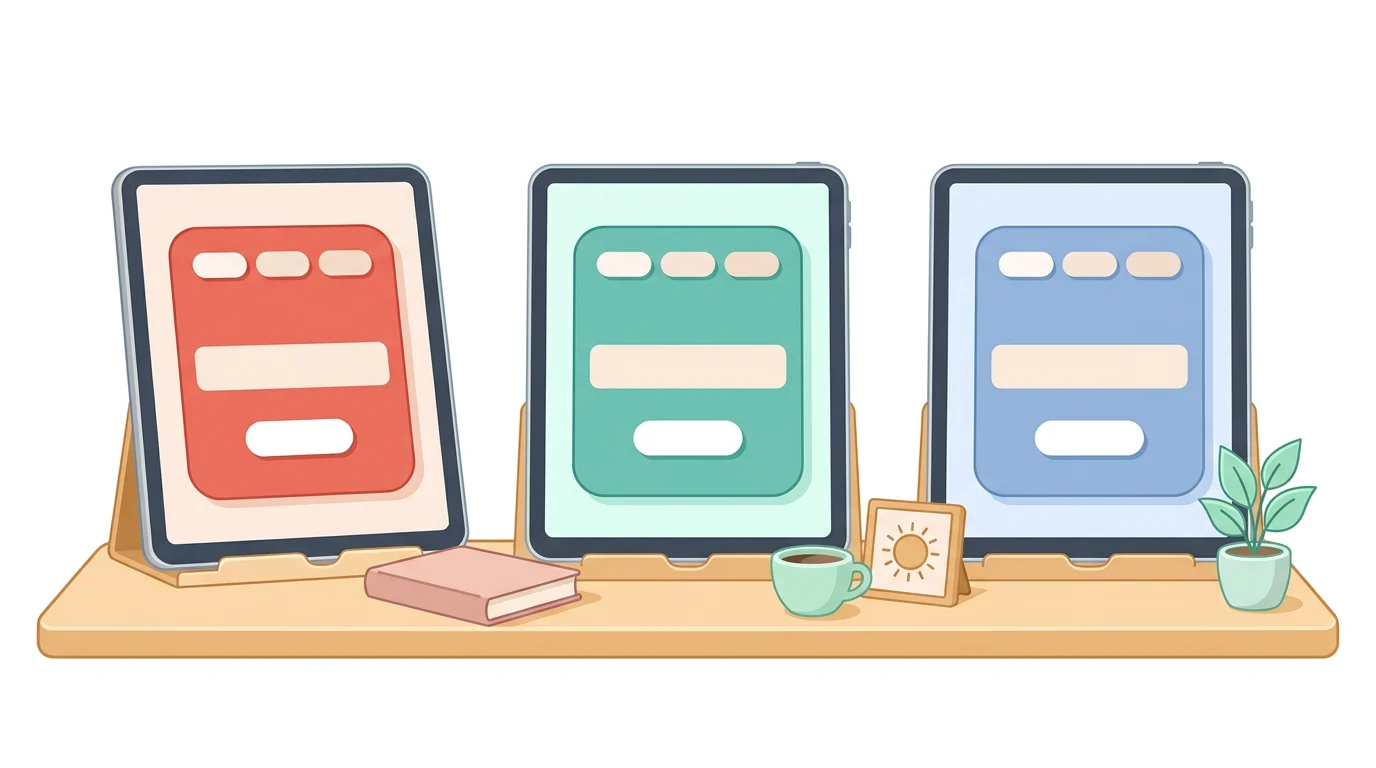
Focus, the short break and the long break each have their own color. From the back of the room, students can tell at a glance whether it is time to work or time to rest.
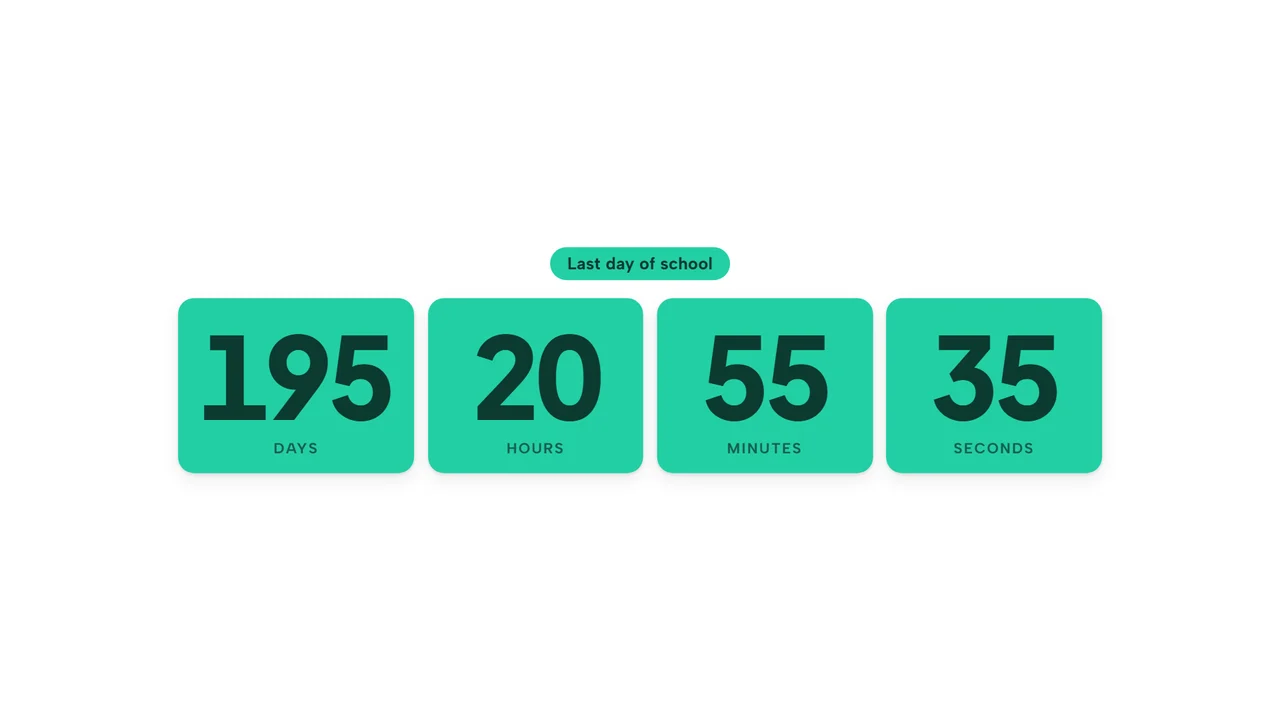
Days, hours, minutes and seconds to an exam, a holiday or the last day of school.
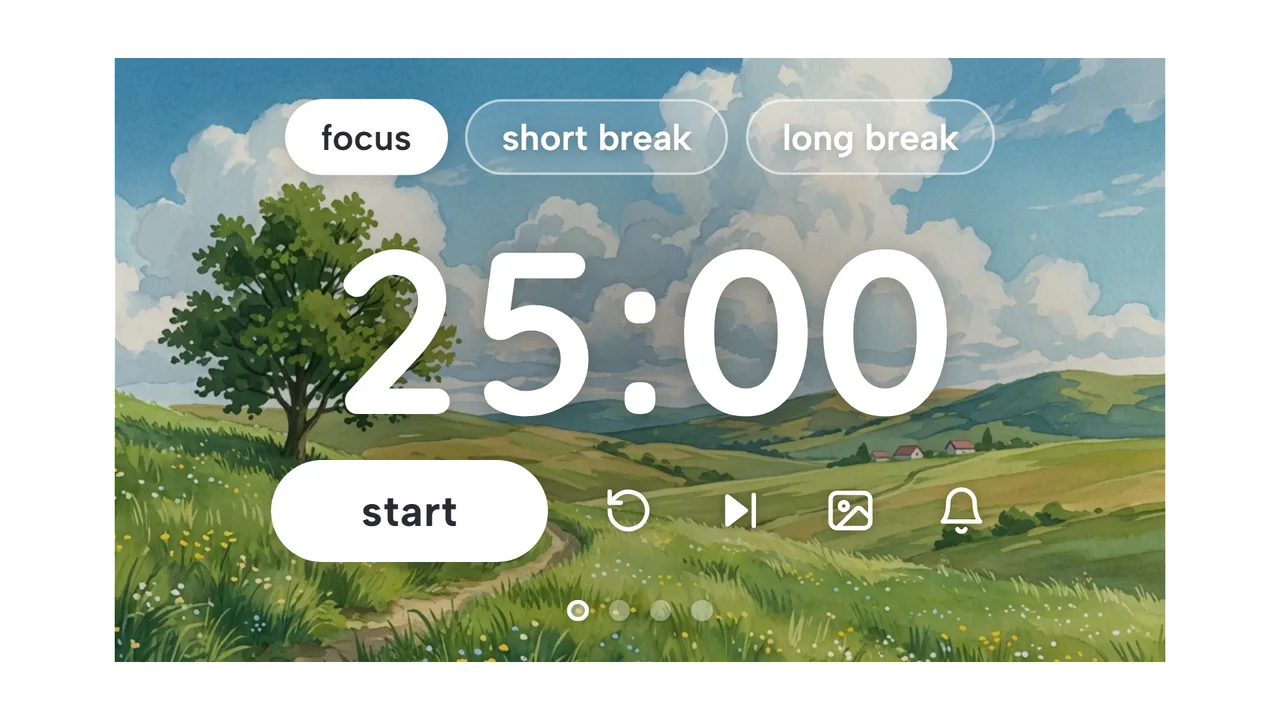
A Pomodoro timer over painted scenes, with gentle motion, a scene picker and three chimes.
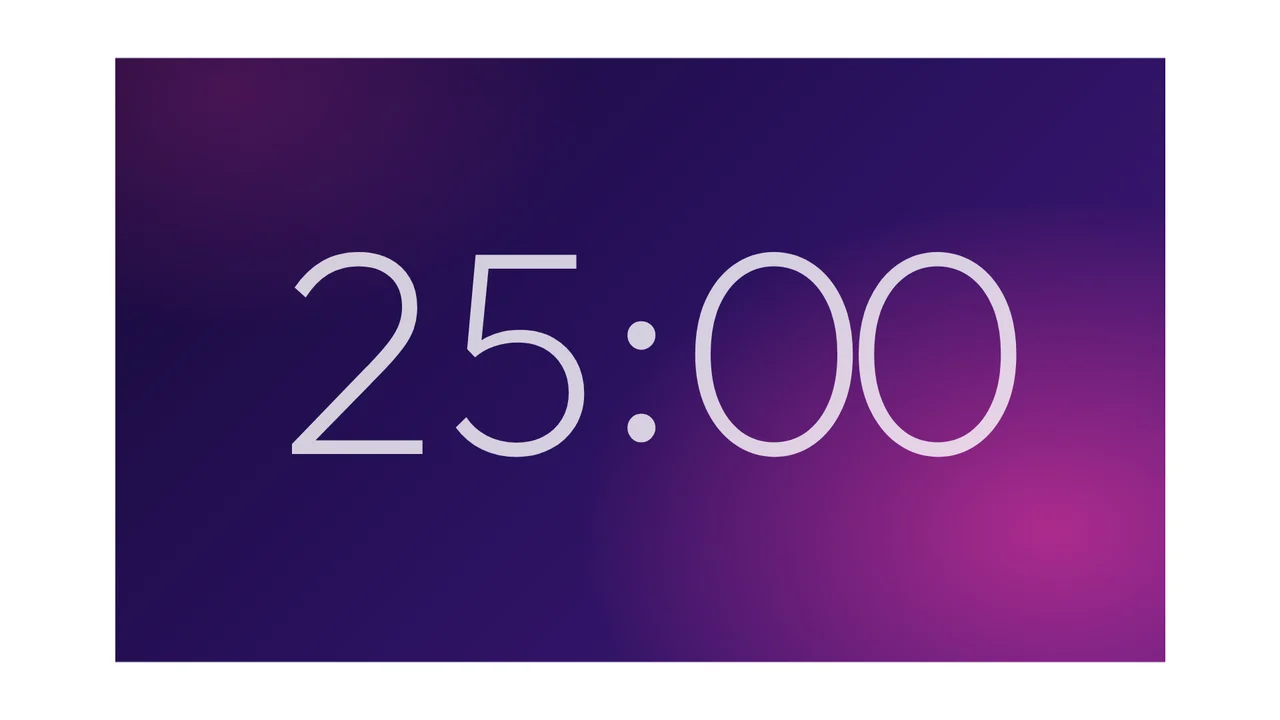
Large thin numbers on a deep gradient, with the buttons only when you need them.
Yes. The timer is free to set up, copy and use on as many Notion pages as you like. There is no account to make, no trial and no watermark, and no ads inside the timer.
Set up the timer at the top of this page and press Copy Widget Link. In Notion, click where you want the timer, paste the link, and choose Create embed from the menu that appears. Then drag the corners of the block to make it the size you want.
Yes. Set the Pomodoro from 1 to 90 minutes, the short break from 1 to 30 and the long break from 1 to 60. Under Long break after, choose how many Pomodoros come before each long break: from 2 to 8, with 4 to start.
Yes. A short bell rings when a Pomodoro or a break ends, once you have pressed Start on the timer. The bell icon under the timer mutes it for that timer, and Chime at the end switches the sound off in the link.
Yes. Tick Start breaks by themselves and the break begins the moment a Pomodoro ends. Tick Start Pomodoros by themselves and the next Pomodoro begins when the break ends. Leave both off and the timer waits for you to press Start.
The timer picks up where it was. It keeps its place in the browser on that device, so a reload, a closed tab or a sleeping laptop shows the right time left when you come back. If a part ended while you were away, the timer has moved on to the next one.
Yes. The timer is part of the Notion page, so it shows wherever the page opens: the Notion app on iPhone, iPad and Android, the desktop app and the browser. Each device keeps its own running timer.
Come back to this page, set the timer up again and copy the new link. In Notion, delete the old embed block and paste the new link in its place, then choose Create embed. If the embed ever fails to load, the link was probably cut short, so copy it again.

The Complete Bundle has every Notion4Teachers template, with the Ultimate Teacher Planner at its heart.
Get Complete Bundle40% OFF!