

Before a test or a big project
Put a countdown to the exam or the due date at the top of the class page. Students see the days and hours left each time they open it, and plan their study time around it.
Pick the date, the time and the look, copy the link, and paste it into any Notion page. Days, hours, minutes and seconds that tick down by themselves.
Empty: the next January 1.
That time on the clock of each device that opens it.
Your words take the place of the numbers.
Today in Room 12
www.notion4teachers.com/embed/countdownA countdown widget is a small web page that shows the time left until a moment, made to sit inside a Notion page. You paste its link into Notion, choose Create embed, and it ticks down in that block by itself. This one lets you choose the date, the time and its time zone, which units show, the look, the colors and what happens at zero before you copy the link. Nothing to install, and no account.
Teacher Home
Whenever a day is coming that the whole room is waiting for. Three moments where it earns its place:
Put a countdown to the exam or the due date at the top of the class page. Students see the days and hours left each time they open it, and plan their study time around it.

Count down to winter break, the field trip or the last day of school on the class page. When the day comes, your own message shows in place of the numbers.

Set the countdown to a city’s time and everyone counts to the same moment, here or abroad. A video call with a partner class, an online lesson or a live event starts when the numbers run out.
Set it up once, copy the link, and the countdown looks after itself. Here is what you can change before you paste it into Notion.
The countdown ticks every second, with each unit named under its number. Untick the ones you do not need; a unit you leave out flows into the next one down, so no days shows 821 hours.
Cards that give each unit a card of its own, plain numbers with colons between, one light minimal line, or Big days, a single big number of days for the classroom screen.
Count to a date and a time on each viewer’s own clock, or set a city so everyone counts to the same moment. Leave the date empty and it counts to the next January 1.
When the moment comes, show a message of your own in place of the numbers. Or let it count up and show the time since, like the days since the term began.
Drag the corners of the embed block and the countdown grows or shrinks to fill it. A wide block makes a big countdown for the projector; a narrow column makes a small one beside your notes.
Five steps, about a minute. The same steps work for every widget on Notion4Teachers.
Pick the date, the time, the look and the colors at the top of this page.
Press Copy Widget Link. Everything you chose is part of the link.
Click where the countdown should go on your Notion page and paste.
Notion asks what to do with the link. Choose Create embed.
Pull the block’s corner until the countdown is as big as you want.
The Ultimate Teacher Planner sets up your classes, lessons, grades and attendance in Notion. Put your widgets at the top of it in a minute.
See the Teacher PlannerA formula counts whole days in a database. This countdown ticks every second on any page.
Days, hours, minutes and seconds run down by themselves, no refresh needed.
An exam at 9:00 AM, the last bell at 3:15 PM, or the next January 1.
Cards, plain, minimal or Big days, in the colors of your page.
A clear background takes your page’s own color, so it fits both modes.
It shows the countdown and nothing else. No pop-ups, no logos, no sign-up.
No account and nothing saved on our side. Change a setting, copy the new link.
Anyone with a day to look forward to, or a deadline to plan for.

On the class page before exams, field trips and breaks, and on the classroom screen on the last day. A countdown the room can read keeps a date in everyone’s mind without a reminder.

On a study dashboard beside the to-do list, counting down to exams, a project due date or the end of the term. Seeing the hours left makes it easier to plan the study blocks.

On the week’s lesson page, counting down to a trip, a birthday or the end of a unit. Children can see how many days are left without asking again.
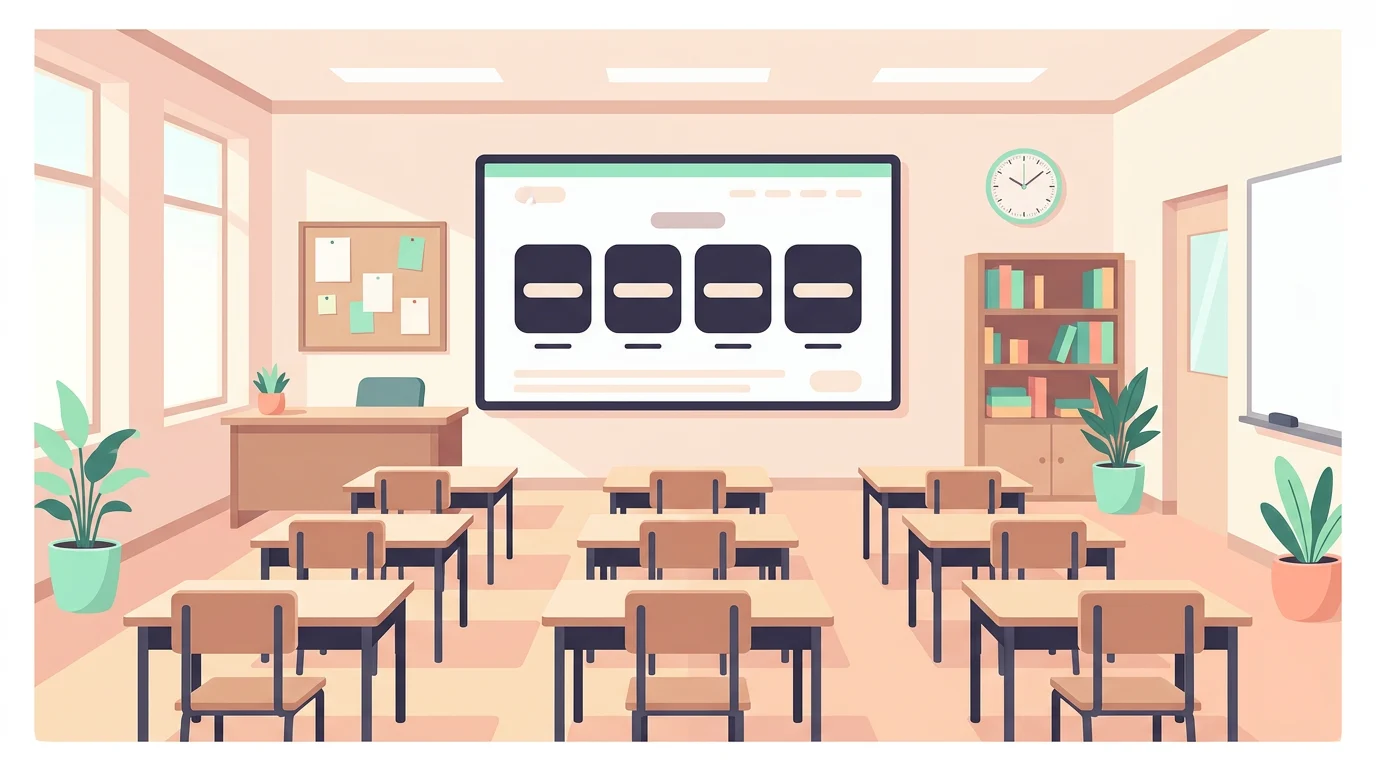
A formula in a Notion database counts whole days in a table. This countdown ticks down days, hours, minutes and seconds on any page, and fills the block for the classroom screen.

Set a city and everyone counts to the same moment, from the classroom to a partner class abroad. Or leave it on each viewer’s own time for a moment that is local everywhere.

Many widget sites ask you to sign up before you can copy a link. Here you set the countdown up on this page and copy it: nothing to register, nothing to pay.
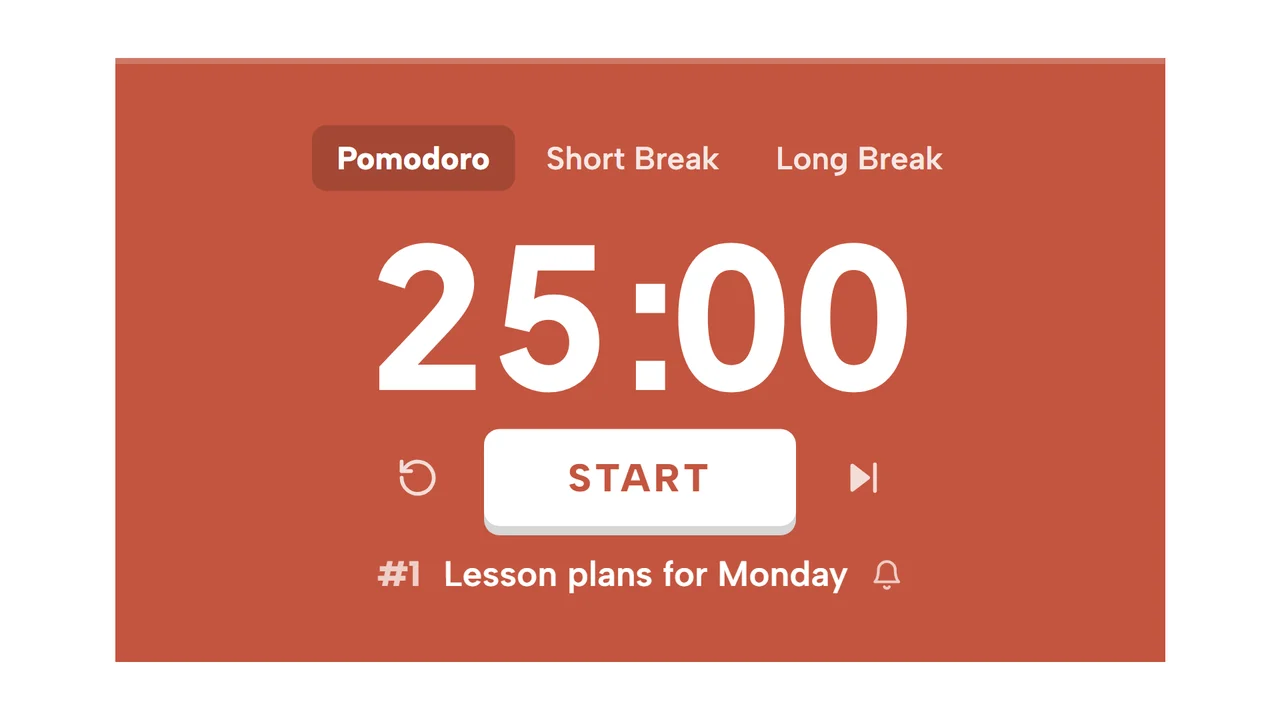
The classic Pomodoro timer with focus and break tabs, rounds and a bell, in your colors.
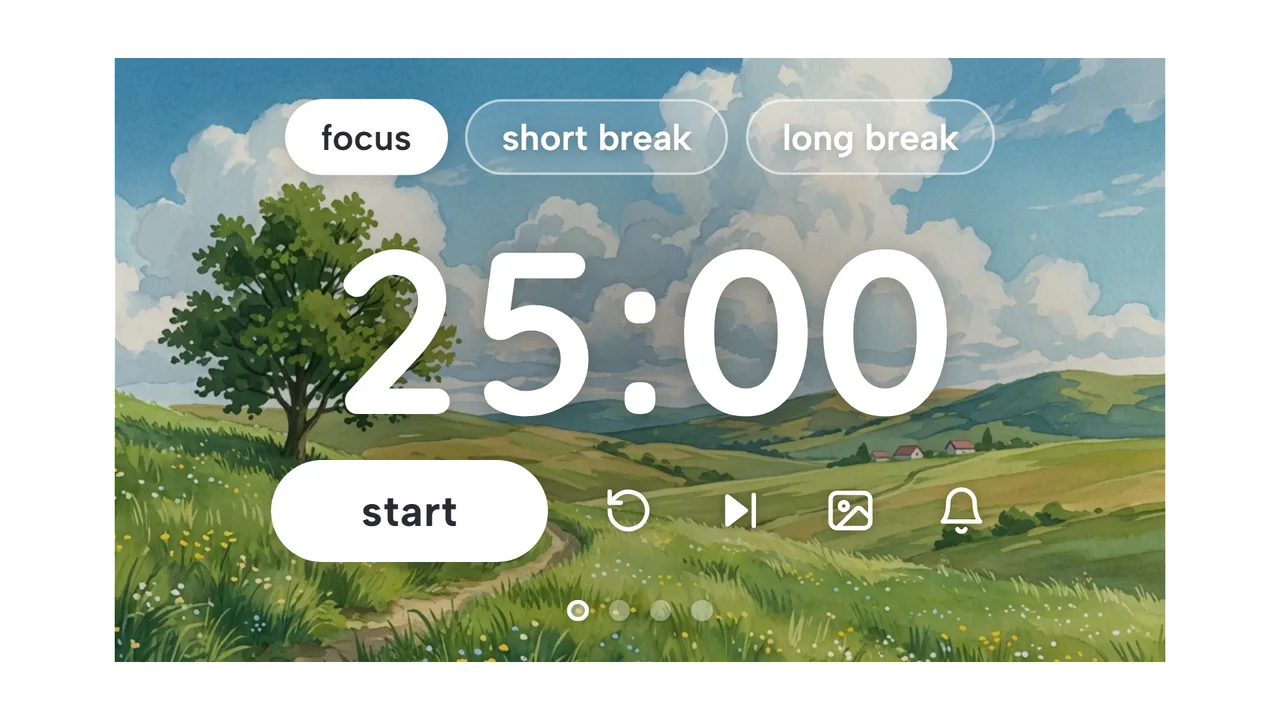
A Pomodoro timer over painted scenes, with gentle motion, a scene picker and three chimes.
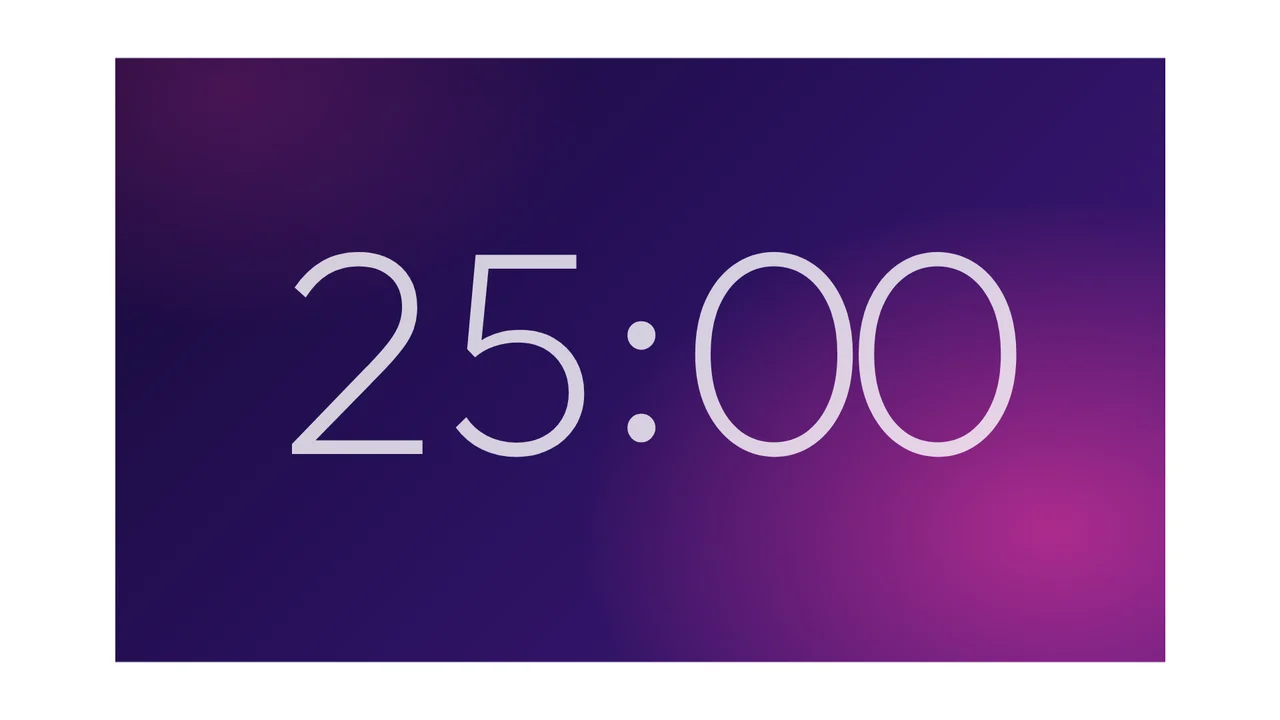
Large thin numbers on a deep gradient, with the buttons only when you need them.
Yes. The widget is free to set up, copy and use on as many Notion pages as you like. There is no account to make, no trial and no watermark, and nothing inside the countdown but the countdown.
Set up the countdown at the top of this page and press Copy Widget Link. In Notion, click where you want it, paste the link and choose Create embed from the menu that appears. Then drag the corners of the block to make it the size you want.
Yes. Pick the date and the time, like the last bell at 3:15 PM. Leave the time zone on each viewer’s own time and every device counts to that time on its own clock, or pick a city and everyone counts to the same moment, wherever they are.
You choose under At zero. Show a message and your words take the place of the numbers, like Today’s the day! or Have a great summer! Count up and it keeps going upward, showing the time since the moment, so the page can count the days since the term began.
Yes. Choose Big days for one big number with days to go under it, counted in calendar days, so the day before shows 1 day to go and the day itself shows the hours left. Or untick hours, minutes or seconds in the other looks; a unit you leave out flows into the next one down.
In a database, yes: a formula such as dateBetween with now() can show the days left for each row. It counts in whole days and lives in a table. The widget ticks down hours, minutes and seconds on any page, big enough for the classroom screen.
Keep the background on Clear and your Notion page’s own color shows around the numbers, light or dark. The cards bring their own color, and the Plain, Minimal and Big days looks use a middle tone of the set that reads on both. Solid puts a block of color behind it.
Come back to this page, set it up again and copy the new link. In Notion, delete the old embed block and paste the new link in its place, then choose Create embed. Your date and settings live in the link, so a new date means a new link.

The Complete Bundle has every Notion4Teachers template, with the Ultimate Teacher Planner at its heart.
Get Complete Bundle40% OFF!