
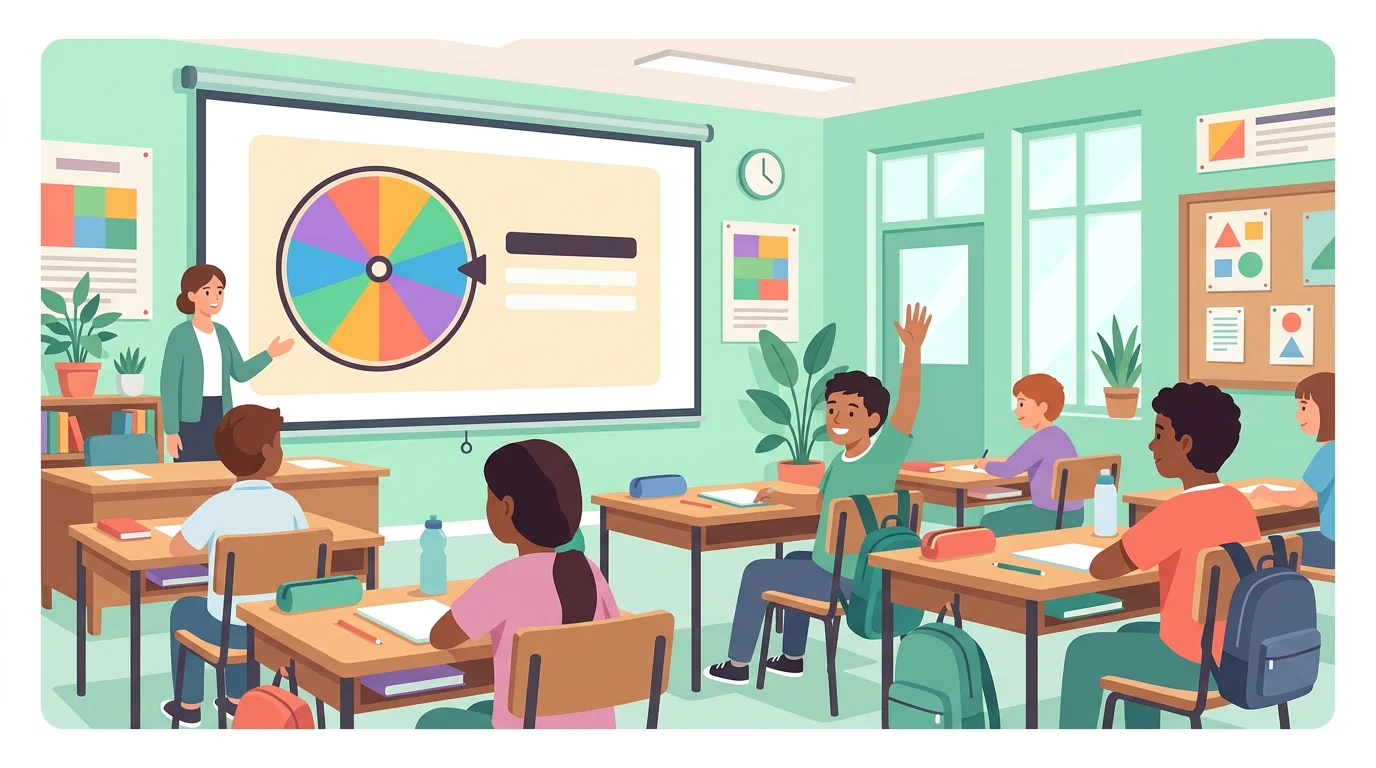
Calling on students during a lesson
Project your Notion page and spin for who answers next. Everyone stays ready, nobody feels picked on, and with No repeats each student gets a turn before anyone is called twice.
Type your class list, choose a wheel, a slot or a deck of cards, then copy the link and paste it into Notion. Every name gets a fair turn.
First names are best: the link carries them.
Everyone has a turn before anyone has two.
Today in Room 12
www.notion4teachers.com/embed/random-name-pickerA spin the wheel name picker is a small web page that picks one name from your list, made to sit inside a Notion page. You paste its link into Notion, choose Create embed, and press Spin in the block. This one spins a wheel, rolls a slot or shuffles cards, keeps everyone in until all have had a turn, and comes in six color sets. Nothing to install, and no account.
Teacher Home
Whenever you want a fair turn for the next voice in the room. Three moments where it helps:
Project your Notion page and spin for who answers next. Everyone stays ready, nobody feels picked on, and with No repeats each student gets a turn before anyone is called twice.

Before presentations or read-aloud time, let the slot or the cards decide the order. Spin once for each turn and the last few picks show beside the name, so the order is clear to the whole room.

Pick line leader, paper passer or plant helper each week with a spin. The round is kept on your device, so the picks carry on from where you stopped, even after the page is closed.
Type the list once, copy the link, and the picker looks after the turns. Here is what you can change before you paste it into Notion.
The wheel spins and eases to a stop under the pointer. The slot rolls names past a window until one stops in the middle. The cards shuffle and turn one over. Press Spin, tap the picker or press Space.
With No repeats, each picked name leaves the wheel and the count shows how many are left. When everyone has had a turn, the next press starts again. Every spin free keeps all the names in.
Type one name a line, up to about 60 first names. The list travels in the widget’s link, so there is nothing to save or sign in to. Until you add yours, the picker shows sample names.
Bright and Pastel for a lively room, Mint, Ocean and Sunset to match your page, and Night for a dark Notion page. The panel fills the block, so it looks the same on light and dark pages.
Drag the corners of the embed block and the picker follows. A wide block puts the name beside the wheel, big enough for the back row; a narrow column puts it under the wheel.
Five steps, about a minute. The same steps work for every widget on Notion4Teachers.
Add one first name a line, then pick the look and the colors at the top of this page.
Press Copy Widget Link. Your names and settings are part of the link.
Click where the picker should go on your Notion page and paste.
Notion asks what to do with the link. Choose Create embed.
Pull the block’s corner until the wheel is as big as you want.
The Ultimate Teacher Planner sets up your classes, lessons, grades and attendance in Notion. Put your widgets at the top of it in a minute.
See the Teacher PlannerA wheel on another website means another tab and a list typed in again. This one lives on your page.
Every name still in has the same chance, from your browser’s secure random numbers.
No repeats keeps track of who has had a turn, on the device that picks.
The picked name fills the space beside the wheel, so the room can read it.
Only your names and the picker. No pop-ups, no banners, no sign-in.
No account and nothing stored on our side. Change the list, copy the new link.
Six color sets, with Night for a dark page, on a panel that fills the block.
Anyone who shares turns with a group and keeps their plans in Notion.
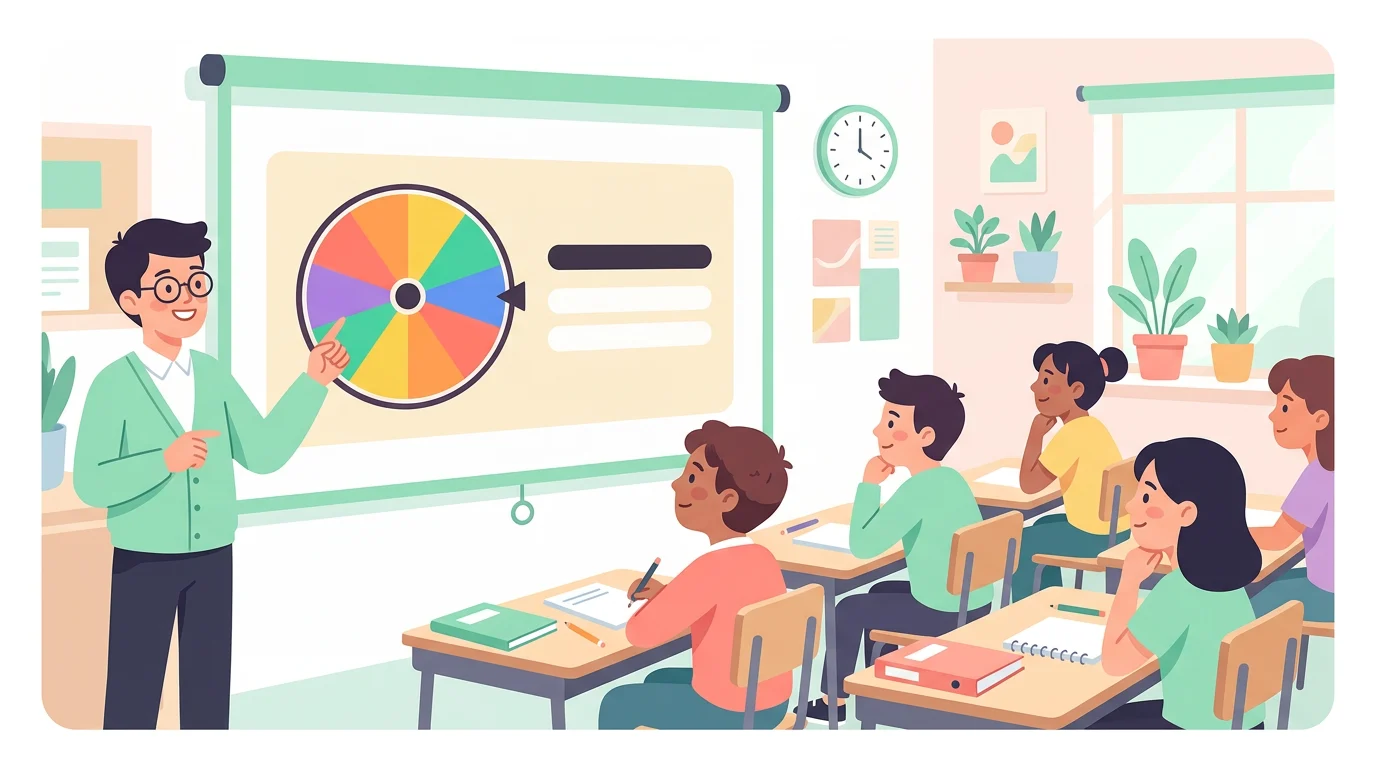
On the classroom screen for calling on students, choosing readers and handing out jobs. A fair spin the class can see settles who goes next, and No repeats makes sure every student gets a turn.

On a shared study page, to decide who explains the next problem or who goes first in a review game. Type the group’s names once and spin whenever a turn comes up.
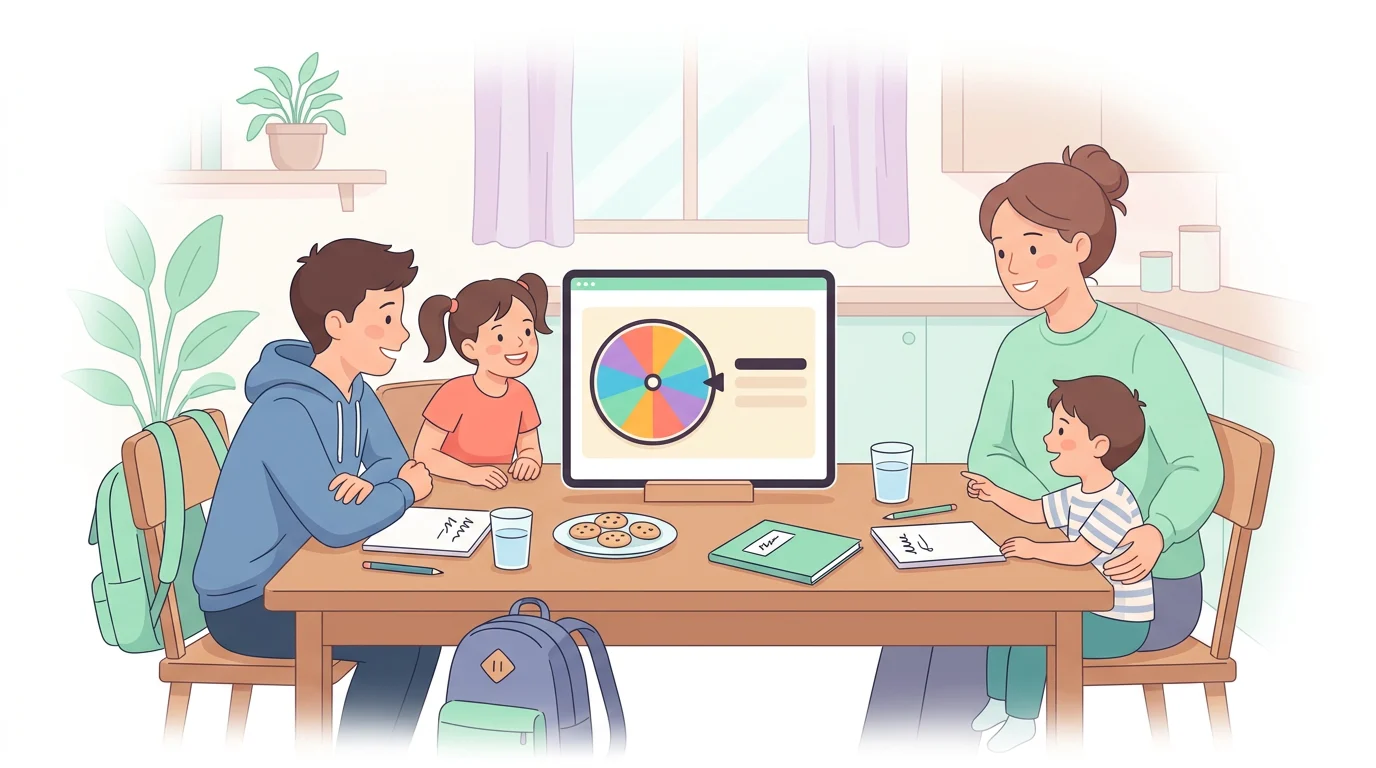
For a club, a tutoring group or brothers and sisters at home, to share turns at choosing the game, reading aloud or doing chores. The picks carry on where they stopped on that device.
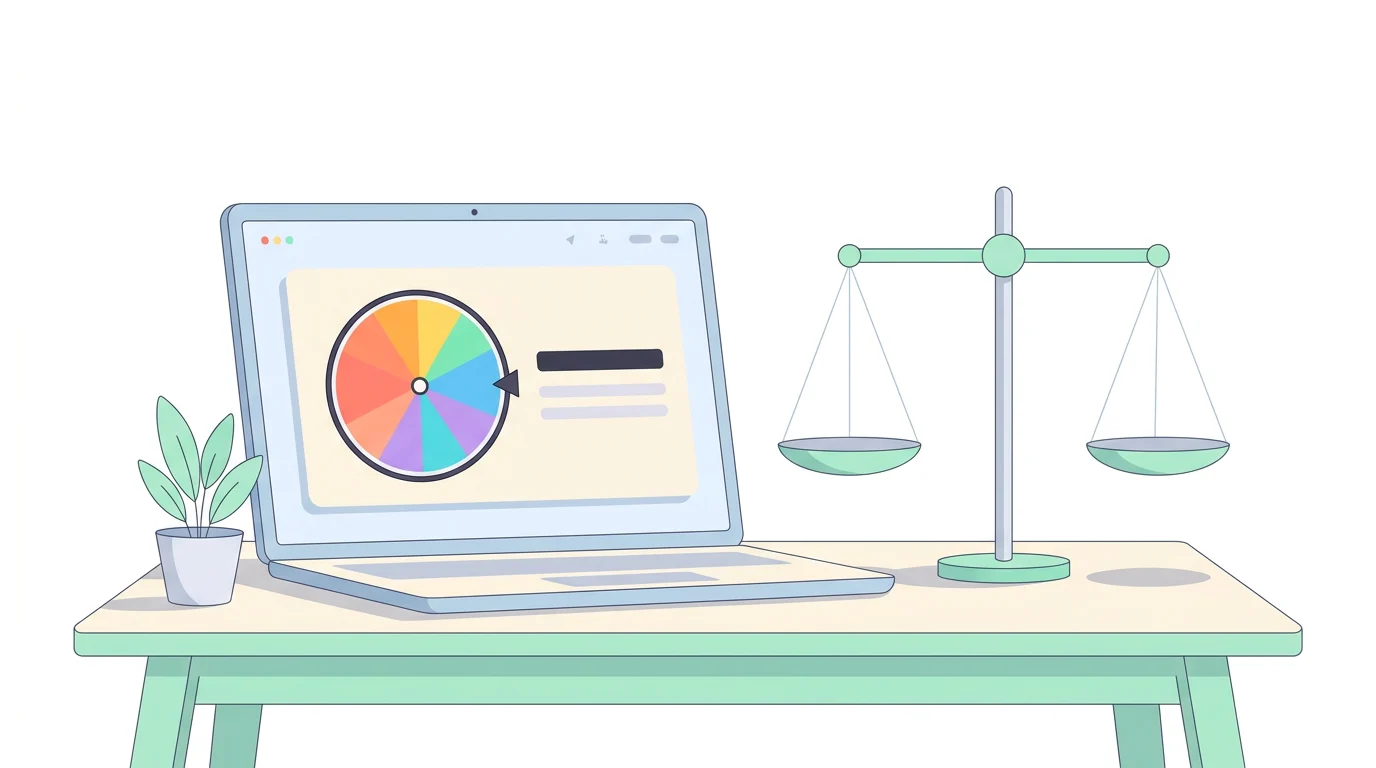
The name is chosen with your browser’s secure random numbers the moment you press Spin, and every name still in has the same chance. The wheel, the slot and the cards only show the result.

With No repeats, picked names leave the wheel until everyone has gone, and the round is kept in that browser. Close the page, open it tomorrow, and the picks carry on.
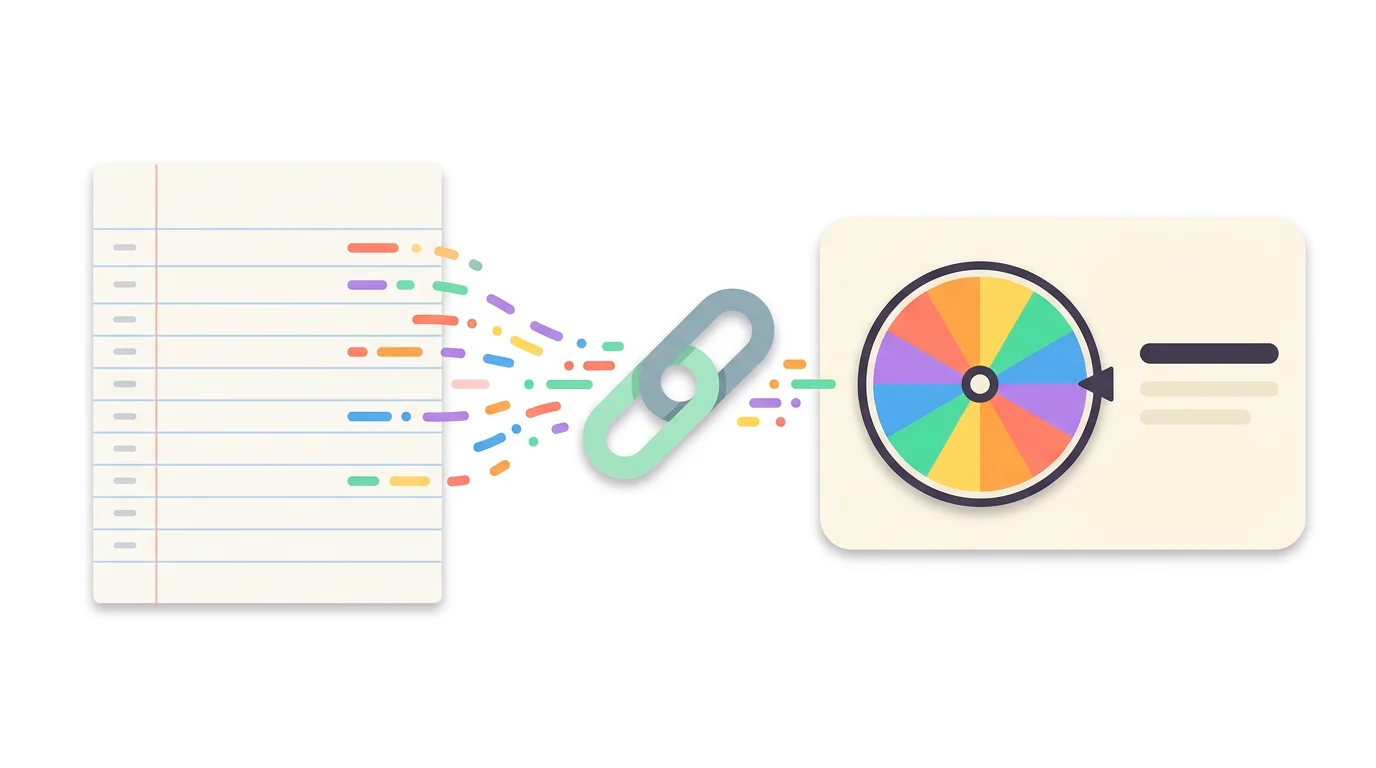
There is no account and no list saved on our side: the names travel in the widget’s link. Use first names, change the list whenever you like, and copy the new link.
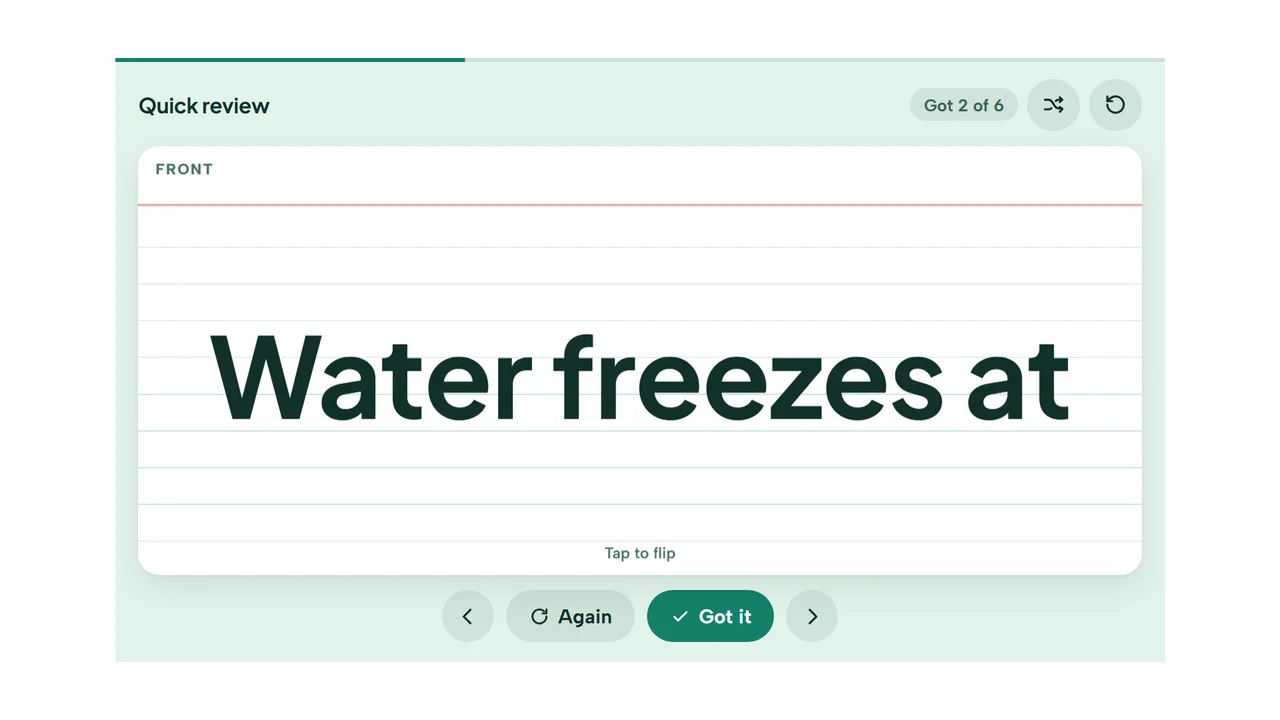
Type your cards once, then flip, shuffle and sort them into Got it and Again.
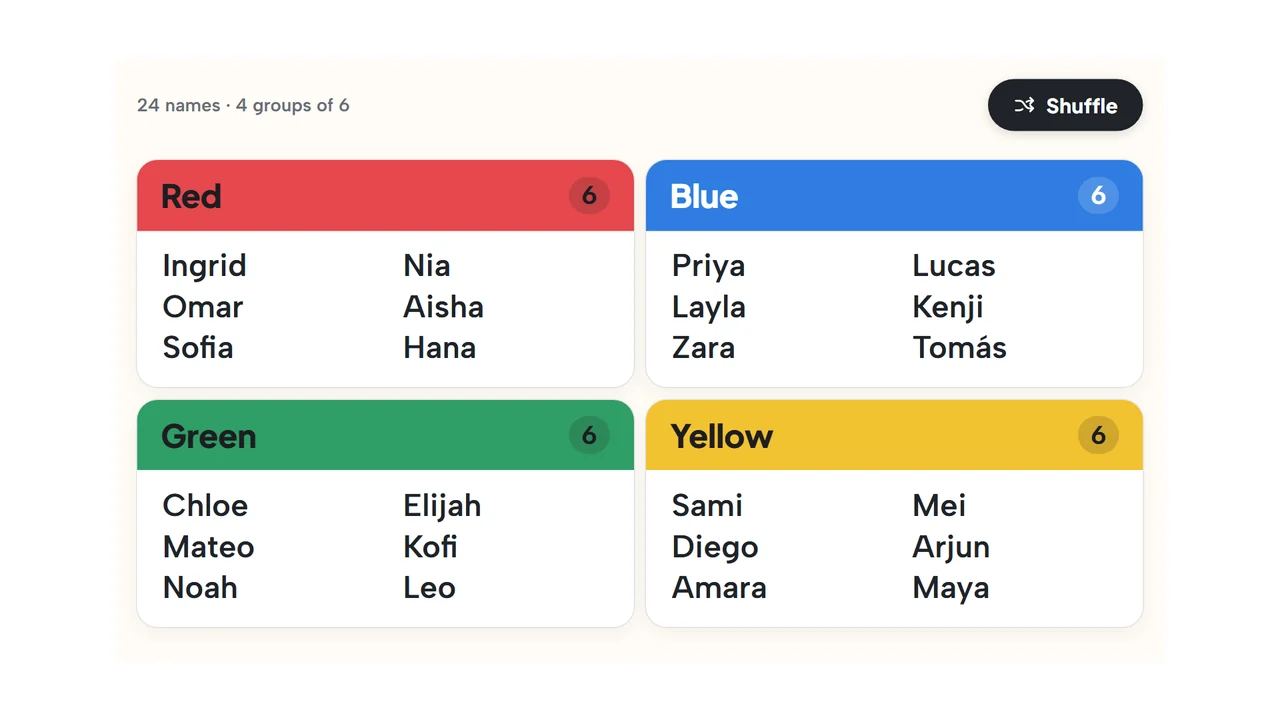
Split your class into fair groups or pairs, named your way, on cards the room can read.
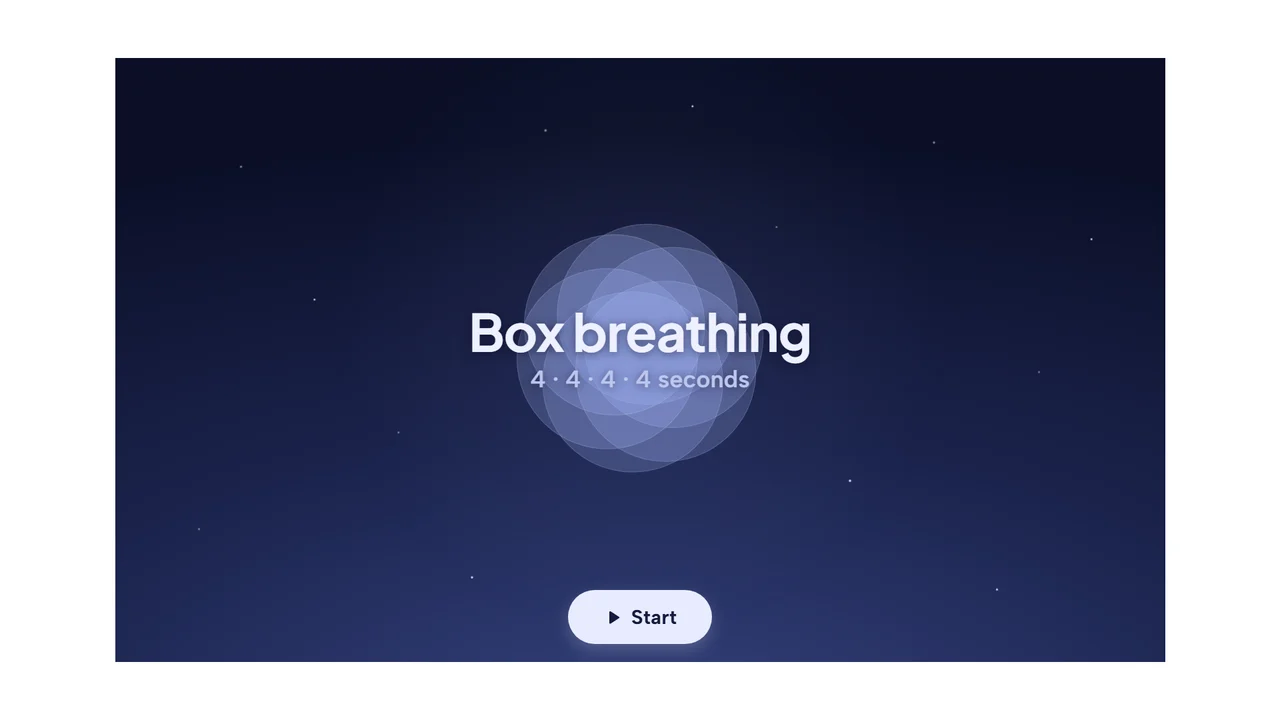
A calm shape that grows and shrinks with the words, for box breathing and more.
Yes. The name picker is free to set up, copy and use on as many Notion pages as you like. There is no account to make, no trial, no watermark and no ads inside the widget, and the names you type are never sent to us.
Type your class list at the top of this page, pick the look and the colors, and press Copy Widget Link. In Notion, click where the picker should go, paste the link and choose Create embed. Drag the corners of the block to make it the size you want.
Yes. Each pick is made with your browser’s secure random numbers, so every name still in has exactly the same chance. The name is chosen the moment you press Spin, and the wheel, the slot or the cards then land on it.
Leave Picking on No repeats. Each picked name leaves the wheel until everyone has had a turn, and the count shows how many are left. The next press then starts a new round, and the round arrow puts everyone back in at any time.
The list lives in the widget’s link: anyone who has the link can see the names, and nothing is stored on our side. We suggest first names only. Who has been picked is kept in the browser on that device, so another computer starts the round fresh.
Come back to this page and press Change a widget you added, under the preview. Paste the picker’s link (in Notion, ••• then View original shows it) and your list comes back. Change it and copy the link again. In Notion, choose ••• then Replace and paste it: the picker keeps its place and size. The round goes on, and a new name joins the names still in.
Yes. Untick Tick sound under Look before you copy the link, or press the speaker button inside the widget to mute it on that device. The sound only plays after a press on Spin, and the little burst can be switched off too.
Yes. The picker is part of the Notion page, so it works wherever the page opens: the Notion app on iPhone, iPad and Android, the desktop app and the browser. Each device keeps its own round of picks.

The Complete Bundle has every Notion4Teachers template, with the Ultimate Teacher Planner at its heart.
Get Complete Bundle40% OFF!