
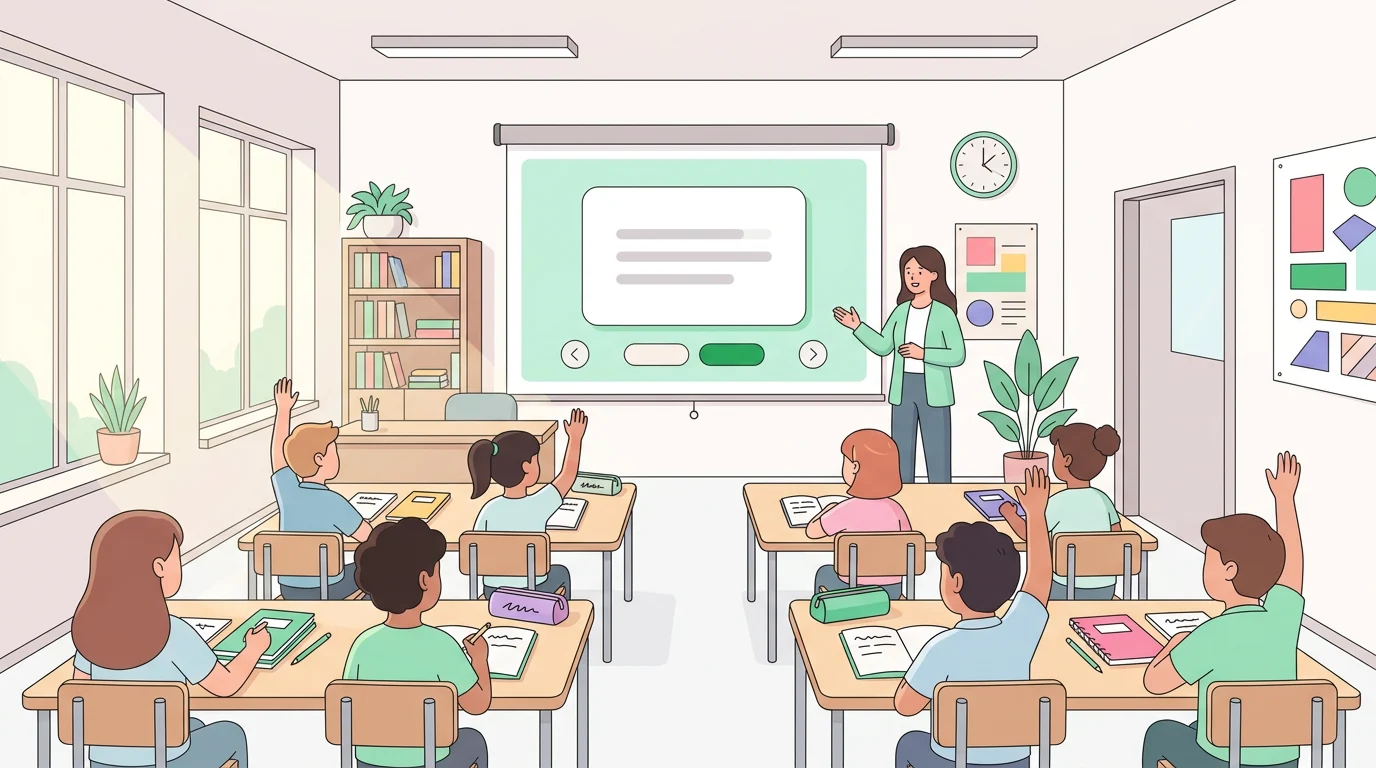
A warm-up on the board
Project the deck at the start of class and flip through the week’s words together. Students call out the back before you turn the card, and the ones nobody knew go back in the pile with Again.
Type your cards, copy the link, and paste it into any Notion page. Flip them, shuffle them and keep the ones you missed coming back until you know them all.
Front | back. A Tab works too (pasted from a sheet). Empty: a sample deck.
Today in Room 12
www.notion4teachers.com/embed/flashcardsA flashcards widget is a small web page that shows one card at a time, made to sit inside a Notion page. You paste its link into Notion, choose Create embed, and study in the block itself. This one takes your cards as a list, flips them with a tap or the Space bar, shuffles them, and sorts them into Got it and Again until the pile is empty. Choose the card style, the colors and the font. Nothing to install, and no account.
Teacher Home
Whenever a list needs to stick: words, facts, formulas, dates. Three moments where a deck earns its place:
Project the deck at the start of class and flip through the week’s words together. Students call out the back before you turn the card, and the ones nobody knew go back in the pile with Again.

Put a deck on the unit page a week before the test. Students study it at home and on their own devices, shuffle it, and keep going until every card is in Got it.
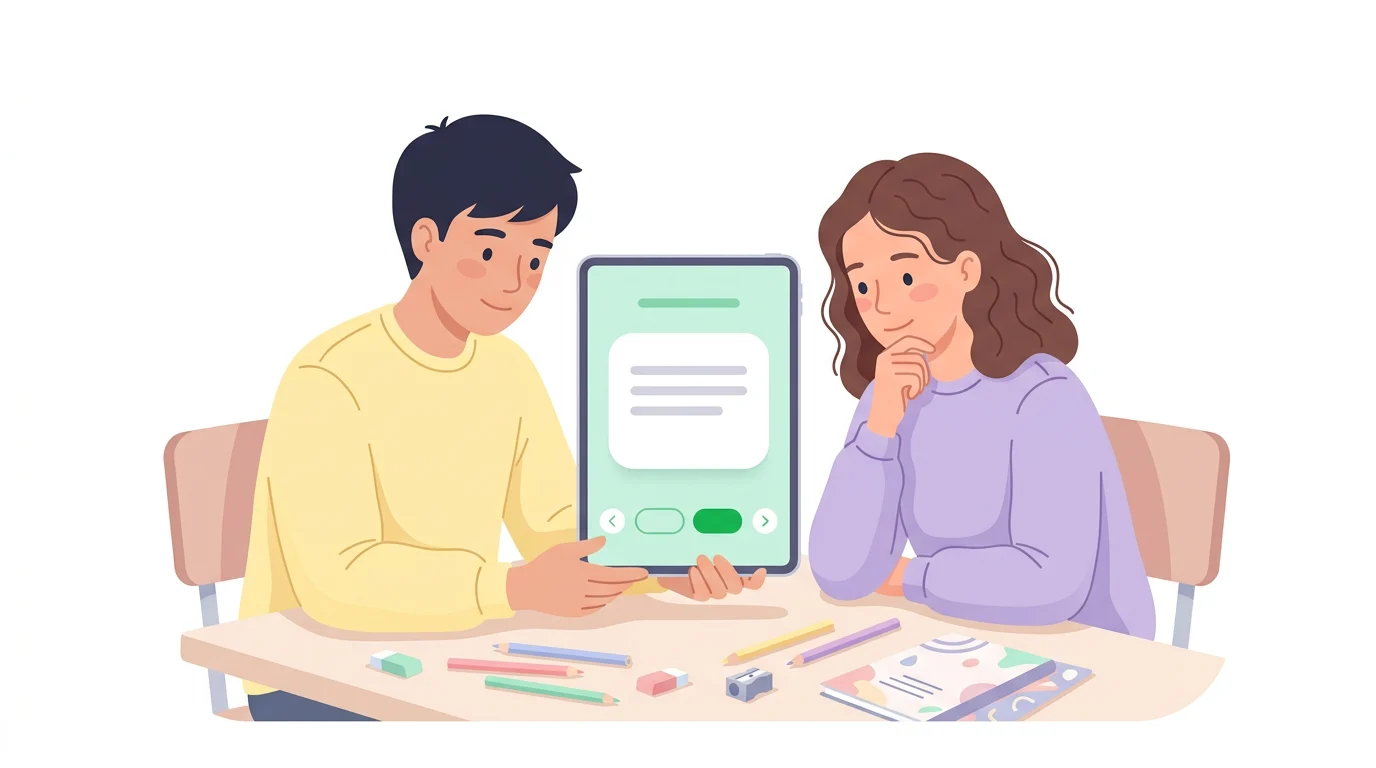
Leave a tablet at a learning station with the deck open. A pair of students take turns, one reads the front, the other answers, and they tap Got it or Again together.
Type the cards once, copy the link, and the deck does the rest. Here is what it does and what you can change.
The card fills the block, so the words read from the back of the room. Tap it or press Space and it turns over to show the back; the arrow keys and buttons move to the next card and the one before.
Got it takes a card out of the pile. Again puts it back a few cards later, so the hard ones come round until they stick. The count at the top shows how many are learned.
Type one card a line with a bar between the front and the back, or paste two columns from a spreadsheet. Give the deck a title and it shows at the top of the widget.
Four card styles, from a plain card to a ruled index card, dot paper or a bold colored card. Six color sets and four fonts, including a friendly handwritten one, so each deck can look like its subject.
Drag the block’s corner and the card and its words grow or shrink with it. A wide block makes a big card for the projector; a narrow column keeps a small deck beside your notes.
Five steps, about a minute. The same steps work for every widget on Notion4Teachers.
Put one card a line in the settings above, front and back with a bar between.
Press Copy Widget Link. Your cards and settings are part of the link.
Click where the deck should go on your Notion page and paste.
Notion asks what to do with the link. Choose Create embed.
Pull the block’s corner until the card is as big as you want.
The Ultimate Teacher Planner sets up your classes, lessons, grades and attendance in Notion. Put your widgets at the top of it in a minute.
See the Teacher PlannerA list sits still. This deck turns, shuffles and keeps the cards you missed in play.
The panel shows your card and its buttons, nothing else.
Again puts a card back a few places later, so the hard ones get more turns.
Shuffle uses the browser’s secure random numbers, so every order of the pile is equally likely.
The words are sized to fill each card, so a projected deck reads across the room.
Your pile and place stay in that browser. Nothing is sent to us.
No account and nothing saved on our side. Change the cards, copy the new link.
Anyone with words or facts to learn and a Notion page to learn them on.
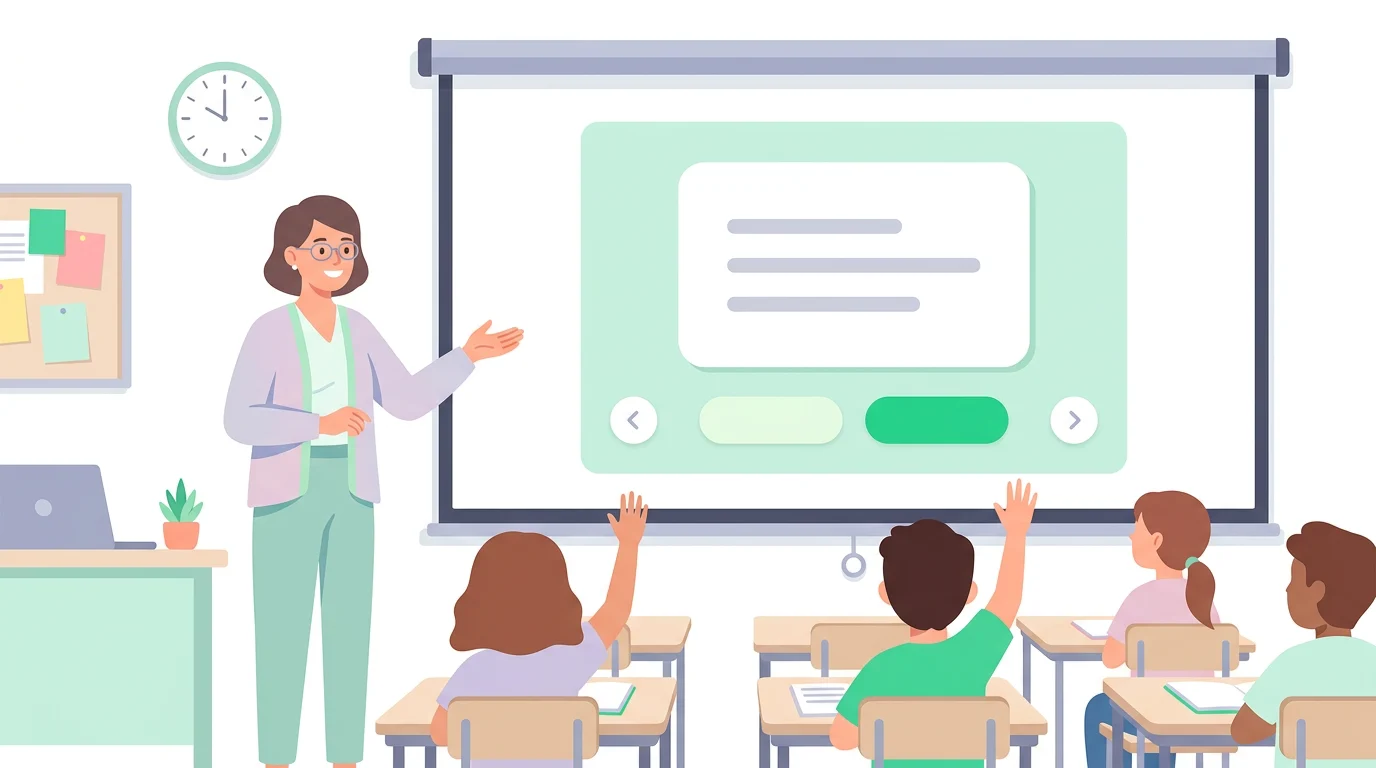
For vocabulary, spelling words, dates and formulas on the classroom screen, and on a unit page students open at home. One deck per unit, in the colors of the subject.
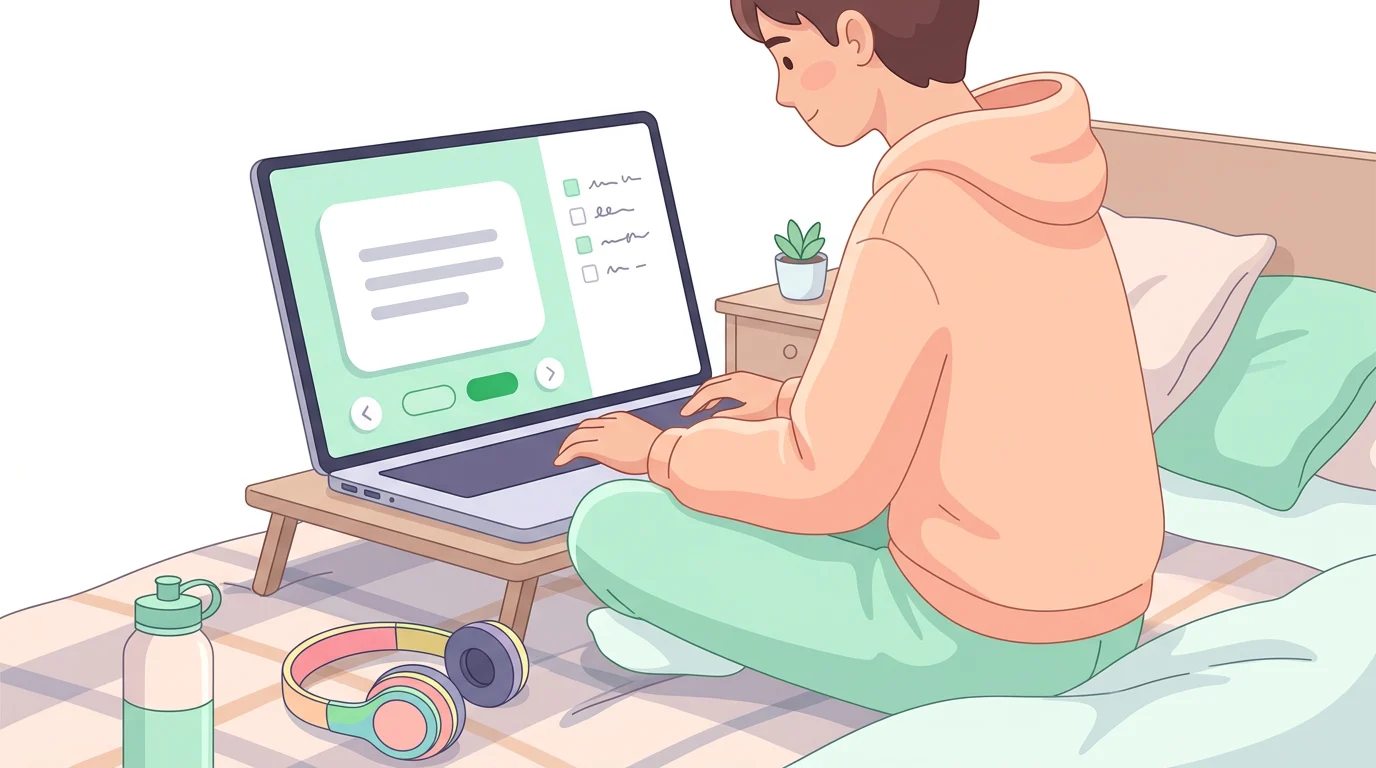
On a study dashboard next to the to-do list and the timer. Type the deck once, shuffle it every evening, and stop when the pile is empty.

On the day’s lesson page, so a child can practice a short deck on a tablet, with a parent or tutor turning the cards and cheering the Got its.

Many flashcard sites ask you to sign up before you can study. Here you type the cards on this page and copy the link: nothing to register, nothing to pay, no app to install.
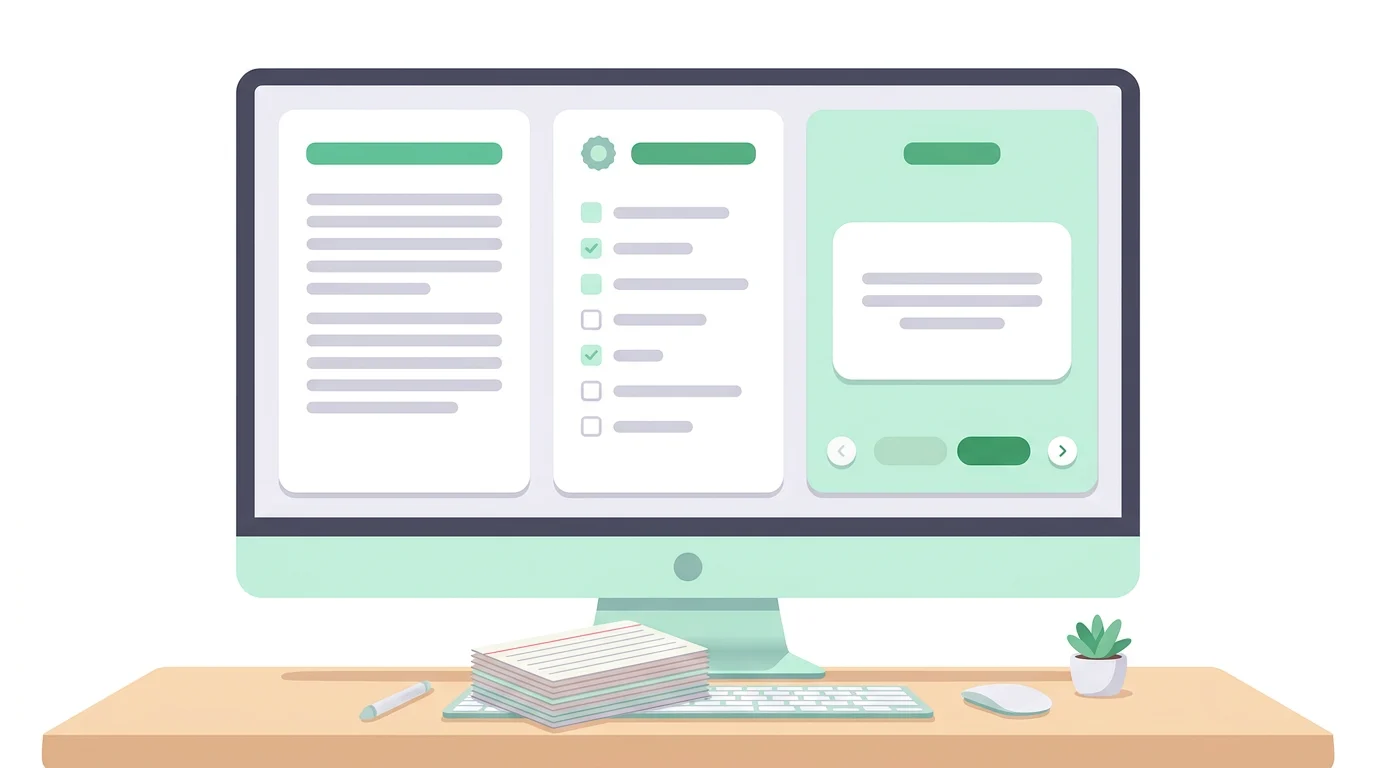
The deck sits on the same page as the lesson, the notes and the homework list. Students study where the rest of the unit already lives, without opening another site.
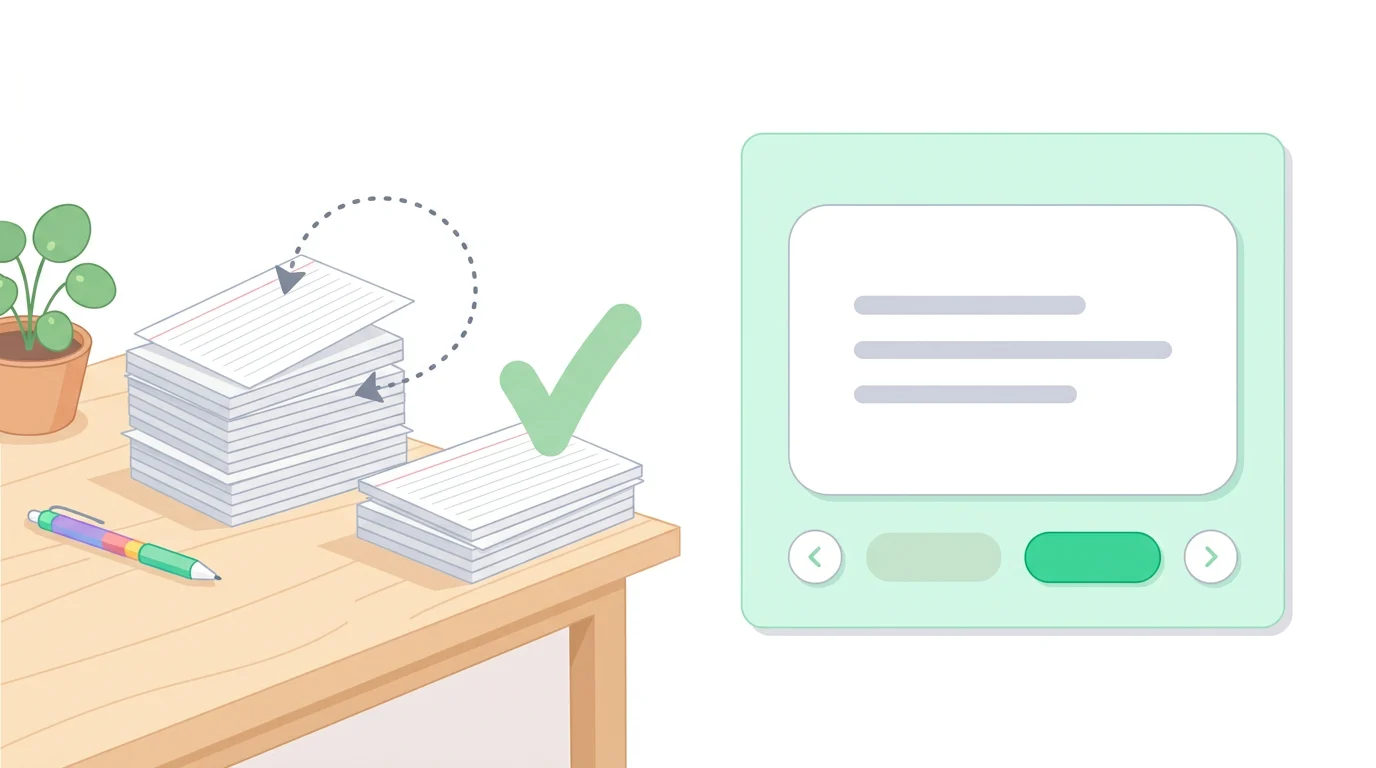
Got it and Again make a pile of the cards still to learn. The ones you miss come round again a few cards later, until every card is in Got it.
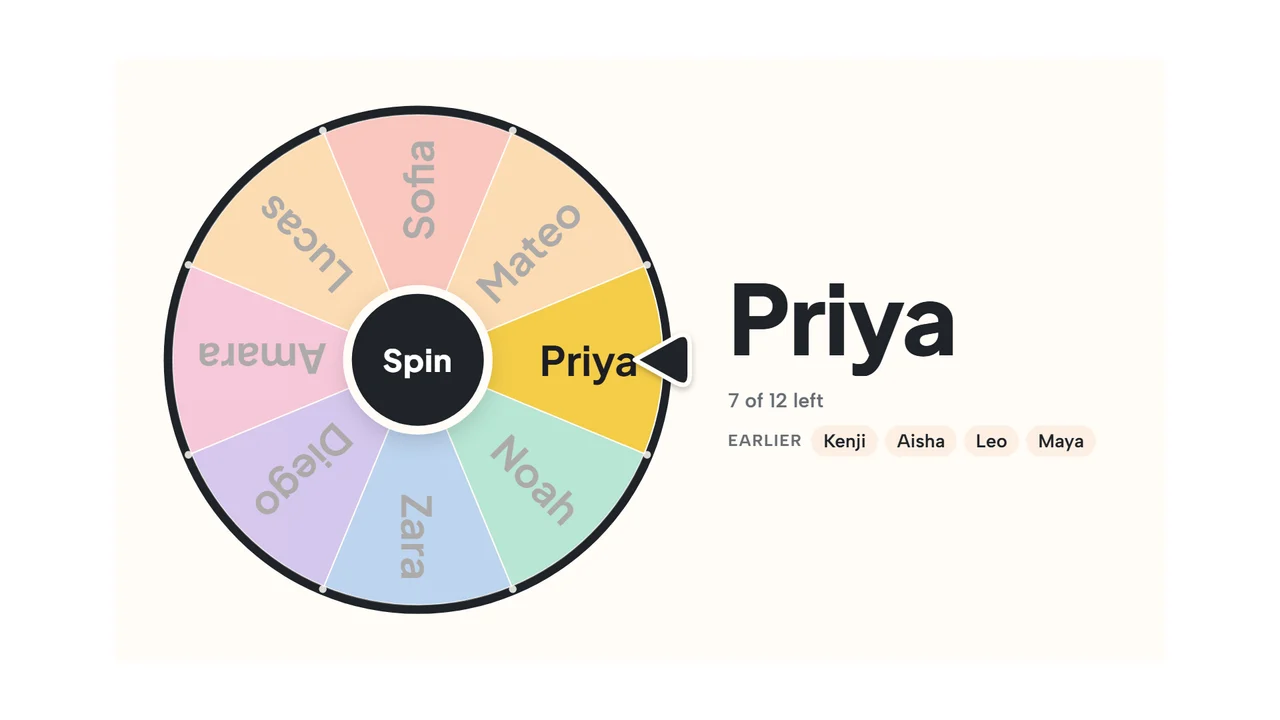
Spin a wheel of your class list and land on one name, fairly and with no repeats.
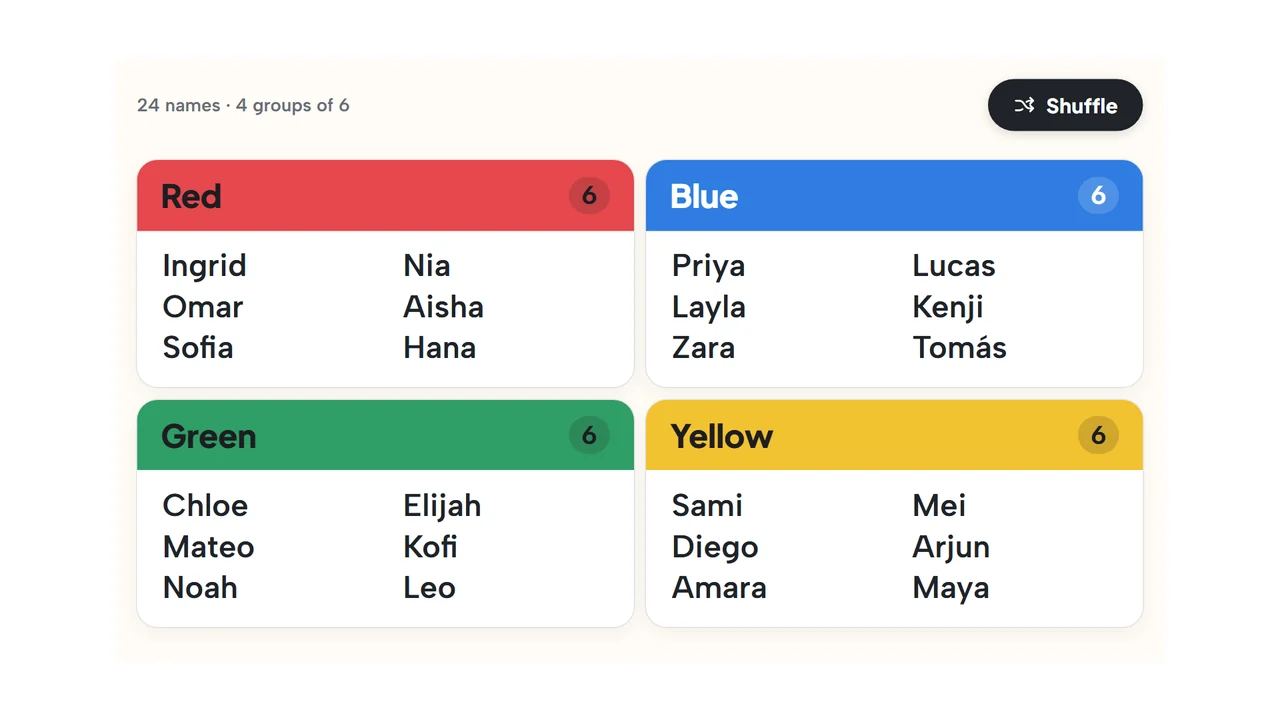
Split your class into fair groups or pairs, named your way, on cards the room can read.
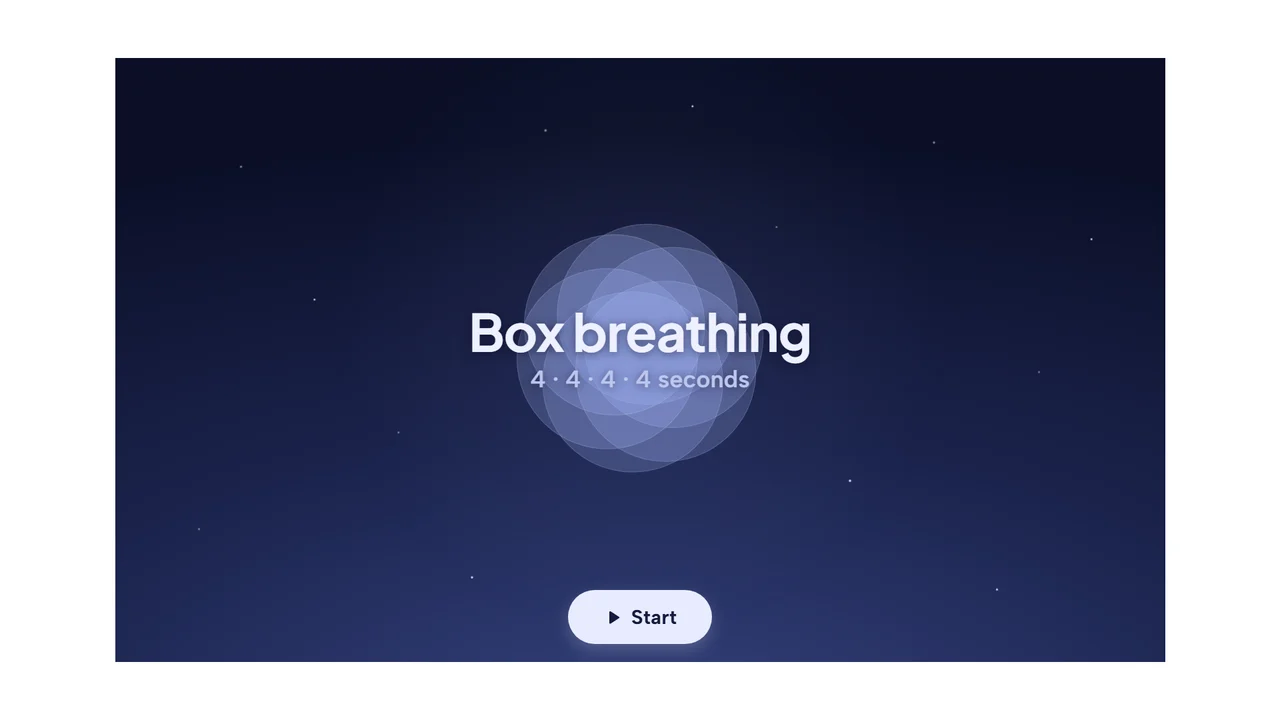
A calm shape that grows and shrinks with the words, for box breathing and more.
Yes. The flashcards widget is free to set up, copy and use on as many Notion pages as you like. There is no account to make, no trial, no watermark and no ads, and the cards you type are never sent to us.
Type your cards in the settings at the top of this page, one card a line, and press Copy Widget Link. In Notion, click where the cards should go, paste the link and choose Create embed. Drag the corners of the block to make the cards the size you want.
Notion has no flashcard block of its own. Many people make them from toggle blocks: the question is the toggle, the answer sits inside. Toggles suit a list you read from top to bottom. The widget is better for one big card at a time, flipping, shuffling, a pile of the ones you missed, and a projector.
Put one card on each line, with a bar between the front and the back: el perro | the dog. A Tab works too, so two columns copied from a spreadsheet paste straight in. The deck can be about 1,200 characters, roughly 40 to 60 short cards. For a longer list, make two decks.
Got it takes the card out of the pile. Again puts it back three cards later, so it comes round again soon. When the pile is empty the widget says the deck is done and offers Start over or Shuffle. Switch Got it and Again off to simply go through every card.
Yes, in the browser that studied. The pile, the card you were on and your shuffle are kept there, so the deck picks up where you left off when the Notion page opens again. Another computer or the Notion phone app starts fresh, and nothing is sent to us.
The cards are written into the widget’s link, so anyone who can open your Notion page, or who has the link, can read them. Nothing is stored on our side. For a class deck that is what you want; keep private notes out of the cards.
Come back to this page and press Change a widget you added, under the preview. Paste the widget’s link (in Notion, ••• then View original shows it), change the cards and copy the link again. In Notion, choose ••• then Replace and paste it: the block keeps its place and size. If the cards change, the deck starts with a full pile; other changes keep your pile.

The Complete Bundle has every Notion4Teachers template, with the Ultimate Teacher Planner at its heart.
Get Complete Bundle40% OFF!