

A class art show on the board
Collect pictures of the class’s artwork and project the slideshow while students walk in. Each piece gets its moment, with the artist’s first name as the caption if you like.
Paste your picture links, pick the seconds, the change and the look, then copy the link into Notion. A slideshow that turns by itself on any page.
A caption after a |. Drive, Dropbox and Imgur share links work too.
A plain cut for a viewer whose device asks for less motion.
Edges may be cut to fill the block.
Today in Room 12
www.notion4teachers.com/embed/photo-slideshowA slideshow widget for Notion is a small web page that shows pictures one after another, made to sit inside a Notion page. Notion’s gallery shows pictures side by side and an image block shows one. This widget turns a list of picture links into a slideshow that changes by itself, with captions, a fade, slide or slow zoom, arrows and dots. Nothing to install, and no account.
Teacher Home
Whenever pictures tell the story better than a list. Three moments where a slideshow fits:
Collect pictures of the class’s artwork and project the slideshow while students walk in. Each piece gets its moment, with the artist’s first name as the caption if you like.

Put pictures of a topic, from volcanoes to old maps, on the lesson page. Let them change every few seconds while the class talks, or move through them with the arrows.

Keep field trip or class event pictures at the top of the class page. The slideshow plays them one by one, so the page feels alive each time someone opens it.
Paste your links, choose how it turns, and copy it. Here is what you can change before you paste it into Notion.
Paste picture links, one a line, up to 30 that fit in the box. Write a caption after a | on the same line, and it shows at the foot of that picture over a soft shade that keeps it readable.
Pictures change every few seconds, from 2 to 60. Fade from one to the next, slide them across, or let each one grow slowly while it shows. Viewers who ask for less motion get a plain cut.
Fill the block for pictures that should reach every edge. Whole picture keeps every picture uncut, tall or wide, on a soft blurred copy of itself instead of black bars.
Big round arrows and a row of dots move between pictures, and a swipe does on a phone or a touch board. Arrow keys work too, and Space pauses. Turn the arrows or the dots off for a cleaner look.
The slideshow waits while the pointer is over it, so nobody loses a picture mid-look, and moves on when the pointer leaves. Drag the block to any size and the pictures fill it.
Five steps, about a minute. The same steps work for every widget on Notion4Teachers.
Paste your picture links and pick the seconds and the look on this page.
Press Copy Widget Link. Everything you chose is part of the link.
Click where the slideshow should go on your Notion page and paste.
Notion asks what to do with the link. Choose Create embed.
Pull the block’s corner until the slideshow is as big as you want.
The Ultimate Teacher Planner sets up your classes, lessons, grades and attendance in Notion. Put your widgets at the top of it in a minute.
See the Teacher PlannerA gallery shows pictures side by side. This slideshow shows them one at a time, in a block that turns by itself.
A new picture every few seconds, from 2 to 60, with no clicks.
Google Drive, Dropbox and Imgur share links become picture links by themselves.
Write one after a | on the picture’s line, or leave it out.
Fill the block, or show each picture whole on a soft copy of itself.
Swipe, tap the arrows or the dots, or use the arrow keys.
No account and nothing saved on our side. Change a picture, copy the new link.
Anyone who keeps pictures on a Notion page.

On the class page with pictures from a field trip or a class event, and on the projected page during an art show or a picture talk. The slideshow keeps turning while the teacher teaches.

On a project page with the pictures they took for a science log or an art portfolio, each one with a caption that says what it shows.

On a learning page with pictures from a nature walk or a museum visit, so a child can look back through them and talk about what they saw.
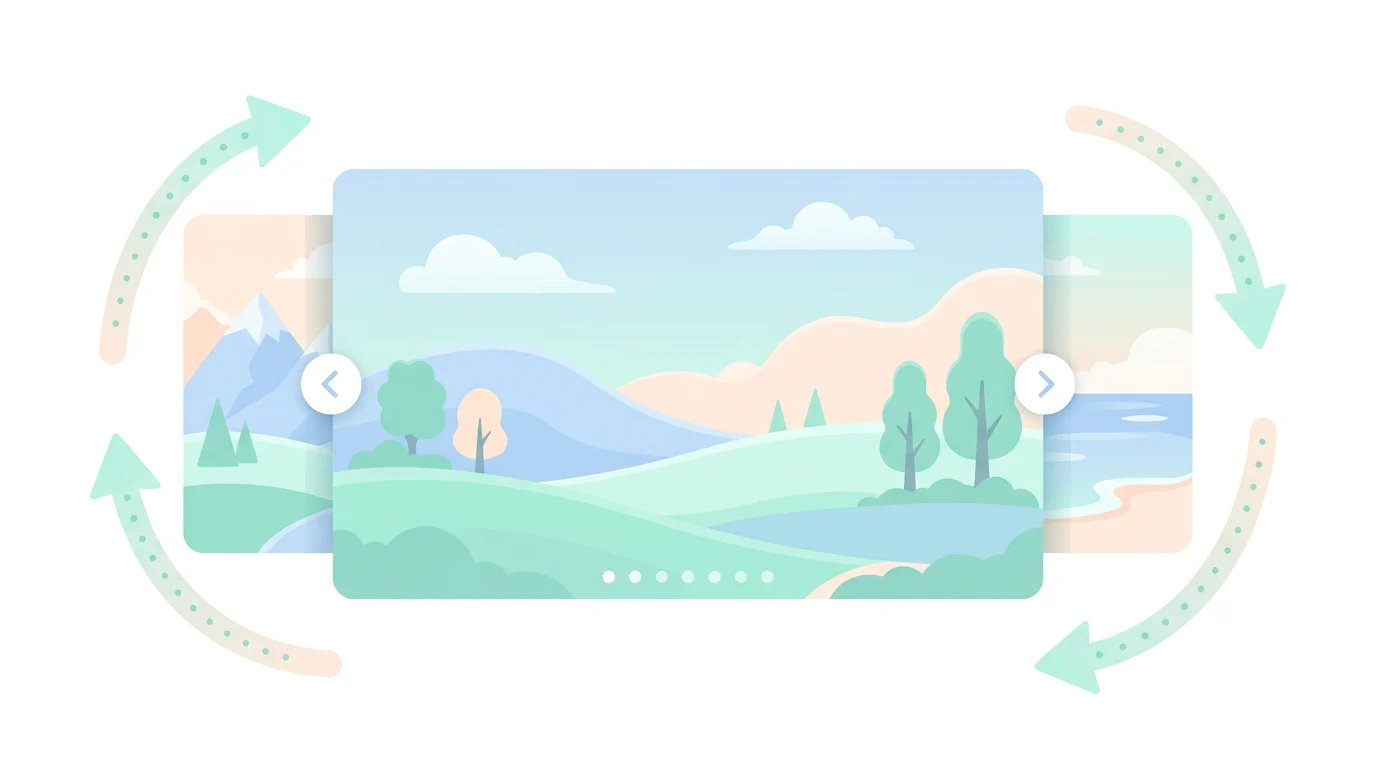
In Notion, a gallery shows pictures side by side and an image block shows one at a time. This block turns through your pictures on its own, at the pace you choose.

Paste the share link from Google Drive, Dropbox or Imgur as it is. The widget turns it into a link that shows the picture, so there is nothing to rewrite by hand.

Many widget sites ask you to sign up before you can copy a link. Here you paste your picture links on this page and copy yours: no login, nothing to upload to us, nothing to pay.
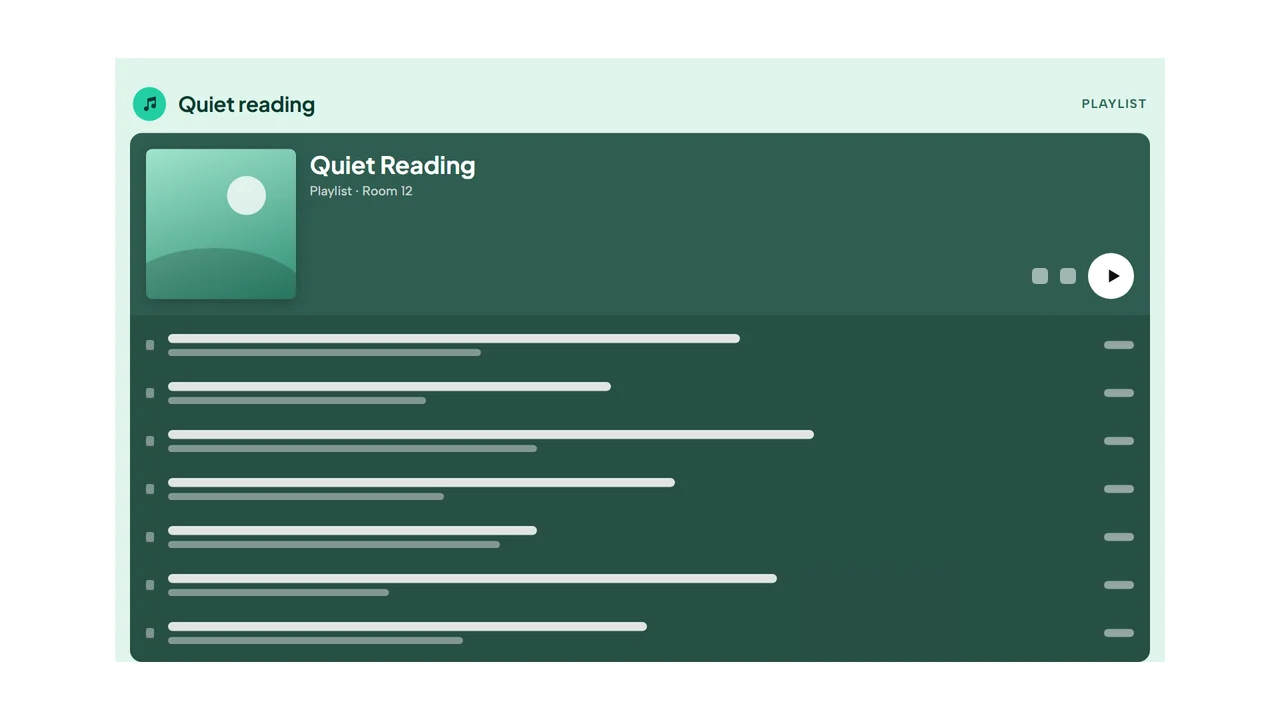
Spotify’s player for a playlist, album or podcast, in a frame that matches your page.

Calm moving scenes for Notion, from rain on a window to fireflies, saved as a GIF too.
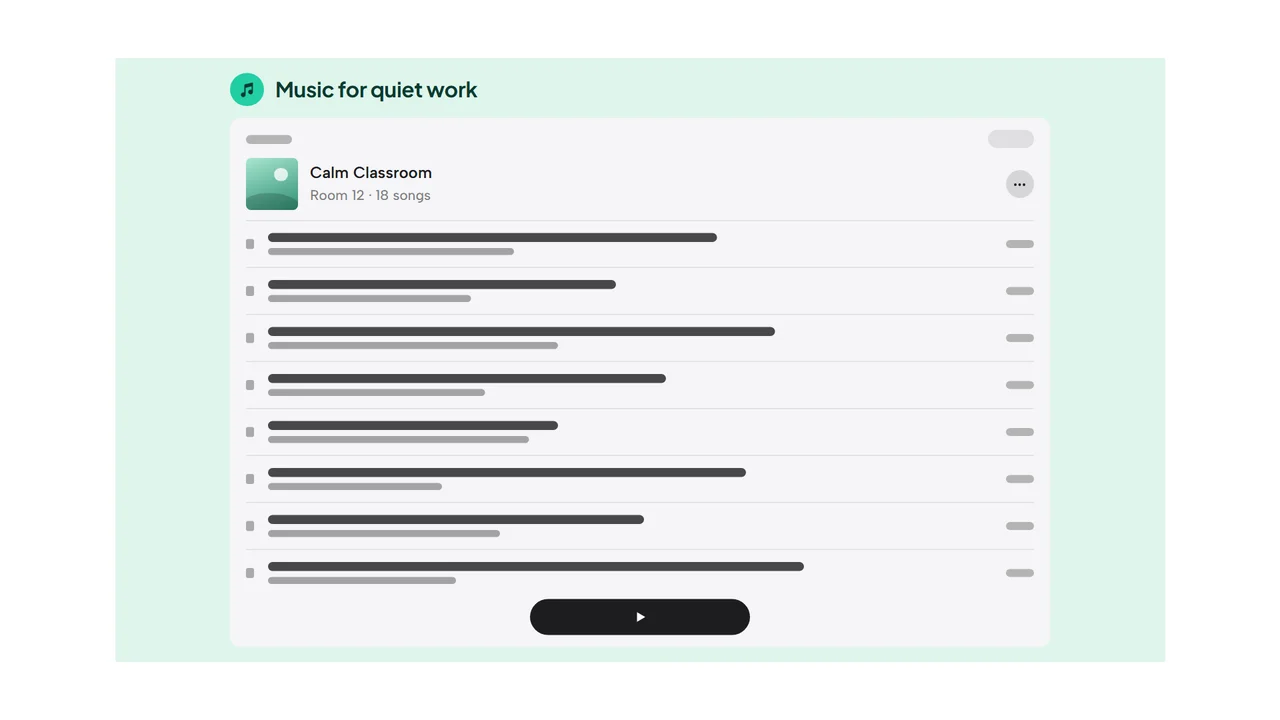
Apple Music, SoundCloud or YouTube Music on your page, in a frame that matches it.
Paste your picture links at the top of this page, one a line, with a caption after a | if you like. Pick the seconds per picture and the look, press Copy Widget Link, paste it into Notion and choose Create embed. Then drag the block’s corner to the size you want.
Yes. The widget is free to set up, copy and use on as many Notion pages as you like. There is no account to make, no trial and no watermark, and nothing in the block but your pictures.
A link that opens the picture by itself, often ending in .jpg or .png, works from any site that lets others show it. Share links from Google Drive, Dropbox and Imgur work too, because the widget turns them into picture links. A link that does not open as a picture is skipped, and the preview says how many.
Yes. In Drive, set the picture’s sharing to Anyone with the link, choose Copy link and paste it here, one picture a line. The widget turns the share link into one that shows the picture. A link to a whole folder does not work, so copy each picture’s own link.
A picture uploaded into Notion has an address that Notion signs and lets expire, so it stops showing after a while. Upload it to Google Drive, Dropbox or Imgur and use that link instead. A picture added to Notion with Embed link keeps the link it was given, so copy that one.
Anyone who can open the Notion page, or the widget link itself. The picture links are written into the widget link, and the pictures load from where you keep them. Nothing is stored on our side, so use pictures you are glad to share with everyone who has the link.
Yes. The slideshow is part of the Notion page, so it shows wherever the page opens: the Notion app on iPhone, iPad and Android, the desktop app and the browser. On a phone or a touch board, swipe to move to the next picture.
Come back to this page and press Change a widget you added, under the preview. Paste the slideshow’s link (in Notion, ••• then View original shows it) and your pictures come back. Add the new links and copy the link again. In Notion, choose ••• then Replace and paste it: the slideshow keeps its place and size.

The Complete Bundle has every Notion4Teachers template, with the Ultimate Teacher Planner at its heart.
Get Complete Bundle40% OFF!