

Transitions and clean-up
Project the lesson page, tap 2, and press Start. The red disc shrinks as the minutes go, so students can see how long they have to tidy up, and your message tells the room when time is up.
Pick the minutes, the look and what happens at zero, then copy the link and paste it into any Notion page. A big visual timer the whole class can read.
Plays at zero, after a first press on Start.
Shown at zero.
Today in Room 12
www.notion4teachers.com/embed/timerAn online classroom timer is a small web page that counts down a set time, made to sit inside a Notion page. You paste its link into Notion, choose Create embed, and the timer runs in that block. This one shows the time as a red disc that shrinks, a ring, a bar or big digits, with quick presets, Start and Pause, and a chime and your own message at zero. Nothing to install, and no account.
Teacher Home
Whenever the class needs to see how much time is left. Three moments where it helps:
Project the lesson page, tap 2, and press Start. The red disc shrinks as the minutes go, so students can see how long they have to tidy up, and your message tells the room when time is up.

Give each station 10 or 15 minutes with one tap on a preset. When the chime sounds, groups move on, and Restart runs the same time again for the next round without touching the settings.

Turn the sound off and the flash on for a calm finish, or count on past zero to see who needs extra time. A ring or a bar keeps the time in view without pulling eyes from the page.
Set it up once, copy the link, and the timer is ready for every lesson. Here is what you can change before you paste it into Notion.
Choose how the time is drawn. The disc shrinks like the classic red classroom timer, the ring empties around the numbers, the bar shortens across the block, and Digits shows the time alone, as big as the block allows.
Tap a preset from 1 to 30 minutes, then Start. Pause stops the time, Resume carries on and Reset puts it back. On a keyboard, Space starts and pauses, and the arrow keys add or take away a minute.
Your own words take the place of the numbers, like Pens down, and the block flashes. Pick a chime, a bell or beeps, or no sound at all. Count on past zero shows how long an activity ran over.
Switch the disc to 60 min for the dial of the classic red timer, with a mark for every minute and the numbers around the edge. Add a title above the time so everyone knows what the timer is for.
Six color sets, from Classic red to Mint, Ocean, Sunset, Lilac and a dark Night. On a clear background the timer sits on your Notion page’s own color, light or dark; Solid fills the block.
Five steps, about a minute. The same steps work for every widget on Notion4Teachers.
Pick the minutes, the look and what happens at zero at the top of this page.
Press Copy Widget Link. Everything you chose is part of the link.
Click where the timer should go on your Notion page and paste.
Notion asks what to do with the link. Choose Create embed.
Pull the block’s corner until the timer is as big as you want.
The Ultimate Teacher Planner sets up your classes, lessons, grades and attendance in Notion. Put your widgets at the top of it in a minute.
See the Teacher PlannerA timer video plays the same minutes every time. This one starts when you press Start and stops when you say.
Timer videos and free timer sites often show ads before the minutes start. This one shows the timer and nothing else.
The disc and the numbers fill the block, so a wide embed on the projector reads across the room.
A clear background takes your page’s own color, so the timer looks right in both modes.
No sound before a press in the timer, a bell button to mute it, and Off in the settings.
It remembers where it was in that browser, so a reloaded page shows the right time left.
No account and nothing saved on our side. Change a setting, copy the new link.
Anyone who runs a room by the clock and keeps the plan in Notion.
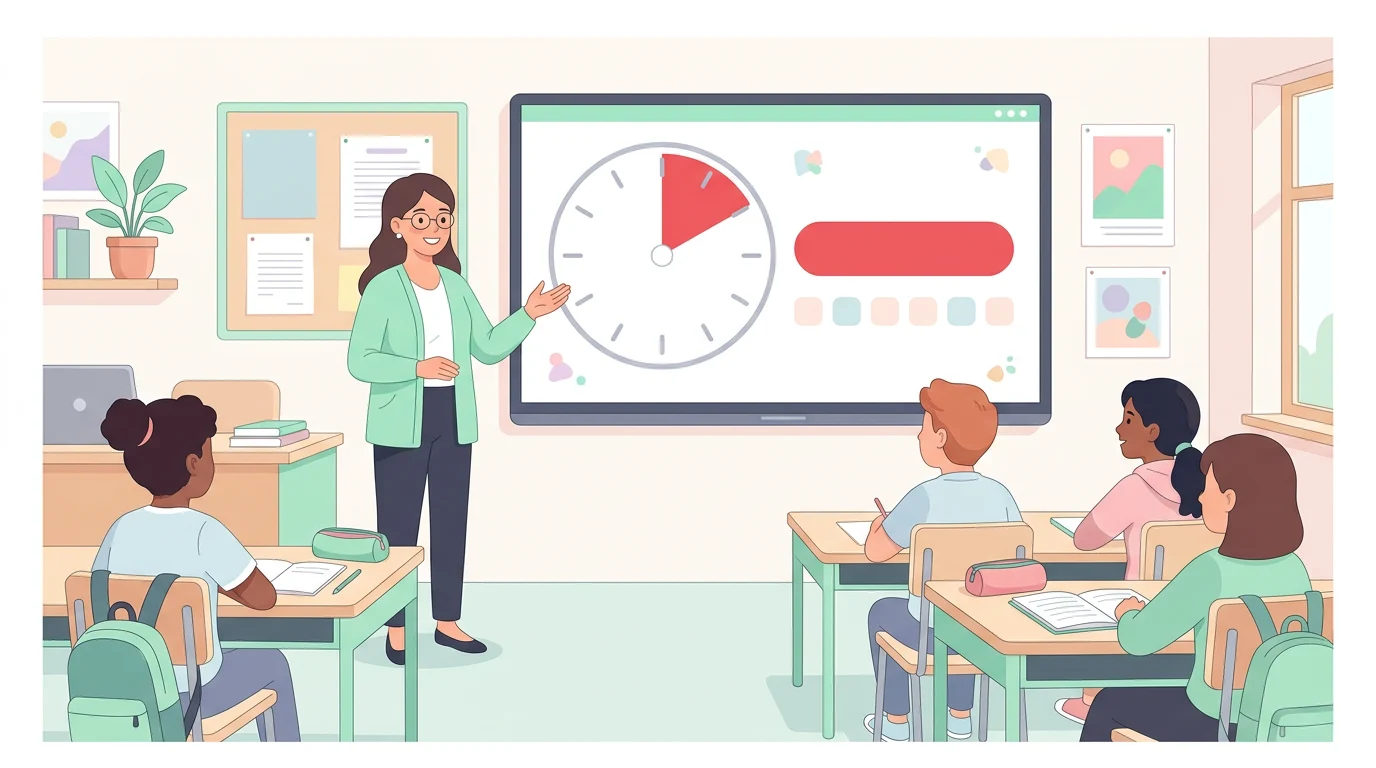
On the classroom screen for transitions, stations, tests and clean-up, set with one tap from the lesson page. Students see the time running out on the disc, so you answer fewer questions about how long is left.
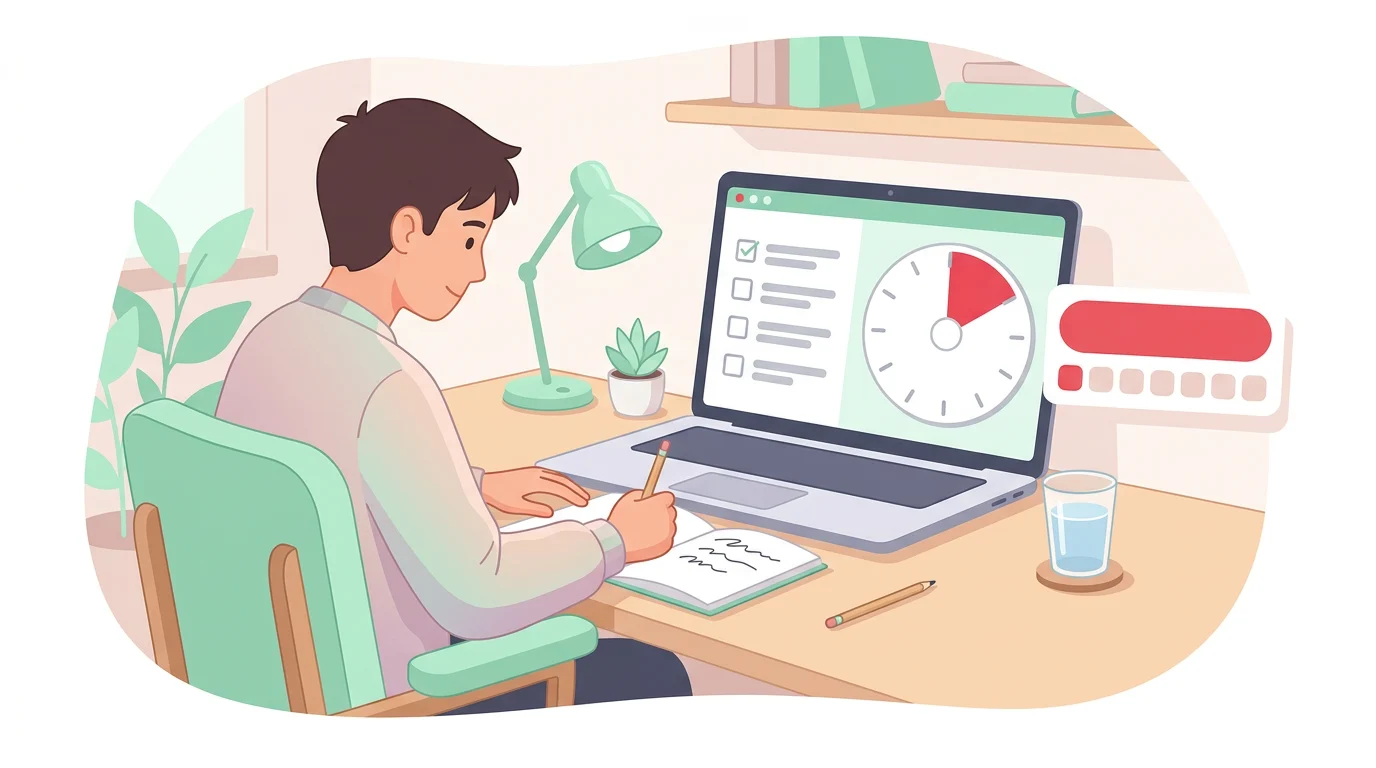
On a study page for short, timed blocks of homework or revision. A ring or a bar keeps the time in view beside the to-do list, and the chime says when the block is done.
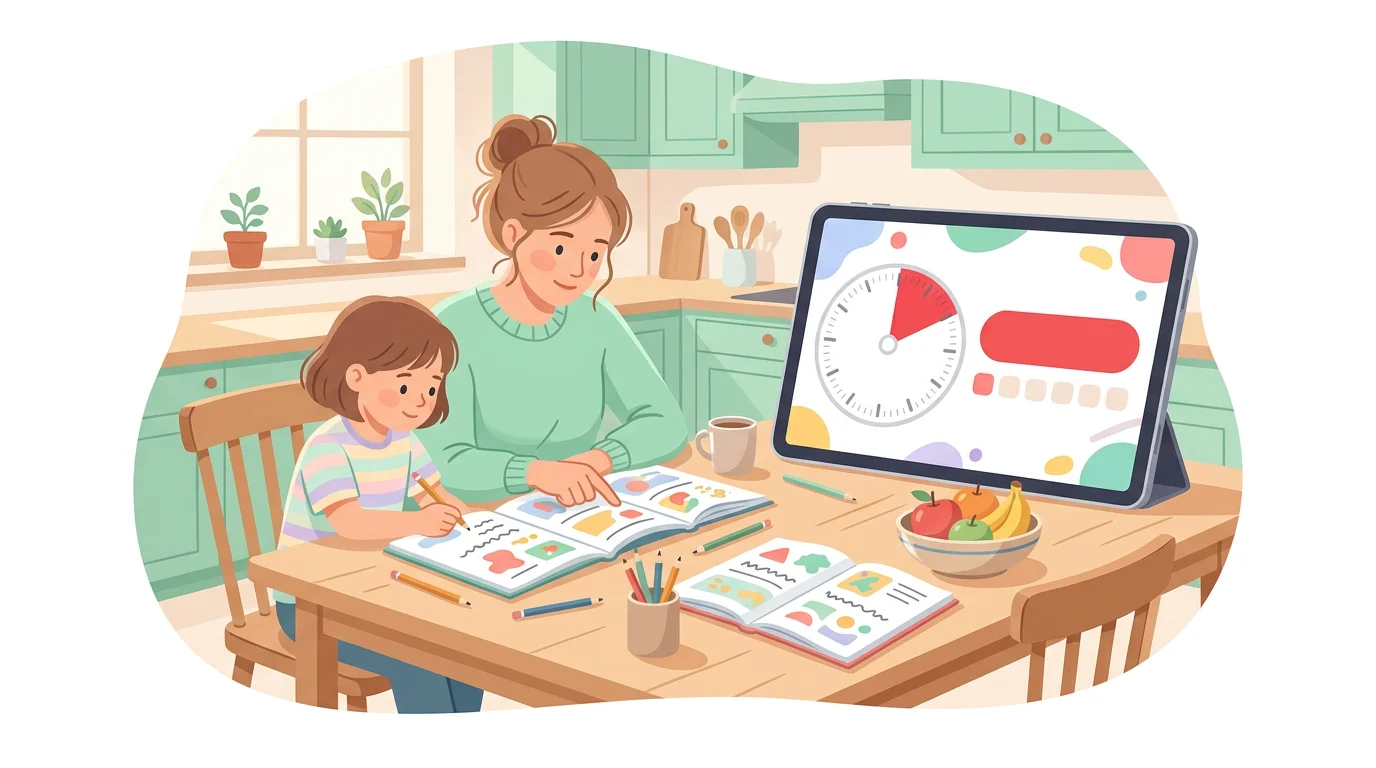
On the day’s lesson page, so a child can see how long a lesson or a break has left, and a tutor can keep each part of a session to time without a phone on the table.

The timer sits in the Notion page you already teach from, beside the slides, the plan and the links. There is no other website to open on the board and no tab to switch to when it is time to start.

Many web timers start over when the page reloads. This one keeps its place in that browser, so a reloaded Notion page or a sleeping laptop still shows the right time left.
Nothing to sign up for and nothing to pay. You set the timer up on this page and copy its link: the minutes, the look and the sound are all part of it.
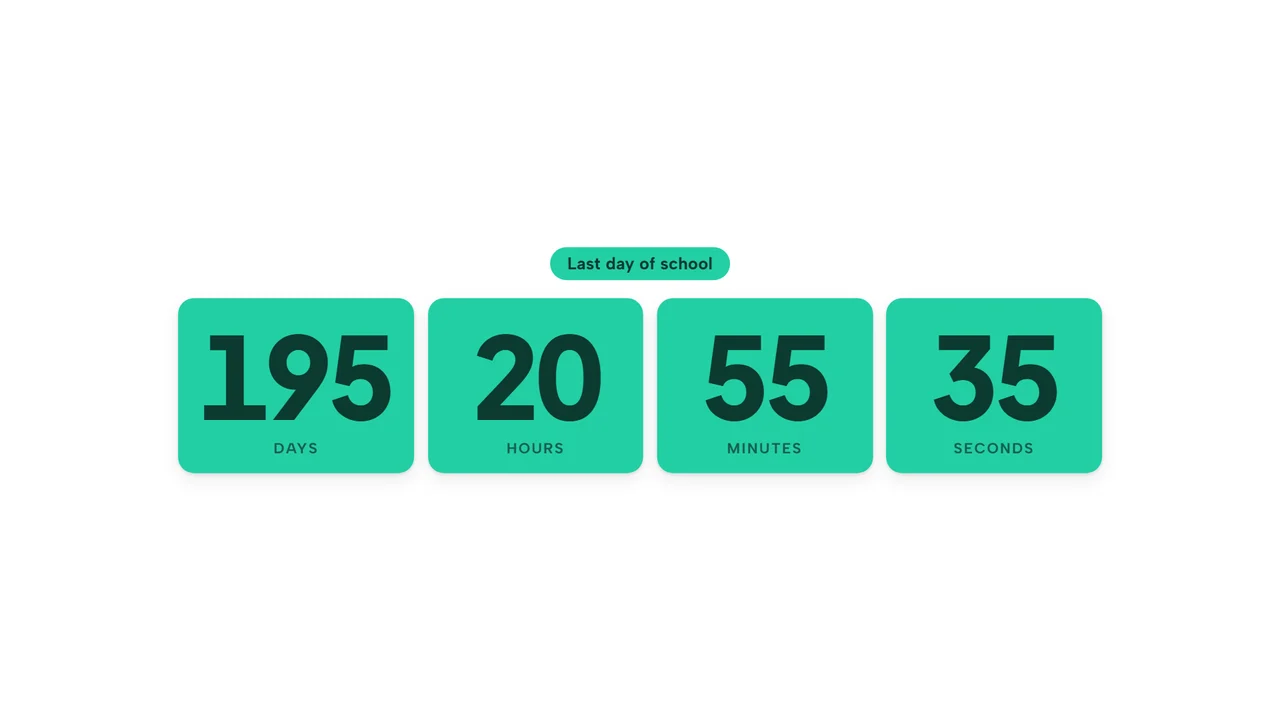
Days, hours, minutes and seconds to an exam, a holiday or the last day of school.
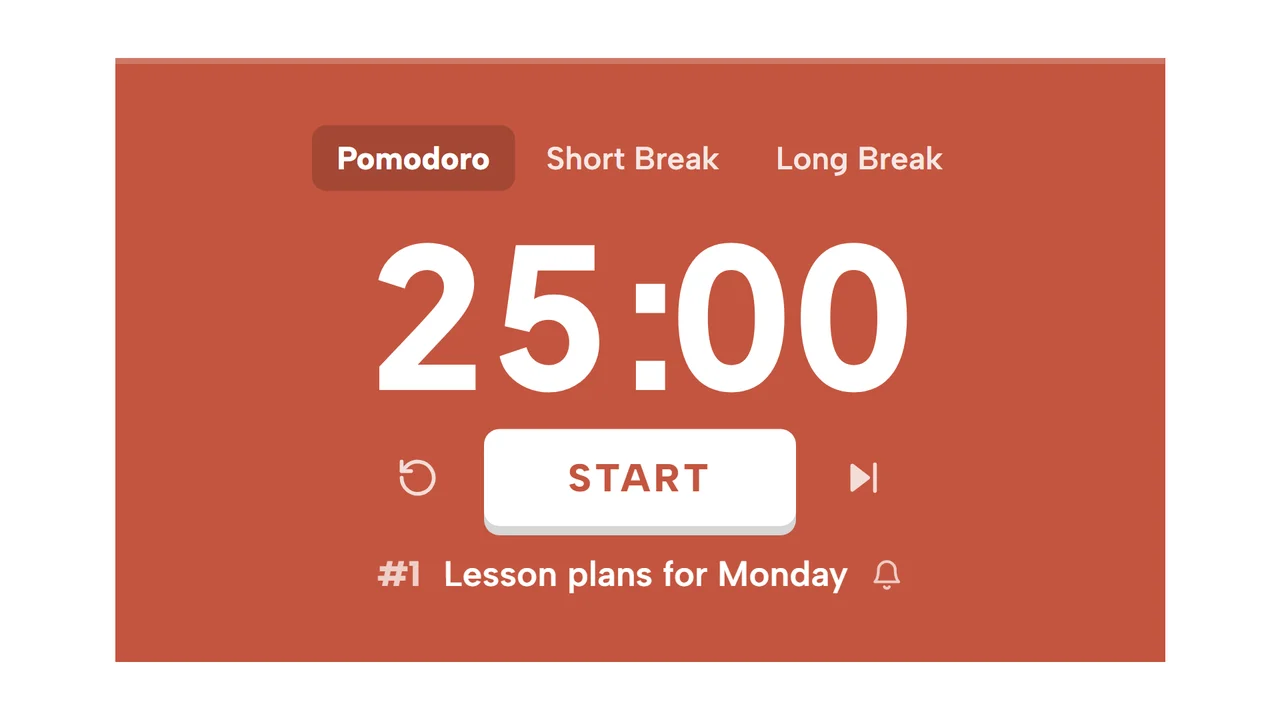
The classic Pomodoro timer with focus and break tabs, rounds and a bell, in your colors.
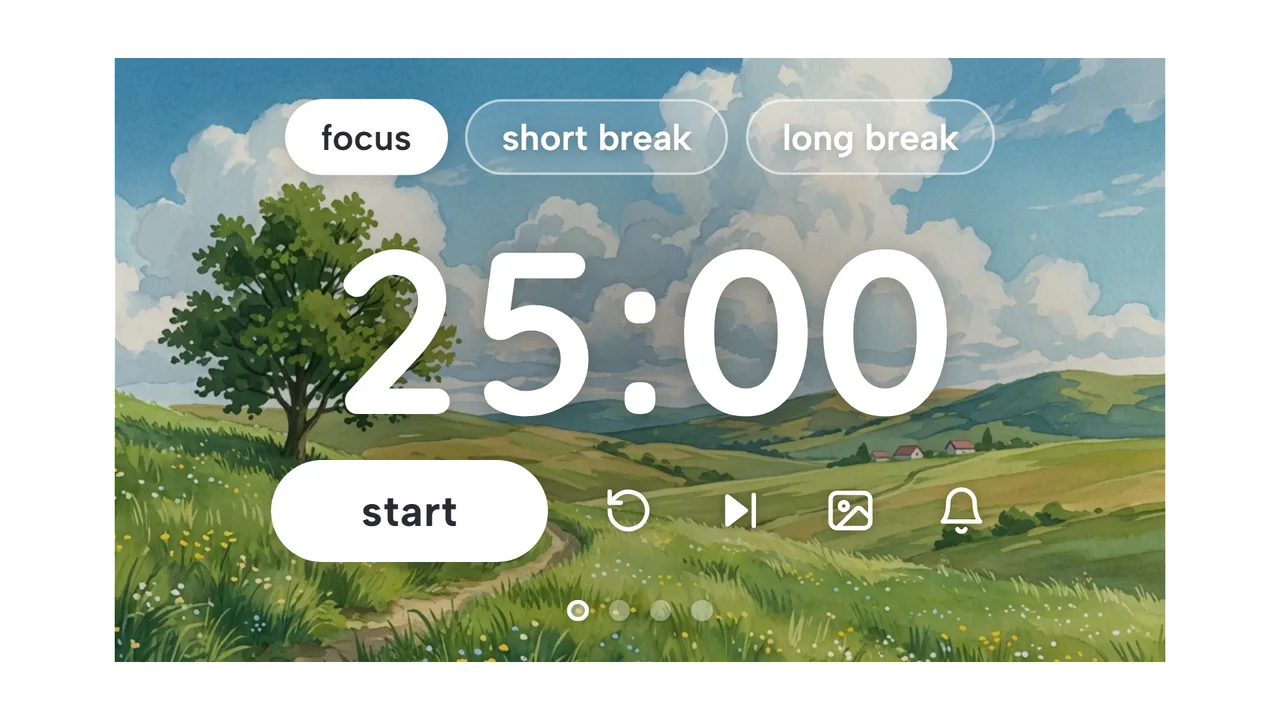
A Pomodoro timer over painted scenes, with gentle motion, a scene picker and three chimes.
Yes. The timer is free to set up, copy and use on as many Notion pages as you like. There is no account to make, no trial and no watermark, and no ads inside the timer, so nothing pops up on the board while the class is working.
Set up the timer at the top of this page and press Copy Widget Link. In Notion, click where you want the timer, paste the link and choose Create embed from the menu that appears. Then drag the corners of the block to make the timer as big as you want.
Yes. Choose Chime, Bell or Beeps under At zero, or Off for a silent timer. The sound is made in the browser and plays only after someone has pressed a button in the timer, because browsers keep pages quiet until then. The bell button beside Start mutes it for that timer.
Your message takes the place of the numbers, Time’s up! unless you write your own, like Pens down. The block flashes three times if Flash at zero is on. With Count on past zero, the timer keeps counting with a plus sign, so you can see how long an activity ran over.
Yes. The presets under the timer set 1, 2, 3, 5, 10, 15, 20 or 30 minutes with one tap; a narrow block shows 1, 2, 5 and 10. On a keyboard, once the timer has been clicked, Space or Enter starts and pauses it, R resets it, and the arrow keys add or take away a minute.
The timer keeps going. It remembers where it is in the browser on that device, so a reload or a closed tab shows the right time left when the page opens again. Nothing is sent to us. Another computer, or the Notion app on a phone, keeps its own timer.
Yes. The buttons are large enough for a finger, and a tap on the disc starts or pauses the timer. The timer is part of the Notion page, so it works in the browser, the desktop app and the Notion app on iPhone, iPad and Android.
On this page, press Change a widget you added and paste the timer’s link (in Notion, ••• then View original shows it). Change what you like and copy the link again. In Notion, choose ••• then Replace and paste it: the block keeps its place and size. A running or paused timer carries on where it was, and a timer not yet started takes the new time.

The Complete Bundle has every Notion4Teachers template, with the Ultimate Teacher Planner at its heart.
Get Complete Bundle40% OFF!