
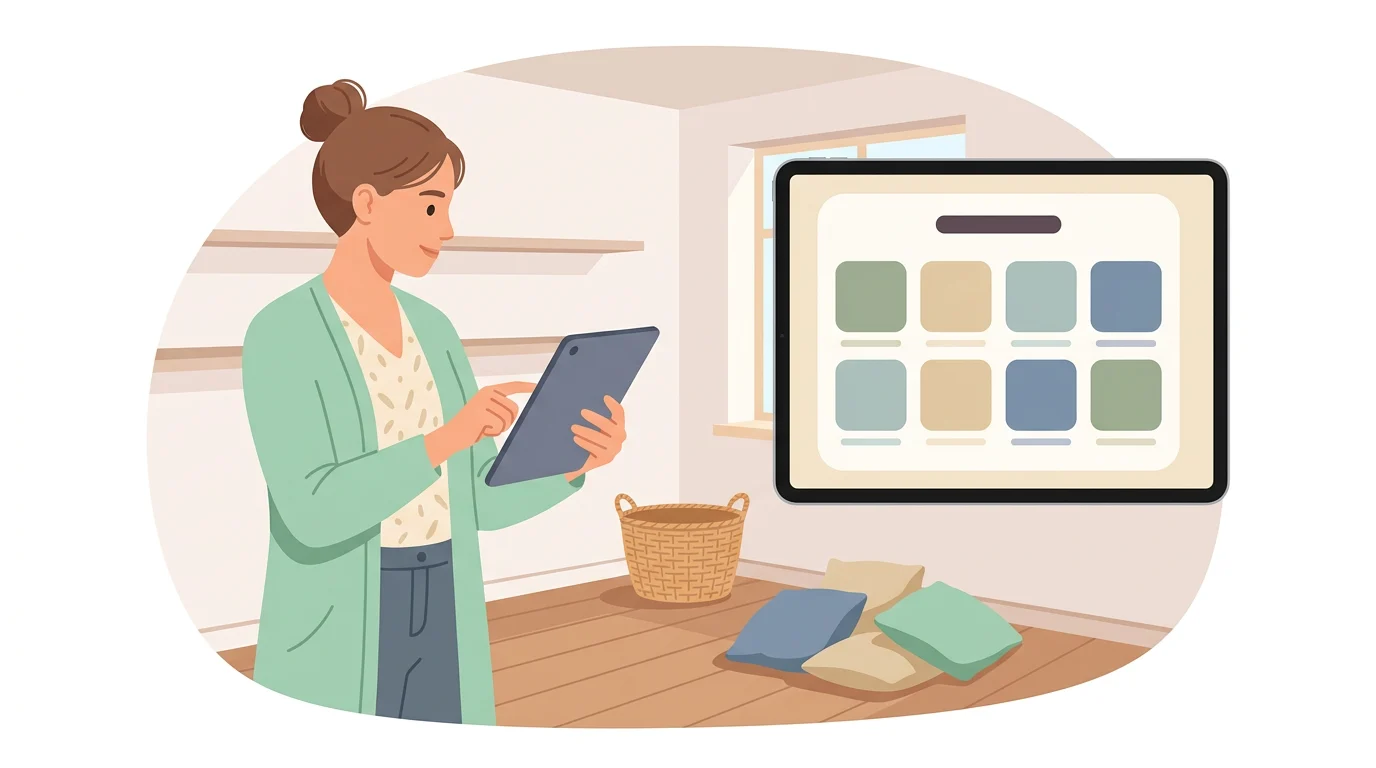
Planning a classroom corner
Collect the cushions, baskets, lamps and colors for a reading corner or a calm-down space on one board. Put it on your planning page in Notion and look at it beside the shopping list before the term starts.
Paste your picture links with a caption each, add a title and pick the board's look. Then copy one link into any Notion page and the board fits its block.
A caption after a | is optional.
As many as fit: two in a narrow column, more on a wide page.
Today in Room 12
www.notion4teachers.com/embed/mood-boardA mood board widget is a small web page that lays your pictures out as a board, made to sit inside a Notion page. You paste links to the pictures, one a line, with a caption after each if you like. This one sets them in columns that fit the block, adds a title in the face you pick and opens any picture larger on a click. Paste its link into Notion and choose Create embed. Nothing to install, and no account.
Teacher Home
Whenever a look should be settled before anything is bought, made or painted. Three moments:
Collect the cushions, baskets, lamps and colors for a reading corner or a calm-down space on one board. Put it on your planning page in Notion and look at it beside the shopping list before the term starts.

Before a unit on the ocean or the seasons, gather pictures that set its colors and feel. The same board can sit at the top of the unit's Notion page while you make slides and worksheets in that look.

Students paste pictures for a poster, a set design or a dream room, with a caption under each saying what they like about it. The board shows the whole idea in one block, ready to share with the class.
Paste the links once, then change the look on this page as often as you like before you copy it into Notion.
Auto columns try every count from two to eight and keep the one that shows your pictures largest while all of them fit. Drag the block wider or taller in Notion and the board is laid out again.
Close the gap for a collage, with the captions laid over the pictures, or open it up for an airy board. Rounded tiles look soft and square ones look crisp.
Name the board in a serif, a bold sans or a handwriting face. The title sits centered over the pictures and grows with the block, from a narrow column to the projector.
A caption after a | sits under its picture on one line. Click a picture, or press Enter on it, and it opens larger inside the block, whole and uncropped, with arrows to the next one.
Paper, Linen, Blush, Sage and Sky for a light Notion page, Night for a dark one. The color fills the whole block, edge to edge, so the board looks finished in either mode.
Five steps, about a minute. The same steps work for every widget on Notion4Teachers.
Paste your picture links, add a title and pick the look at the top of this page.
Press Copy Widget Link. Everything you chose is part of the link.
Click where the board should go on your Notion page and paste.
Notion asks what to do with the link. Choose Create embed.
Pull the block's corner until the board is as big as you want.
The Ultimate Teacher Planner sets up your classes, lessons, grades and attendance in Notion. Put your widgets at the top of it in a minute.
See the Teacher PlannerPictures dropped on a Notion page sit in a row. This board lays them out for you.
The block shows your pictures, your captions and your title, nothing else.
Each picture opens whole inside the block, with arrows to the next one.
Five light colors and Night, each filling the whole block.
The columns are laid out again whenever you drag the block to a new size.
No account and nothing saved on our side. Change a picture, copy the new link.
It runs in the Notion embed on any computer, tablet or phone that opens the page.
Anyone who gathers pictures before they plan, make or buy.

For a classroom makeover, a bulletin board, a unit's colors or a school event. The board sits on the planning page in Notion, beside the list of what to buy and the dates it has to be ready by.
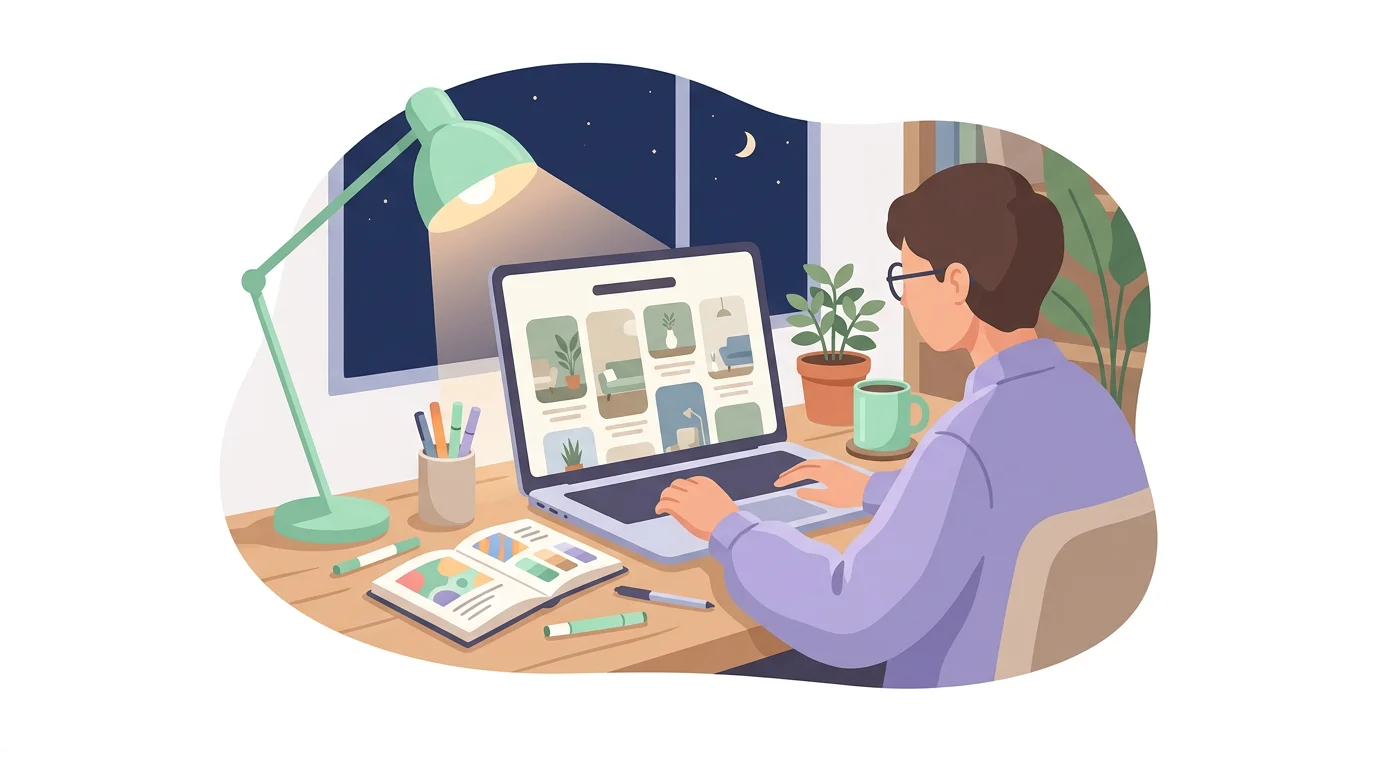
For an art project, a design brief, a costume, a dream room or a presentation's look. A caption under each picture says why it is there, which makes the board easy to explain to the class.
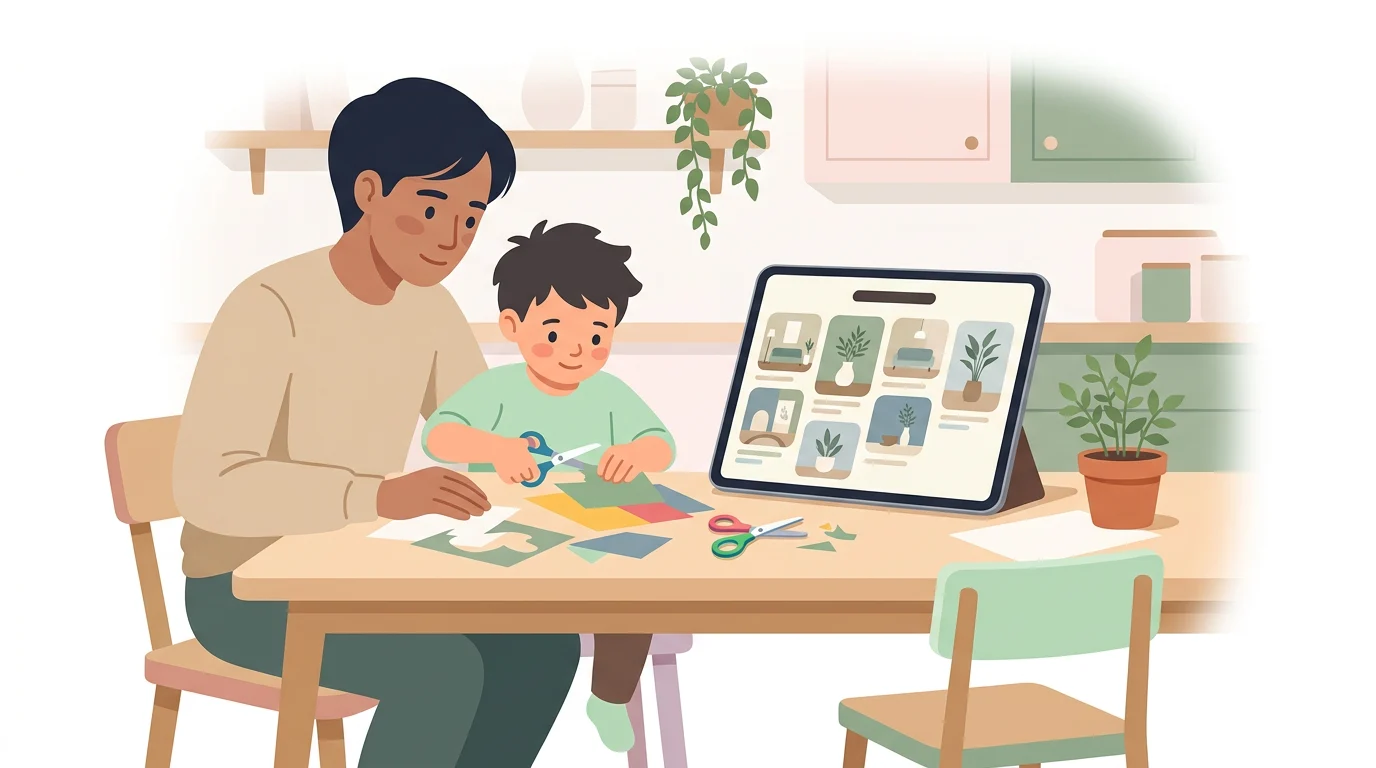
For the look of a learning space at home, a theme for the month or the pictures for a field trip. Children add their own picks, and everyone sees the board on the same Notion page.
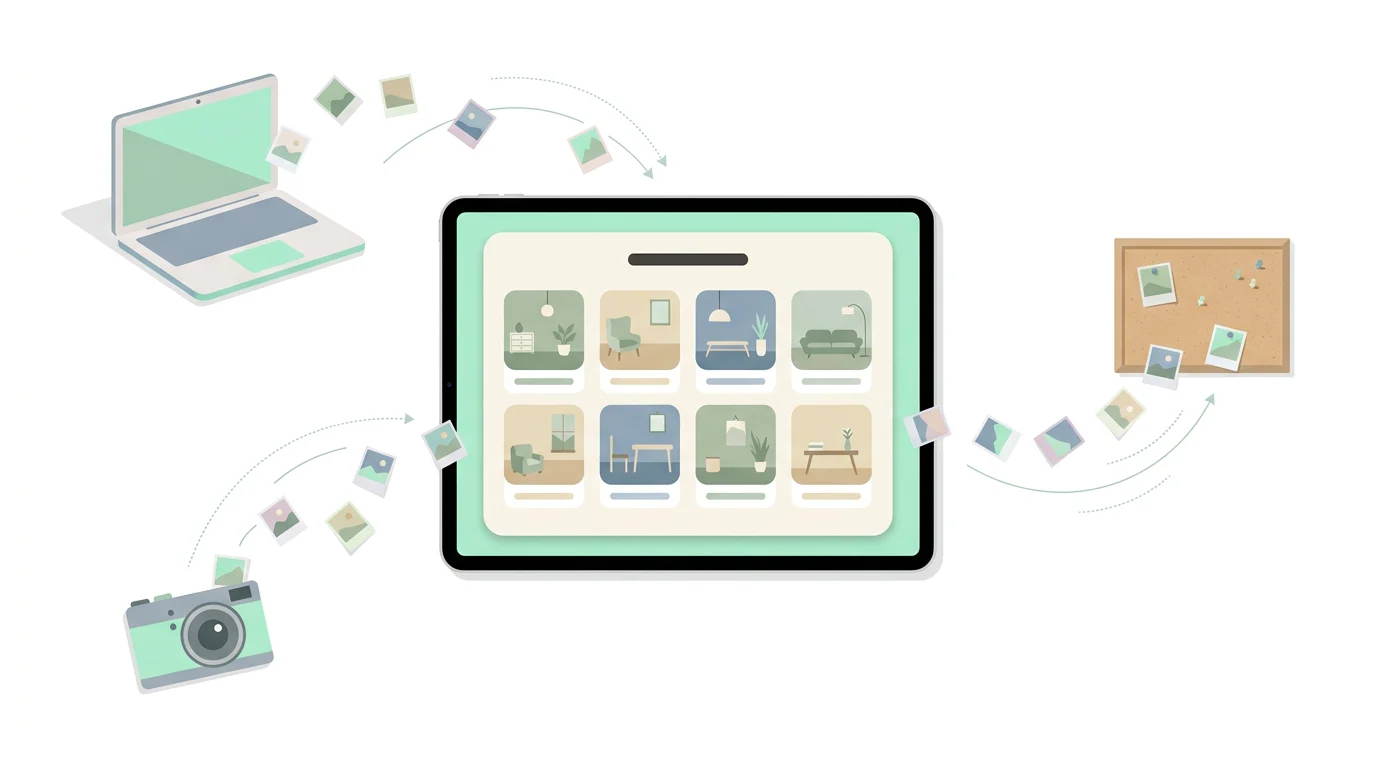
Notion can embed a public Pinterest board as Pinterest draws it. This board takes pictures from any link, Pinterest's included, with your captions, your title and your colors around them.
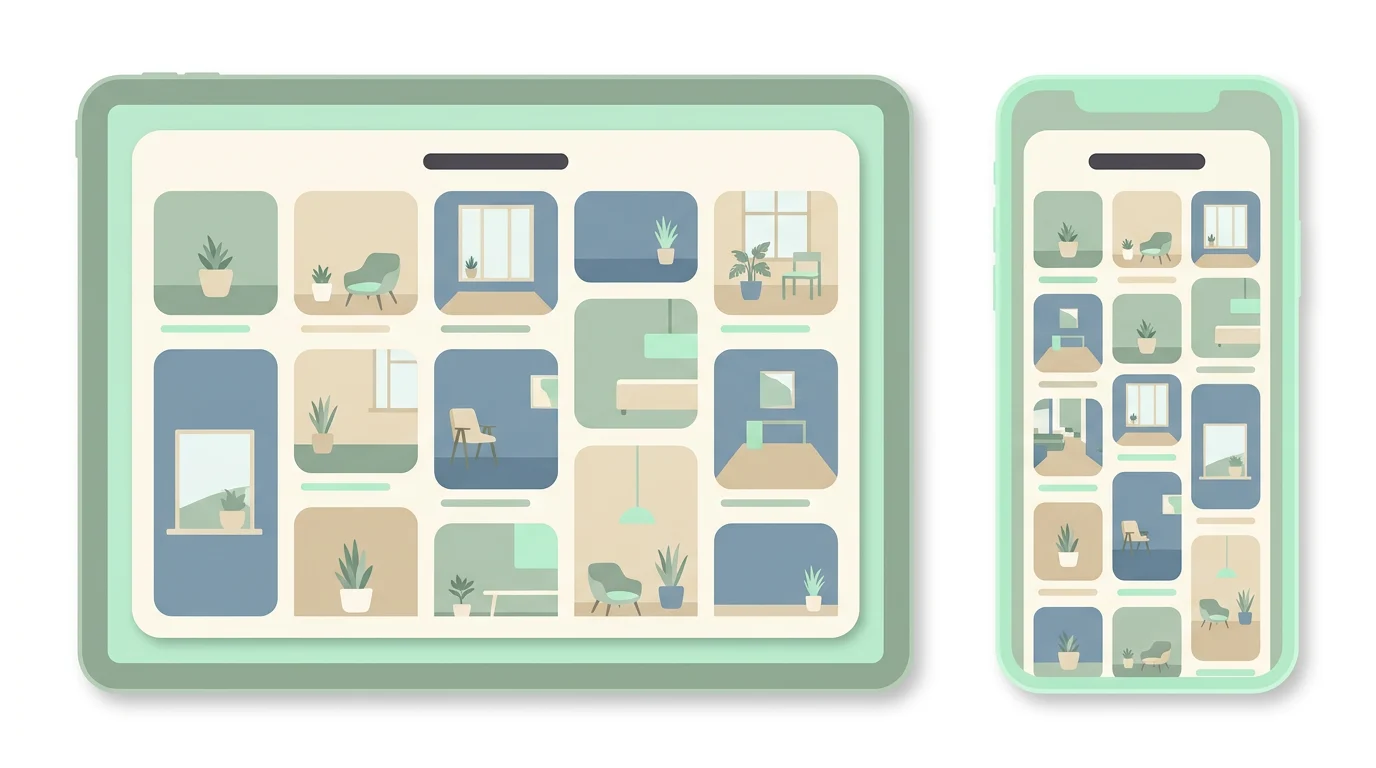
Auto columns arrange the whole board inside the block, so a reader sees every picture at once instead of scrolling. In a small block the captions step aside and the pictures stay.

Set the board up on this page and copy the link: nothing to register and nothing to pay. Your pictures and settings live in the link, so there is no saved board to lose.
Spotify’s player for a playlist, album or podcast, in a frame that matches your page.

Calm moving scenes for Notion, from rain on a window to fireflies, saved as a GIF too.
Apple Music, SoundCloud or YouTube Music on your page, in a frame that matches it.
Yes. The mood board is free to set up, copy and use on as many Notion pages as you like. There is no account to make, no trial and no watermark, and nothing on the board but your pictures, your captions and your title.
Paste your picture links at the top of this page, one a line, add a title and pick the look, then press Copy Widget Link. In Notion, click where the board should go, paste the link and choose Create embed. Drag the corners of the block to the size you want.
Yes, Notion does it by itself. Copy the board’s link in Pinterest, paste it into Notion and choose Create embed, and Notion shows Pinterest’s own board as Pinterest draws it. The board has to be public. Use this mood board when you want pictures from anywhere, your own captions, a title and the board’s colors.
Open the pin, right-click its picture and choose Copy image address (on a phone: press and hold, then copy). The link starts with i.pinimg.com. Paste it as one line, with a caption after a | if you like. Use pictures you may share: your own, or ones whose owners allow it.
The list of links travels inside the widget’s link, so it can be up to 1,800 characters long, which is about 15 to 25 pictures depending on how long their links are. For a bigger collection, make two boards and put them side by side or one under the other.
Yes. Put a caption after a | on the picture’s line, like https://…/lamp.jpg | Warm light. It shows on one line under the picture, or over it when the board has no gap. Switch off Show the captions to hide them all; very small tiles hide them by themselves.
It opens larger inside the board’s block, whole and uncropped, with its caption under it. Use the arrows on the sides or the arrow keys to move through the board, and the close button or Escape to go back. Nothing opens in a new tab.
The link opens a page rather than the picture itself, or the site that holds the picture does not let other pages show it. Open the picture on its own, copy its image address again and paste that line in place of the old one, then copy the widget link again.

The Complete Bundle has every Notion4Teachers template, with the Ultimate Teacher Planner at its heart.
Get Complete Bundle40% OFF!