

Deep work on your own
Writing a unit plan or a report goes better without a busy screen. The thin numbers count down at the top of your page, and the buttons stay out of sight until you reach for them.
Large thin numbers on a deep gradient, and nothing else until you hover. Set the lengths and the colors, then copy the link and paste it into any Notion page.
Today in Room 12
www.notion4teachers.com/embed/minimalist-pomodoroA minimalist Pomodoro timer shows the time left and very little else, so it sits quietly on a page instead of pulling at your attention. This one is made to sit inside Notion. You paste its link into Notion, choose Create embed, and it times your focus blocks and breaks in that block. The tabs and buttons appear only when you hover, tap or tab to them. Nothing to install, and no account.
Teacher Home
When you want the time in view and nothing else. Three moments where it fits:
Writing a unit plan or a report goes better without a busy screen. The thin numbers count down at the top of your page, and the buttons stay out of sight until you reach for them.

During silent work, a dark gradient with large numbers reads from the back of the room and does not compete with the lesson. The glow changes color when the break begins.
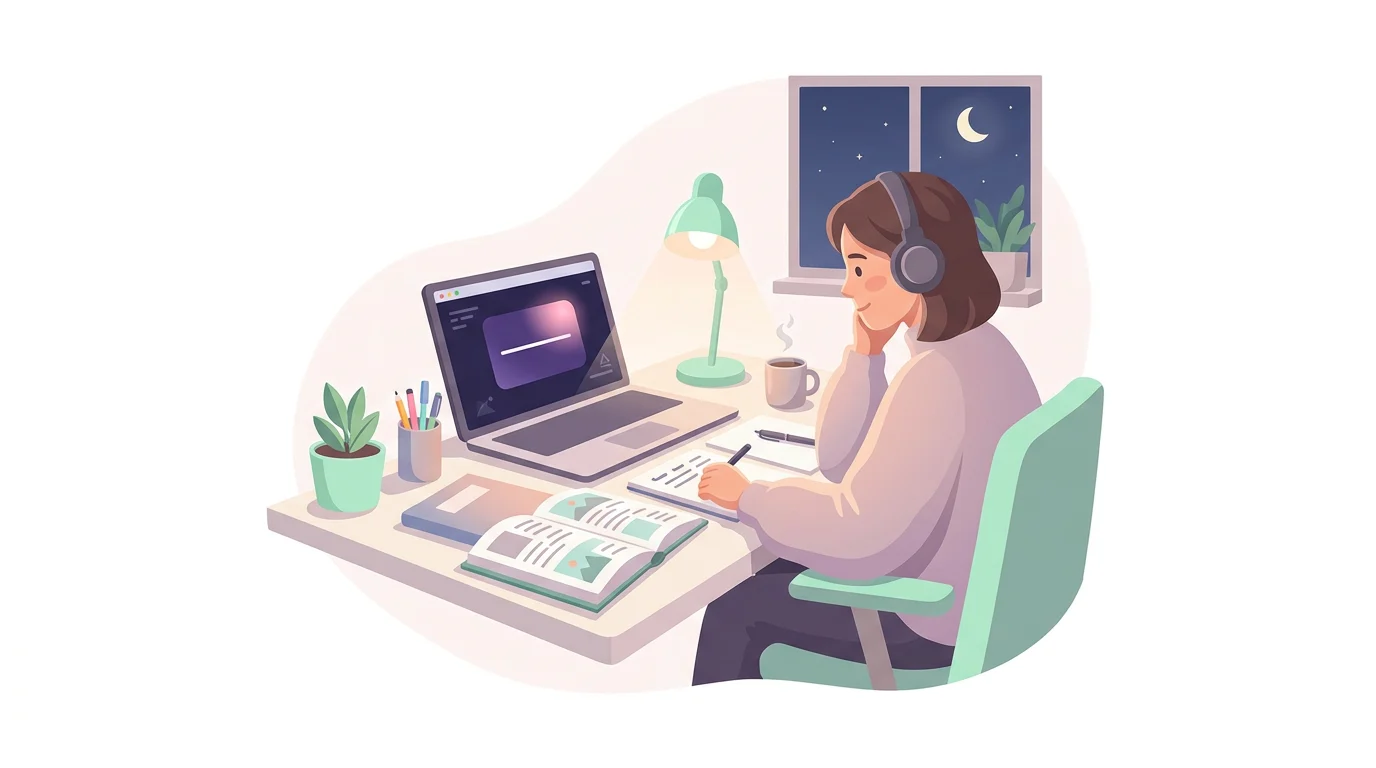
A deep color sits easily on a dark Notion page at night. Set 50-minute focus blocks with 10-minute breaks and let the soft bowl sound tell you when to stop.
Set it once, copy the link, and the timer stays out of your way. Here is what you can change before you paste it into Notion.
The time is all you see. Move the pointer over the timer, tap it, or press Tab, and the three tabs appear above it with Start, reset, skip and the bell below it.
Pomodoro, short break and long break each light the gradient with their own glow, so you can tell focus from rest at a glance. Set the lengths and the rounds before the long break.
Violet, Ocean, Ember, Forest, Dusk and Graphite. Each is dark enough to make the white numbers stand out, on a light Notion page or a dark one.
For a little more help, show the part’s name above the time and a thin progress line along the bottom edge. Both stay quiet, and both are off unless you tick them.
Drag the corners of the embed block and the numbers grow or shrink to fill it. A wide block makes a big timer for the projector; a small one keeps just the time.
Five steps, about a minute. The same steps work for every widget on Notion4Teachers.
Pick the lengths, the gradient and the extras at the top of this page.
Press Copy Widget Link. Everything you chose is part of the link.
Click where the timer should go on your Notion page and paste.
Notion asks what to do with the link. Choose Create embed.
Pull the block’s corner until the timer is as big as you want.
The Ultimate Teacher Planner sets up your classes, lessons, grades and attendance in Notion. Put your widgets at the top of it in a minute.
See the Teacher PlannerA screenshot of a timer stands still. This one runs the whole Pomodoro cycle and stays out of your way.
Thin numbers on a gradient, and nothing else.
Reload the Notion page and the timer is where you left it, running or paused.
It reads the device’s clock, so it stays right even when the tab sits in the background.
A singing bowl sounds when a part ends. Mute it with the bell button.
No account and nothing saved on our side. Change a setting, copy the new link.
The deep gradient brings its own color, so it looks the same in both modes.
Anyone who wants a timer that keeps time and keeps quiet.

At the top of a planning page for grading and writing in focused blocks, and on the class screen during silent work, where a dark timer reads well and stays calm.

On a clean study dashboard, for anyone who finds busy timers distracting. The numbers and the glow are all that change while they work.

For anyone writing, drawing or coding in long blocks, a timer that hides its buttons keeps the page as quiet as the work needs.

Many timers keep every button on screen all the time. This one shows only the numbers, and the tabs and buttons appear when you hover, tap or tab to them.

Many timer sites ask you to sign up before they keep your settings. Here you set the timer up on this page and copy it: nothing to register, nothing to pay.

The running timer is kept in the browser of the device that shows it, so a reloaded Notion page or a laptop that went to sleep comes back to the right time left.
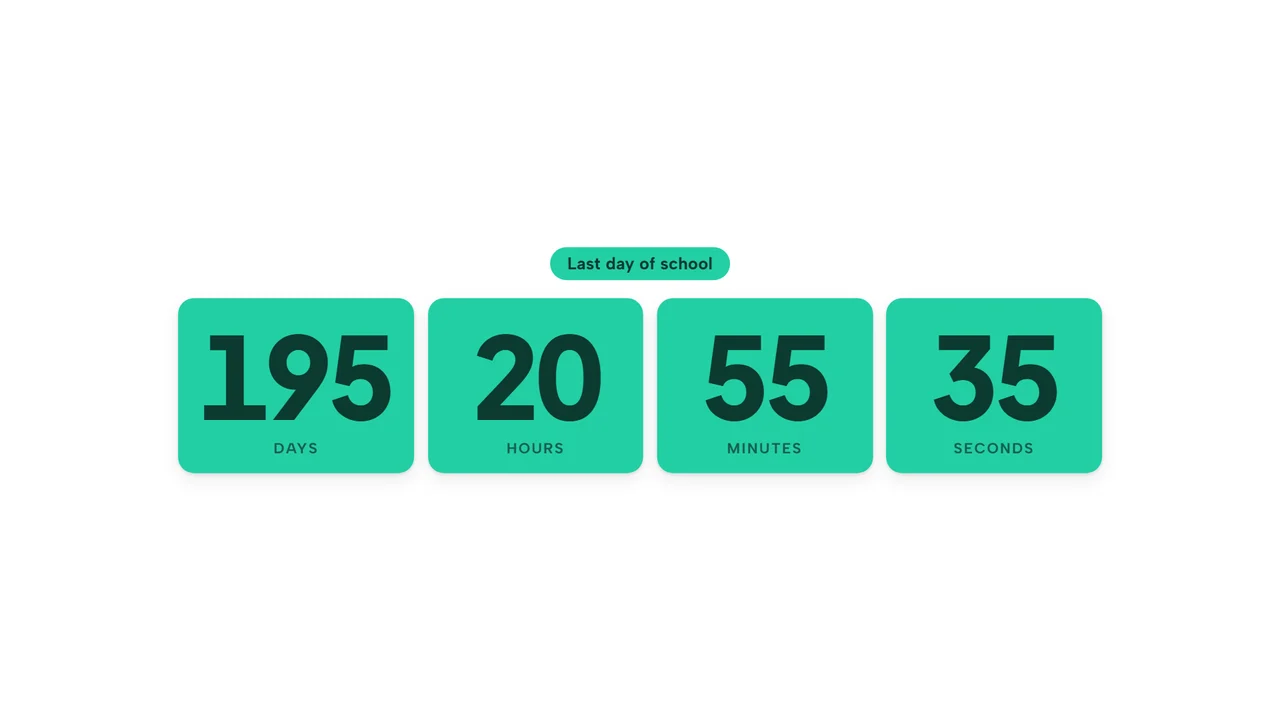
Days, hours, minutes and seconds to an exam, a holiday or the last day of school.
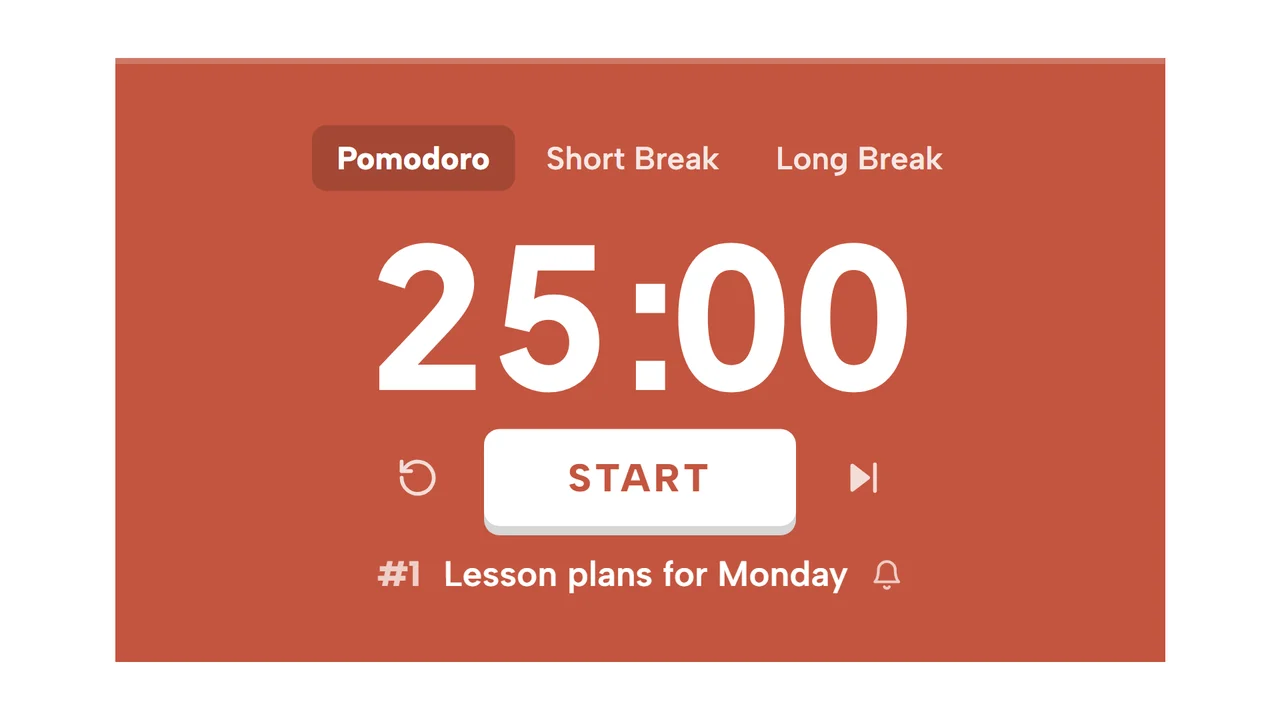
The classic Pomodoro timer with focus and break tabs, rounds and a bell, in your colors.
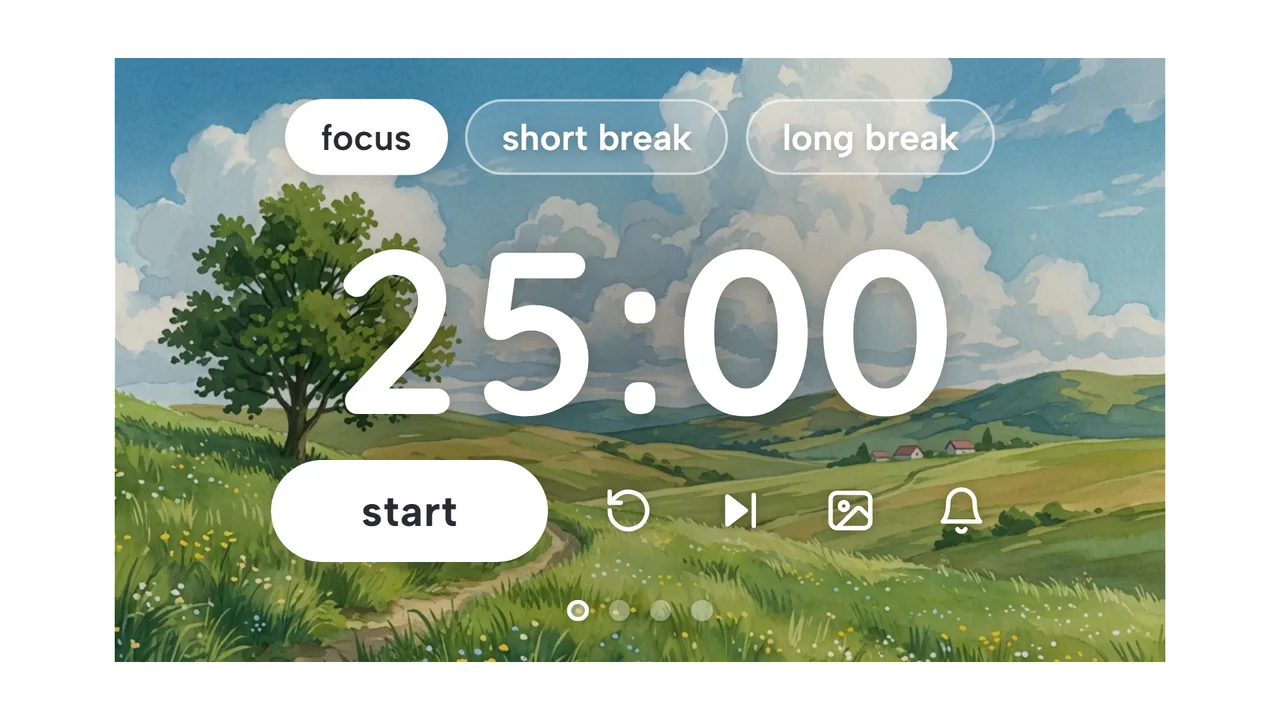
A Pomodoro timer over painted scenes, with gentle motion, a scene picker and three chimes.
Yes. The timer is free to set up, copy and use on as many Notion pages as you like. There is no account to make, no trial and no watermark, and no ads inside the timer.
Set up the timer at the top of this page and press Copy Widget Link. In Notion, click where you want the timer, paste the link, and choose Create embed from the menu that appears. Then drag the corners of the block to make it the size you want.
They wait until you need them. Move the pointer over the timer and the tabs appear above the time and Start, reset, skip and the bell below it. On a phone or tablet, tap the timer to show them. With the keyboard, press Tab to reach them.
The glow in the gradient changes with each part, so a glance tells you which one is running. In Violet, focus glows magenta, the short break blue and the long break teal. Tick Mode name to show the part’s name above the time as well.
Yes. A soft singing bowl sounds when a Pomodoro or a break ends, once you have pressed Start on the timer. The bell button mutes it for that timer, and Chime at the end switches the sound off in the link.
The timer picks up where it was. It keeps its place in the browser on that device, so a reload, a closed tab or a sleeping laptop shows the right time left when you come back. If a part ended while you were away, the timer has moved on.
Yes. The timer is part of the Notion page, so it shows wherever the page opens: the Notion app on iPhone, iPad and Android, the desktop app and the browser. Each device keeps its own running timer.
On this page, press Change a widget you added and paste the timer’s link (in Notion, ••• then View original shows it). Change what you like and copy the link again. In Notion, choose ••• then Replace and paste it: the block keeps its place and size. The timer picks up where it was, and a part not yet started takes the new length.

The Complete Bundle has every Notion4Teachers template, with the Ultimate Teacher Planner at its heart.
Get Complete Bundle40% OFF!