
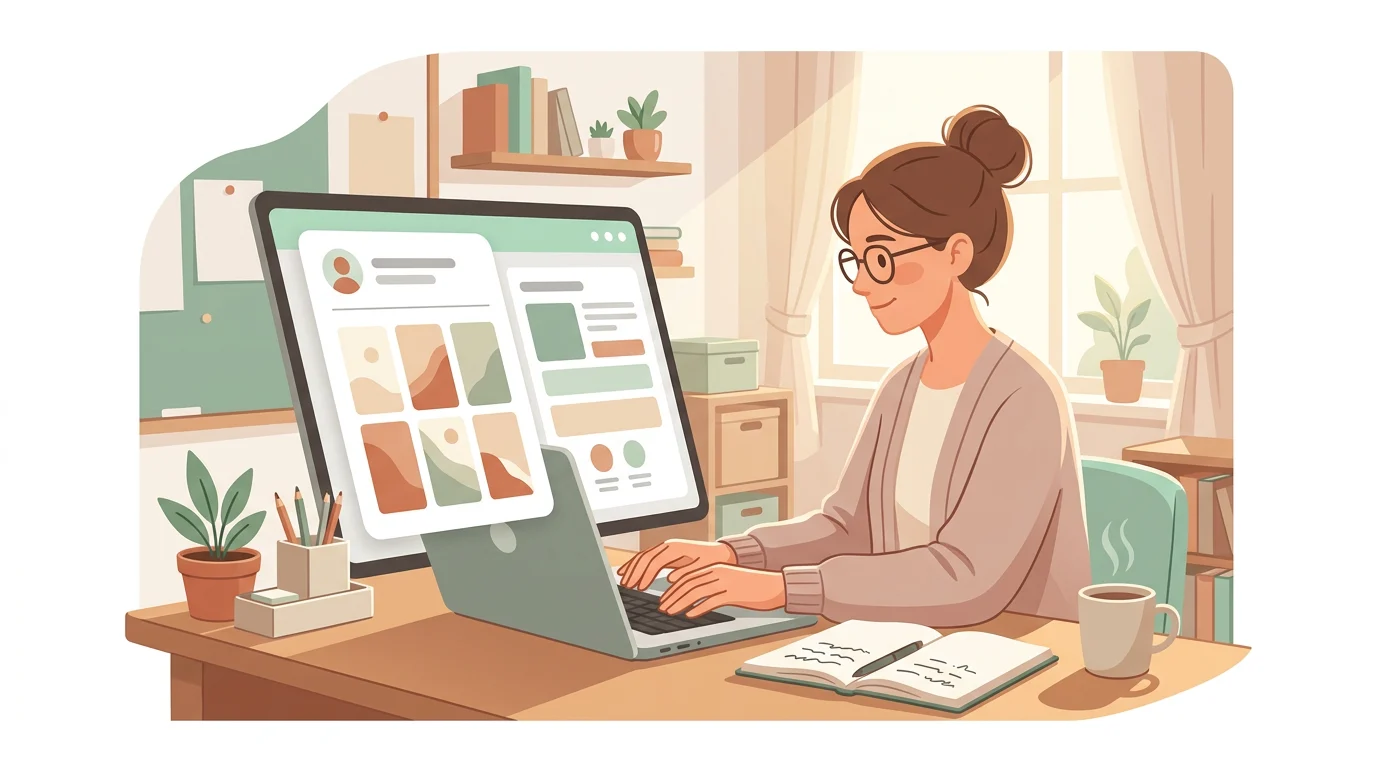
Planning the week's posts
Put the planner beside your content list in Notion. Paste the links of the photos you plan to share, add a dash for each post still to make, and see the whole week on the grid before Monday.
Paste your picture links, mark the reels and carousels, and drag the tiles until the grid looks right. Then copy the link into any Notion page.
Add | reel, | carousel or | pin after a link. A dash plans an empty tile.
The shape Instagram’s profile grid shows since 2025.
Empty: your initials in a circle.
Today in Room 12
www.notion4teachers.com/embed/instagram-gridAn Instagram grid widget is a small web page that shows a profile and its grid of posts, made to sit inside a Notion page. This one is a planner. You paste links to the pictures you plan to post, mark reels and carousels, and drag the tiles into the order you like before anything goes on Instagram. Paste its link into Notion and choose Create embed. Nothing to install, and no account.
Teacher Home
Whenever the next posts should look good together before they go up. Three moments:
Put the planner beside your content list in Notion. Paste the links of the photos you plan to share, add a dash for each post still to make, and see the whole week on the grid before Monday.

After a fair, a play or a field trip, paste the best photos and drag them around until the grid tells the story in the right order. Mark the video as a reel and the set of photos as a carousel.

Starting a class, club or tutoring account? Try six color sets and both tile shapes, and see how a warm or a cool set of pictures sits together before you post the first one.
Paste the links once, then change everything else on this page before you copy it into Notion.
Since January 2025 Instagram's profile grid shows tall 3:4 tiles, and the planner does too, cropping each picture the same way. Switch to Square to see the older square grid.
Add | reel, | carousel or | pin after a link and the tile gets a small mark in its corner, as on Instagram. A dash plans an empty tile, with a note if you like, such as Friday: book list.
Drag a tile with the mouse, or press and hold it on a touch screen, and the others make room. Your order is kept in that browser for this planner, and Reset order puts back the order of your list.
Add your name, your username, one line of bio and a link to your profile picture, or let the planner draw your initials. The counts add up your posts, your reels and the tiles still to come.
Light and Dark look like Instagram's own; Cream, Blush, Sage and Ocean match an aesthetic Notion page. The planner fills the whole block and scrolls inside it when the grid runs long.
Five steps, about a minute. The same steps work for every widget on Notion4Teachers.
Paste your picture links, mark the reels and add your name at the top of this page.
Press Copy Widget Link. Everything you chose is part of the link.
Click where the planner should go on your Notion page and paste.
Notion asks what to do with the link. Choose Create embed.
Pull the block's corner until the grid is as big as you want.
The Ultimate Teacher Planner sets up your classes, lessons, grades and attendance in Notion. Put your widgets at the top of it in a minute.
See the Teacher PlannerA mock-up made in a design app is one still picture. This planner moves with you.
The block shows your profile and your grid, nothing else.
Nothing connects to your account, so nothing can be posted by mistake.
Tall tiles like Instagram's profile since 2025, or square ones.
Six color sets fill the block, so it looks the same in either Notion mode.
No account and nothing saved on our side. Change a link, copy the new one.
It runs in the Notion embed on any computer, tablet or phone that opens the page.
Anyone who plans their posts in Notion and wants to see the grid first.

For a class, school or teacher account, planned beside the lesson calendar in Notion. Paste the photos of the week, plan the posts still to make and check that the grid feels calm before anything goes up.

For a club, a team, a school paper or an art portfolio. Students drag the photos into order together and mark the video as a reel before the account manager posts it.

For a tutoring service, a craft shop or a bakery that plans its posts in Notion. The planner sits next to the content calendar, so the grid is checked in the same place the posts are written.

Many grid planners for Notion are paid templates that connect to a database. Here you set the planner up on this page and copy one link: nothing to buy, nothing to register.

There is no Instagram login and nothing reads or posts to your account. The planner only shows the pictures you link, so it is safe to try ideas before anyone sees them.
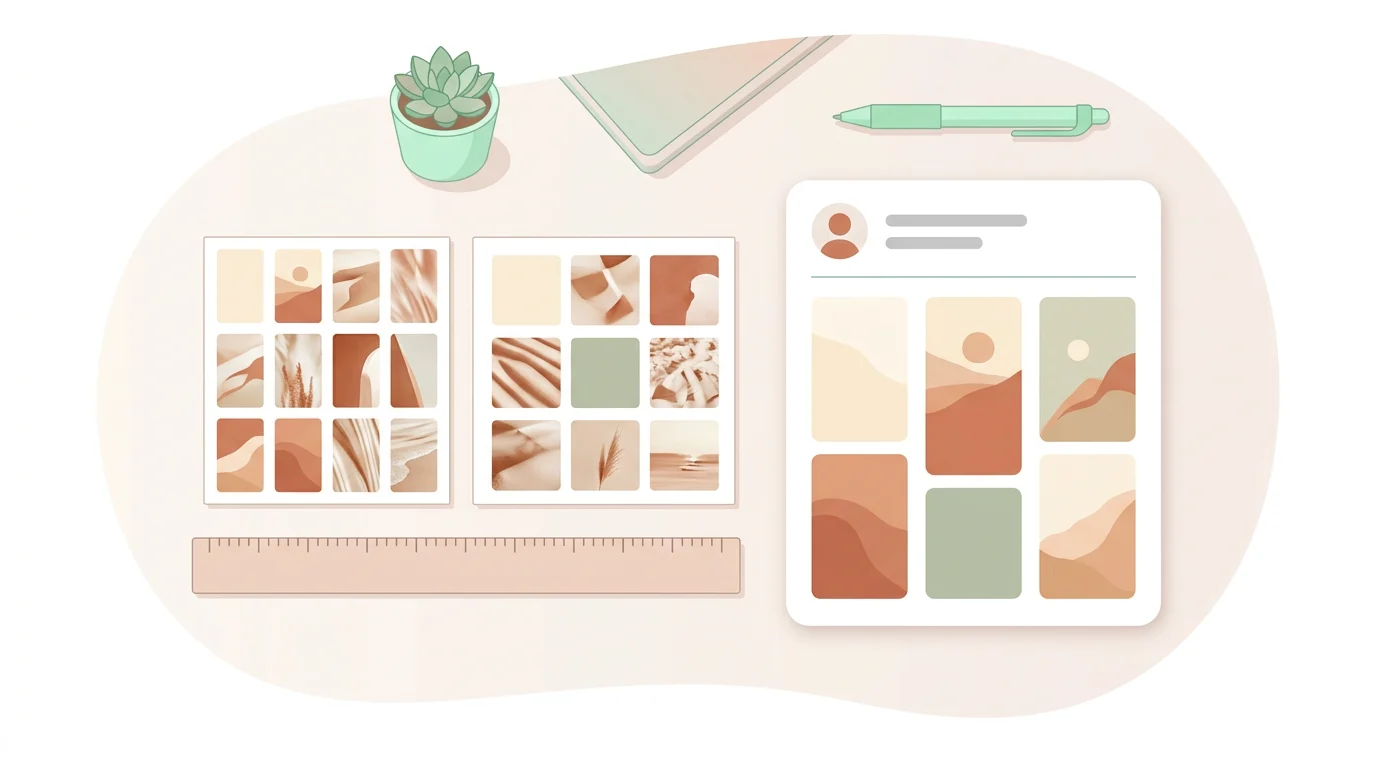
Instagram's profile has shown tall 3:4 tiles since 2025. The planner crops your pictures the same way, so the grid you plan is the grid people see, with square tiles kept as a choice.
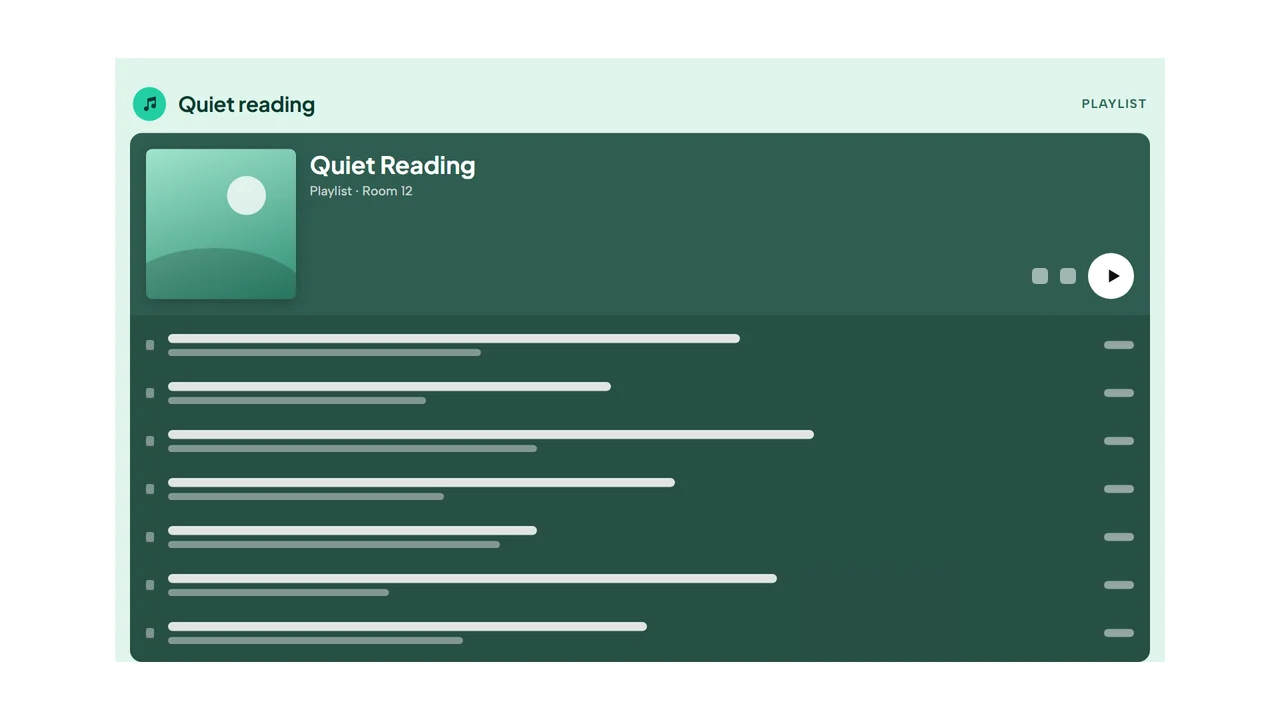
Spotify’s player for a playlist, album or podcast, in a frame that matches your page.

Calm moving scenes for Notion, from rain on a window to fireflies, saved as a GIF too.
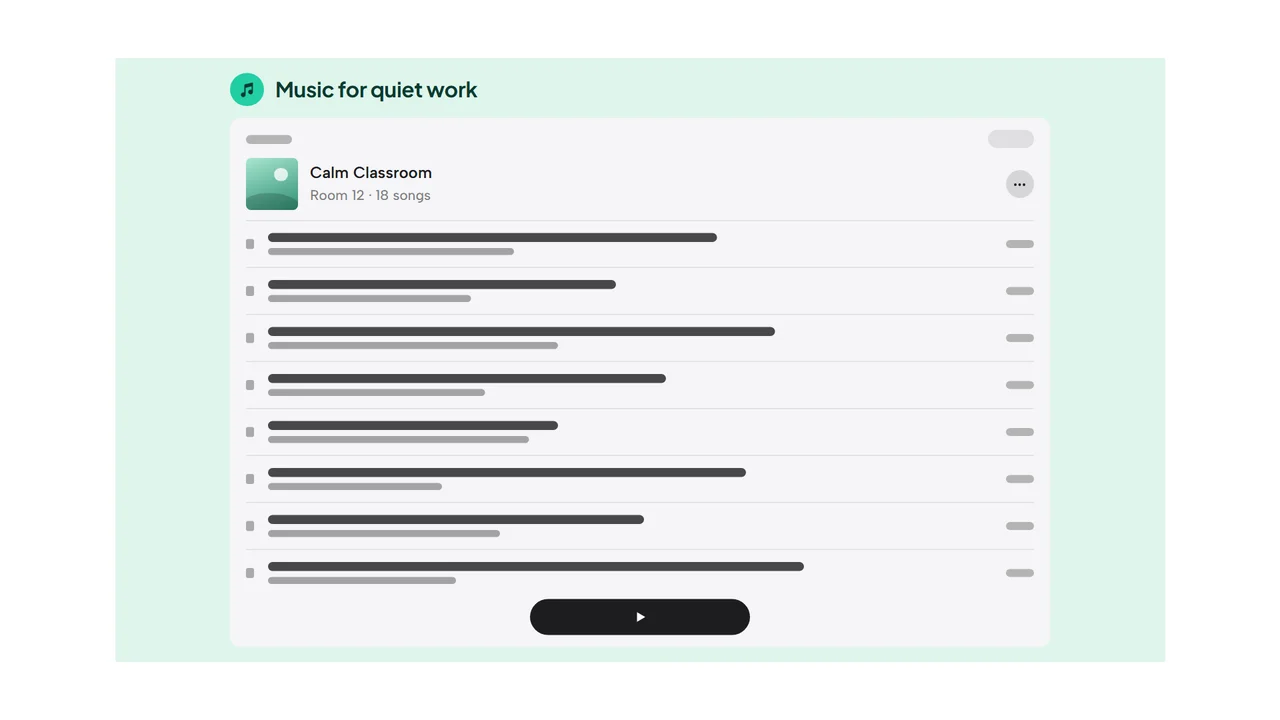
Apple Music, SoundCloud or YouTube Music on your page, in a frame that matches it.
Yes. The planner is free to set up, copy and use on as many Notion pages as you like. There is no account to make, no trial and no watermark, and nothing in the block but your profile and your grid.
Paste your picture links at the top of this page, add your name and press Copy Widget Link. In Notion, click where the planner should go, paste the link and choose Create embed from the menu that appears. Then drag the corners of the block to the size you want.
No. It is a planner, not your live feed. There is no Instagram login, nothing is read from your account and nothing is posted. The grid shows the pictures whose links you paste, in the order you choose, so you can see how your next posts look together before you share them.
Open the picture on the web, right-click it and choose Copy image address (on a phone: press and hold, then copy). The link opens the picture alone and often ends in .jpg, .png or .webp. A picture still on your phone or computer has to be online first: a picture uploaded to Notion does not work, because its link expires.
Yes. Since January 2025 Instagram shows a profile’s grid as tall 3:4 tiles and crops each post to that shape, so Tall 3:4 is the first choice under Tiles. Choose Square to see the square grid Instagram showed before.
In the browser on the device where you dragged the tiles, under this planner’s own link, and nothing is sent to us. Another computer or the Notion phone app starts in the order of your list. To keep an order everywhere, put the links in that order in the list and copy the link again.
Yes. Add | reel, | carousel or | pin after a link and the tile gets a small mark in its corner, as on Instagram. A line with only a dash plans an empty tile, and - | Friday: book list gives it a note. The counts above the grid add them up.
The link opens a page rather than the picture itself, or the site that holds the picture does not let other pages show it. Open the picture on its own, copy its image address again and paste that line in place of the old one, then copy the widget link again.

The Complete Bundle has every Notion4Teachers template, with the Ultimate Teacher Planner at its heart.
Get Complete Bundle40% OFF!