

Term goals on your planner
Write three or four goals for the term, like books to read, a project in steps and a savings target for a class trip, and keep the card at the top of your planner. A tap after each step keeps the bars honest.
List your goals and their targets, pick bars or rings, copy the link and paste it into any Notion page. Then tap + as you go and watch each one fill.
Goals
Name | target. After another bar, a color or a step: “Run | 50 km | blue | +5”.
Today in Room 12
www.notion4teachers.com/embed/goal-trackerA goal tracker widget is a small web page that shows how far along a few goals are, made to sit inside a Notion page. You paste its link into Notion, choose Create embed, and tap + on a goal when you make progress. This one keeps up to six goals on one card, each with its own target, unit, bar or ring and color, and shows the overall percent. Nothing to install, and no account.
Teacher Home
Whenever a few goals deserve a place you see every day. Three places it earns its spot:
Write three or four goals for the term, like books to read, a project in steps and a savings target for a class trip, and keep the card at the top of your planner. A tap after each step keeps the bars honest.

Students set their own goals at the start of a unit, like practice minutes or pages written, and tap them forward during study time. The rings make progress easy to talk about in a check-in.

Track a class library drive, a field trip fund or a reading challenge on the projected page. The overall percent at the top shows the whole room how close everyone is.
Write your goals once, copy the link, and tap them forward. Here is what you can change before you paste it into Notion.
Write one goal a line with its target, like Read books | 12 books. A word after the number is its unit, a sign before it stays in front, and a line with no number is one step to tick off.
Every goal has its own − and + buttons. Each tap moves it by one, or by the step you add after a bar, like +10, and a goal stops at its target with a check beside its name.
Show each goal as a bar with its name and count above it, or as a ring with its percent in the middle. Both show the overall percent at the top, beside a title of your own.
Six color sets, from white Paper and dark Night to Mint, Blush, Ocean and Sunset. Goals take the set’s colors in turn, or name one after a bar, like Kind acts | 10 | green.
Drag the corners of the embed block and the card grows or shrinks to fill it. A wide block makes big bars for the projector; a narrow column keeps every goal in view beside your notes.
Five steps, about a minute. The same steps work for every widget on Notion4Teachers.
Write one goal a line with its target, then pick the look at the top of this page.
Press Copy Widget Link. Everything you chose is part of the link.
Click where the goal tracker should go on your Notion page and paste.
Notion asks what to do with the link. Choose Create embed.
Pull the block’s corner until the card is as big as you want.
The Ultimate Teacher Planner sets up your classes, lessons, grades and attendance in Notion. Put your widgets at the top of it in a minute.
See the Teacher PlannerA list of goals is easy to forget. This card shows how far along each one is every time you open the page.
Up to six goals, each with its own target, unit, color and buttons.
A goal that reaches its target is checked and stops counting.
Progress is kept in this browser on this device. Nothing is sent to us.
Six color sets, from white Paper to dark Night, to match your page.
It shows your goals and nothing else. No pop-ups, no logos, no sign-up.
No account and nothing saved on our side. Change a goal, copy the new link.
Anyone with a few goals worth seeing every day.

On a planner for term plans and goals of your own, and on the projected class page for a class goal like a library drive. One card holds several goals, so the dashboard stays short.

On a study dashboard for the term’s goals, like books to read, practice minutes and a project in steps. Tapping + after each study session is a small reward that keeps the goals in view.

On the week’s lesson page, for a child’s reading goal, math practice and a hands-on project. Each goal gets its own color, so even young learners can point to the one that is almost full.

Notion goal trackers are usually databases with relations, rollups and formulas. Here you write your goals one a line and the card is ready to paste. Keep databases for goals with tasks and dates.

Each goal has its own target, unit, color and buttons, and the overall percent sums up the card. One block on the page instead of a separate bar for every goal.

Many widget sites ask you to sign up before you can copy a link. Here you write your goals on this page and copy it: nothing to register, nothing to pay.
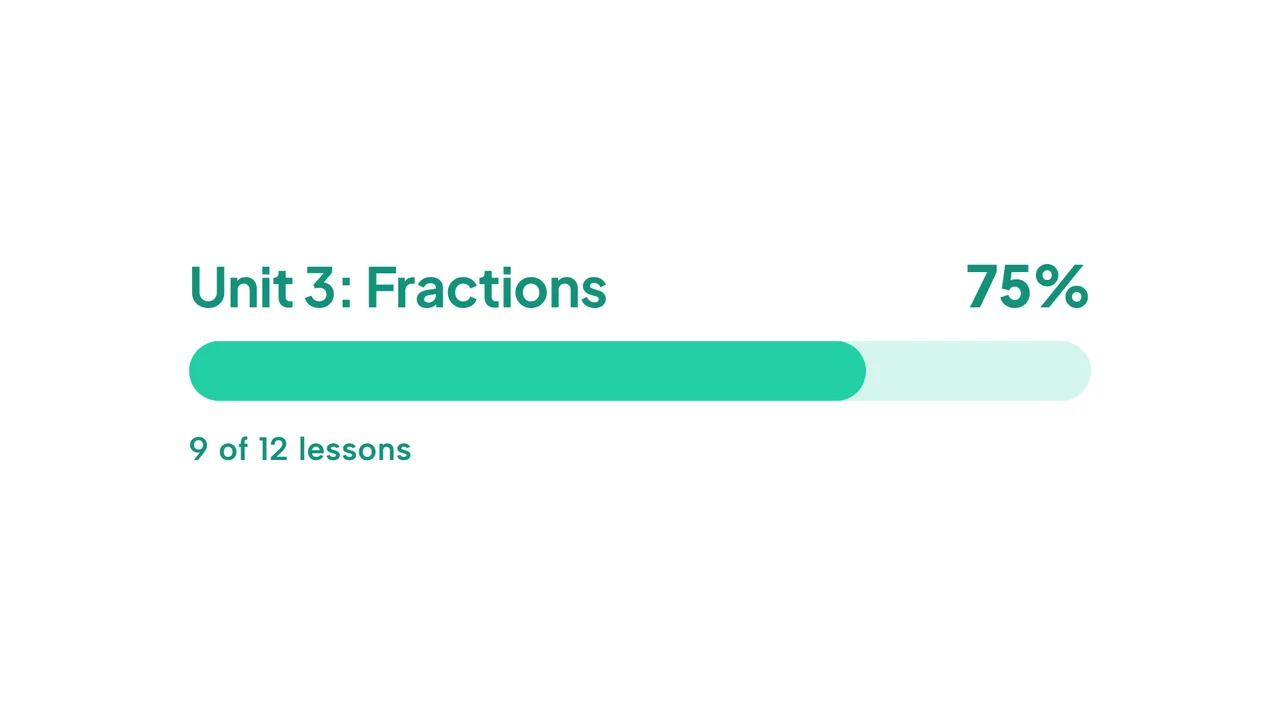
A bar, ring or battery that fills as you count lessons, pages or the days of a term.
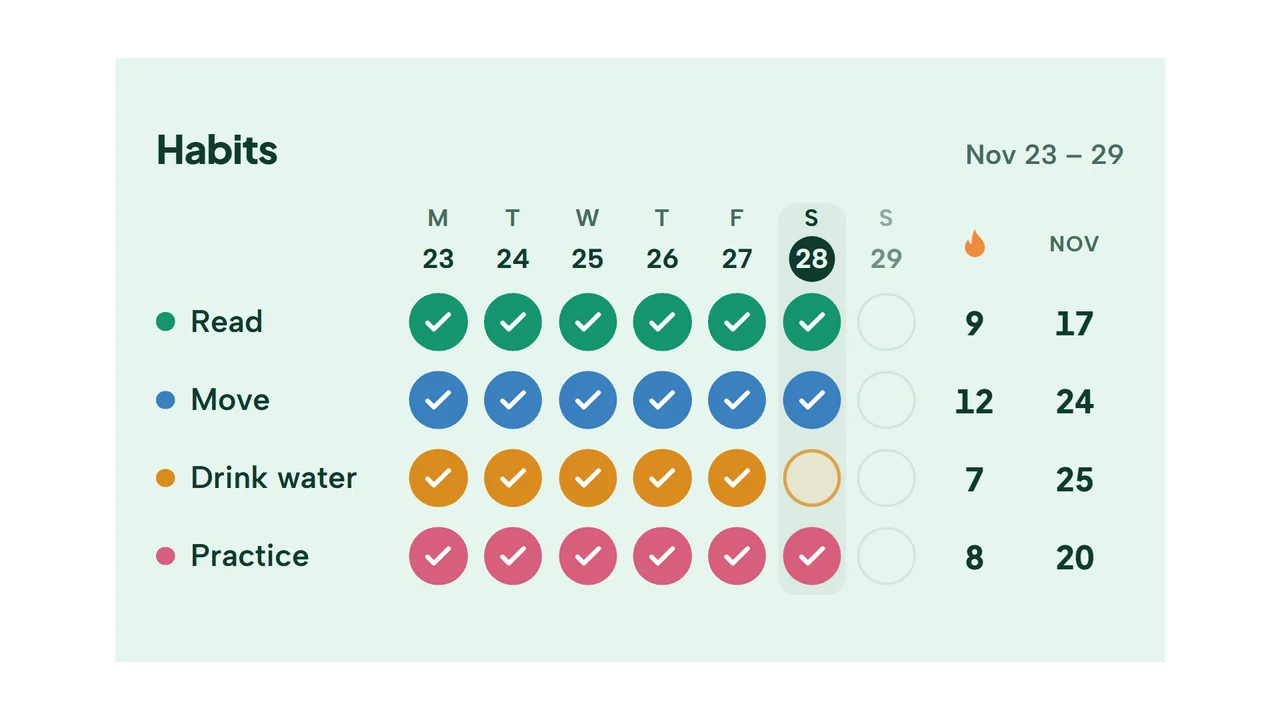
Tick off up to six habits each day and watch the streaks grow, week by week.
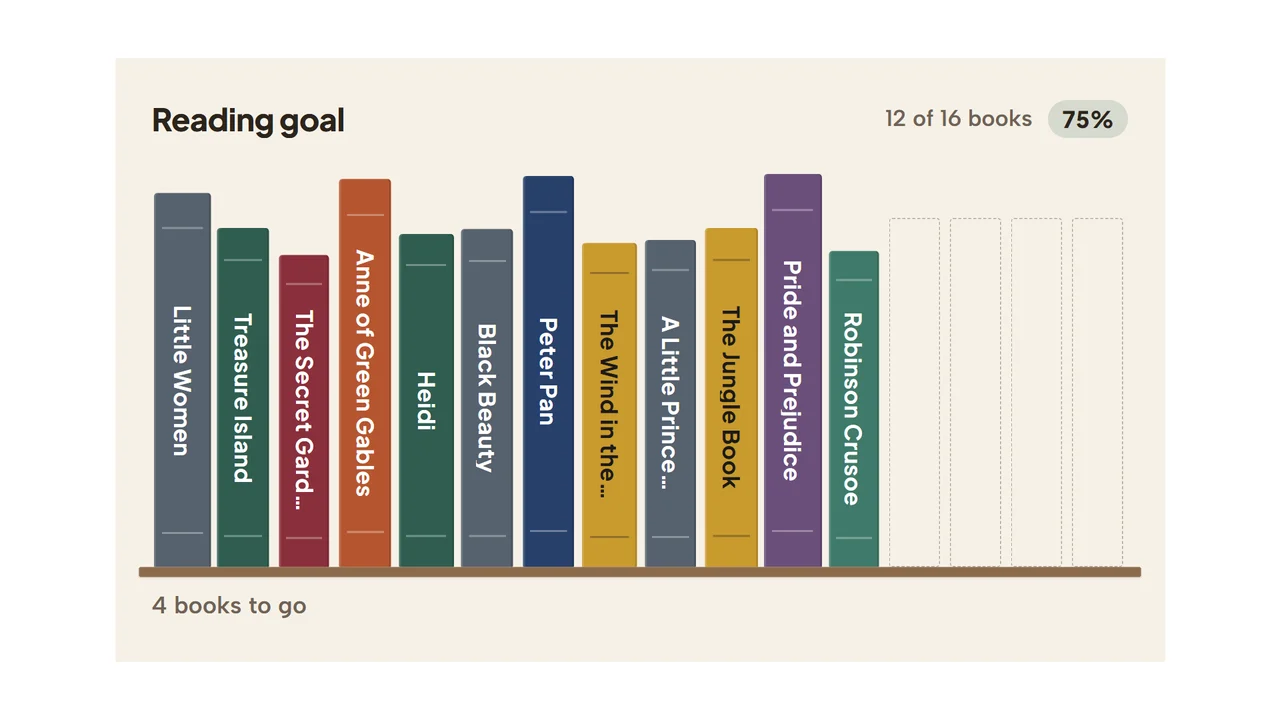
A shelf of books that fills toward your reading goal for the year.
Yes. The goal tracker is free to set up, copy and use on as many Notion pages as you like. There is no account to make, no trial, no watermark and no ads, and the progress you tap is never sent to us.
Write your goals and pick the look at the top of this page, then press Copy Widget Link. In Notion, click where you want the card, paste the link and choose Create embed from the menu that appears. Then drag the corners of the block to make it the size you want.
One goal a line: the name, a bar, then the target, like Read books | 12 books. A word after the number is its unit, and a sign before it, like $200, stays in front. Add another bar for a color or a step, like Run | 50 km | blue | +5. A line with no number is a single step.
Yes, in the browser that tapped it. Your progress is still there when the Notion page opens again on that computer, tablet or phone. Another device, or the Notion app on your phone, starts at zero. Nothing is saved on our side, and a private window starts fresh.
Yes. Write the unit after the target, like 600 minutes or 50 km, or a sign before it, like $200, and the count shows it: $120 of $200. For a big target, add a step after a bar, like +10, and each tap of + moves that goal by 10.
It is the average of the goals’ shares, so each goal counts the same whatever its target. Two goals, one done and one half done, make 75%. It shows 100% only when every goal is done, and you can switch it off under The overall percent.
Use a database goal tracker when each goal needs its own page, dates, linked tasks or a rollup that counts them, which Notion does well. Use this card for a few goals you want to see and move forward at a glance, on a dashboard or on the classroom screen.
Come back to this page and press Change a widget you added, under the preview. Paste the tracker’s link (in Notion, ••• then View original shows it), change your goals and copy the link again. In Notion, choose ••• then Replace and paste it: the tracker keeps its place and size. Progress stays with each goal’s name, so a goal you rename starts at zero.

The Complete Bundle has every Notion4Teachers template, with the Ultimate Teacher Planner at its heart.
Get Complete Bundle40% OFF!