

Homework, then an episode
Fifty minutes on the assignment, then one episode, then back to work. The counter shows how many episodes the evening has earned, so the break feels deserved instead of guilty.
Focus for 50 minutes, then take one episode as your break. Pick the art and the lengths, copy the link and paste it into any Notion page. Free, with no sign-up.
Today in Room 12
www.notion4teachers.com/embed/animedoroAn Animedoro timer times the Animedoro method, a long focus block followed by one episode of a show as the break, and this one is made to sit inside a Notion page. You paste its link into Notion, choose Create embed, and it runs in that block. You set the focus and episode lengths, a goal for the day, the background and where the timer sits before you copy the link. Nothing to install, and no account.
Teacher Home
When a show you love can be the reward for real work. Three moments where it helps:
Fifty minutes on the assignment, then one episode, then back to work. The counter shows how many episodes the evening has earned, so the break feels deserved instead of guilty.

Essays, problem sets and long readings need more than 25 minutes to get going. A 50 or 60-minute focus block gives the work time to build before the episode break.
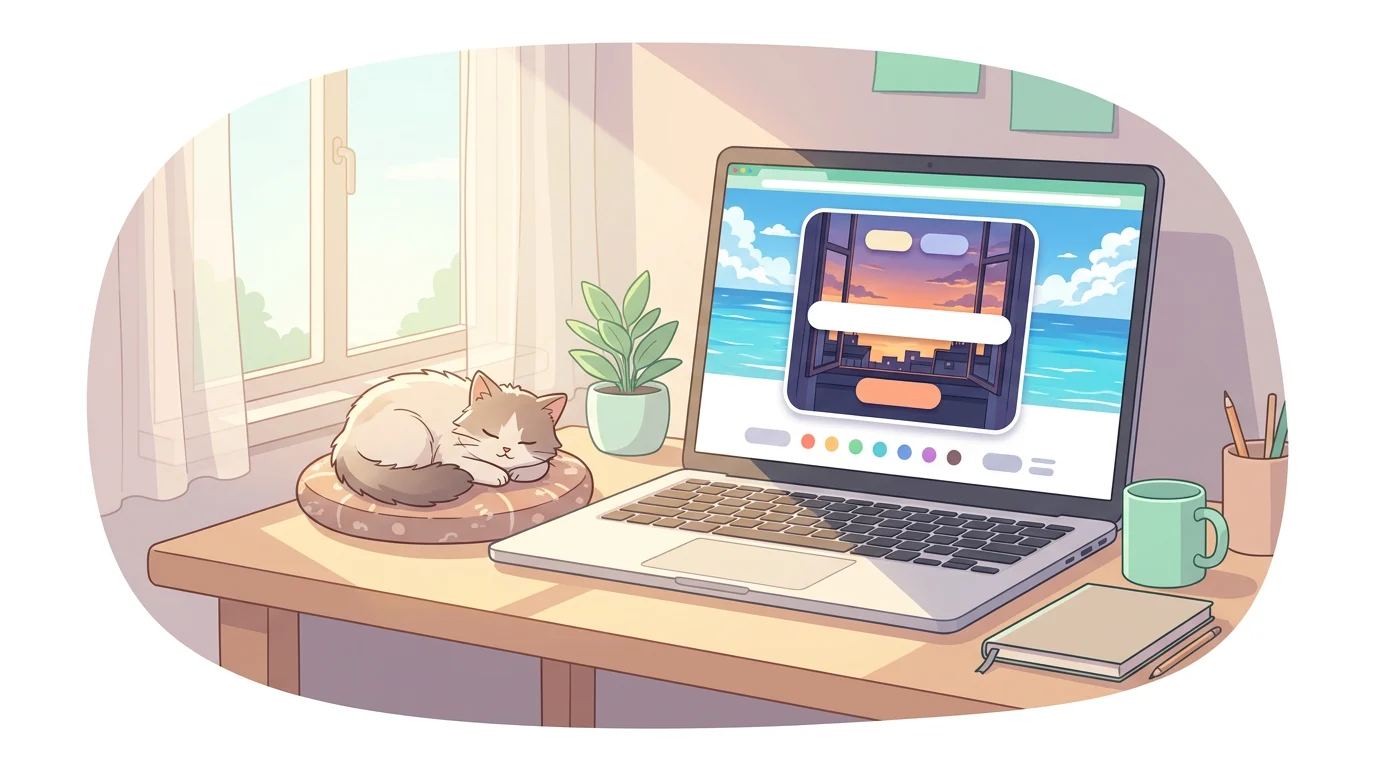
Set a goal of three or four episodes for the day. Each focus block fills a dot, and when the dots are full the study day is done.
Set it once, copy the link, and the timer runs the method for you. Here is what you can change before you paste it into Notion.
Two tabs, Focus and Episode. The focus block runs 50 minutes and the episode break 20 by default, and every focus block is followed by one episode, with no long break.
The EP number shows the episode this focus block earns, or the one on now. A row of dots fills toward your goal for the day, from one episode to eight.
A desk at dusk, a rooftop sunset, a summer train, a riverbank, a blossom street, a cozy room at night and a seaside road, drawn in an anime style for this timer, with no characters from any show.
Put the timer over the middle of the picture, or in a small glass card in the corner so the art has room. On a narrow block, the timer moves back to the middle.
Drag the corners of the embed block and the timer and the art grow or shrink to fill it. A wide block makes a big timer; a small one keeps just the time.
Five steps, about a minute. The same steps work for every widget on Notion4Teachers.
Pick the lengths, the goal and the background at the top of this page.
Press Copy Widget Link. Everything you chose is part of the link.
Click where the timer should go on your Notion page and paste.
Notion asks what to do with the link. Choose Create embed.
Pull the block’s corner until the timer is as big as you want.
The Ultimate Teacher Planner sets up your classes, lessons, grades and attendance in Notion. Put your widgets at the top of it in a minute.
See the Teacher PlannerAny timer can count 50 minutes. This one is set up for the episode that comes after.
Fifty minutes of focus and a 20-minute episode break, ready the moment you paste it.
The EP number and the dots show how many breaks the day has earned.
Reload the Notion page and the timer is where you left it, running or paused.
The art, the time and the buttons, and nothing else.
No account and nothing saved on our side. Change a setting, copy the new link.
A short run of chimes when a block ends. Mute it with the bell button.
Anyone who studies better with a reward they can see coming.

On a study dashboard, for anyone who loses evenings to “one more episode”. The show becomes the break between real focus blocks instead of the thing that replaces them.

On the day’s lesson page, so a child can see how long until the episode break, and a parent can keep both the lesson and the show to a set time.

For their own grading and planning in long blocks, and as a timer to suggest to students who find 25 minutes too short and a five-minute break too easy to stretch.
Most Pomodoro timers start at 25 minutes with a long break every fourth round. This one starts at 50 minutes of focus and a 20-minute episode break, and counts episodes instead of rounds.
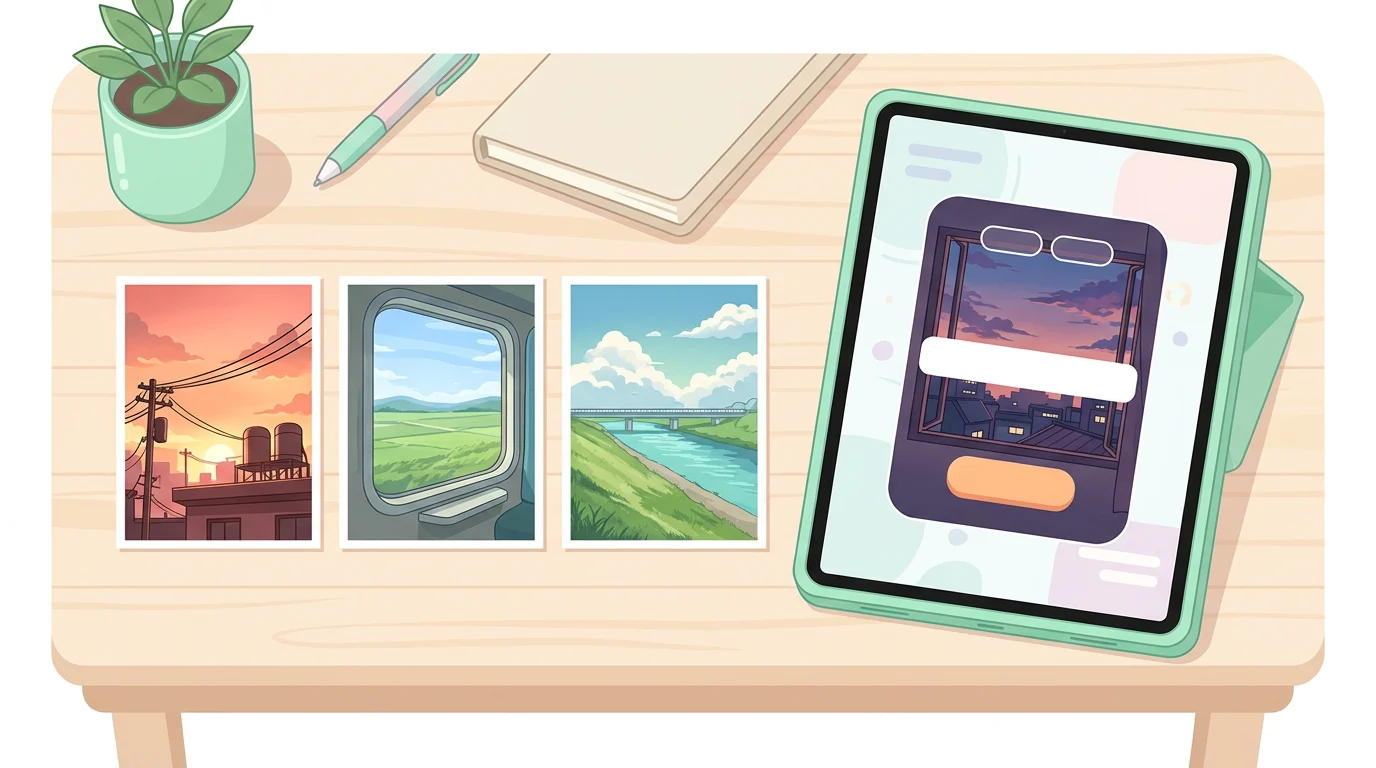
Every background was drawn for this timer in an anime style. There are no characters or scenes from any show, just quiet places to look at while you work.

Many timer sites ask you to sign up before they keep your settings. Here you set the timer up on this page and copy it: nothing to register, nothing to pay.
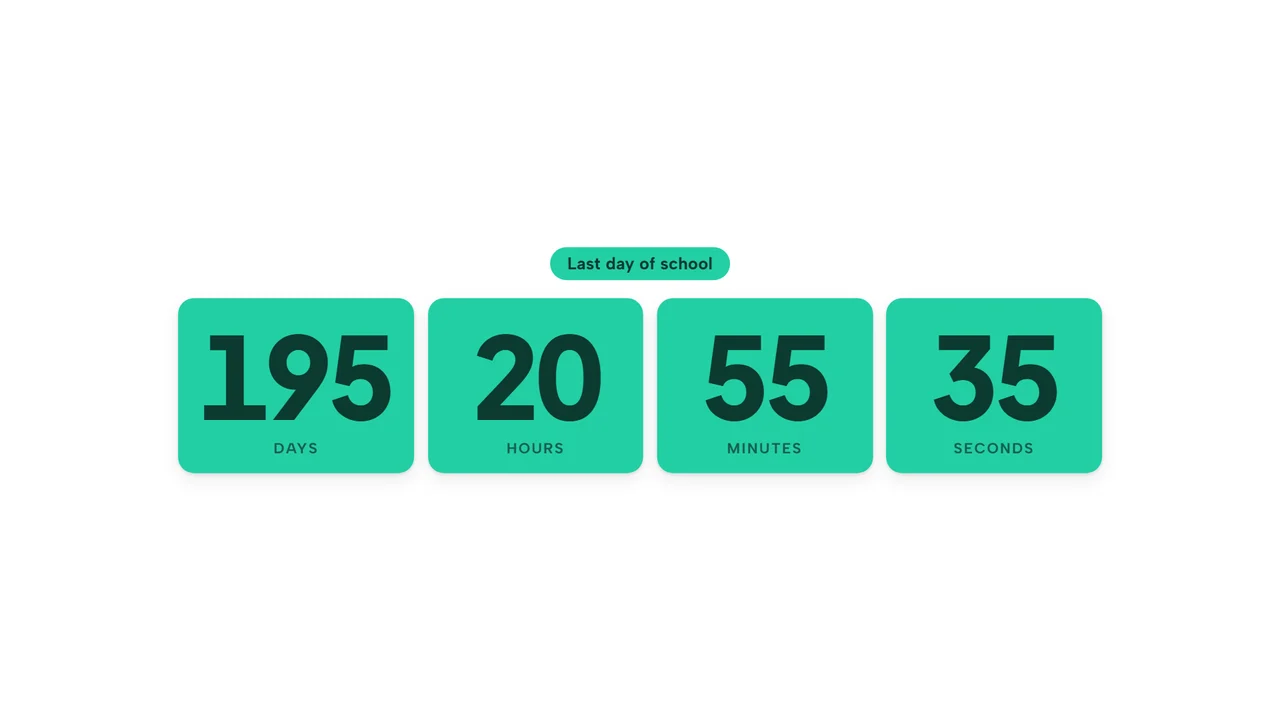
Days, hours, minutes and seconds to an exam, a holiday or the last day of school.
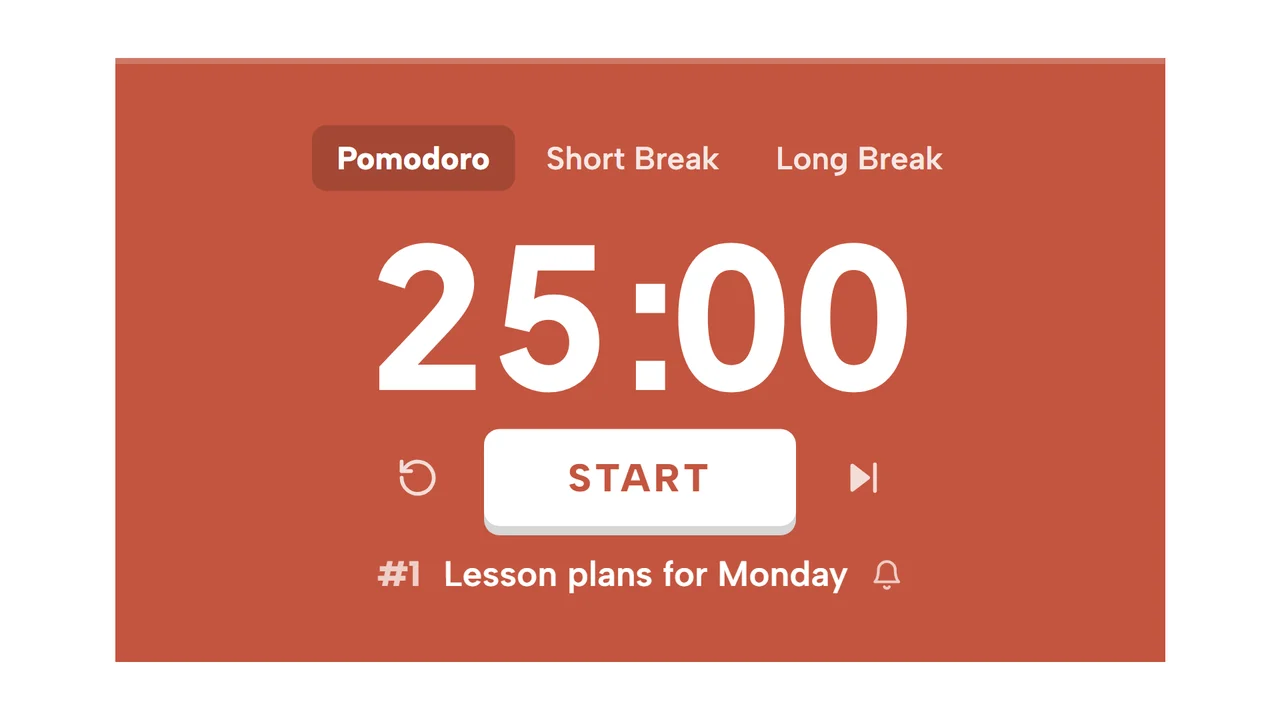
The classic Pomodoro timer with focus and break tabs, rounds and a bell, in your colors.
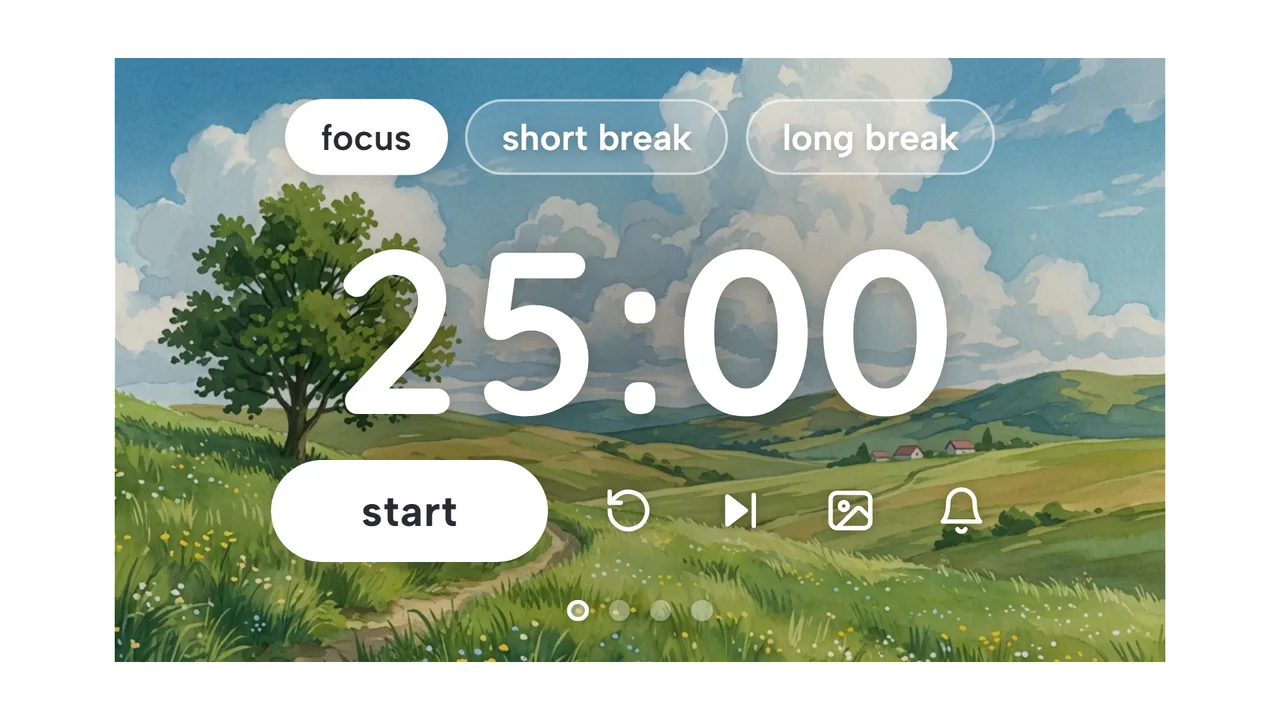
A Pomodoro timer over painted scenes, with gentle motion, a scene picker and three chimes.
Yes. The timer and all seven backgrounds are free to set up, copy and use on as many Notion pages as you like. There is no account to make, no trial and no watermark, and no ads inside the timer.
Set up the timer at the top of this page and press Copy Widget Link. In Notion, click where you want the timer, paste the link, and choose Create embed from the menu that appears. Then drag the corners of the block to make it the size you want.
Animedoro is a version of the Pomodoro Technique for longer study blocks. You focus for 40 to 60 minutes, then watch one episode of a show, about 20 minutes, as your break, and repeat. This timer starts at 50 minutes of focus and a 20-minute episode break.
Yes. Set the focus block from 20 to 90 minutes, in steps of 5, and the episode break from 5 to 45 minutes to match the shows you watch. There is no long break: every focus block is followed by one episode.
The EP number is the episode this focus block earns, or the one on now during the break. The dots under the timer fill up toward your goal for the day, from 1 to 8 episodes. The count starts again each new day.
Yes. A short run of wind chimes plays when a focus block or an episode break ends, once you have pressed Start on the timer. The bell button mutes it for that timer, and Chime at the end switches the sound off in the link.
The timer picks up where it was. It keeps its place in the browser on that device, so a reload, a closed tab or a sleeping laptop shows the right time left when you come back. If a part ended while you were away, the timer has moved on.
On this page, press Change a widget you added and paste the timer’s link (in Notion, ••• then View original shows it). Change what you like and copy the link again. In Notion, choose ••• then Replace and paste it: the block keeps its place and size. The timer picks up where it was, with today’s episode count; a part not yet started takes the new length.

The Complete Bundle has every Notion4Teachers template, with the Ultimate Teacher Planner at its heart.
Get Complete Bundle40% OFF!