
How Schools Can Simplify Account Management Without Compromising Security
How Schools Can Simplify Account Management Without Compromising Security

Article by
Milo
ESL Content Coordinator & Educator
ESL Content Coordinator & Educator
All Posts
A typical school runs on dozens of logins. Teachers move between a learning management system, a gradebook, an email platform, attendance software, and a handful of classroom apps. Students add their own set, often across several grade levels and devices. Administrators carry the heaviest load, with access to payroll, student records, and vendor portals that each demand separate credentials.
This volume creates a predictable problem. People under time pressure reuse passwords, write them on sticky notes, or email them to colleagues. IT teams, usually small, spend large parts of their week resetting forgotten credentials instead of improving systems. Simplifying account management does not mean loosening security. The two goals can support each other when the right tools and habits are in place.
Still grading everything by hand?
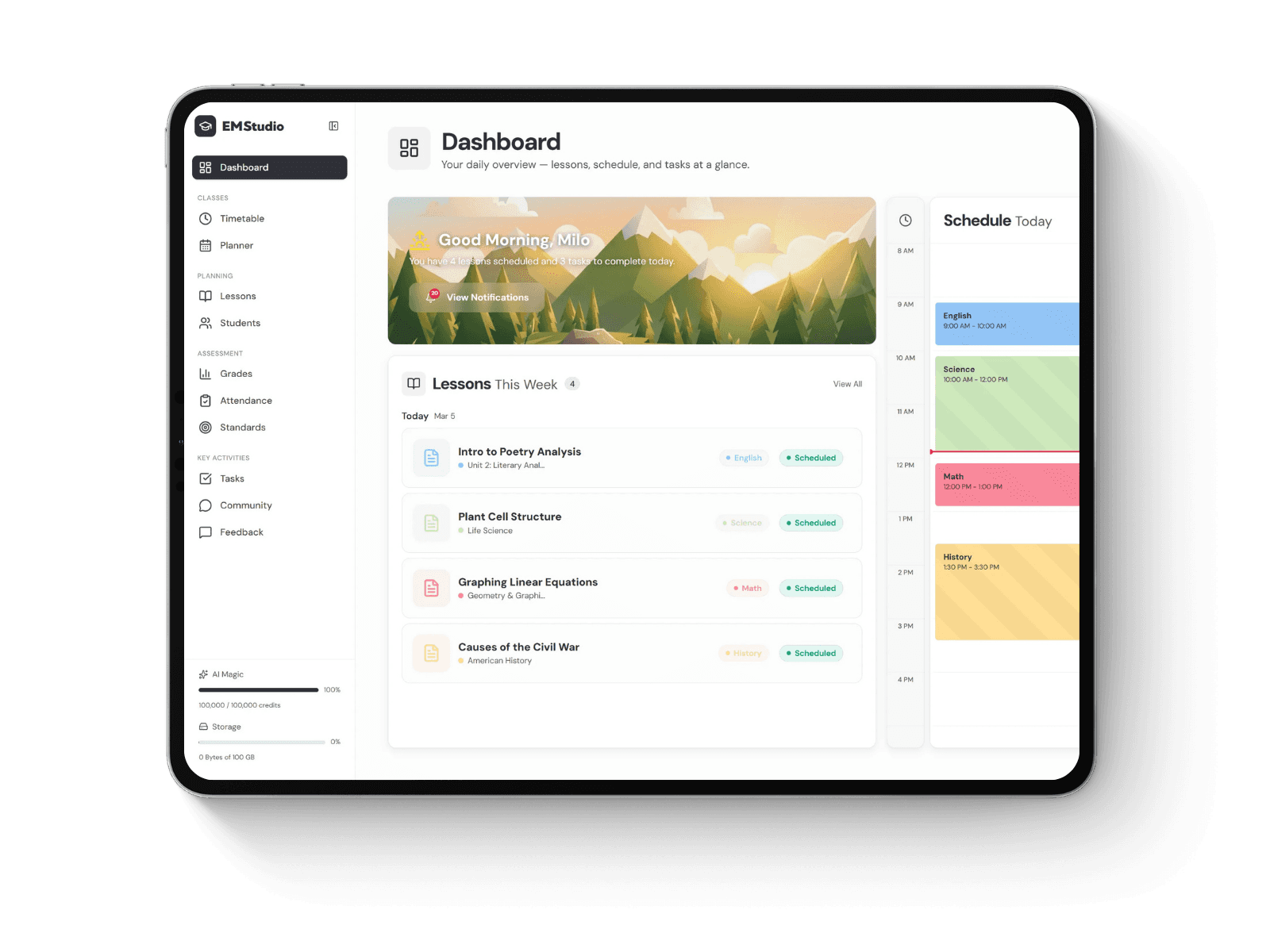
EMStudio is a free teaching management app — manage your classes, students, lessons, and more!
Learn More
Still grading everything by hand?
EMStudio is a free teaching management app — manage your classes, students, lessons, and more!
Learn More
Table of Contents
Replacing Sticky Notes With a Password Vault
A password vault is an application that stores credentials in an encrypted form and unlocks them with one strong master password. Staff remember a single passphrase, and the vault fills in the rest. Because the stored entries are scrambled, someone who gains access to the data without the master password sees only unreadable text. Many vaults can also generate long, random passwords, which removes the temptation to invent simple ones.
Schools benefit most from the shared features. A vault can hold credentials for a department's shared tools, such as a subscription to a reading platform, and share them with a group without anyone seeing or typing the password. When a staff member leaves, an administrator removes their access to the shared folder instead of changing the password and telling everyone again.
Rolling this out works best when it starts small. A pilot with the front office or one department shows where staff get stuck before the whole school is involved. Short training sessions that cover saving a login, filling it in, and locking the vault are usually enough, since the daily routine is simpler than the one it replaces.
Single Sign-On and the Case for Fewer Logins
Single sign-on lets a person log in once and reach many connected applications without entering credentials again. Fewer logins also make good password habits realistic, and current guidance fromNIST favors longer passwords and changes only when there is evidence of compromise. One well-protected account is far easier to maintain that way than fifty separate ones. Behind the scenes, a trusted identity provider confirms who the user is and passes that confirmation to each app. Schools that already use Google Workspace for Education or Microsoft 365 often have this identity layer in place, and many education vendors support signing in through it.
The security benefit is concentration. Instead of fifty separate passwords scattered across vendors with varying standards, there is one central account that can be protected heavily. Administrators can enforce requirements in one place, and disabling a single account cuts off access everywhere at once.
Single sign-on does not cover every tool, though. Older software and small niche apps often lack support, which is why it pairs well with a vault. The vault handles the leftovers that cannot connect to the central login.
Making Multi-Factor Authentication Practical
Multi-factor authentication asks for a second proof of identity beyond the password, such as a code from an app or a physical security key. Even if a password is stolen in a phishing email, the attacker still cannot get in without that second item. Phishing remains a common route into school systems, so this step blocks a very ordinary type of attack.
Younger students create a practical problem, since many do not carry phones. Schools often apply the strongest requirements to staff and administrators, whose accounts reach sensitive records, and use lighter methods for students. Options for the youngest children include picture passwords, QR code badges, or class-managed sign-in on shared devices.
Automating Accounts Through the Student Lifecycle
Manual account creation is slow and error-prone. Each fall brings new enrollments, schedule changes, and transfers, and each spring brings departures. Tools that sync with the student information system can create accounts, place users in the right groups, and update access when a class changes. Standards such as OneRoster exist to move roster data between education platforms in a consistent format.
Removal matters as much as creation. Old accounts belonging to former students, substitute teachers, or contractors are quiet security gaps because nobody is watching them. Automated deprovisioning closes the gap by disabling access when someone is marked as withdrawn or no longer employed.
A regular review adds a safety net. Once a term, the IT team can compare active accounts against current staff and enrollment lists, then confirm that permissions match each person's role. Teachers rarely need access to financial systems, and the review catches cases where permissions have drifted.
Building a Security Culture That Staff Will Follow
Tools only work when people use them. Policies that demand frequent forced password changes tend to backfire, because staff respond with small predictable edits like adding a number at the end. Allowing people to keep a strong password until there is a reason to replace it is easier on them and stronger in practice.
Clear, short guidance helps more than a thick policy binder. A one-page explanation of how to spot a suspicious email, who to contact, and how to reset access gives teachers something usable in the moment. Sharing real examples, such as a fake message pretending to come from the district office, makes the lesson stick.
Less Friction, Stronger Defenses
Schools that treat convenience and protection as partners tend to land on the same pattern: one central identity where possible, a vault for everything else, a second factor on the accounts that matter most, and automation to keep access current. Each piece removes a task from busy people while narrowing the openings an attacker could use. The result is a system where doing the secure thing is also the easiest thing, which is the surest way to keep it in use year after year.
Replacing Sticky Notes With a Password Vault
A password vault is an application that stores credentials in an encrypted form and unlocks them with one strong master password. Staff remember a single passphrase, and the vault fills in the rest. Because the stored entries are scrambled, someone who gains access to the data without the master password sees only unreadable text. Many vaults can also generate long, random passwords, which removes the temptation to invent simple ones.
Schools benefit most from the shared features. A vault can hold credentials for a department's shared tools, such as a subscription to a reading platform, and share them with a group without anyone seeing or typing the password. When a staff member leaves, an administrator removes their access to the shared folder instead of changing the password and telling everyone again.
Rolling this out works best when it starts small. A pilot with the front office or one department shows where staff get stuck before the whole school is involved. Short training sessions that cover saving a login, filling it in, and locking the vault are usually enough, since the daily routine is simpler than the one it replaces.
Single Sign-On and the Case for Fewer Logins
Single sign-on lets a person log in once and reach many connected applications without entering credentials again. Fewer logins also make good password habits realistic, and current guidance fromNIST favors longer passwords and changes only when there is evidence of compromise. One well-protected account is far easier to maintain that way than fifty separate ones. Behind the scenes, a trusted identity provider confirms who the user is and passes that confirmation to each app. Schools that already use Google Workspace for Education or Microsoft 365 often have this identity layer in place, and many education vendors support signing in through it.
The security benefit is concentration. Instead of fifty separate passwords scattered across vendors with varying standards, there is one central account that can be protected heavily. Administrators can enforce requirements in one place, and disabling a single account cuts off access everywhere at once.
Single sign-on does not cover every tool, though. Older software and small niche apps often lack support, which is why it pairs well with a vault. The vault handles the leftovers that cannot connect to the central login.
Making Multi-Factor Authentication Practical
Multi-factor authentication asks for a second proof of identity beyond the password, such as a code from an app or a physical security key. Even if a password is stolen in a phishing email, the attacker still cannot get in without that second item. Phishing remains a common route into school systems, so this step blocks a very ordinary type of attack.
Younger students create a practical problem, since many do not carry phones. Schools often apply the strongest requirements to staff and administrators, whose accounts reach sensitive records, and use lighter methods for students. Options for the youngest children include picture passwords, QR code badges, or class-managed sign-in on shared devices.
Automating Accounts Through the Student Lifecycle
Manual account creation is slow and error-prone. Each fall brings new enrollments, schedule changes, and transfers, and each spring brings departures. Tools that sync with the student information system can create accounts, place users in the right groups, and update access when a class changes. Standards such as OneRoster exist to move roster data between education platforms in a consistent format.
Removal matters as much as creation. Old accounts belonging to former students, substitute teachers, or contractors are quiet security gaps because nobody is watching them. Automated deprovisioning closes the gap by disabling access when someone is marked as withdrawn or no longer employed.
A regular review adds a safety net. Once a term, the IT team can compare active accounts against current staff and enrollment lists, then confirm that permissions match each person's role. Teachers rarely need access to financial systems, and the review catches cases where permissions have drifted.
Building a Security Culture That Staff Will Follow
Tools only work when people use them. Policies that demand frequent forced password changes tend to backfire, because staff respond with small predictable edits like adding a number at the end. Allowing people to keep a strong password until there is a reason to replace it is easier on them and stronger in practice.
Clear, short guidance helps more than a thick policy binder. A one-page explanation of how to spot a suspicious email, who to contact, and how to reset access gives teachers something usable in the moment. Sharing real examples, such as a fake message pretending to come from the district office, makes the lesson stick.
Less Friction, Stronger Defenses
Schools that treat convenience and protection as partners tend to land on the same pattern: one central identity where possible, a vault for everything else, a second factor on the accounts that matter most, and automation to keep access current. Each piece removes a task from busy people while narrowing the openings an attacker could use. The result is a system where doing the secure thing is also the easiest thing, which is the surest way to keep it in use year after year.
Still grading everything by hand?
EMStudio is a free teaching management app — manage your classes, students, lessons, and more!
Learn More
Still grading everything by hand?
EMStudio is a free teaching management app — manage your classes, students, lessons, and more!
Learn More



Notion4Teachers
Notion templates to simplify administrative tasks and enhance your teaching experience.



2026 Notion4Teachers. All Rights Reserved.
Notion4Teachers
Notion templates to simplify administrative tasks and enhance your teaching experience.
2026 Notion4Teachers. All Rights Reserved.
Notion4Teachers
Notion templates to simplify administrative tasks and enhance your teaching experience.
2026 Notion4Teachers. All Rights Reserved.