
ICT Teaching: 5 Steps to Successful Classroom Integration
ICT Teaching: 5 Steps to Successful Classroom Integration

Article by
Milo
ESL Content Coordinator & Educator
ESL Content Coordinator & Educator
All Posts
UNESCO reported that over 90% of the world's student population faced school closures at the height of the COVID-19 pandemic. That abrupt shift forced millions of teachers to adopt video calls and digital assignments overnight, often without training or support. Three years later, you still see the aftermath: interactive whiteboards used as expensive projector screens, tablets collecting dust in charging carts, and lesson plans adapted to fit the tool, not the learning goal.
ICT teaching isn't about surviving the next lockdown. It's about selecting the right tool for a specific learning outcome, designing lessons where technology serves the pedagogy, and keeping instruction moving when the Wi-Fi drops. After fifteen years of watching edtech fads come and go, I've learned that successful integration follows a clear sequence. These five steps will help you audit what you have, choose tools that actually fit your curriculum, and build blended lessons that don't fall apart when someone's Chromebook won't connect.
Still grading everything by hand?
EMStudio is a free teaching management app — manage your classes, students, lessons, and more!
Learn More

Still grading everything by hand?
EMStudio is a free teaching management app — manage your classes, students, lessons, and more!
Learn More
Table of Contents
Essential Foundations Before You Begin
Hattie's Visible Learning research puts technology integration effect sizes between 0.45 and 0.60. That is medium impact, but only when pedagogy drives the tool selection. A room full of Chromebooks won't boost student engagement if teachers lack skills to use them well. Before buying anything, run a readiness diagnostic. Check three non-negotiables: your digital competency, your building's infrastructure, and whether your curriculum needs the technology. Skip this step and you join thousands of schools with carts gathering dust.
Assessing Your Digital Competency Level
The ISTE Standards for Educators offer the clearest benchmark. Focus on three domains: Learner, Leader, and Citizen. Can you model digital literacy while managing your own growth?
Test yourself against concrete tasks. Administer Google Workspace Admin Console policies. Build pivot tables in Excel to analyze gradebook trends. Configure grade passback between your LMS and SIS. Troubleshoot basic network connectivity without calling IT.
Use this four-level rubric:
Novice: You wait for IT support to unblock websites.
Developing: You manage classroom software independently.
Proficient: You train peers and troubleshoot common errors.
Transformative: You design district-wide initiatives in ict teaching.
Bandwidth and Hardware Infrastructure Requirements
The FCC recommends 1 Mbps per student for basic tasks and 4 Mbps for video. A class of 30 needs 30–120 Mbps dedicated bandwidth. Run speed tests during peak usage. If your network chokes when three classes stream video, fix the pipes before buying devices.
Check hardware minimums. Chromebooks need 4GB RAM and AC dual-band Wi-Fi. Windows or Mac devices require 8GB RAM for video editing. Interactive displays must support 4K at 60Hz.
Plan for replacement cycles. One-to-one devices last four years. Shared cart devices stretch to six. Budget $250–400 per Chromebook and $800–1200 per laptop. See our classroom technology infrastructure requirements.
Rural schools may face a different challenge when traditional wired broadband isn't available. In these situations, EarthLink satellite can provide an alternative internet connection for schools beyond the reach of cable or fiber infrastructure. Before choosing any service, compare its advertised download and upload speeds with your classroom's expected bandwidth requirements, keeping in mind that available capacity may be shared across multiple connected devices.
Rural schools often struggle with limited access to reliable and high-speed internet, hindering their ability to leverage technology for educational purposes. Fortunately, various government programs and initiatives are dedicated to bridging this digital divide. These include grants, subsidies, and partnerships aimed at expanding broadband infrastructure and making internet access more affordable for underserved communities. By exploring and utilizing these resources, rural schools can overcome connectivity barriers and provide their students with equitable learning opportunities in the digital age.
Curriculum Standards for Information and Communication Technology
Map your information and communication technology in education to specific standards. Use the CSTA K-12 Computer Science Standards for computational thinking. Reference the ISTE Standards for Students for digital citizenship. UK teachers should align with the Computing Programme of Study.
Separate digital creation from digital consumption. Video production and coding require different devices than research databases. Kindergarten letter tracing differs from high school 4K editing.
Build a curriculum gap analysis. List objectives that lack technology support. Identify units overdosed with screen time in your blended learning environment. This prevents purchasing software that looks good in demos but misses your teaching goals. Check our comprehensive educational technology integration guide.
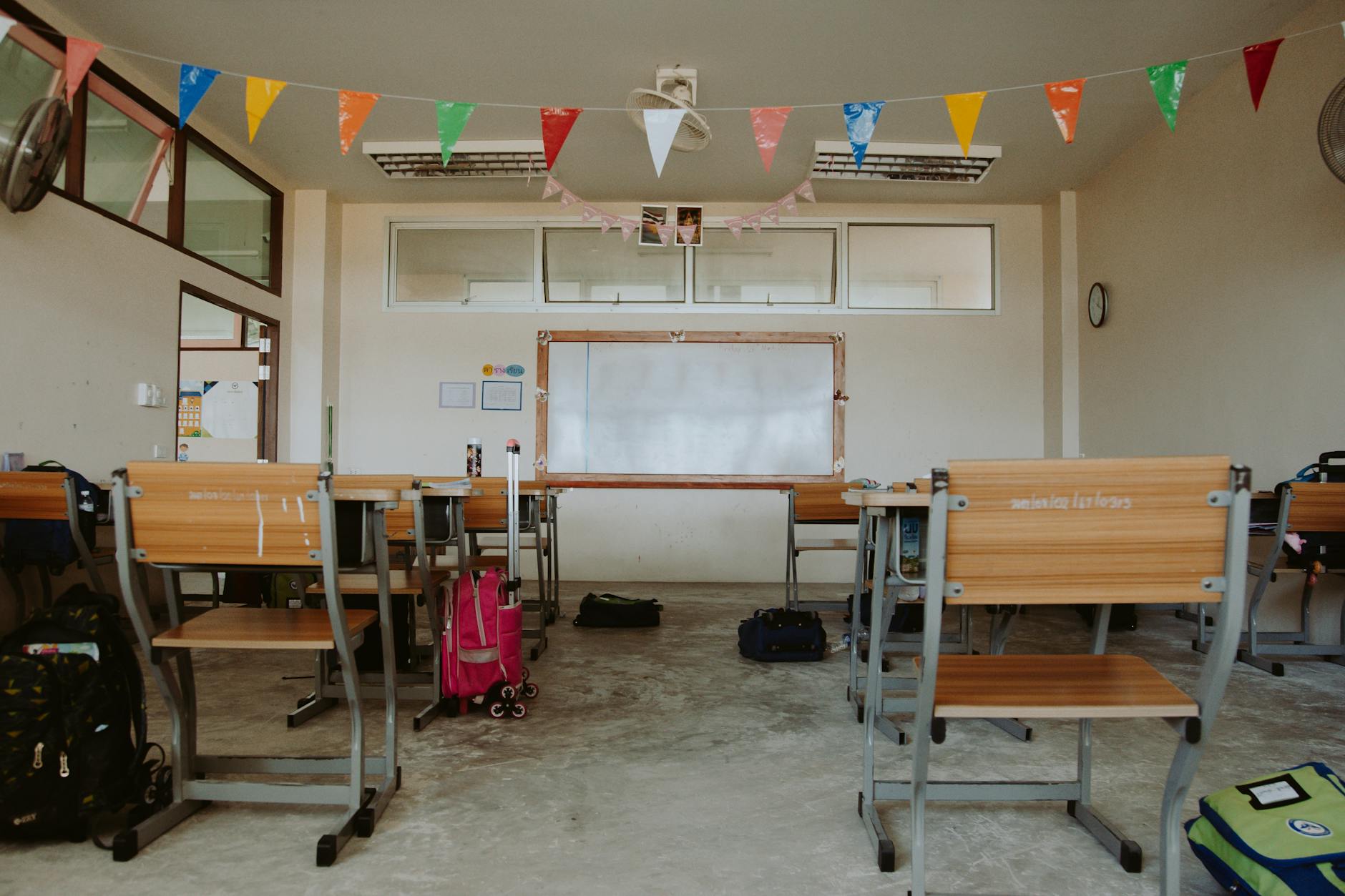
Step 1 — Audit Your Current Classroom Technology field
You can't buy what you need until you know what you have. Last spring, our district purchased 30 new Chromebooks before discovering a cart of 28 still in boxes from the previous year. That mistake cost us $8,400 and three months of deployment time. Accurate auditing prevents purchasing redundant licenses or devices that sit unused in closets.
Pull your login analytics before spending a dime. Most device management consoles show actual usage data from the past semester. Look for hardware with zero logins since winter break. Check which software licenses renewed automatically last July while teachers used free alternatives instead. Those are the budget lines to cut first.
Check your device management console for power-on hours and last login dates. A Chromebook that hasn't synced since October has no usable life left in your classroom, regardless of its manufacture date. Those metrics tell you what actually works versus what merely exists in the inventory.
Inventory Existing Devices and Software Licenses
Create a master tracking system with these columns:
Asset Tag | Device Type | Model Year | OS Version | Warranty Exp | Software Installed | Condition 1-5 | Location |
|---|---|---|---|---|---|---|---|
CB-2201 | Chromebook | 2022 | Chrome OS 118 | 06/2025 | Adobe CC, Office 365 | 4 | Room 12/Cart A |
Run depreciation calculations to justify replacement requests. Devices lose 20% of value in year one, then 10% annually. Anything over four years old needs replacement budgeting. That 2019 cart won't run modern web apps smoothly, and students notice the lag.
Check warranty status carefully. A device three months out of warranty will cost you $200 in repairs before June. Replace it now while the budget line is open.
Catalog the hidden costs that drain budgets silently. Charging cart replacements cost $800–$1,200 each. Classroom headphone sets run $15–$25 per student and disappear constantly. Maintain spare parts inventory: stock 10% extra Chromebook chargers and 5% replacement screens. Nothing stalls ict teaching faster than twenty kids circling a dead battery icon.
Mapping Student Digital Literacy Baselines
Administer a baseline assessment before introducing new platforms. Use the Northstar Digital Literacy Assessment or IC3 Spark standards. Measure typing speed, browser navigation efficiency, and file management skills. Third graders need 25 WPM to handle state testing interfaces; sixth through eighth graders require 40 WPM to complete essay assignments without hunting for keys.
Group students into three distinct tiers. Foundational learners still struggle with double-clicking and password recall. Developing students can enter URLs but panic when error screens appear. Proficient students independently clear cache, restart apps, and help neighbors. This tiering determines your small group rotations for the first six weeks of school.
Match hardware to skill levels immediately. Place Foundational students on touchscreen tablets to remove keyboard barriers. Assign Proficient students as Tech Helpers, a strategy we'll unpack in Step 4. Review your data again in October after students settle into routines. For specific rubrics on assessing student digital literacy baselines, consult our detailed framework.
Document actual login frequency from your admin dashboard. If a student only accessed the LMS twice last semester, buying them a $1,200 laptop makes no sense. Start with shared devices for occasional users.

Step 2 — Select ICT Tools That Align with Specific Learning Outcomes
You have audited your tech field. Now stop buying tools based on YouTube hype. Effective ict teaching requires matching specific learning outcomes to what a tool actually measures or builds. I learned this after wasting a semester with a video platform that tracked nothing I needed for my 7th grade report cards.
Evaluation Criteria for Educational Applications
Stop piloting software because it looks engaging. Integrating ict in teaching and learning requires matching tools to actual outcomes, not marketing videos. I wasted three months on a whiteboard app that tracked nothing aligned to my 4th grade math standards.
Data Privacy: COPPA and FERPA compliance with a signed Data Privacy Agreement stored in your central office.
Interoperability: LTI 1.3 Advantage certification for automatic grade passback to Canvas or Google Classroom.
Accessibility: WCAG 2.1 AA standards with verified screen reader compatibility for visually impaired students.
Offline Capability: Core functions work without Wi-Fi for the twelve percent of my students with unreliable home internet.
Evidence Base: ESSA Tier 2 or 3 research proving measurable impact on reading or math growth.
Weight these ruthlessly. Privacy and accessibility are non-negotiable dealbreakers in my district. If the vendor lacks a signed DPA or fails basic screen reader navigation, I end the call immediately. Interoperability and evidence level determine funding priority. Offline mode matters only if your Step 1 audit revealed specific bandwidth gaps during remote learning days.
Test three platforms against this matrix. i-Ready Connect generates detailed diagnostic data but offers zero creation tools. Canva for Education produces impressive presentations yet provides weak assessment alignment. Khan Academy delivers solid practice though its privacy transparency lags behind alternatives. This process exemplifies leveraging educational applications for enhanced learning without feature bloat.
Balancing Free and Premium ICT Solutions
Your budget requires triage. I use a 70/20/10 split for educational technology that keeps information communication technology in education sustainable without bankrupting the library fund or limiting student engagement.
Seventy percent free or open-source tools: Google Workspace for Education, Flipgrid, and Desmos handle daily workflows and formative checks.
Twenty percent mid-tier subscriptions: Budget $2 to $5 per student annually for interactive platforms like Pear Deck, Padlet, or Nearpod.
Ten percent premium tier: Reserve $8 to $15 per student for intensive assessment systems like i-Ready Connect, Renaissance Star Assessments, or Lexia Core5.
Route decisions based on primary needs. If standardized assessment drives your technology integration goals, select i-Ready Connect or NWEA MAP. When students need creative demonstration of learning in a blended learning environment, choose Adobe Express or WeVideo. For repetitive skill practice supporting digital literacy, deploy IXL or Khan Academy.
Watch for hidden costs that destroy budgets. Premium tools require professional development adding twenty percent to license fees. Single sign-on integration runs five hundred to two thousand dollars per vendor. When canceling, some vendors charge steep data export fees to retrieve student records. Calculate total cost-per-student before board approval. These expenses quickly exceed the sticker price and complicate classroom management when teachers lack training.

Step 3 — Design Blended Lessons That Merge Pedagogy and Technology
You've picked your tools. Now build the architecture that makes ict teaching actually work in a crowded classroom with limited outlets. I learned this running stations with 32 fifth graders and one cart of Chromebooks. The magic happens when pedagogy drives the educational technology, not the other way around.
Structuring the Station Rotation Model
Run three rotations. For elementary, cap each at fifteen minutes. Middle and high schoolers can handle twenty before attention frays. This structure is central to mastering blended learning models that actually function during messy real-world Tuesdays.
Station 1 (Teacher-Led): You work with six to eight kids at a kidney table for targeted small-group instruction.
Station 2 (Online): Students use adaptive software like i-Ready Connect or DreamBox while you teach the first group.
Station 3 (Collaborative): Kids work on offline peer activities or maker projects with physical materials.
Group your kids strategically for maximum student engagement. Split a class of twenty-four to thirty into chunks of six to eight. Use heterogeneous groups at the collaborative station so stronger students model thinking for peers without you micromanaging. Pull homogeneous groups to your teacher-led table based on formative data pulled from that Online station work the day before. This is classroom management through grouping, not just rules.
Transitions kill minutes if you let them. I use a sixty-second timer for device shutdown and startup. Post color-coded seating charts at the front so kids know exactly where to land. Put a "Do Now" on paper at each station before the bell rings. No one stands around waiting for instructions while you handle technology integration hiccups.
Creating Scaffolded Digital Activities for Differentiated Learning
Stop sorting activities into "easy" and "hard" buckets. Map them to Bloom's Digital Taxonomy instead. Remembering and Understanding levels need vocabulary supports like Immersive Reader in Microsoft Edge or the Read&Write extension for text-to-speech. Creating and Evaluating levels get production tools like Book Creator, Adobe Express, or Scratch coding projects. This framework for digital activities for differentiated instruction keeps every student in their growth zone without creating three separate lesson plans.
Last month I ran a 5th-grade math block using this exact setup to build digital literacy across all levels. My lower-tier group used Math Learning Center virtual manipulatives—Geoboards and Number Pieces—to model multiplication concepts concretely and show their thinking. My mid-tier group worked through procedural practice in i-Ready Connect with built-in hints enabled. My high-tier group created tutorial videos using Screencastify where they explained their problem-solving strategies to an imaginary 3rd grader. Same learning target, three different cognitive entry points based on Bloom's levels.
Build accommodations into the browser settings, not just the lesson design. For students with dyslexia, enable OpenDyslexic font in browser extensions. For English Language Learners, deploy dual-language glossary tools like ReadLang or Immersive Reader translation features. These small shifts keep everyone moving without pulling you away from the small group waiting at Station 1.

Step 4 — How Do You Manage Technical Failures Without Losing Instructional Time?
Implement a 60-second troubleshooting protocol using laminated quick-fix cards for common issues like Wi-Fi drops and login errors. Train 2-3 student technology helpers per class to handle basic device restarts and cable checks. Always maintain a low-tech backup activity—such as paper-based graphic organizers—that teaches the same objective, keeping instruction moving when the Wi-Fi dies.
Technology fails when you need it most. A frozen screen mid-lesson kills momentum fast. Smart technology integration means having systems that keep kids learning even when the educational technology crashes.
Establishing Rapid Troubleshooting Protocols
When a Chromebook freezes during your ict teaching block, you see how fragile educational technology really is. You have exactly sixty seconds to fix it before losing the room. I use the 60-Second Rule. Step one: check the Wi-Fi toggle and cable connections.
Step two: hit Ctrl+F5 to hard refresh or clear the cache. Step three: restart only if time permits. After the minute expires, you switch immediately to the analog backup. No exceptions, no tech support calls mid-lesson.
Laminate index cards with QR codes linking to 30-second video fixes. One card shows the district password reset portal. Another demonstrates checking screen orientation locks on tablets. A third walks through force-quitting frozen apps. Tape these to device carts or desk corners where students can scan them without asking you. The videos play on their phones or a classroom spare device. You stop being the IT department.
Build Emergency Lesson Kits for every unit. Mine include printed graphic organizers, reading passages, and whiteboard markers aligned to the same standard as the digital activity. I keep them in a red folder labeled 'Tech Failure Backup.' When the network crashes during blended learning activities, you grab the paper version and keep teaching. The learning objective never changes, only the tool does. Your classroom management stays intact because the work continues without interruption.
Training Student Technology Helpers for Peer Support
Stop crawling around fixing cables yourself. Select two or three Tech Helpers per class through a simple application process. I choose fourth graders and up who show patience. They complete basic digital citizenship training and sign a confidentiality agreement promising never to handle passwords or personal data. This builds digital literacy while freeing you to actually teach.
Train them on five specific tasks only:
Distribute devices from the cart and collect them during cleanup.
Help peers navigate to login screens without typing passwords.
Manage cable organization under tables to prevent trip hazards.
Report hardware damage through a simple Google Form.
Point classmates to the laminated troubleshooting cards when screens freeze.
When implementing digital safety protocols, these clear boundaries keep everyone secure. They maintain student engagement because peers trust the system.
Rotate the role weekly so every student builds competency. Helpers earn certificates or small perks like first choice of device or line leader status. Explicitly teach them never to touch another student's screen without permission. Privacy matters even when offering help. By December, my third graders can solve half their own technical problems before I even look up from my small group.

Common Pitfalls in ICT Teaching and Long-Term Sustainability Strategies
Avoiding Technology for Technology's Sake
You know ict teaching has gone sideways when the Chromebooks get in the way. The lesson stalls while you fiddle with settings. Watch for these five warning signs in your classroom.
You run a Kahoot or Quizizz but skip the post-game analysis that connects the activity to your actual learning objectives.
You burn fifteen minutes of a forty-five minute period just getting everyone logged in or troubleshooting connections.
You select apps with excessive animation where the game mechanic overshadows the content, like math apps where students focus on earning badges before solving problems.
You require students to learn a new tool every week without giving them time to achieve mastery or fluency.
You use virtual dissection apps with elementary students before letting them handle physical specimens and develop concrete understanding first.
Run the Substitution Test before any digital lesson. Ask yourself what the technology adds beyond a paper equivalent. If the digital activity merely substitutes a worksheet without adding collaboration, faster feedback, or differentiation, revert to the analog version. Wait for a better tool.
Implement the Shiny Object prevention protocol. Mandate a forty-eight hour cooling off period between demoing a new app and purchasing licenses. Require pilot testing with three diverse students before any full rollout. This prevents impulse buys that gather digital dust.
These mistakes drain instructional time and frustrate students. When you catch yourself falling into these patterns, stop and recalibrate. Your students learn better when the technology serves the lesson.
Maintaining Professional Development and System Updates
Prevent the sustainability trap where expensive platforms sit dormant because nobody planned beyond the purchase order. Schools abandon tools when teachers lack support, wasting thousands and killing confidence. This cycle repeats every budget season without proper maintenance plans.
Block your calendar for two hours monthly dedicated to ICT skills, plus six hours quarterly for new tool onboarding. Treat this time as non-negotiable to prevent skill atrophy. If you skip this, your digital literacy degrades faster than you think.
Access quality training through this ict courses list:
ISTE U offers integration courses ranging from $45 to $95 per month with practical classroom applications.
Google for Education Training Center provides free courses leading to Level 1 and Level 2 Certification.
Microsoft Learn Educator Center delivers free MIE badges and specialized learning paths for classroom management.
Coursera hosts "Learning to Teach Online" from the University of New South Wales.
EdX offers "Introduction to ICT in Education" through the University of London.
Review all software licenses quarterly and cancel unused subscriptions. Update hardware inventory bi-annually to identify failing devices before they disrupt lessons.
Refresh your acceptable use policy annually to address new technologies like AI chatbots. Budget ten percent of technology funds annually for PD, not just hardware. Shifting money from devices to training ensures your existing tech actually gets used. For detailed workflows, see our guide on managing software updates and technical maintenance.

What to Remember About Ict Teaching
Start with your learning goals, not the app store. The best ict teaching happens when you map technology to specific outcomes your students need to hit, then build blended lessons that actually support those targets. Your current Chromebooks and that aging projector work fine if the lesson design is solid and you know exactly what digital literacy skill you're building that week.
Tech will fail. Prepare your paper backups and offline activities before the bell rings, not while the Wi-Fi spins and twenty fourth-graders stare at you. That five-minute buffer and your calm response model problem-solving for students better than any slideshow could.
Sustainability beats novelty every time. Pick two or three educational technology tools and use them well all year rather than chasing every new platform your district demos. Your students need the routine of familiar classroom management systems more than they need another password to forget by Monday.

Essential Foundations Before You Begin
Hattie's Visible Learning research puts technology integration effect sizes between 0.45 and 0.60. That is medium impact, but only when pedagogy drives the tool selection. A room full of Chromebooks won't boost student engagement if teachers lack skills to use them well. Before buying anything, run a readiness diagnostic. Check three non-negotiables: your digital competency, your building's infrastructure, and whether your curriculum needs the technology. Skip this step and you join thousands of schools with carts gathering dust.
Assessing Your Digital Competency Level
The ISTE Standards for Educators offer the clearest benchmark. Focus on three domains: Learner, Leader, and Citizen. Can you model digital literacy while managing your own growth?
Test yourself against concrete tasks. Administer Google Workspace Admin Console policies. Build pivot tables in Excel to analyze gradebook trends. Configure grade passback between your LMS and SIS. Troubleshoot basic network connectivity without calling IT.
Use this four-level rubric:
Novice: You wait for IT support to unblock websites.
Developing: You manage classroom software independently.
Proficient: You train peers and troubleshoot common errors.
Transformative: You design district-wide initiatives in ict teaching.
Bandwidth and Hardware Infrastructure Requirements
The FCC recommends 1 Mbps per student for basic tasks and 4 Mbps for video. A class of 30 needs 30–120 Mbps dedicated bandwidth. Run speed tests during peak usage. If your network chokes when three classes stream video, fix the pipes before buying devices.
Check hardware minimums. Chromebooks need 4GB RAM and AC dual-band Wi-Fi. Windows or Mac devices require 8GB RAM for video editing. Interactive displays must support 4K at 60Hz.
Plan for replacement cycles. One-to-one devices last four years. Shared cart devices stretch to six. Budget $250–400 per Chromebook and $800–1200 per laptop. See our classroom technology infrastructure requirements.
Rural schools may face a different challenge when traditional wired broadband isn't available. In these situations, EarthLink satellite can provide an alternative internet connection for schools beyond the reach of cable or fiber infrastructure. Before choosing any service, compare its advertised download and upload speeds with your classroom's expected bandwidth requirements, keeping in mind that available capacity may be shared across multiple connected devices.
Rural schools often struggle with limited access to reliable and high-speed internet, hindering their ability to leverage technology for educational purposes. Fortunately, various government programs and initiatives are dedicated to bridging this digital divide. These include grants, subsidies, and partnerships aimed at expanding broadband infrastructure and making internet access more affordable for underserved communities. By exploring and utilizing these resources, rural schools can overcome connectivity barriers and provide their students with equitable learning opportunities in the digital age.
Curriculum Standards for Information and Communication Technology
Map your information and communication technology in education to specific standards. Use the CSTA K-12 Computer Science Standards for computational thinking. Reference the ISTE Standards for Students for digital citizenship. UK teachers should align with the Computing Programme of Study.
Separate digital creation from digital consumption. Video production and coding require different devices than research databases. Kindergarten letter tracing differs from high school 4K editing.
Build a curriculum gap analysis. List objectives that lack technology support. Identify units overdosed with screen time in your blended learning environment. This prevents purchasing software that looks good in demos but misses your teaching goals. Check our comprehensive educational technology integration guide.
Step 1 — Audit Your Current Classroom Technology field
You can't buy what you need until you know what you have. Last spring, our district purchased 30 new Chromebooks before discovering a cart of 28 still in boxes from the previous year. That mistake cost us $8,400 and three months of deployment time. Accurate auditing prevents purchasing redundant licenses or devices that sit unused in closets.
Pull your login analytics before spending a dime. Most device management consoles show actual usage data from the past semester. Look for hardware with zero logins since winter break. Check which software licenses renewed automatically last July while teachers used free alternatives instead. Those are the budget lines to cut first.
Check your device management console for power-on hours and last login dates. A Chromebook that hasn't synced since October has no usable life left in your classroom, regardless of its manufacture date. Those metrics tell you what actually works versus what merely exists in the inventory.
Inventory Existing Devices and Software Licenses
Create a master tracking system with these columns:
Asset Tag | Device Type | Model Year | OS Version | Warranty Exp | Software Installed | Condition 1-5 | Location |
|---|---|---|---|---|---|---|---|
CB-2201 | Chromebook | 2022 | Chrome OS 118 | 06/2025 | Adobe CC, Office 365 | 4 | Room 12/Cart A |
Run depreciation calculations to justify replacement requests. Devices lose 20% of value in year one, then 10% annually. Anything over four years old needs replacement budgeting. That 2019 cart won't run modern web apps smoothly, and students notice the lag.
Check warranty status carefully. A device three months out of warranty will cost you $200 in repairs before June. Replace it now while the budget line is open.
Catalog the hidden costs that drain budgets silently. Charging cart replacements cost $800–$1,200 each. Classroom headphone sets run $15–$25 per student and disappear constantly. Maintain spare parts inventory: stock 10% extra Chromebook chargers and 5% replacement screens. Nothing stalls ict teaching faster than twenty kids circling a dead battery icon.
Mapping Student Digital Literacy Baselines
Administer a baseline assessment before introducing new platforms. Use the Northstar Digital Literacy Assessment or IC3 Spark standards. Measure typing speed, browser navigation efficiency, and file management skills. Third graders need 25 WPM to handle state testing interfaces; sixth through eighth graders require 40 WPM to complete essay assignments without hunting for keys.
Group students into three distinct tiers. Foundational learners still struggle with double-clicking and password recall. Developing students can enter URLs but panic when error screens appear. Proficient students independently clear cache, restart apps, and help neighbors. This tiering determines your small group rotations for the first six weeks of school.
Match hardware to skill levels immediately. Place Foundational students on touchscreen tablets to remove keyboard barriers. Assign Proficient students as Tech Helpers, a strategy we'll unpack in Step 4. Review your data again in October after students settle into routines. For specific rubrics on assessing student digital literacy baselines, consult our detailed framework.
Document actual login frequency from your admin dashboard. If a student only accessed the LMS twice last semester, buying them a $1,200 laptop makes no sense. Start with shared devices for occasional users.
Step 2 — Select ICT Tools That Align with Specific Learning Outcomes
You have audited your tech field. Now stop buying tools based on YouTube hype. Effective ict teaching requires matching specific learning outcomes to what a tool actually measures or builds. I learned this after wasting a semester with a video platform that tracked nothing I needed for my 7th grade report cards.
Evaluation Criteria for Educational Applications
Stop piloting software because it looks engaging. Integrating ict in teaching and learning requires matching tools to actual outcomes, not marketing videos. I wasted three months on a whiteboard app that tracked nothing aligned to my 4th grade math standards.
Data Privacy: COPPA and FERPA compliance with a signed Data Privacy Agreement stored in your central office.
Interoperability: LTI 1.3 Advantage certification for automatic grade passback to Canvas or Google Classroom.
Accessibility: WCAG 2.1 AA standards with verified screen reader compatibility for visually impaired students.
Offline Capability: Core functions work without Wi-Fi for the twelve percent of my students with unreliable home internet.
Evidence Base: ESSA Tier 2 or 3 research proving measurable impact on reading or math growth.
Weight these ruthlessly. Privacy and accessibility are non-negotiable dealbreakers in my district. If the vendor lacks a signed DPA or fails basic screen reader navigation, I end the call immediately. Interoperability and evidence level determine funding priority. Offline mode matters only if your Step 1 audit revealed specific bandwidth gaps during remote learning days.
Test three platforms against this matrix. i-Ready Connect generates detailed diagnostic data but offers zero creation tools. Canva for Education produces impressive presentations yet provides weak assessment alignment. Khan Academy delivers solid practice though its privacy transparency lags behind alternatives. This process exemplifies leveraging educational applications for enhanced learning without feature bloat.
Balancing Free and Premium ICT Solutions
Your budget requires triage. I use a 70/20/10 split for educational technology that keeps information communication technology in education sustainable without bankrupting the library fund or limiting student engagement.
Seventy percent free or open-source tools: Google Workspace for Education, Flipgrid, and Desmos handle daily workflows and formative checks.
Twenty percent mid-tier subscriptions: Budget $2 to $5 per student annually for interactive platforms like Pear Deck, Padlet, or Nearpod.
Ten percent premium tier: Reserve $8 to $15 per student for intensive assessment systems like i-Ready Connect, Renaissance Star Assessments, or Lexia Core5.
Route decisions based on primary needs. If standardized assessment drives your technology integration goals, select i-Ready Connect or NWEA MAP. When students need creative demonstration of learning in a blended learning environment, choose Adobe Express or WeVideo. For repetitive skill practice supporting digital literacy, deploy IXL or Khan Academy.
Watch for hidden costs that destroy budgets. Premium tools require professional development adding twenty percent to license fees. Single sign-on integration runs five hundred to two thousand dollars per vendor. When canceling, some vendors charge steep data export fees to retrieve student records. Calculate total cost-per-student before board approval. These expenses quickly exceed the sticker price and complicate classroom management when teachers lack training.
Step 3 — Design Blended Lessons That Merge Pedagogy and Technology
You've picked your tools. Now build the architecture that makes ict teaching actually work in a crowded classroom with limited outlets. I learned this running stations with 32 fifth graders and one cart of Chromebooks. The magic happens when pedagogy drives the educational technology, not the other way around.
Structuring the Station Rotation Model
Run three rotations. For elementary, cap each at fifteen minutes. Middle and high schoolers can handle twenty before attention frays. This structure is central to mastering blended learning models that actually function during messy real-world Tuesdays.
Station 1 (Teacher-Led): You work with six to eight kids at a kidney table for targeted small-group instruction.
Station 2 (Online): Students use adaptive software like i-Ready Connect or DreamBox while you teach the first group.
Station 3 (Collaborative): Kids work on offline peer activities or maker projects with physical materials.
Group your kids strategically for maximum student engagement. Split a class of twenty-four to thirty into chunks of six to eight. Use heterogeneous groups at the collaborative station so stronger students model thinking for peers without you micromanaging. Pull homogeneous groups to your teacher-led table based on formative data pulled from that Online station work the day before. This is classroom management through grouping, not just rules.
Transitions kill minutes if you let them. I use a sixty-second timer for device shutdown and startup. Post color-coded seating charts at the front so kids know exactly where to land. Put a "Do Now" on paper at each station before the bell rings. No one stands around waiting for instructions while you handle technology integration hiccups.
Creating Scaffolded Digital Activities for Differentiated Learning
Stop sorting activities into "easy" and "hard" buckets. Map them to Bloom's Digital Taxonomy instead. Remembering and Understanding levels need vocabulary supports like Immersive Reader in Microsoft Edge or the Read&Write extension for text-to-speech. Creating and Evaluating levels get production tools like Book Creator, Adobe Express, or Scratch coding projects. This framework for digital activities for differentiated instruction keeps every student in their growth zone without creating three separate lesson plans.
Last month I ran a 5th-grade math block using this exact setup to build digital literacy across all levels. My lower-tier group used Math Learning Center virtual manipulatives—Geoboards and Number Pieces—to model multiplication concepts concretely and show their thinking. My mid-tier group worked through procedural practice in i-Ready Connect with built-in hints enabled. My high-tier group created tutorial videos using Screencastify where they explained their problem-solving strategies to an imaginary 3rd grader. Same learning target, three different cognitive entry points based on Bloom's levels.
Build accommodations into the browser settings, not just the lesson design. For students with dyslexia, enable OpenDyslexic font in browser extensions. For English Language Learners, deploy dual-language glossary tools like ReadLang or Immersive Reader translation features. These small shifts keep everyone moving without pulling you away from the small group waiting at Station 1.
Step 4 — How Do You Manage Technical Failures Without Losing Instructional Time?
Implement a 60-second troubleshooting protocol using laminated quick-fix cards for common issues like Wi-Fi drops and login errors. Train 2-3 student technology helpers per class to handle basic device restarts and cable checks. Always maintain a low-tech backup activity—such as paper-based graphic organizers—that teaches the same objective, keeping instruction moving when the Wi-Fi dies.
Technology fails when you need it most. A frozen screen mid-lesson kills momentum fast. Smart technology integration means having systems that keep kids learning even when the educational technology crashes.
Establishing Rapid Troubleshooting Protocols
When a Chromebook freezes during your ict teaching block, you see how fragile educational technology really is. You have exactly sixty seconds to fix it before losing the room. I use the 60-Second Rule. Step one: check the Wi-Fi toggle and cable connections.
Step two: hit Ctrl+F5 to hard refresh or clear the cache. Step three: restart only if time permits. After the minute expires, you switch immediately to the analog backup. No exceptions, no tech support calls mid-lesson.
Laminate index cards with QR codes linking to 30-second video fixes. One card shows the district password reset portal. Another demonstrates checking screen orientation locks on tablets. A third walks through force-quitting frozen apps. Tape these to device carts or desk corners where students can scan them without asking you. The videos play on their phones or a classroom spare device. You stop being the IT department.
Build Emergency Lesson Kits for every unit. Mine include printed graphic organizers, reading passages, and whiteboard markers aligned to the same standard as the digital activity. I keep them in a red folder labeled 'Tech Failure Backup.' When the network crashes during blended learning activities, you grab the paper version and keep teaching. The learning objective never changes, only the tool does. Your classroom management stays intact because the work continues without interruption.
Training Student Technology Helpers for Peer Support
Stop crawling around fixing cables yourself. Select two or three Tech Helpers per class through a simple application process. I choose fourth graders and up who show patience. They complete basic digital citizenship training and sign a confidentiality agreement promising never to handle passwords or personal data. This builds digital literacy while freeing you to actually teach.
Train them on five specific tasks only:
Distribute devices from the cart and collect them during cleanup.
Help peers navigate to login screens without typing passwords.
Manage cable organization under tables to prevent trip hazards.
Report hardware damage through a simple Google Form.
Point classmates to the laminated troubleshooting cards when screens freeze.
When implementing digital safety protocols, these clear boundaries keep everyone secure. They maintain student engagement because peers trust the system.
Rotate the role weekly so every student builds competency. Helpers earn certificates or small perks like first choice of device or line leader status. Explicitly teach them never to touch another student's screen without permission. Privacy matters even when offering help. By December, my third graders can solve half their own technical problems before I even look up from my small group.
Common Pitfalls in ICT Teaching and Long-Term Sustainability Strategies
Avoiding Technology for Technology's Sake
You know ict teaching has gone sideways when the Chromebooks get in the way. The lesson stalls while you fiddle with settings. Watch for these five warning signs in your classroom.
You run a Kahoot or Quizizz but skip the post-game analysis that connects the activity to your actual learning objectives.
You burn fifteen minutes of a forty-five minute period just getting everyone logged in or troubleshooting connections.
You select apps with excessive animation where the game mechanic overshadows the content, like math apps where students focus on earning badges before solving problems.
You require students to learn a new tool every week without giving them time to achieve mastery or fluency.
You use virtual dissection apps with elementary students before letting them handle physical specimens and develop concrete understanding first.
Run the Substitution Test before any digital lesson. Ask yourself what the technology adds beyond a paper equivalent. If the digital activity merely substitutes a worksheet without adding collaboration, faster feedback, or differentiation, revert to the analog version. Wait for a better tool.
Implement the Shiny Object prevention protocol. Mandate a forty-eight hour cooling off period between demoing a new app and purchasing licenses. Require pilot testing with three diverse students before any full rollout. This prevents impulse buys that gather digital dust.
These mistakes drain instructional time and frustrate students. When you catch yourself falling into these patterns, stop and recalibrate. Your students learn better when the technology serves the lesson.
Maintaining Professional Development and System Updates
Prevent the sustainability trap where expensive platforms sit dormant because nobody planned beyond the purchase order. Schools abandon tools when teachers lack support, wasting thousands and killing confidence. This cycle repeats every budget season without proper maintenance plans.
Block your calendar for two hours monthly dedicated to ICT skills, plus six hours quarterly for new tool onboarding. Treat this time as non-negotiable to prevent skill atrophy. If you skip this, your digital literacy degrades faster than you think.
Access quality training through this ict courses list:
ISTE U offers integration courses ranging from $45 to $95 per month with practical classroom applications.
Google for Education Training Center provides free courses leading to Level 1 and Level 2 Certification.
Microsoft Learn Educator Center delivers free MIE badges and specialized learning paths for classroom management.
Coursera hosts "Learning to Teach Online" from the University of New South Wales.
EdX offers "Introduction to ICT in Education" through the University of London.
Review all software licenses quarterly and cancel unused subscriptions. Update hardware inventory bi-annually to identify failing devices before they disrupt lessons.
Refresh your acceptable use policy annually to address new technologies like AI chatbots. Budget ten percent of technology funds annually for PD, not just hardware. Shifting money from devices to training ensures your existing tech actually gets used. For detailed workflows, see our guide on managing software updates and technical maintenance.
What to Remember About Ict Teaching
Start with your learning goals, not the app store. The best ict teaching happens when you map technology to specific outcomes your students need to hit, then build blended lessons that actually support those targets. Your current Chromebooks and that aging projector work fine if the lesson design is solid and you know exactly what digital literacy skill you're building that week.
Tech will fail. Prepare your paper backups and offline activities before the bell rings, not while the Wi-Fi spins and twenty fourth-graders stare at you. That five-minute buffer and your calm response model problem-solving for students better than any slideshow could.
Sustainability beats novelty every time. Pick two or three educational technology tools and use them well all year rather than chasing every new platform your district demos. Your students need the routine of familiar classroom management systems more than they need another password to forget by Monday.
Still grading everything by hand?
EMStudio is a free teaching management app — manage your classes, students, lessons, and more!
Learn More
Still grading everything by hand?
EMStudio is a free teaching management app — manage your classes, students, lessons, and more!
Learn More





Notion4Teachers
Notion templates to simplify administrative tasks and enhance your teaching experience.



2026 Notion4Teachers. All Rights Reserved.
Notion4Teachers
Notion templates to simplify administrative tasks and enhance your teaching experience.
2026 Notion4Teachers. All Rights Reserved.
Notion4Teachers
Notion templates to simplify administrative tasks and enhance your teaching experience.
2026 Notion4Teachers. All Rights Reserved.