How to Use a Lesson Plan Generator in Notion

A lesson plan generator takes a few facts about a lesson (topic, grade, length, goal) and writes the plan for you: objectives, materials, a timed sequence of activities and an assessment. In Notion, the Ultimate Teacher Planner has one built in. On its Notion AI Lesson Planner page you fill in a short form and press Generate. Below I make a real 45-minute Year 7 lesson on adding fractions from start to finish. That includes the parts the plan got wrong and how I fixed them.
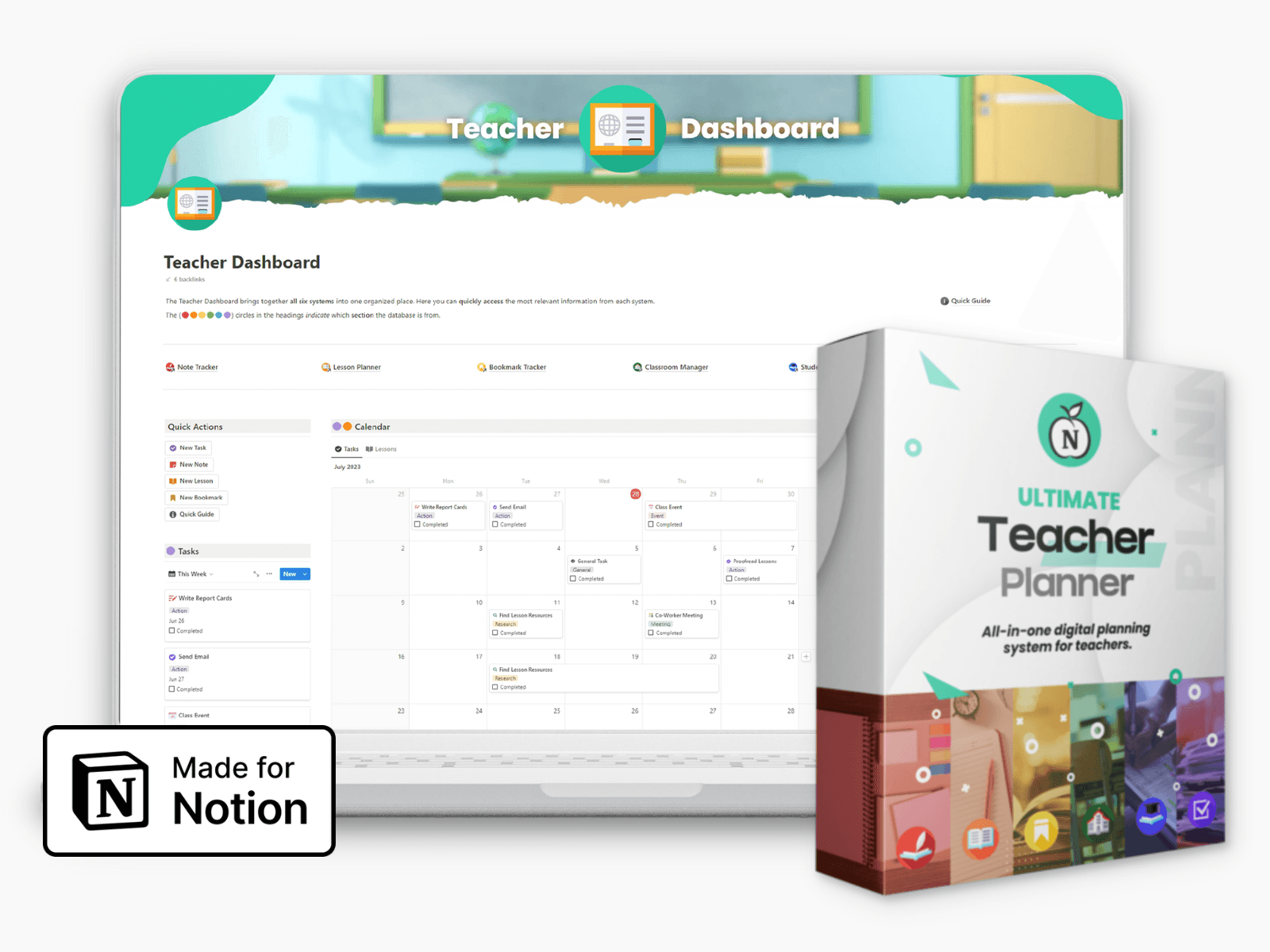
Ultimate Teacher Planner
The ultimate all-in-one education management system in Notion.
What the Notion AI Lesson Planner page gives you
The page is part of the Ultimate Teacher Planner, so your generated plans stay in the same workspace as your classes and timetable, not on a separate website. To find it, open the planner's home page, scroll down to Additional Apps, and click Notion AI Lesson Planner. It sits next to the Education Video Library.
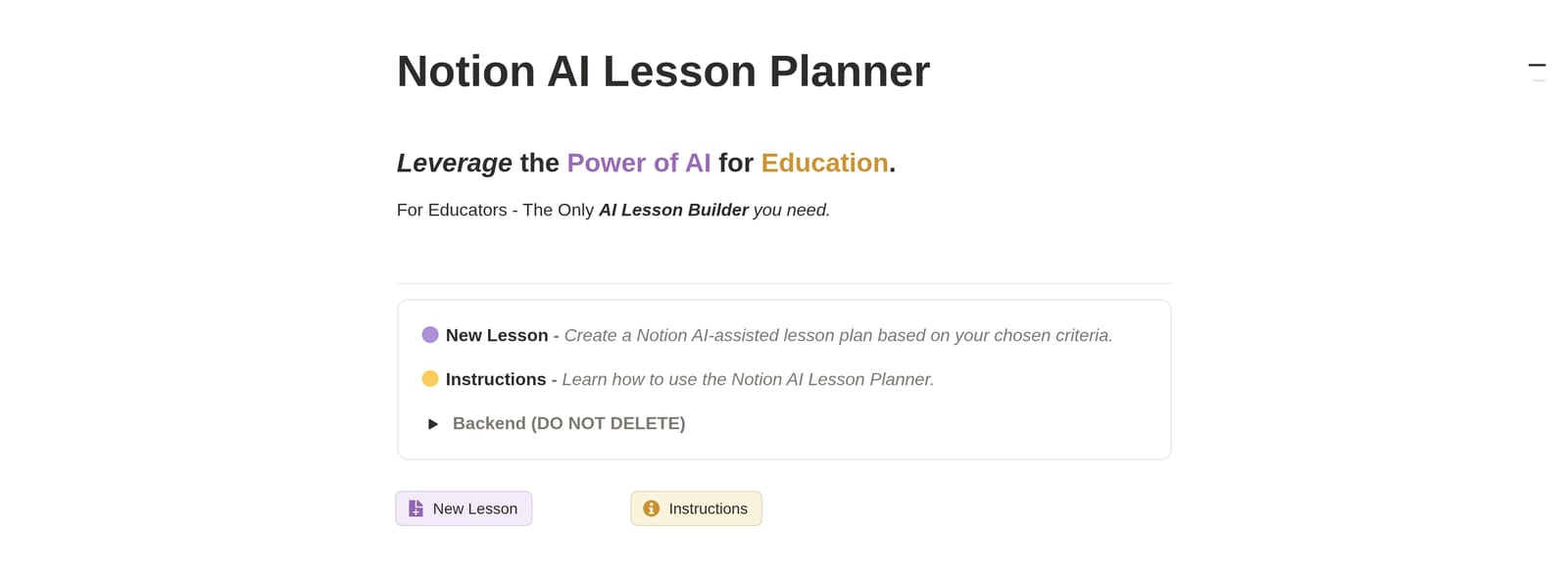
The page has two buttons:
New Lesson makes a new lesson page with the form to fill in.
Instructions opens the template's own notes on using it.
There is also a toggle called Backend (DO NOT DELETE). It holds what makes the page work. Leave it alone.
Every lesson you make becomes a page in a database called Notion AI Lessons. Each lesson page has:
a form in three groups: Basic Information, Core Lesson Details and Lesson Design
a Folder property, for keeping lessons together by class
a Lesson Outline box with a Generate button, which writes the plan
Step 1: Start a new lesson
On the Notion AI Lesson Planner page, click New Lesson.
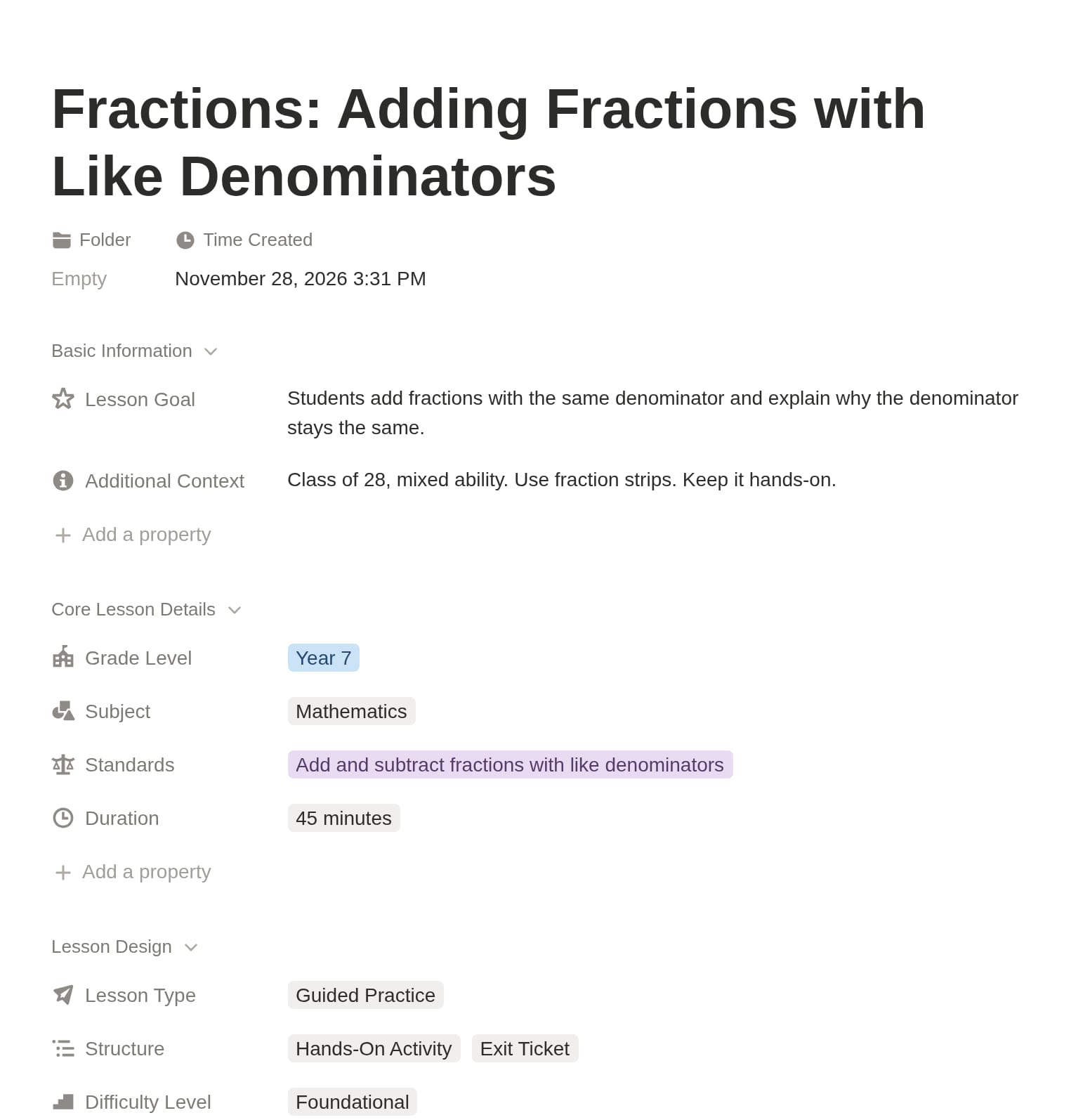
The new lesson opens in a side panel, with the cursor already in its title. Type the lesson's name. I used "Fractions: Adding Fractions with Like Denominators".
Step 2: Tell the generator what you need
Every lesson plan generator asks for the same few things: topic, grade, length, goals and standards. This form asks for them too, as properties. To fill one in, click the empty space to the right of its name. If you click the name itself, a different menu opens (Rename, Edit property, Property visibility and so on). Press Escape to close it and click further right.
Here is what I put in each field:
Lesson Goal (under Basic Information): "Students add fractions with the same denominator and explain why the denominator stays the same." Press Enter to finish. Write it as what students will be able to do. It came back word for word as the plan's lesson goal.
Additional Context: "Class of 28, mixed ability. Use fraction strips. Keep it hands-on." This is where you tell it about your class. Because of this line, the plan built the whole lesson around fraction strips.
Grade Level (under Core Lesson Details) is a list: Not Required, Early Childhood (Pre-K), Elementary (K-6), Middle School (7-8), High School (9-12), College/University and Adult Education. There is no "Year 7", so I typed it and pressed Enter on Create Year 7, which adds it to the list. Middle School (7-8) would have done the job too.
Subject: type the first letters to search the list. Typing "Math" found Mathematics. Click that, not "Create Math", or you end up with two maths options.
Standards lists frameworks such as Common Core State Standards (CCSS), International Baccalaureate (IB), Advanced Placement (AP) and College and Career Readiness Standards. If yours is there, choose it. I typed my standard in my own words instead, "Add and subtract fractions with like denominators", and pressed Enter to create it.
Duration: the length of your lesson, from 15 minutes up. I chose 45 minutes.
Lesson Type (under Lesson Design): the kind of lesson, with choices such as Assessment (Formative), Collaborative Learning, Debate and Direct Instruction. I chose Guided Practice.
Structure takes more than one choice. I clicked Hands-On Activity, then Exit Ticket, then pressed Escape to close the list.
Difficulty Level: Introductory, Foundational, Developing, Intermediate, Challenging, Advanced and a few more. I chose Foundational.
The form also has Resources Needed, Technology and Differentiation. I left those empty. The plan still came with a materials list and with support and extension ideas.
Step 3: Generate the lesson plan
Scroll to the bottom of the lesson page. An empty lesson shows a list of page templates there: New Lesson (Empty), New Lesson (Black), New Lesson (Red), New Lesson (Orange), New Lesson (Yellow), New Lesson (Green) and more. Click one. I chose New Lesson (Green). The page gets a coloured cover and icon, an Instructions toggle and a Lesson Outline box.
Click the line Your AI content will be generated here - click to setup in the Lesson Outline box. Its setup opens, with a long prompt already written and a Done button. I changed nothing and clicked Done.
Click Generate.
Wait. The plan writes itself into the box a few lines at a time, and a 45-minute lesson took a few minutes. Let it finish before you click into it.
The form also has Summary and Outline properties with a magic-wand (AI autofill) button. You can leave them alone: I made the same lesson a second time without touching them, and the plan in the Lesson Outline box came out just as specific to fractions.
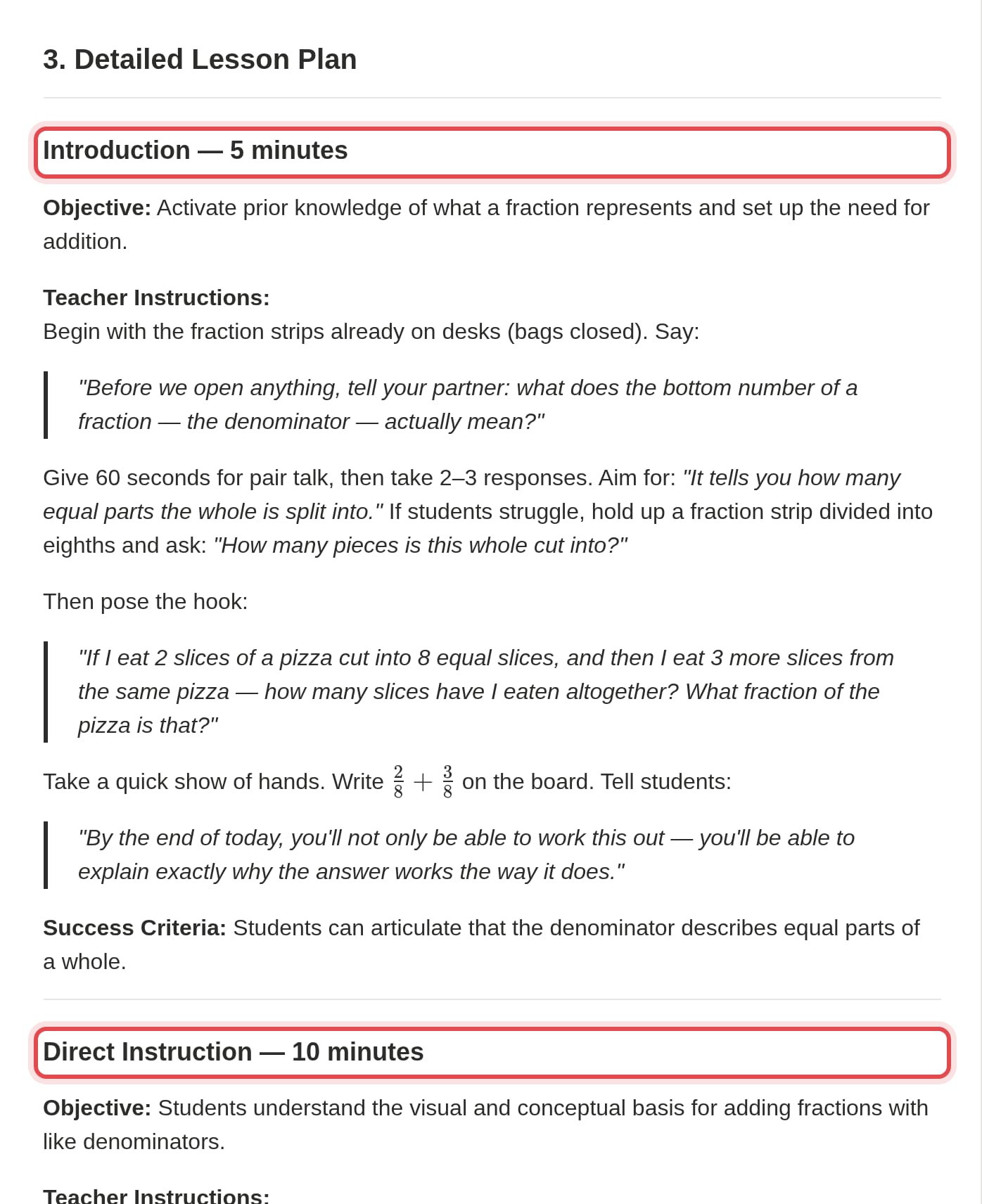
What the generated plan holds
Mine had the parts a usable plan needs, in this order:
A header line with the facts from the form: Year 7 | Mathematics | 45 Minutes | Foundational | Guided Practice.
1. Lesson Overview: the lesson goal, the standard, grade, subject, duration and difficulty, and my class context rewritten as "28 students, mixed ability".
2. Preparation: a materials list (pre-cut fraction strips, a large demonstration set, mini whiteboards, a tiered worksheet, exit ticket slips, a projector), the technology, and how to set up the room.
3. Detailed Lesson Plan: Introduction (5 minutes), Direct Instruction (10), Guided Practice (Hands-On Activity) (15), Independent Practice (10), Closure (3) and Exit Ticket (Assessment) (2). That adds up to exactly 45.
Inside the parts: an Objective for each, Teacher Instructions with lines you can say to the class, and, where it fits, Student Tasks and Success Criteria. Guided Practice also had Differentiation (support and extension) and a Transition into the next part.
Independent practice came as a worksheet in three tiers: Foundational, Core and Extension.
That is the checklist for any generated plan: objectives, materials, a timed sequence, something for students who need help or more challenge, and a way to see what they learned.
Check the plan before you teach it
A generated plan is a first draft. When I read mine closely, I found four things to deal with:
It changed my timing on its own. Under Independent Practice it wrote: "The original outline allocates 20 minutes to independent practice; given the 45-minute total and the time used in other sections, approximately 10 minutes is realistic." Nothing in my form asked for 20 minutes. Add up the minutes yourself.
It left blanks to fill. One line for the teacher to say reads "Notice how [student name] placed the strips". Look for square brackets before class.
It went past the lesson's level. For a Foundational lesson, problem 5 of the guided practice already gives an improper fraction (7/5), and the extension tier includes improper fraction answers. The plan treats that as a talking point. Decide whether your class is ready for it.
It assumed a way of working my class doesn't suit. Independent practice was silent, individual work. My class works better in pairs, so that's what I changed in the next step.
Step 4: Change the plan to fit your class
Once the plan has finished, it's ordinary Notion text. You edit it like any other page.
Click at the end of the heading you want to change. I clicked "Independent Practice — 10 minutes", pressed End to get to the end of the line, and typed " (changed: pairs, not silent work, because my class works better with a partner)".
Read the lines under the heading too. The Student Tasks line still said "Students work silently and independently". I replaced those words, so it now reads: "Students work in pairs, one set of strips between two, recording number sentences and answers. They may use strips as needed. Partners agree on each answer before they write it."
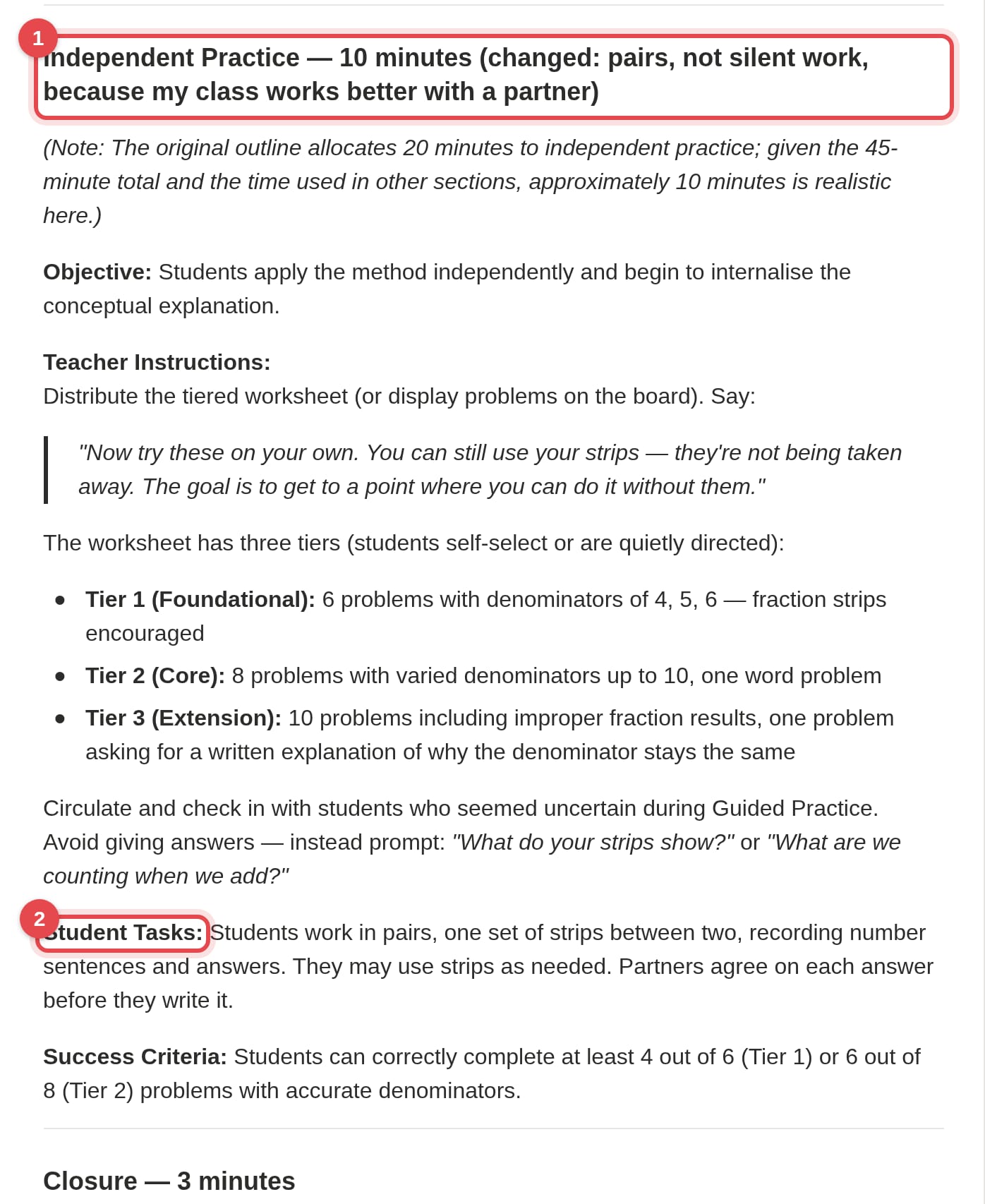
I wrote "changed" into the plan instead of quietly rewriting it. When you reuse the plan next year, or a colleague teaches from it, anyone can see which ideas were the generator's and which were yours. I didn't press Generate again after editing, so I can't tell you what a second run does to your changes.
Step 5: Keep the plan with its class
The page groups lessons with its Folder property. Give each class its own folder and all of that class's plans are in one place.
Scroll to the top of the lesson. Under the title, Folder shows Empty. Click it.
A search box opens, "Link or create a page…". It lists the folders that already exist in Notion AI Lesson Folders. The template comes with one called English.
Type the class's name. I typed "7B Maths". Notion offers New 7B Maths in Notion AI Lesson Folders: click it.
Press Escape. The Folder property now shows 7B Maths.
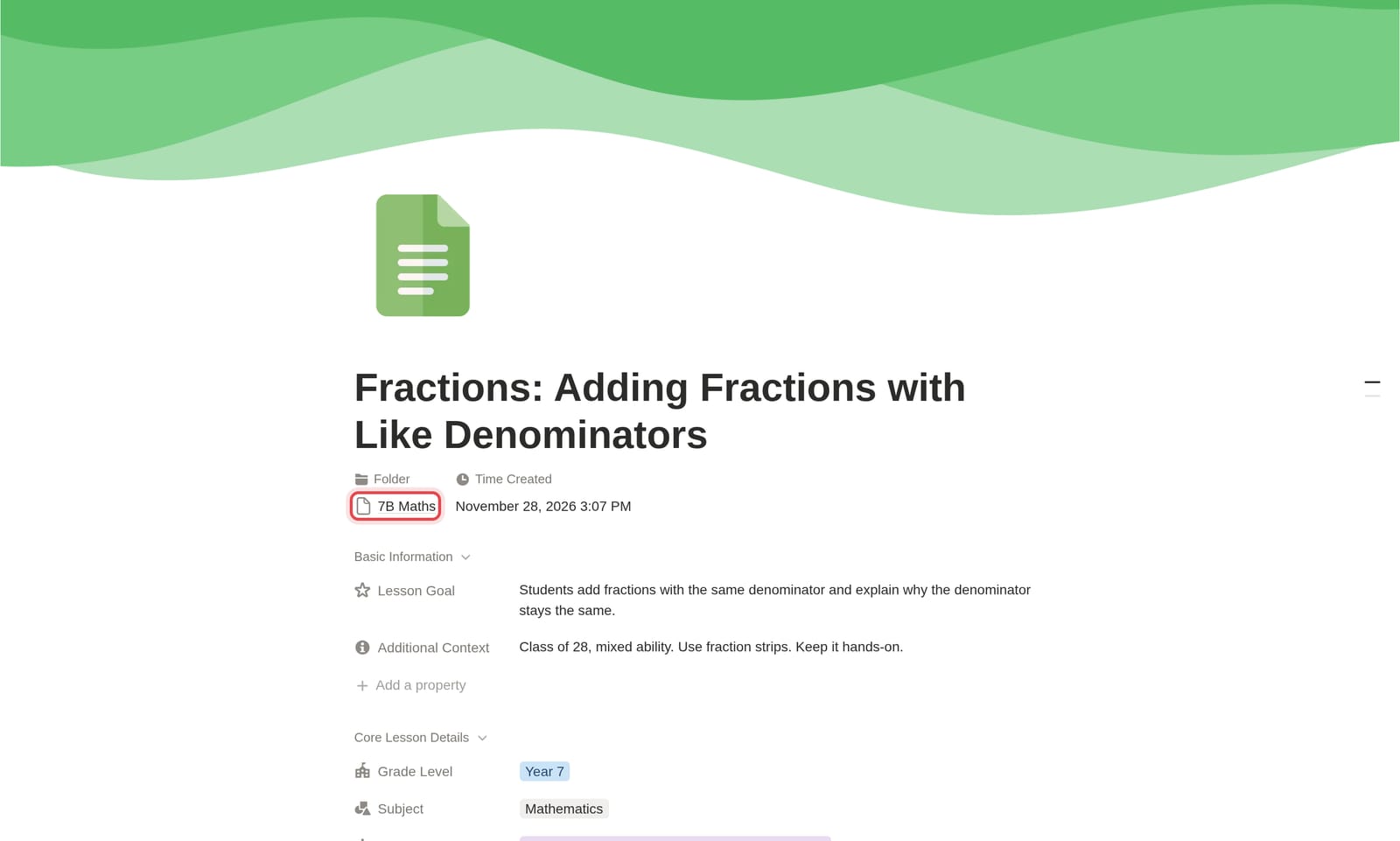
One thing to know: these folders belong to the AI Lesson Planner. They are not the planner's Classes database, and this lesson isn't linked to your class page there or to the planner's Lesson Plans table. I kept my generated plans in folders. For the rest of your planning in the template, see how to streamline lesson planning with Notion.
A substitute plan from the same page
The same page writes a plan for a cover teacher, too. Make a new lesson as in steps 1 to 3 and say it is a cover lesson in Additional Context. I made the same fractions lesson again, with this context: "Cover lesson, teacher absent, no prior knowledge of the class needed. Class of 28, mixed ability. Fraction strips are in the classroom." Then I chose New Lesson (Green) and clicked Generate.
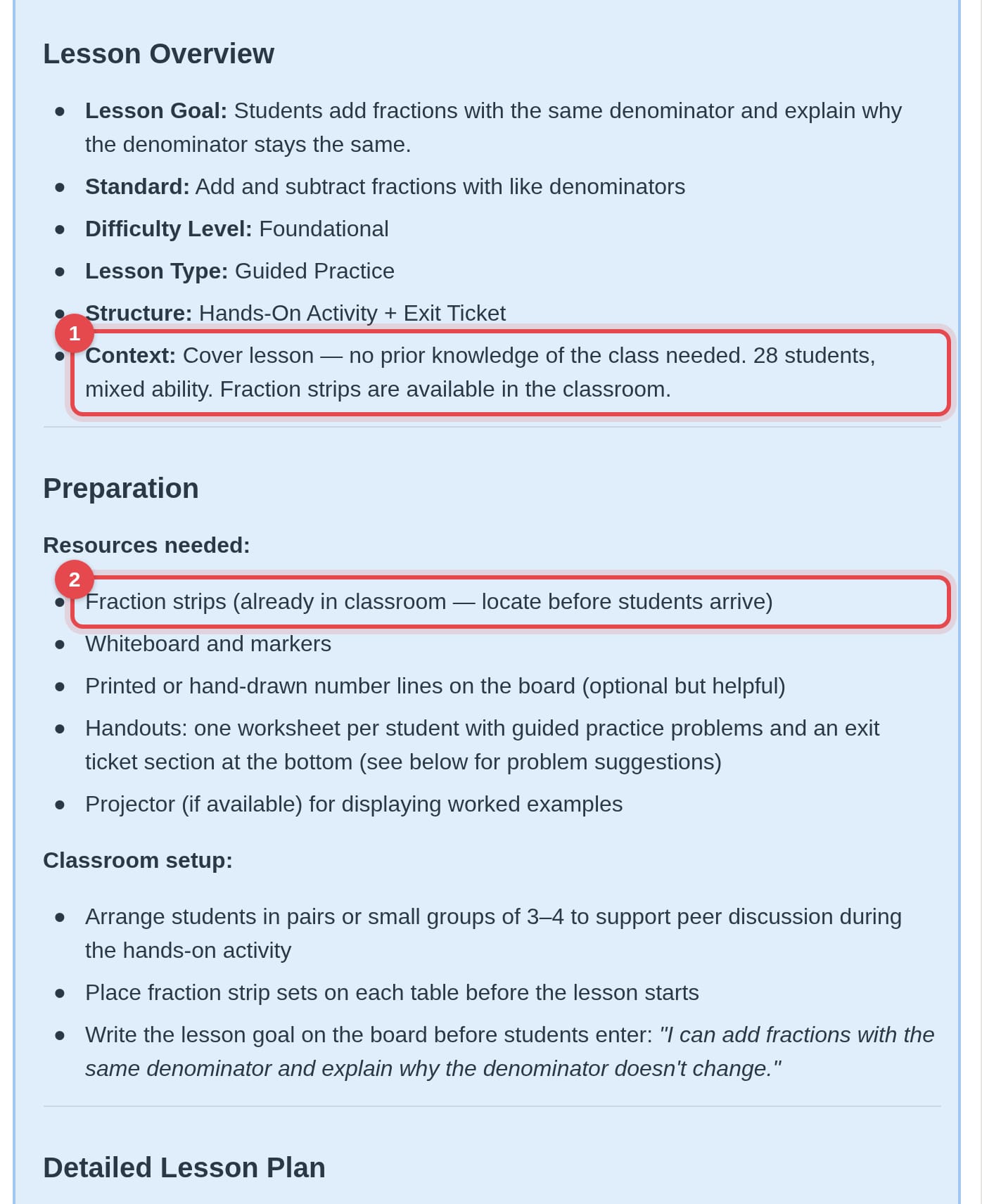
Here is what came back different from my own plan:
It tells the cover teacher where things are. The first resource reads "Fraction strips (already in classroom — locate before students arrive)".
The exit tickets come back to you. "Collect exit tickets as students leave. No marking is needed during the lesson — these are for the class teacher to review afterwards."
Independent practice is simpler. Instead of my plan's three-tier worksheet, it lists a few sums to do individually, one challenge and a one-sentence explanation.
Check it before you leave it on your desk. Its parts add up to 50 minutes (5, 10, 15, 10, 5 and 5) for a 45-minute lesson. And one sum under Direct Instruction came out as "Invalid equation" instead of fractions.
Make it your own
Your own words in the lists. Every list in the form takes a new option: type it and create it. I added "Year 7" and a standard in my own words. If your framework is already in the Standards list, choose it instead, so your lessons stay consistent.
One folder per class. Make a folder for each class you teach (7B Maths, 8A Maths and so on) the first time you file a lesson for it.
A colour per subject. The page templates come in colours (Black, Red, Orange, Green and more). If you use one colour per subject or class, you can tell lessons apart at a glance.
A field of your own. Each group of the form ends with Add a property, if you want to keep something else on the lesson page, such as the date you'll teach it. I didn't test whether Generate reads a property you add.
If you're new to the planner, start with our walkthrough of the Ultimate Digital Teacher Planner. More Notion guides for teachers are on our home page.
When it doesn't go as expected
Clicking a property's name opens a menu instead of letting you type. Press Escape and click to the right of the name.
Clicking the empty space below the form shows a list of page templates, not a line to type on. That's the list you need in step 3, so choose your template there.
The plan seems stuck. It takes a few minutes to write. Wait for it to stop before you edit.
Get the Ultimate Teacher Planner
FAQ
Does this lesson plan generator need Notion AI?
Yes. The Generate button writes the plan with Notion AI, so it needs Notion AI to be available in your workspace.
Can it plan for my grade level and subject?
The Grade Level list runs from Early Childhood (Pre-K) to Adult Education. The Subject list is long and includes Art, Biology, Business, Chemistry and Mathematics. If yours is missing, type it and create it, as I did with Year 7.
How long does it take to generate a lesson plan?
Filling in the form takes a few minutes. The plan appeared a few lines at a time and took a few minutes for a 45-minute lesson.
Can I change the plan after it's generated?
Yes. Once it has finished, it's ordinary text: click anywhere in it and type. Note your changes in the plan so you remember why you made them.
Where are my generated lessons kept?
Each lesson is a page in the Notion AI Lessons database inside the Ultimate Teacher Planner. Use the Folder property to keep it with its class.
Ultimate Teacher Planner
The ultimate all-in-one education management system in Notion.