How to Add Icons in Notion (Emoji, Colored Icons and Your Own)

To add an icon in Notion, hold your pointer over the page title and click Add icon, which appears just above it. A picker opens with three tabs: Emoji, Icons (Notion's own set of simple icons, each in ten colors) and Upload, for a picture of your own. Click the one you want and it sits above the title.
Still grading everything by hand?
EMStudio is a free teaching management app — manage your classes, students, lessons, and more!
Add an icon to a page
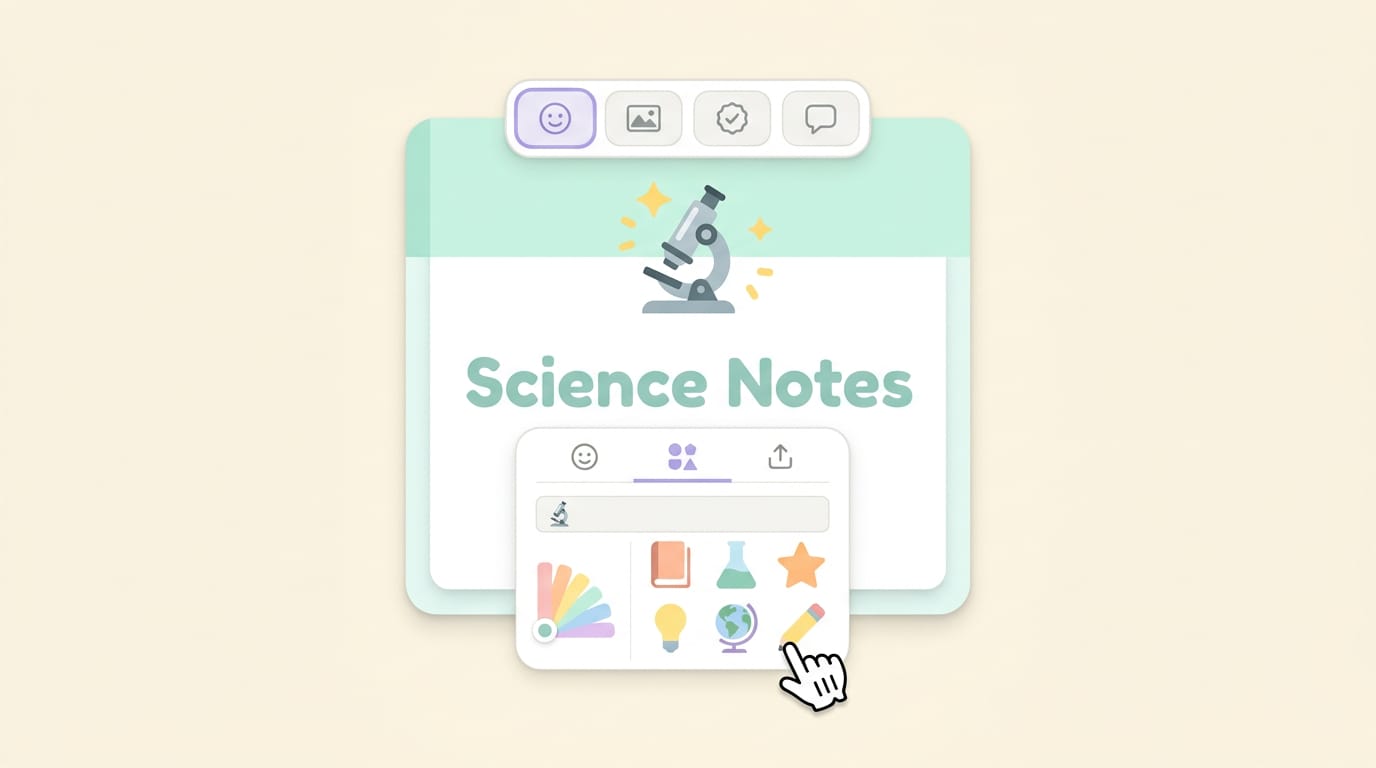
Open the page and hold the pointer over its title. A row of gray buttons appears above it: Add icon, Add cover, Add verification and Add comment.

Click Add icon. The picker opens on the Emoji tab. Nothing goes on the page yet. Notion waits until you choose something.
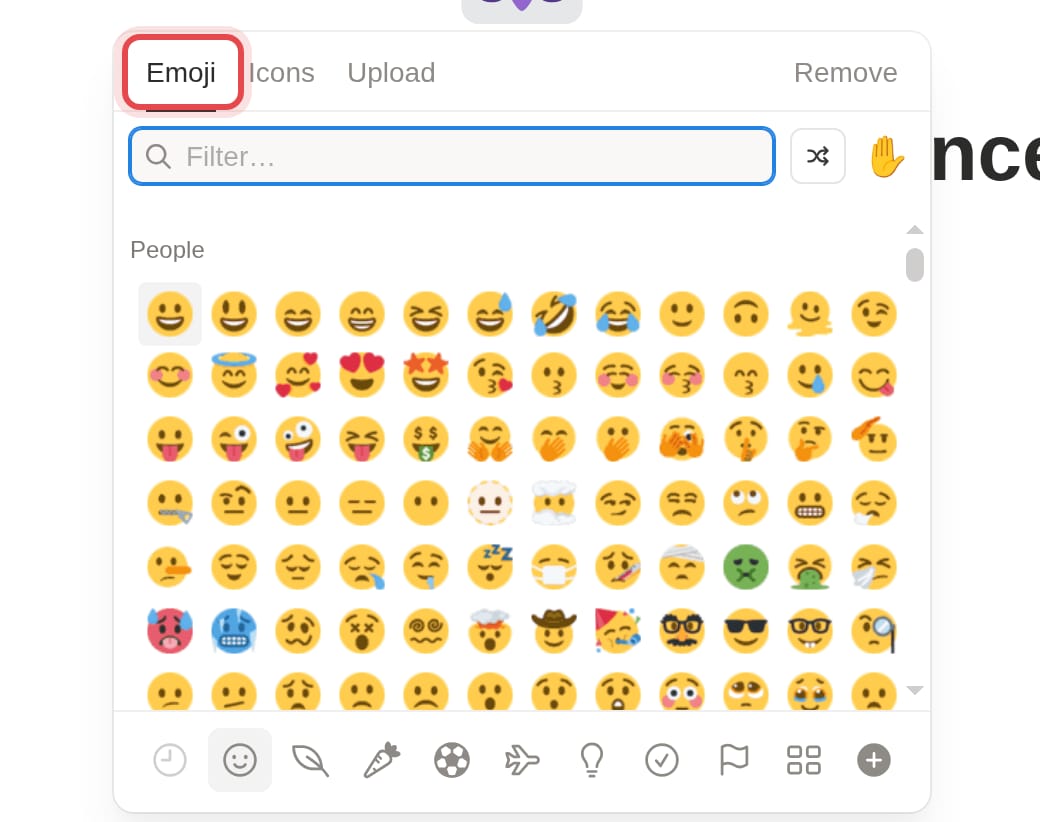
Type a word in the Filter… box. I typed "microscope" for a science page. Then click the emoji. The picker closes straight away and the emoji sits above the title.
When you open the picker again, the emoji you used last are in a Recent row at the top of the Emoji tab. That saves time when you give several pages the same set of icons.
Use Notion's own icon set, in color
If you want icons that match, look here before you go hunting for an icon pack. The Icons tab has a large set of simple, flat icons, and you can have each one in ten colors.
Click the icon on your page (or Add icon on a page without one) to open the picker, then click Icons. You get a big grid of one-color icons, gray to start.
Beside the filter is a round dot. This is where you choose a default color for the icons. Clicking it opens ten color swatches and an Ask every time switch, which was on.
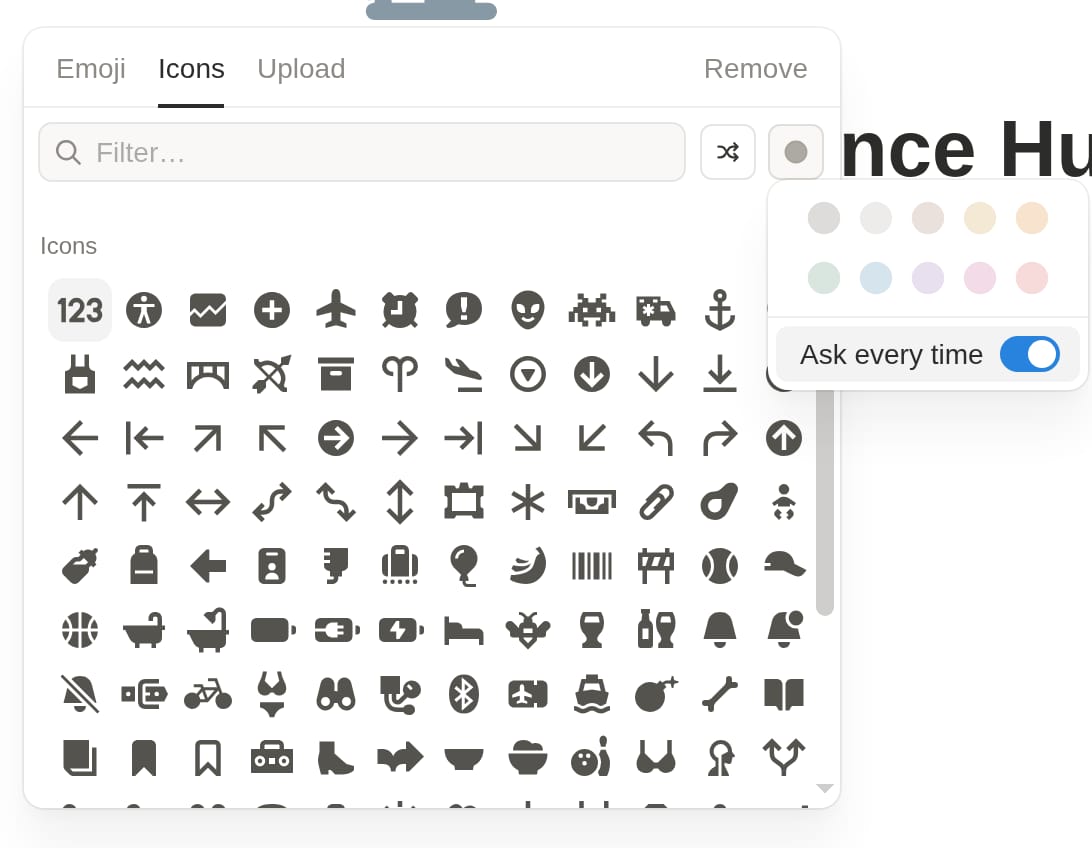
With Ask every time on, type a word in the filter (I typed "flask"), then click the icon. Notion shows that icon in ten colors: gray, light gray, brown, yellow, orange, green, blue, purple, pink and red.
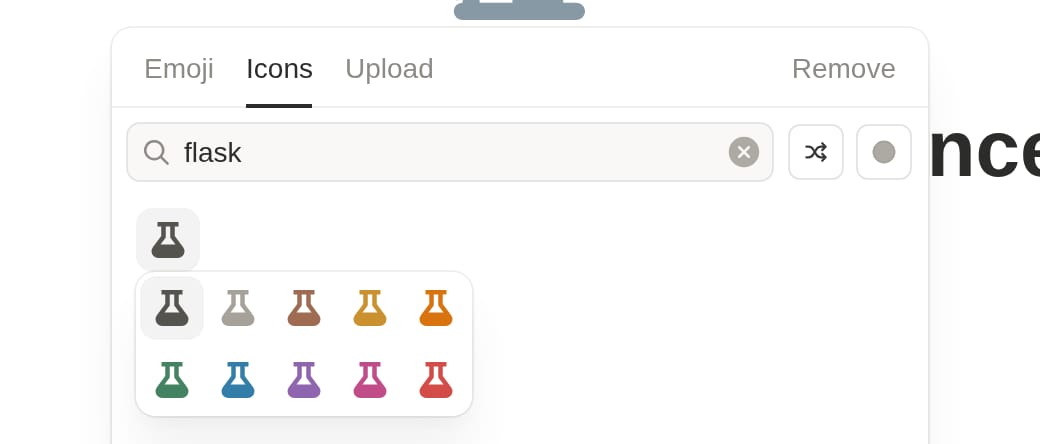
Click the color you want. I chose the green flask, and it went straight onto the page.
Picking one color per subject (green for science, blue for maths, and so on) makes a set of pages look like they belong together.
Upload your own picture as an icon
Use this for a school logo, a class badge or an icon you bought or downloaded. The files in an icon pack are added this way too.
Get the picture ready. I made a simple blue badge that says "Room 12, Grade 7 Science", 600 pixels wide and 300 tall.
Click the page's icon to open the picker, then click the Upload tab.
Click Upload an image and choose your picture.
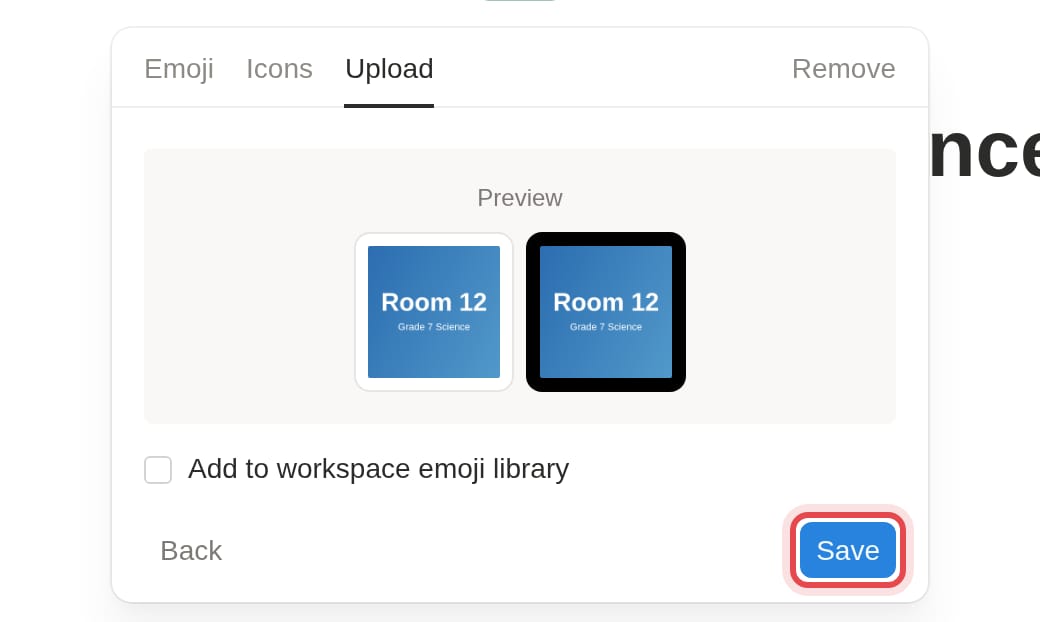
Notion shows a Preview of your picture on a light tile and a dark tile, plus an Add to workspace emoji library checkbox. I left that box unticked. Click Save.
Notion shows "Loading…" for a moment, then your picture sits above the title in place of the old icon.

If you use Notion in dark mode, check your picture on the preview's dark tile before you save.
What Notion does with a picture that isn't square
My badge was twice as wide as it was tall. Notion didn't squash it. It showed it as a square and kept the middle, so the left and right ends were cut off. You can see this in the preview before you press Save.
So either make your picture square to begin with, or keep the important part (the text, the logo) in the middle. A long banner belongs in the cover instead; see how to add a cover in Notion.
Give each class or subject its own icon
If you teach more than one class or subject, give each page a different icon so you can spot it at a glance instead of reading every name. I made three pages and used the filter to find each icon:
Maths: triangular ruler (filter "ruler")
Science: microscope (filter "microscope")
English: books (filter "books")
The icon travels with the page. It shows beside the page's name in the path at the top of the window, and in any database the page sits in (see below). With a matching cover and the same font on every class page, your workspace starts to look like one planner rather than a pile of pages.
Change a callout's icon
A callout is a shaded box for a note you don't want missed, and its icon can be changed just like a page's.
On a new line, type
/calloutand press Enter.Type your note. Mine says "Lab safety: goggles on before any experiment starts."
The callout already has an icon (a light bulb, in my case). Click it. The same picker opens, on the Emoji tab, with a Recent row and a Callout group at the top: light bulb, warning sign, pin, check mark, alarm clock, megaphone and more.
Click the one you want. I chose the warning sign.
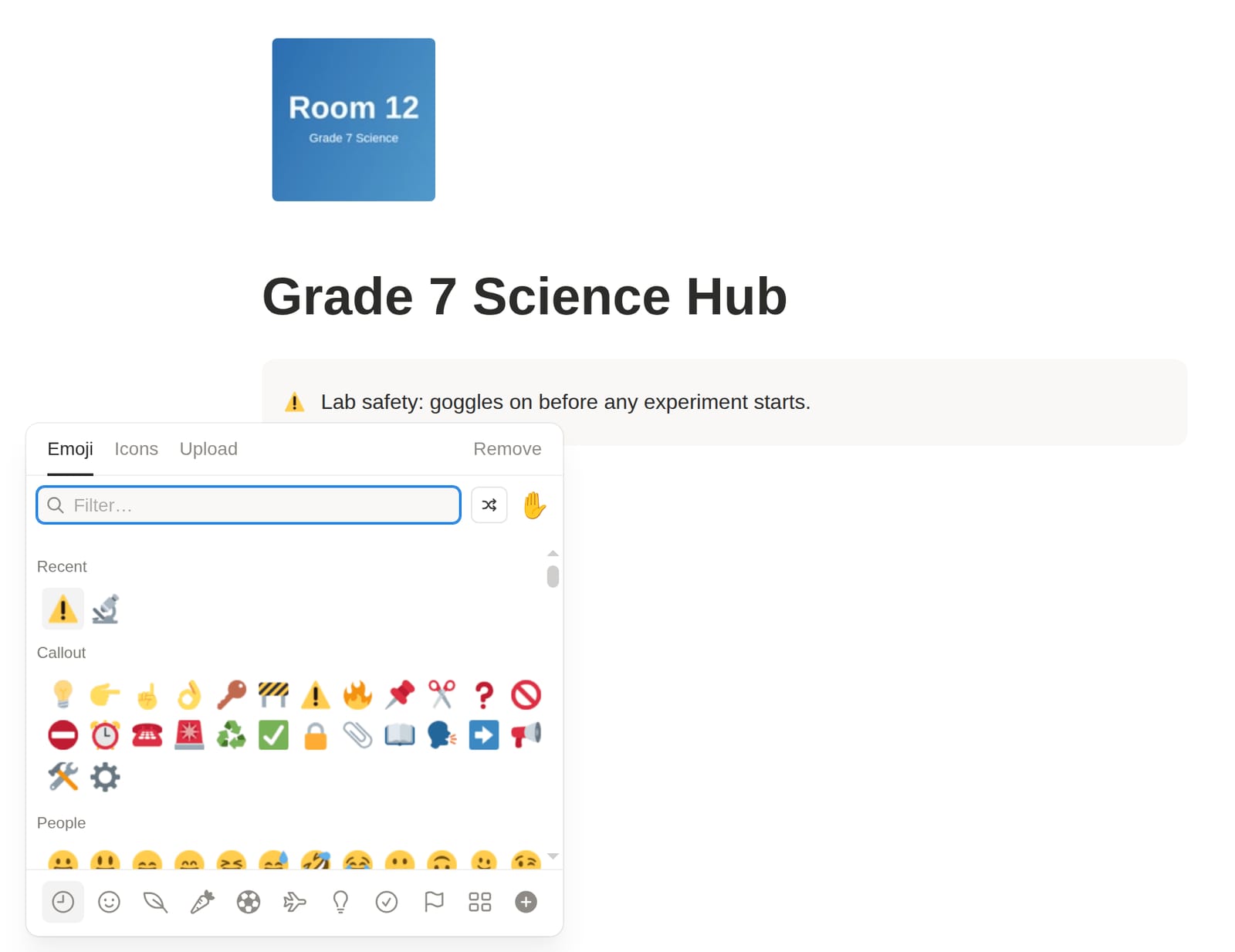
The callout's picker has the same Icons and Upload tabs as a page's.
Give each database page its own icon
Every row in a Notion database is a page, so every row can have an icon. In a table, the icon shows before the row's name.
On a new line, type
/database inlineand press Enter. I named the database "Unit Plans".Click New page at the bottom of the table, type the row's name ("Unit 4: Ecosystems") and press Enter.
Hold the pointer over the row and click OPEN. The row's page opens in a panel at the side, with Open in full page at its top.
I added my icons with each row's page open full size: hold the pointer over the title, click Add icon and pick an icon, the same way as for any page. I gave Unit 4 a seedling, Unit 5 a rocket and Unit 6 a droplet.
Close the page. Back in the table, each row shows its own icon before its name.

Change or remove an icon
To change an icon, click the icon itself (not the title). The picker opens, and whatever you pick replaces the old icon. On my page, I swapped the microscope emoji for the green flask, then for my uploaded badge.
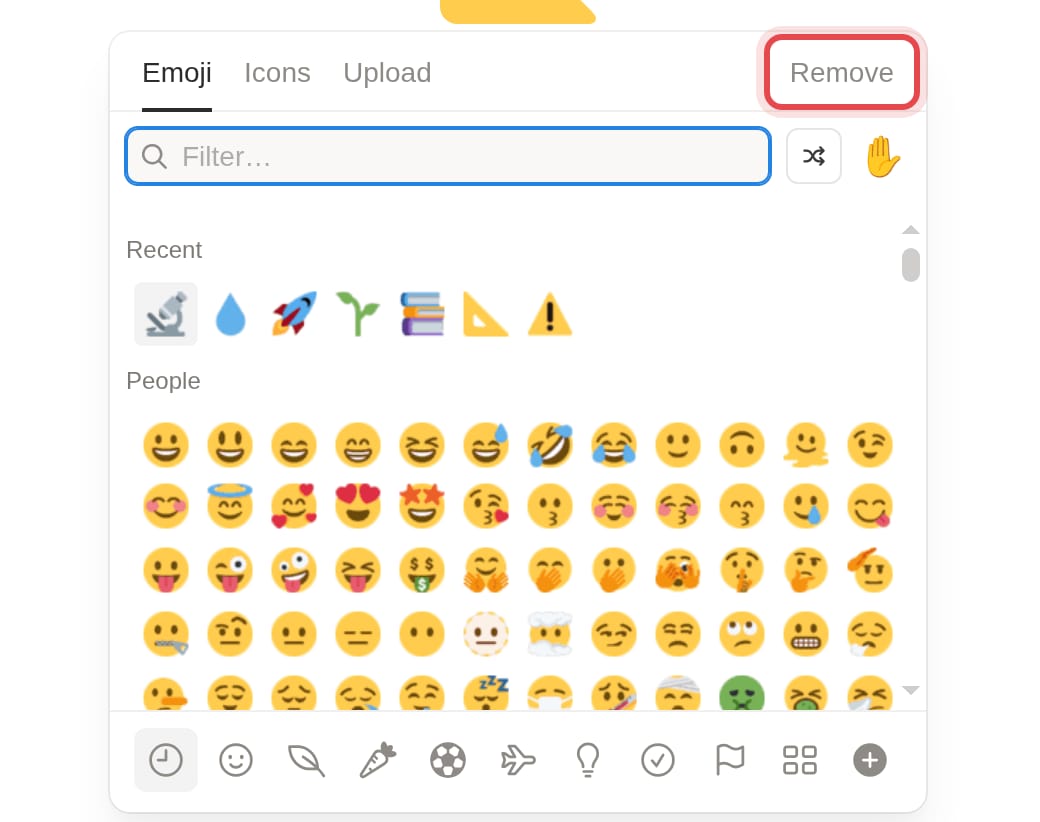
To remove an icon, click it and press Remove in the top right corner of the picker. The icon disappears and the picker closes. Hover over the title and Add icon is back, so you can always add one again.
If it doesn't work
You clicked Add icon but no icon appeared. That's expected. The picker only puts an icon on the page once you click one.
Your uploaded picture is cut off at the sides. It isn't square, so Notion kept the middle square. Crop it square yourself, or move the important part to the middle.
Your uploaded picture doesn't show right away. Give it a moment; it loads after you press Save.
FAQ
Can I change the color of Notion icons?
Yes, for the icons on the Icons tab. With Ask every time on, click an icon and pick one of its ten colors. Emoji keep their own colors.
Where do I find icons that aren't emoji?
In the same picker. The Icons tab has Notion's own set of flat icons, and the Upload tab takes any picture you have, including icons from a pack you downloaded.
What shape should a custom Notion icon be?
Square. Notion shows an uploaded picture as a square, so a wide picture loses its left and right ends. The Upload tab doesn't give a recommended size.
How do I use the same icon again quickly?
Open the picker on the Emoji tab. The emoji you used last are in the Recent row at the top.
How do I remove an icon from a Notion page?
Click the icon, then press Remove in the top right corner of the picker.
Can database rows have their own icons?
Yes. Open the row's page, add an icon above its title, and it shows before the row's name in the table.
Still grading everything by hand?
EMStudio is a free teaching management app — manage your classes, students, lessons, and more!