

Calling a class abroad
Pen pals in Seoul, a sister school in Madrid, an author visit from London. Put their city beside yours and the class sees at a glance whether it is morning or night there before you plan the call.
Pick two to six cities, give them your own names, choose the look, then copy the link into any Notion page. Every city keeps its own time, day and night.
When different: only where it is already tomorrow, or still yesterday, for the viewer.
Today in Room 12
www.notion4teachers.com/embed/world-clockA world clock widget is a small web page that shows the time in several cities at once, made to sit inside a Notion page. You paste its link into Notion, choose Create embed, and the cities keep time in that block by themselves. This one lets you pick two to six cities, name them your way, show how many hours ahead each one is and whether it is day or night there. Nothing to install, and no account.
Teacher Home
Whenever someone you work with lives in another time zone. Three moments where it helps:
Pen pals in Seoul, a sister school in Madrid, an author visit from London. Put their city beside yours and the class sees at a glance whether it is morning or night there before you plan the call.

Show six cities around the world in a row and let students work out why Sydney is already in tomorrow. The hours ahead and the weekday under each city turn the lesson into something they can see.
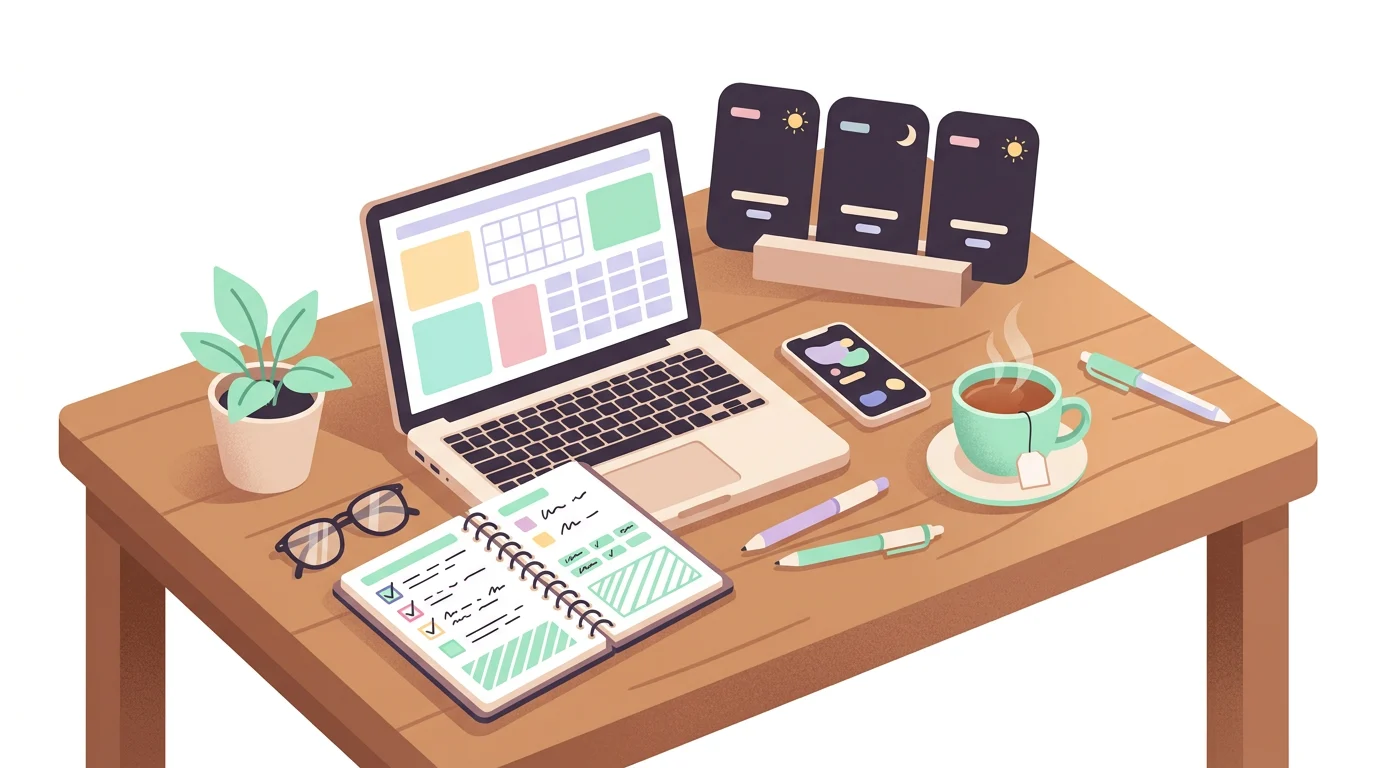
On your own planner page, a card for Grandma and one for a friend overseas. Before you text or call, the clock shows their time and whether the sun is up where they live.
Pick the cities once, copy the link, and each one keeps its own time. Here is what you can set before you paste it into Notion.
Choose from a hundred cities on every continent, each viewer’s own time or UTC. Give each city a name of your own, like Grandma or Our pen pals, and that name shows in place of the city’s.
Each city shows a small sun, moon or setting sun, worked out from where the sun really is over that city. At night its card or clock face takes a deeper tone, so you see who is asleep before you call.
Under each city the clock shows how far ahead or behind your own time it is, like +5 h or −3 h. When it is already tomorrow there, or still yesterday, the weekday shows too.
Three looks and six color sets, from crisp Paper to deep Night and Ocean. With a clear background the cards sit on your Notion page’s own color, light or dark, or fill the block with Solid.
Drag the corners of the embed block and the cities rearrange to fill it. A wide block puts them in one row for the projector; a narrow column stacks them beside your notes.
Five steps, about a minute. The same steps work for every widget on Notion4Teachers.
Choose two to six cities, their names, the look and the colors at the top of this page.
Press Copy Widget Link. Every city and setting you chose is part of the link.
Click where the world clock should go on your Notion page and paste.
Notion asks what to do with the link. Choose Create embed.
Pull the block’s corner until the cities are as big as you want.
The Ultimate Teacher Planner sets up your classes, lessons, grades and attendance in Notion. Put your widgets at the top of it in a minute.
See the Teacher PlannerA picture of a world map with times sits still. This clock keeps time in every city, by itself.
The clock shows your cities and nothing else: no pop-ups, no banners, no logo.
The sun and moon come from where the sun really is over each city, not a guess.
Each city keeps its own time zone rules, so the hours ahead change on the right dates.
A clear background takes your page’s own color, so the cards look right in both modes.
No account and nothing saved on our side. Change a city, copy the new link.
The cities fill the block, so a wide embed on the projector reads across the room.
Anyone with people, classes or plans in another time zone.

For pen pal exchanges, video calls with a class abroad and geography lessons on time zones. The cities sit on the class page, so planning a call starts with a glance instead of a calculation.
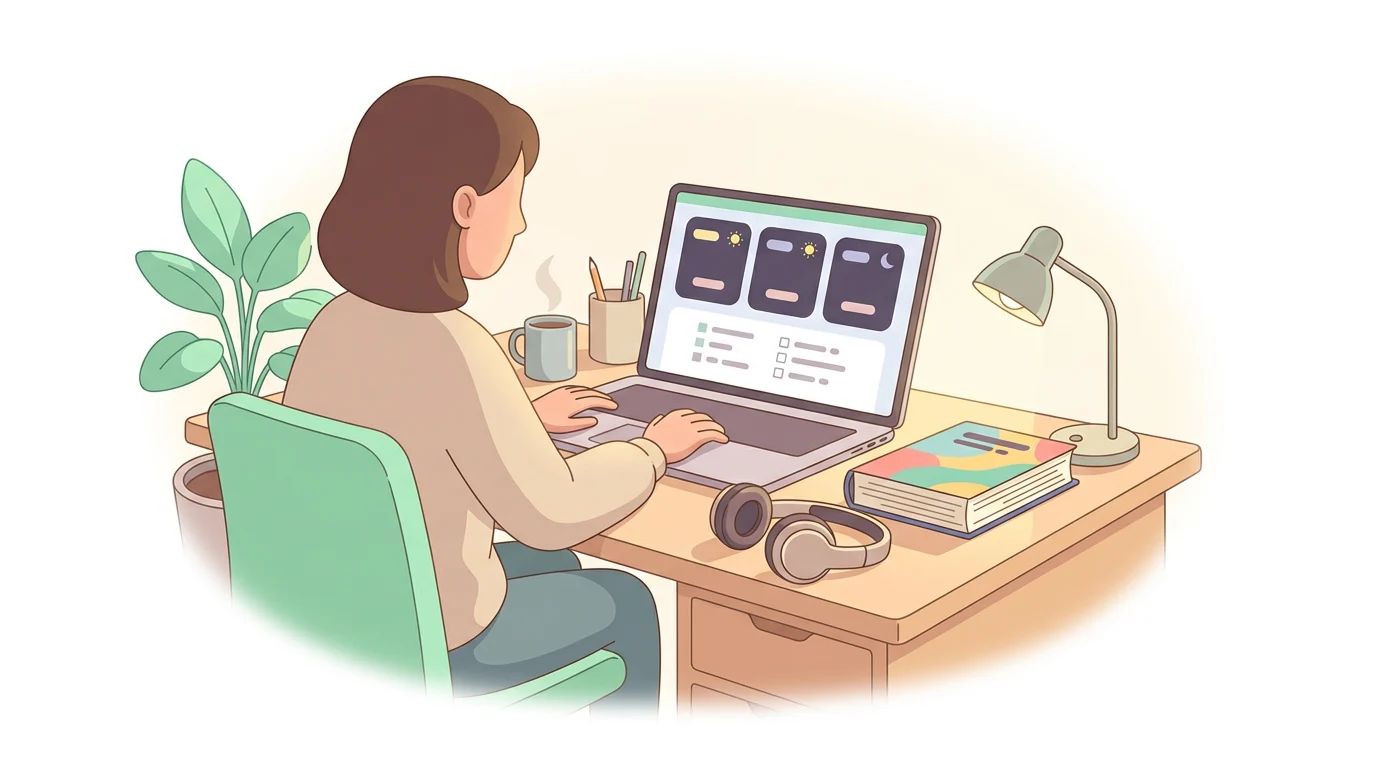
Students learning a language, joining an online class from home or keeping in touch with family abroad keep their cities on a study dashboard, right beside the to-do list.
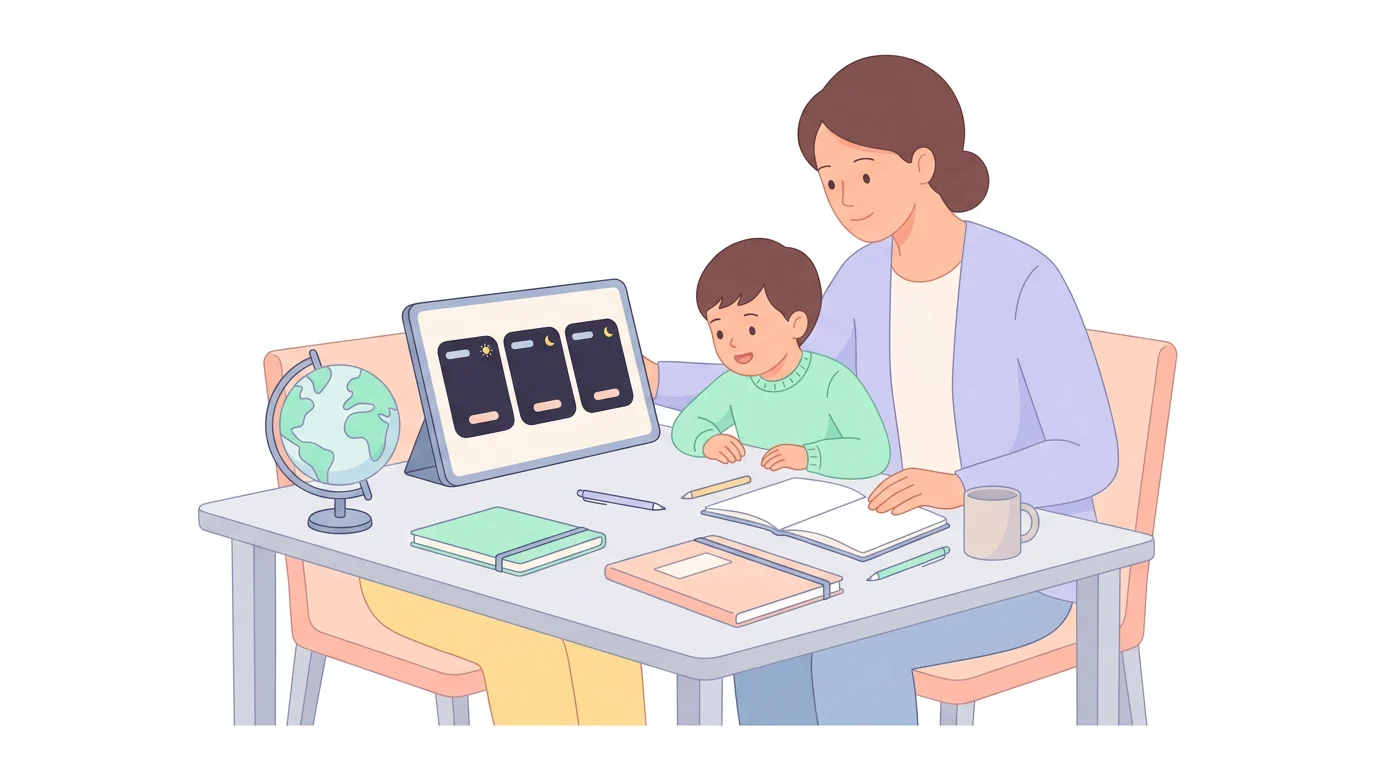
Tutors with students in other countries see each student’s time before they book a lesson. Families use it to learn how the world’s clocks fit together, one city at a time.

Most world clocks are apps to install or extensions to add. This one you set up on this page and paste into Notion: nothing to install, nothing to register, nothing to pay.
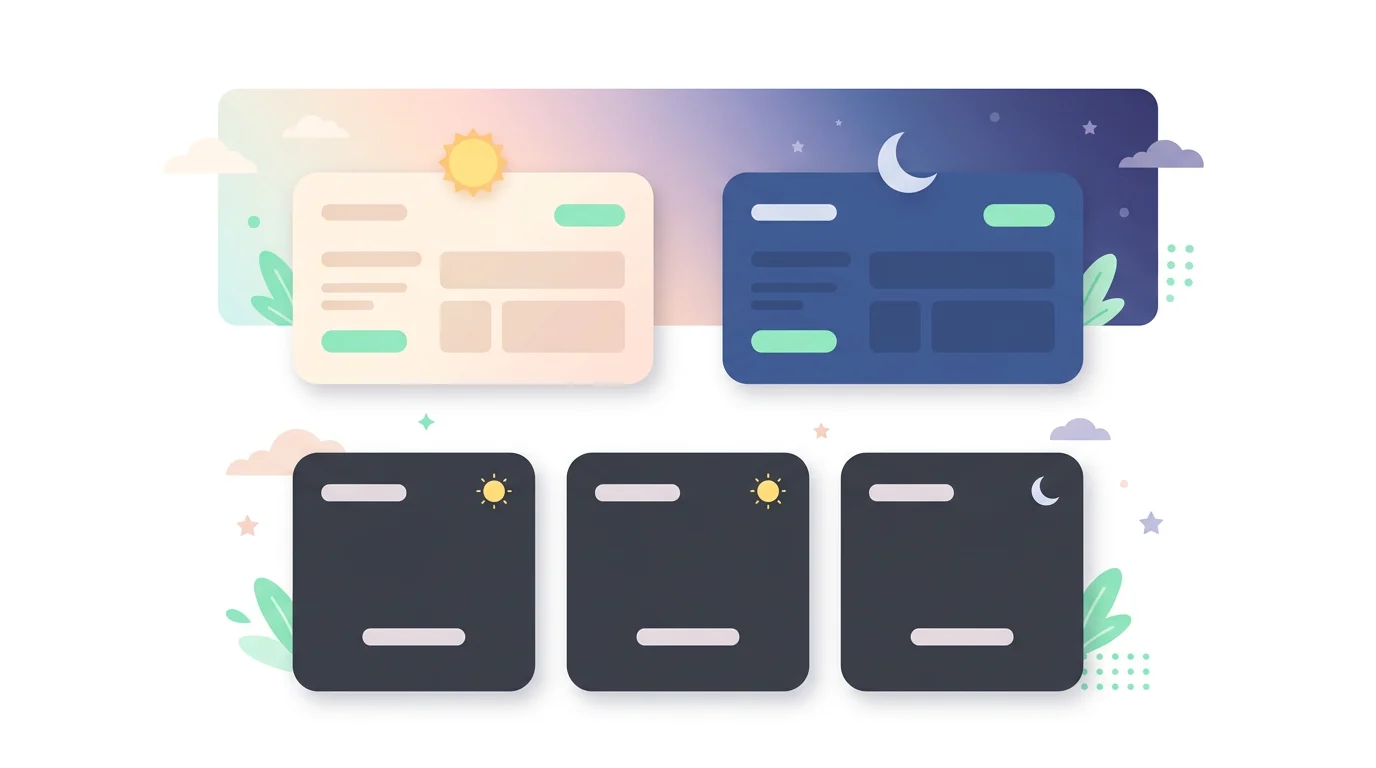
Each city’s sun or moon is worked out from where the sun really is over that place right now, so a winter evening in London looks like evening and a summer one does not.

There is no account and no saved widget: every city and name you chose is written into the link. After a change, copy the link again and paste the new one.
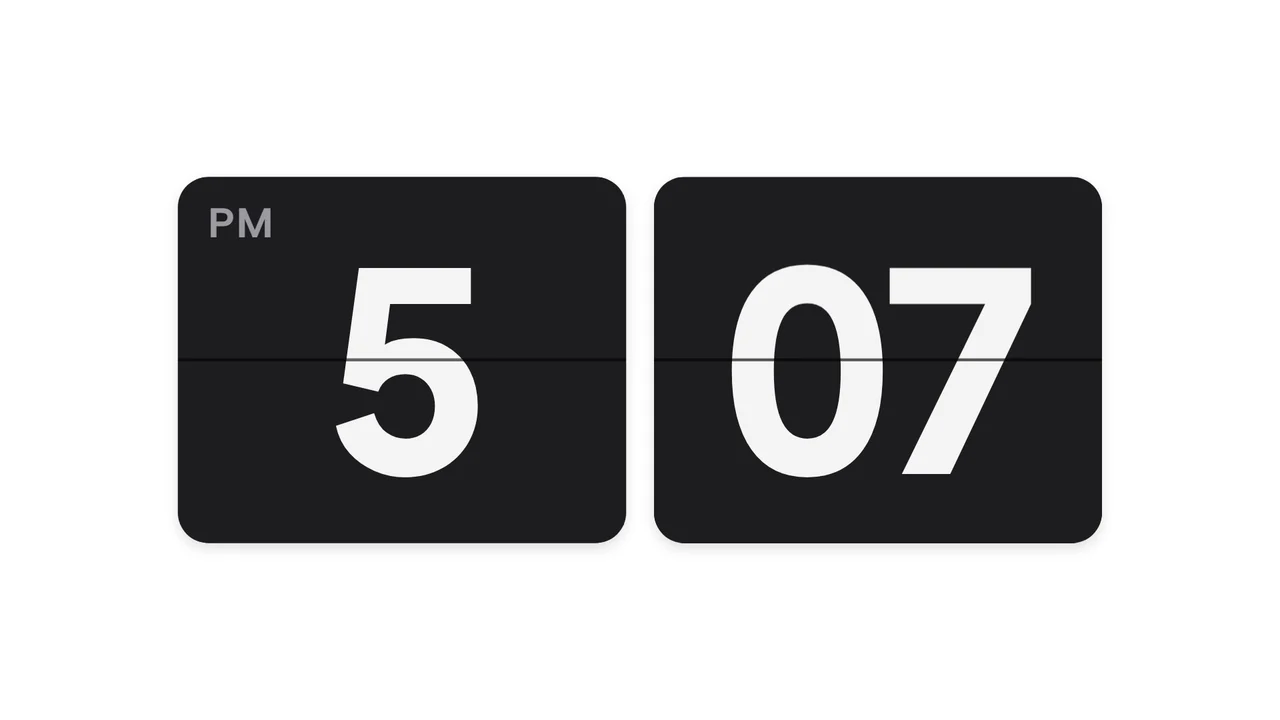
A big flip clock in your colors, with 12 or 24 hour time, seconds and the date.
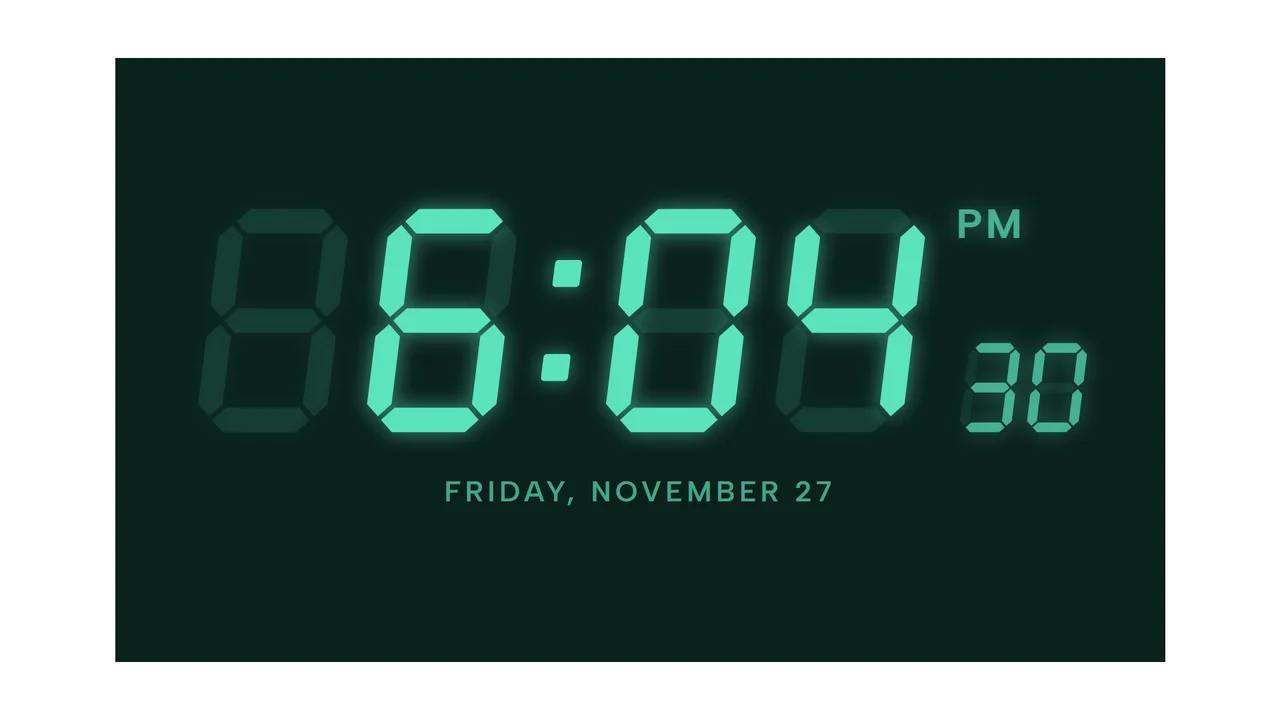
Big numbers in five fonts, from clean to LCD, with seconds, the date and your colors.
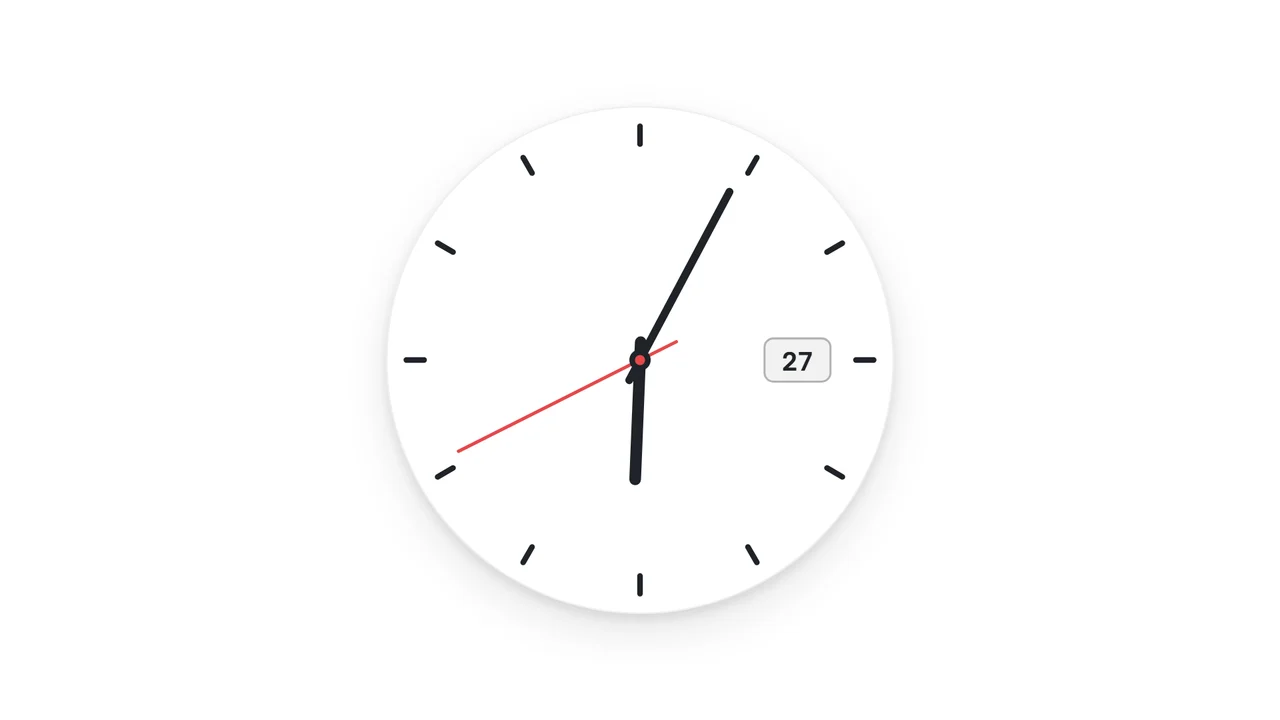
A quiet analog clock in four faces and six colors, with a sweeping second hand.
Yes. The world clock is free to set up, copy and use on as many Notion pages as you like. There is no account to make, no trial and no watermark, and nothing inside the widget but your cities and their times.
Pick your cities at the top of this page and press Copy Widget Link. In Notion, click where you want the clock, paste the link and choose Create embed from the menu that appears. Then drag the corners of the block until the cities are the size you want.
Yes. Each city has a Shown as field. Type Grandma, Our pen pals or Sister school and that name shows in place of the city’s. If your town is not in the list, pick a city in the same time zone and give it your town’s name.
Yes. Each city keeps its own time zone, and the browser that opens the page knows when that zone moves its clocks. London, New York and Sydney change on their own dates, and the hours ahead or behind change with them. Nothing to update by hand.
+5 h means that city is five hours ahead of the person looking at the page, and −3 h means three hours behind. The weekday shows when it is already tomorrow there, or still yesterday: Friday evening in New York is Saturday morning in Sydney.
Yes. The world clock is part of the Notion page, so it shows wherever the page opens: the Notion app on iPhone, iPad and Android, the desktop app and the browser. Each device works out the hours ahead from its own clock.
Keep the background on Clear and the cards sit on your Notion page’s own color, light or dark. The Night and Ocean sets look at home on a dark page, Paper and Mint on a light one. Choose Solid to fill the block with color instead.
Come back to this page and press Change a widget you added, under the preview. Paste the clock’s link (in Notion, ••• then View original shows it) and your cities come back. Change what you like and copy the link again. In Notion, choose ••• then Replace and paste it: the clock keeps its place and size.

The Complete Bundle has every Notion4Teachers template, with the Ultimate Teacher Planner at its heart.
Get Complete Bundle40% OFF!