
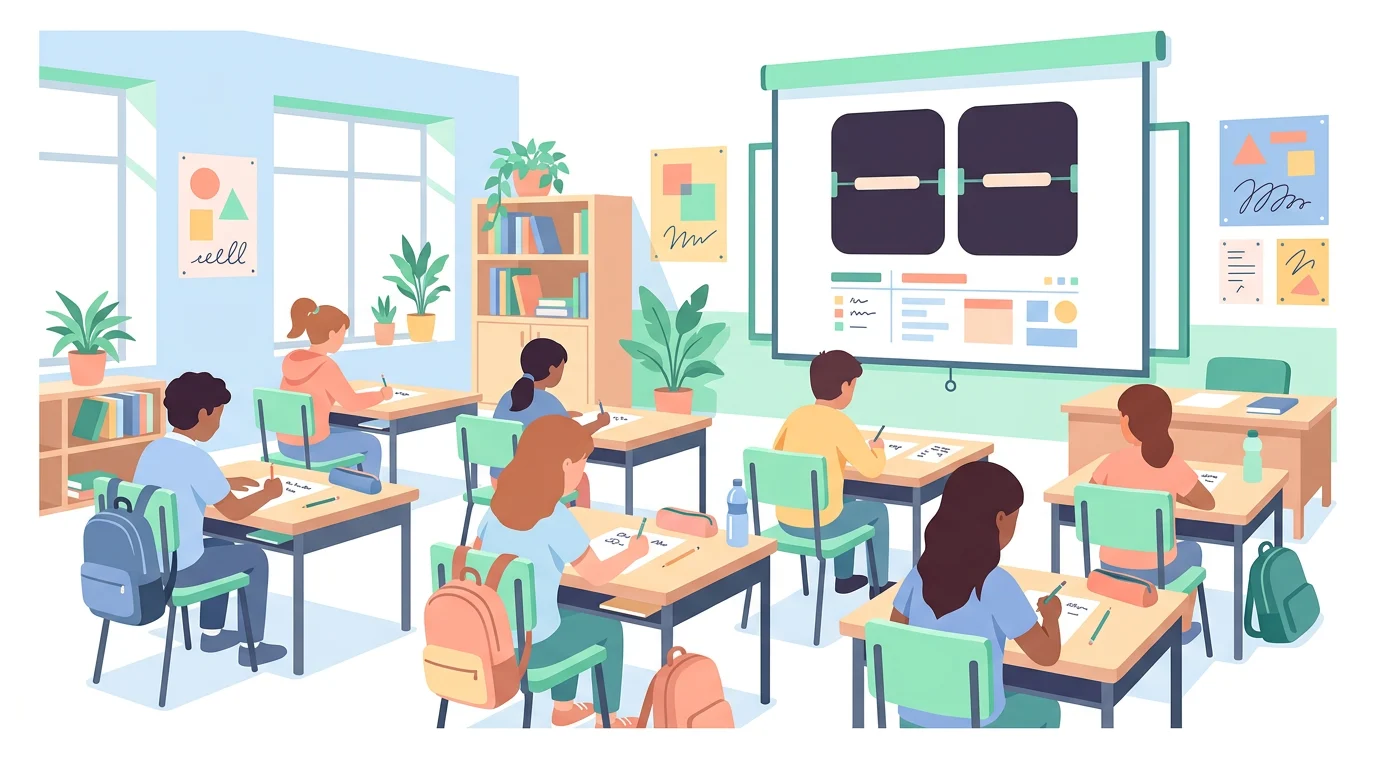
On the board during work time
Project your Notion page while students work and the clock sits at the top, big enough to read from the back row. Students check the time themselves instead of asking how long is left.
Pick the colors, font and time format, copy the link, and paste it into any Notion page. A big, clear clock that keeps time by itself.
The time on the device that opens the page.
Today in Room 12
www.notion4teachers.com/embed/flip-clockA flip clock widget is a small web page that shows the time on flipping cards, made to sit inside a Notion page. You paste its link into Notion, choose Create embed, and the clock runs in that block by itself, second by second. This one lets you choose 12 or 24 hour time, seconds, the date, the colors and the font before you copy the link, and it fills whatever size you drag the block to. Nothing to install, and no account.
Teacher Home
Whenever the time matters to the whole room, or to you at a glance. Three moments where it earns its place:
Project your Notion page while students work and the clock sits at the top, big enough to read from the back row. Students check the time themselves instead of asking how long is left.

Put the clock on your Notion home page, above today’s lessons and to-dos. Between classes you see the time, the date and what comes next without opening another tab.
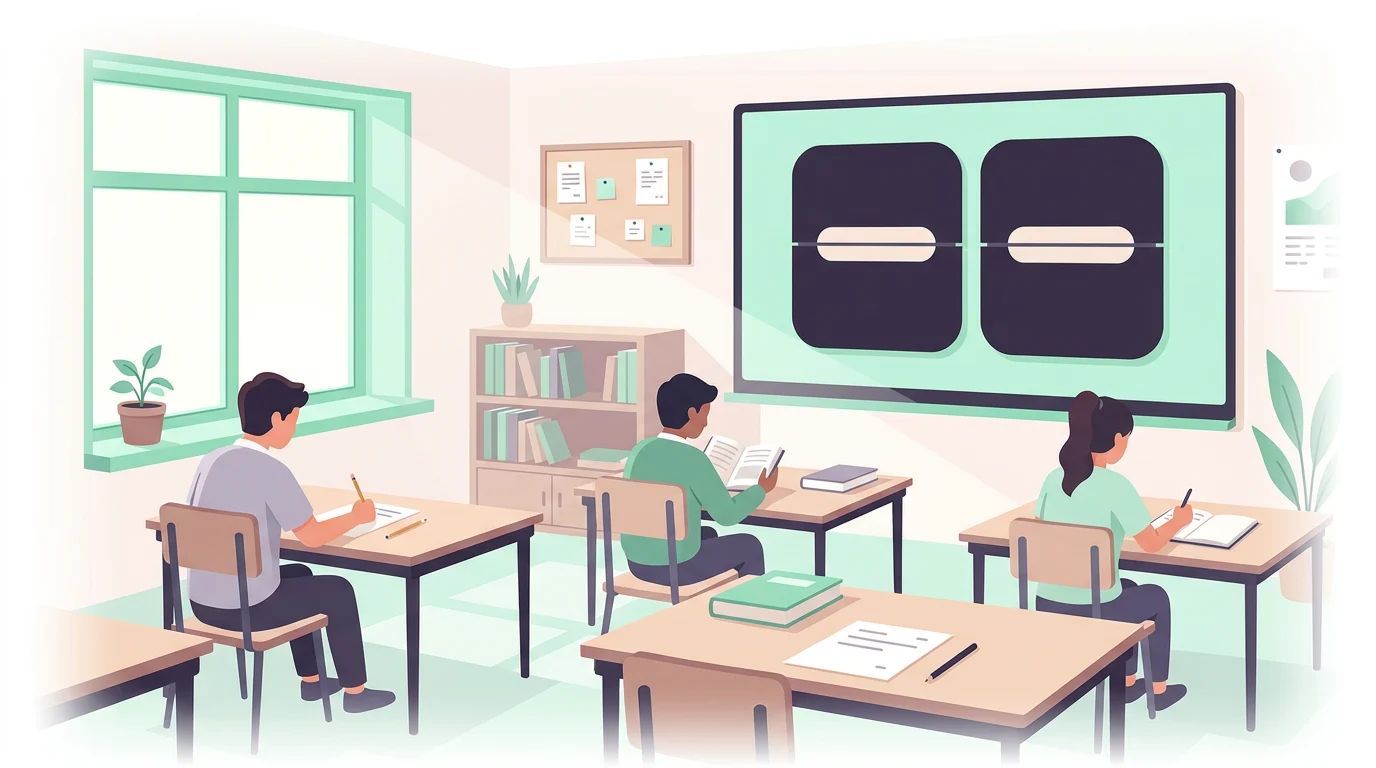
For a timed quiz or silent reading, a calm clock with no alarm keeps everyone aware of the time. Show seconds for the last minutes, or leave them off to keep the room calm.
Set it up once, copy the link, and the clock looks after itself. Here is what you can change before you paste it into Notion.
Choose the clock your school uses. In 12 hour time the hours card shows AM or PM in its corner, which you can switch off for a cleaner card. In 24 hour time the hours run from 00 to 23.
Six color sets, from dark Night cards to soft Blush, and four fonts, from bold to tall and narrow. With a clear background the clock sits on your Notion page’s own color, light or dark.
Add a third card for seconds when every moment counts, and the date under the cards for the top of a daily page. A line of your own words fits there too, like the room or the activity.
Drag the corners of the embed block and the cards grow or shrink to fill it. A wide block makes a big clock for the projector; a narrow column makes a small one beside your notes.
Leave it on each viewer’s own time, or set a city, so everyone sees the time in Seoul, London or New York wherever they open the page. Put two or three side by side for a world clock.
Five steps, about a minute. The same steps work for every widget on Notion4Teachers.
Pick the time format, the colors and the font at the top of this page.
Press Copy Widget Link. Everything you chose is part of the link.
Click where the clock should go on your Notion page and paste.
Notion asks what to do with the link. Choose Create embed.
Pull the block’s corner until the clock is as big as you want.
The Ultimate Teacher Planner sets up your classes, lessons, grades and attendance in Notion. Put the flip clock at the top in a minute.
See the Teacher PlannerA flip clock image sits still. This one keeps time, follows your settings and fits your page.
Some free clocks cover the time with pop-ups and ads. This one shows the clock and nothing else.
The cards fill the block, so a wide embed on the projector reads across the room.
A clear background takes your page’s own color, so the clock looks right in both modes.
It runs in the Notion embed on any computer, tablet or phone that opens the page.
No account and nothing saved on our side. Change a setting, copy the new link.
It reads the clock of the device it runs on, so it stays right to the second without a refresh.
Anyone who keeps their day in Notion and wants the time in view.

On the classroom screen during work time, tests and transitions, and at the top of a lesson planner. A clock students can read from their seats means fewer questions about how long is left.
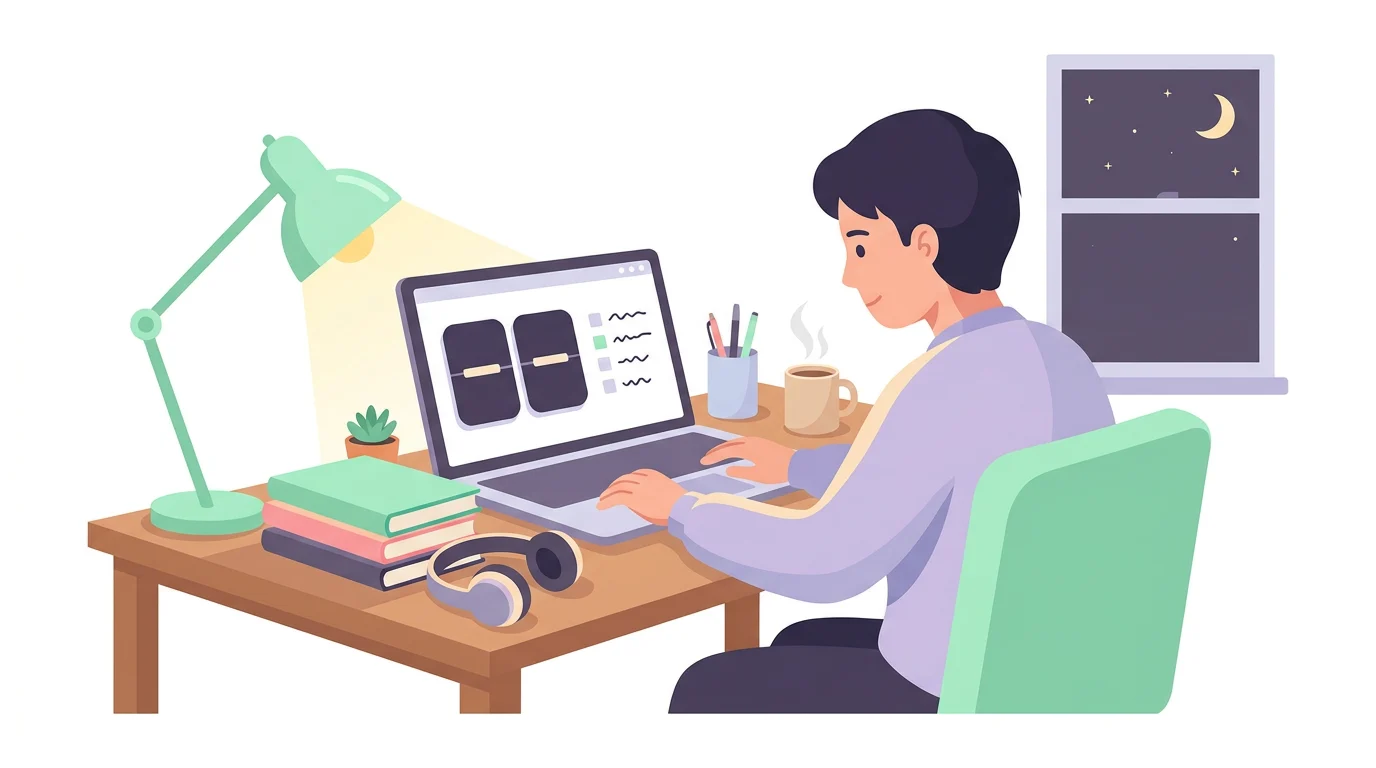
On a study dashboard beside the to-do list and a Pomodoro timer, to keep track of study blocks without reaching for the phone.

On the day’s lesson page, so a child can see when the next break starts and how long a lesson has run.
Many widget sites ask you to sign up before you can copy a link. Here you set the clock up on this page and copy it: nothing to register, nothing to pay.
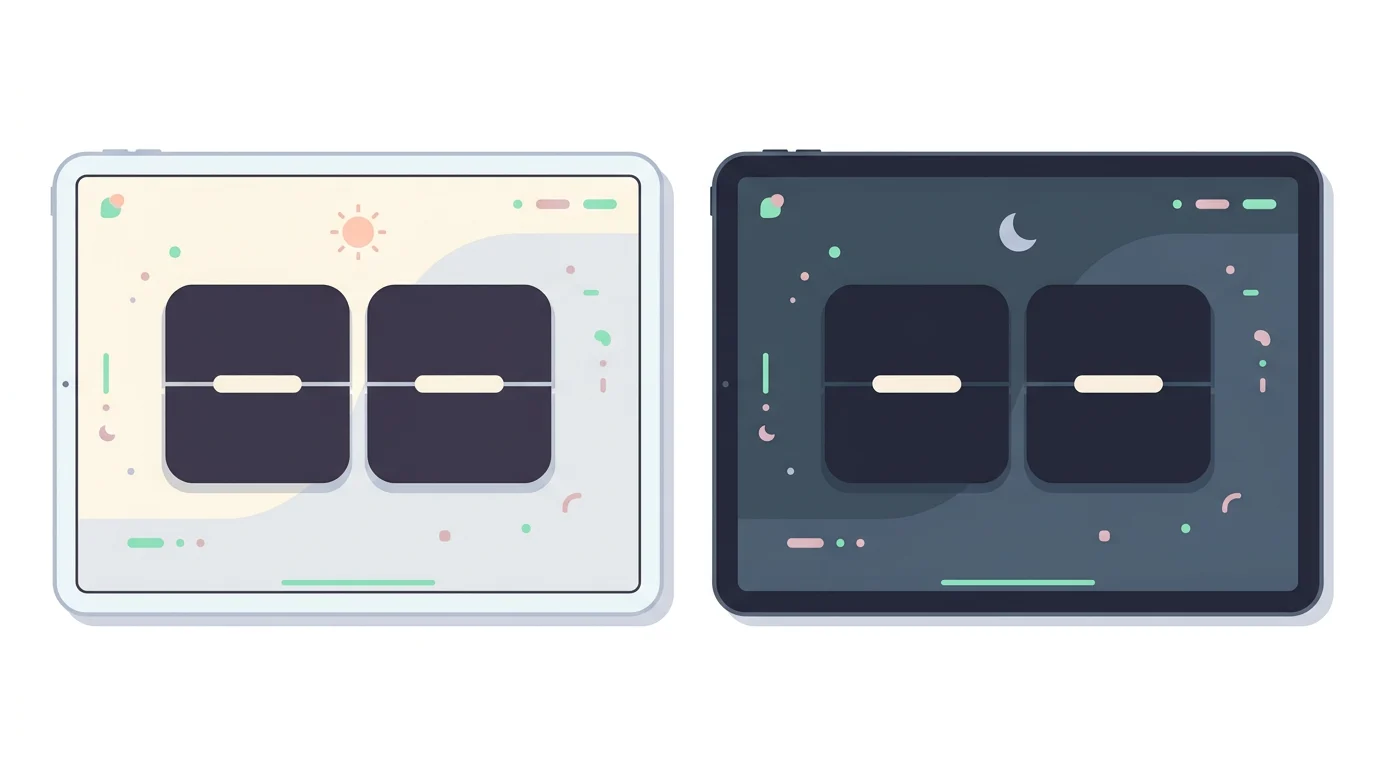
With a clear background the cards sit on your page’s own color. Switch Notion to dark mode and the clock still looks like it belongs there.

There is no account and no saved widget: everything you chose is written into the link. After a change, copy the link again and paste the new one.
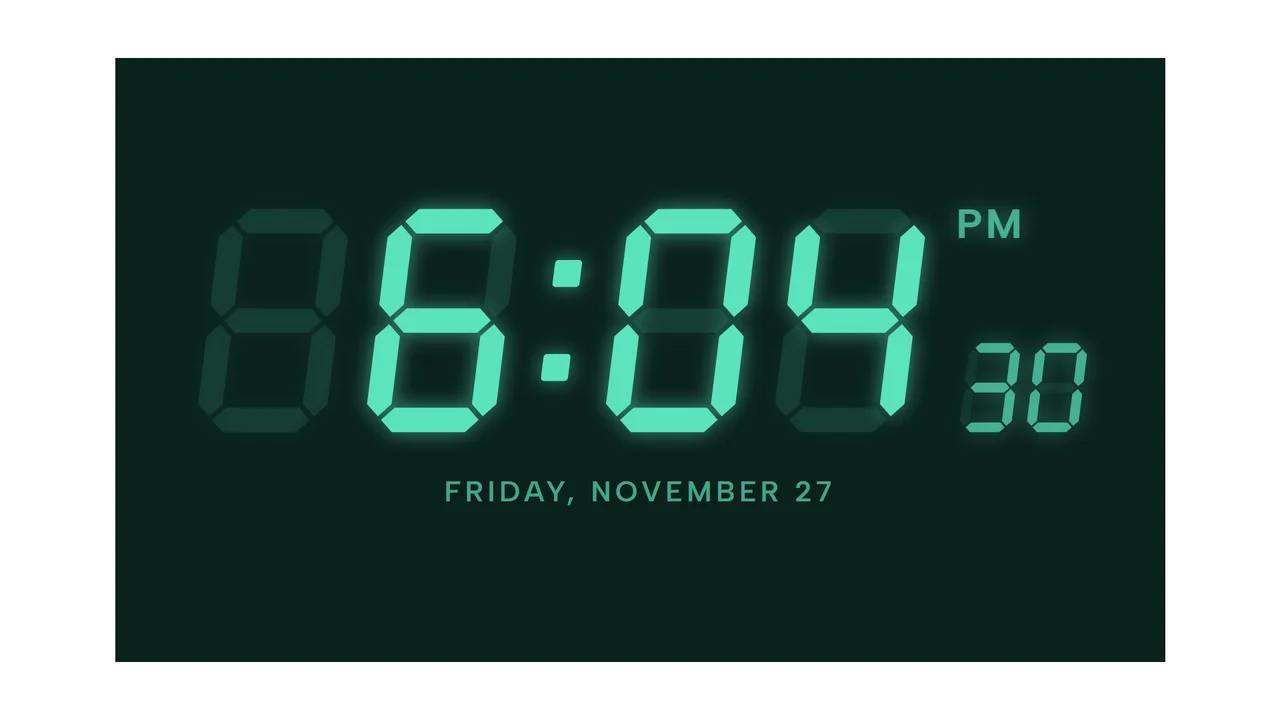
Big numbers in five fonts, from clean to LCD, with seconds, the date and your colors.
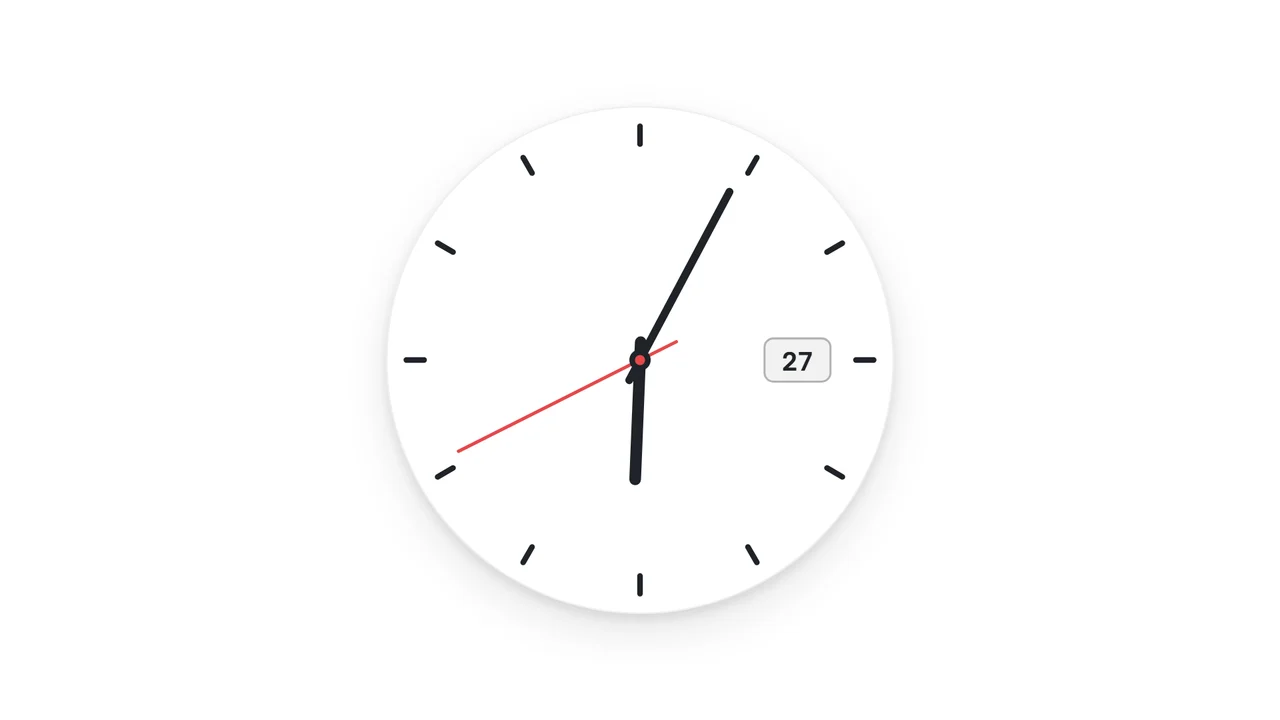
A quiet analog clock in four faces and six colors, with a sweeping second hand.
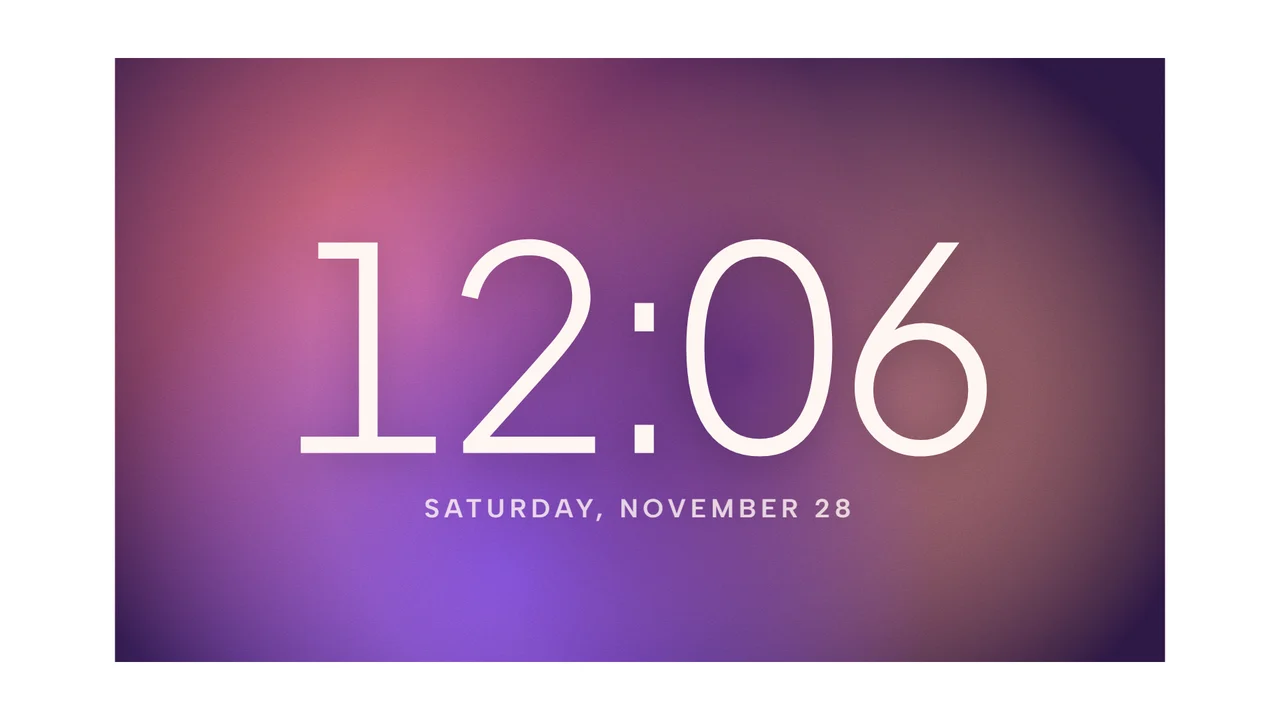
The time over a soft, slowly drifting glow, in six color moods and four fonts.
Yes. The widget is free to set up, copy and use on as many Notion pages as you like. There is no account to make, no trial and no watermark, and nothing inside the clock but the clock.
Set up the clock at the top of this page and press Copy Widget Link. In Notion, click where you want the clock, paste the link, and choose Create embed from the menu that appears. Then drag the corners of the block to make the clock the size you want.
Yes. Choose 24 hour under Clock and the hours card counts from 00 to 23. In 12 hour time the hours card shows AM or PM in its corner, and you can switch that off under Time.
Yes. The clock is part of the Notion page, so it shows wherever the page opens: the Notion app on iPhone, iPad and Android, the desktop app and the browser.
The widget shows the time of the device that opens the page, unless you picked a city under Time zone. Then everyone sees that city’s time. To go back, set Time zone to each viewer’s own time, copy the link again and paste it in place of the old one.
Choose a clear background and a color set that reads on both, like Night, Paper or Mint. A clear background lets your Notion page’s own color show around the cards, so the clock fits light and dark mode alike.
Come back to this page, set the clock up again and copy the new link. In Notion, delete the old embed block and paste the new link in its place, then choose Create embed.
Usually the link was cut short when it was pasted. Copy it again with Copy Widget Link, delete the block, and paste the full link into a new embed. If it still fails, open the link in your browser to check that the clock loads there.

The Complete Bundle has every Notion4Teachers template, with the Ultimate Teacher Planner at its heart.
Get Complete Bundle40% OFF!