
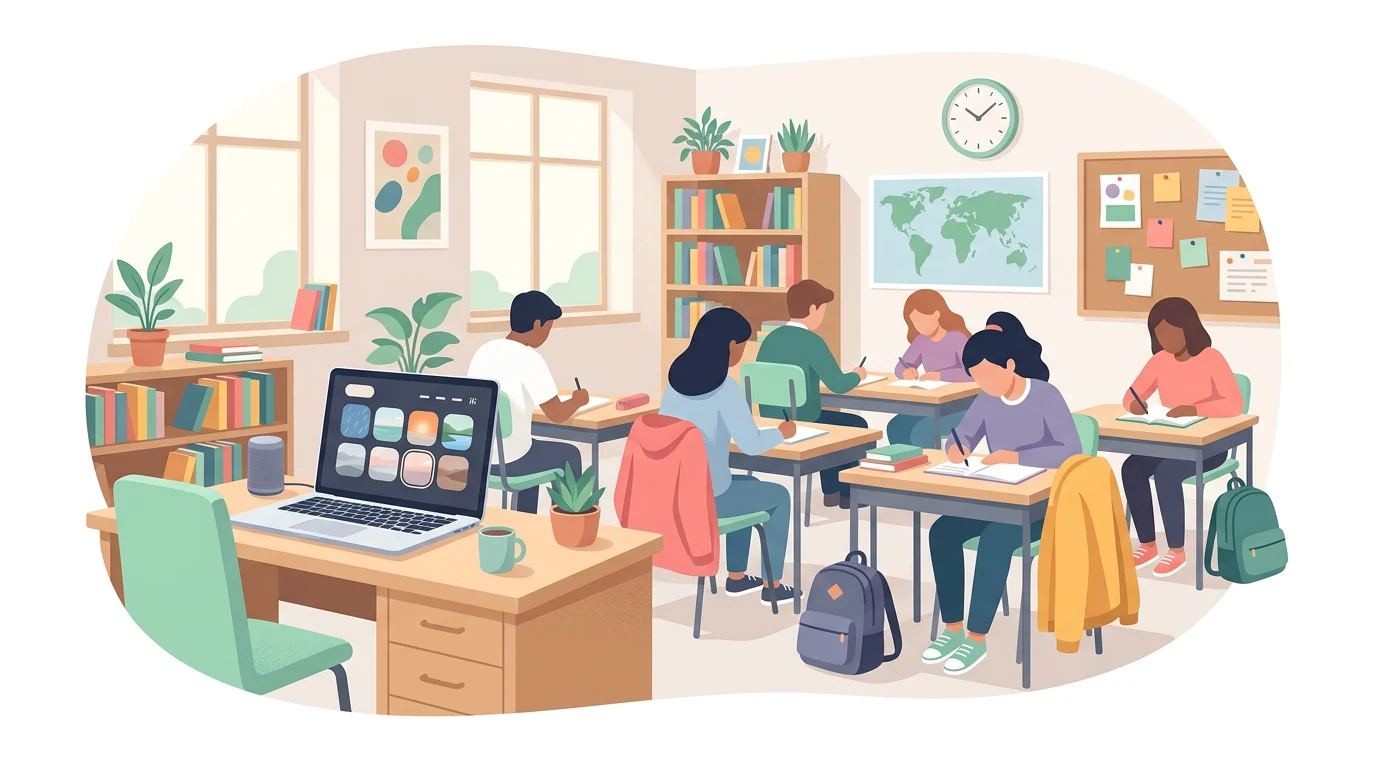
Quiet work time in class
During independent work, play soft rain through the classroom speaker from the class page. The timer fades it out at the end of the work block, so the room knows it is time to stop.
Pick up to three calm sounds and their levels, copy the link, and paste it into any Notion page. Press Play and they fade in, made right in the browser.
Plays until you press Pause.
Today in Room 12
www.notion4teachers.com/embed/study-soundsA study sounds widget is a small player of calm background sounds, made to sit inside a Notion page. You paste its link into Notion, choose Create embed, and press Play in the block. This one makes eight sounds in your browser, from rain and a fireplace to brown noise, plays up to three at once with a level for each, and can fade out after 15, 30 or 60 minutes. Each sound has its own moving scene. Nothing to install, and no account.
Teacher Home
Whenever a steady sound in the background helps the work along. Three moments where it earns its place:
During independent work, play soft rain through the classroom speaker from the class page. The timer fades it out at the end of the work block, so the room knows it is time to stop.
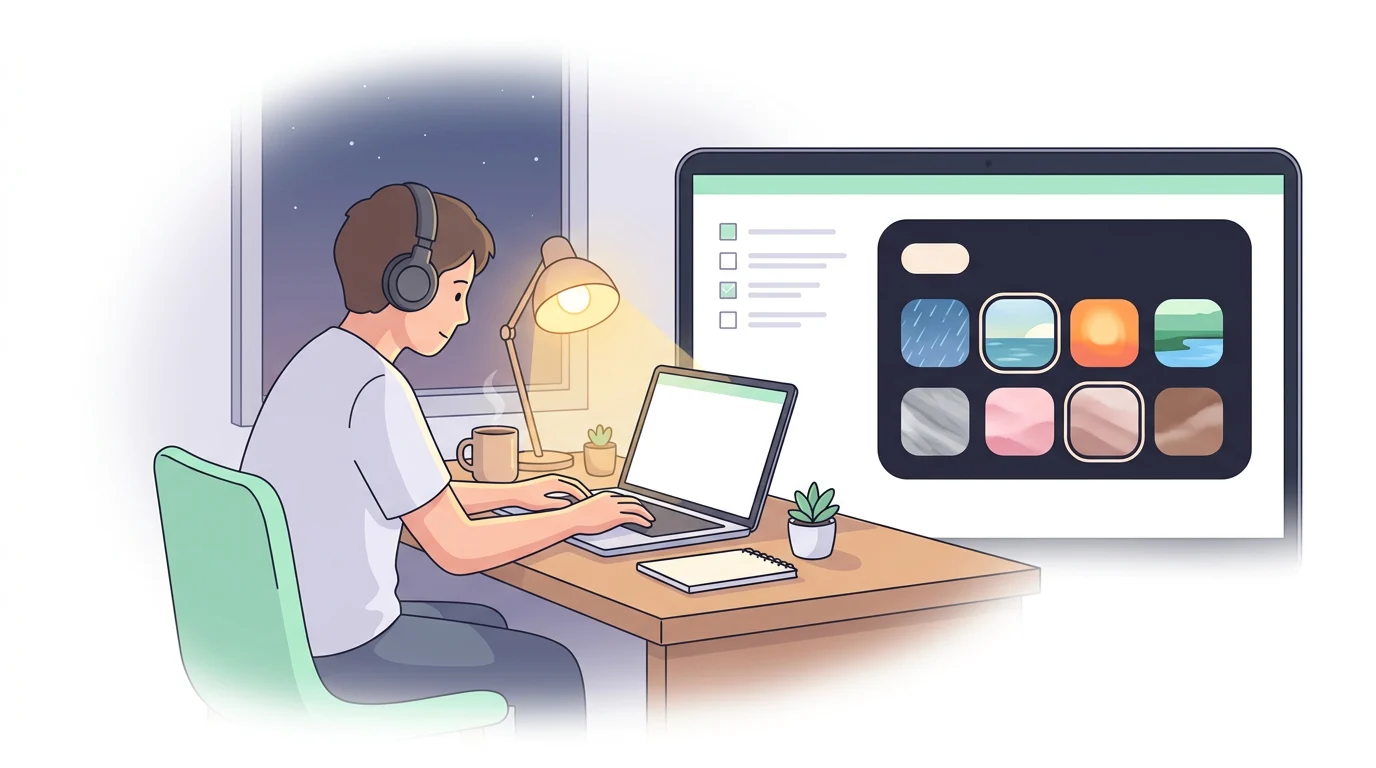
Put the sounds on a study dashboard next to the to-do list. Turn on brown noise and a fire at a low level, start the timer for the evening’s work, and keep the phone out of reach.
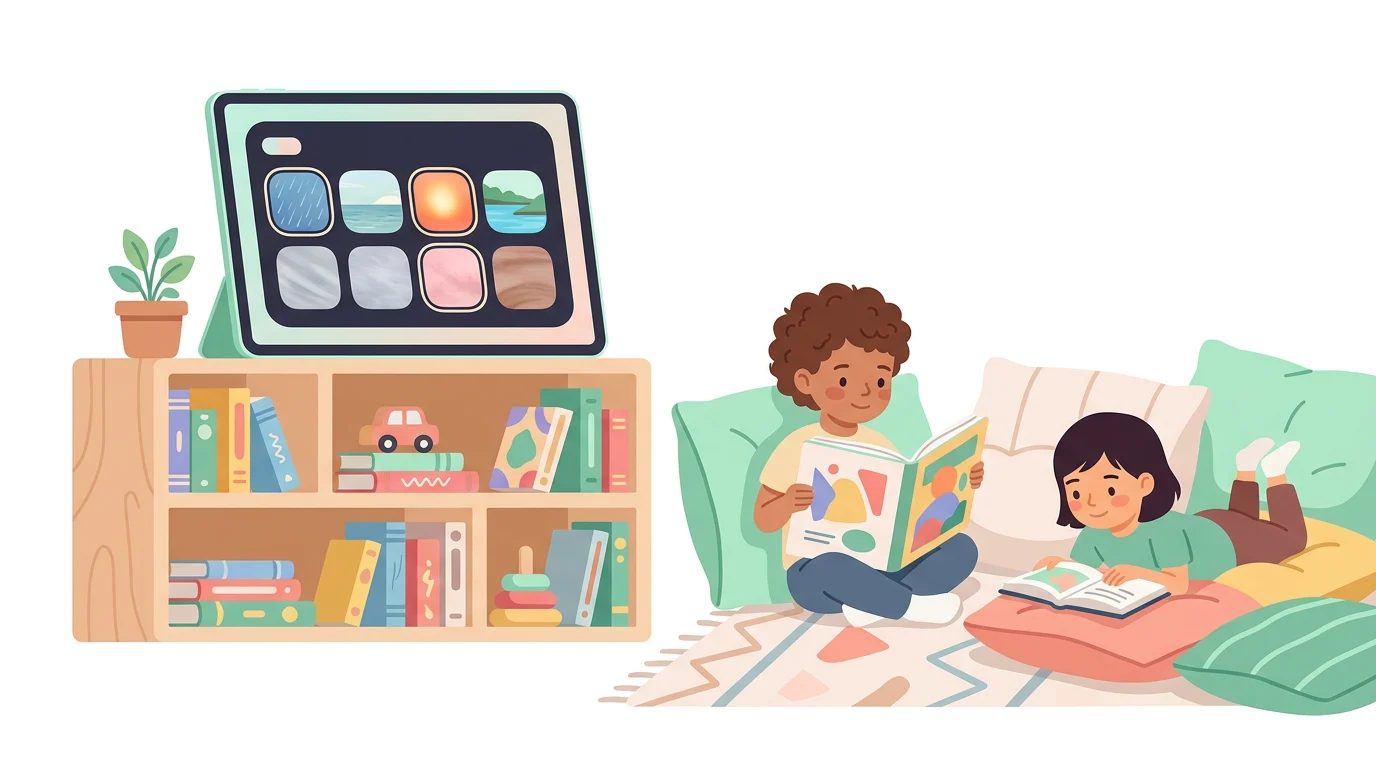
For silent reading, a stream or ocean waves at a low level makes a gentle bed of sound. Leave it in a corner of the page, press Play when the books come out and Pause when they go away.
Pick the sounds once, copy the link, and press Play when you need them. Here is what it does and what you can change.
Rain, ocean waves, a fireplace, a stream and wind, and white, pink and brown noise. Each one is made by your browser when you press Play, so there is nothing to download and nothing to buffer.
Tap a tile to turn its sound on, and a slider appears on it for that sound’s level. Rain with a little brown noise under it, or waves and a stream together, three at a time.
Set the timer to 15, 30 or 60 minutes, here or in the widget. It counts only while the sounds play, and in the last twelve seconds it fades them out instead of stopping short.
Night, Dusk, Ocean, Paper, Mint and Sand for the panel, and a scene for every sound that moves while it plays. Switch Moving scenes off for a still look, or the names off for icons only.
Drag the block’s corner and the tiles grow or shrink with it. A wide block lays them out in two rows of four; a tall, narrow column stacks them two by four.
Five steps, about a minute. The same steps work for every widget on Notion4Teachers.
Choose up to three sounds, their levels and a sleep timer at the top of this page.
Press Copy Widget Link. Everything you chose is part of the link.
Click where the sounds should go on your Notion page and paste.
Notion asks what to do with the link. Choose Create embed.
Pull the block’s corner until the tiles are as big as you want, then press Play.
The Ultimate Teacher Planner sets up your classes, lessons, grades and attendance in Notion. Put your widgets at the top of it in a minute.
See the Teacher PlannerA video plays one track. This mixes the sounds you pick, at the levels you set, for as long as you need.
No ads, no videos, no tracks that end. The sounds play until you pause them.
Every mix passes through a limiter, so even three sounds at full stay at a safe level.
No recordings to download: your browser makes each sound when you press Play.
15, 30 or 60 minutes, then a slow fade to quiet instead of a sudden stop.
Your mix stays in that browser. Nothing you play or pick is sent to us.
No account and nothing saved on our side. Change the sounds, copy the new link.
Anyone who works better with a steady, calm sound in the background.
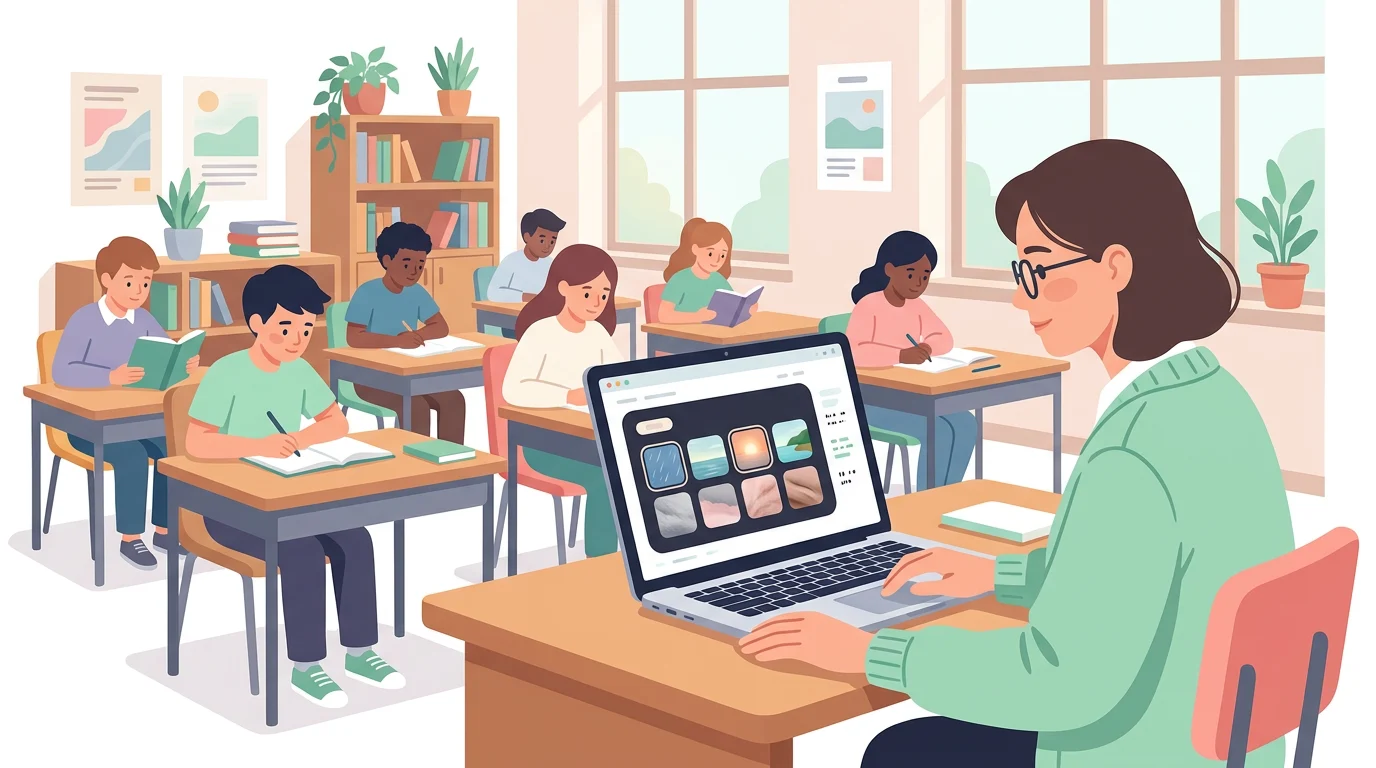
On the class page during quiet work, reading time and tests, played softly through the room’s speaker, with the timer marking the end of the work block.

On a homework dashboard next to the to-do list and the Pomodoro timer. Pick a mix once, and the widget opens with it every evening on that computer.

On the day’s lesson page, so a child can work through a math page with soft rain playing and the timer fading it out when the lesson ends.
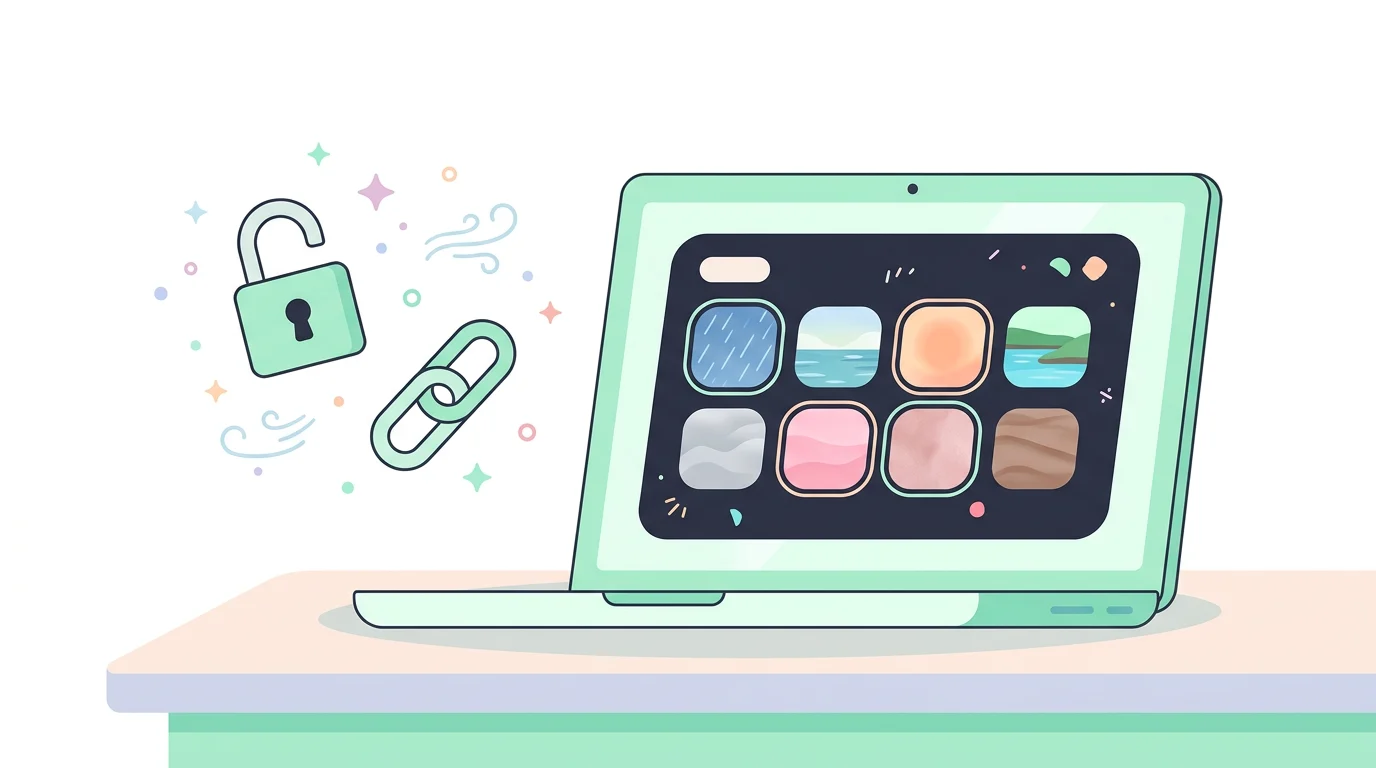
Many sound sites ask you to download an app or sign up to mix sounds. Here you pick them on this page and copy the link: nothing to register, nothing to pay, nothing to install.
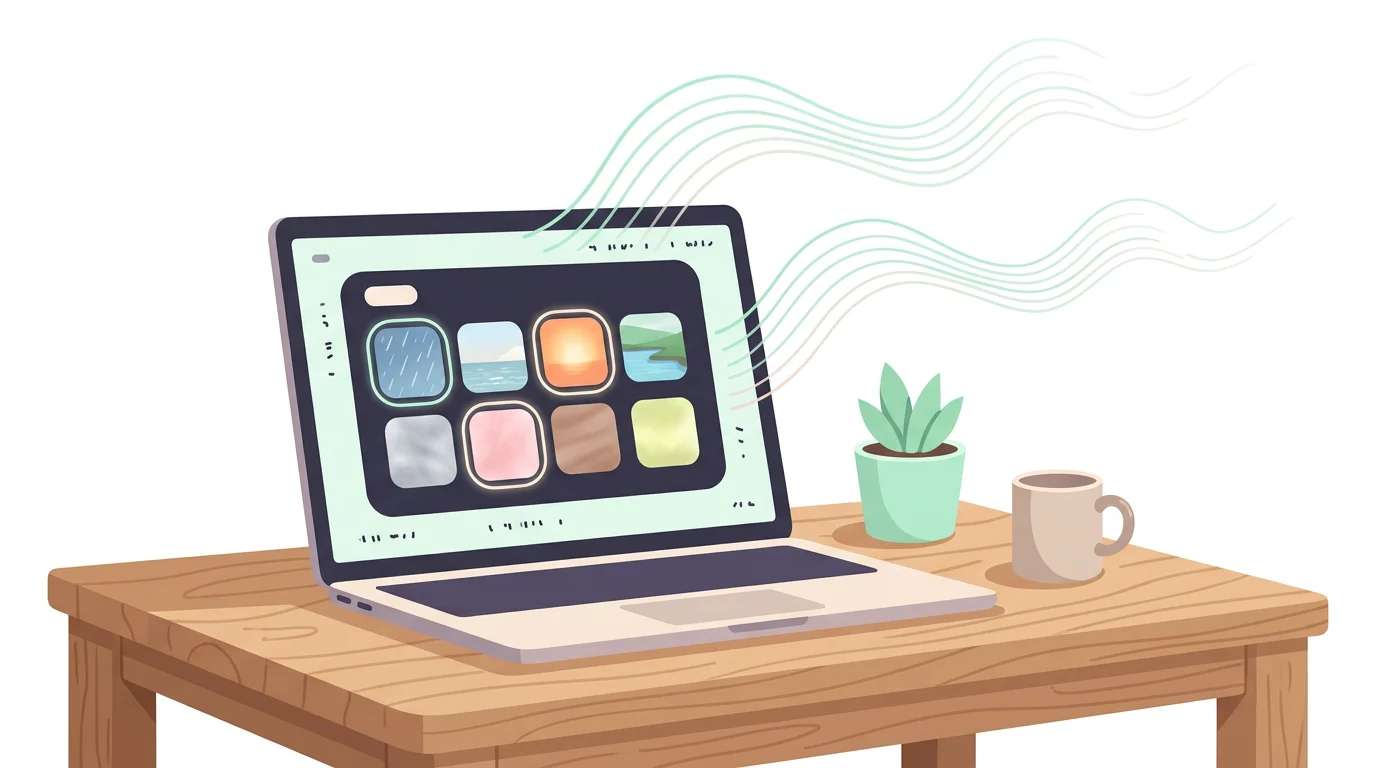
There are no recordings: each sound is made by your browser when you press Play. Nothing to stream, so no buffering, no ads between tracks and no video running in the background.
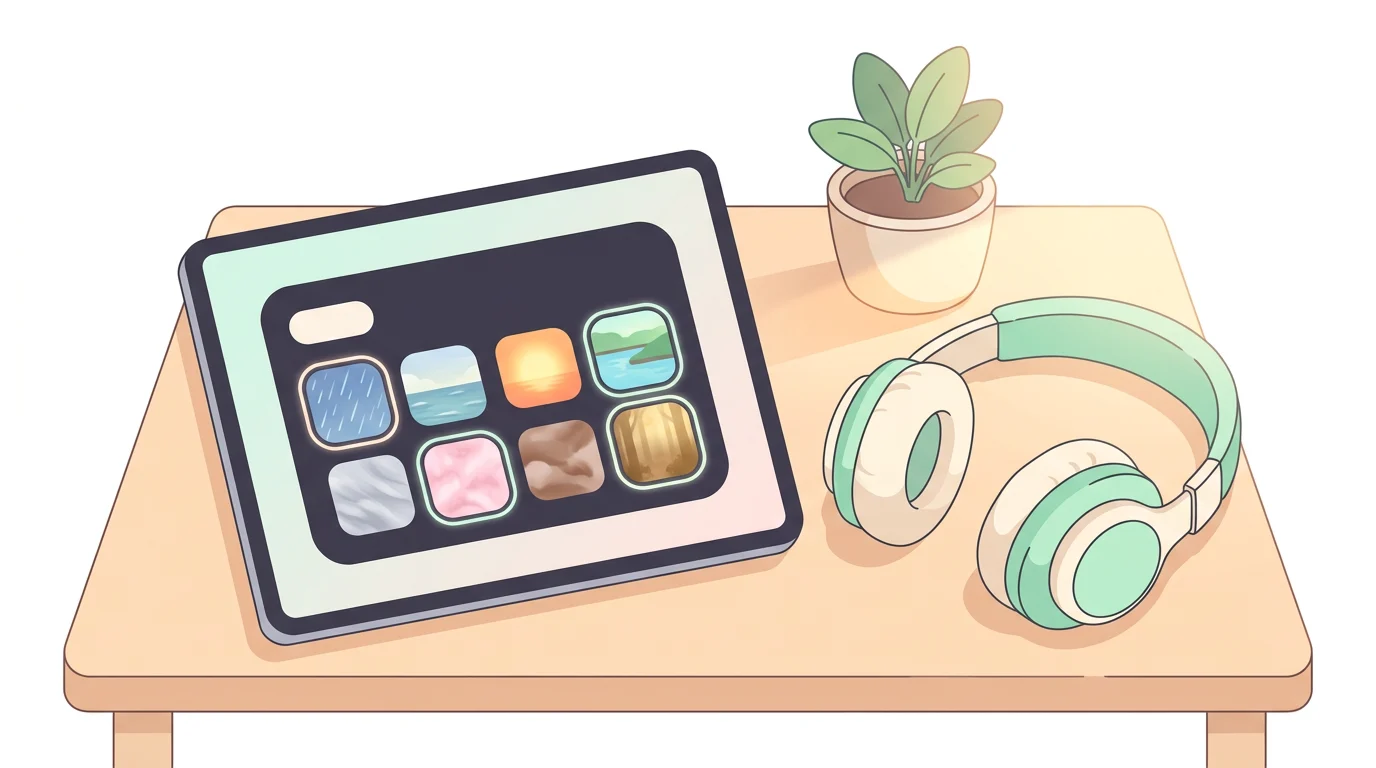
The sounds fade in when you press Play and fade out on Pause and at the end of the timer. A limiter keeps every mix at a safe level, even three sounds at full.
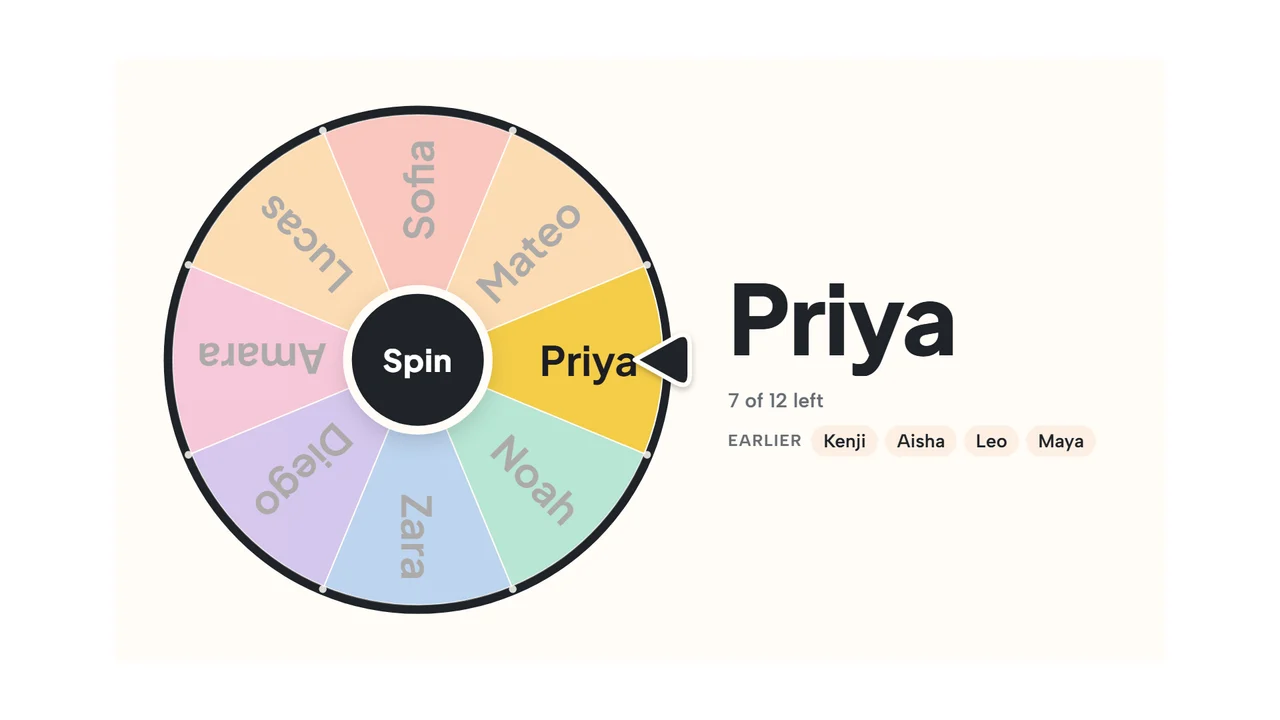
Spin a wheel of your class list and land on one name, fairly and with no repeats.
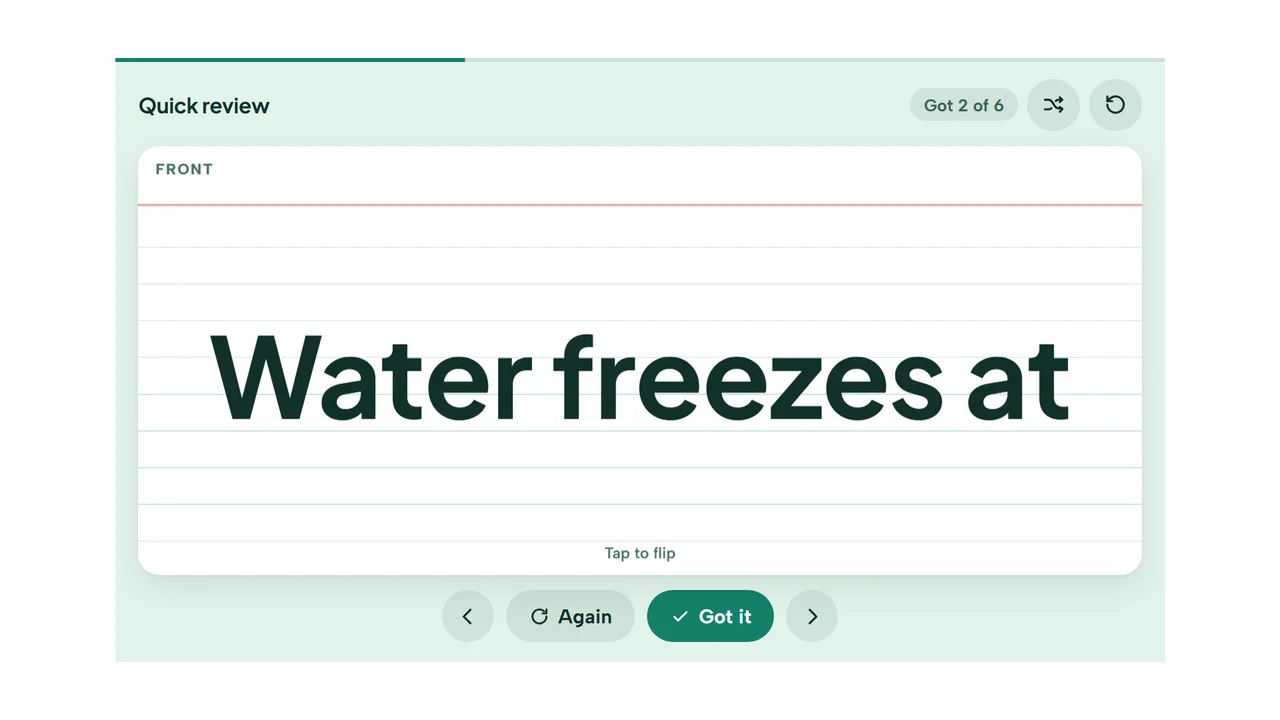
Type your cards once, then flip, shuffle and sort them into Got it and Again.
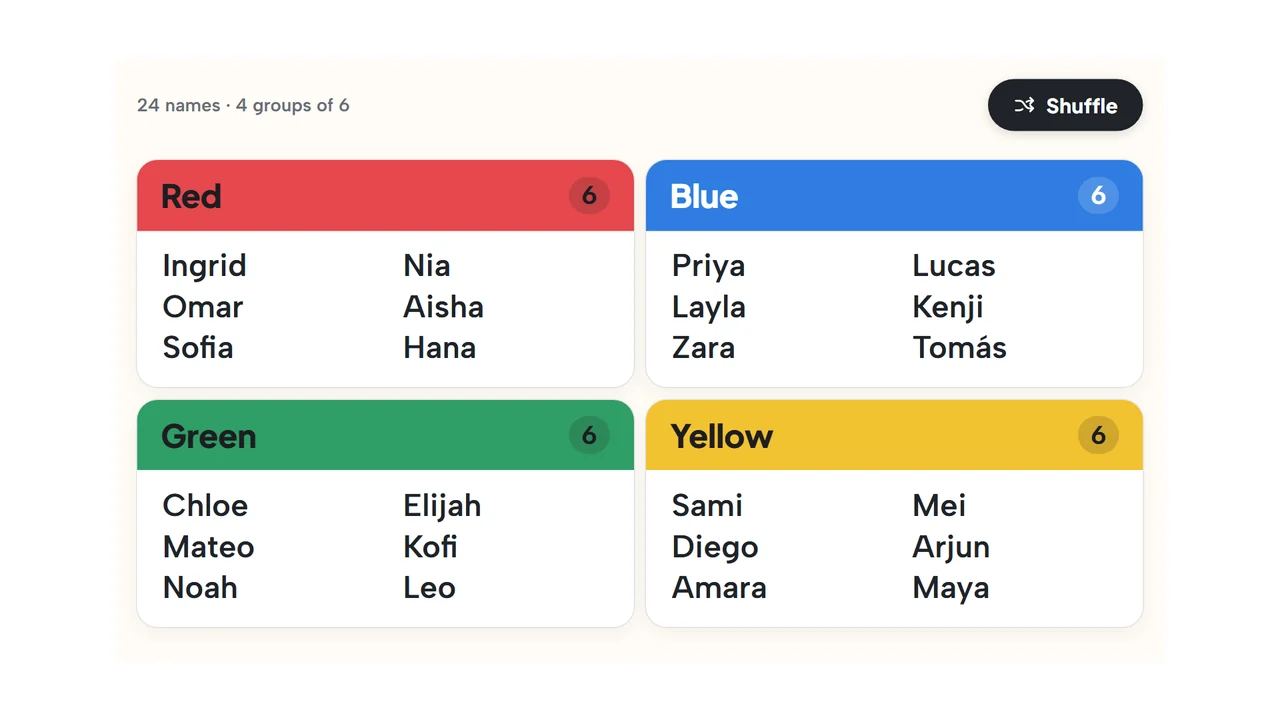
Split your class into fair groups or pairs, named your way, on cards the room can read.
Yes. The study sounds widget is free to set up, copy and use on as many Notion pages as you like. There is no account to make, no trial, no watermark and no ads, and the block holds your sounds and nothing else.
Pick the sounds and their levels at the top of this page and press Copy Widget Link. In Notion, click where the sounds should go, paste the link and choose Create embed. Drag the corners of the block to make it the size you want, then press Play.
Eight. Rain, ocean waves, a fireplace, a stream and wind, and white, pink and brown noise. Tap a tile to turn its sound on or off, up to three at a time, and move the slider on a tile that is on to set its level.
No. Every sound is made by your browser while it plays, from random noise shaped with filters, short drops and crackles, and slow swells for the waves. Nothing is downloaded or streamed, so it never buffers and never stops for an ad.
White noise has every pitch at the same strength, so it sounds bright, like a hiss. Pink noise turns the high pitches down, so it sounds softer, a little like steady rain. Brown noise turns them down further still, to a deep, low rumble.
Yes. Once you press Play it keeps going while the Notion page stays open, even in another tab. It stops when you press Pause, when the sleep timer runs out with a slow fade, and when the page closes or the block is hidden.
Browsers don’t let a page make sound before you press something on it, and the widget waits for you anyway. Your sounds are ready on the tiles; press Play, or the Space bar once you have clicked the widget, and they fade in.
Yes, in the browser that made it. The sounds you turned on, their levels and the sleep timer stay there, so the widget opens with your mix next time. Another computer or the Notion phone app starts with the sounds in the link, and nothing is sent to us.

The Complete Bundle has every Notion4Teachers template, with the Ultimate Teacher Planner at its heart.
Get Complete Bundle40% OFF!