

The first day of a new term
Project the plan as students walk in, and everyone finds their seat without a line at your desk. Shuffle for a fresh start, then swap a few desks by hand where you know better.
Set the rows and the desks, type your class, then copy the link and paste it into Notion. Shuffle the seats, or tap two desks to swap.
First names are best: the link carries them.
The front row first, left to right.
Today in Room 12
www.notion4teachers.com/embed/seating-chartA seating chart widget is a small web page that draws your classroom with every student in a seat, made to sit inside a Notion page. You paste its link into Notion, choose Create embed, and the plan shows in the block. This one has single desks or tables of two or four, fills them in list order or shuffled, and lets you swap any two desks with a tap. Nothing to install, and no account.
Teacher Home
Whenever the seats change, or someone new needs to know them. Three moments where it helps:
Project the plan as students walk in, and everyone finds their seat without a line at your desk. Shuffle for a fresh start, then swap a few desks by hand where you know better.

Put the chart on the substitute’s Notion page beside the day’s plan. The front of the room is marked and each desk shows a name, so a new face can call students by name from the start.

Switch the room to tables of four for a project week and copy the new link. The plan shows who sits together, and a tap on two desks moves anyone who needs a different group.
Set the room once, copy the link, and the plan looks after itself. Here is what you can change before you paste it into Notion.
Choose single desks, tables of two or tables of four, then how many rows and how many desks or tables in each row, up to ten of each. Every desk has its chair drawn, like a printed plan.
Tap a desk, then another, and the two students change places. Drag a name onto another desk for the same, or onto an empty desk to move it there. Your changes are kept in that browser.
Fill the desks in the order of your list, front row first, or shuffle the whole class fairly. Press Shuffle in the widget for a new plan, and the round arrow puts everyone back in list order.
The board marks the front of the room at the top or the bottom of the plan, so it matches how you see the room. Name it yourself, such as Whiteboard or Teacher’s desk, and add seat numbers if you like.
Paper for a plan that reads like a printed one, Mint, Blush, Ocean and Sunset to match your page, and Night for a dark Notion page. The plan fills the block in light and dark mode alike.
Five steps, about a minute. The same steps work for every widget on Notion4Teachers.
Type your class, then choose the desks, the rows and the front of the room.
Press Copy Widget Link. Your names and settings are part of the link.
Click where the chart should go on your Notion page and paste.
Notion asks what to do with the link. Choose Create embed.
Pull the block’s corner until the plan is as big as you want.
The Ultimate Teacher Planner sets up your classes, lessons, grades and attendance in Notion. Put your widgets at the top of it in a minute.
See the Teacher PlannerA printed plan is out of date after the first swap. This one changes with a tap and stays on your page.
Swap two students, move one to an empty desk or shuffle the room in seconds.
The plan stays in that browser, so the page opens with your last changes.
Each name is as large as its desk allows, so the room can find its seats.
Only your room and your class. No pop-ups, no banners, no sign-in.
No account and nothing stored on our side. Change the list, copy the new link.
Shuffled seats come from secure random numbers, so every seating has the same chance.
Anyone who seats a group in the same room again and again.
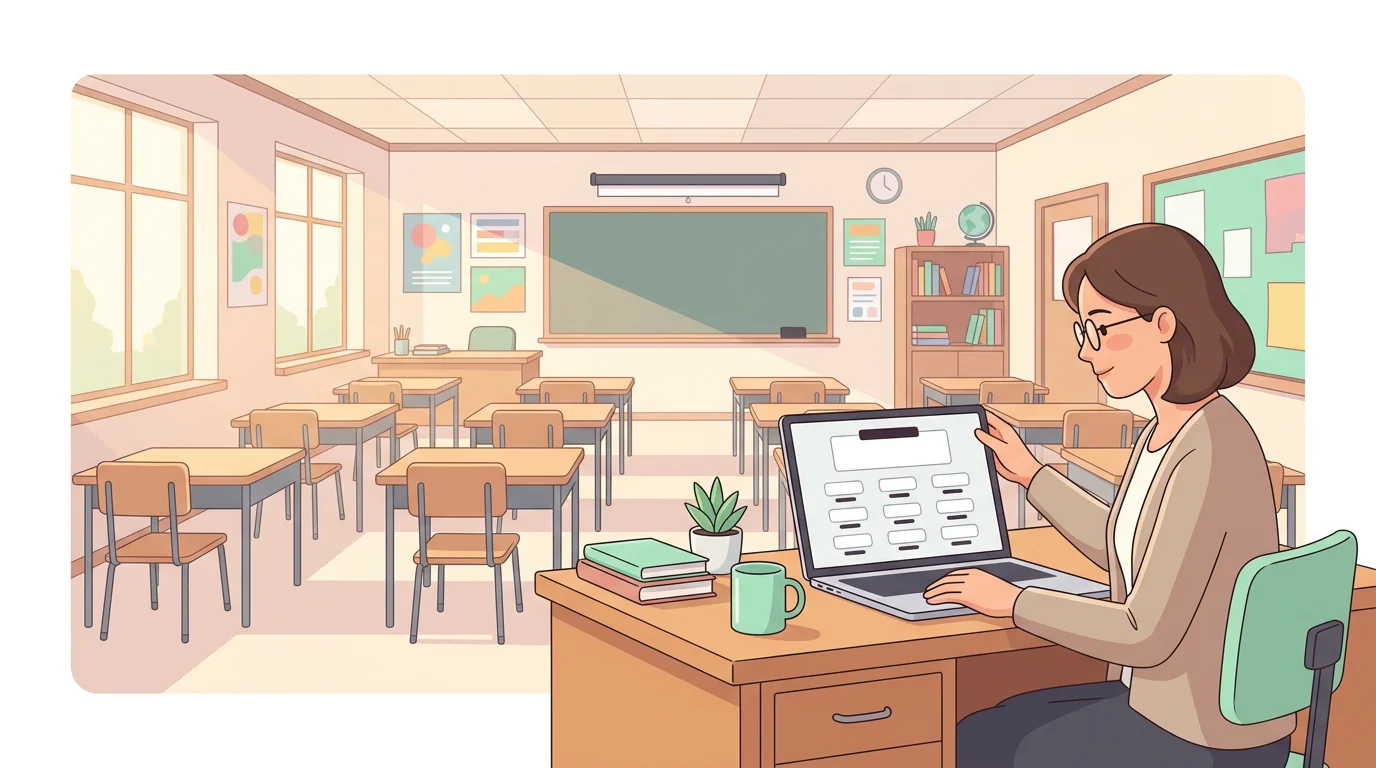
On the class page for each period, with a plan for normal days and another for tests or group work. Students check the screen, and swaps take a tap instead of a fresh printout.
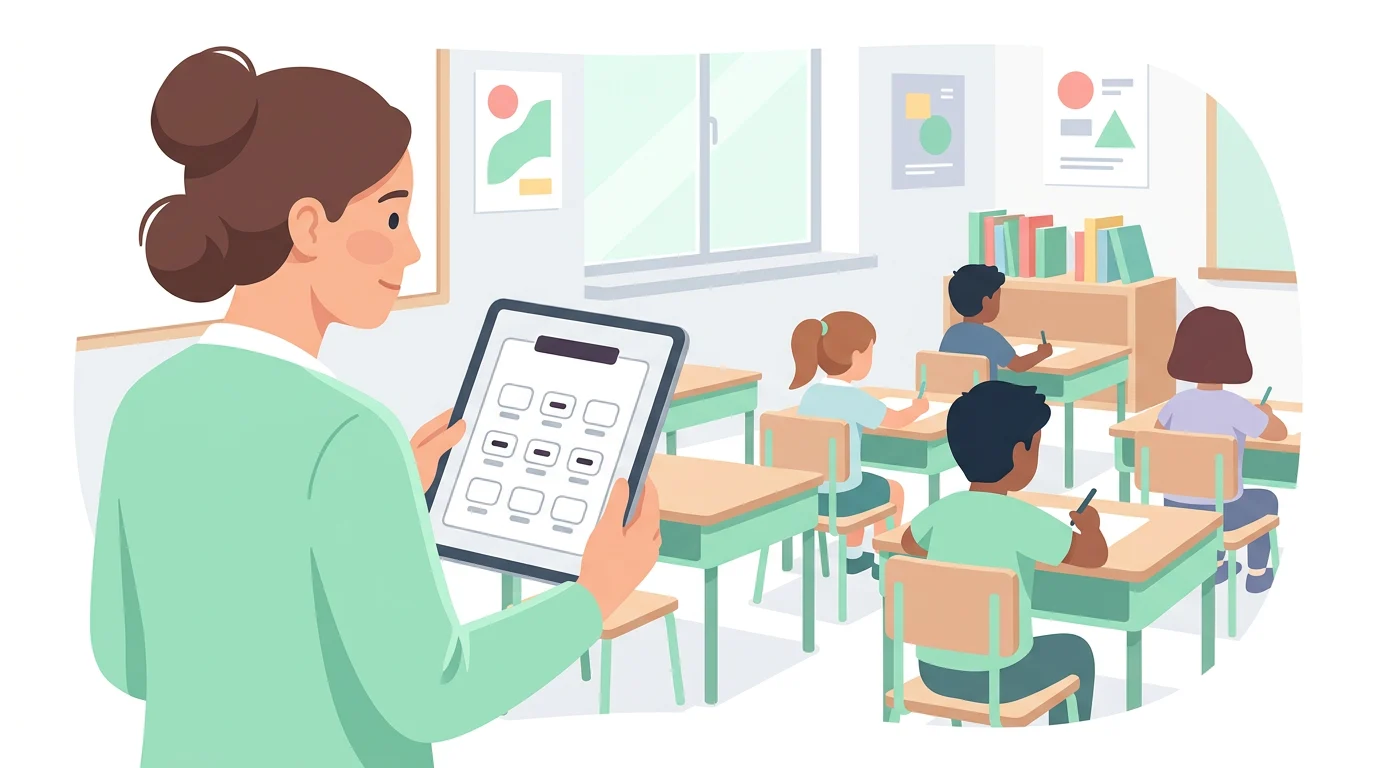
A shared Notion page with the seating chart beside the plans tells a substitute or a classroom aide who sits where, with the front of the room marked so the plan matches the room.

For a tutoring room, a club that meets after school or a weekend class, where the same students come back each week. Shuffle for a change, or keep the plan as it is on that device.
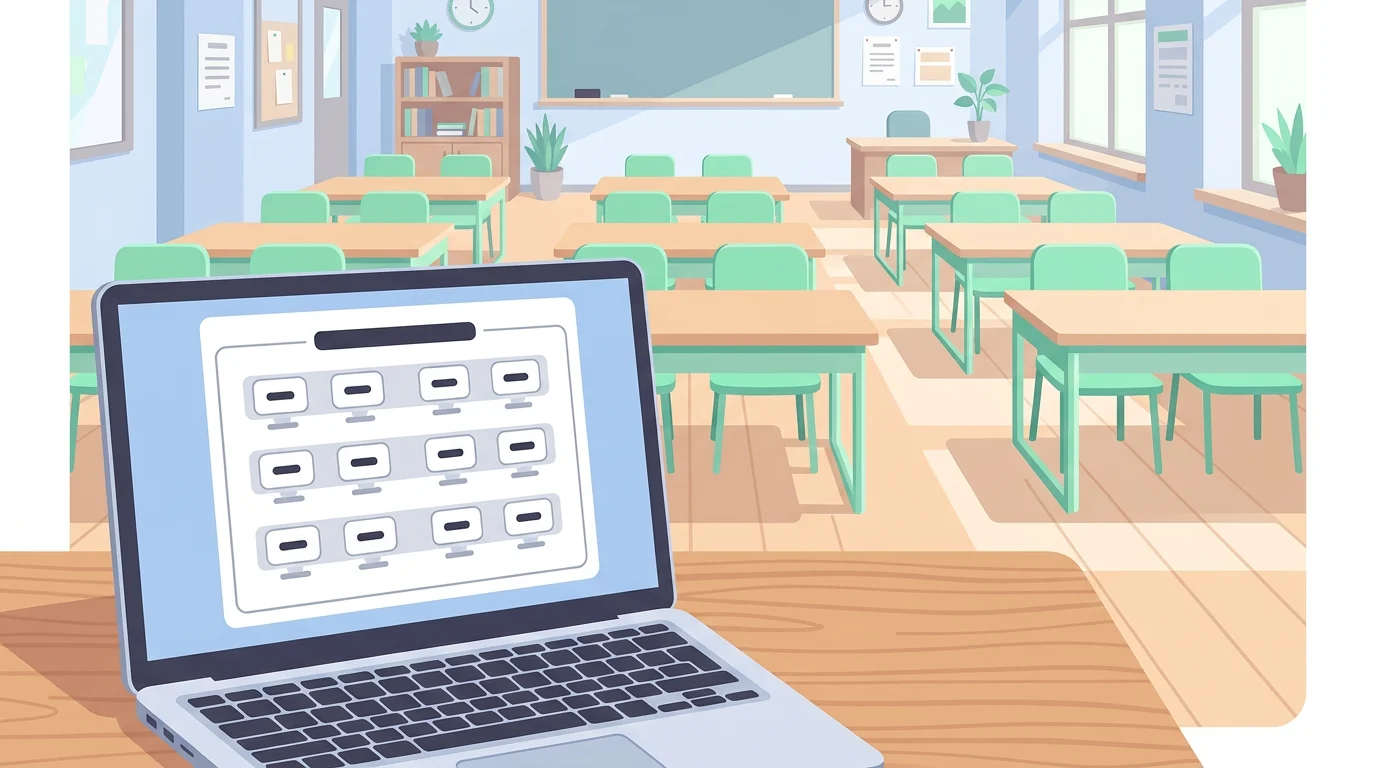
The front of the room is marked, every desk has its chair, and tables of two or four are drawn as tables. The plan reads like the room itself, on the board or on a substitute’s screen.
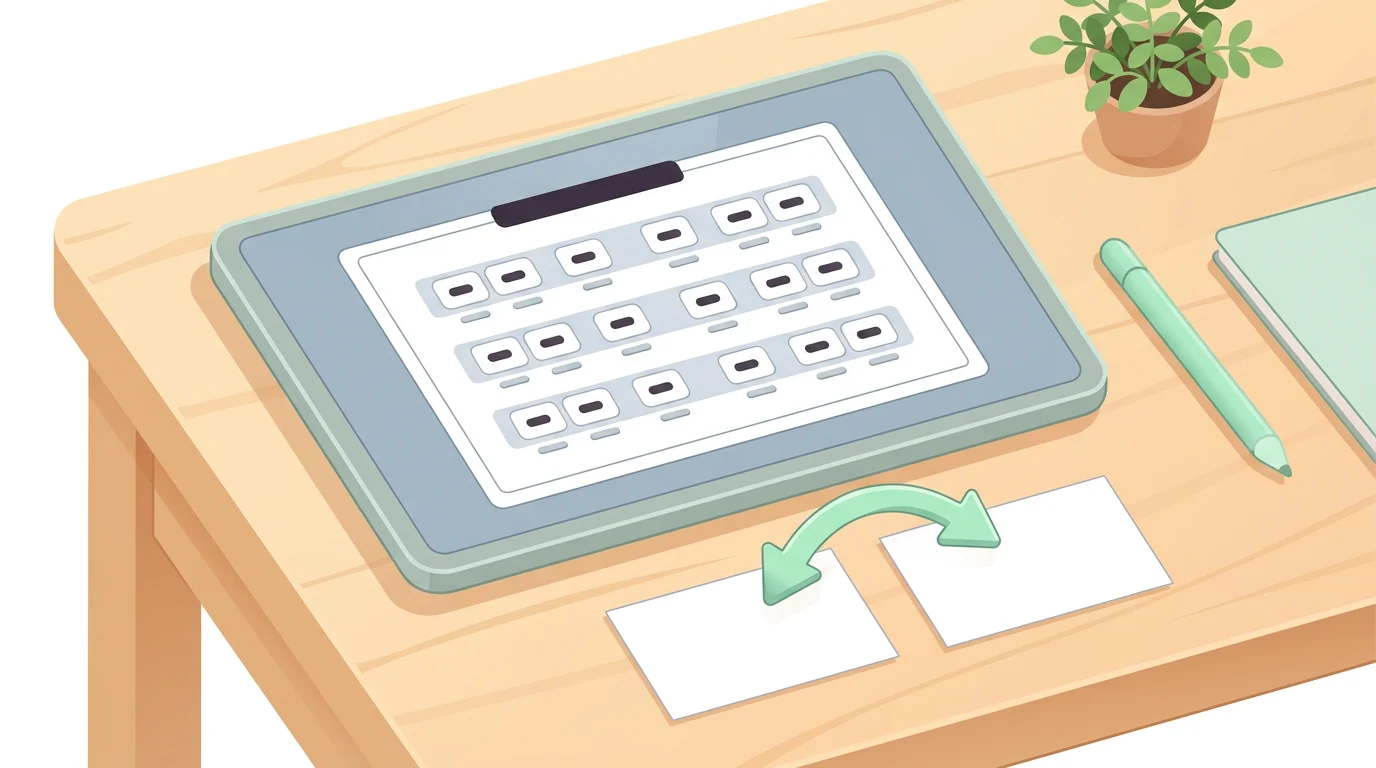
Tap two desks or drag one onto another and only those students move. Add a name to your list and it takes the first empty desk, while everyone else keeps their seat.
There is no account and no list saved on our side: the names travel in the widget’s link and the plan is kept in your browser. Use first names, and copy a new link when the class changes.
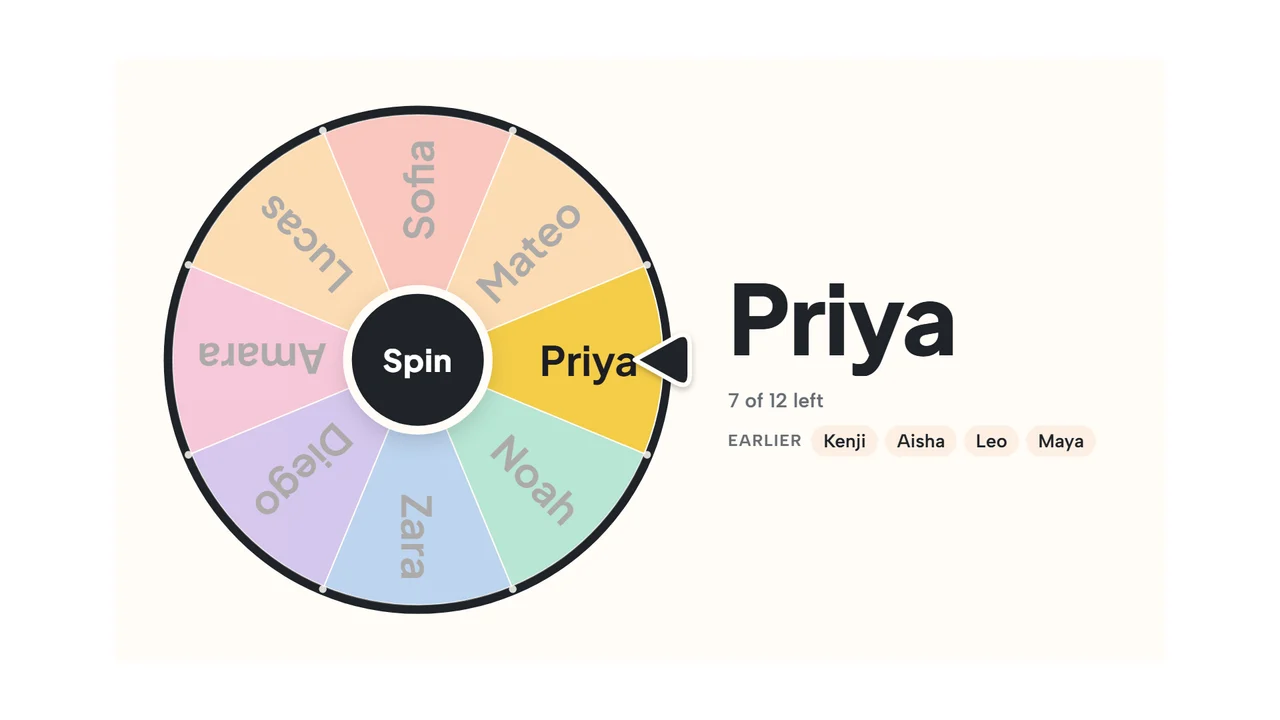
Spin a wheel of your class list and land on one name, fairly and with no repeats.
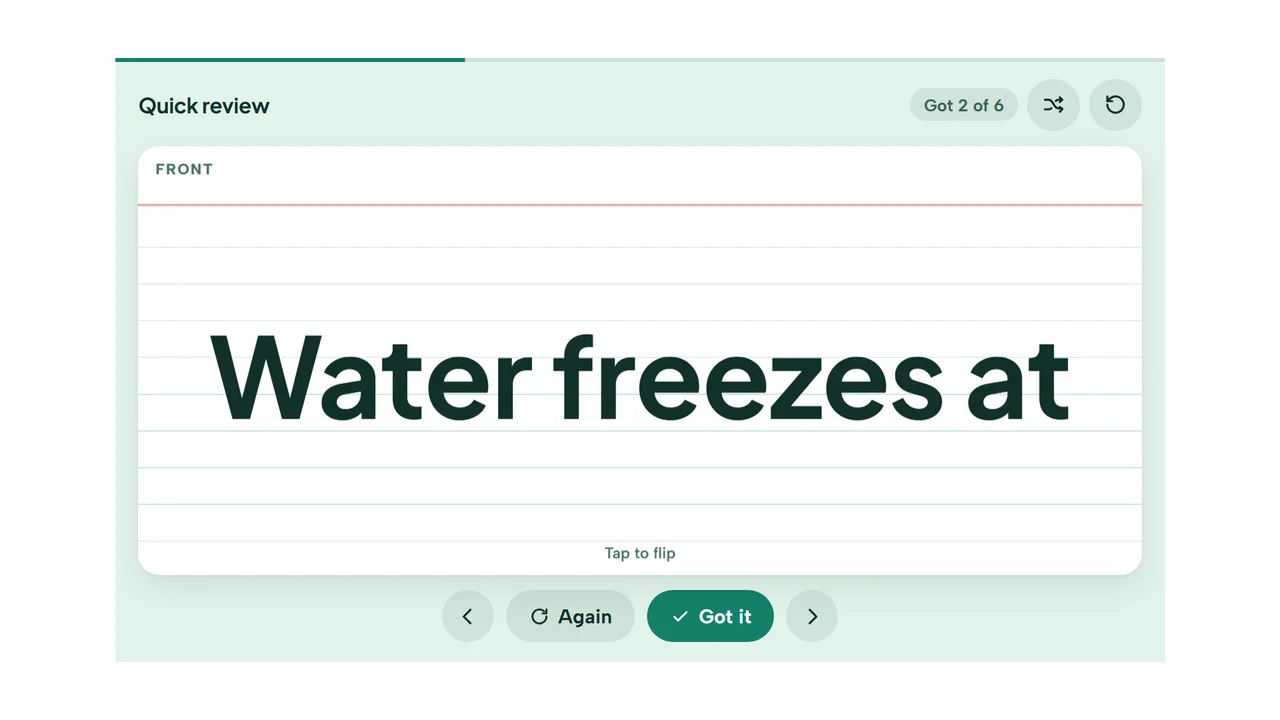
Type your cards once, then flip, shuffle and sort them into Got it and Again.
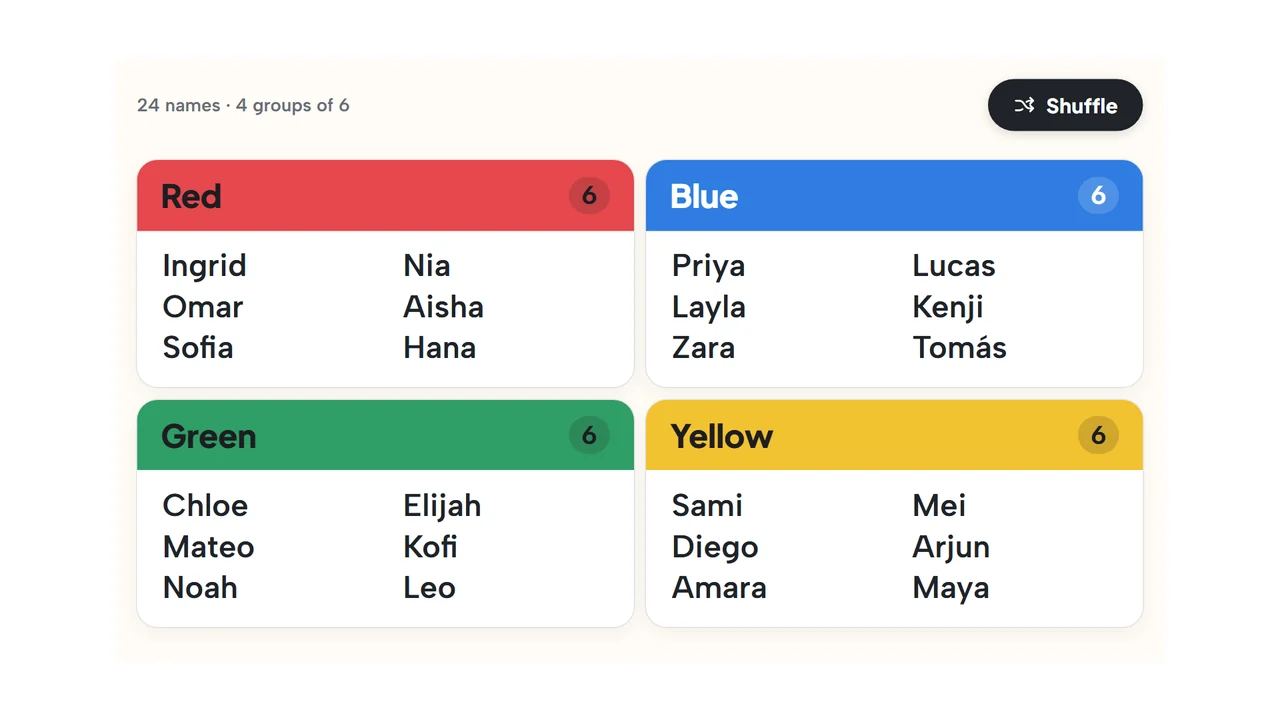
Split your class into fair groups or pairs, named your way, on cards the room can read.
Yes. The seating chart is free to set up, copy and use on as many Notion pages as you like. There is no account to make, no trial, no watermark and no ads inside the widget, and the names you type are never sent to us.
Type your class list at the top of this page, set the rows, the desks and the front of the room, and press Copy Widget Link. In Notion, click where the chart should go, paste the link and choose Create embed. Then drag the corners of the block to size it.
Tap one desk, then another, and the two swap. You can also drag a name onto another desk, or move to an empty desk the same way. With a keyboard, the arrow keys move between desks, Enter picks one and Escape lets it go.
Yes, on the device that made it. The plan is kept in that browser, so your swaps are still there when the Notion page opens again. Another computer, or the phone app, starts from the list. A new name in the link takes the first empty desk.
Yes. Under Room choose Single, Tables of 2 or Tables of 4. Rows and Per row then count tables, and each table is drawn with its seats side by side, so a plan of pairs or groups reads at a glance.
The chart seats as many as it can, front row first, and the count above it says how many are without a desk. Add a row or more desks per row under Room, copy the new link and paste it in place of the old one.
Yes. Shuffled seats are dealt with your browser’s secure random numbers, so every seating has the same chance. Students fill the desks from the front row back, and any empty desks are left at the back of the room.
The list lives in the widget’s link: anyone who has the link can see the names, and nothing is stored on our side. We suggest first names only. To change the names, press Change a widget you added on this page, paste the chart’s link and edit the list. Copy the link again and in Notion choose ••• then Replace: everyone still on the list keeps their desk.

The Complete Bundle has every Notion4Teachers template, with the Ultimate Teacher Planner at its heart.
Get Complete Bundle40% OFF!