
Review games and quizzes
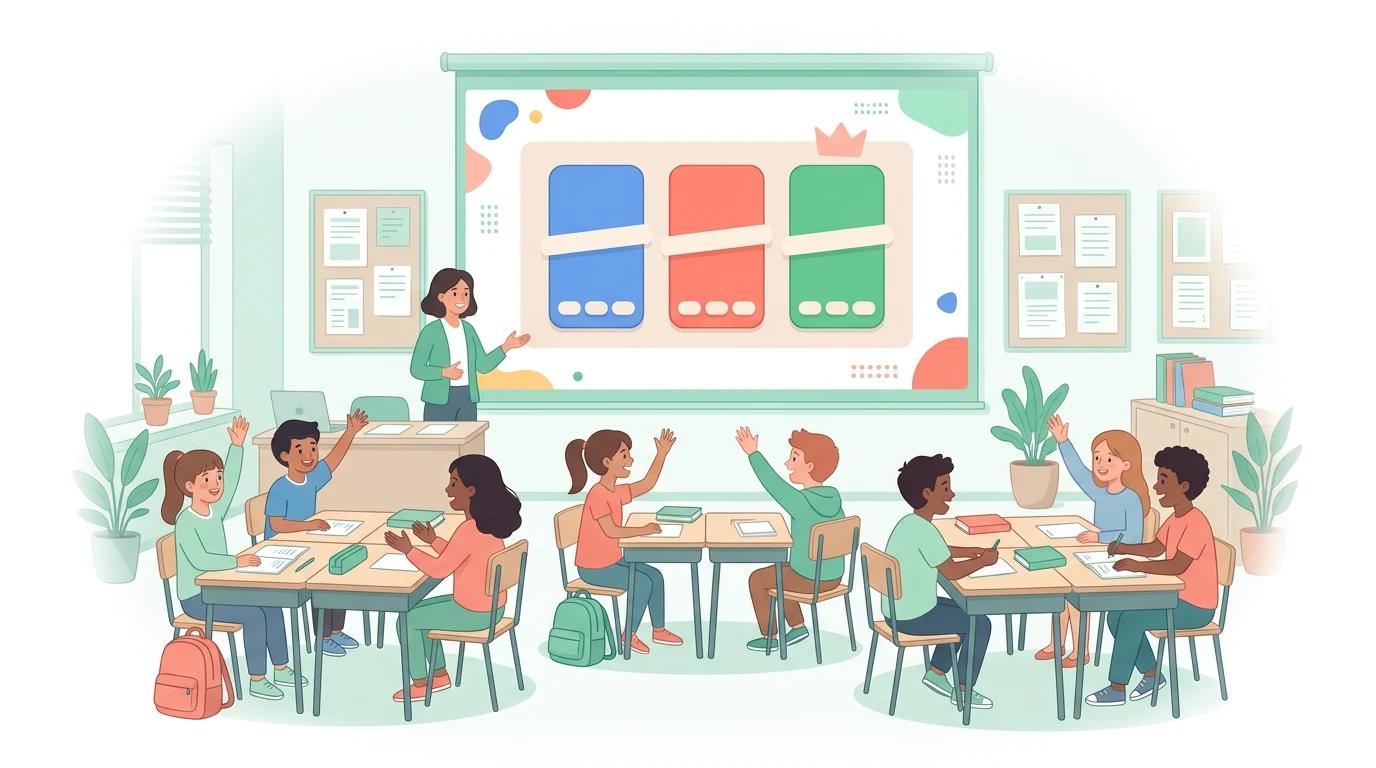
Split the class into teams for a review game and keep score on the projected page. Tap +1 for a right answer or the big step for a bonus round, and the crown shows who leads.
Name the teams, pick a look and a big step, copy the link and paste it into any Notion page. Then keep score with a tap, big enough for the back row.
A color after a bar: “Owls | green” (red, orange, yellow, green, teal, blue, purple, pink).
Today in Room 12
www.notion4teachers.com/embed/scoreboardA scoreboard widget is a small web page that keeps points for teams, made to sit inside a Notion page. You paste its link into Notion, choose Create embed, and tap +1, −1 or a bigger step under each team. This one lets you name two to six teams and pick their colors, choose tiles, columns or a classic board, and mark the leader with a crown. Nothing to install, and no account.
Teacher Home
Whenever the class plays in teams. Three moments where a big, clear score keeps the game moving:
Split the class into teams for a review game and keep score on the projected page. Tap +1 for a right answer or the big step for a bonus round, and the crown shows who leads.

Give each table a team and add points for teamwork, tidy-up or kindness through the week. The scores are still there the next morning on the same classroom computer.
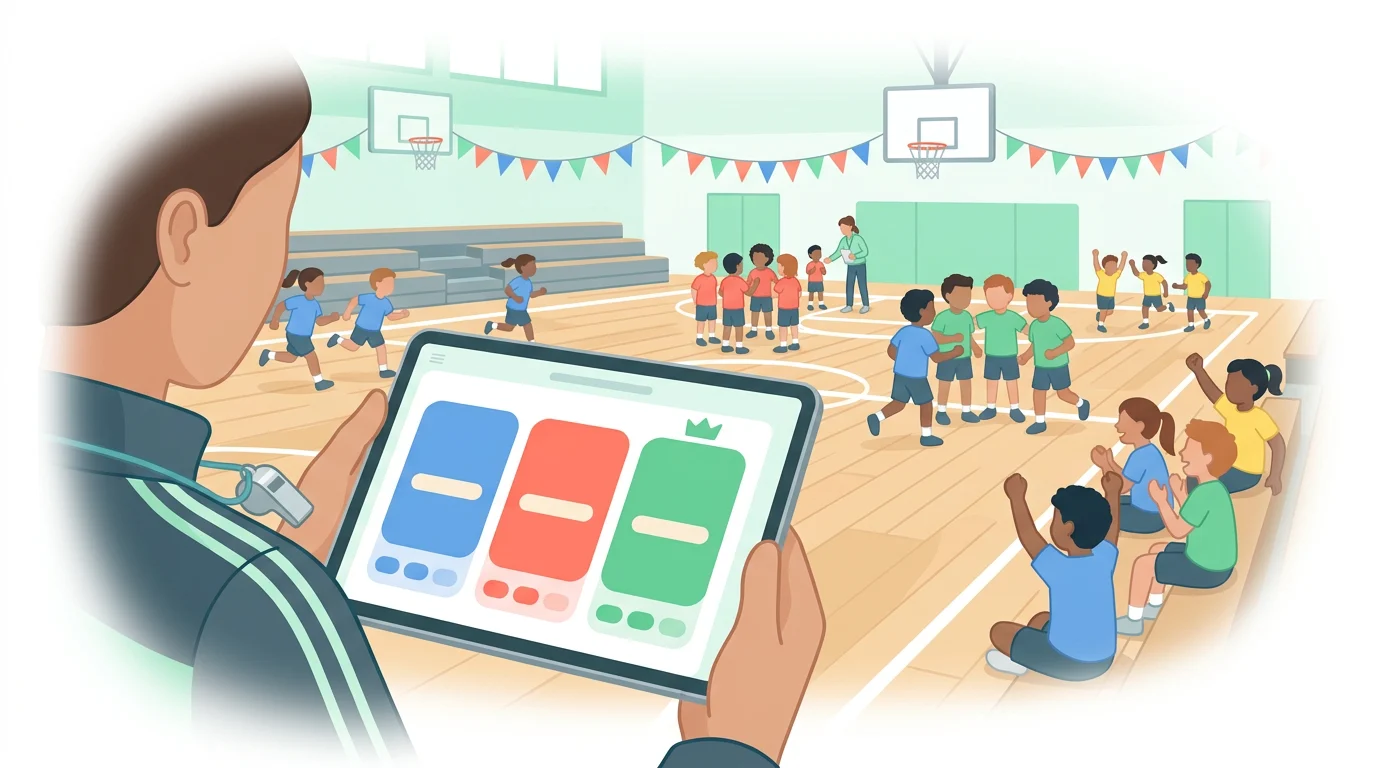
Spelling bees, math relays, house points or a field day. Name up to six teams, pick their colors and watch the columns rise as the points come in.
Set it up once, copy the link, and keep score. Here is what you can change before you paste it into Notion.
Write one team a line, from two up to six, and give each a color or let the teams take the set’s colors in turn. Each team gets its own tile, column or board, sized to fill the block.
Every team has −1, +1 and a bigger step you choose, from 2 to 100. Number keys add a point from a laptop, Undo takes back the last changes, and the reset sets every score to zero.
Choose bright tiles for each team, columns that rise with the score, or a classic board with lit digits in dark boxes. Five color sets, from Bright and Pastel to Chalk, Night and Paper.
The team in the lead wears a small crown, and teams tied at the top share it. Before the first point, or when every team is tied, nobody wears one. Switch it off under Look.
Drag the corners of the embed block and the scoreboard grows or shrinks to fill it. A wide block makes big scores for the projector; a narrow column keeps every team in view beside your notes.
Five steps, about a minute. The same steps work for every widget on Notion4Teachers.
Name the teams, pick the big step, the look and the colors at the top of this page.
Press Copy Widget Link. Everything you chose is part of the link.
Click where the scoreboard should go on your Notion page and paste.
Notion asks what to do with the link. Choose Create embed.
Pull the block’s corner until the scoreboard is as big as you want.
The Ultimate Teacher Planner sets up your classes, lessons, grades and attendance in Notion. Put your widgets at the top of it in a minute.
See the Teacher PlannerA tally on the whiteboard gets smudged and miscounted. This one adds up, remembers and reads across the room.
The scores fill the block, so a wide embed on the projector reads across the room.
A point for the wrong team takes one tap to fix, even after a reset.
Scores are kept in this browser on this device. Nothing is sent to us.
Tiles, columns or a classic board, in bright, pastel, chalk, night or paper colors.
It shows the scores and nothing else. No pop-ups, no logos, no sign-up.
No account and nothing saved on our side. Change a team, copy the new link.
Anyone who runs a game, a quiz or a contest in teams.
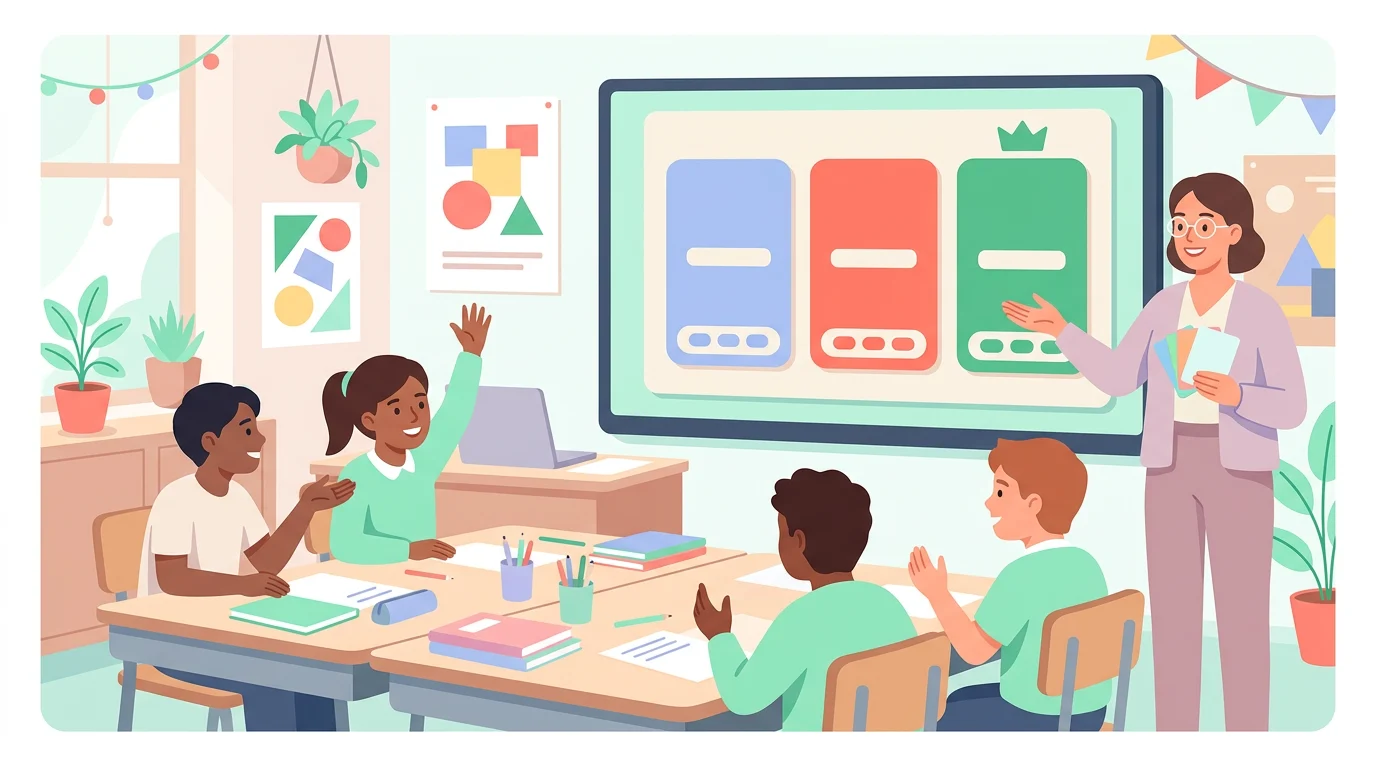
For review games, quiz rounds and table points on the projected page. The big buttons work on a classroom touch screen, and number keys keep score from a laptop while you read the questions aloud.
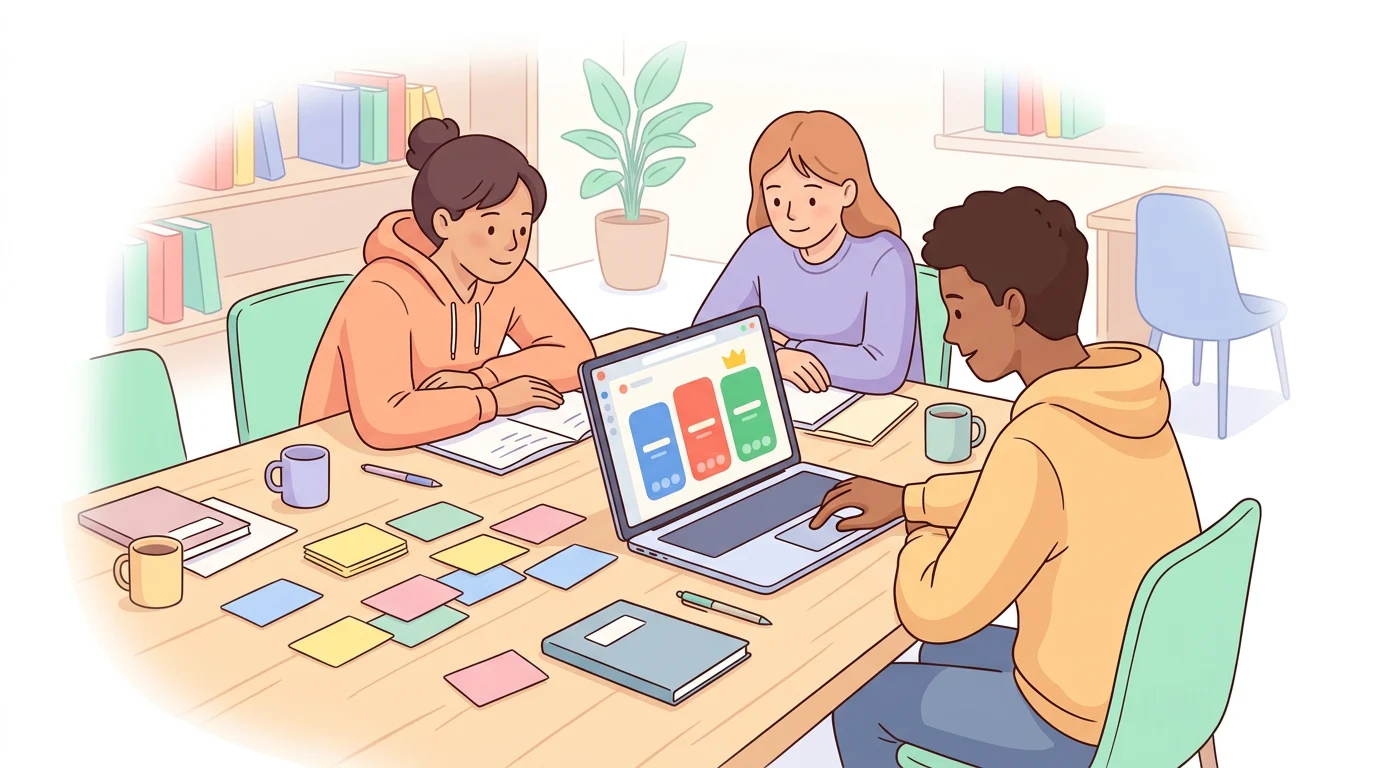
Student leaders running a class game, a club quiz or a study group contest can set up a board in a minute and keep score from one laptop for everyone to see.
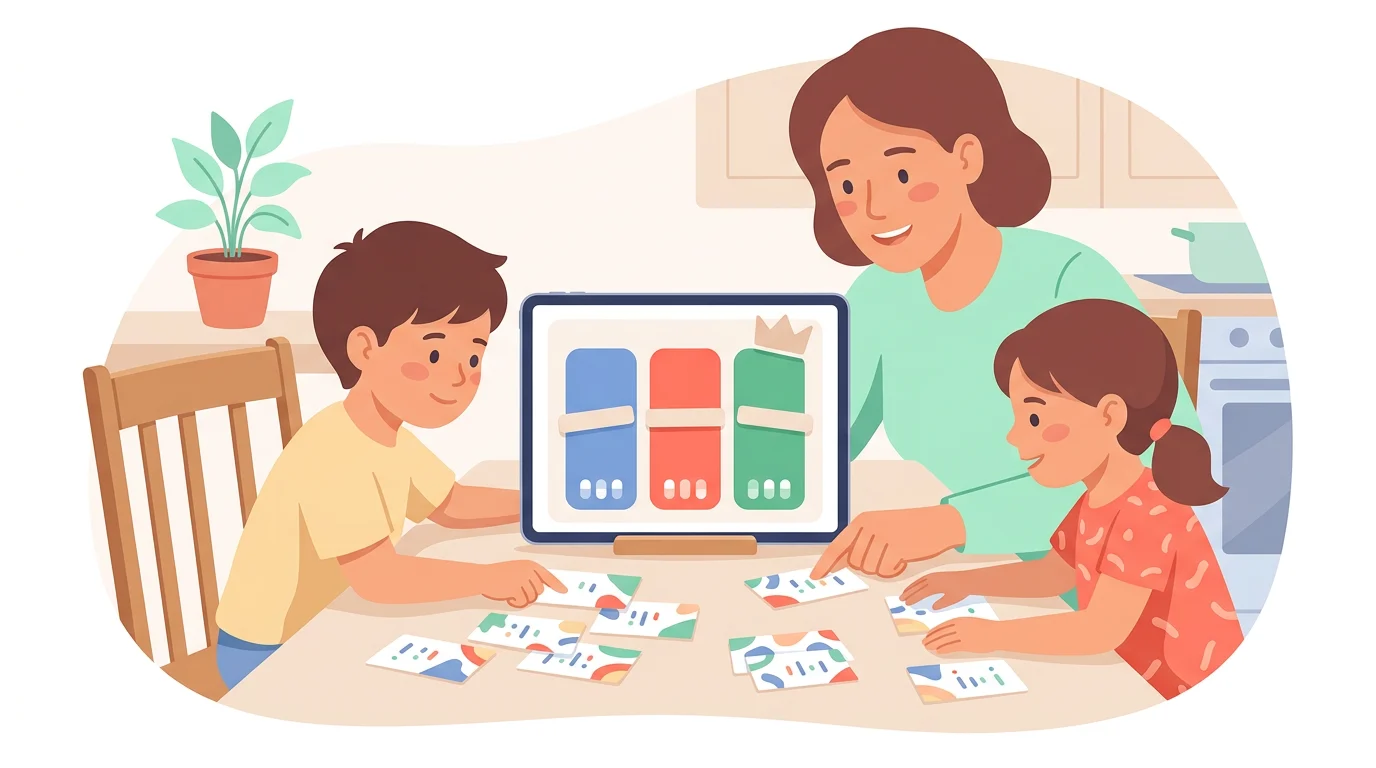
For family quiz nights, spelling games or a tutoring group’s points. Two teams for a parent against a child, or up to six for a co-op class that meets each week.
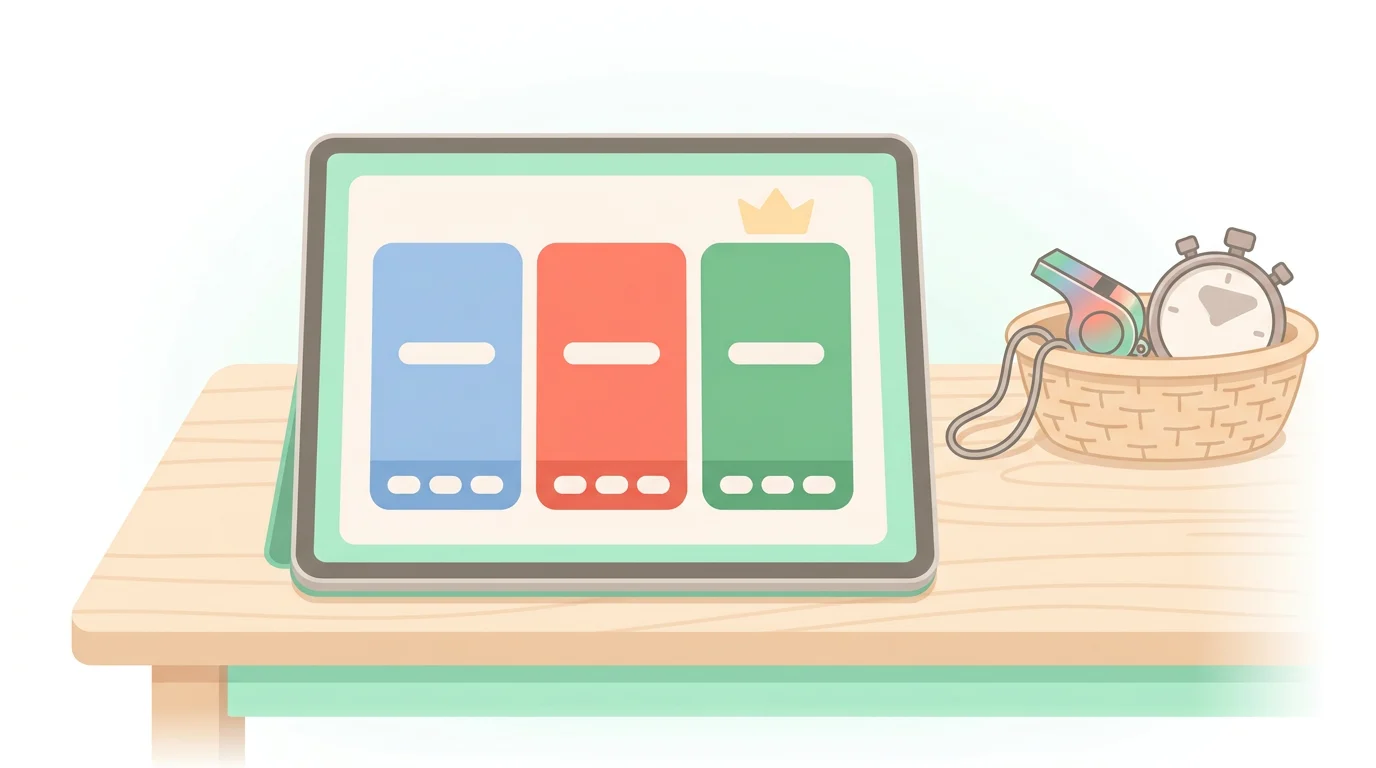
Online scoreboards are often built for one sport, with a game clock, fouls and periods. This one keeps points for two to six teams, with nothing else to set or explain.
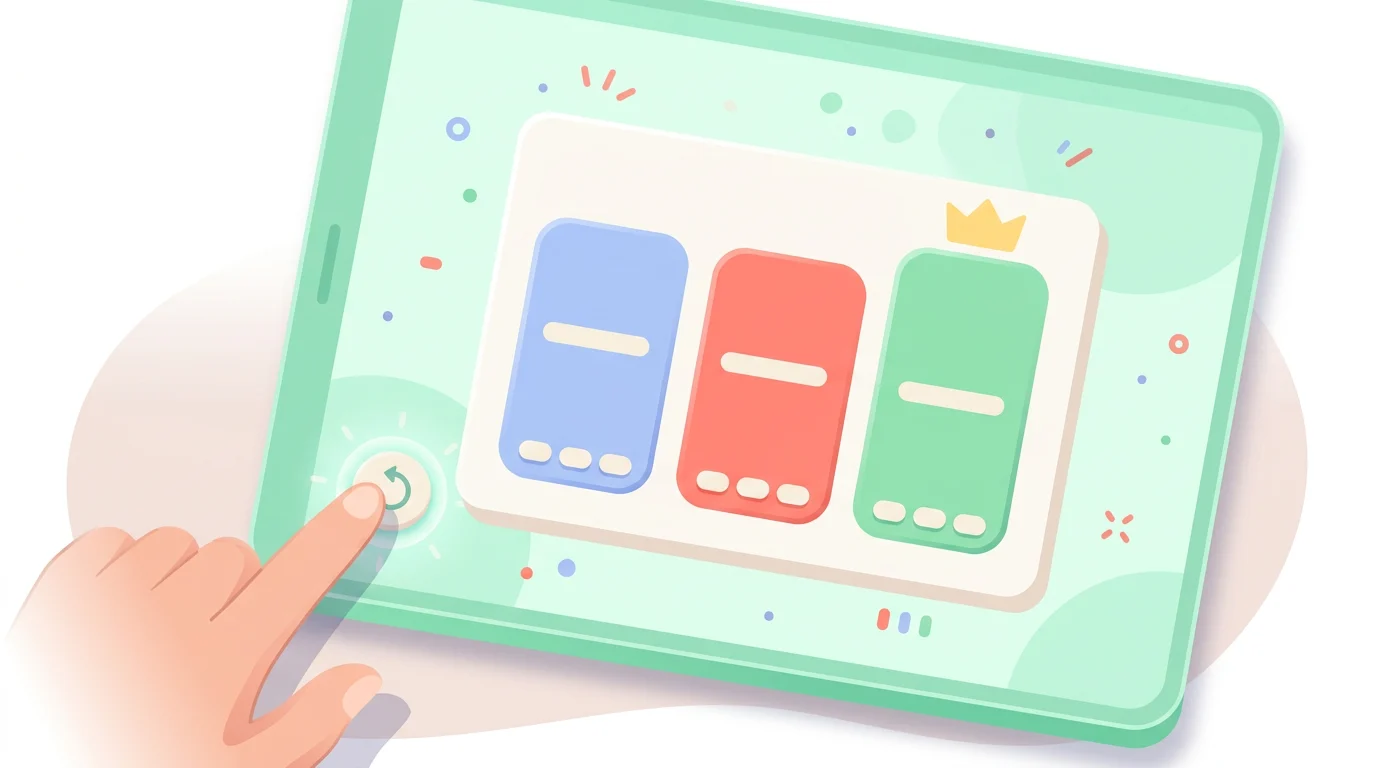
Undo takes back the last changes one at a time, and it brings the scores back after a reset, so a point for the wrong team never spoils the game.
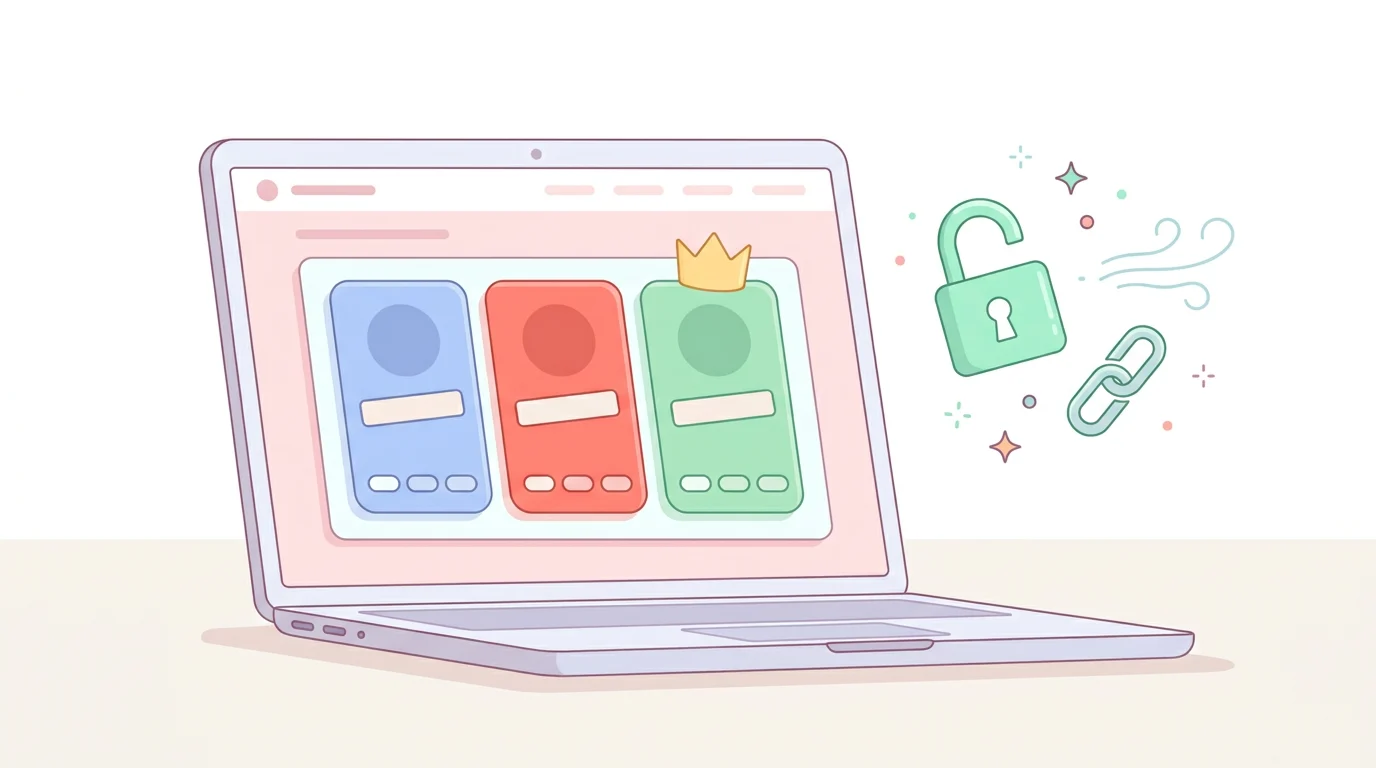
Many scoreboard sites ask you to sign up or show ads beside the score. Here you set the board up on this page and copy the link: nothing to register, nothing to pay.
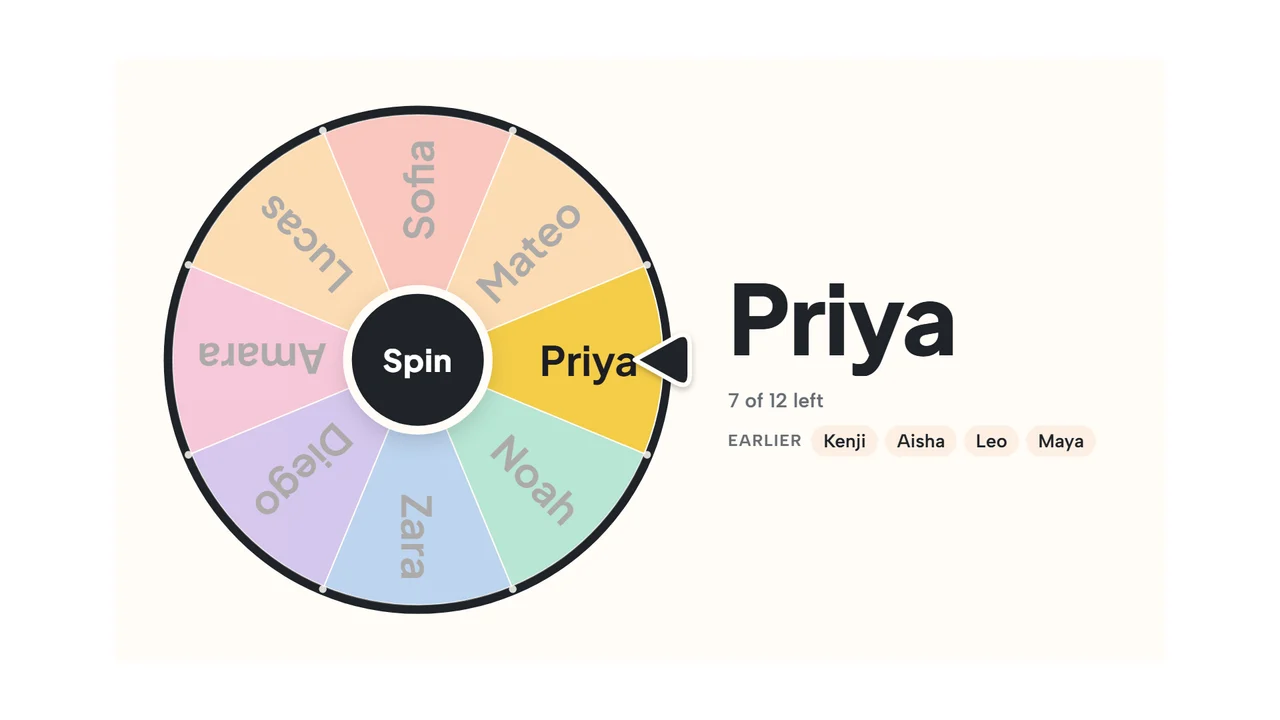
Spin a wheel of your class list and land on one name, fairly and with no repeats.
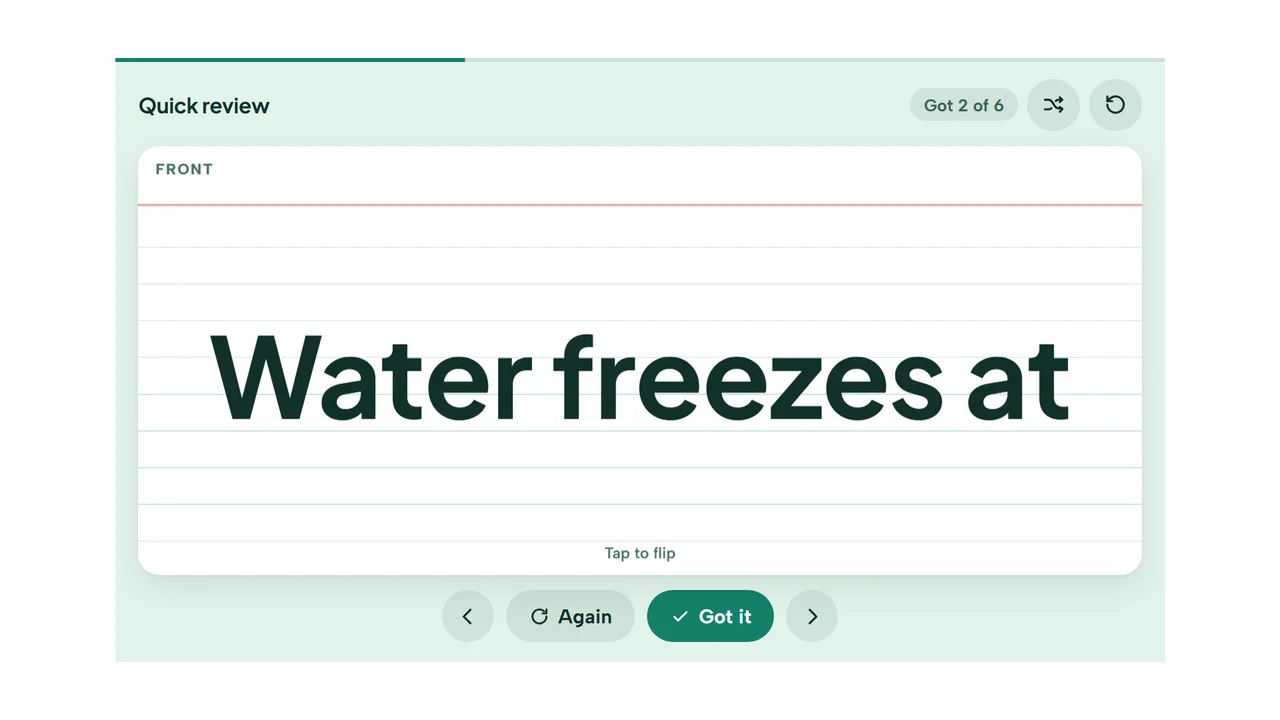
Type your cards once, then flip, shuffle and sort them into Got it and Again.
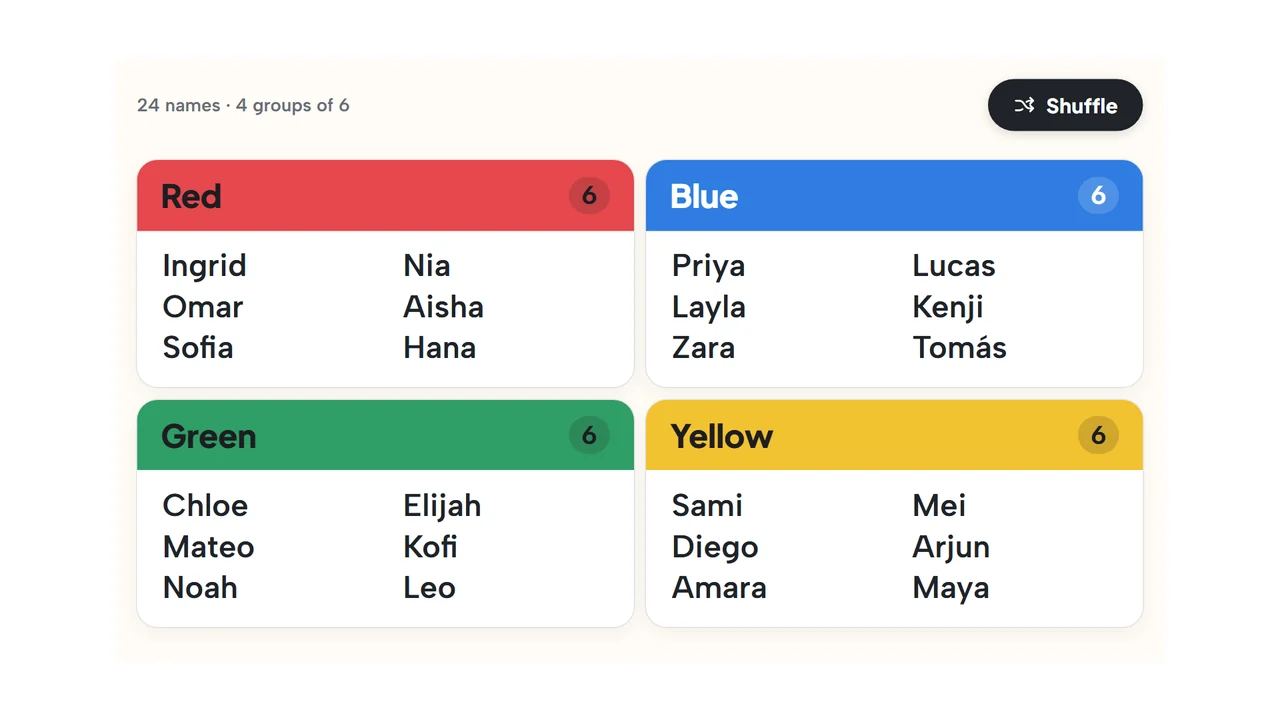
Split your class into fair groups or pairs, named your way, on cards the room can read.
Yes. The scoreboard is free to set up, copy and use on as many Notion pages as you like. There is no account to make, no trial, no watermark and no ads, and the scores you keep are never sent to us.
Set up the teams and the look at the top of this page and press Copy Widget Link. In Notion, click where you want the board, paste the link and choose Create embed from the menu that appears. Then drag the corners of the block to make it the size you want.
Yes, in the browser that keeps score. The scores are still there when the Notion page opens again on that computer or tablet. Another device, or the Notion app on a phone, starts at zero. Nothing is saved on our side, and the team names live in the link.
The team names are part of the link, so anyone who has the link can see them. Nothing is stored on our side. Use team names, or first names only, like Tigers, Owls or Maya’s table, and keep last names out of the link.
Yes. Click the scoreboard once, then press 1 to 6 to give that team a point, and hold Shift with the number to take one away. Ctrl+Z (⌘Z on a Mac) takes back the last change, as many times as you need.
Each team takes the next color of the set in turn. To choose one, write it after a bar on the team’s line, like Owls | green. The colors are red, orange, yellow, green, teal, blue, purple and pink, and each color set draws them in its own shade.
Press Undo in the top corner, or Ctrl+Z, and the last change goes back. Undo steps back through the changes one at a time while the page is open, and it brings every score back after a reset by mistake.
Yes. Make the embed block wide, then project or share the Notion page. The scores grow with the block, so they read from the back of the room, and the buttons are big enough for a classroom touch screen. Keep score on the device you present from.

The Complete Bundle has every Notion4Teachers template, with the Ultimate Teacher Planner at its heart.
Get Complete Bundle40% OFF!