

During a math lesson
Put the calculator on the projected page while you work through a problem. Students watch each key, see the sum on the line above the answer, and check their own work.
Pick the keys, the colors and the key shape, copy the link, and paste it into any Notion page. A soft scientific calculator that sits beside your notes.
Calculator
sin(30) is 0.5. The DEG key switches to radians.
Today in Room 12
www.notion4teachers.com/embed/calculatorA scientific calculator widget is a small web page with a working calculator, made to sit inside a Notion page. You paste its link into Notion, choose Create embed, and the calculator works right there in the block: click the keys or type. This one has scientific keys for trig, powers, roots, logs, π and e, or a basic set, and you choose the colors and the key shape before you copy the link. Nothing to install, and no account.
Teacher Home
Whenever a sum comes up and the phone is better left in the bag. Three moments where it helps:
Put the calculator on the projected page while you work through a problem. Students watch each key, see the sum on the line above the answer, and check their own work.

Keep it beside your gradebook to average three test scores, work out a percent or add up points, without opening another app or reaching for your phone.

Students add it to their study dashboard for math and science homework, with square roots, powers, sin and cos in degrees, and the last sum to check against the worksheet.
Set it up once, copy the link, and it is ready for every sum. Here is what you can change before you paste it into Notion.
The scientific keys add sin, cos, tan, log, ln, square roots, squares, powers, factorials, π and e beside the numbers. Choose basic for a small calculator with the four operations, percent and sign.
Angles start in degrees, so sin(30) is 0.5, or in radians, so sin(π ÷ 6) is 0.5. The DEG key on the calculator switches between them at any time, and the display shows which is on.
The line above the answer keeps the last sum, so you can see what was typed. Click the calculator once and type the sum on your keyboard, with Enter for the answer and Esc to clear.
Six color sets, from the soft green Sage to a dark Night, and three key shapes, soft, round or square. The calculator’s color fills the whole block, edge to edge.
Drag the corners of the embed block and the calculator grows or shrinks to fill it, keeping a calculator’s shape. A big one for the projector, a small one in a column beside your notes.
Five steps, about a minute. The same steps work for every widget on Notion4Teachers.
Pick the keys, the colors and the key shape at the top of this page.
Press Copy Widget Link. Everything you chose is part of the link.
Click where the calculator should go on your Notion page and paste.
Notion asks what to do with the link. Choose Create embed.
Pull the block’s corner until the calculator is the size you want.
The Ultimate Teacher Planner sets up your classes, lessons, grades and attendance in Notion. Put your widgets at the top of it in a minute.
See the Teacher PlannerA screenshot of a calculator can’t add. This one works right inside your Notion page.
The calculator shows its keys and its display. No ads, no pop-ups and no sign-in.
Every sum is worked out on your own device. Nothing you type is sent anywhere or saved.
Tap the keys, or click the calculator once and type the sum on your keyboard.
The keys fill the block, so a wide embed on the projector reads across the room.
The calculator fills its block with its own color, and the Night colors suit a dark page.
No account and nothing saved on our side. Change a setting, copy the new link.
Anyone who keeps their work in Notion and needs a quick sum.

On the projected page during a math lesson, and beside the gradebook for averages, percents and points. A calculator on the page means one less app to open in front of the class.

On a study dashboard for math and science homework, so the calculator is next to the notes and the to-do list instead of on a phone full of other things.

On the day’s lesson page, so a child can check their sums after working them on paper, and a tutor can show each step on the same screen.

Many widget sites ask you to sign up before you can copy a link. Here you set the calculator up on this page and copy it: nothing to register, nothing to pay.

The calculator works out each sum with its own code, written for it. It shows 0.3 for 0.1 + 0.2, 0 for sin(180) in degrees, and says in words when a sum can’t be done.
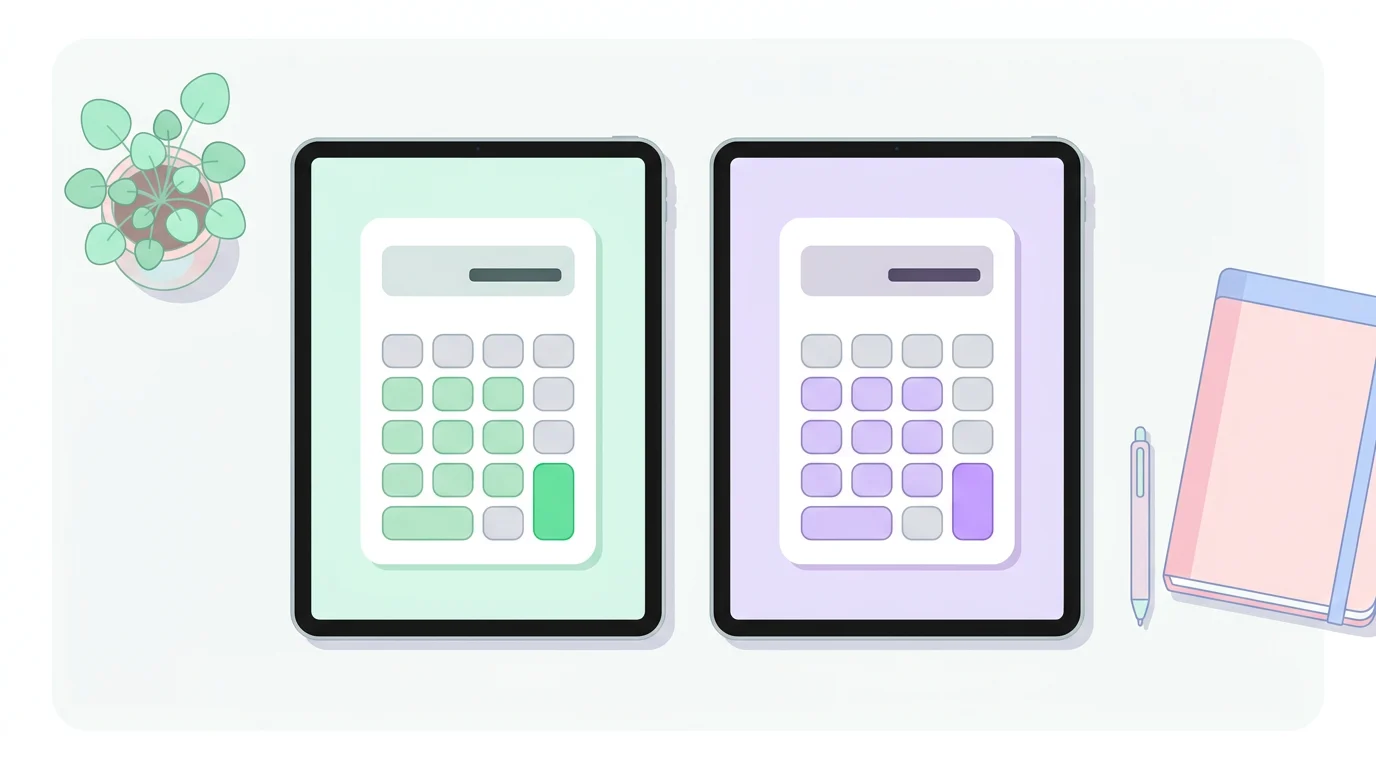
Rounded keys in soft colors and a calm display, so the calculator looks like part of your Notion page instead of a grey box from another app. Six color sets to match it.
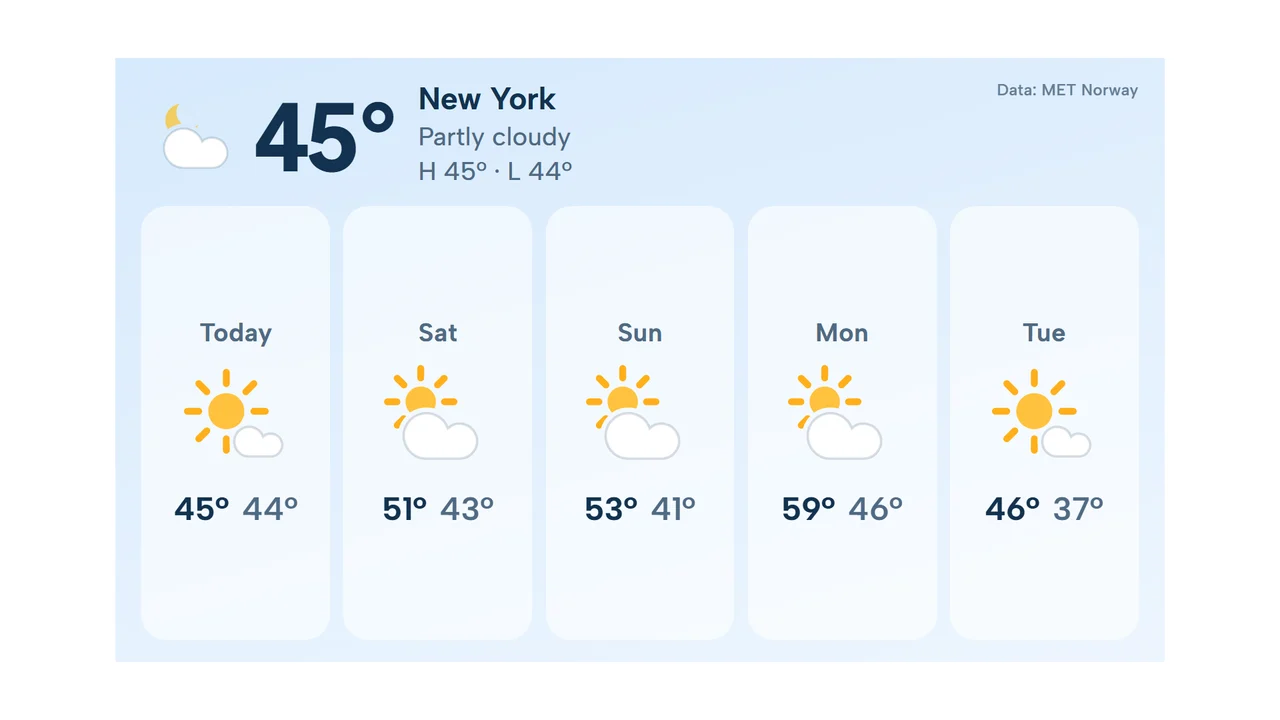
A live forecast card for your city, with the weather now, today, five days or the hours ahead.
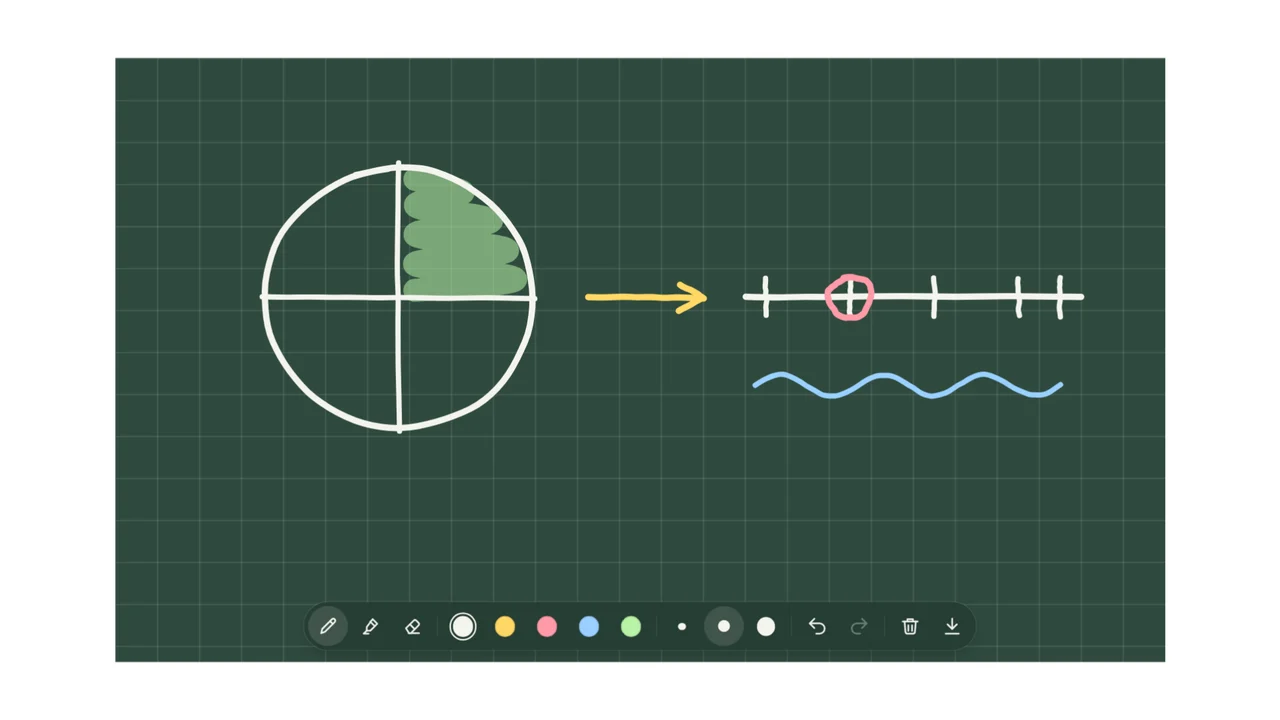
A board to draw on inside Notion, with a pen, highlighter, eraser and four kinds of paper.
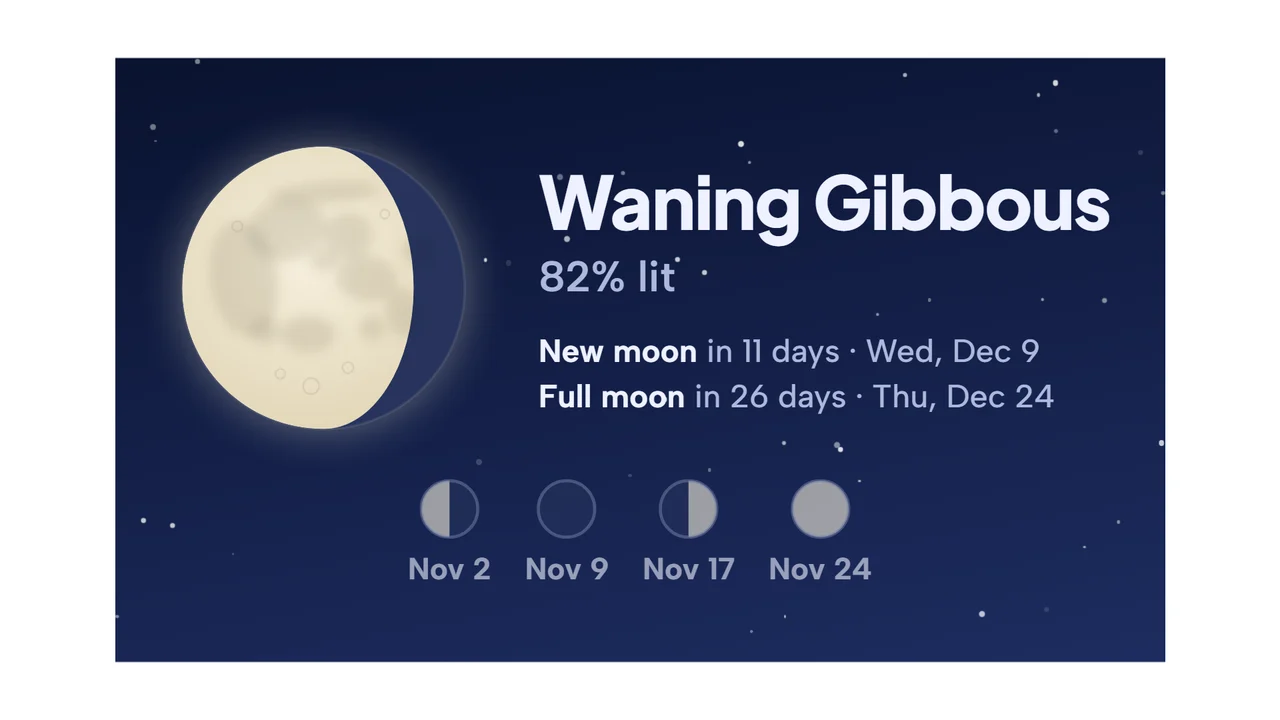
Tonight’s moon drawn true to its shape, with the next full and new moon.
Yes. The calculator is free to set up, copy and use on as many Notion pages as you like. There is no account to make, no trial, no watermark and no ads, and nothing you type leaves the page.
Choose the keys, the colors and the key shape at the top of this page, then press Copy Widget Link. In Notion, click where the calculator should go, paste the link and choose Create embed. Drag the corners of the block to make it the size you want.
Yes. Angles start in degrees, so sin(30) is 0.5. The DEG key on the calculator switches to radians and back, and the display shows which one is on. You can also set the calculator to start in radians before you copy the link.
Yes. Click the calculator once, then type: numbers, + - * and / for the four operations, ^ for powers, brackets, % and !, Enter or = for the answer, Backspace to delete and Esc to clear. Each key lights up as you type it.
The percent key takes a percent of what comes before it, as most calculators do. 200 + 10% is 220 and 200 − 10% is 180, while 200 × 10% is 20. On its own, 15% is 0.15.
It keeps the last sum on the line above the answer, so you can see what you typed. Nothing is saved after that, and nothing is sent anywhere. When the Notion page reloads, the calculator starts again at 0.
Yes. The calculator is part of the Notion page, so it works wherever the page opens: the Notion app on iPhone, iPad and Android, the desktop app and the browser. On a phone or tablet, tap the keys.
Come back to this page and press Change a widget you added, under the preview. Paste the calculator’s link (in Notion, ••• then View original shows it), change what you like and copy the link again. In Notion, choose ••• then Replace and paste it: the calculator keeps its place and size.

The Complete Bundle has every Notion4Teachers template, with the Ultimate Teacher Planner at its heart.
Get Complete Bundle40% OFF!