
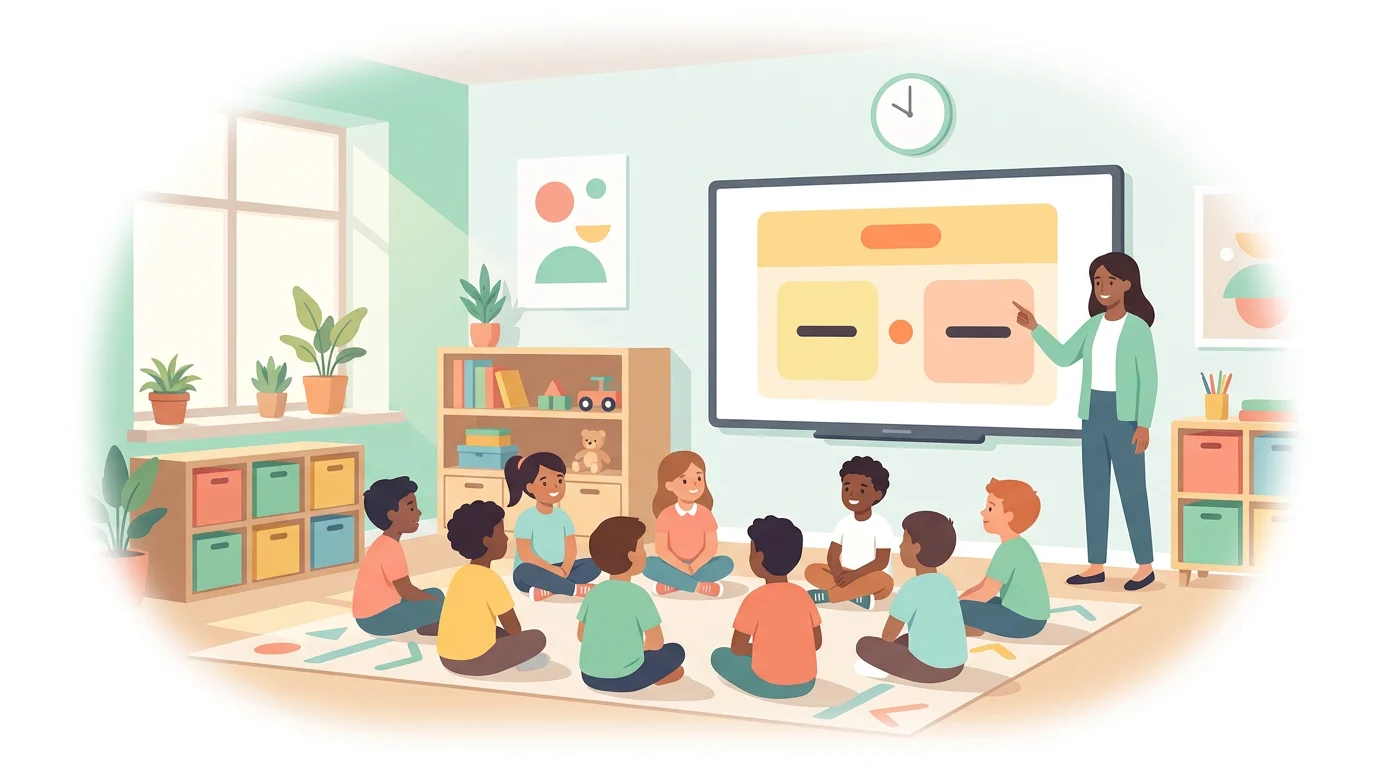
At the morning meeting
Project your class page and today’s question is on the board before anyone sits down. Go around the circle, or turn a Would you rather into a quick vote with one side of the room for each choice.
Pick the kind of question and your students’ age, choose the colors, copy the link, and paste it into any Notion page. A new question is waiting every morning.
A mix of all 520, from every kind below.
“Pizza | Tacos” draws two sides.
Today in Room 12
www.notion4teachers.com/embed/question-of-the-dayA question of the day widget is a small web page that shows one question inside your Notion page. You paste its link into Notion, choose Create embed, and the block shows a new question each day by itself. This one picks from 520 questions we wrote for six kinds and four ages, or from your own list, and lets you choose the colors, font and extras before you copy the link. Nothing to install, and no account.
Teacher Home
Any time a class needs one good question to get talking or writing. Three moments where it earns its place:
Project your class page and today’s question is on the board before anyone sits down. Go around the circle, or turn a Would you rather into a quick vote with one side of the room for each choice.
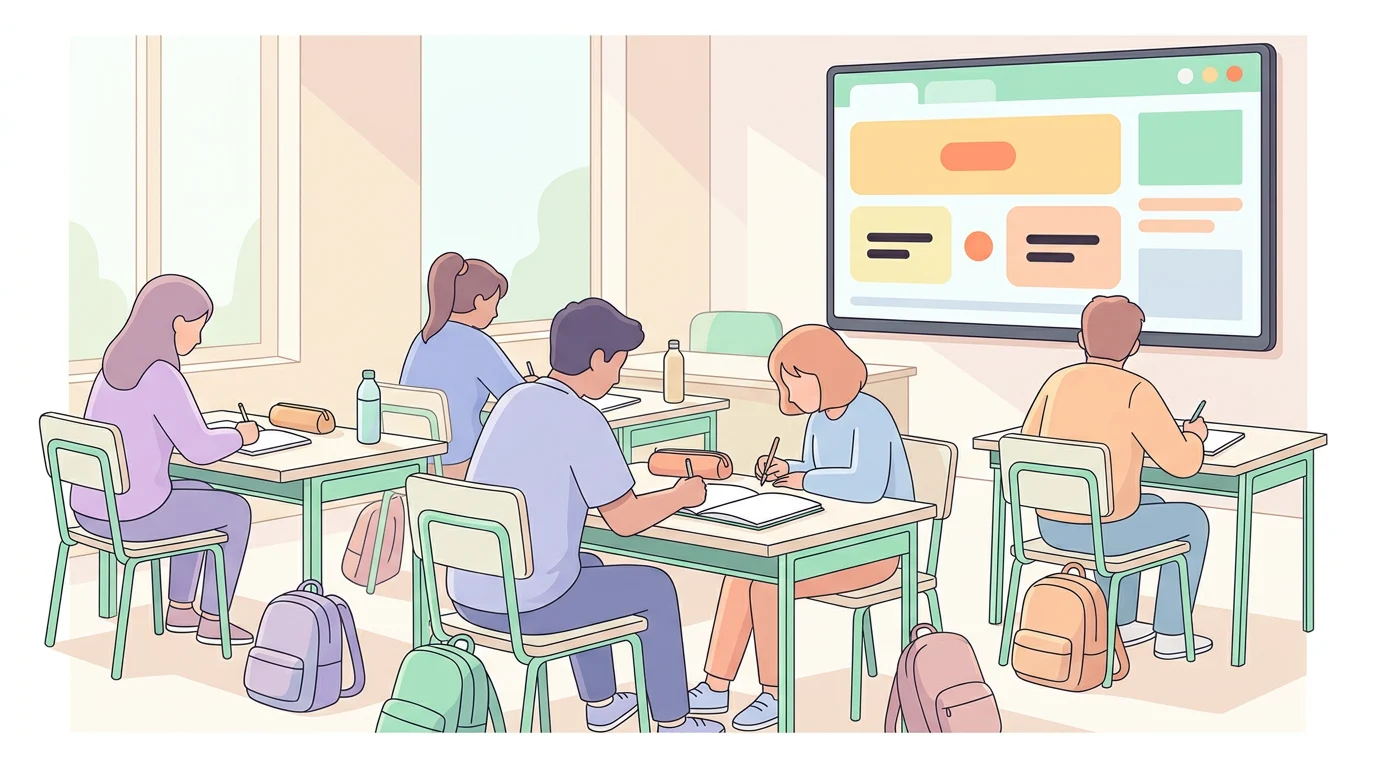
Students walk in, read the question on the screen and start writing in their notebooks while you take attendance. A Writing prompt or a Think deeper question fills the first five minutes with no planning on your part.

Put the widget at the top of a Notion journal page. Each day brings a Journal prompt to answer in a few lines below it, for students in class or for you at the end of the day.
Set it up once, copy the link, and the questions keep coming. Here is what you can change before you paste it into Notion.
The question changes with the date on the device that opens the page, so the whole class sees the same question on the same day for the kind and age you chose. Leave the page open overnight and the next one appears after midnight.
Get to know you, Would you rather, This or that, Think deeper, Writing prompts and Journal prompts, or a mix of every kind. Pick the age, from K–2 to high school and adults, and the questions fit the room.
Would you rather and This or that show their two choices as two colored sides with or between them, ready for a vote or for one corner of the room each. Turn it off to show the question as one sentence.
The question fills the block in bold type that reads from the back row, and shrinks to fit a narrow column. Seven color sets, from Sunny to Chalkboard and Night, and four fonts, from a clean sans to a handwritten one.
Type your own questions, one a line, with a bar between two choices. Change the line on top to your class name or Morning meeting, add today’s date, and keep the Another button for when the class wants a second question.
Five steps, about a minute. The same steps work for every widget on Notion4Teachers.
Pick the kind, the age and the colors at the top of this page.
Press Copy Widget Link. Everything you chose is part of the link.
Click where the question should go on your Notion page and paste.
Notion asks what to do with the link. Choose Create embed.
Pull the block’s corner until the question reads from the back of the room.
The Ultimate Teacher Planner sets up your classes, lessons, grades and attendance in Notion. Put your widgets at the top of it in a minute.
See the Teacher PlannerA list needs someone to pick from it every morning. This one picks the question for you and puts it on the board.
The block shows the question and the touches you chose, nothing else. No pop-ups, no logos and no links out.
No questions about money at home, religion, politics, bodies or looks, and no brand names.
Each question is marked with the ages it suits, from K–2 to high school and adults.
The question fills the block, so a wide embed on the projector reads across the room.
No account and nothing saved on our side. Change a setting, copy the new link.
It reads the date on the device it runs on, so there is nothing to update.
Anyone who starts a group, a class or a page with one good question.

For the morning meeting, bell work, a circle on Fridays or the last five minutes before the bell. Pick the age once, and the class has a fresh question waiting on the board every day of the year.

On a Notion journal or study page, with a Journal prompt or a Writing prompt each day to answer in a few lines. It turns a blank page into a place to start.

On the day’s lesson page, as the first thing to talk about over breakfast or before a session. Think deeper questions work well for a conversation between two or three people.

We wrote all 520 questions for a classroom and marked each with the ages it suits. Nothing asks about money at home, religion, politics, bodies or looks, so every student can answer without feeling put on the spot.

Would you rather and This or that put each choice on its own colored side, so a class can vote at a glance or walk to one side of the room. Your own choices work the same way.

Set the widget up on this page and copy the link: nothing to register and nothing to pay. Your settings live in the link, so there is no saved widget to lose and nothing stored on our side.
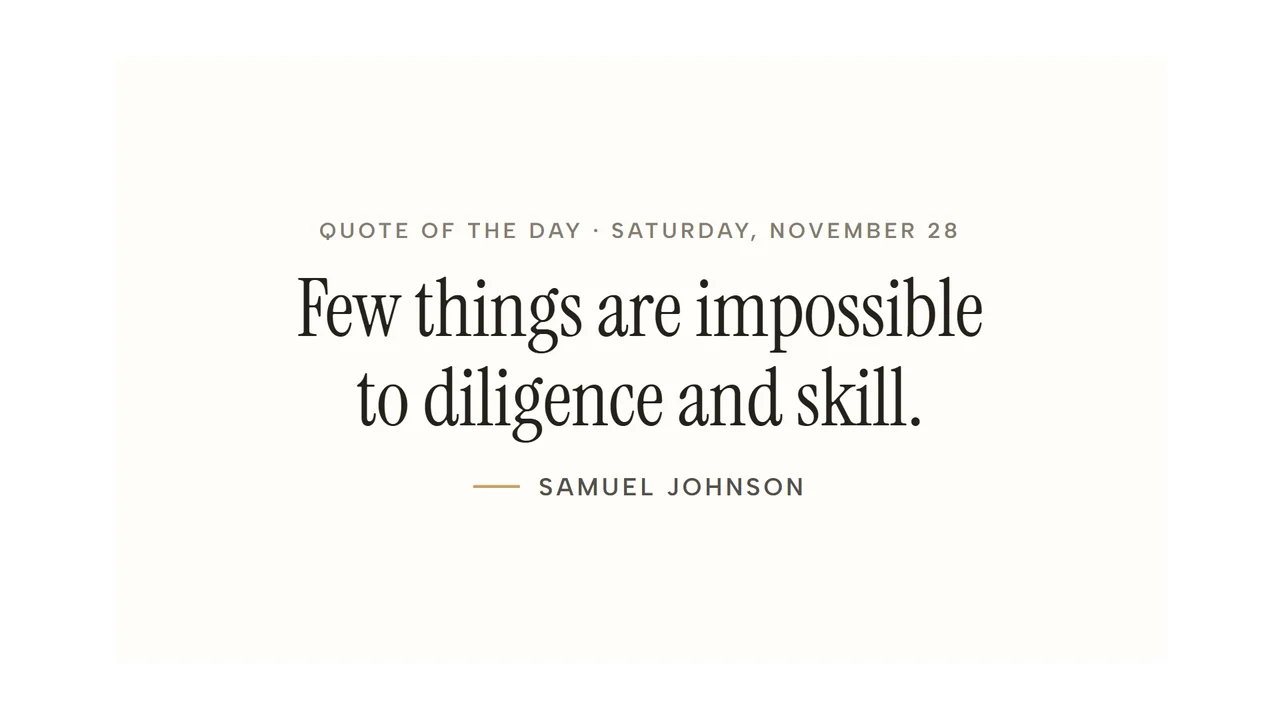
A new quote every day in soft colors, from real authors or your own list.

Calm quotes over slowly moving scenes, from a misty lake to rain on a window.
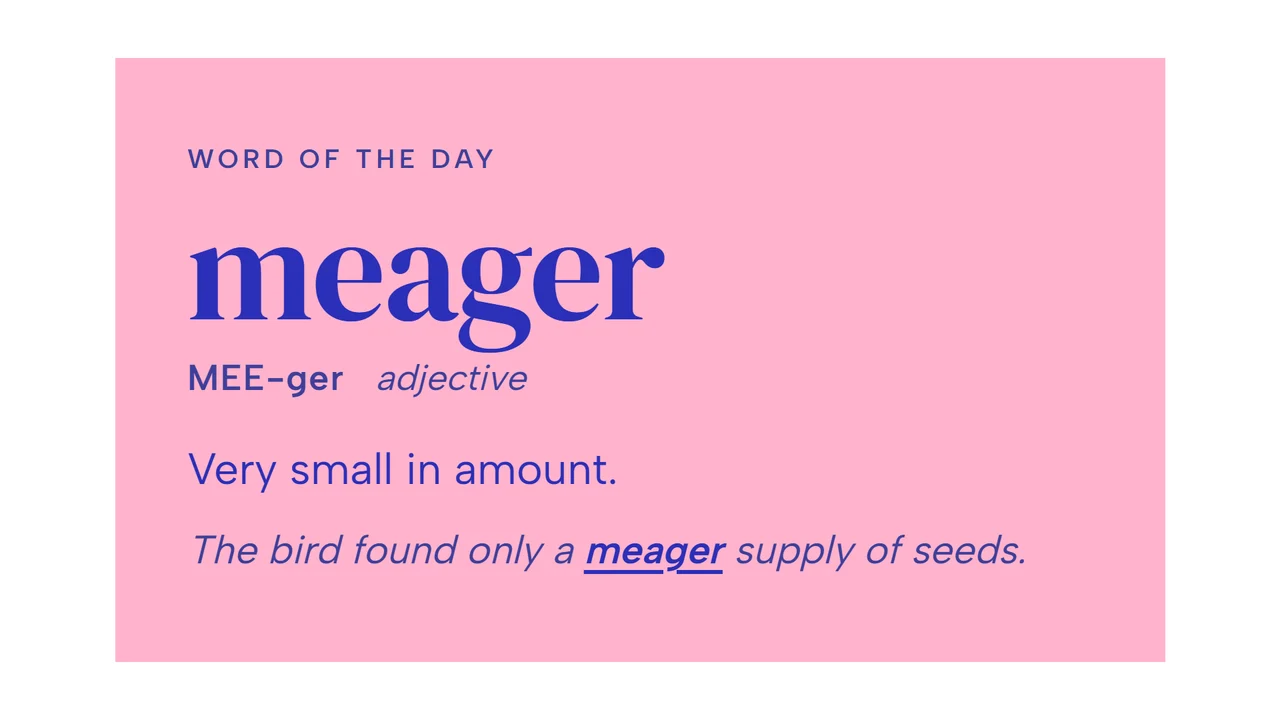
One new word a day with how to say it, its meaning and an example, at your class’s level.
Yes. The widget is free to set up, copy and use on as many Notion pages as you like. There is no account to make, no trial and no watermark, and nothing inside the block but the question and the touches you choose.
Set up the widget at the top of this page and press Copy Widget Link. In Notion, click where you want the question, paste the link, and choose Create embed from the menu that appears. Then drag the corners of the block until the question is big enough for the room.
Yes, on the same date. The widget picks the question from the date on the device that opens the page, for the kind and age you chose, so every student looking at your page that day sees the same one. It changes at midnight by itself.
Six: Get to know you, Would you rather, This or that, Think deeper, Writing prompts and Journal prompts. Choose one under Kind, or Every kind for a mix of all six. Would you rather and This or that show their two choices as two sides of the block.
Yes. Under Age, choose K–2, 3–5, Middle school, or High school and adults. Each question is marked with the ages it suits, so the youngest students get short, simple questions and older students get ones with more to think about. The question changes when you change the age.
We wrote all 520 for school. None asks about money at home, religion, politics, bodies, looks or hard times, and none names a brand or a famous person. They are kind, open questions that any student can answer without feeling left out.
Yes. Under Kind, choose My own questions and type them in the box, one a line, up to 1,200 characters. Write two choices with a bar between them, like Pizza | Tacos, and the widget draws them as two sides. It shows one a day, in the order you typed them.
Yes. Press Another at the bottom of the widget, which is on unless you turn it off under Extras, for the next question, for that visit only. In an embed you can also click the widget and press Space or the right arrow, and the left arrow goes back. When the page opens again, it shows the day’s question.

The Complete Bundle has every Notion4Teachers template, with the Ultimate Teacher Planner at its heart.
Get Complete Bundle40% OFF!