
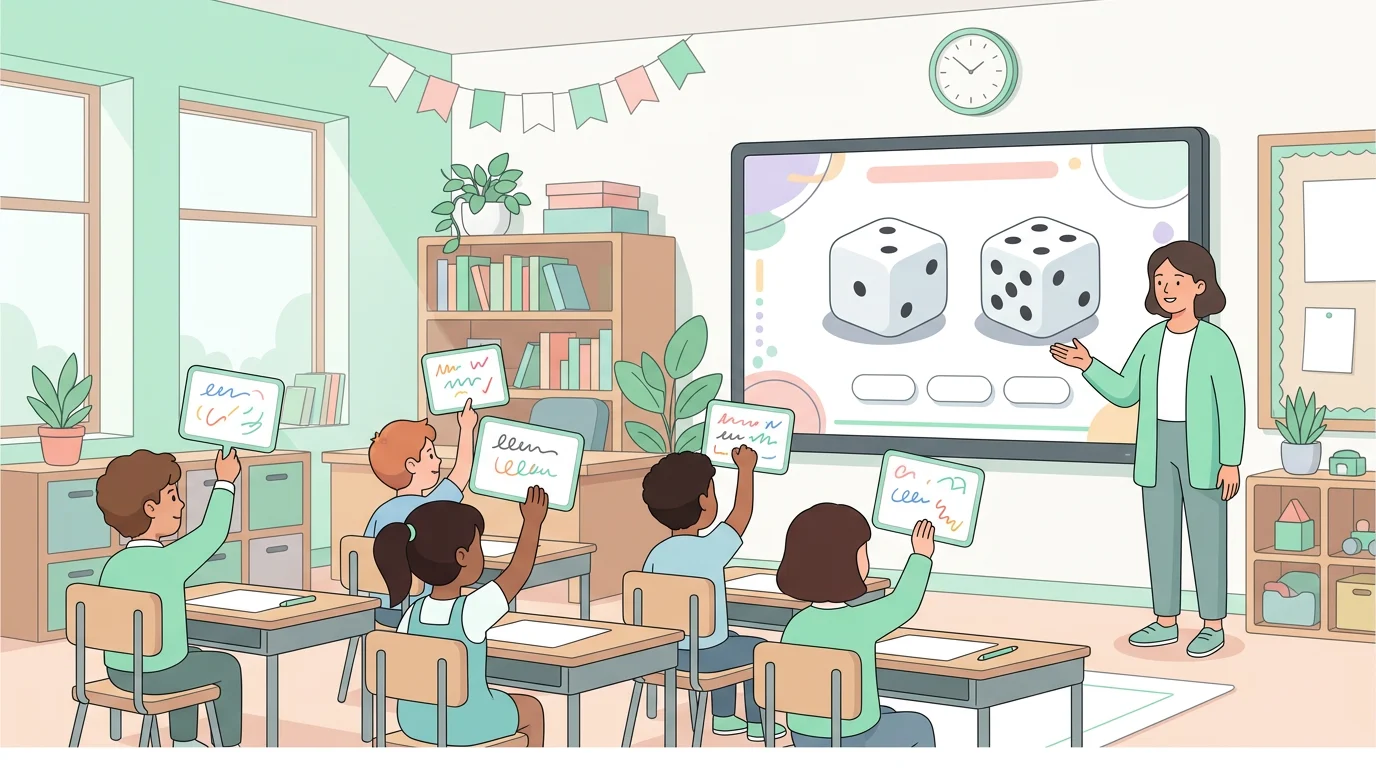
Math games and number practice
Roll two dice for addition facts, three for bigger sums, or a d12 for times tables. The dice and the total are large on the classroom screen, so everyone works from the same numbers.
Choose how many dice and which kind, then copy the link and paste it into Notion. Press Roll and the dice tumble, with the total beside them.
Today in Room 12
www.notion4teachers.com/embed/dice-rollerA dice roller widget is a small web page with dice you can roll, made to sit inside a Notion page. You paste its link into Notion, choose Create embed, and press Roll or tap the dice in the block. This one rolls one to six dice, six-sided with dots or numbers or game dice from d4 to d20, shows the total and the last rolls, and comes in six color sets. Nothing to install, and no account.
Teacher Home
Whenever a game or a lesson needs a roll the whole room can see. Three moments where it helps:
Roll two dice for addition facts, three for bigger sums, or a d12 for times tables. The dice and the total are large on the classroom screen, so everyone works from the same numbers.

Roll to see how many points a question is worth, how far a team moves on the board, or who goes first. A tap on the dice rolls them, so a student can roll from the smartboard.

Roll the same dice again and again and watch the totals in the last rolls. With every face equally likely, the class can tally the results and compare them with what they expected.
Set the dice once, copy the link, and roll whenever you need. Here is what you can change before you paste it into Notion.
Roll a single die or up to six at once. The dice grow and shrink with the block and line up in rows to stay as large as they can, so six dice still read from the back of the room.
Choose four, six, eight, ten, twelve or twenty sides. Six-sided dice show dots, or numbers if you prefer, and the game dice are drawn as their own shapes with the number on top.
With two or more dice, the total shows beside the Roll button, and the last rolls line up after it as totals. They are kept in that browser, so the page opens with the last roll still showing.
Press Roll, tap the dice or press Space, and each die hops and spins with its faces flicking by before it lands. A rattle plays after a press if you want one. With reduced motion, the faces simply change.
Paper and Night dice, Mint, Blush and Ocean to match your page, and Rainbow with a different color for each die. Keep the background clear so Notion’s own color shows, or make it solid.
Five steps, about a minute. The same steps work for every widget on Notion4Teachers.
Choose how many dice, which kind and the colors at the top of this page.
Press Copy Widget Link. Everything you chose is part of the link.
Click where the dice should go on your Notion page and paste.
Notion asks what to do with the link. Choose Create embed.
Pull the block’s corner until the dice are as big as you want.
The Ultimate Teacher Planner sets up your classes, lessons, grades and attendance in Notion. Put your widgets at the top of it in a minute.
See the Teacher PlannerReal dice roll off desks and are hard to see from the back. These stay on your page, big and fair.
Every face has the same chance, from your browser’s secure random numbers.
The dice fill the block, so a wide embed on the projector reads across the room.
A clear background takes your page’s own color, and the buttons read on both.
Only your dice, Roll and the total. No pop-ups, no banners, no sign-in.
No account and nothing stored on our side. Change a setting, copy the new link.
It runs in the Notion embed on any computer, tablet or phone that opens the page.
Anyone who needs a fair roll on a page they already use.
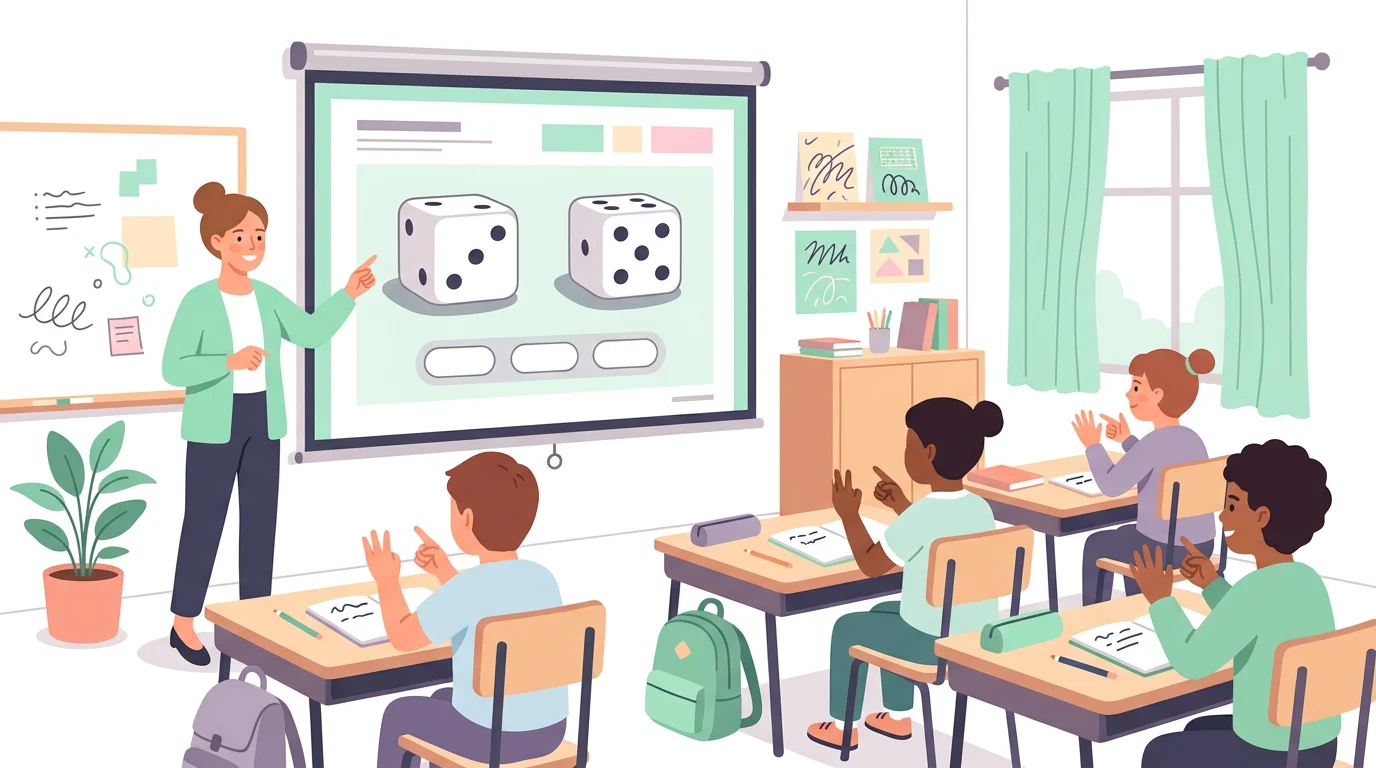
For math games, review games and probability lessons on the classroom screen. Everyone sees the same roll and the total, and nobody chases dice across the floor.

On a study page or a game night page, for board games, story games and character sheets. Pick the d20 or any other die, and the last rolls keep track of what came up.

On the day’s math page for number games with a child, from counting dots on one die to adding three. Rainbow dice make it bright, and a tap on the tablet rolls them.

Each face is chosen with your browser’s secure random numbers the moment you press Roll, so every face has the same chance. The tumble shows faces flicking by, then lands on the result.
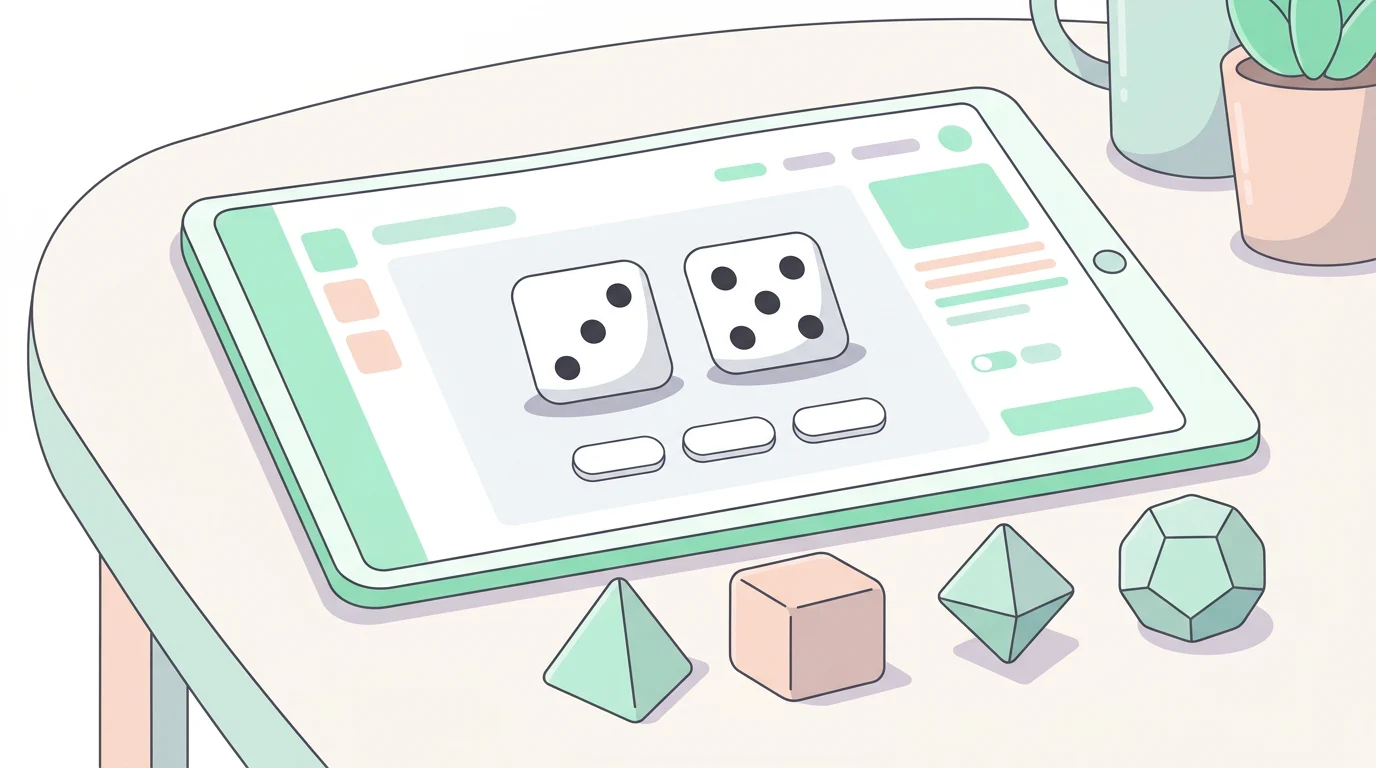
Many rollers give each kind of die a page of its own. Here one widget rolls one to six dice of any kind from d4 to d20, right inside the Notion page your lesson or game is on.
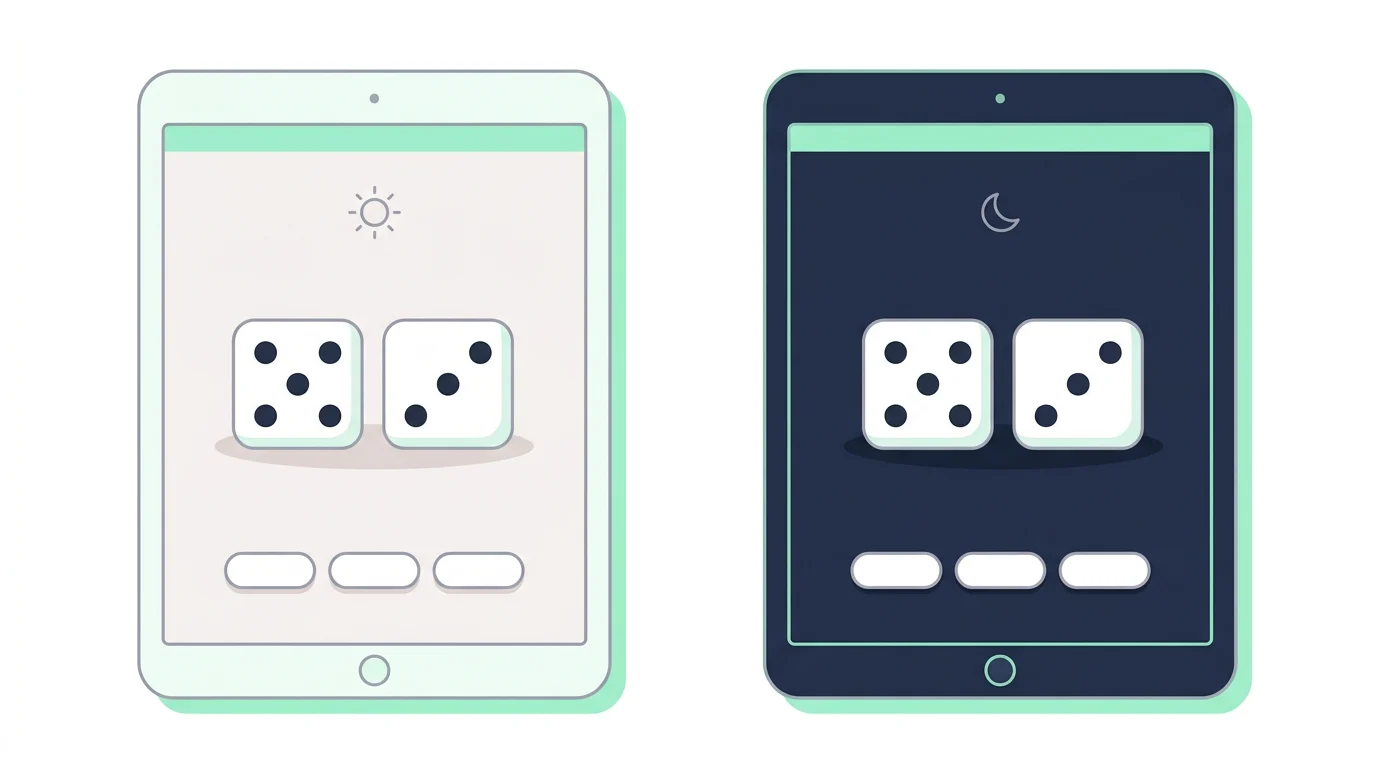
With a clear background the dice sit on your page’s own color, and the Roll button, the total and the last rolls each have a fill of their own, so they read in light and dark mode alike.
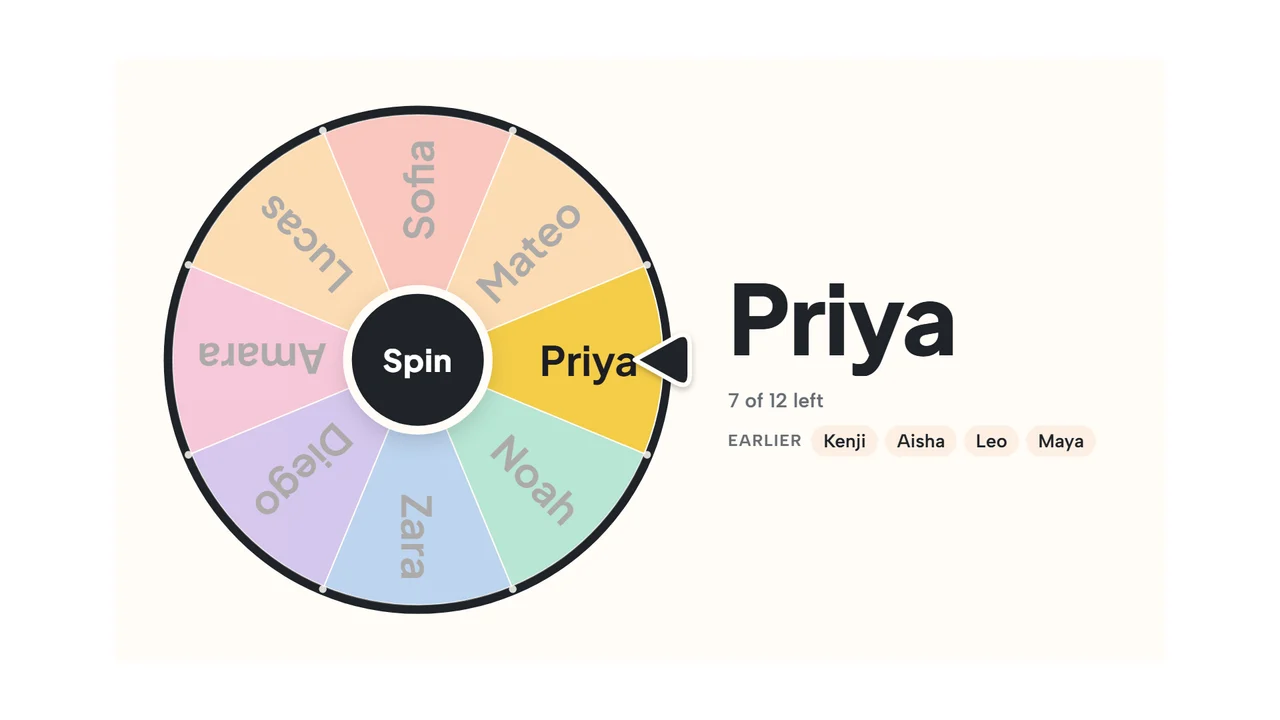
Spin a wheel of your class list and land on one name, fairly and with no repeats.
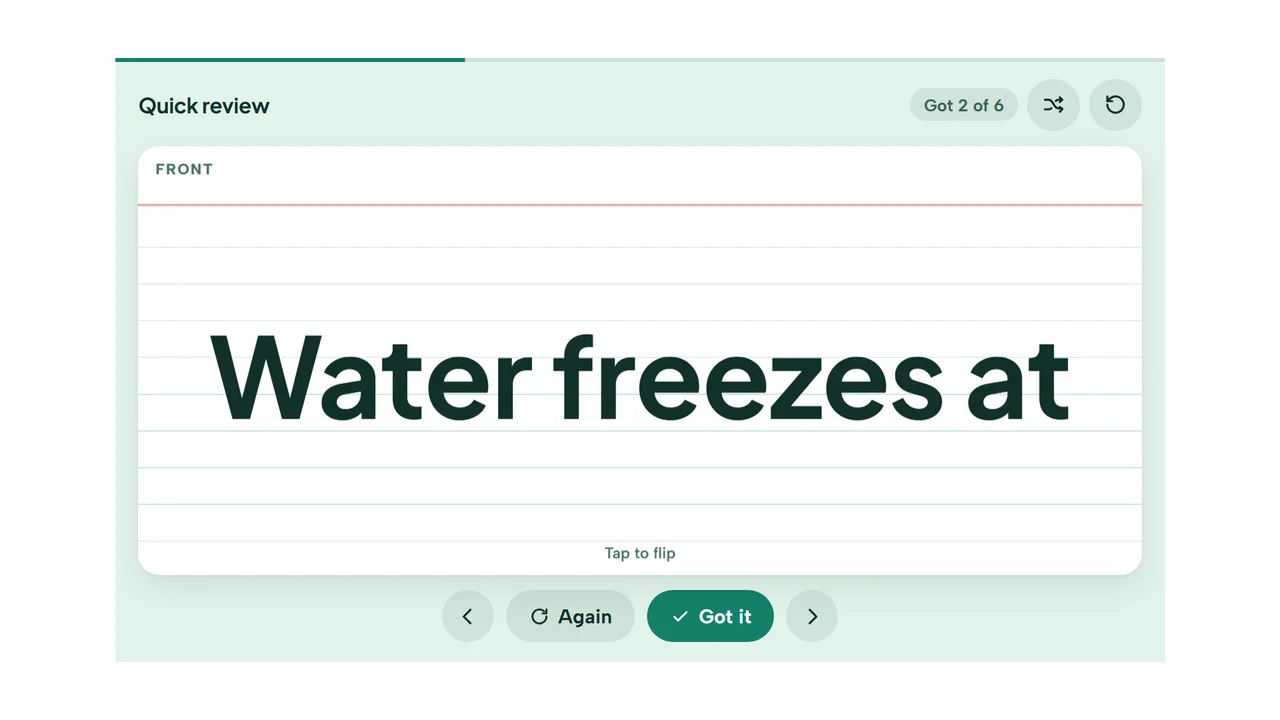
Type your cards once, then flip, shuffle and sort them into Got it and Again.
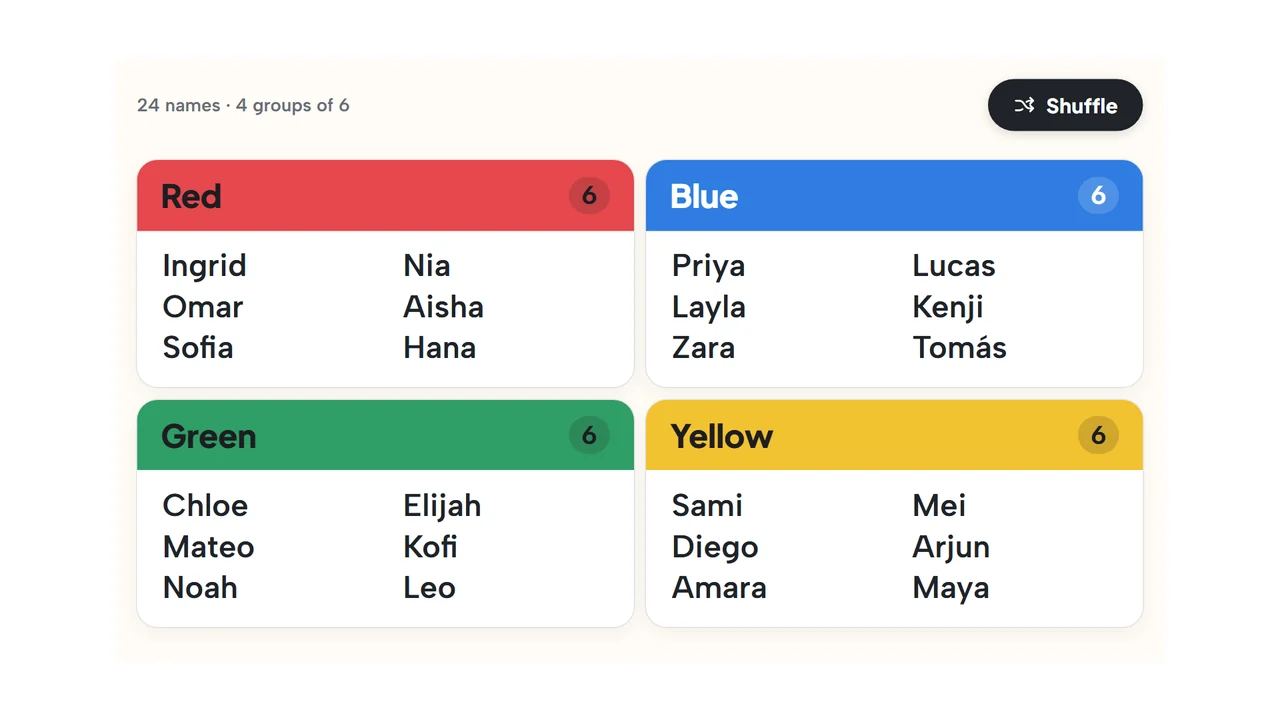
Split your class into fair groups or pairs, named your way, on cards the room can read.
Yes. The dice roller is free to set up, copy and use on as many Notion pages as you like. There is no account to make, no trial, no watermark and no ads inside the widget, and your rolls are never sent to us.
Choose how many dice, which kind and the colors at the top of this page, then press Copy Widget Link. In Notion, click where the dice should go, paste the link and choose Create embed. Drag the corners of the block to make the dice the size you want.
Yes. Each face is chosen with your browser’s secure random numbers the moment you press Roll, so every face of every die has exactly the same chance. The tumble only shows faces flicking by on the way to the result.
Yes. Under Each die choose four, six, eight, ten, twelve or twenty sides. The game dice are drawn as their own shapes with the number on top: a triangle for the d4, a diamond for the d8 and so on, up to the d20.
One to six. With two or more, the total shows beside the Roll button, and the last rolls show as a row of totals after it. With one die, the die itself is the result, so the total is left out.
Yes. Tap the dice themselves, or press Space after clicking inside the widget. That is handy on a classroom screen or a smartboard, where a tap anywhere on the dice rolls them all.
It can. With Rattle when rolled ticked, the dice rattle and land with a soft click, but only after a press on Roll or on the dice, never when the page opens. Untick it before you copy the link for silent dice.
Choose a clear background and the dice sit on your Notion page’s own color, light or dark. The Roll button, the total and the last rolls each have a fill of their own, so they read on both. Night gives dark dice.

The Complete Bundle has every Notion4Teachers template, with the Ultimate Teacher Planner at its heart.
Get Complete Bundle40% OFF!